

ScreenFlow is a tool for macOS that combines screen recording with post-production editing. It supports the capture of audio, screen activity, and camera footage, and includes a variety of built-in editing tools along with an extensive library of assets. This software is frequently used for creating presentations, tutorial videos, online course content, and more.
Is ScreenFlow Available for Windows
Unfortunately, ScreenFlow is designed exclusively for the macOS platform and does not currently run on Windows. However, like me, many other users are on the lookout for screen recording software for Windows that offers similar recording and editing capabilities.
Fortunately, I have discovered several such tools available for Windows, and based on their specific features, I have selected the following 6:
- Clipchamp
- MiniTool Screen Recorder
- ShareX
- Camtasia
- OBS Studio
- Bandicam
6 Best ScreenFlow Windows Alternatives
Before taking a closer look at the six ScreenFlow alternatives mentioned above, I’ve put together a simple comparison table to help you quickly identify the one that best suits your needs:
| Software | Free to Use | Watermark | Editing Tools | Real-time Annotation Tools |
| Clipchamp | Yes | No | Yes | No |
| MiniTool Screen Recorder | Yes | No | No | Yes |
| ShareX | Yes | No | Yes | No |
| Camtasia | Free trial | Yes (free trial) | Yes | Yes |
| OBS Studio | Yes | No | No | No |
| Bandicam | Free version | No | Yes | Yes |
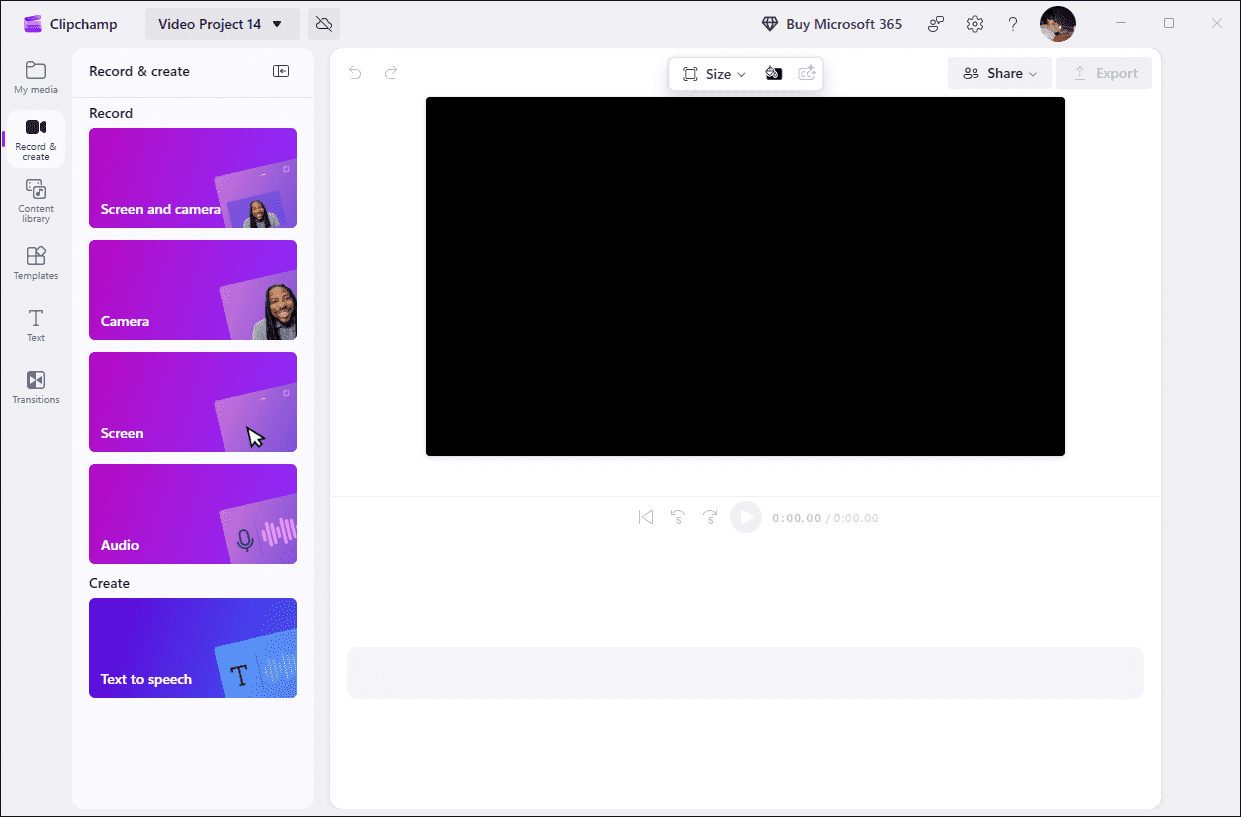
#1 Clipchamp
I mostly use Clipchamp 4.5 when I need to record a quick screen walkthrough or trim a short video before sharing it with teammates. The interface is simple enough that I don't have to spend time figuring things out.https://www.g2.com/products/clipchamp/reviews
Clipchamp is the official, built-in video recording and editing tool for Windows 11, available for use either directly on the desktop or via a web browser. It features multi-mode capture capabilities, allowing users to record their webcam, audio, and screen simultaneously, or to capture audio and webcam footage individually.
Furthermore, much like ScreenFlow, Clipchamp includes powerful built-in video editing features. The application leverages AI to automate tasks such as video trimming, the removal of silent segments, text-to-speech conversion, and the generation of subtitles.
Use Cases
As a long-time Windows user who has used Clipchamp frequently, I found it very suitable for beginners and educators. The reason is that Clipchamp’s page is very simple, and I can get started easily. What’s more, its AI editing function allows novices to set it up hands-off, and its rich built-in material library is also very suitable for teachers to create beautiful teaching videos.
However, I think Clipchamp isn't suitable for making long videos because each recording is limited to 30 minutes.
#2 MiniTool Screen Recorder
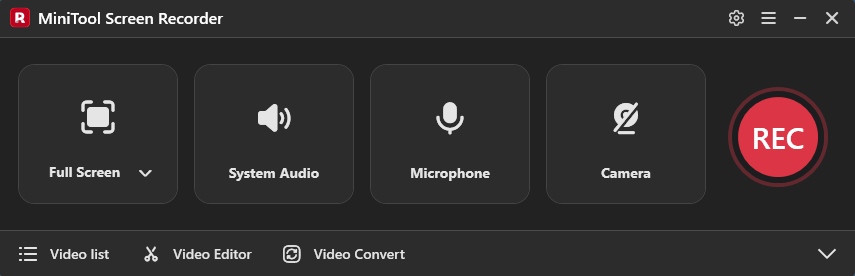
MiniTool Screen Recorder supports recording your computer screen. You can choose whether to record system audio or microphone audio. Furthermore, this screen recorder supports webcam recording. Both the computer's built-in webcam and external webcams can be recognized and selected. This is ideal for recording gameplays and tutorial videos.https://www.prnewswire.com/news-releases/discover-minitools-new-screen-recorder-the-perfect-solution-for-all-your-recording-needs-302649217.html
MiniTool Screen Recorder is a free alternative to ScreenFlow for Windows. It offers various recording modes, allowing users to capture the screen, audio, and webcam feed; it can even record extended displays.
Moreover, the application includes built-in, user-friendly annotation tools, enabling users to highlight key information within their recordings. Notably, MiniTool Screen Recorder imposes no time limits on recordings, and the captured content will not have any watermarks added.
Use Cases
After trying it out, I think this tool is suitable for users who are on a budget and want to make tutorial videos and demonstrate distribution operations. Additionally, I found that the custom settings of this app are also flexible. I can adjust the recording quality and recording frame rate, and also allow me to set the camera parameters according to my needs, so it is also a good choice for self-media users.
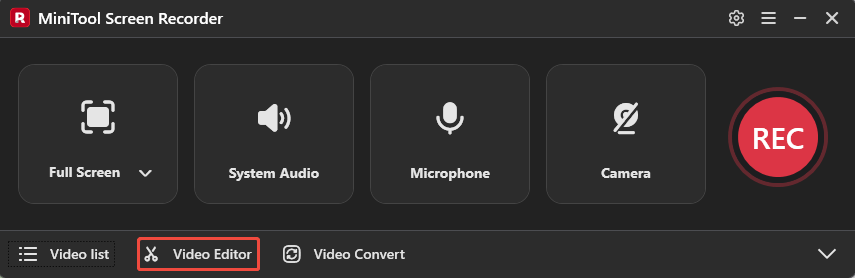
Even more, I found this tool to be great for capturing sports competitions, as it allows for preset recording durations, thus allowing me to keep my hands free. However, MiniTool Screen Recorder does not have built-in editing tools. If you need to edit the video after recording, you need to click on the Video Editor option to jump to the supported editing software.
#3 ShareX
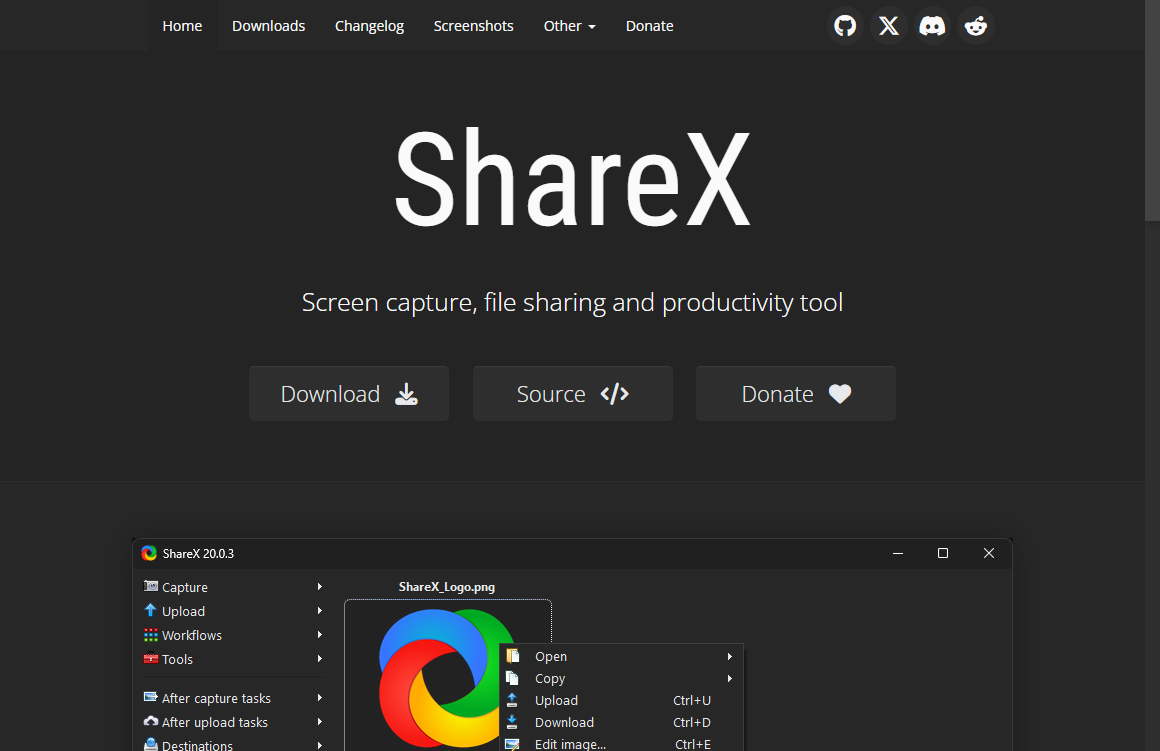
ShareX is a free screen recorder tool for PCs, and you’ll definitely get Millennium Falcon vibes when using it: it may not look like much, but it's got it where it counts. Underneath a sparse interface lies numerous tools that can help you make your screen captures shine.https://www.techradar.com/reviews/sharex-141
ShareX is a free, open-source ScreenFlow Windows alternative. It seamlessly integrates features such as screen capturing, screen recording, editing, and file sharing. Unlike the two previously mentioned recording tools, ShareX can record videos not only in MP4 format but also directly as GIFs.
While ShareX video editing capabilities are not as robust as those of ScreenFlow, it does allow for the addition of basic elements like arrows, text boxes, and numbered labels.
Use Cases
After examining the features of ShareX, I believe it is an ideal tool for professionals who frequently need to capture and share their screens. My conclusion is based on several factors: the application is completely free and adds no watermarks, allowing for immediate use at no cost.
Furthermore, ShareX offers powerful automated workflows. For instance, after a screen capture, the software can automatically save the file locally, upload it to a designated cloud service, and then generate a shareable link, which is automatically copied to the clipboard. This functionality is exceptionally well-suited for team collaboration.
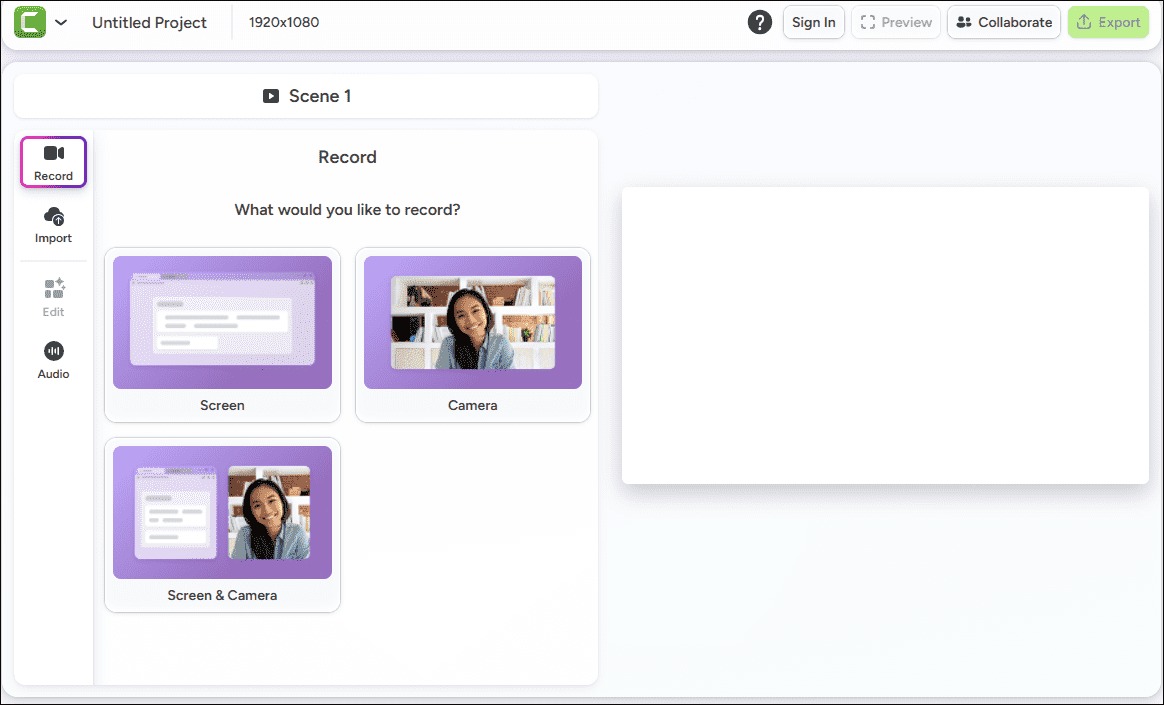
#4 Camtasia
Users consistently praise Camtasia for its ease of use and intuitive interface, making it accessible for both beginners and experienced creators. Many appreciate how it streamlines the video creation process, allowing for quick edits and seamless integration with other tools.https://www.g2.com/products/camtasia/reviews
Camtasia is the closest equivalent to ScreenFlow for Windows. It seamlessly integrates screen recording with advanced video editing capabilities within a single software package. Although it is a paid product, many users are more than willing to pay for its robust and extensive feature set.
For instance, it supports multi-source capture and automatically organizes recorded content onto separate tracks within the timeline. Moreover, one of its most notable features is its "smart cursor" technology.
In simple terms, the software records the path of the mouse during screen capture, allowing users to modify the cursor's movement and appearance during the post-production editing process.
Use Cases
In summary, Camtasia is ideal for professionals who need to create specialized courses, tutorials, or product demonstrations. In addition to its intelligent cursor technology, this tool visualizes keystrokes, making it perfect for software presentations. What’s more, Camtasia's background and noise removal features further demonstrate its suitability for creating professional course videos.
#5 OBS Studio
I use OBS Studio for capturing gameplay to publish on YouTube and Instagram. I really like the high-resolution screen capturing it offers. It gives me many customization options, which is really helpful as a gaming YouTuber. I also appreciate that it separates different voice capturing.https://www.g2.com/products/obs-studio/reviews
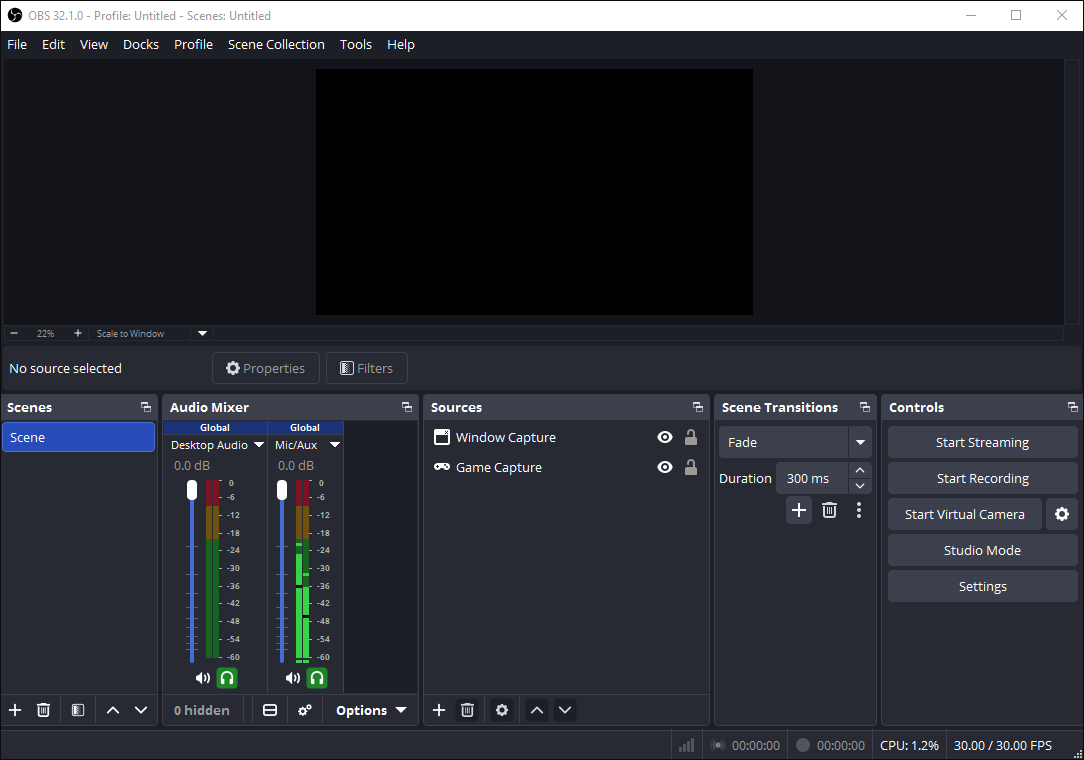
OBS Studio is a completely free, open-source recording tool that offers a comprehensive and highly flexible set of recording controls. It is widely popular for its ability to capture multiple sources simultaneously.
For instance, users can record their screen while also capturing audio (including from external devices), webcam feeds, and input from capture cards. For this reason, OBS Studio is also extensively used in the live-streaming community.
Better yet, the software supports multi-track recording, allowing you to capture up to six independent audio tracks at once. Additionally, if the system crashes or loses power during a recording session, OBS Studio’s crash-resistant recording format ensures that the footage captured up to that point remains intact and saved.
Use Cases
Based on my experience, OBS Studio is an excellent choice for streamers, gamers, and anyone who requires precise control over their recordings. Its highly customizable settings allow me to switch layouts on the fly, whether I'm gaming or live straming, to suit my sepcific needs.
Moreover, its multi-track recording feature is incredibly useful for tasks like recording webinars. That said, given the complexity of its features, OBS Studio is better suited for more professional or experienced users.
#6 Bandicam
Bandicam is a lightweight screen recorder for Windows that can capture anything on your PC screen as high-quality video. Also, it makes it possible to record a certain area on a PC screen, or capture a game that uses the DirectX/OpenGL/Vulkan graphics technologies.https://www.g2.com/products/bandicam/reviews
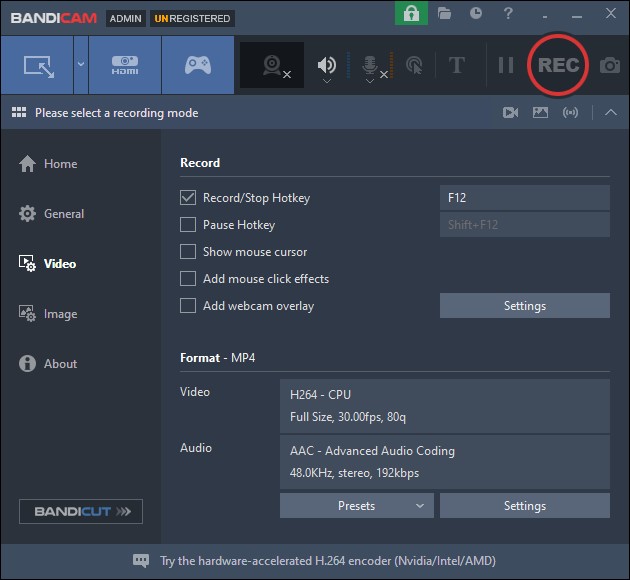
Bandicam is a lightweight screen-recording tool for Windows that offers three primary modes: screen recording, game recording, and device recording. The device recording mode is a standout feature, as it allows users to capture footage from external sources such as webcams, capture cards, game consoles, and even smartphones.
In addition, Bandicam delivers a highly smooth recording experience. Although it is capable of capturing footage at up to 480 FPS, its robust hardware acceleration ensures that performance remains fluid without any lag.
Like MiniTool Screen Recorder, this application includes real-time annotation tools. Even more useful is its mouse-click effects feature, which helps make instructional steps much clearer.
Use Cases
In my view, Bandicam is an excellent choice for gamers and professionals who frequently need to create demonstrations. Its game recording mode allows users to easily capture gameplay from both their computers and external devices.
Furthermore, the software includes real-time annotation tools and mouse effects, which help users clearly highlight each step when creating instructional content or demonstrating how to use software.
It is clear that Windows users have a variety of alternatives to ScreenFlow; while these options differ in terms of features and performance, they are all capable of meeting basic screen recording needs.

How to Screen Record with a ScreenFlow Alternative for Windows
Fast Track Steps:
- Open the ScreenFlow Windows alternative tool
- Choose the recording area
- Configure audio and webcam recording settings
- Start the recording process
- End the recording process
- Edit the recorded video
- Save the recorded video
Although the six ScreenFlow alternatives for Windows mentioned above differ in terms of features, their operational workflows are fundamentally the same. Therefore, this article focuses on just one of these tools, MiniTool Screen Recorder, to demonstrate the basic recording process.
1. Download and install MiniTool Screen Recorder
Click the button below to download MiniTool Screen Recorder, then follow the on-screen guides to install it on the computer.
MiniTool Screen RecorderClick to Download100%Clean & Safe
2. Select the recording area
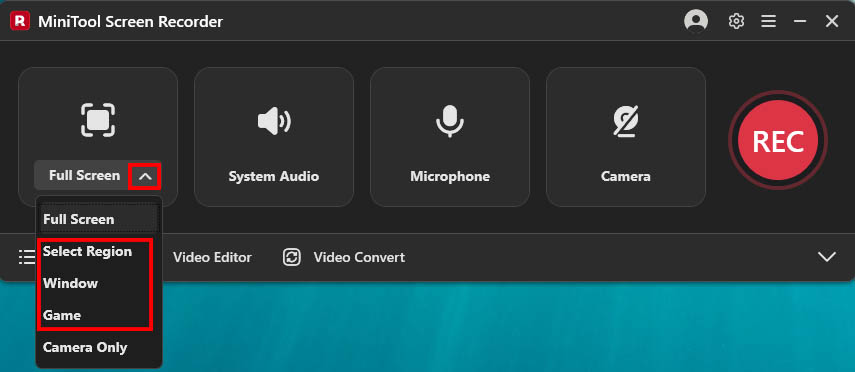
The tool sets the full screen as the default recording mode. To capture a specific area, window, or game, expand the drop-down menu next to the Full Screen option. Then, choose the relevant options in the menu.
3. Manage the audio and webcam recording settings
Before recording, check the audio and webcam recording settings. Both system audio and microphone recording features are enabled by default. To disable either of them, click the relevant icon. To include a webcam overlay while screen recording, click the Camera icon on the right.
4. Start recording
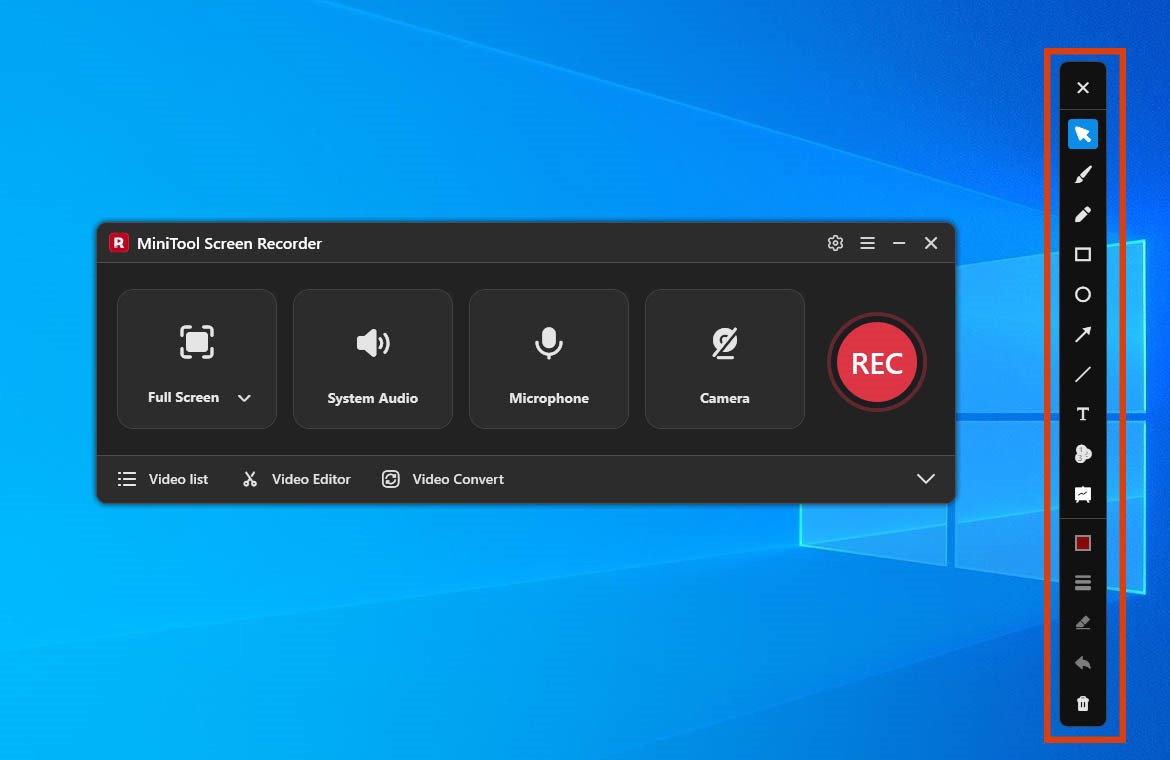
Then, click the REC button or press the F6 key to start recording. After a 3-second countdown, the recording process begins automatically. During the process, users can choose draw tools from the annotation toolbar on the right of the screen.
5. End recording
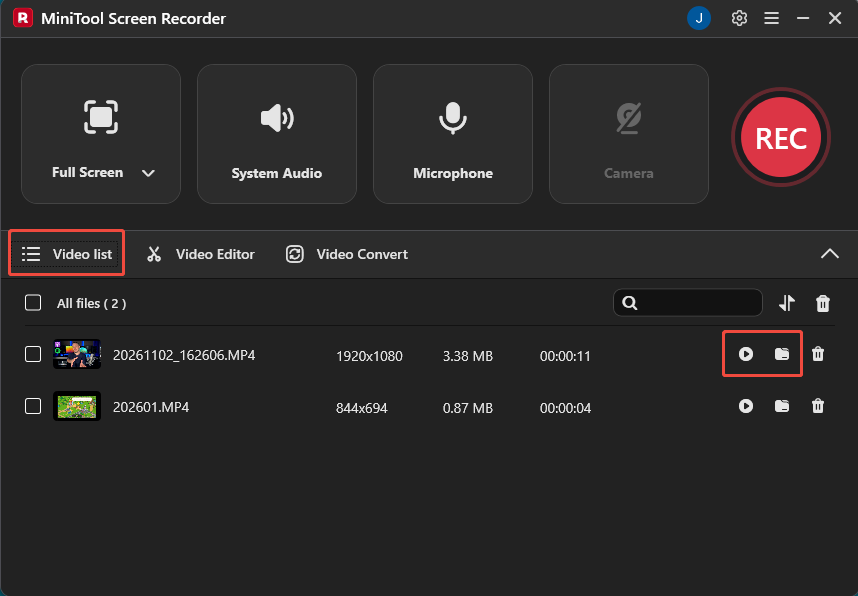
To end the recording process, press the F6 key. Then, the tool will automatically switch to the Video list section. Next, click the Play icon to view the recorded video or click the Folder icon to locate it on the computer.
6. Edit the recorded video
To edit the recorded video, click the Video Editor option to access the video editing tool for quick editing.
Conclusion
Although ScreenFlow is exclusive to macOS, Windows users still have plenty of alternatives. The six ScreenFlow for Windows alternatives presented in this article perform exceptionally well for tasks such as creating tutorials, recording gameplay, and producing software demonstrations; you can choose the one that best fits your specific needs.
If you have any questions when using MiniTool Screen Recorder, send an email to support@minitool.com.
People Also Ask
1. Open the target window.
2. Launch ScreenFlow.
3. Click the Partial Screen Recording button, then choose the target window.
4. Start and end the recording process.