

If Gyazo no longer meets your needs due to its feature limitations, pricing, or privacy concerns, consider trying one of these 6 alternatives: Snipping Tool, MiniTool Screen Recorder, ShareX, Snagit, OBS Studio, and ScreenPal. It also explains how to screen record with these tools step by step.
What Is Gyazo
Gyazo is a tool designed for quick screenshots and screen recordings. Its most notable feature is the ability to not only annotate and edit captures, but also upload files directly to the cloud. One might ask: Is Gyazo safe?
While Gyazo itself does not engage in the theft of user privacy, a security vulnerability in its technology was once exploited by hackers, resulting in the exposure of data belonging to over 100 million users. Consequently, the software has certain shortcomings regarding its security infrastructure.
Why Use a Gyazo Alternative
For various reasons, some users have begun looking for suitable alternatives to Gyazo:
- Privacy concerns: Gyazo automatically uploads users' screenshots or screen recordings; should any security vulnerabilities arise, there is a risk that this information could be exposed.
- Watermark restrictions: The free version of Gyazo adds a watermark to screen recordings.
- Duration limits: The free version of Gyazo limits recordings to 7 seconds, and even with a paid subscription, the maximum recording duration is only 3 minutes.
6 Best Gyazo Alternatives
The 6 tools below are the ones I have selected as worth trying, based on their functionality and ease of use:
- Snipping Tool
- MiniTool Screen Recorder
- ShareX
- Snagit
- OBS Studio
- ScreenPal
Quick Comparison:
| Tool | Free to Use | Platform | Recording Time Limits | Annotation Tools |
| Snipping Tool | Yes | Windows | No time limit | Yes |
| MiniTool Screen Recorder | Yes | Windows | No time limit | Yes |
| ShareX | Yes | Windows | No time limit | Yes |
| Snagit | Free/Paid | Windows, macOS | 5 minutes in the free plan | Yes |
| OBS Studio | Yes | Windows, macOS, Linux | No time limit | Yes |
| ScreenPal | Free/Paid | Windows, macOS, Chromebook, mobile | 15 minutes in the free plan | Yes |
#1 Snipping Tool
Windows Snipping Tool is a fine free option for quickly taking, annotating, and sharing basic screenshots. Video recording makes it an even more viable tool for many users.https://www.pcmag.com/reviews/microsoft-snip
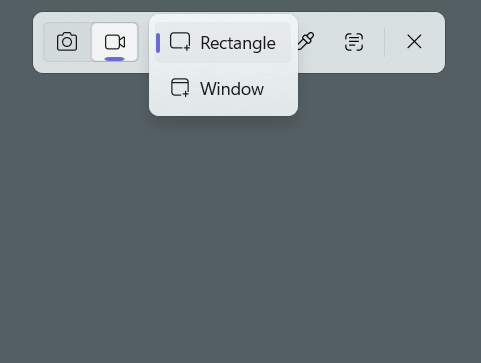
Snipping Tool is a built-in screenshot and screen-recording utility for Windows. It allows for various types of window captures, as well as screen recording in either full-screen or custom-selected areas. Unlike Gyazo, captured content is not automatically uploaded to the cloud, which helps ensure user security.
Furthermore, Snipping Tool is integrated with Clipchamp, allowing me to easily refine my recordings there once they are finished. That said, I have encountered issues, such as lag, when using the tool for longer recording sessions. Nevertheless, it remains an excellent option for users who prefer not to install additional software.
Best for: Windows users who need a quick and easy screenshot and screen recording
#2 MiniTool Screen Recorder
MiniTool has released Screen Recorder, a free screen recording tool for Windows designed to handle basic screen, audio, and webcam recording tasks without watermarks or time limits.https://betanews.com/article/minitool-releases-free-screen-recorder/
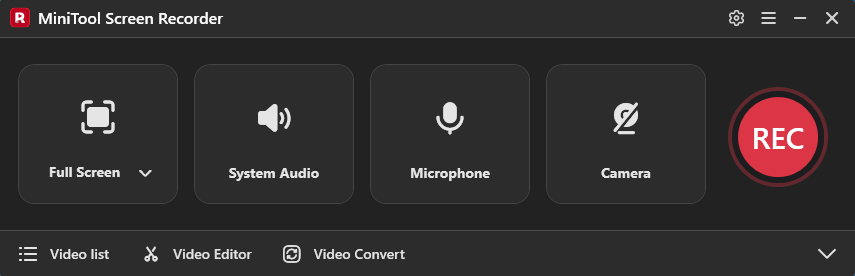
MiniTool Screen Recorder is a free alternative to Gyazo that focuses on screen recording. Its primary appeal lies in its versatility, as it can handle a wide range of recording requirements, capturing your screen, system or microphone audio, webcam footage, or even content from additional displays.
Furthermore, MiniTool Screen Recorder includes annotation tools. Unlike Gyazo, it allows me to annotate the screen in real-time while recording. It also imposes no limits on recording duration and offers a feature to pre-set a specific recording length.
Consequently, it is better suited than Gyazo for long-form recording tasks; however, a notable drawback is that it is currently only available for the Windows operating system.
Best for: Windows users who need to annotate the screen while screen recording for a long time.
#3 ShareX
ShareX is a free and open-source application for Windows that enables users to capture or record any area of their screen with a single keystroke. It supports uploading images, text, and various file types to a wide range of destinations. https://www.g2.com/products/sharex/reviews
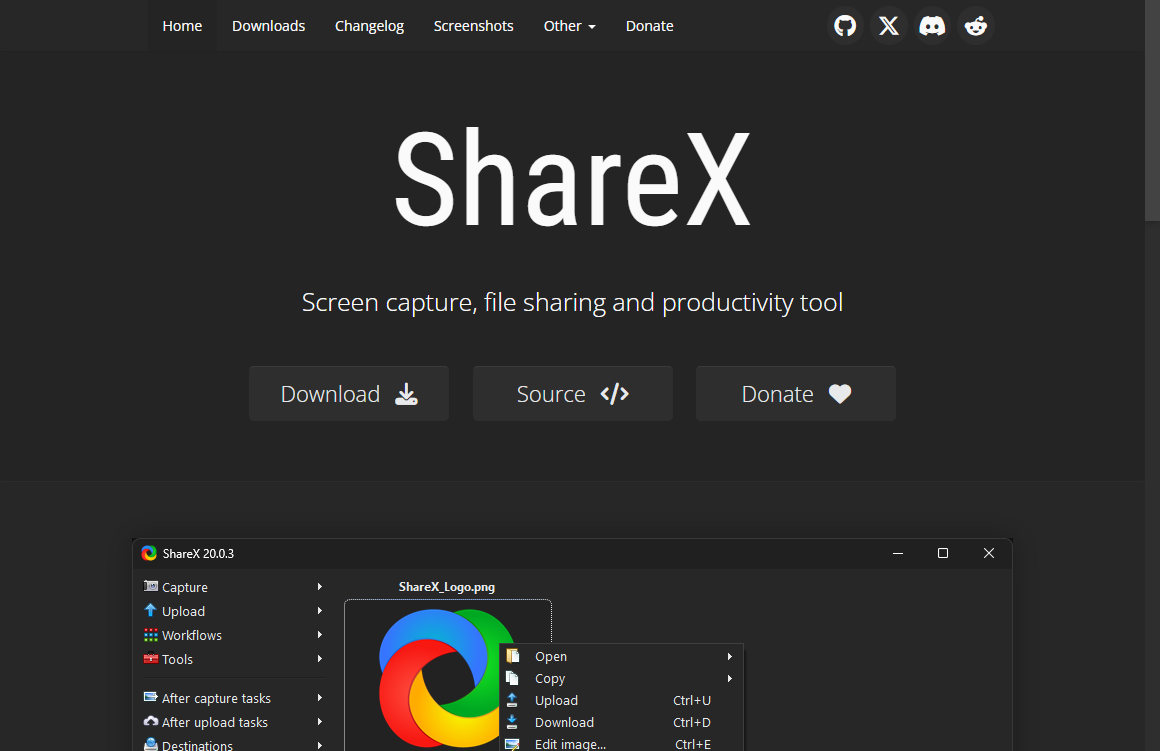
ShareX is a free and open-source software for Windows that supports both scrolling screenshots and screen recording. Compared to Gyazo, ShareX offers more powerful screenshot capabilities; it allows me to extract text directly from a captured image, which saves me the time I would otherwise spend typing it out.
Additionally, I can edit my screenshots using tools like blur, watermarking, and highlighting. The software’s recording features are also well worth trying. It enables users to capture screen content in full-screen mode, within specific windows, or in custom shapes.
Furthermore, much like Gyazo, ShareX allows me to upload my screenshots and recordings to the cloud and generate shareable links. That said, the interface is somewhat complex, and I had to explore the various options before I could get the hang of using it.
Best for: Users who require a high degree of automation for screenshots and screen recording.
#4 Snagit
Snagit is a beautifully designed, reliable, and efficient app that does just about everything screen-capture software should do.https://www.pcmag.com/reviews/snagit
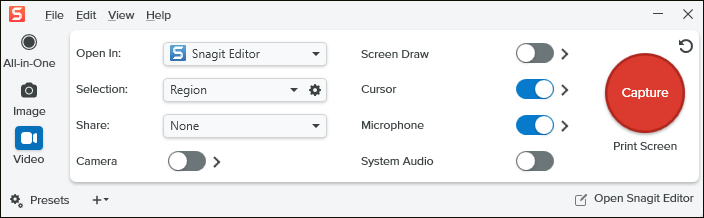
Although Snagit is a subscription-based Gyazo alternative, its powerful, all-in-one capture capabilities make it well worth a try. This not only allows for panoramic screenshots but also enables me to directly replace text within those captures.
What’s more, I’ve found Snagit to be excellent for creating tutorial videos; much like MiniTool Screen Recorder, it includes visual annotation tools, such as callouts, speech bubbles, arrows, and highlighters, that can be used during the recording process.
Perhaps most noteworthy is Snagit’s simplify tool, which lets me replace irrelevant text or images in my recordings with solid-colored blocks, helping to keep the audience’s focus where it belongs.
Additionally, once a screenshot or screen recording is complete, I can use the built-in editing features to refine the content. That said, while the software offers a 15-day free trial, it does come with a 5-minute limit on recording duration.
Best for: Users who always create tutorial videos or screenshots.
#5 OBS Studio
OBS Studio is a popular open-source solution for recording you gameplay, and more specifically, for blasting it out to the world. OBS Studio can broadcast your game streams to platforms like Twitch and YouTube, and OBS is also used for creating screencasts.https://www.pcworld.com/article/402776/obs-studio-review.html
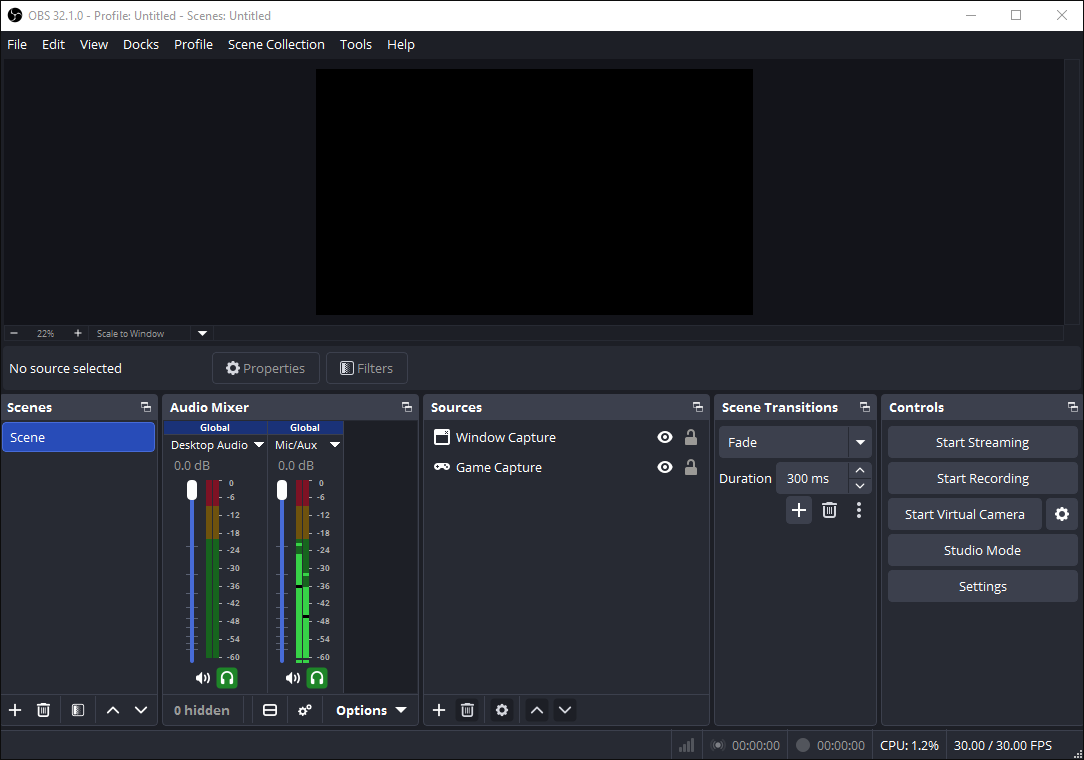
OBS Studio is an open-source, completely free screen-recording tool compatible with Windows, macOS, and Linux. In my view, it qualifies as professional-grade software, allowing for the layering of multiple sources during the recording process. Furthermore, this software supports multi-track audio recording, which facilitates precise, detailed adjustments during post-production.
What’s more, OBS Studio also offers extensive customization options for recording parameters, such as video resolution, frame rate, audio bitrate, and file format. While this does result in a somewhat complex interface, OBS Studio remains an excellent alternative to Gyazo for users who require professional-level screen recording or live streaming capabilities.
Best for: Users who need advanced screen recording features and customize recording settings.
#6 ScreenPal
ScreenPal's screen recorder is one of the best I've used. Easy, flexible, and built-in editing that makes it simple to create effective training videos.https://www.trustpilot.com/review/screenpal.com
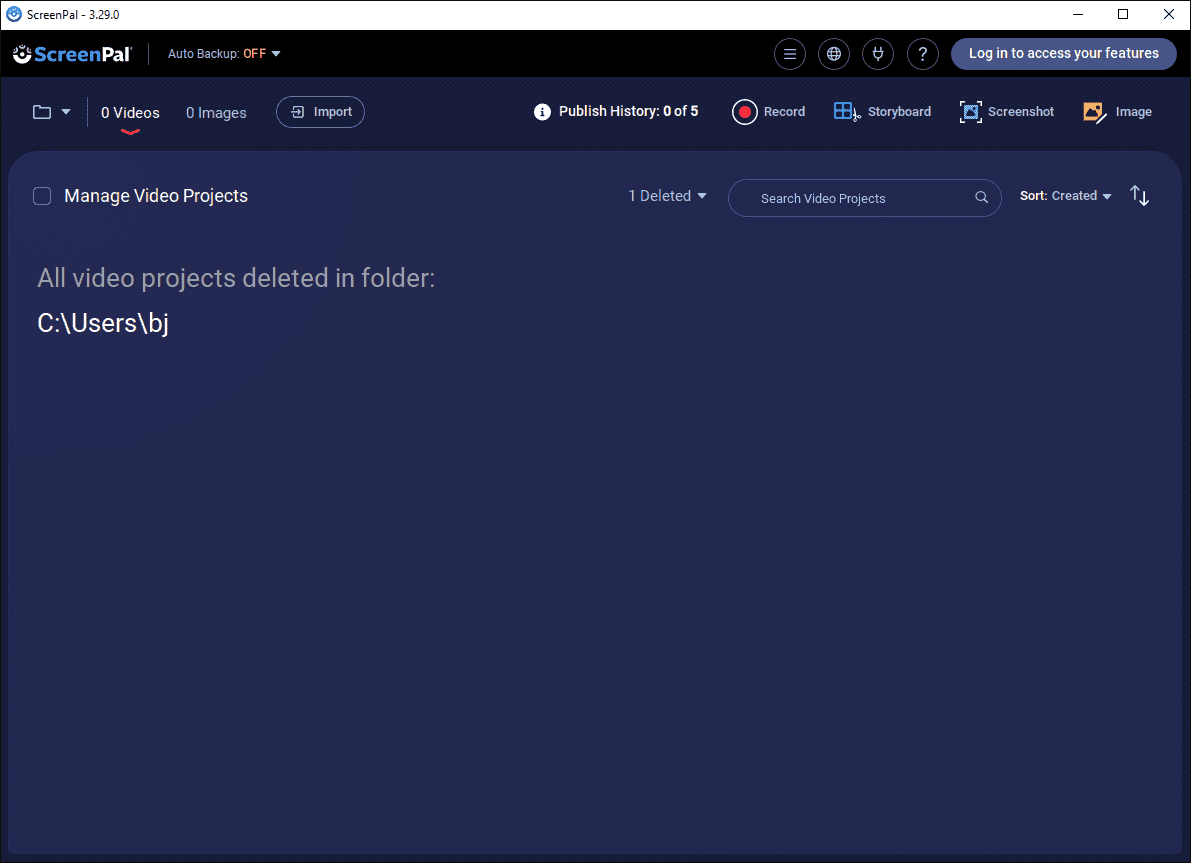
Unlike the tools mentioned above, ScreenPal is a lightweight video editing and screen-recording application. It also includes a convenient screenshot feature. Like Snagit, ScreenPal is an excellent choice for creating tutorial videos; it supports capturing the screen, webcam feed, and audio, and includes built-in tools for real-time on-screen annotation.
Once a recording is complete, I can add elements such as transitions, filters, and text, all without needing to export the video first. Notably, ScreenPal leverages AI-powered technology, enabling users to generate captions, titles, summaries, and chapter markers with a single click.
The application also lets me host recordings in the cloud and share links with team members, streamlining my workflow.
Best for: Users who seek a simple, all-in-one solution recording tool.
I have selected these six tools based on varying user needs; some focus on screen recording, while others specialize in taking screenshots or editing. Each one serves as an excellent alternative to Gyazo, and the best choice for you will ultimately depend on your specific requirements.

How to Screen Record with a Gyazo Alternative
In addition to introducing alternatives to Gyazo, I have also summarized the general operational steps below for user reference. MiniTool Screen Recorder is used here as an example.
Fast Track Steps:
- Open the recording tool
- Customize recording settings
- Choose recording area
- Adjust audio and webcam recording features
- Start recording
- Annotate screen if necessary
- End recording
- Check the recorded video
MiniTool Screen RecorderClick to Download100%Clean & Safe
1. Download and install MiniTool Screen Recorder
Click the button above to download and install this tool. Then, launch it on the PC.
2. Configure the recording settings
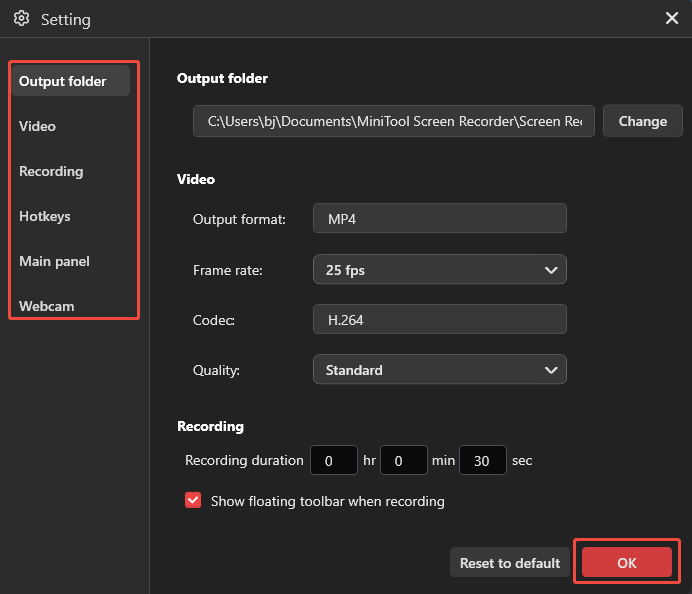
Click the Settings icon in the upper-right corner of the main interface. Then adjust settings like recording quality, frame rate, and hotkeys in the relevant sections. Finally, click the OK button to save the changes.
3. Select recording area
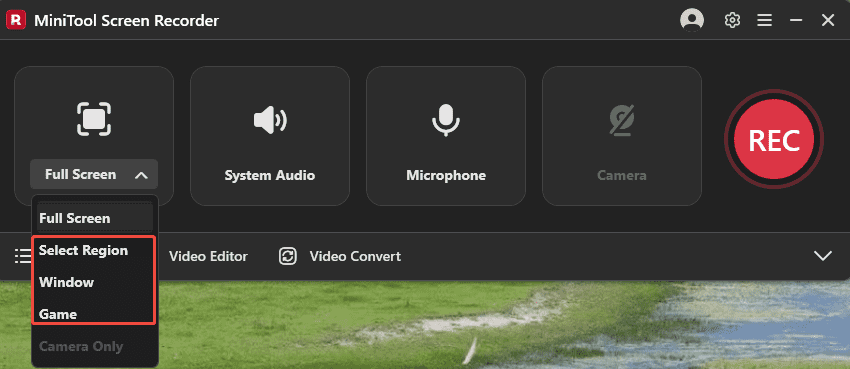
The default recording mode is the entire screen. Open the Full Screen drop-down menu to switch to Select Region, Window, or Game, depending on what needs to be recorded.
4. Manage the audio settings
By default, both System Audio and Microphone are enabled. Click the relevant icon to disable the corresponding audio source.
5. Control the camera settings
To record the screen with webcam footage, enable the webcam recording feature by clicking the Camera icon.
6. Start recording
Click the REC button or press the F6 key to start recording. When the 3-second countdown ends, move to the area you need to record.
7. Annotate the screen if necessary
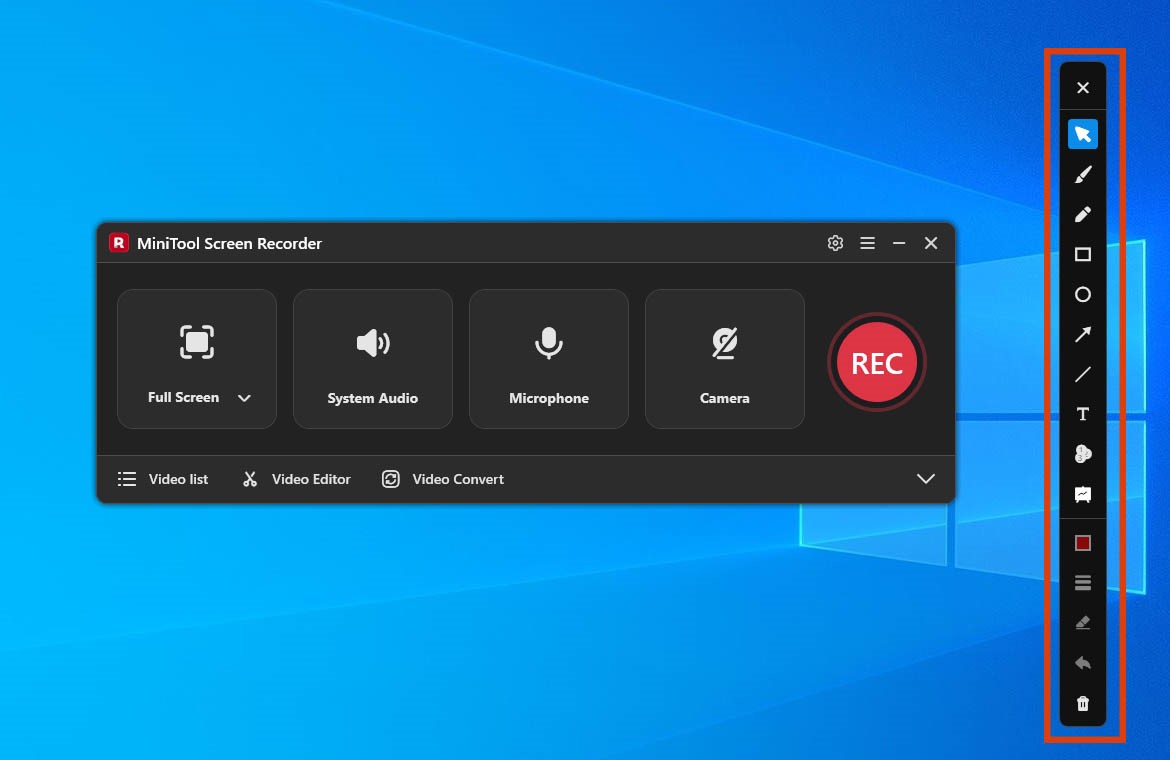
If there is a need to capture tutorials, select tools from the annotation toolbar on the right of the screen.
8. End recording and check the recorded video
To end the recording process, press the F6 key again. Then, when the tool switches to the Video list section automatically, click the Play icon to check the recorded video.
Tips for Choosing a Gyazo Alternative
By the way, the six tools mentioned above were selected based on my own specific criteria. If you would like to explore further options on your own, you may want to consider the following factors:
- Security: When looking for an alternative to Gyazo, security should be a top priority to ensure that your data and information remain protected.
- Watermarks: Since I frequently share the content I record, choosing a tool that does not add watermarks significantly reduces my workload.
- Recording Duration Limits: Gyazo imposes limits on recording duration, so finding an alternative without such restrictions is a great advantage.
- Annotation Features: This is one of Gyazo’s core functions; therefore, when evaluating alternatives, I look for tools that offer built-in editing or real-time annotation capabilities.
To Wrap Things Up
The 6 Gyazo alternatives selected for this article not only address the functional limitations of Gyazo but also ensure user privacy and security. By reviewing the comprehensive comparisons provided and testing these tools yourself, you can determine which one best suits your needs.
If you have any questions when using MiniTool Screen Recorder, send an email to support@minitool.com.