

A 60fps screen recorder can help capture smoother on-screen activities. This article provides 4 screen recorders that support 60fps recording, including MiniTool Screen Recorder, Xbox Game Bar, Bandicam, and OBS Studio, for smooth video capture.
After recording numerous videos, I found that frame rate significantly affects video smoothness; generally, a higher frame rate produces smoother footage, while a lower one does the opposite. Additionally, the frame rate affects file size to some extent.
However, I discovered that not all recording tools support 60 fps recording. Consequently, after some research, I found the following four 60fps recording software worth trying:
- MiniTool Screen Recorder
- Xbox Game Bar
- Bandicam
- OBS Studio
Quick Comparison
| FPS Options | Resolution | Watermark | Price | |
| MiniTool Screen Recorder | 15-60fps | Up to 4K | No | Free |
| Xbox Game Bar | 30/60fps | Depends on recording subject | No | Free |
| Bandicam | 24-480fps | Up to 4K | No | Free/Paid |
| OBS Studio | Custom FPS options | Custom resolution | No | Free |
4 Best 60fps Screen Recorders
Understanding the features of these four 60fps screen recording tools will help you master their practical use more easily and quickly; detailed information about them is provided below.
Option 1: MiniTool Screen Recorder
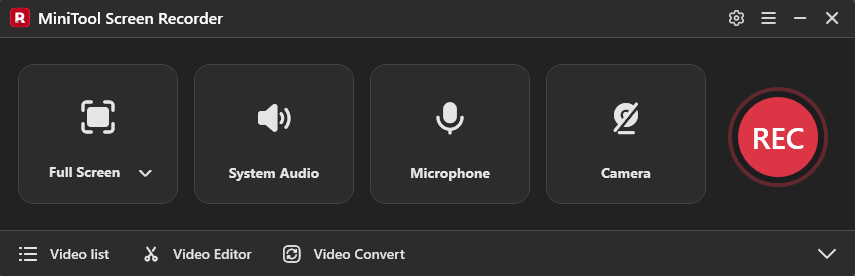
MiniTool Screen Recorder is a free 60fps screen recorder for Windows that supports 60fps recording. It also offers options for other frame rates, such as 15fps, 20fps, 25fps, 30fps, and 50fps, making it suitable for capturing a wide range of on-screen activities.
The software also supports various recording modes, including full-screen, specific regions, windows, secondary monitors, and webcam footage. Notably, it features built-in annotation tools that allow users to highlight key information or mark up the screen in real-time while recording.
What I appreciate most, however, is the scheduled recording function; it perfectly solves the problem of me frequently forgetting to stop the recording.
Pros:
- Completely free and watermark-free
- Supports up to 4K recording
- Supports multiple FPS options
- Provides flexible recording modes
- Supports scheduled recording time
Cons:
- Only for Windows users
MiniTool has released Screen Recorder, a free screen recording tool for Windows designed to handle basic screen, audio, and webcam recording tasks without watermarks or time limits. https://betanews.com/article/minitool-releases-free-screen-recorder/
Option 2: Xbox Game Bar
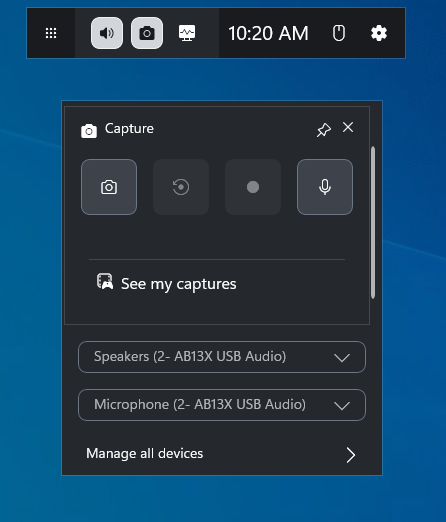
Xbox Game Bar is a built-in Windows recording tool that supports screen capture at 30fps and 60fps. What I like most about it is how easy it is to use. Since it is built into Windows, I can record a wide range of games and applications.
Additionally, the tool offers both manual and background recording modes, with the latter allowing users to capture the last 30 seconds of footage. Furthermore, as a lightweight, built-in utility, it places a low load on the CPU, ensuring a smoother recording experience, especially when recording gameplay.
Pros:
- Completely free
- Easy to use
- No watermark
- Built into the Windows system
- Supports manual or background recording mode
Cons:
- Does not allow recording the desktop
- Does not provide the specific area recording mode
Game Bar’s performance was excellent overall, and the hit to performance should be nominal for already taxed resources on budget gaming machines. https://www.pcworld.com/article/402801/game-bar-for-windows-10-review.html
Option 3: Bandicam
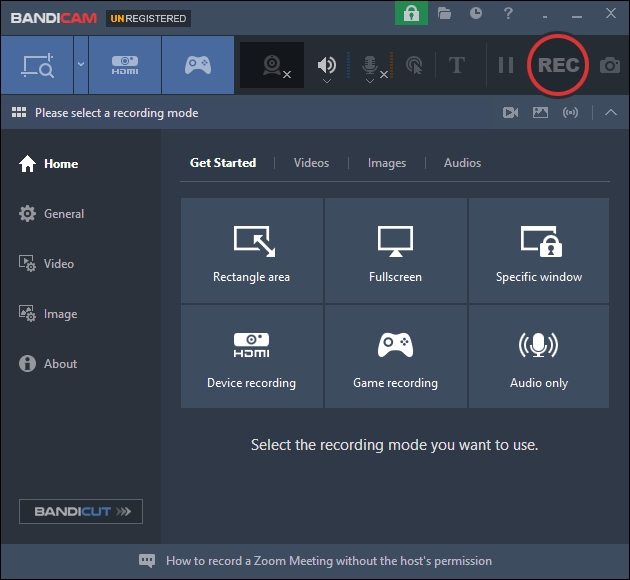
Bandicam is another 60fps screen recorder for PC. Compared to the previous two programs, it offers a wider range of frame rate options, supporting screen recording at up to 480fps. For this reason, I frequently use Bandicam to capture gameplay and other high-frame-rate content.
Additionally, the tool provides various recording modes, such as game recording, screen recording, and webcam recording. In my view, Bandicam is also excellent for creating tutorials, thanks to features like mouse tracking and smart zooming, capabilities that are perfect for highlighting specific instructional steps in a video.
However, it is available in both free and paid versions, with the free version imposing a five-minute recording limit.
Pros:
- Easy to use
- Supports 60 fps and higher frame rates
- Supports mouse tracking and smart zooming
- Supports webcam recording and real-time annotation
Cons:
- Only for Windows users
- The free version only supports recording up to 5 minutes of content
Bandicam makes it easy to stay organized with automatic file naming by date and time. I appreciate how quickly recording starts and how simple it is to assign keyboard shortcuts. The video quality is consistently professional—ideal for my training materials, tutorials, and explanatory sessions.https://www.g2.com/products/bandicam/reviews
Option 4: OBS Studio
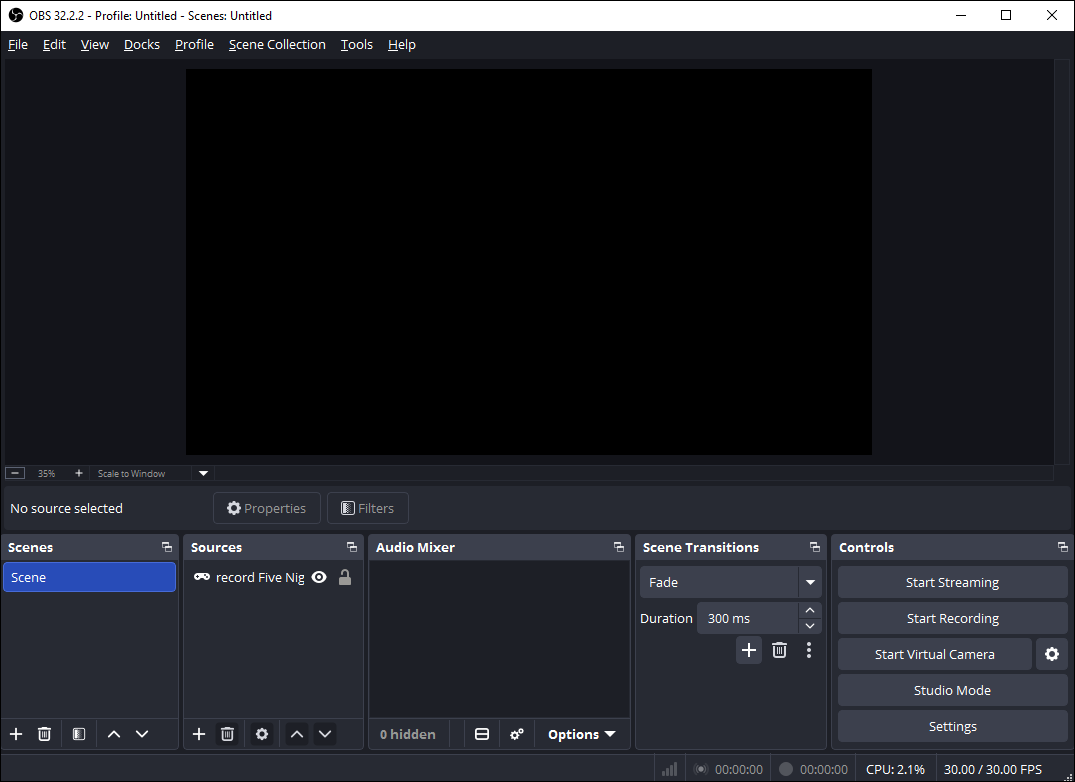
Unlike the three previously mentioned user-friendly 60fps recording tools, OBS Studio does not excel in ease of use; on the contrary, it has a steep learning curve. However, beyond supporting 60fps recording, it allows users to fully customize the frame rate. This free, open-source tool also enables detailed configuration of parameters such as encoders, audio settings, and resolution.
Furthermore, OBS Studio can capture content from a wide range of sources, including application windows, multiple monitors, webcams, external gaming devices, and audio equipment. Yet, the very power and versatility of the software contribute to its complexity, requiring users to invest more time in learning how to master it.
Pros:
- Free and open source
- Available for Windows, macOS, and Linux users
- Provides highly customizable recording settings
- Supports 60fps recording and other frame rate options
Cons:
- The user interface is complex
- Steep learning curve
As an open-source software that offers an extremely high screen recording and video recording for professional work, I will recommend OBS for everyone, especially new YouTubers, Facebook content managers, and other digital marketers.https://www.softwareadvice.com/video-editing/obs-studio-profile/reviews/
Clearly, a high-quality 60fps screen recorder needs not only the ability to adjust frame rates but also flexible recording modes to meet the diverse needs of users. All four tools mentioned above perform well in this regard; you can choose the one that best suits your needs after trying them out.
How Can I Record in 60FPS
Fast Track Steps:
- Open the 60fps recording software
- Set the frame rate to 60fps
- Choose the recording area
- Adjust audio and webcam recording features
- Start recording
- End the recording process and check the recorded video
Recording your screen at 60fps is very simple; you just need to set the frame rate to 60 before you start recording. Below, we use MiniTool Screen Recorder to demonstrate the detailed steps.
1. Download and install MiniTool Screen Recorder
Click the button below to download MiniTool Screen Recorder. Then, launch it on the PC.
MiniTool Screen RecorderClick to Download100%Clean & Safe
2. Set the recording frame rate
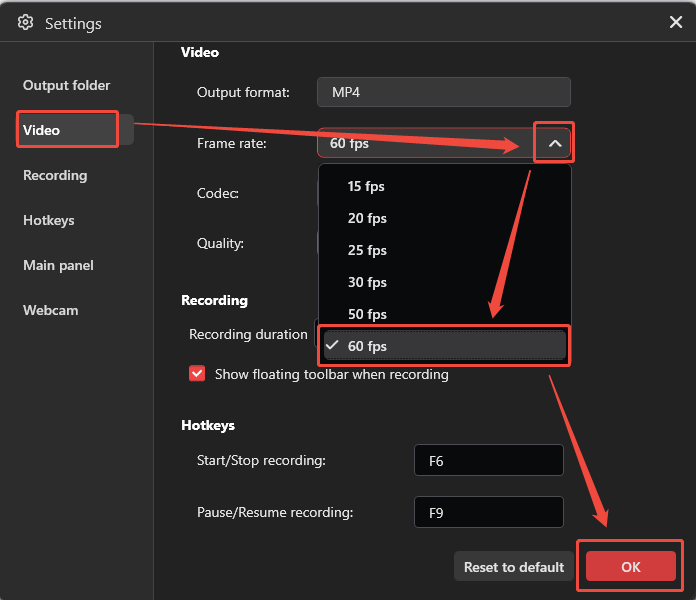
Click the settings icon in the upper-right corner to enter the Settings window. Then, navigate to the Video section. Next, expand the Frame rate option and choose the 60fps option. Finally, click OK to save the changes.
3. Select recording area
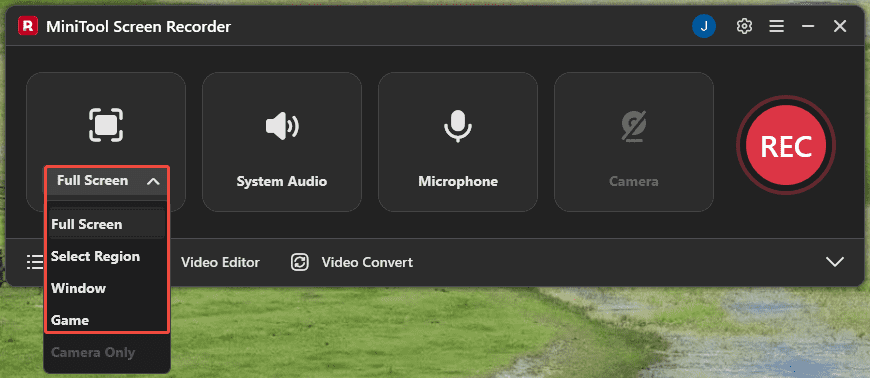
This tool records the full screen by default. It also provides other options like Select Region, Window, and Game for users to choose from by expanding the Full Screen option.
4. Control the audio and webcam recording features
System audio and microphone input recording features are enabled by default. To disable either of them, click the respective icon. Then, if there is a need to record the screen with the webcam, click the Camera icon on the right of the main interface.
5. Start recording
Click the REC button to start recording. After a 3-second countdown, proceed to the content to be recorded.
6. Annotate the screen
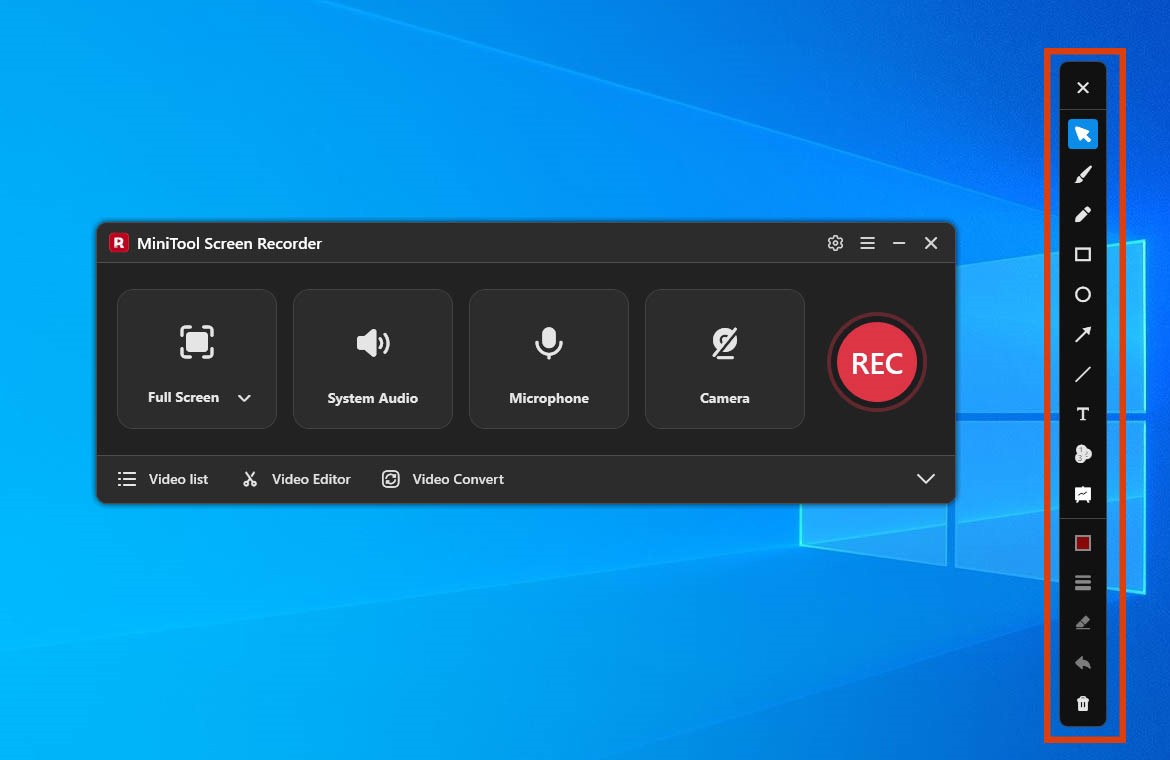
If there is a need to annotate the screen while recording, choose the tools from the annotation toolbar on the right side of the screen.
7. End recording & check the recorded video
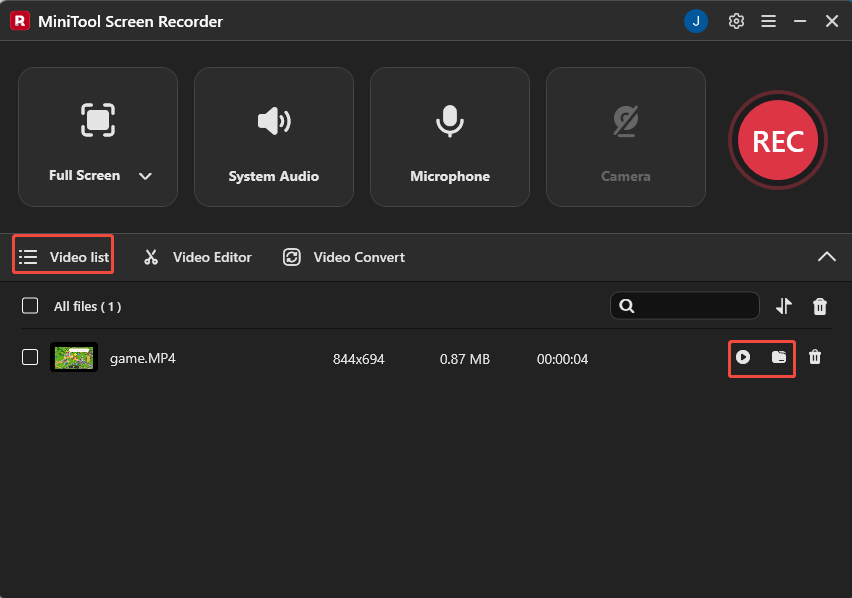
When the recording ends, the tool will automatically switch to the Video list section, then I can click the Play icon to view the recorded 60fps video, or click the Folder icon to locate the video.
Final Words
60fps screen recorders offer smoother results for users who need to capture fast-paced, dynamic content. The four tools featured in this article, MiniTool Screen Recorder, Xbox Game Bar, Bandicam, and OBS Studio, can meet a variety of 60fps recording needs.
If you have any questions when using MiniTool Screen Recorder, send an email to support@minitool.com.