

In this era of information overload, more and more people want to get a great watching experience in a short time. Hence, short-form videos that typically last around 30 seconds have become immensely popular. The video usually showcases exciting gameplay clips, humorous moments, or key information, which can be good examples.
As a video creator, I also want to make many short videos to attract more audiences. Creating these videos by recording directly is the optimal approach, as it allows me to instantly capture highlights as they occur while simultaneously conserving storage space. Hence, I looked for various tools and tried to record the last 30 seconds of footage on PC. Below, I’ll explain how to do that with them.
How to Record Last 30 Seconds on PC
After trying various methods, I found that the following three tools, the Xbox Game Bar, MiniTool Screen Recorder, and Nvidia Share, can easily record last 30 seconds on PC. Below, I’ve listed step-by-step instructions on how to screen record last 30 seconds on PC for each tool.
#1 Use the Xbox Game Bar
I first looked to see if Windows had any built-in tools that could record the last 30 seconds of screen activity, and eventually discovered that the Xbox Game Bar could do the job. Although this tool is designed specifically for gamers, I can also use it to record specific windows or applications. The Xbox Game Bar also allows me to record system audio and microphone audio simultaneously.
In addition to recording the last 30 seconds of gameplay, the Xbox Game Bar also supports recording the last 1, 3, or 5 minutes of footage. Here are the specific steps:
Step 1: Configure the Recording Parameters
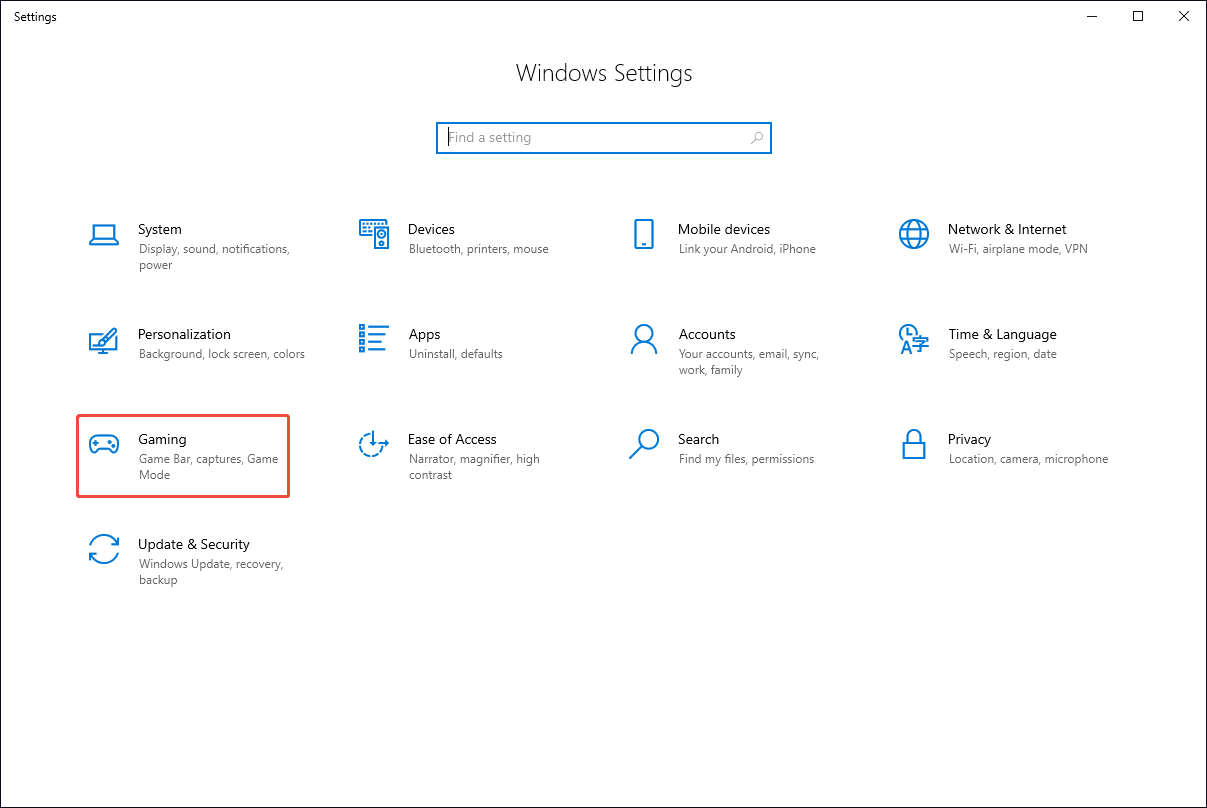
1. Press the Windows + I keys to enter the Settings interface and switch to the Gaming section.
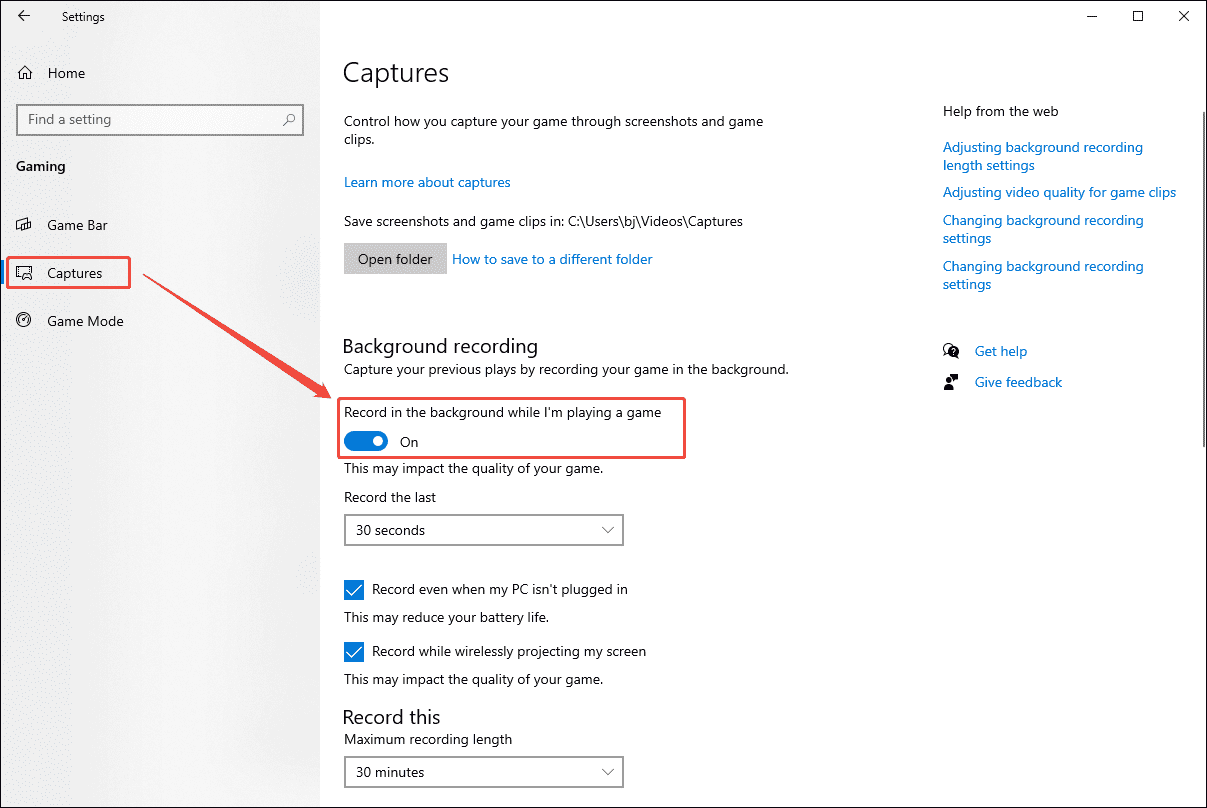
2. Move to the Captures module. Then, turn on the Record in the background while I’m playing a game option under the Background recording section.
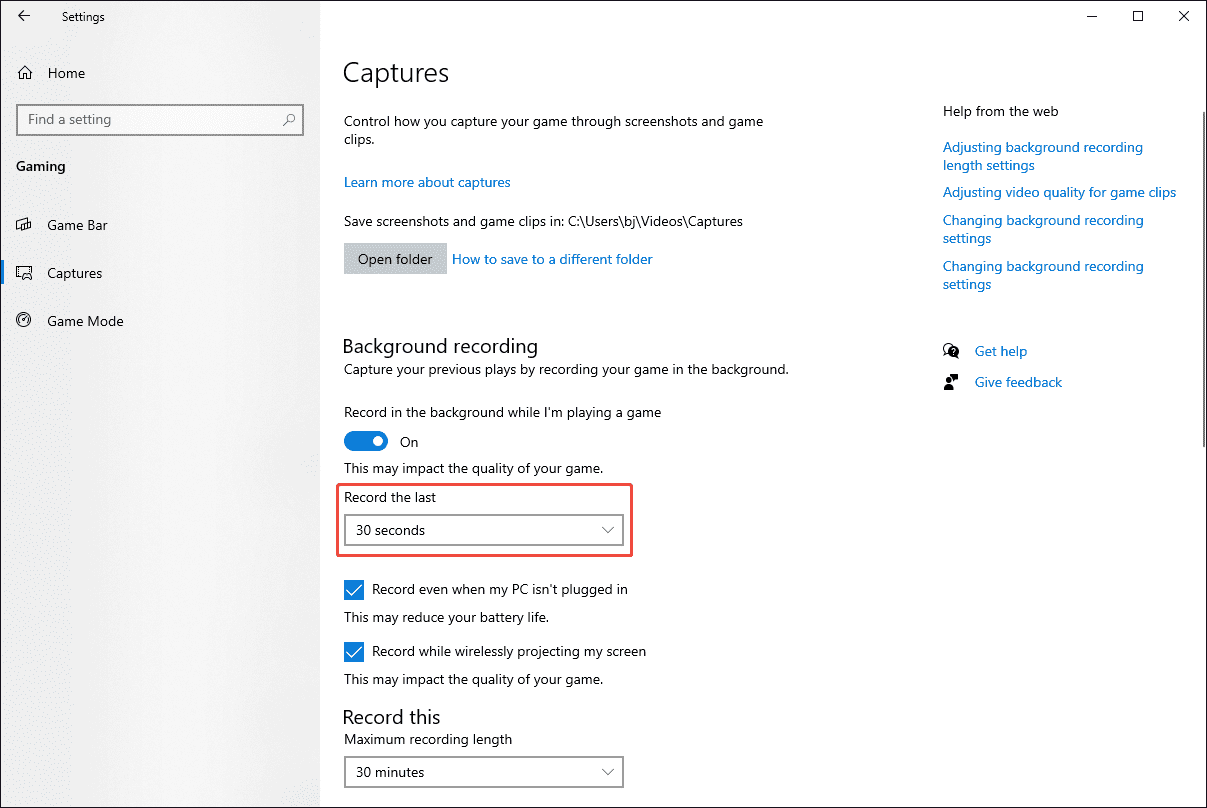
3. Then, expand the drop-down menu of the Record the last option and select the 30 seconds option.
Step 2: Launch the Xbox Game Bar
Press the Windows + G keys to open the Xbox Game Bar.
Step 3: Configure the Audio Recording Setting
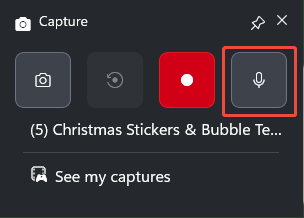
The Microphone audio recording option is enabled by default. To disable this feature, simply click it.
Step 4: Start and End Recording
1. Play the target game or video.
2. Press the Windows + Alt + G keys to start recording the last 30 seconds of the footage.
3. The recording process will end automatically in 30 seconds. Finally, check the recorded video under the See my captures option.
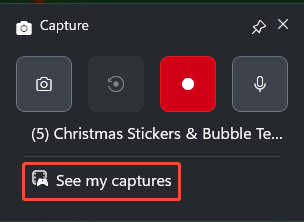
Although the Xbox Game Bar offers a convenient user experience, I found that during recording, it cannot capture the desktop or File Explorer, nor does it allow me to capture a specific area. As such, to use more advanced recording features, I tried the recording tool described below.
#2 Use MiniTool Screen Recorder
MiniTool Screen Recorder is the screen recording tool that provides me with the best user experience. It allows me to customize the recording duration, whether it's 30 seconds, 5 minutes, or longer. Furthermore, I can choose to record the entire screen, a specific area, or a specific window, and I can also control system audio and microphone audio recording.
With MiniTool Screen Recorder, I can enable the camera recording feature while screen recording. Another reason I recommend this tool is that it offers convenient screen annotation tools, allowing me to highlight key information during recording. Best of all, no watermarks are added to the recorded videos.
Now, please follow the steps I’ve outlined to learn how to capture last 30 seconds on PC using MiniTool Screen Recorder.
Step 1: Get MiniTool Screen Recorder
Click the button below to download and install MiniTool Screen Recorder.
MiniTool Screen RecorderClick to Download100%Clean & Safe
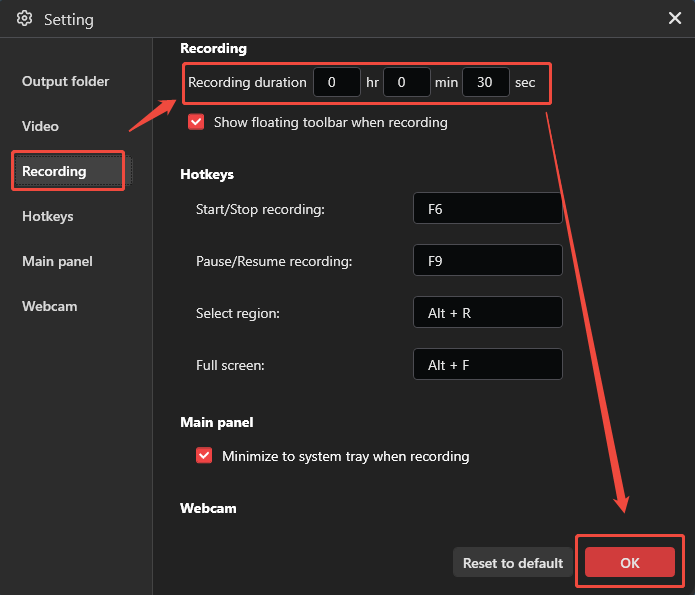
Step 2: Set the Recording Time
1. Launch MiniTool Screen Recorder.
2. Click the Settings icon in the top-right corner of the main interface.
3. Then, switch to the Recording section to set it to record the last 30 seconds.
4. Click on OK to save the changes.
Step 3: Choose the Recording Area
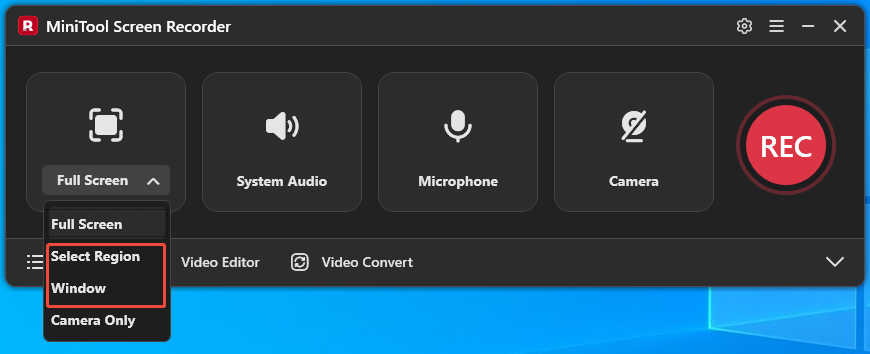
1. MiniTool Screen Recorder defaults to recording the full screen. To capture a specific area or a window, just expand the drop-down menu of the Full Screen option.
2. Then, click the Select Region option or the Window option.
Step 4: Control the Audio
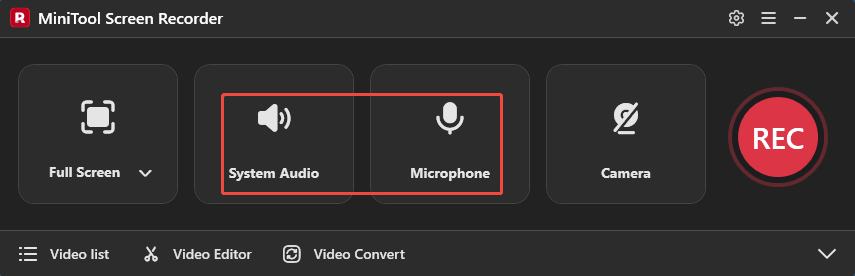
The system audio and microphone recording features are enabled by default. To disable these functionalities, click on the System Audio icon and the Microphone icon respectively.
Step 5: Set the Camera Recording
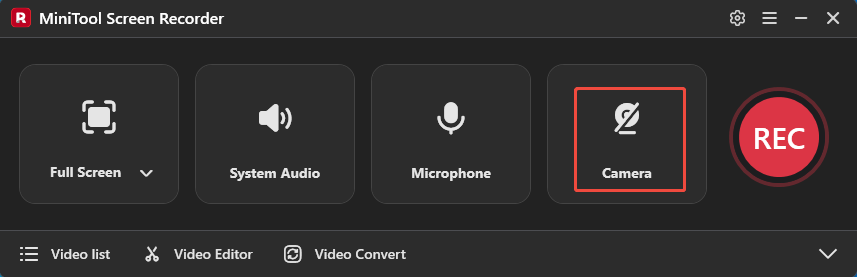
To screen record with the webcam, click the Camera icon on the right.
Step 6: Start and End Recording
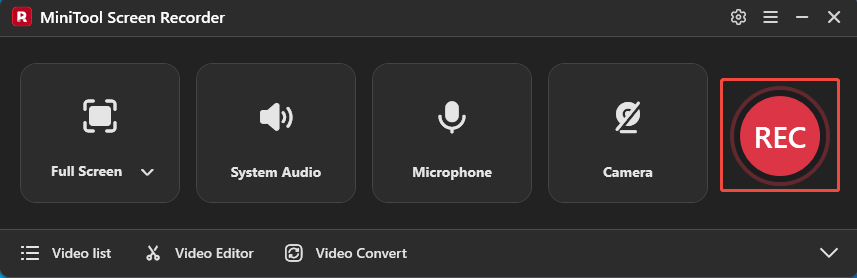
1. To begin recording, click the REC button or press the F6 key. After 3-seconds countdown, it will automatically start.
2. Play the video or game.
3. After 30 seconds, the recording process will automatically end.
Step 7: Check the Recorded Video
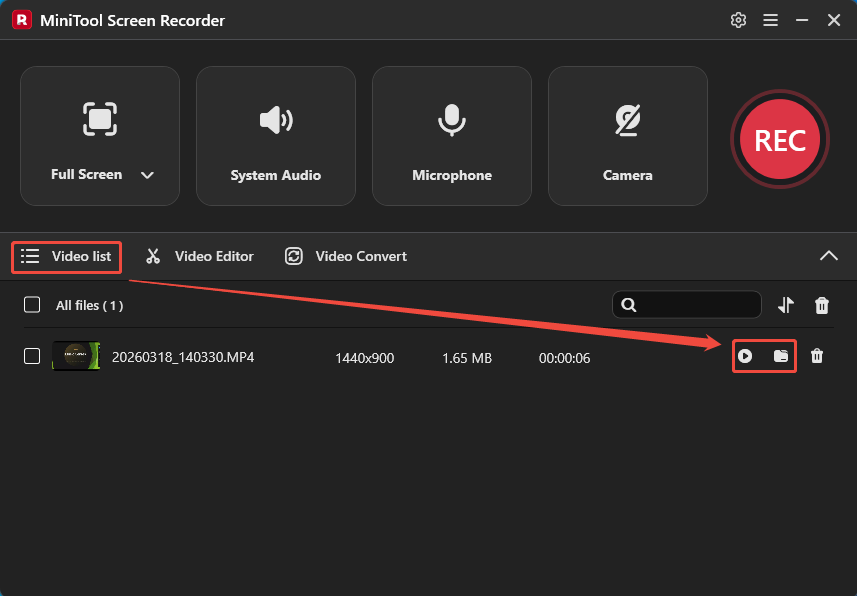
1. When the recording process ends, it will automatically switch to the Video list module.
2. Click the Play icon to check the recorded video and click the Folder icon to locate it.
By following the steps above, I can also use MiniTool Screen Recorder to record longer videos.
#3 Use Nvidia Share
My computer is equipped with an NVIDIA graphics card, so I also tried using NVIDIA Share. This is a GPU-accelerated tool integrated into GeForce Experience that can capture both gameplay and desktop screens. I used NVIDIA Share’s instant replay feature to record the last 30 seconds of gameplay.
Now, follow me to learn how to record last 30 seconds on PC with Nvidia.
Step 1: Launch Nvidia Share
Press the Alt + Z keys to launch the Nvidia Share overlay.
Step 2: Enable the Instant Replay Feature
Choose Screenshot Mode from the left-hand menu bar.
Step 3: Start and End Recording
1. Make sure the game is ready.
2. Press the Alt + F10 keys. This tool will automatically save the last 30 seconds of gameplay.
3. Finally, check the recorded video in the Videos folder of the PC.
Based on my testing, MiniTool Screen Recorder performs the best. It outperforms the Xbox Game Bar and is more affordable than NVIDIA Share.
How to Record Last 30 Seconds on PS4/PS5
In addition, I tried recording the last 30 seconds of gameplay on PS4 and PS5, and I’ve outlined the steps for each below.
#1 On PS4
Step 1: Set Recording Options
1. Press the Share button and choose the Settings option. Then, move to the Sharing and Broadcast section.
2. Choose the Video Clip Settings tab. Then, select Length of Video Clip and choose 30 seconds.
Step 2: Start and End Recording
Play the game and press the Share button twice to start recording the last 30 seconds. After 30 seconds, the recording process will automatically end.
#2 On PS5
Step 1: Configure the Recording Settings
1. Press the Create button and switch to the Settings section.
2. Scroll down to choose the Captures and Broadcasts option and select the Captures option in the new interface.
3. Then, choose the Shortcuts for Create Button option and select the Length of Recent Gameplay Video Clip option.
4. Finally, choose 30 seconds.
Step 2: Start and End Recording
1. Play the target game.
2. Press the Create button twice to begin recording. Then, the recorded 30-second video clip will be saved to the Media Gallery.
Recording the last 30 seconds of gameplay on the PS4 and PS5 follows a roughly similar process; the only difference lies in how the recording settings are configured.
Bonus: How to Edit a Screen Recording
After reviewing the recorded video, I noticed that it still contained some extraneous sections. Consequently, I used the professional editing software, MiniTool MovieMaker, to optimize the video. To access this tool, click the Video Editor option on the main interface of MiniTool Screen Recorder.
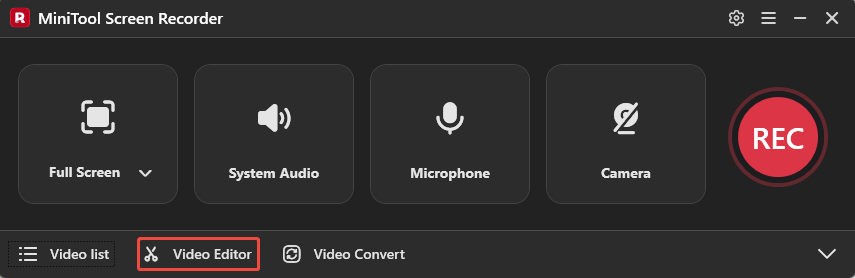
Alternatively, click the button below to access this tool directly.
MiniTool MovieMakerClick to Download100%Clean & Safe
With MiniTool MovieMaker, I can easily crop, cut, reverse, merge, and rotate videos. This tool also allows me to add elements such as effects, transitions, texts, and filters to my videos. Furthermore, MiniTool MovieMaker enables me to save videos in a variety of formats, including AVI, MP4, MOV, GIF, MP3, and WMV.
Bottom Line
How to record last 30 seconds on PC? The Xbox Game Bar, MiniTool Screen Recorder, and Nvidia Share can do that easily. Meanwhile, I provided console players with instructions on how to perform these same operations on the PS4 and PS5. Furthermore, the editing tools I introduced above can help further optimize the recorded videos.
If you encounter any issues when trying out MiniTool Screen Recorder and MiniTool MovieMaker, send an email to support@minitool.com.