

How to record system audio easily and quickly? For the recording novices, this question really gives them a headache. Don’t worry. The following content will help you find a robust internal audio recorder and show you how to capture the system sounds step by step.
What Is an Internal Audio Recorder
An internal audio recorder, also known as a system audio recorder, refers to a recording app that enables you to directly record the sounds from the operating system of your device, like game audio and music. Is it important to record the system audio? Read the following paragraph to find out.
Why Record System Audio
Recording system audio helps you accomplish a comprehensive recording with higher quality. For instance, if you want to capture gameplay, recording the system audio ensures that you never miss any game audio. This way, your game recordings will be more attractive to your audience.
How to find a fabulous system audio recorder with ease? The following section can help!
How to Select a System Audio Recorder
To help you find an amazing internal audio recorder, I will give you some understandable advice.
Suggestion 1. A Well-Organized Interface
A top-grade system audio recorder needs to feature an intuitive interface. Considering that some users may be beginners in audio recording, an recorder with a well-organized interface enables them to spend less time learning how to implement the recording task.
Suggestion 2. No Watermark and Time Limitations
It is advisable to find a watermark-free screen recorder without any time constraints. Some applications offer you recorded files with watermarks. To remove those watermarks, you may need to pay for the upgrade. However, for those who are on a tight budget, such a payment is not acceptable.
Although you can remove the watermarks for free as long as you crop the recorded video, it takes you more time to edit the video. Meanwhile, some screen recorders will set a recording duration limit for free users. As such, if you want to record system audio that lasts a long time, it is suggested that you use a tool without time constraints.
Suggestion 3. Rich Additional Functions
A standout system audio recorder should be equipped with other features, such as capturing webcam, annotating screen, customizing the recording parameters, and more. This way, when you want to record other computer activities, you don’t need to download extra software.

The Recommended Internal Audio Recorder
According to the advice above, MiniTool Screen Recorder can be an ideal choice for you to Windows record system audio.
What Is MiniTool Screen Recorder
MiniTool Screen Recorder is a feature-rich audio recorder with screen recording, webcam recording, and screen annotation. With a well-organized interface, it is accessible to every entry-level user. MiniTool Screen Recorder is essentially an MP4 recorder, which facilitates your video sharing or editing.
MiniTool Screen Recorder allows you to record the microphone and system sounds simultaneously or separately. What’s more, it is watermark-free and doesn’t set any time limit for the recording duration.
How to Record System Audio with MiniTool Screen Recorder
Below are the detailed instructions on how to capture system sounds using MiniTool Screen Recorder.
Step 1. Download and install MiniTool Screen Recorder.
MiniTool Screen RecorderClick to Download100%Clean & Safe
Download MiniTool Screen Recorder by clicking on the download button above. Then, follow the on-screen prompts to install this internal audio recorder on your PC.
Step 2. Choose the recording region and control the audio recording.
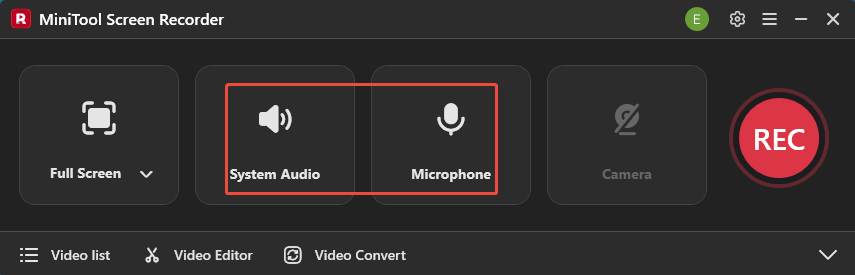
Launch MiniTool Screen Recorder. By default, this screen recorder will capture the whole screen. If you want to customize the recording area, press the Alt + R keys to select the recording area. Next, click on the System Audio icon and the Microphone icon to turn on/off the recording of system and microphone sounds.
Step 3. Enable the webcam recording and configure other recordings.
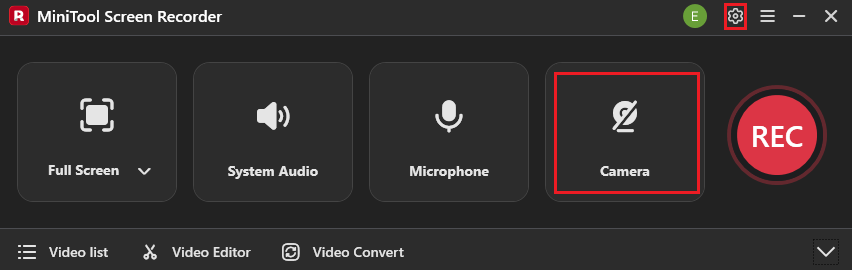
If you want, click on the Camera icon to enable the webcam recording. Then, click on the upper-right Settings icon to access the Settings window.
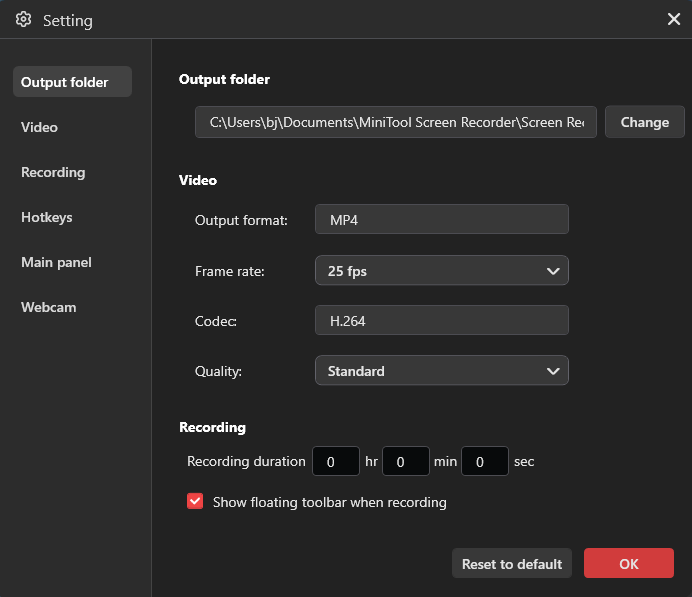
In the pop-up window, you can select an output folder for the recording file and preset the recording duration. Meanwhile, you can set the recording quality as Standard, High, or Original. Plus, you are free to configure the recording frame rate as 15fps, 20fps, 25fps, 30fps, or 50fps. Finally, click on the OK button to save the changes.
Step 4. Begin/end recording and check the output files.
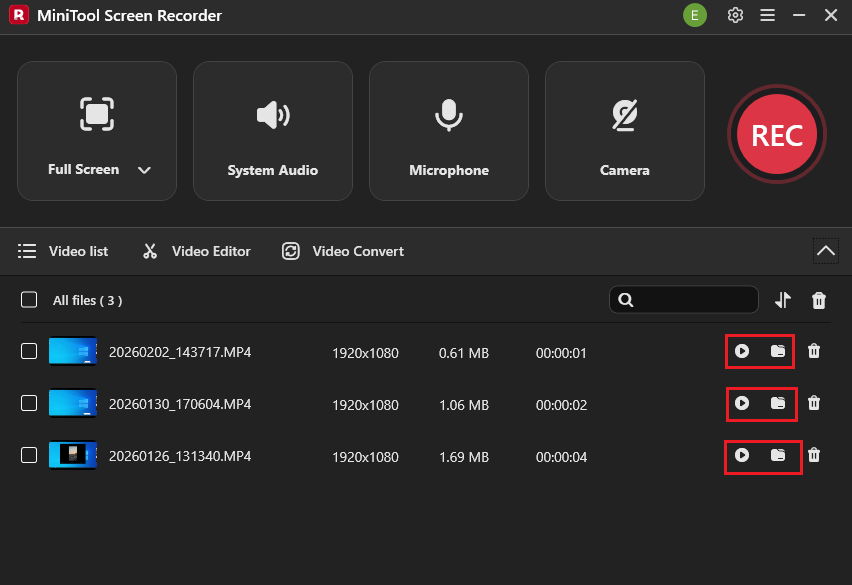
Press the F6 key to begin the recording process. After a 3-second countdown, play the computer activity that you want to capture. When the recording process ends, stop it by pressing the F6 key again. In the expanded file list, click on the Play icon to view the recorded files. If you want to locate them, click on the Folder icon.
In one word, MiniTool Screen Recorder is a robust application that enables you to capture the internal audio without hassle.
MiniTool MovieMakerClick to Download100%Clean & Safe
To Wrap Things Up
Recording the internal audio makes your recorded file more competitive in the multimedia landscape. To ensure you have selected a fantastic system audio recorder, check whether the application features an intuitive interface, has no watermark or time limitations, and offers a variety of recording functions.
To capture the system audio with simple clicks, MiniTool Screen Recorder is an ideal choice. If you are frustrated by any problems when using this application, please send an email to support@minitool.com to ask for help. Also, you can directly share your problems with me on X. I will help you solve them as quickly as possible.