

Recording YouTube audio makes it easier for you to listen to the audio offline, preserve the audio forever, set the audio as a ringtone, etc. How to record audio from YouTube? This article introduces a free recorder – MiniTool Screen Recorder. Meantime, you can edit the recording with a free video editor.
YouTube is a great place, with a vast collection of audio and video content, but it can be frustrating for not to be able to easily download your favorite songs if you are not a premium subscriber.
There is a simple way for you to capture any catchy soundbites and tunes you chance upon on YouTube, which is to record audio from YouTube videos playing on your computer. However, first, you will understand why it’s necessary to record sound from YouTube before starting the recording process. Let’s dive in.
Why Do You Need to Record YouTube Audio
Recording YouTube audio is convenient and easy to carry out, instead of the step-by-step process of downloading audio. It’s a way to unlock flexibility and accessibility. Below are the most compelling reasons why you need to capture audio from YouTube video.
Listen to YouTube Audio Offline
One of the most popular motivations for recording YouTube audio is offline access. Recording the audio lets you save your favorite content directly to your device, enabling listening to YouTube audio anytime, anywhere, even without an Internet connection.
Preserve Valuable Content
YouTube content is not permanent. Creators delete music, videos, and channels anytime. Recording the audio serves as a backup, ensuring that you can revisit your favorite YouTube content even if it’s removed from the platform.
Enhance Productivity and Learning
You can turn the recorded YouTube audio into text (subtitles, notes, articles). Also, recorded audio can be created as your own audio learning library.
Set the Audio as a Ringtone
The ringtone is used to indicate an action, such as incoming phone calls, text messages, or other notifications. Compared to buying ringtones online at high prices, recording the YouTube audio and setting it as a ringtone is totally free.
How to Record Audio from YouTube
Now that you know why you need to record audio from YouTube video, it’s time to learn how to achieve that. Just try using an audio recorder for YouTube videos. When it comes to free recorders, MiniTool Screen Recorder is the first tool that comes to mind. Although it is free, it offers a wide range of powerful and easy-to-use features, making it an ideal choice for capturing YouTube audio.
With this user-friendly screen recorder, you can choose to record system audio, microphone, or both. Then, you can personalize the specific area you wish to capture on YouTube and record webcam with the customizable size, position, and shape. During recording, you can add annotations.
Whether you record music from a YouTube video or YouTube live streams, this software makes it easy to capture the audio you need without quality loss, ready for offline listening. Also, setting up your own keyboard shortcuts for quick start, pause, and stop while recording is available.
Let’s get started with detailed guides on how to record audio from YouTube with MiniTool Screen Recorder.
Step 1. Download and Set Up MiniTool Screen Recorder
Click on the download button below to download and install MiniTool Screen Recorder. Then, launch it and log in to your account.
MiniTool Screen RecorderClick to Download100%Clean & Safe
Step 2. Choose Recording Mode
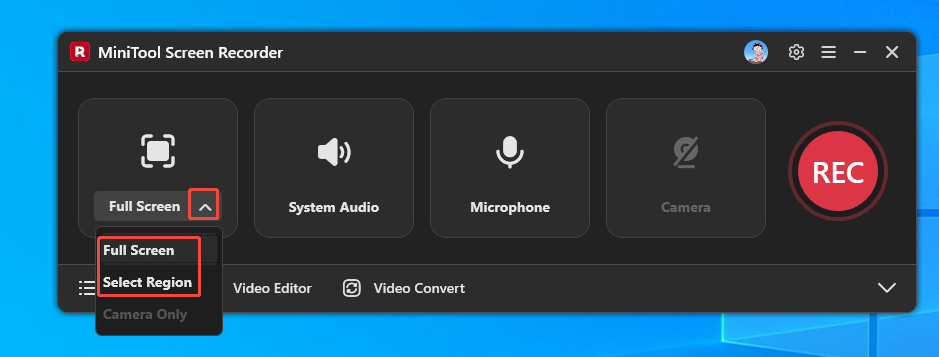
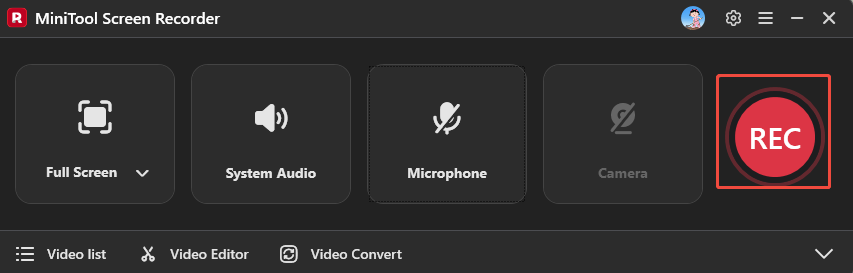
The full-screen recording is set by default. If you need to customize the recording area, expand the Full Screen and click on Select Region.
Step 3. Control the Audio
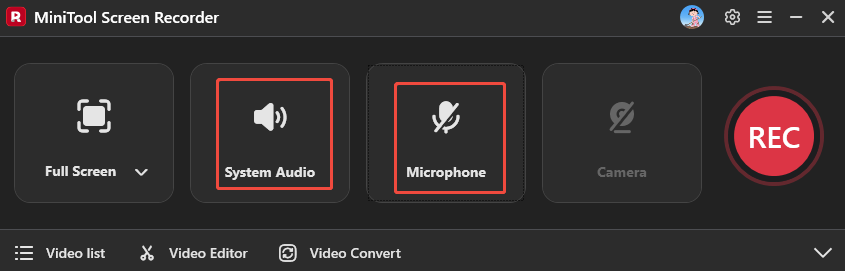
The System Audio and Microphone is opened by default. To record audio from YouTube clearly, we keep the system audio open and click on the Microphone icon to turn off the audio.
Step 4. Set the Output Path
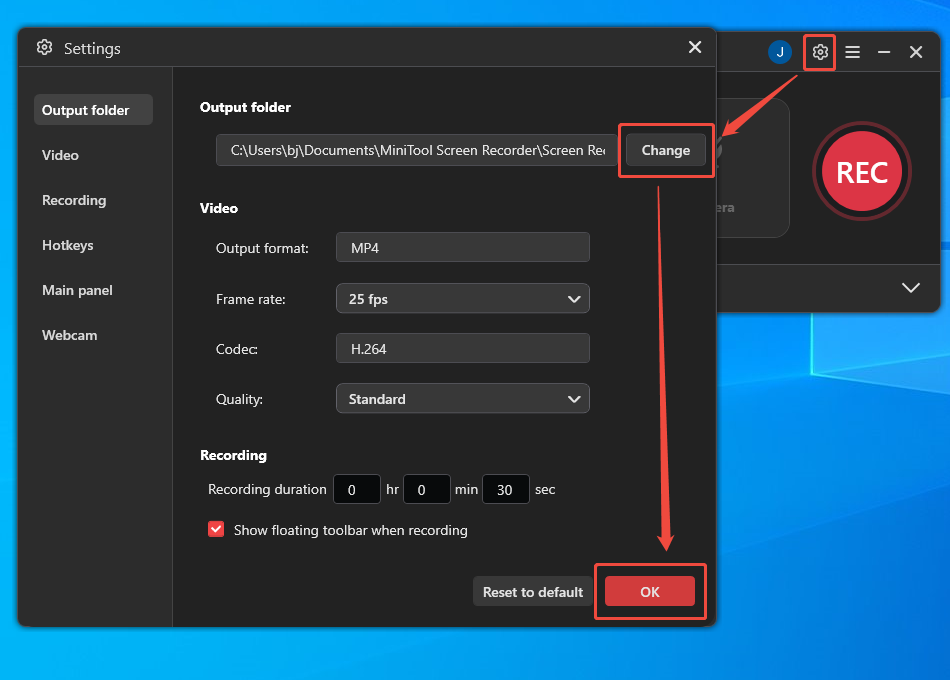
Click the Gear icon in the upper right corner of the main interface to open the Settings window. Here, click on the Change button to choose a storage location for the recorded YouTube audio. Then, click the OK button to save your changes.
Step 5. Start/End Recording
1. Click on the red record button or press F6 on your keyboard to start recording the YouTube audio.
2. Play the YouTube audio you want to record.
3. To end this recording, press the F6 key again.
Step 6. Check the Recorded YouTube Audio
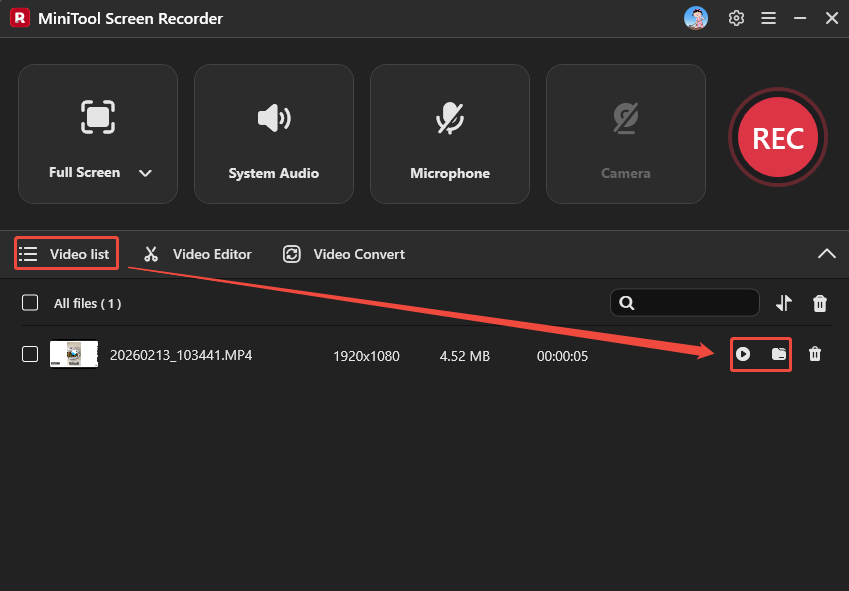
Once the recording finishes, click on the Play icon or the Folder icon under the Video list tab to check or locate the recorded YouTube audio.
How to Edit the Recorded YouTube Audio
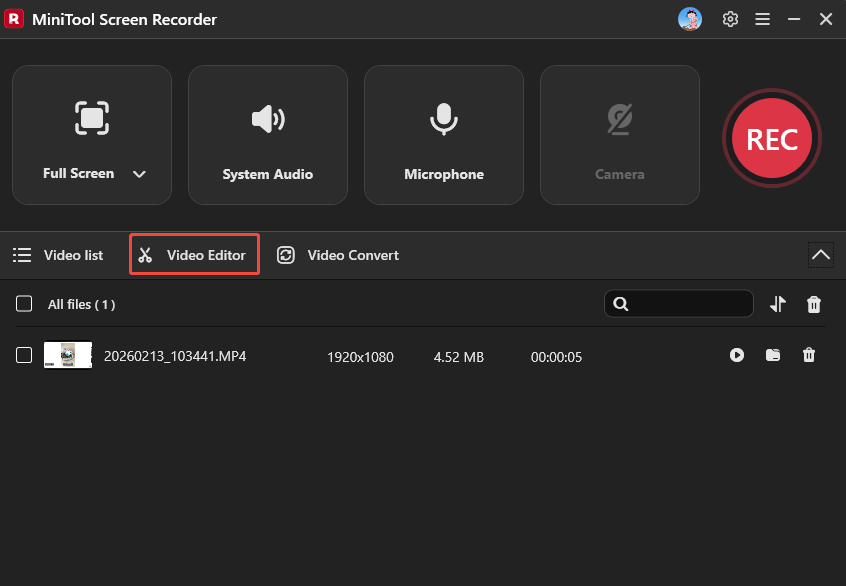
In most cases, you need to trim the audio recording to remove the unnecessary beginning or end sections to preserve the musical climax as the ringtone and adjust volume levels so everything sounds smooth and uniform. Click the Video Editor option at the bottom of the MiniTool Screen Recorder main interface to get the professional video editor.
Or, you can also directly click the button below to get this video editing tool.
MiniTool MovieMakerClick to Download100%Clean & Safe
MiniTool MovieMaker not only can trim or cut the unwanted YouTube audio recording but also apply fade-in and fade-out effects, slow down, speed up, and reverse audio. After completing the audio editing, you can export it to the common MP3 format.
Final Words
Recording YouTube audio allows you to listen to the audio offline, preserve the audio forever, enhance productivity and learning, and set the audio as a ringtone. This article shares how to record audio from YouTube with a free audio and video recorder, MiniTool Screen Recorder, and how to optimize the audio recording.
If you have any questions or suggestions about MiniTool Screen Recorder and MiniTool MovieMaker, please contact us via email at support@minitool.com. Or you can send me a message directly on X. I’m willing to reply to you.