

WhatsApp supports sending and receiving text, photos, videos, documents, and calls. How to record WhatsApp calls of video or voice to preserve memories, safeguard legal security, etc.? MiniTool Screen Recorder and Bandicam can easily save your calls on a computer.
What’s WhatsApp
WhatsApp is a very popular social platform, used for both personal and business communication. Users can send text, voice messages, images, videos, documents, and live locations. One of the great function about WhatsApp is that you can quickly make high-quality voice and video calls, including group calls.
Why Record a Call on WhatsApp
Recording WhatsApp calls has become essential for business professionals, language learners, content creators, and anyone who needs to capture important conversations for later reference and learning.
Preserve Memories
Unlike text messages that lack tone and emotion, recorded calls capture the warmth of laughter and the gentleness of voices. They transform fleeting conversations into memories that allow us to preserve moments that gradually fade away with time.
Safeguard Legal and Personal Security
Verbal conversations can be difficult to prove in court. A recorded call serves as concrete evidence in disputes involving harassment, fraud, breach of contract, or personal safety.
Develop Learning and Skills
If you are practicing your spoken language on WhatsApp with foreigners, recording the calls allows you to revisit conversations and analyze pronunciation and tone. It can also be a good listening training material to learn on the way home.
Create Content
Content creators can easily convert the recorded content into podcasts, video interviews, or audio-based content. They can also automatically transcribe calls in multiple languages and summarize key points, saving hours of manual editing.
How to Record WhatsApp Video Calls
People are curious about whether WhatsApp can record calls. The answer is no. WhatsApp doesn’t have a built-in call recording feature. All you need to do is use third-party software. To record WhatsApp video calls on your PC, we recommend using MiniTool Screen Recorder. Let’s get to know more about it before we begin to use the software to capture video calls.
What’s MiniTool Screen Recorder
MiniTool Screen Recorder is a free video call recorder that captures high-quality video and crystal-clear audio. The control panel of MiniTool Screen Recorder is extremely easy to use and streamlined to minimize distractions.
You can record the WhatsApp video calls without time limitations, making it ideal for extended business calls. Apart from video calls, you can also record meetings, gameplay, live streams, TV shows, mouse movements, etc. MiniTool Screen Recorder provides advanced features like webcam recording and annotation recording.
How to Record WhatsApp Calls with MiniTool Screen Recorder
Follow the simple steps below to record your WhatsApp video calls.
Step 1. Download and Install the Free Recorder
Click on the download button below to download MiniTool Screen Recorder. Then, set it up by following the installation steps displayed on the screen.
MiniTool Screen RecorderClick to Download100%Clean & Safe
Step 2. Select the Recording Area
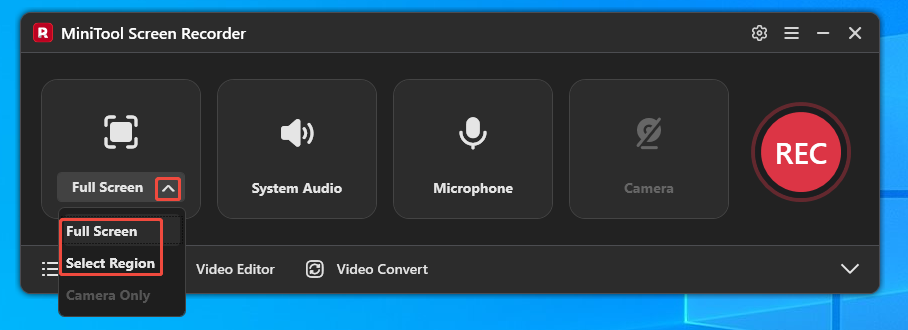
Click the Full Screen option to expand the dropdown list. Then, choose Full Screen to record the whole computer screen or choose Select Region and drag the red dashed rectangle to customize your recording area.
Step 3. Configure Audio
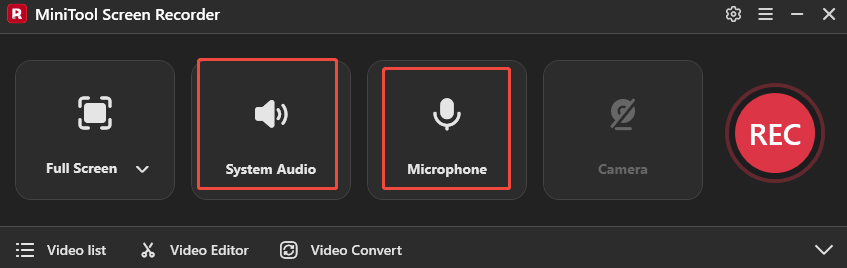
The system audio and microphone audio are both opened by default. Click on the corresponding icons to close them.
Step 4. Start and End Recording
1. Press the F6 button to start recording the video call.
2. Make a video call on WhatsApp.
3. When you finish the video call, press F6 again to stop recording with MiniTool Screen Recorder.
Step 5. Find the Recorded Video Call Recording
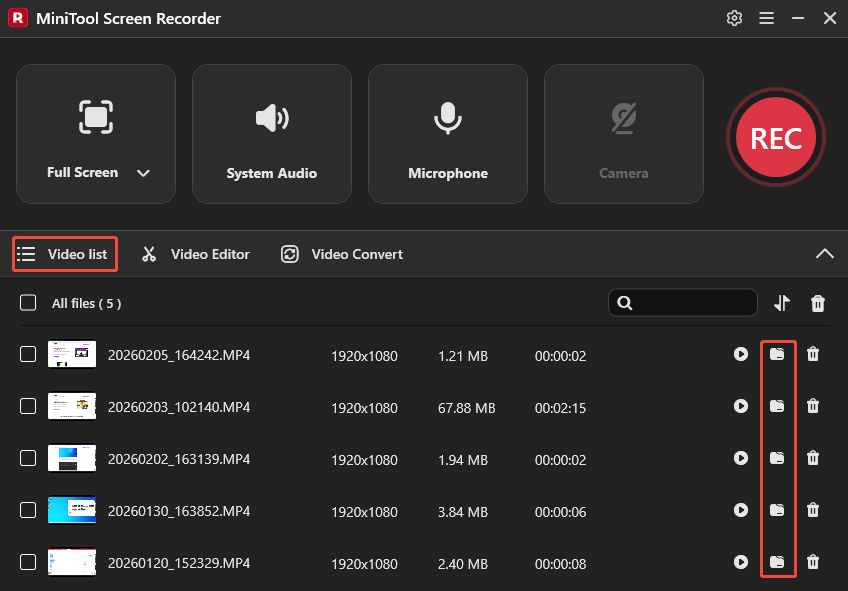
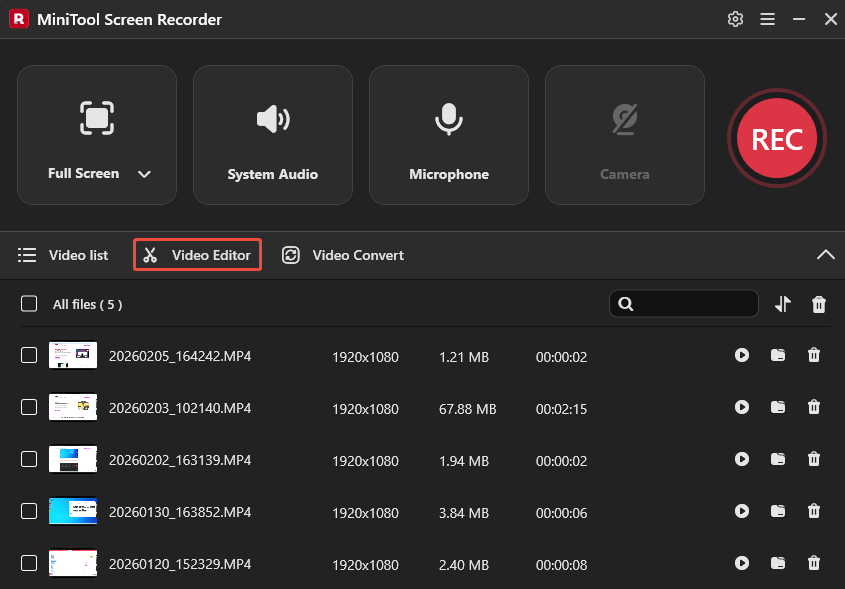
1. All the recorded videos will be listed in order, with the newest at the top by default under the Video list.
2. Click on the folder icon to check the MP4 video call recording.
To trim the unwanted recording clips, click on Video Editor to open MiniTool MovieMaker. Then, you can export the edited video call to an audio format, like MP3.
Alternatively, directly click on the button below to get the video and audio editor.
MiniTool MovieMakerClick to Download100%Clean & Safe
MiniTool Screen Recorder can also record WhatsApp voice calls if you don’t mind the output format being video. Don’t forget to open the system and the microphone audio to record voice calls before recording.
How to Record WhatsApp Voice Calls
If you want to record only WhatsApp voice calls and save them as an MP3 or WAV file, Bandicam is a great choice.
What’s Bandicam
Bandicam is a free WhatsApp voice recorder that allows you to record audio for 24 hours. You can record your computer screen along with system audio and microphone input, or you can record only system audio and microphone sound without video. In the meantime, Bandicam allows you to set up automatic audio recording schedules and automatic start/stop.
How to Record WhatsApp Audio Calls with Bandicam
Continue reading to get the voice call recording instructions for Bandicam.
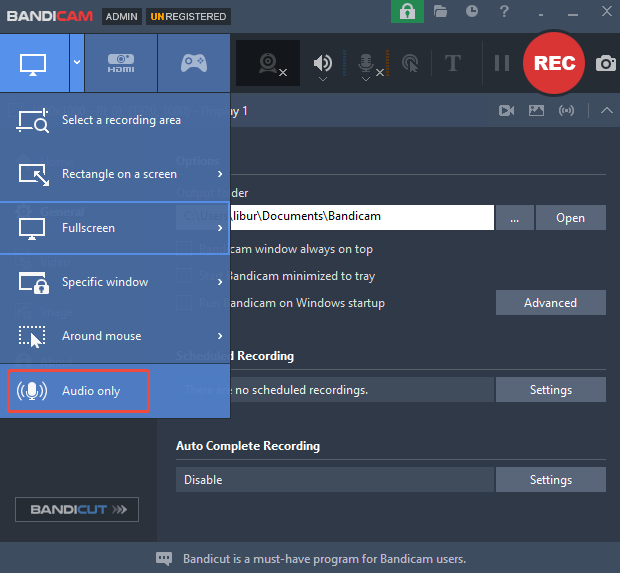
Step 1. Choose a Recording Mode
Launch Bandicam and choose Audio only by clicking the drop-down arrow next to Fullscreen.
Step 2. Set the Audio Configuration
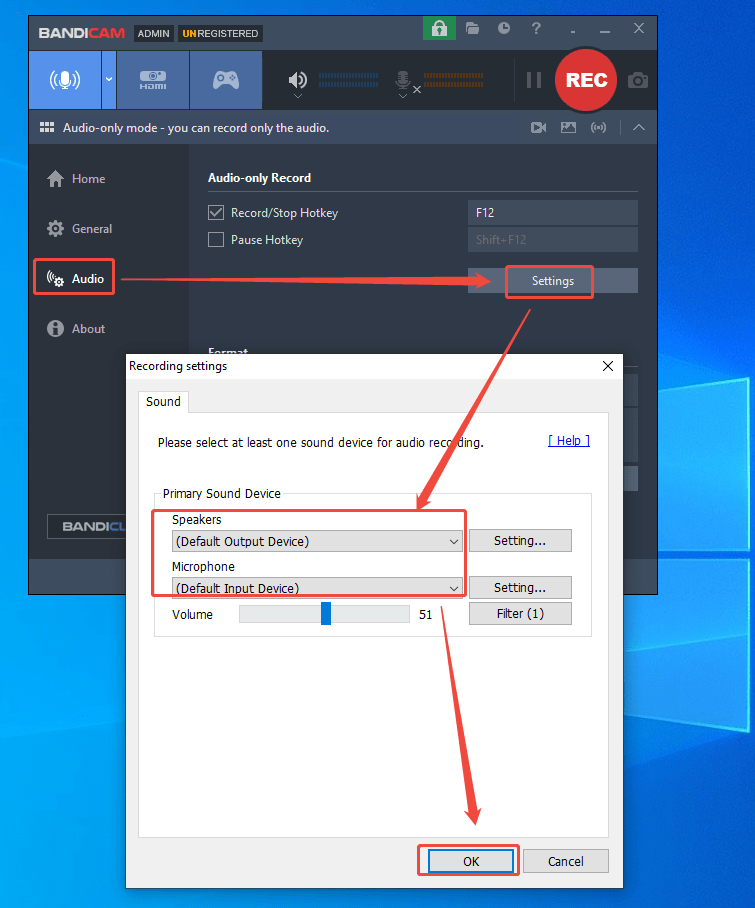
1. Click on Audio on the left side and click on Settings under Audio-only Record.
2. To record both your computer sound and your voice, select your speaker and microphone devices.
3. Click on OK.
Step 3. Record WhatsApp Voice Calls
1. Press F12 to start recording the voice call.
2. Open the WhatsApp desktop application and start a voice call.
3. When the voice call ends, press F12 again to stop recording.
Bottom Line
This article shows you how to record WhatsApp calls. Whether you want to save an important business meeting or a conversation with friends and family. MiniTool Screen Recorder and Bandicam are tailor-made for you.
If you have any questions about MiniTool Screen Recorder, you can contact us via email at support@minitool.com. You can also send me a message directly through X. I will reply to you as soon as I see it.