

This article offers a definition of external audio recorders and explains why you need them. Meanwhile, it gives you some advice on how to choose a top-grade recording app and recommends a fabulous screen recorder: MiniTool Screen Recorder.
Internal audio recorder and external audio recorder differ offer you a different recording experience. If you want to know more about how to select and use a screen recorder with external audio, the following paragraphs are written for you.
What Is an External Audio Recorder
An external audio recorder can be defined as a tool used to record audio independently of your PC or camera. In the context of a PC screen recorder, external audio recorders refer to the recording applications that enable you to capture the sounds from input devices like microphones and headsets.
Why Do You Need to Record External Audio
Here are many reasons that encourage you to record external audio. Firstly, recording the external audio offers you higher audio quality. Specifically, compared with external microphones, the internal computer microphones provide you with less detailed, noisier audio. Hence, if you are making preparations for some professional audio editing work, it is suggested that you record the external audio.
Secondly, external recorder audio makes your recorded file more understandable and attractive. If you are recording an online course, capturing the external audio allows you to share your narration with the audience, which makes the recorded video easier to understand. On condition that you want to share your game highlights with your friends, recording your voice makes the video more exciting and attractive.
How to Select an External Audio Recorder
How to choose a robust external audio recorder app? The following suggestions can help.
Suggestion 1. Ease of Use
The easy-to-use nature is the first factor to consider. The more complicated the audio recorder is, the more time it requires for users to learn how to use this tool. If you are a recording novice, the recording tasks will bring you a lot of headaches. To solve that problem, you can try a screen recorder with an intuitive interface.
Suggestion 2. No Watermarks and Time Limits
Some external audio recorders give you a recorded file with watermarks. To remove the watermarks, you may need to pay for the upgrade or edit the recorded video, which costs you more money or time. Meanwhile, when you are recording a computer activity that lasts for a long time, a time limit for the recording duration will interrupt the recording process. Given this, it is suggested that you try a screen recorder without any watermarks or time limits.
Suggestion 3. Rich Recording Functions
When selecting an external audio recorder, don’t forget your other needs like webcam recording, screen annotation, recording parameters customization, and more. To ensure that you find a one-stop solution for screen recording, select a feature-rich application.
The Best External Audio Recorder
Based on the advice above, MiniTool Screen Recorder can be selected as the best external audio recorder.
Why Select MiniTool Screen Recorder
MiniTool Screen Recorder is a video recorder app that enables you to record audio from your PC and external devices simultaneously or separately. Without any watermarks, it doesn’t set any recording duration limit for all users. Plus, MiniTool Screen Recorder enables you to capture the webcam and annotate your screen effortlessly.
More importantly, since MiniTool Screen Recorder has an intuitive interface, it is accessible to different users, ranging from beginners to recording experts. In addition, it is completely free and provides you with many advanced options to customize the frame rate and recording quality.
How to Use This External Audio Recorder
Below are the detailed instructions on how to capture the external audio with MiniTool Screen Recorder.
Step 1. Download and install MiniTool Screen Recorder.
MiniTool Screen RecorderClick to Download100%Clean & Safe
Click on the download button above to download and install MiniTool Screen Recorder on your PC. Then, launch this external audio recorder.
Step 2. Choose the recording area and manage the audio recording.
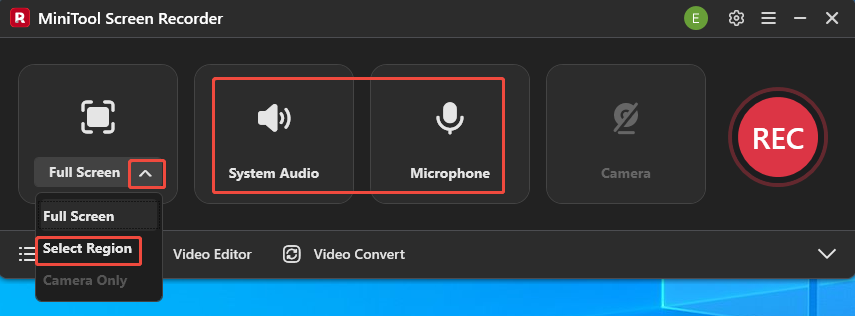
By default, MiniTool Screen Recorder will capture the whole screen. If you want to record part of the screen, expand the leftmost drop-down menu and choose the Select Region option. Next, specify the recording area. Then, click on the System Audio icon and the Microphone icon to turn on/off the recording of system and microphone sounds. Since you want to capture the external audio, ensure that you have enabled the microphone audio recording.
Step 3. Enable the webcam recording and specify other recording settings.
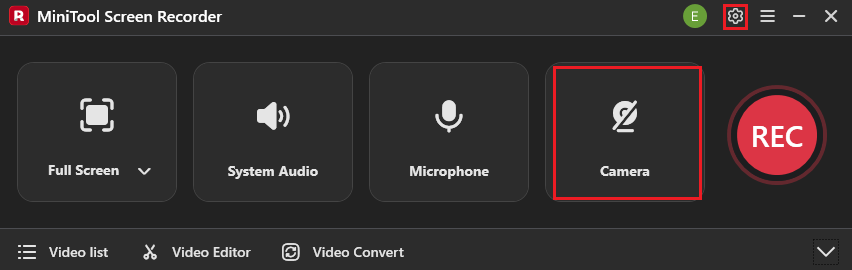
If you want to capture the webcam, click on the Camera icon to enable webcam recording. Then, click on the upper-right Settings icon to access the Settings page.
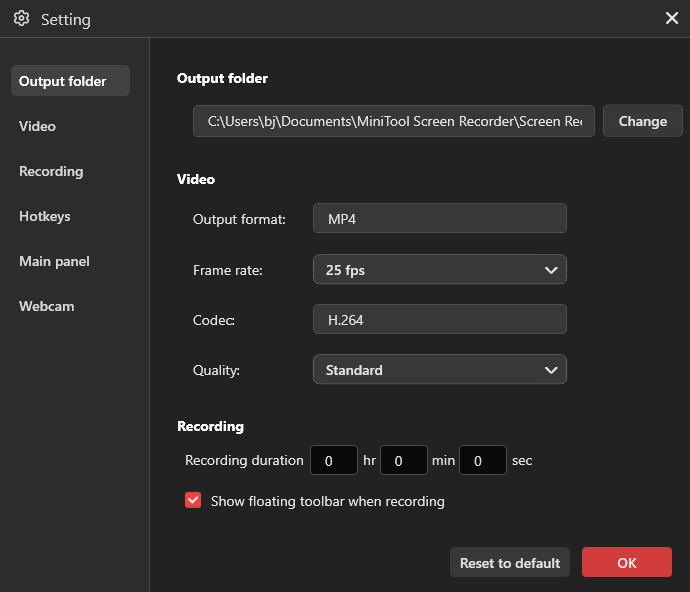
In the pop-up Setting window, click on the Change button to select an output folder for the recorded files. Also, you can set the frame rate to 15fps, 20fps, 25fps, 30fps, or 50fps. In addition, it is feasible to configure the recording quality as High, Standard, or Original. Finally, click on the OK button to save the changes.
Step 4. Begin/end recording and check the output files.
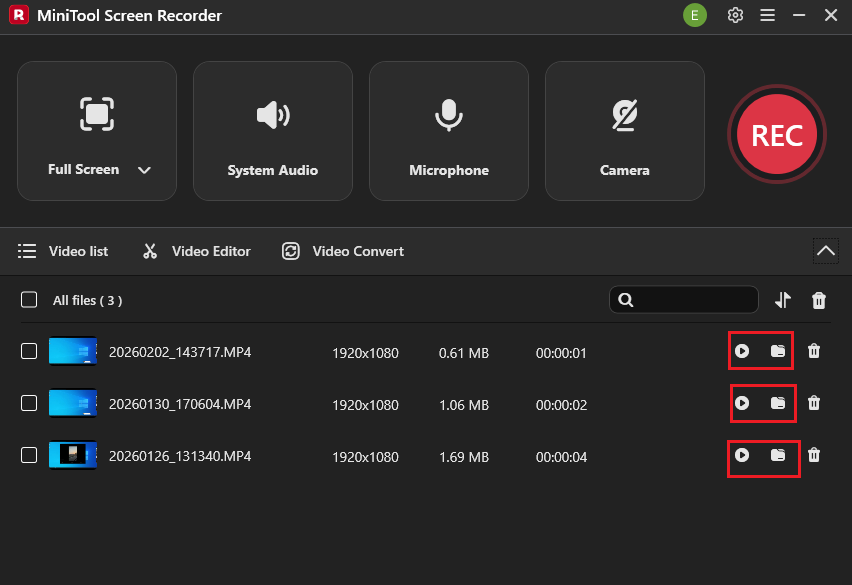
Start the recording process by pressing the F6 key. After a 3-second countdown, play the computer activity that you want to capture. When you have captured what you want, end the recording by pressing the F6 key. In the expanded file list, click on the Play icon to directly view the recording file. If you want to locate the recorded video, click on the Folder icon.
MiniTool Screen Recorder is an amazing external audio recorder you can try.Click to Tweet
With the above guidance, it will be effortless for you to capture any external audio.
Wrapping Up
If you want to capture higher-quality sounds, it is advisable to record external audio. To finish the recording tasks effortlessly, you’d better select an easy-to-use and watermark-free external audio recorder without any time limitations. MiniTool Screen Recorder is a good choice.
If you are frustrated by any problems when using MiniTool Screen Recorder, send the problem description to support@minitool.com. Alternatively, you can directly share your problems with me on X. I will help you solve them as quickly as possible.