

How to record Goose Goose Duck without lag? This article recommends 3 efficient screen recording tools, MiniTool Screen Recorder, iTop Screen Recorder, and RecMaster, with step-by-step recording guides. Additionally, you’ll know how to edit your recordings effectively with MiniTool MovieMaker.
Introduce to Goose Goose Duck
Goose Goose Duck is a free social deduction game developed and published by Gaggle Studios in 2021. It is now available on Windows, macOS, iOS, and Android platforms. Goose Goose Duck features unique character designs, voice chat functionality, and customizable character appearances.
In addition, the game mechanics of Goose Goose Duck are straightforward: players are divided into two opposing factions, Geese and Ducks, and the first faction to achieve its objective wins.
How to Record Goose Goose Duck on PC
There's already a wealth of Goose Goose Duck gameplay videos on platforms like YouTube. If you're an experienced player, uploading your gameplay videos to social media can help attract more viewers. Below, we'll recommend three efficient methods for recording Goose Goose Duck gameplay.
#1 MiniTool Screen Recorder
When it comes to recording gameplay videos, the first tool that comes to mind is MiniTool Screen Recorder, which I use regularly. This free Windows screen recorder allows users to capture any screen activity without time limits or delays. Additionally, it supports custom recording of system audio or microphone audio based on your needs and allows preset recording durations.
What’s more, MiniTool Screen Recorder supports 4K HD resolution recording and exports files in MP4 format. Now, follow these steps to record Goose Goose Duck gameplay:
Step 1: Download and Install MiniTool Screen Recorder
Click on the button below to download and install the latest version of MiniTool Screen Recorder
MiniTool Screen RecorderClick to Download100%Clean & Safe
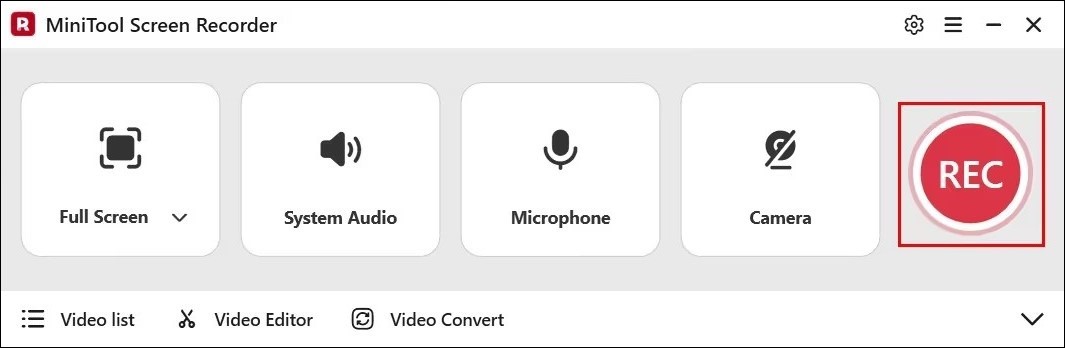
Step 2: Select the Recording Area
1. Launch MiniTool Screen Recorder after you install it.
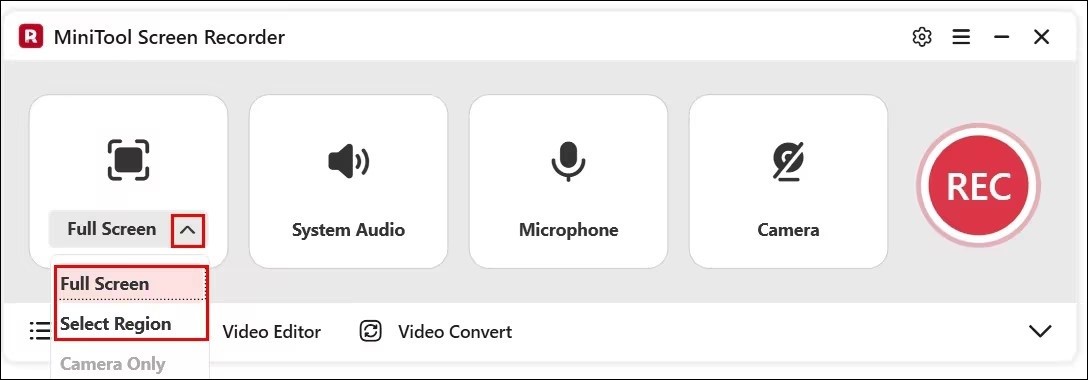
2. Expand the drop-down menu of the Full Screen option.
3. Click on Full Screen to capture the entire screen. Or, click on Select Region, then drag the red dashed border that appears to define the recording area.
Step 3: Control the Audio Recording
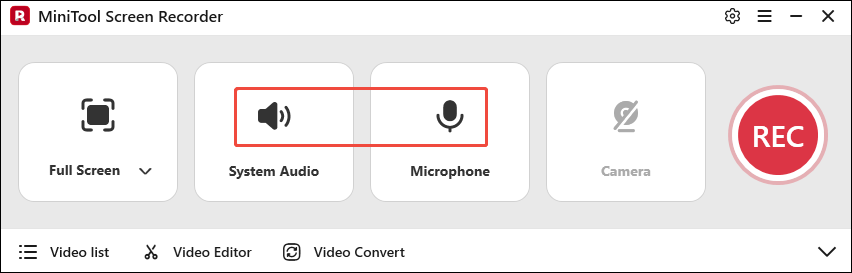
Click on the System Audio icon or Microphone icon to determine whether to record the sound from the system or the microphone.
Step 4: Control Camera Recording
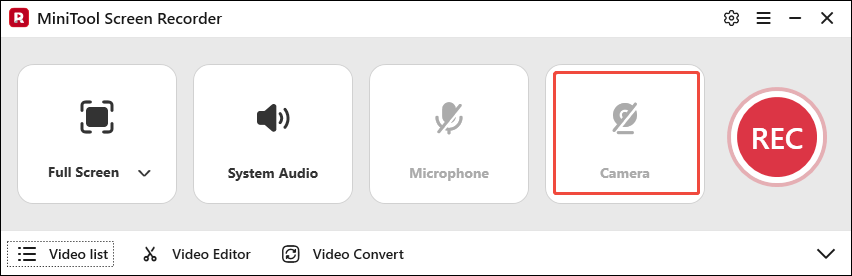
If you want to record the screen with your face, simply click the Camera icon on the right.
Step 5: Start and End the Recoding
1. Click the REC button on the right side of the main interface or press the default key F6 on your keyboard to start the recording process.
2. After a 3-second countdown, it will record the Goose Goose Duck gameplay. During the recording process, you can press the F9 key to pause or resume the recording.
3. To end the recording process, press the default F6 again.
Step 6: Check the Recorded Video of Goose Goose Duck
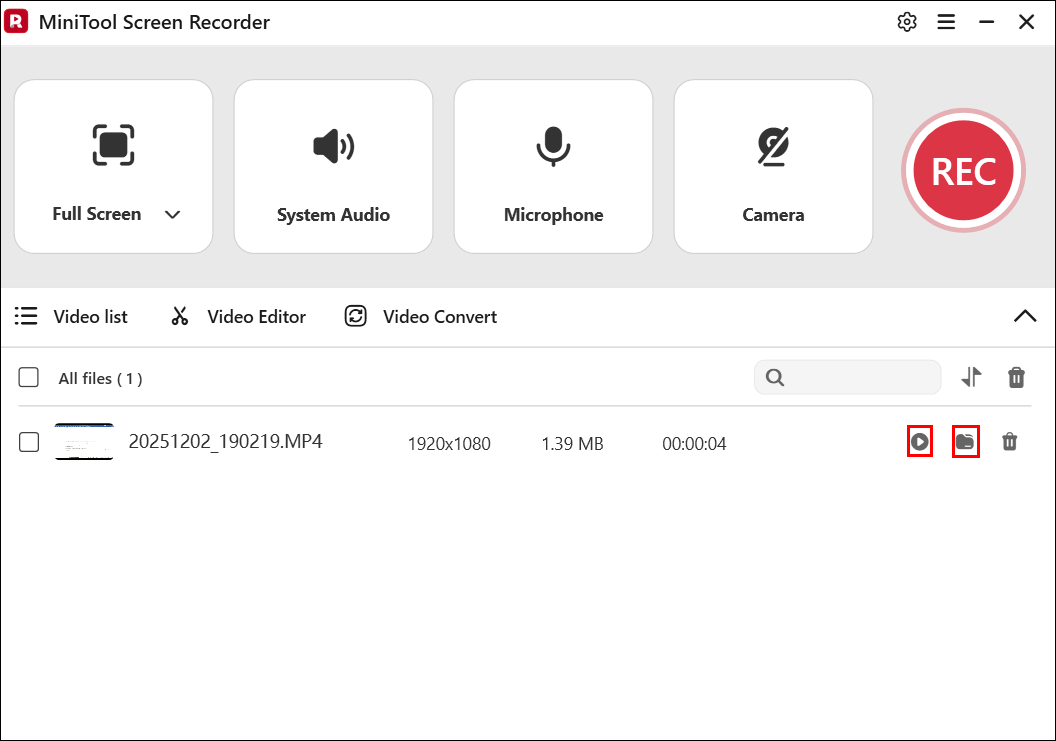
1. After recording completes, you will automatically be redirected to the Video list module in MiniTool Screen Recorder, where your recordings will be displayed.
2. Click the play icon next to the video to watch it, or click the folder icon to locate the video's storage location.
#2 iTop Screen Recorder
iTop Screen Recorder is a user-friendly screen recording tool that supports specific area, full-screen, and single-window recording modes, while also capturing camera footage and audio. Leveraging advanced hardware acceleration technology, iTop Screen Recorder delivers smooth, lag-free game recording experiences.
However, videos recorded by standard users will display a watermark. If this is a concern, you may decide whether to upgrade to a membership after learning the recording guide below.
Step 1: Download and Install iTop Screen Recorder
Visit the iTop Screen Recorder website to download and install it on your PC.
Step 2: Control Audio Recording
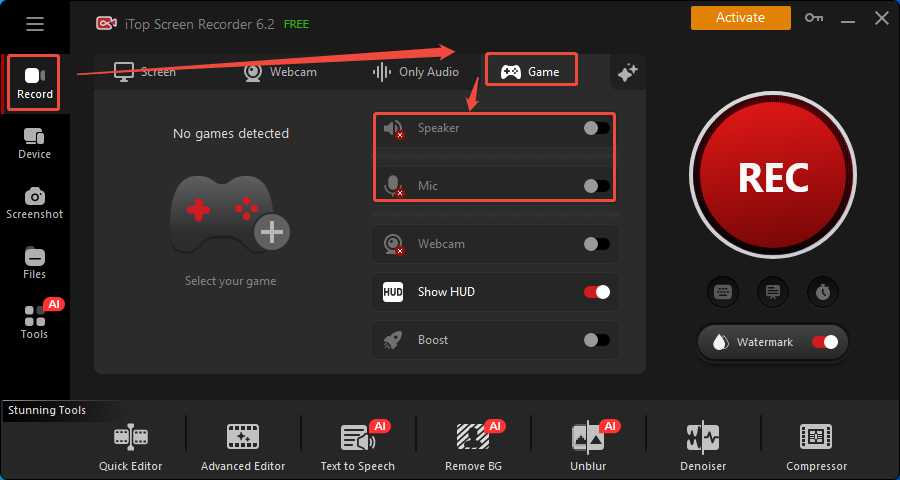
1. Launch iTop Screen Recorder and go to the Record module. Then choose the Game mode to identify the game you want to record.
2. Click on Speaker or Mic to choose whether to record audio from the system or the microphone.
Step 3: Start and End Recording
1. Click the REC button or press Ctrl + F9 to start recording.
2. To end the recording process, click on the Stop icon or press Ctrl + F9 again.
Step 4: Check the Recorded Video
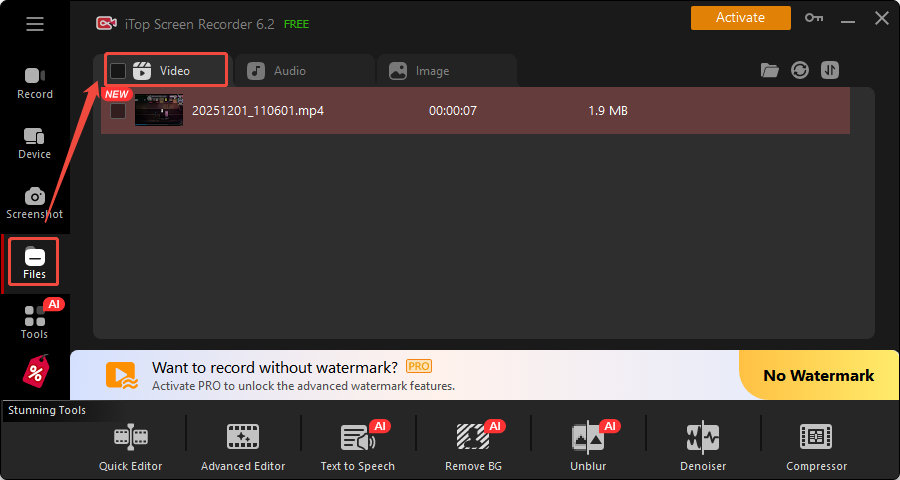
After the recording process ends, you can click on Video under the Files module to play the recorded video.
#3 RecMaster
RecMaster is also a professional screen recorder. Its seven built-in recording modes allow you to effortlessly capture webinars, gameplay videos, webcam and computer camera footage, and more. Additionally, you can leverage advanced features like scheduled recording and auto-start recording to boost efficiency and optimize your workflow.
Now, just check out the step-by-step guide below to record Goose Goose Duck with RecMaster.
Step 1: Download and Install RecMaster
Go to the website of RecMaster to download and install it on your computer.
Step 2: Choose the Recording Mode
1. Launch RecMaster on your PC after installing it.
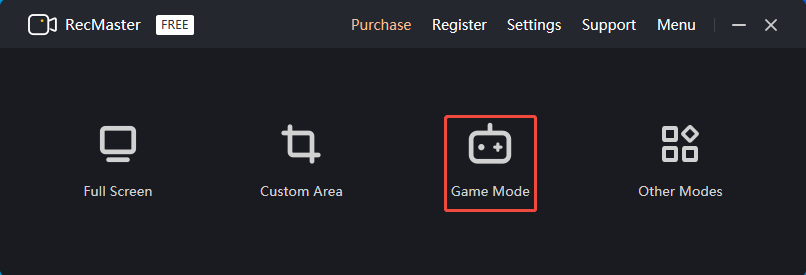
2. Since you recorded a video of the Goose Goose Duck, you need to select the Game Mode.
Step 3: Adjust the Audio Settings
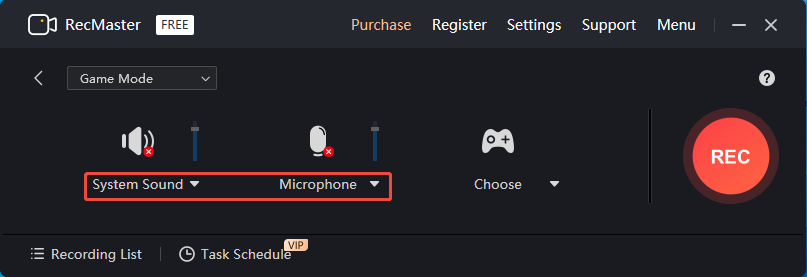
In Game Mode, click on System Sound or Microphone to choose whether to enable system audio or microphone audio.
Step 4: Start and End Recording Process
1. Click on REC to start the recording process.
2. If you want to stop the recording, just press Alt + 2 to end it.
3. Then, in the new pop-up window, click on Preview to play the recoded Goose Goose Duck video.
All in all, each of the three methods above has its own advantages. However, if you want to record videos for free without time limits and a watermark, using MiniTool Screen Recorder to capture gameplay footage of Goose Goose Duck is the more advantageous choice.
Bonus: How to Edit Your Recordings
To make your recorded Goose Goose Duck gameplay videos more engaging, editing and optimizing them before uploading is crucial. I strongly recommend using MiniTool MovieMaker to edit Goose Goose Duck videos.
MiniTool MovieMaker is a professional and easy-to-use video recorder for games that users of all editing skill levels can quickly and effortlessly master. It supports video cropping, cutting, reversing, and rotating, while also allowing users to freely add elements like filters, transitions, and motion from its media library.
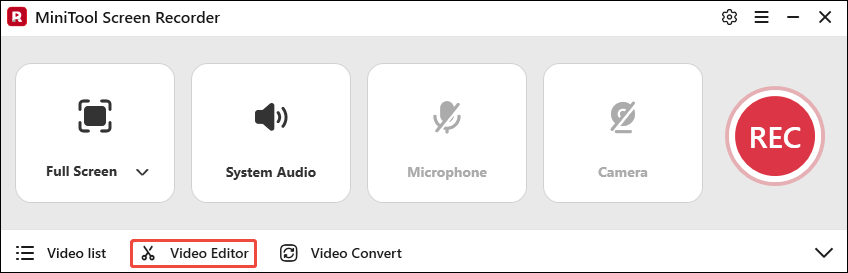
Additionally, the software supports exporting edited videos in formats such as MP4, MOV, and WMV. Now, you can click the Video Editor option at the bottom of the MiniTool Screen Recorder main interface to download and install MiniTool MovieMaker, then start editing your Goose Goose Duck recordings.
Or, you can click the button below to download and install it.
MiniTool MovieMakerClick to Download100%Clean & Safe
Final Words
For seasoned players looking to record Goose Goose Duck, this article provides three excellent recorders: MiniTool Screen Recorder, iTop Screen Recorder, and RecMaster, to assist you in completing the task.
Additionally, we recommend using our preferred editing software, MiniTool MovieMaker, to optimize your Goose Goose Duck videos and attract a larger audience. If you encounter any issues while using MiniTool Screen Recorder or MiniTool MovieMaker, feel free to email us via support@minitool.com or send me a message on X for assistance.