

Recording webcam footage is an effective way to engage viewers. How to record with a webcam on Windows? This article presents two efficient methods: using the built-in Camera feature or utilizing a dedicated webcam recorder, such as MiniTool Screen Recorder. Additionally, you can optimize your webcam recordings using the video editing tool recommended in this article.
Why Record with a Webcam
In recent years, with the widespread adoption of webcam recorders, not only has the demand for capturing webcam footage grown significantly, but users have also gained numerous advantages from it.
Optimize Online Guidance
In recent years, remote work and online courses have become increasingly prevalent on the internet. Integrating webcam footage into these platforms enhances the clarity of the teaching process, effectively improving the efficiency of online instruction or remote work.
Promote Interaction
Recording the webcam allows your expressions, tone of voice, and emotions to be fully captured, making it easier to establish an emotional connection with your audience and enhance their trust in you.
Boost Video Appeal
In a sea of faceless videos, the appearance of a face may grab viewers' attention instantly, significantly increasing their willingness to click and watch.
What Things Should You Consider for Better Webcam Recording
To make webcam recordings look more professional, thorough preparation is crucial before starting the recording.
#1 Background
Please select a clean, clutter-free background for recording the webcam, such as a tidy bookshelf or a solid-colored wall. This will better highlight the subject of your video and enhance its professional quality.
#2 Lighting
Lighting is a crucial factor in capturing captivating webcam footage. It is generally recommended to utilize natural light whenever possible. When natural light is insufficient, artificial lighting can be employed to create more aesthetically pleasing visual effects.
#3 Camera
It is recommended to test the camera before recording. Ensure the camera is clear and free from obstructions. Additionally, if the overall composition is unsatisfactory, adjust the camera position. Users with built-in cameras may reposition their computer accordingly.
How to Record with a Webcam on Windows
Whether you want to record with a webcam for personal sharing or capture both your webcam and screen content simultaneously, this guide provides detailed step-by-step instructions for you.
Use the Built-in Camera App on Windows
For Windows 10 or 11 users, you can use the built-in Camera app to record your webcam feed. Additionally, the app allows users to easily capture videos and photos. Below is a step-by-step guide for recording your webcam using the system's built-in Camera app.
Step 1: Launch the Camera App on Your PC
Press Windows + S key to search for the Camera app, then launch it on your PC.
Step 2: Start and End Recording the Webcam
1. Switch to the Video option on the main interface.
2. Then, click the Video option to start the recording process.
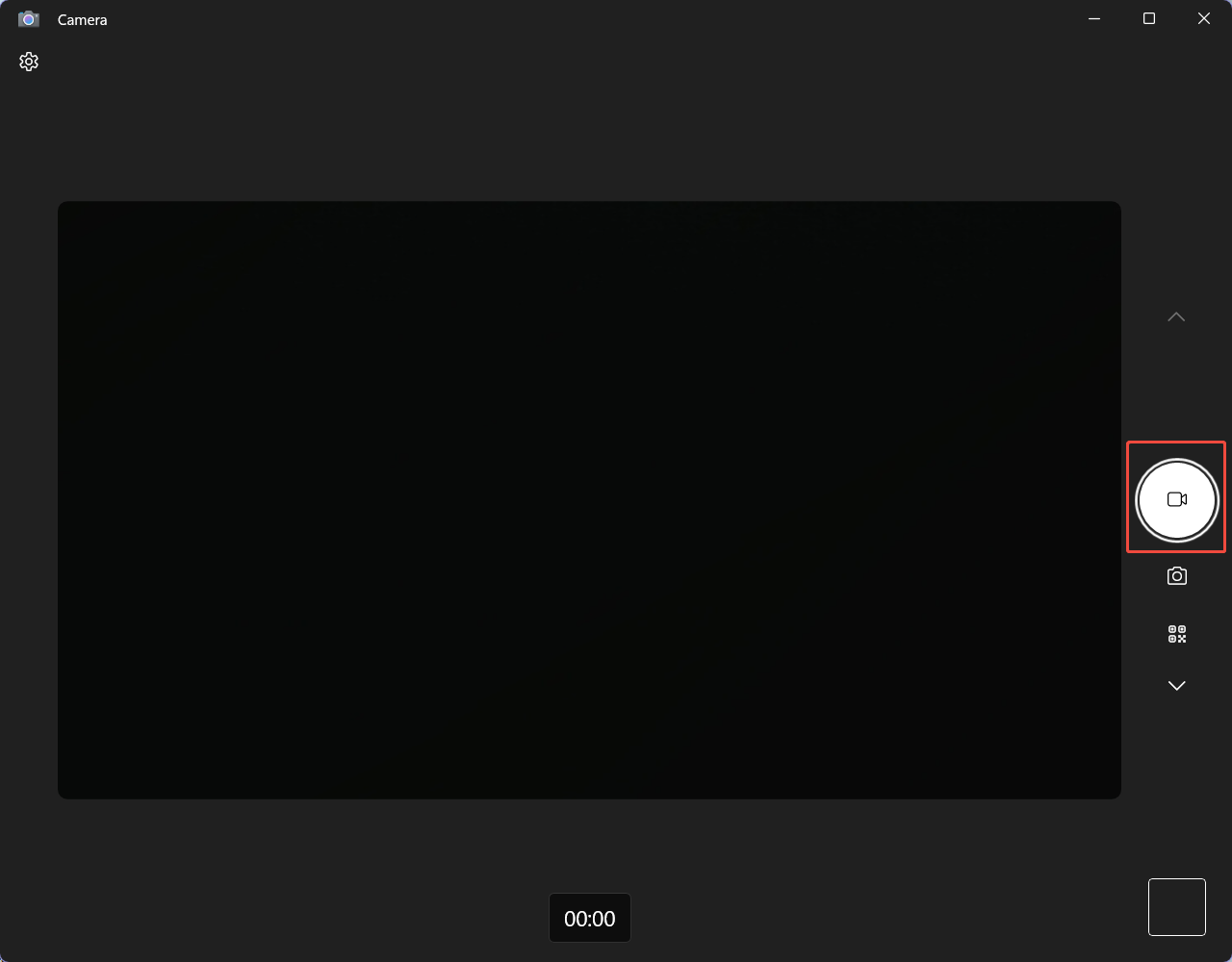
3. To end the recording process, click the Stop icon.
Although the built-in Windows Camera app allows you to quickly and easily record webcam footage, it only supports capturing camera content alone. To capture both your screen and webcam simultaneously, we recommend using the professional-grade screen recorder below.
Use a Dedicated Webcam Recorder
When it comes to professional-grade screen recording tools, MiniTool Screen Recorder is the first one that comes to mind, which I use frequently.
MiniTool Screen Recorder is a safe and free Windows screen recorder. It effortlessly allows users to capture standalone webcam footage or record screen with webcam. Additionally, before starting a recording, users can adjust webcam parameters in the corresponding settings interface, including format, position, shape, and size.
What’s more, MiniTool Screen Recorder can capture any activity on your screen, such as game footage, webinars, video calls, live streams, and more. It also supports recording system audio and microphone audio simultaneously. Notably, all recorded videos are exported in MP4 format and are completely watermark-free.
Below is a detailed tutorial on recording your webcam separately, as well as recording both your webcam and screen simultaneously.
#1 Record a Webcam Only
Here is a detailed guide on how to record with a webcam only using MiniTool Screen Recorder.
Step 1: Download and Install MiniTool Screen Recorder
MiniTool Screen RecorderClick to Download100%Clean & Safe
Click the button above to download and install the latest version of MiniTool Screen Recorder on your PC.
Step 2: Choose the Recording Area
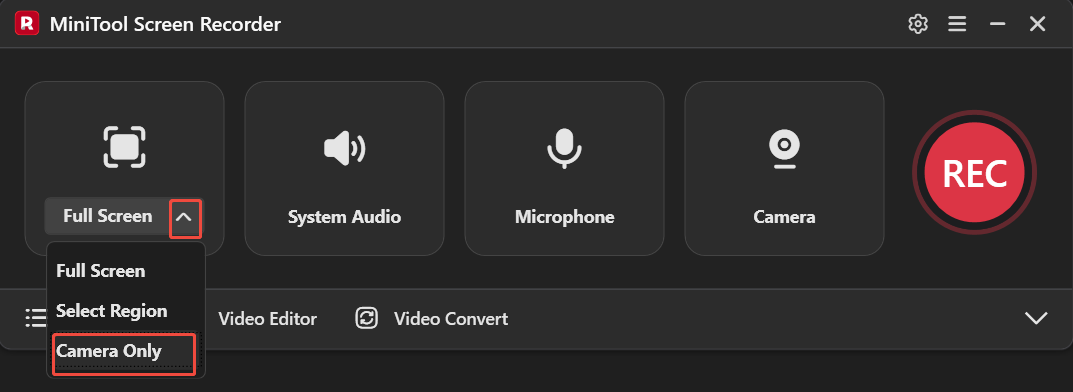
1. Expand the drop-down menu of the Full Screen option.
2. Then, choose the Camera Only option.
Step 3: Adjust Webcam Recording Settings
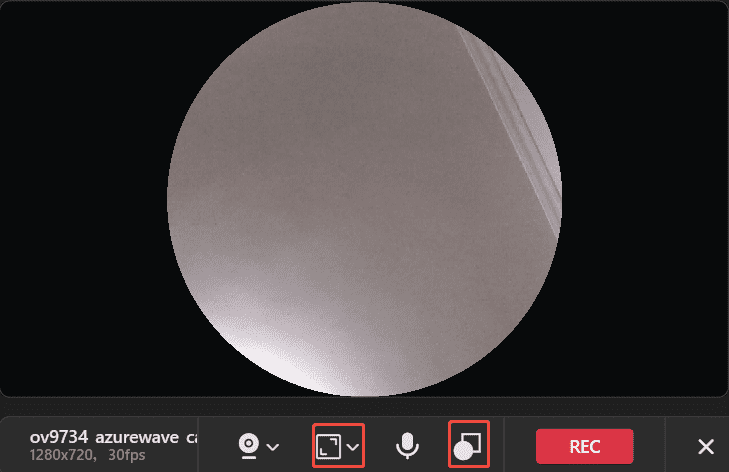
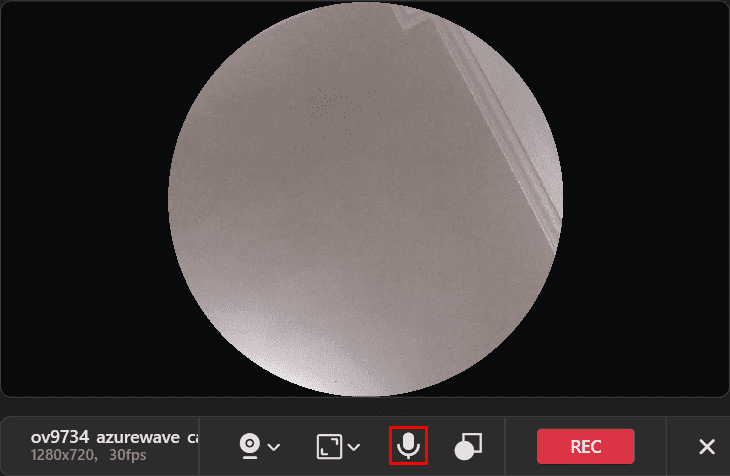
1. In the toolbar below the webcam area, you can expand the drop-down menu of the square icon to choose the right recording resolution and frame rate.
2. To change the shape of the webcam recording area, simply click on the shape toggle icon.
Step 4: Control the Audio Recording
To turn on or off the Microphone audio recording feature, click the Microphone icon in the toolbar below the webcam area.
Step 5: Start and End Recording
1. Click the REC button on the right side of the toolbar or press the default key F6 on your keyboard to start the recording process. After a 3-second countdown, it will record the webcam.
2. To end the recording process, press the default key F6 again.
Step 6: Check the Recorded Video
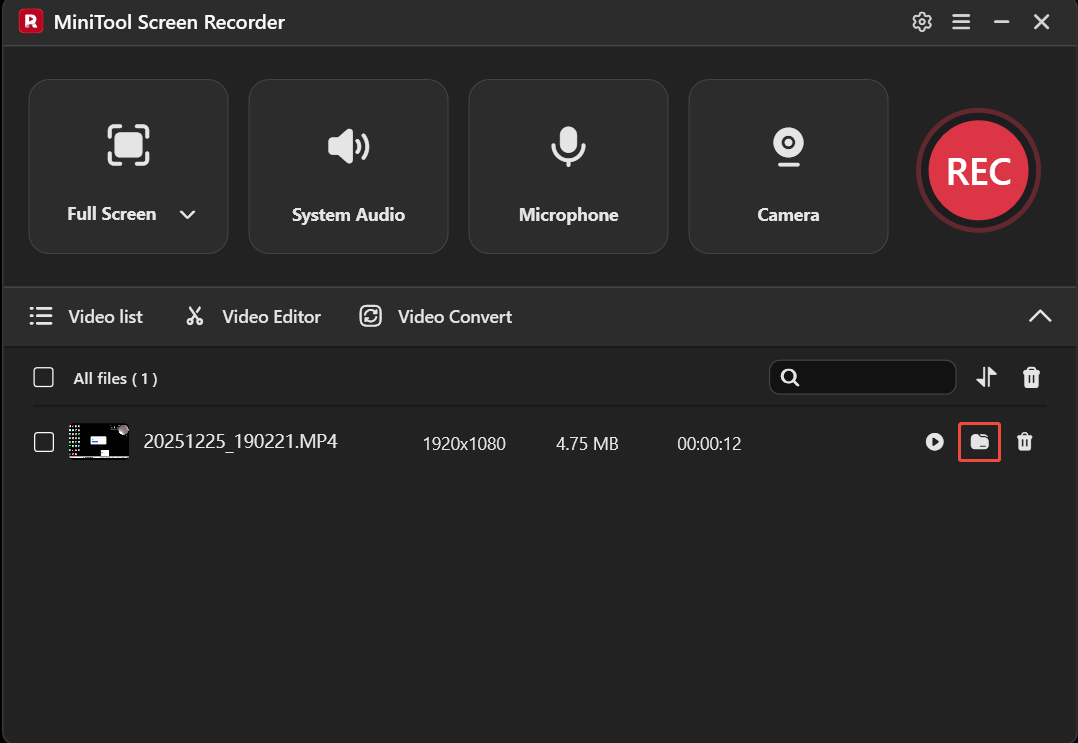
1. After recording completes, you will automatically be redirected to the Video list module in MiniTool Screen Recorder, where your recordings will be displayed.
2. Then, click the folder icon to locate the recorded video.
#2 Record Screen with a Webcam
Now, you can check the recording guide on how to record video with webcam.
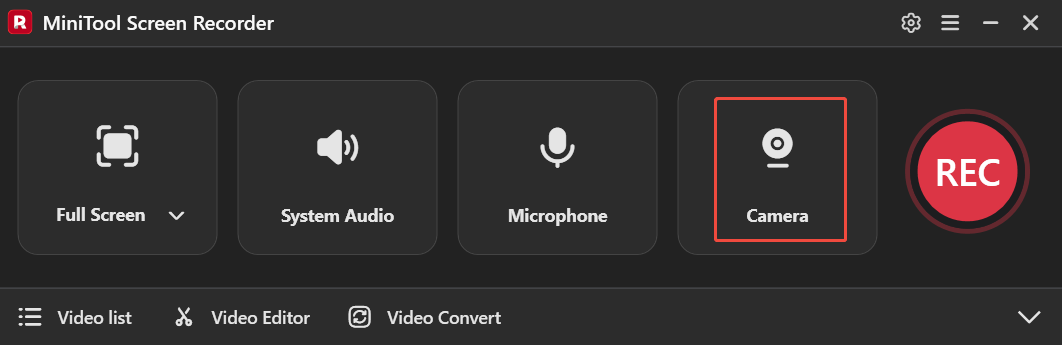
Step 1: Enable the Camera Feature
Click the Camera icon on the right to enable the webcam recording feature.
Step 2: Adjust Webcam Recording Settings
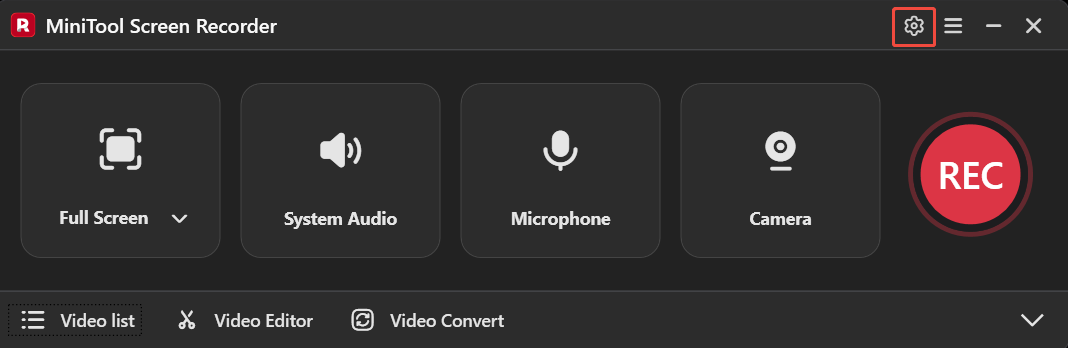
1. Click the Settings icon in the upper-right corner of the main interface to enter the advanced settings page.
2. Switch to the Webcam tab, then click on the Setting option to adjust the brightness, contrast, color, and other parameters of the webcam.
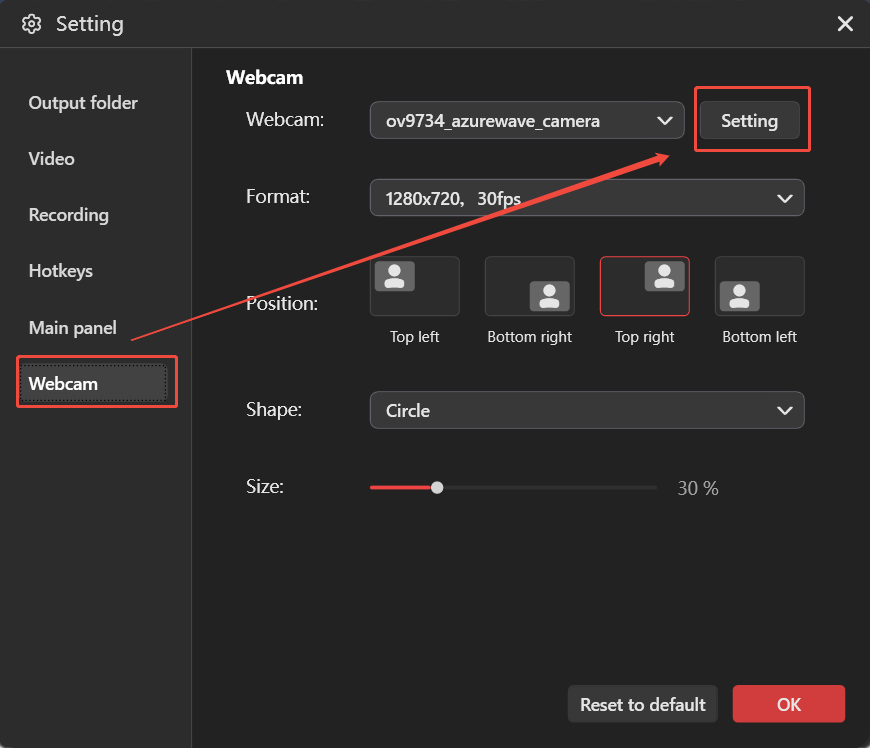
3. You can adjust the webcam’s format, position, shape, and size in sequence. Then, click on OK to save the changes.
Step 3: Choose the Recording Area
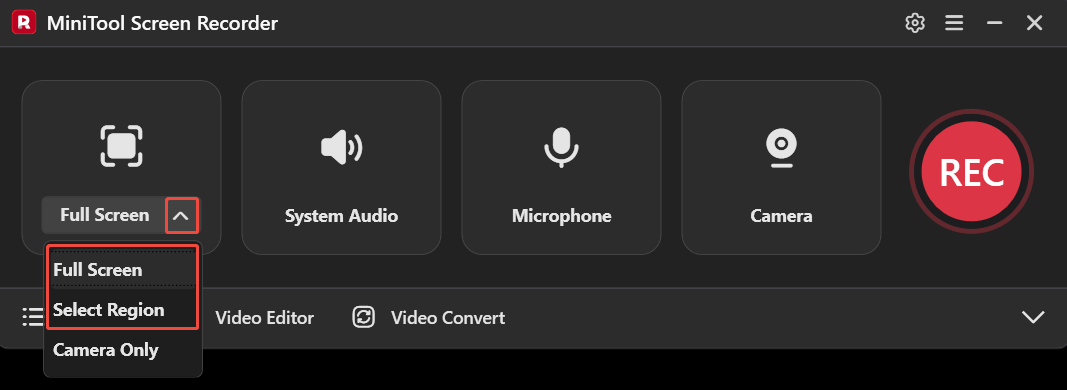
1. Expand the drop-down menu of the Full Screen option.
2. Click Full Screen to capture the entire screen. Or, click Select Region, then drag the red dashed border that appears to define the recording area.
Step 4: Control the Audio Recording
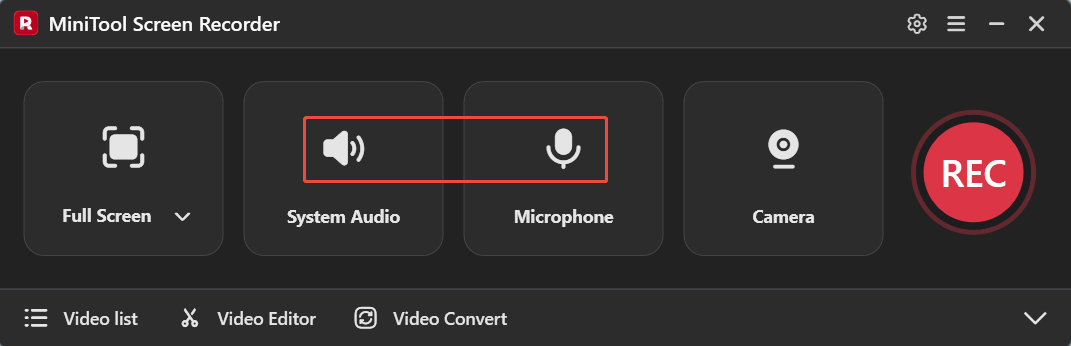
Click on the System Audio icon or Microphone icon to determine whether to record the sound from the system or the microphone.
Step 5: Start and End Recoding
1. Click the REC button on the right side of the main interface or press the default key F6 on your keyboard to start the recording process.
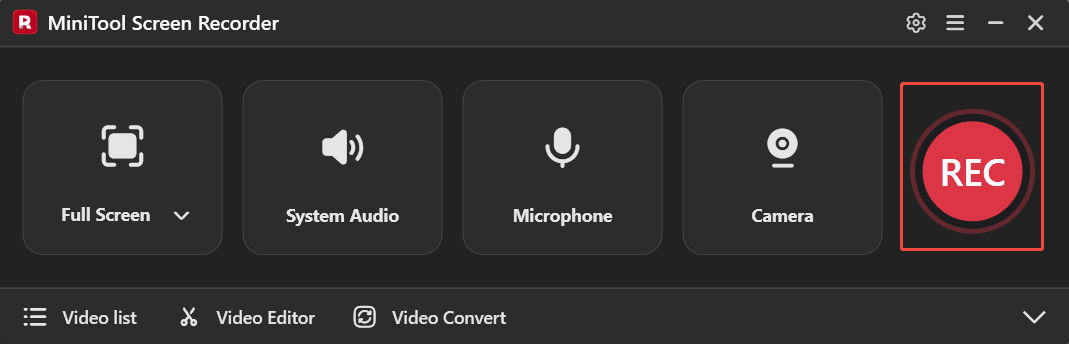
2. To end the recording process, press the default F6 again.
In short, MiniTool Screen Recorder not only meets your personal screen recording needs but also stands as the top choice for capturing both your screen and webcam.
How to Edit Your Webcam Recordings
Whether you're recording personal footage to share or creating instructional content, further editing your recordings after capture can significantly enhance their professionalism. Now, click the Video Editor option at the bottom of the MiniTool Screen Recorder homepage to get the professional video editing software.
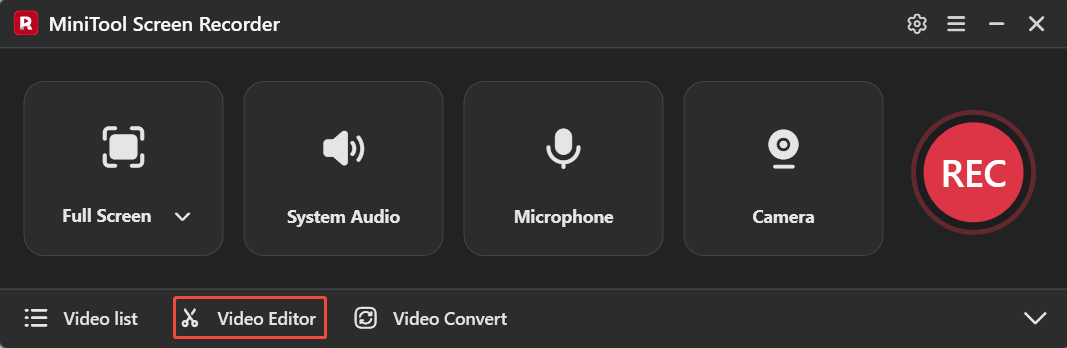
Or, you can click the button below to get this video editor on your PC.
MiniTool MovieMakerClick to Download100%Clean & Safe
You can use this free and intuitive editing tool to add transitions, filters, text, music, and other elements to your recorded videos, making your content more engaging. Additionally, you can perform operations like trimming, rotating, and reversing footage.
Furthermore, it enables users to export videos in multiple formats, including MP4, WAV, AVI, MOV, MKV, and others, with no watermark on the output video.

Final Words
How to record with a webcam? Using the methods outlined in this guide, you can easily create webcam videos, whether you choose the simple Camera app or the MiniTool Screen Recorder with more professional features. Additionally, editing and polishing your recordings with recommended video editing software will help you produce more professional video projects.
If you encounter any issues while trying out MiniTool Screen Recorder or MiniTool MovieMaker, feel free to email us via support@minitool.com or send me a message on X for assistance.