

This article introduces the premium screen recorder with annotations to enhance your recording experience and convey information more clearly to your audience. Additionally, you can learn how to annotate your screen during recording and optimize your recordings using the recommended video editor to achieve professional-grade results.
In today's fast-paced world, people increasingly crave efficient and precise communication of information and ideas. Beyond clear textual expression, effective visual communication is equally crucial.
Whether you're an online educator, project manager, or a gamer needing to share game tutorials, using annotation features like arrows and highlights during screen recording helps viewers efficiently absorb key details. This is precisely where the capabilities of recording annotation tools play a vital role.
Why Record Screen with Annotations
As the demand for annotation features during screen recording has grown, screen recording tools with annotation capabilities have emerged. This powerful combination offers numerous advantages.
Capture Audience Attention
Whether you're a social media video creator or an online instructor, the ultimate goal of content creation is to capture your audience's attention and boost engagement. Adding annotation during screen recording provides visual reinforcement, effectively guiding viewers to focus their gaze and attention on key content.
For instance, using effects like circles, arrows, and highlights prevents viewers from getting lost amidst overwhelming visual elements and text, helping them maintain sustained focus.
Enhance Visual Impact
Monotonous screen recordings often lack vibrancy and appeal. Adding annotations in real time during recording enhances the video's dynamic effect and conveys the creator's immediate intent. For instance, when corporate employees add annotations during meeting recordings, this mimics their natural gestures during presentations, thereby bridging the gap with the audience.
Highlight Key Information
Screen recording tools with annotation capabilities empower creators to transcend the limitations of plain narration, effectively highlighting key information. Creators can directly mark important data during recording using annotation features, reducing cognitive load for viewers.
For example, in educational content, instructors can annotate step-by-step guides with text and images or mark core terminology. Meanwhile, professionals demonstrating operational workflows or troubleshooting tutorials can precisely annotate functional features or pinpoint problem areas.
Boost Work Efficiency
During team collaboration, corporate meetings, or client presentations, a screen record with annotations highlights key points amidst lengthy textual explanations or repetitive discussions. This enables participants or clients to grasp core content clearly, enhancing negotiation efficiency while saving time and reducing misunderstandings, ultimately driving overall productivity gains.
Solve Problems Quickly
In technical support or customer service scenarios, annotated screen recordings can demonstrate operational steps more clearly than written guides. You can more effectively highlight the location of errors, illustrate modification processes, or demonstrate troubleshooting methods, thereby accelerating problem resolution and enhancing customer satisfaction.
![9 Best Webcam Recorders for Windows [Beginners & Professionals]](https://images.minitool.com/recorder.minitool.com/images/uploads/2025/12/webcam-recorder-thumbnail.png)
Top Screen Recorder with Annotations
When selecting a screen recorder with annotation capabilities, you should evaluate its suitability across multiple dimensions, including the completeness of recording features, the availability of annotation tools, and the software's ease of use. Below is our in-depth analysis of the top 5 screen recorders, along with annotations to help you choose the one that best meets your needs.
#1 MiniTool Screen Recorder
When it comes to the best screen recorder with annotations, the first tool that springs to mind is MiniTool Screen Recorder. This free Windows screen recording tool stands out for its exceptional performance and user-friendly design.
Its powerful built-in annotation tools allow users to add arrows, circles, lines, and other shapes during recording. The step numbering feature proves particularly useful, making it an ideal tool for creating tutorial videos. MiniTool Screen Recorder also offers a highlight annotation function that displays the mouse movement path in real time.
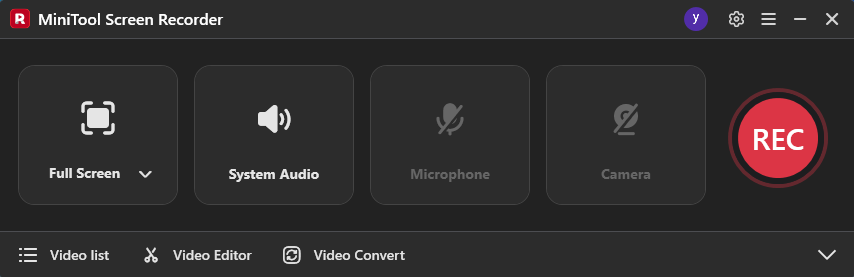
Additionally, MiniTool Screen Recorder not only features annotation capabilities but also offers advanced recording functions. It supports capturing any activity on the screen to meet diverse user needs, such as online meetings, gameplay, video calls, and other scenarios. Simultaneously, it allows users to record screen, webcam, microphone audio, and system audio all at once.
Users can also adjust camera settings such as frame rate, shape, and size to record personalized picture-in-picture videos. More importantly, users can preset recording duration before capturing, enabling hands-free recording without needing to stay in front of the screen.
Pros:
- Easy-to-use interface.
- No watermarks.
- No recording time limits.
- Provide diverse recording frame rates.
- Support recording the screen with a webcam.
- Support 4K HD recording.
- Support annotate screen when recording.
Cons:
- Only suitable for Windows users.
#2 iTop Screen Recorder
iTop Screen Recorder is a free screen recorder with annotations, distinguished by its lightweight design. Its annotation features prioritize efficiency, allowing users to freely add various standard shapes to highlight key areas on the screen and capture viewers' attention.
Additionally, iTop Screen Recorder includes a blurring function that instantly obscures sensitive information like account passwords and personal details during recording. However, it's important to note that this tool does not support freehand annotation, limiting its customization capabilities.
What’s more, iTop Screen Recorder features a built-in video editor that allows users to customize recordings post-capture. This includes adding subtitles, transition effects, trimming redundant segments, or embedding other videos.
Pros:
- Straightforward user interface.
- Support recording screen and audio simultaneously.
- Provide a built-in video editing feature.
- Support recording full screen or a specific area.
Cons:
- The free version will add a watermark to the recorded videos.
- The annotation tool lacks hand-drawing functionality.
#3 Wondershare DemoCreator
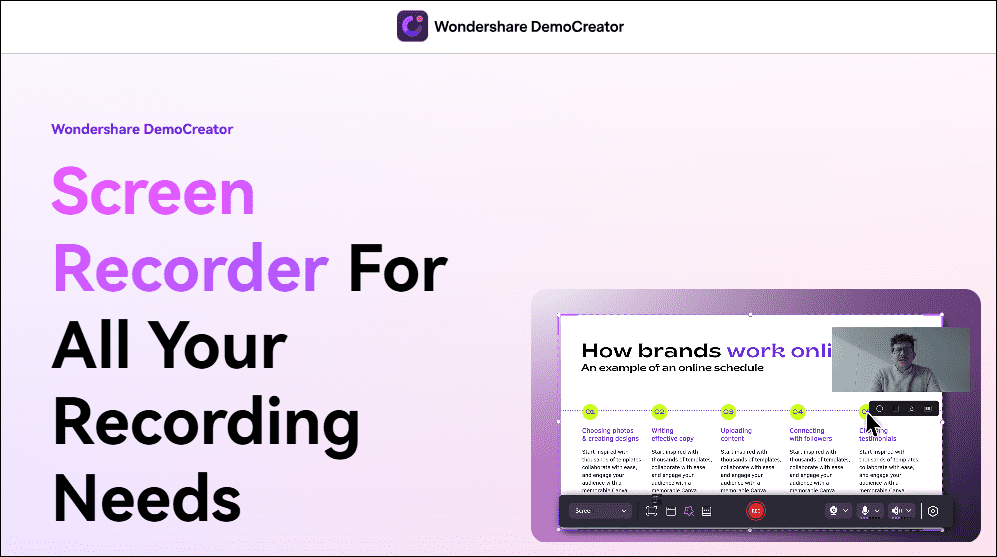
Wondershare DemoCreator is specifically designed for users with advanced annotation needs, such as online instructors and technical support personnel. It supports two screen annotation modes: users can annotate the screen in real-time during recording, or make modifications on the timeline within the video editing area after recording is complete.
Additionally, Wondershare DemoCreator annotation tools are diverse, including not only standard shapes but also stickers, annotation boxes, and blur effects, catering to the needs of various users. Moreover, it seamlessly integrates screen recording with editing capabilities, allowing users to trim and enhance their videos without ever leaving the software after capturing their screen.
Pros:
- Suitable for both Windows and Mac users.
- Support advanced annotation tools.
- Provide a built-in video editor.
Cons:
- The learning process is both complex and costly.
- The free version has a maximum recording time of 10 minutes and includes a watermark.
#4 Bandicam
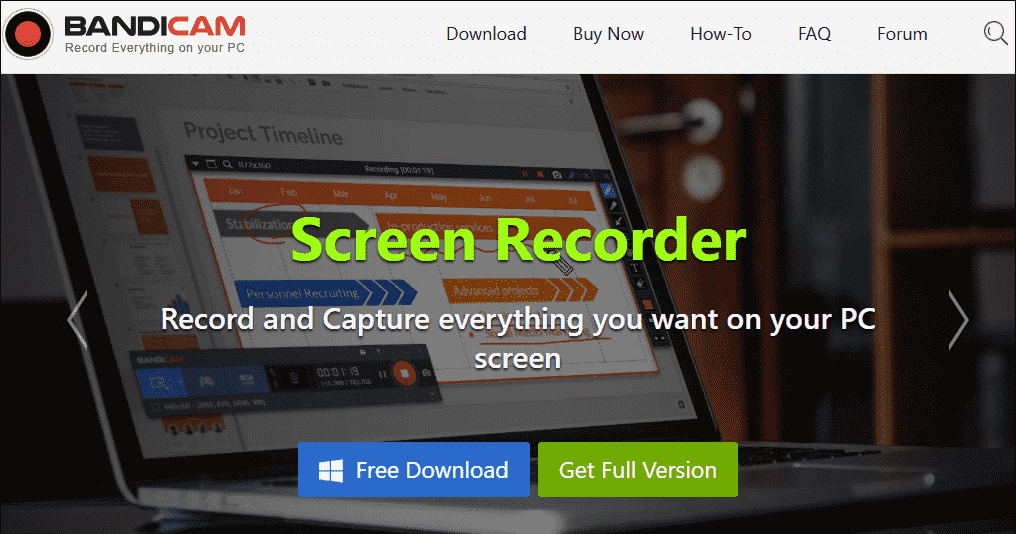
Bandicam is a professional screen recording tool designed specifically for gamers. It utilizes a proprietary encoder to minimize file size while capturing high-definition content. Bandicam also offers multiple recording modes, including Game Recording Mode, Device Recording Mode, and Screen Recording Mode, catering to the screen capture needs of the vast majority of users.
Additionally, Bandicam features a built-in annotation tool that allows users to add graphics and text in real time. Annotations can be customized in terms of color and size, empowering users to create more personalized video content and thereby attract a broader audience.
Pros:
- Support multiple recording modes.
- Support 4K HD video recording.
- Support recording the screen and webcam simultaneously.
Cons:
- No free version available.
- The interface is complex.
- Limited selection of annotation tools.
- Update to the latest version requires an additional fee.
#5 Camtasia
For users willing to invest in a premium annotation screen recording tool, Camtasia is undoubtedly an excellent choice. It not only enables smooth screen capture but also features built-in professional-grade editing tools to help users meticulously refine and optimize their video content.
Moreover, Camtasia's robust annotation toolkit encompasses a wide range of elements, including graphics, text, captions, and interactive hotspots. Users can add annotations or drawings in real-time during recording and freely adjust existing annotations after the recording is complete.
Pros:
- Suitable for Windows and Mac users.
- Support adding animation effects to annotated content.
- Provide interactive functionality.
Cons:
- No free version available and only provides a 30-day free trial.
- The learning curve is steep and complex.
In short, the 5 screen recorders with annotations mentioned above possess their own unique strengths. However, overall, MiniTool Screen Recorder stands out as the best choice for meeting diverse user needs thanks to its core advantages: it is completely free, has no recording time limits, adds no watermarks, and supports real-time annotation features.
How to Annotate the Screen While Capturing
All 5 annotation screen recording tools mentioned above support adding annotations in real-time during recording, with only minor differences in their overall workflows. Therefore, this article will use MiniTool Screen Recorder as an example to help you learn how to record screen and add annotations simultaneously.
Here is a detailed step-by-step tutorial. Let’s dive in now.
Step 1: Download and Install MiniTool Screen Recorder
Click on the button below to download and install the latest version of MiniTool Screen Recorder on your PC.
MiniTool Screen RecorderClick to Download100%Clean & Safe
Step 2: Open the Annotate Screen Feature
1. Launch MiniTool Screen Recorder after you install it on your PC.
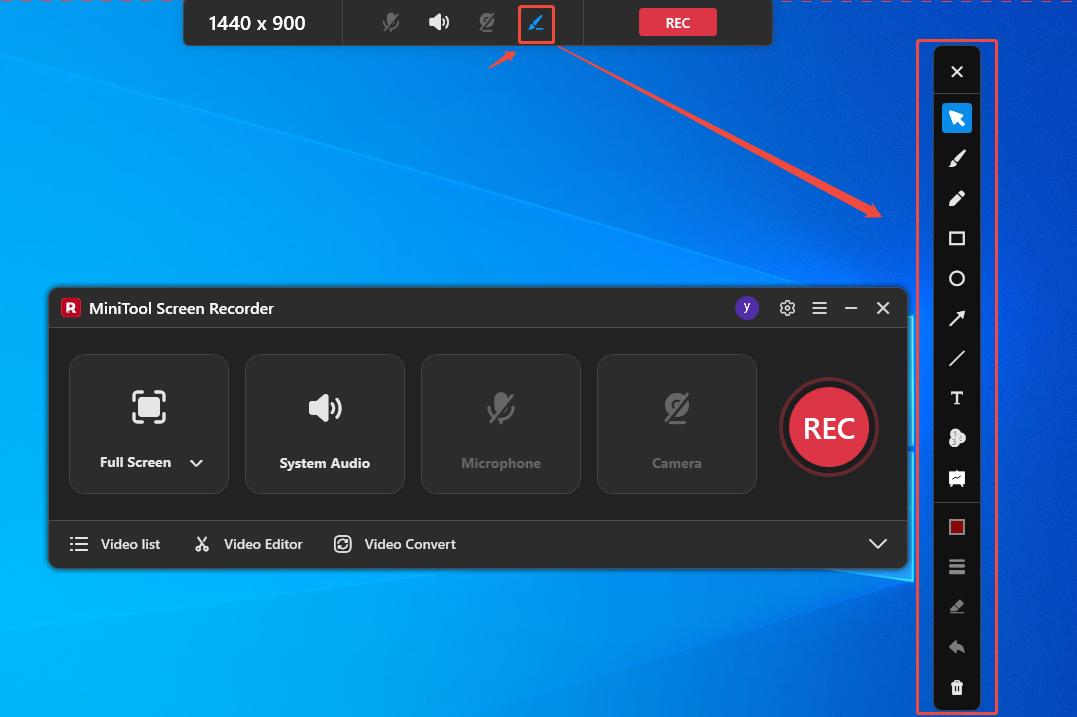
2. Click on the Screen Annotation icon on the small strip pane, and then the annotation toolbar will appear on the right side of the screen.
Step 3: Select the Recording Area
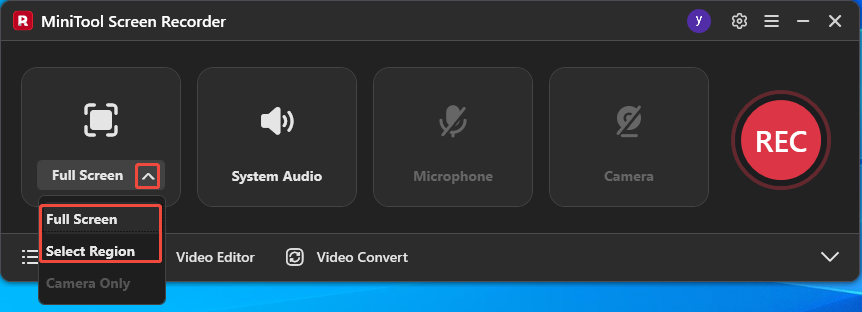
1. Expand the drop-down menu of the Full Screen option.
2. Then, you can click the Full Screen to capture the entire screen. Alternatively, you can click the Select Region option, then drag the red dotted border that appears to define the recording area according to your needs.
Step 4: Control the Audio Recording
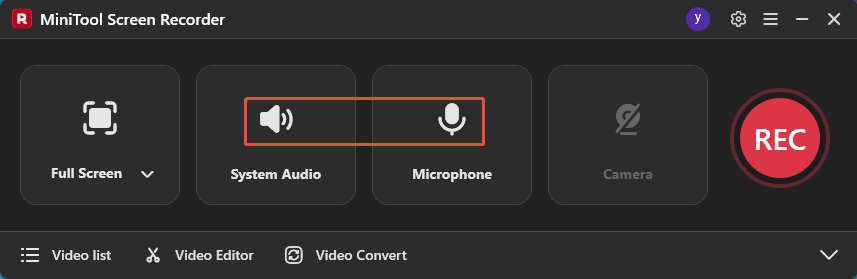
If you want to record a clear narration to make your video more professional, you can click on the System Audio icon or the Microphone icon to record the sound from the system or the microphone.
Step 5: Control Camera Recording
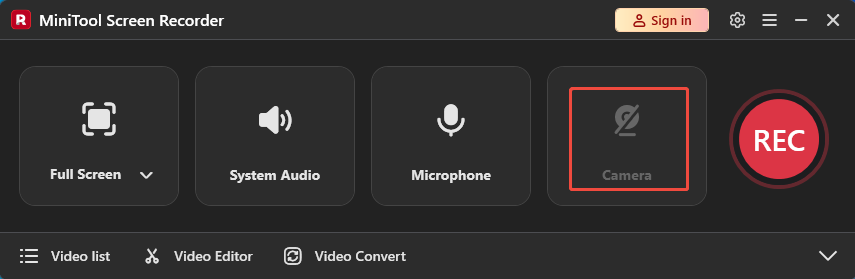
If you want to record the screen with your face to enhance the appeal of your video, simply click the Camera icon on the right.
Step 6: Record Screen and Add Annotations
1. Please ensure that the screen content you wish to record is ready.
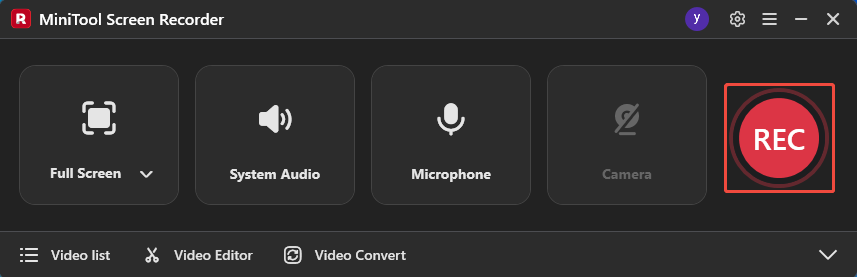
2. Click the REC button on the right of the main interface or press the default F6 key to start the recording process.
3. When you want to annotate the screen, select the appropriate drawing tool from the annotation toolbar on the right to annotate directly on the screen.
4. To end the recording process, press the default F6 key again.
Step 7: Locate the Recorded Videos
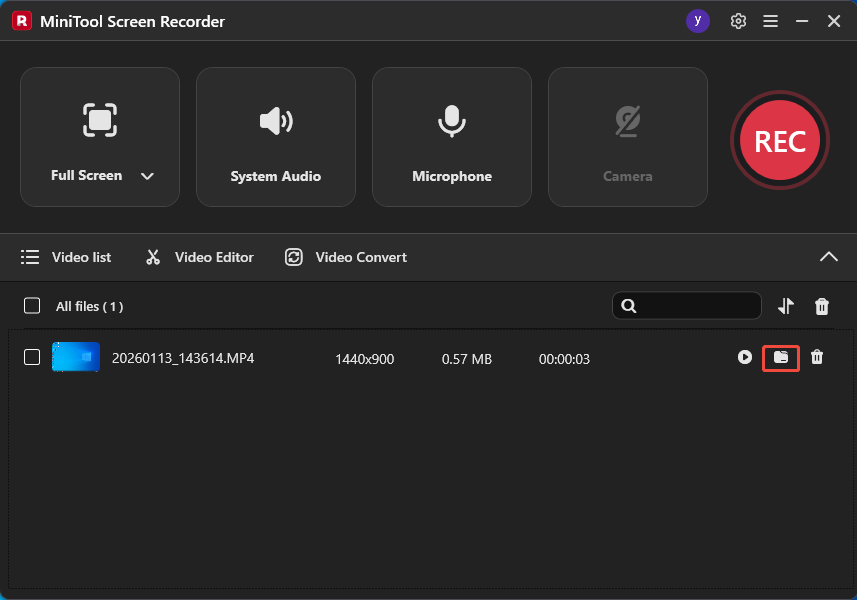
1. After recording completes, you will automatically be redirected to the Video list module in MiniTool Screen Recorder, where your recordings will be displayed.
2. Then, click the folder icon to locate the recorded videos.
Bonus: How to Polish Your Recordings
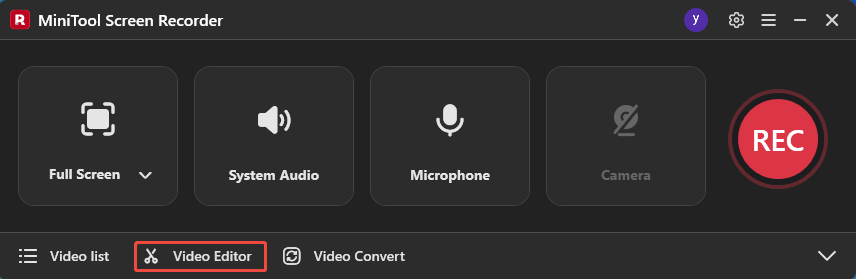
Whether you're an online instructor or a technical support specialist, using professional tools to edit and optimize your screen recordings can make your videos more engaging. Now, simply click the Video Editor option at the bottom of the MiniTool Screen Recorder interface to access MiniTool MovieMaker on your computer.
MiniTool MovieMaker is a professional and user-friendly video editing software suitable for users of all skill levels. You can leverage its powerful editing features, such as cropping, trimming, and reversing, to add depth and dimension to your videos.
Additionally, it's built-in media library supports adding transitions, text, effects, and other elements to enhance your video's visual appeal and captivate a wider audience.
Or, you can also click the button below to get MiniTool MovieMaker.
MiniTool MovieMakerClick to Download100%Clean & Safe
Final Words
A screen recorder with annotations is essential for enhancing the accuracy of information delivery. Each of the 5 screen recording tools mentioned above that support annotation features has its own strengths. After learning about them, you should be able to choose the right tool based on your needs and skill level.
Additionally, don't forget to use the video editor to polish your recordings and add a professional touch to your work. If you encounter any issues while trying out MiniTool Screen Recorder or MiniTool MovieMaker, feel free to email us via support@minitool.com or send me a message on X for assistance.