

Looking for methods to record your screen and yourself? A webcam recorder can help you with that. It is capable of recording your screen while capturing your face, voice, and tone through a computer webcam. This post recommends 9 professional and reliable webcam recorders, such as MiniTool Screen Recorder (best Windows webcam recorder), Microsoft Clipchamp, OBS Studio, etc. With them, you can record the screen and webcam at the same time with ease.
Nowadays, webcam recorders have become an important tool for online lessons, remote meetings, reaction content creation, online interviews, etc. A great webcam recorder can significantly improve your video quality, helping you complete your work efficiently. Before recommending webcam recorders, let’s discuss why we need a webcam recorder.
Why Do You Need a Webcam Recorder
Webcam recorders bring big convenience to people’s lives, study, and work. They are capable of directly capturing footage and audio from your computer webcam, achieving flexible learning and working, and saving a lot of time. Below are some benefits of using a webcam recorder.
- Increase Efficiency: Whether for work or life, a webcam recorder significantly improves efficiency. You can use videos instead of lengthy and boring text to demonstrate products, introduce courses, etc.
- Create a Personalized Connection: Compared to conventional text emails, webcam recorders let you create more engaging video messages. Recording yourself via webcam adds a personal touch and builds a stronger connection with your target audience.
- Bring Professional-Level Results: Most webcam recorders support high resolutions and enable webcam, screen, and audio simultaneous recording. They effectively combine the computer screen and your face, creating expert-looking videos.
- Easy Access and Flexible: Webcam recorders are typically desktop programs or browser-based tools, which are easy to access. No expertise needed, and all processes can happen on a computer.
What Makes a Good Webcam Recorder
What defines a good webcam recorder? Generally speaking, a good webcam recorder should be equipped with resolution support, great performance, etc. In this part, let's discuss some important aspects to consider when selecting a webcam recorder.
- Ease of Use: A steep learning curve can hinder productivity. Choose webcam recording software with an intuitive layout and user-friendly features, so you can easily access all tools without trial and error or dedicated training.
- Great Performance: Choose a webcam recorder that can capture webcam videos smoothly and offer reliable and low-lag features. Plus, it should support high-resolution recording, providing a clear result.
- Versatile Options: Simultaneously record screen and webcam footage, blend microphone and system audio, and effortlessly switch between different options, like full screen recording, selected region recording, turn the camera on or off, etc.
Top 9 Webcam Recorders for Windows Users
Here are the 9 best webcam recording software programs I’d like to recommend.
- Windows Camera
- Microsoft Clipchamp
- MiniTool Screen Recorder
- Bandicam
- Loom
- OBS Studio
- Free2X Webcam Recorder
- VEED
- Vimeo
Top 1. Windows Camera
Windows Camera is a default application pre-installed on Windows computers. It is compatible with most webcams, capturing your webcam footage smoothly. Plus, Windows Camera provides various features, like adjustable resolutions, self-time, etc.
Pros:
- Easy to access.
- Versatile options.
- Wide compatibility with various webcams.
Cons:
- Cannot capture webcam and screen simultaneously.
Top 2. Microsoft Clipchamp
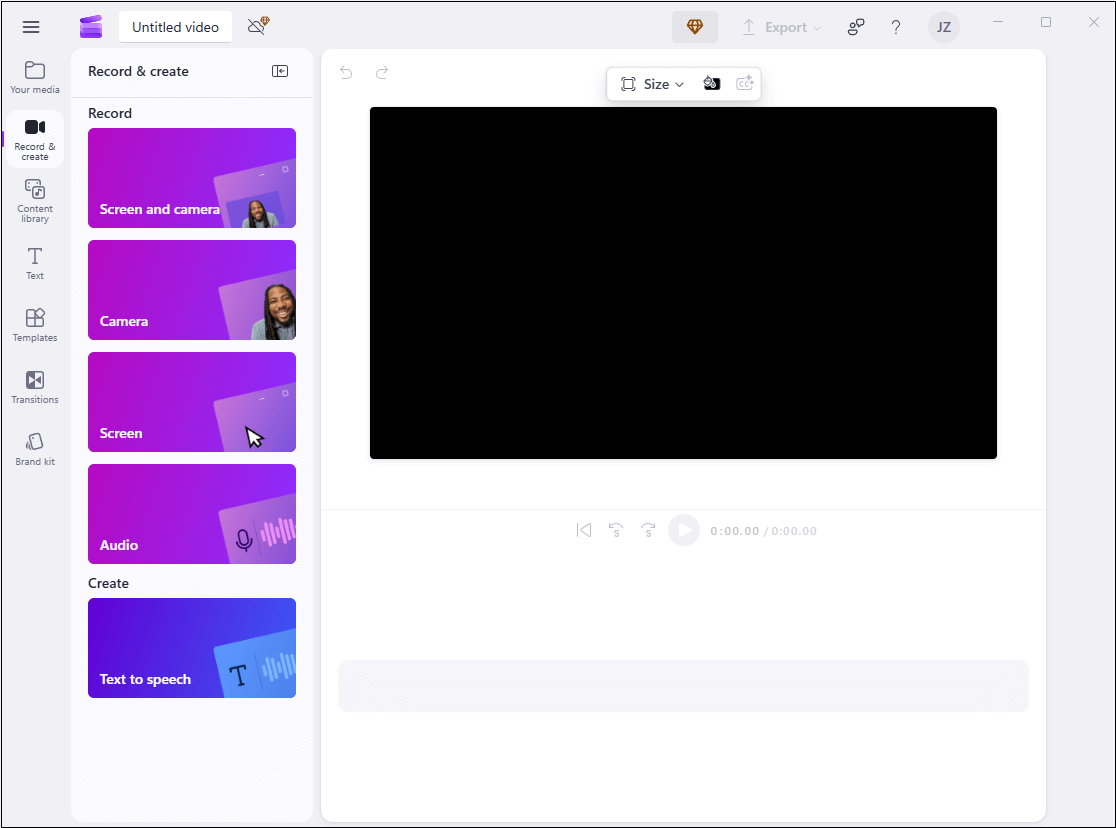
Microsoft Clipchamp is an easy-to-use webcam recorder that is also pre-installed on Windows 11. It supports high-resolution recording, allowing you to record the screen, webcam, and audio at the same time or separately. Clipchamp also offers a teleprompter tool that lets you view your script in real time while recording. It supports a variety of virtual backgrounds, webcam frames, and filters, and allows you to draw on your screen while recording.
Moreover, this all-in-one application also offers editing features. After recording, you can edit your videos using Clipchamp’s video editing tool. However, Clipchamp has a recording time limit of 30 minutes. When the recording time ends, restart the recording for the next segment and merge all segments using the editing features.
Pros:
- User-friendly.
- Easy to access.
- Offers a free version with decent functions.
- Capture screen and webcam at the same time.
- Supports high-resolution results.
Cons:
- Recording time limit of 30 minutes.
Not satisfied with the two webcam video recorders mentioned above? Don't worry. If you want to break through recording time limits while capturing both screen and camera footage, I recommend the next camera recording tool—MiniTool Screen Recorder.
Top 3. MiniTool Screen Recorder
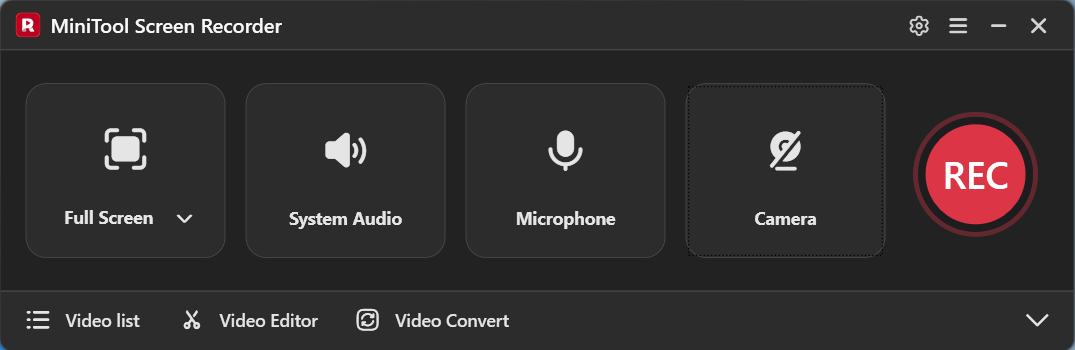
MiniTool Screen Recorder is a professional and free screen recorder that can capture webcam footage, screen, microphone audio, and system audio at the same time. It provides multiple recording settings, allowing you to choose webcam footage resolutions, adjust the webcam’s position on the computer screen, change webcam size and shape, etc.
In addition, when recording, MiniTool Screen Recorder offers an annotation tool, enabling you to draw, add arrow shapes and step numbers, or type on the computer screen. This function is perfect for recording gameplay video commentary, online courses, product demonstrations, etc.
More than that, MiniTool Screen Recorder offers multiple frame rates and quality options to control the final result. It also allows you to set the recording duration and automatically stop recording when finished. Therefore, you don't have to stay glued to your computer waiting.
Pros:
- No recording time limits.
- No watermarks.
- Straightforward user interface.
- Supports high webcam resolution.
- Support painting tools.
- Record screen and webcam simultaneously.
- Multiple webcam setting options.
- Customizable video parameters.
Cons:
- Only for Windows users.
Top 4. Bandicam
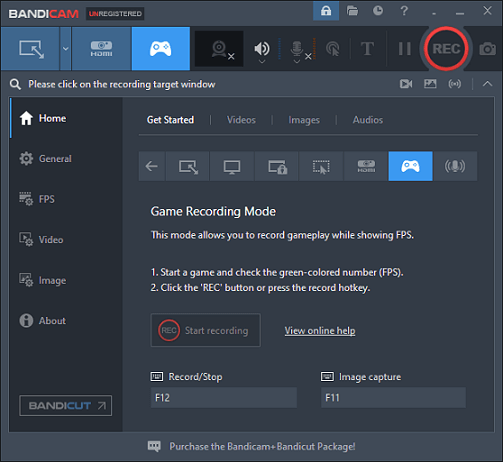
Bandicam is a professional and lightweight screen recorder that supports webcam and screen recording. It offers a user-friendly layout, allowing everyone to easily navigate. In addition, Bandicam is capable of capturing high-quality video and supports multiple recording modes, such as device recording, audio-only mode, and game recording.
Moreover, Bandicam allows you to add a speaker, microphone, mouse cursor effects, and text overlays, which is ideal for creating video tutorials, product demonstrations, etc. It can record full screen or a selected area, allowing for flexible recording.
Pros:
- Well-organized layout.
- Feature-rich and lightweight.
- Versatile recording options.
- Supports high-resolution recording.
- Hardware acceleration.
Cons:
- The free version has 10-minute time limits and a watermark.
Top 5. Loom
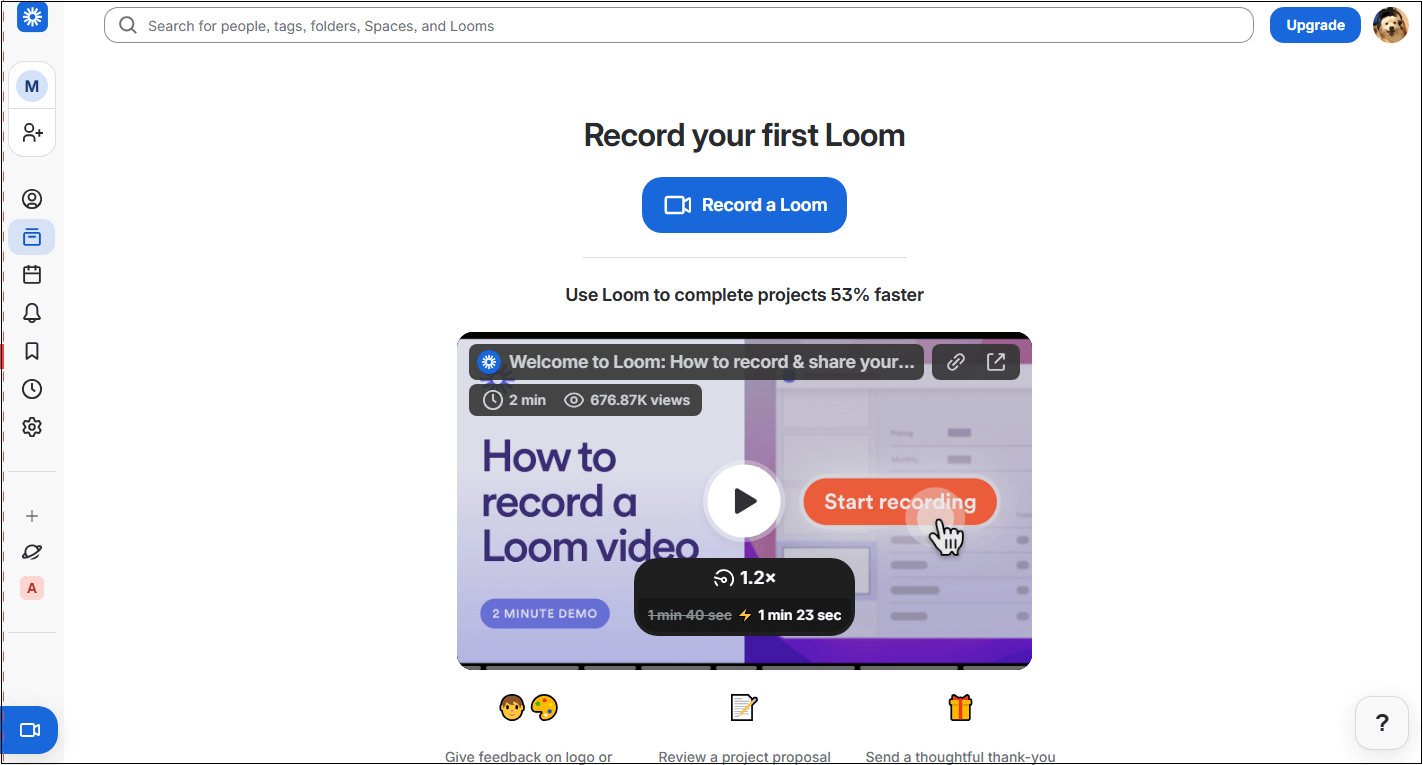
Loom is an easy-to-use webcam recorder that works across Windows, Mac, and Linux. It offers a browser-based version that supports access without installation. Additionally, Loom supports recording only the webcam, only the screen, or both simultaneously. It also supports background blur or virtual background for camera footage.
Loom has an intuitive interface and offers quick recording. With a few clicks, you can start and stop recording. Moreover, the recorded videos can be saved to the cloud and generate a shareable link instantly. Therefore, it won’t take up too much space on your computer and eliminate the hassle of uploading files.
Pros:
- Ease of use.
- Works with multiple platforms.
- Multiple recording modes.
- Quick sharing.
Cons:
- The free version has a 5-minute recording limit.
Top 6. OBS Studio
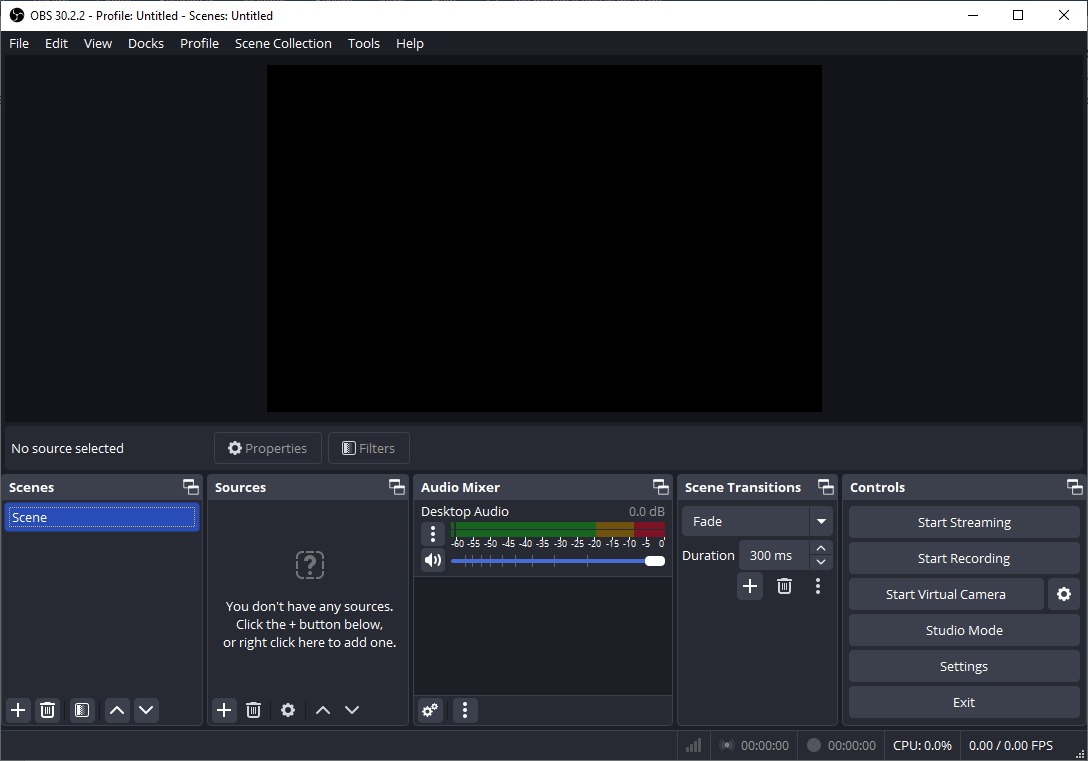
OBS Studio is an open-source and free recording software popular for its powerful features and high-quality results. It enables you to record your screen and webcam separately or simultaneously to create professional-looking videos.
Additionally, OBS Studio is an amazing screen recording software that supports generating scenes made of numerous sources, such as window capture, photos, browser windows, webcams, and more.
Furthermore, OBS Studio provides customized recording parameters, like resolution, frame rate, audio mixing, noise reduction, and more. It is compatible with multiple systems, including Windows, Mac, and Linux. But OBS Studio has a steep learning curve, making it not that friendly for beginners.
Pros:
- Free and open-source.
- Support wide platforms.
- Powerful and versatile recording options.
Cons:
- Steep learning curve.
Top 7. Free2X Webcam Recorder
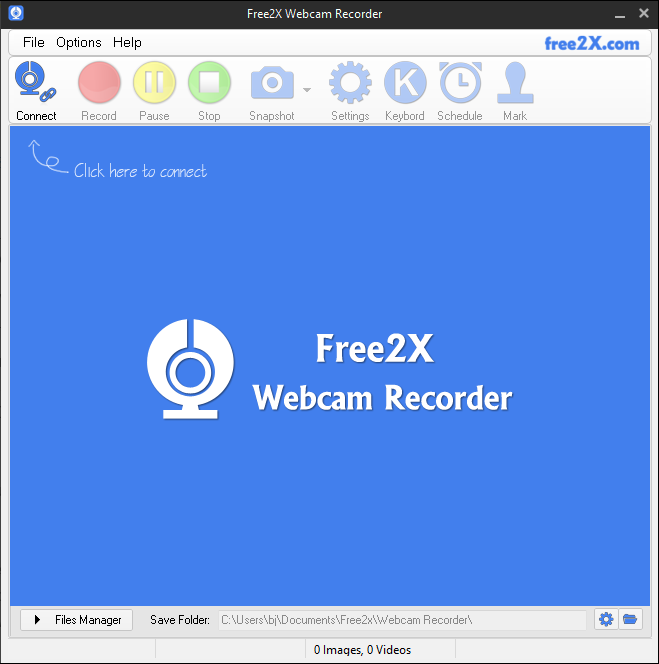
Free2X Webcam Recorder, a lightweight and user-friendly webcam recorder, is known for its intuitive interface, basic functionality, multiple output format support (MP4, AVI, and WMV), customizable video aspect ratios, and frame rates.
Free2X Webcam Recorder is completely free. It can capture video from any webcam or digital camera. Additionally, it can record audio from any sound source (such as amplifiers, line inputs, speakers, etc.). Free2X Webcam Recorder also directly captures the webcam screen and saves it as JPG/BMP image formats.
Pros:
- Completely free to use.
- Ease of use.
- Support multiple output video formats.
- Capture microphone, line-in, or speaker sound.
Cons:
- Lacks more advanced features.
Top 8. VEED
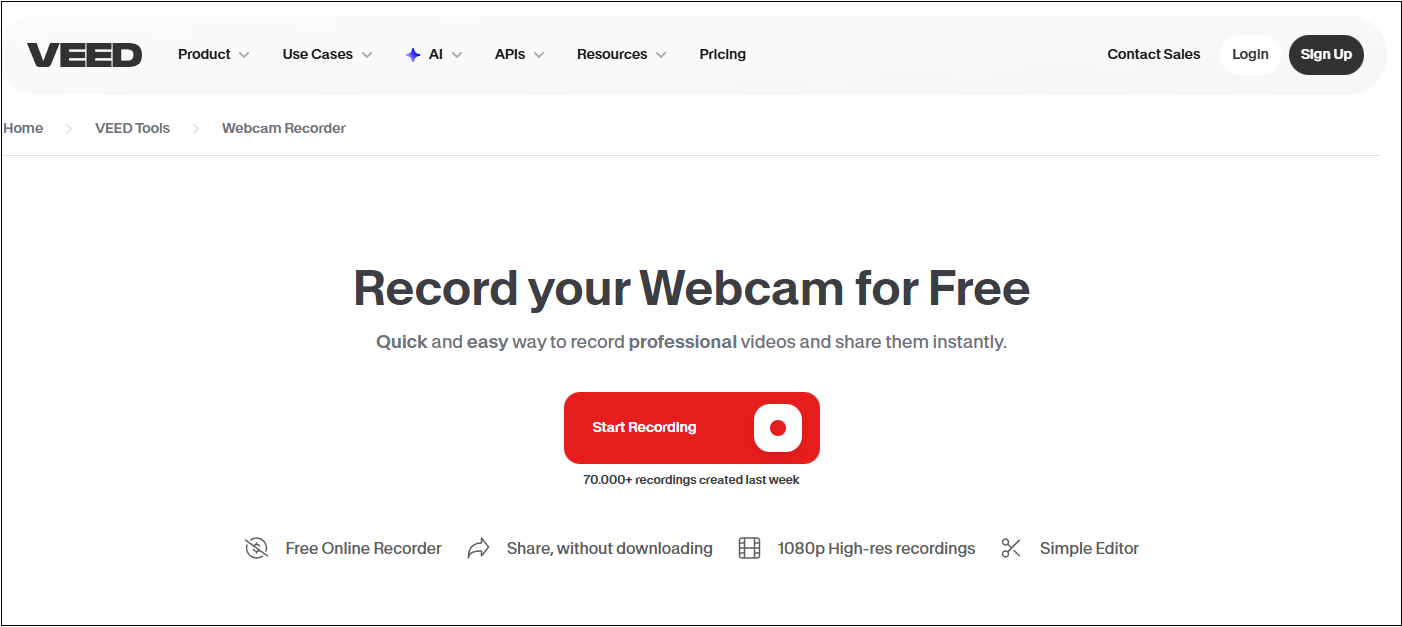
VEED is an easy-to-use and online screen recording tool that supports webcam capturing. It is easy to access and doesn’t require storage space on your computer. Except for being a webcam recorder, VEED also serves as a video editor. After getting your recording, you can use the video editing tool to make a professional-looking work!
Pros:
- Generous free plan.
- User-friendly.
- No installation needed.
- Offer editing tools.
- High-quality outputs.
Cons:
- The free version leaves a watermark.
Top 9. Vimeo
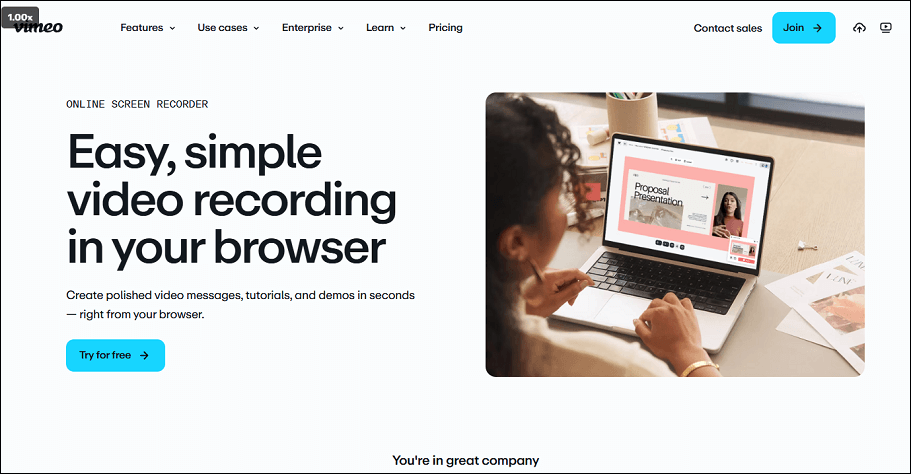
Vimeo is an online tool for webcam and screen recording that works with multiple platforms. One of this tool's most unique features is that it offers a teleprompter, allowing you to view lines when recording. Without installation, you can record and share videos easily and quickly. Besides, Vimeo stores videos in your account. It won’t occupy any space on your computer.
Pros:
- Easy to use.
- Straightforward user interface.
- Multiple recording options.
- Teleprompter supports.
- Record screen with or without webcam.
Cons:
- Browser-based version only.
How to Record Webcam and Screen Simultaneously
To record webcam and screen at the same time, I’d like to use the best webcam recording software – MiniTool Screen Recorder as an example to show you how to complete the recording task step by step. It is always a great option for both beginners and professionals. Let’s start.
1. Download and Install MiniTool Screen Recorder
Click the download button below to download this program. Then, follow the on-screen setup instructions to install it.
MiniTool Screen RecorderClick to Download100%Clean & Safe
2. Get All the Settings Done
Get your webcam ready. Then, launch this webcam recording software to enter its interface. Click the gear icon at the top right to open the Settings window.
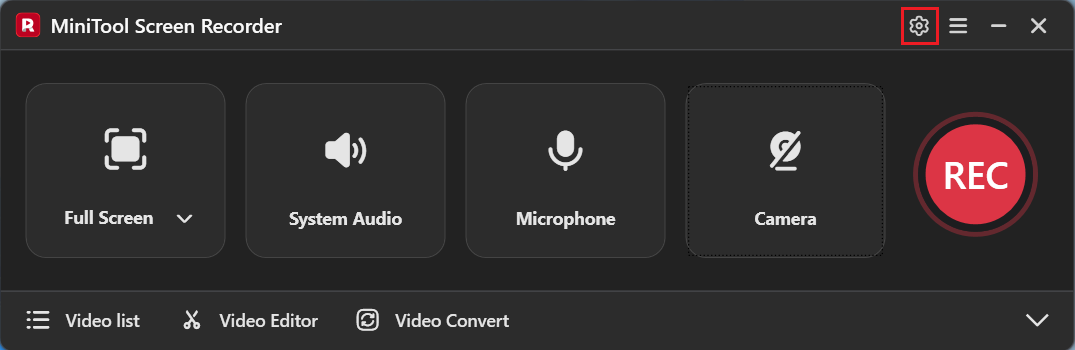
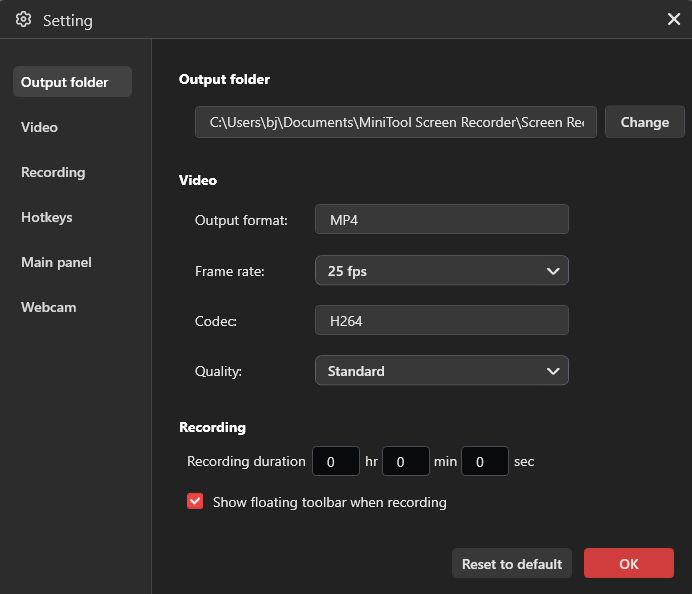
In the Settings window, you can choose the desired output folder, video frame rate, video quality, and other settings.
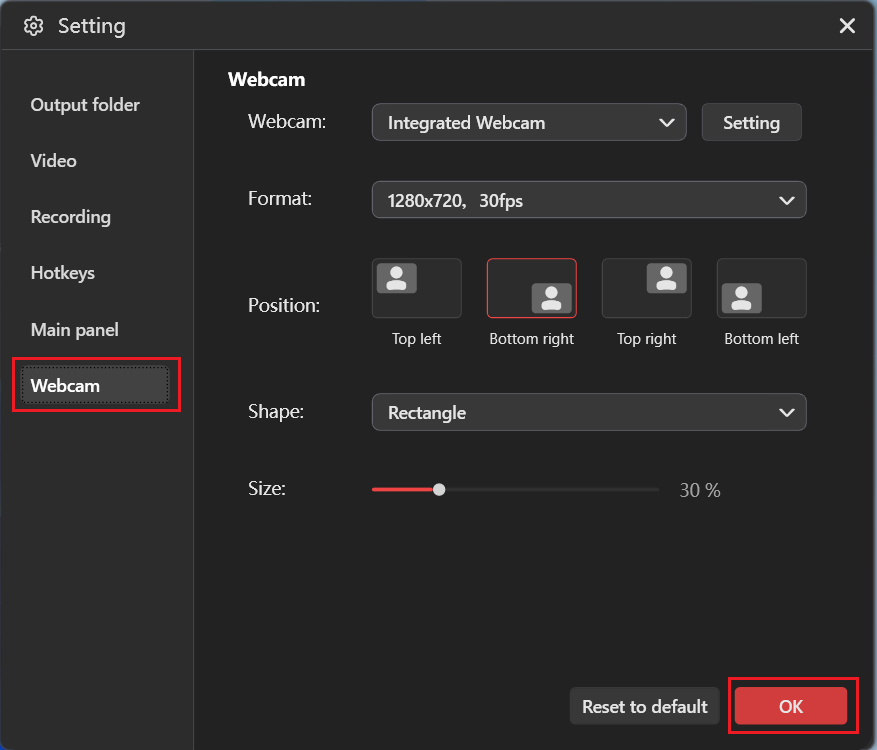
To configure webcam settings, choose the Webcam tab in the left toolbar. Then, you can choose a webcam footage resolution, position on the screen, shape, and size. Click OK to save all the changes.
3. Start Recording Webcam and Screen
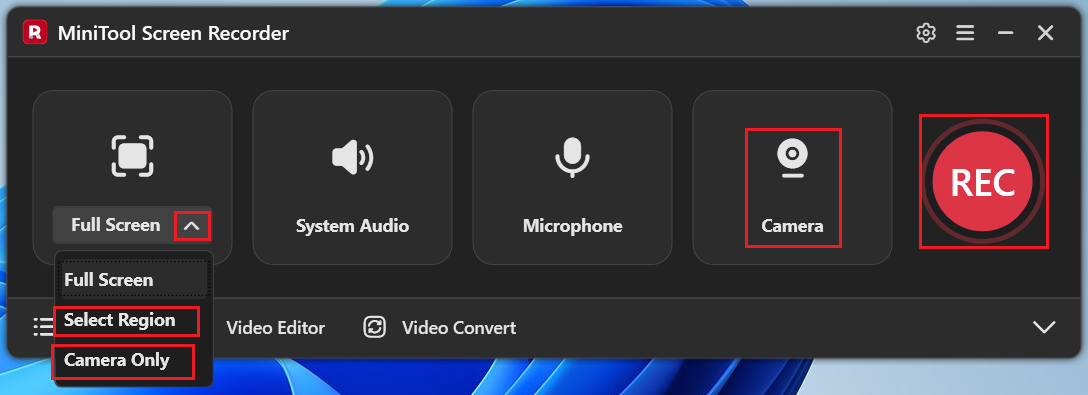
If you want to select a recording area, expand the Full Screen option, and click Select Region. Then, you can specify the recording area you want. (You can choose the Camera Only mode if needed.) Next, click the Camera option to activate it. Then, click the REC button to start recording.
4. Perform Annotation When Recording
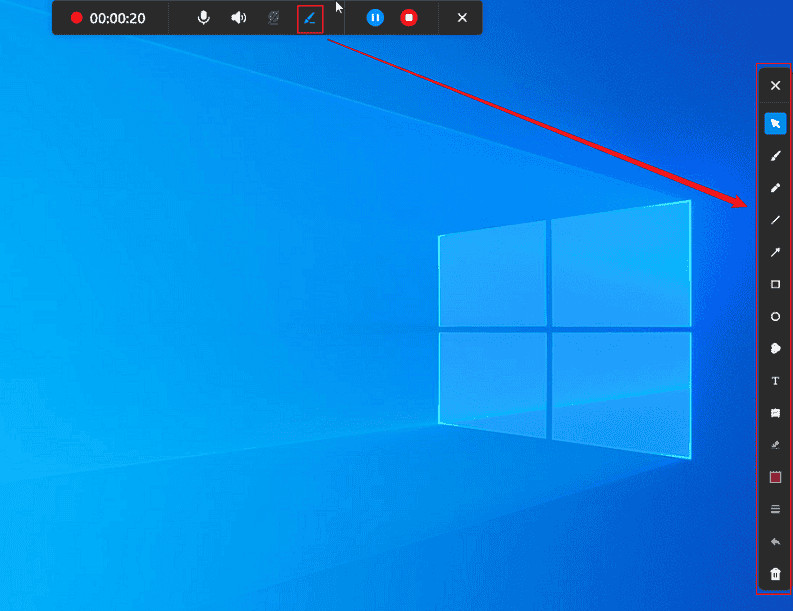
Move the mouse cursor to the middle top of the screen, and then the toolbar will appear. Click the paintbrush icon to open the annotation toolbar located on the right of the screen, where you can choose a tool and annotate on the screen.
5. Stop the Recording
When you want to stop the recording, press F6 on the keyboard or click the stop button in the top toolbar.
That’s it! Check the recording MiniTool Screen Recorder’s video list.
Bonus: Edit Your Recordings
Looking for an advanced video editor to polish your recordings? Try MiniTool MovieMaker! It is a free video editor without watermark that supports both basic and advanced editing. It supports various video formats and can edit your recordings by trimming, cropping, splitting, etc.
For advanced recording, MiniTool MovieMaker allows for multi-track editing, high-resolution editing, photo collage, copy and paste on the timeline, audio overlap, etc. Most importantly, this desktop program is extremely easy to use, suitable for both beginners and professionals.
Click the download button below to try it!
MiniTool MovieMakerClick to Download100%Clean & Safe
In Summary
This post introduces 9 reliable webcam recorders. Windows Camera and Microsoft Clipchamp come pre-installed on Windows computers, making them suitable for users who need a quick solution and have minimal requirements. If you’re not satisfied with the camera-only and recording time limits and desire full-functional webcam recorders, try MiniTool Screen Recorder, Bandicam, Loom, OBS Studio, and Free2X Webcam Recorder. For some of you who don’t want to install extra software, VEED and Vimeo are perfect options.
Finally, this article recommends MiniTool MovieMaker as a bonus to create a more appealing recording. Feel free to choose your preferred webcam video recorder and start your recording journey! You can contact us via support@minitool.com if you have any questions about using MiniTool Screen Recorder or MiniTool MovieMaker. Alternatively, you can send me messages directly on Twitter, and I’ll help you as soon as I can.