

How to record Black Desert Online? This post provides 3 effective methods, including using the in-game camera, Windows Game Bar, and MiniTool Screen Recorder, to help you achieve smooth, lag-free recording. In addition, you can learn how to edit your recordings with the recommended video editing tool.
Introduction to Black Desert Online
Black Desert Online video game is a sandbox-style massively multiplayer online role-playing game. Originally released by Pearl Abyss in 2015 for Windows. It has since expanded to platforms including PlayStation, Xbox Series X/S, and so on.
Black Desert Online is set in a vast open world, where players can engage in intense combat while also experiencing diverse activities like trade, exploration, cooking, and hunting. Its stunning visuals and audio quality have earned widespread acclaim from players.

How to Record Black Desert Online on PC
Whether you want to capture thrilling moments in Black Desert Online or record gameplay to improve your skills, this article explores the best recording methods for you. Now, let’s dive in.
#1 Use the In-Game Camera
The most straightforward way to record Black Desert Online on Windows is to use the built-in camera feature. Here are the detailed steps to enable camera settings:
Step 1: Go to Windows Settings
Press Windows + I key to open Windows Settings on your computer.
Step 2: Enable the Camera Feature
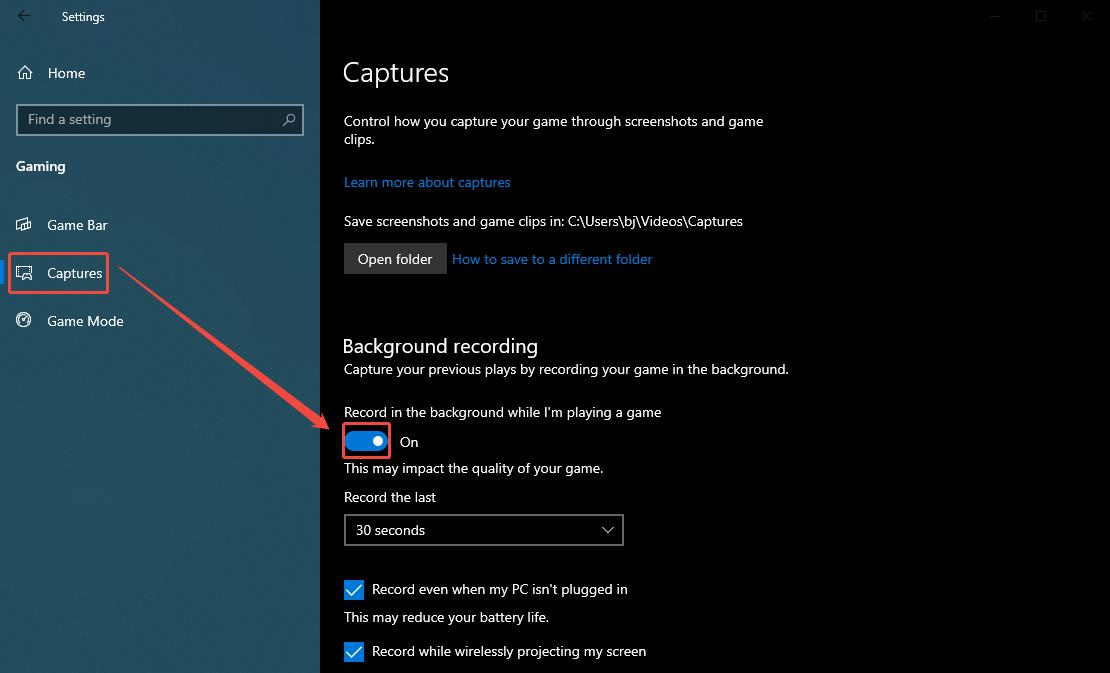
1. Navigate to the Gaming module, then click on the Captures option.
2. Enable the option Record in the background while I’m playing a game, then you can customize the recording settings, such as maximum recording length, audio control, video frame rate, and video quality.
Step 3: Start and End Recording
1. When you want to record gameplay, press Windows + Alt + G to start recording the game process.
2. To stop the recording process, press Windows + Alt + G again.
#2 Use Windows Game Bar
For Windows 10 and 11 users, the built-in Game Bar is a great option. It allows you to access various features without leaving your game, such as taking screenshots, recording gameplay, and chatting with friends.
Now, you can read the guide below to capture Black Desert Online.
Step 1: Launch Black Desert Online
Launch Black Desert Online on your computer and make sure it’s ready.
Step 2: Open the Game Bar
When you want to record Black Desert Online gameplay, press Windows + G to launch the Game Bar.
Step 3: Control Recording Audio
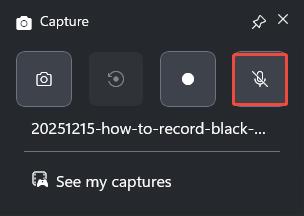
1. Click on Capture in the Widget Menu to enter the Capture panel.
2. Then, click the Microphone to turn on or off the microphone function during the recording process.
Step 4: Start and End Recording
1. Click the Start recording icon in the Capture panel or press the shortcut keys Windows + Alt + R to start recording Black Desert Online gameplay.
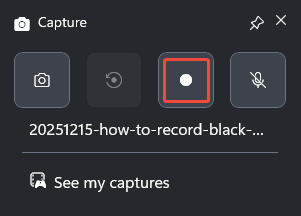
2. To stop the recording, click the Stop recording icon in the Capture panel or press Windows + Alt + R again.
#3 Use MiniTool Screen Recorder
Although the 2 methods above are convenient, they have limitations in recording duration. For longer game recording needs, it is recommended to use third-party screen recording software with advanced features, such as the MiniTool Screen Recorder recommended in this article.
MiniTool Screen Recorder is a free Windows screen recorder that supports unlimited recording of all screen activities, while also supporting audio and webcam recording. Users can choose to record the entire screen or a specific area based on their needs.
Additionally, MiniTool Screen Recorder features built-in annotation tools that allow users to annotate their screen during recording. It also supports modifying the file output path, video frame rate, and recording hotkeys, while enabling adjustments to the webcam's position, shape, and size. What’s more, all recorded videos are output in MP4 format without any watermarks.
You can now check the recording process to learn how to record Black Desert Online with MiniTool Screen Recorder.
Step 1: Download and Install MiniTool Screen Recorder
Click on the button below to download and install the latest version of MiniTool Screen Recorder on your PC.
MiniTool Screen RecorderClick to Download100%Clean & Safe
Step 2: Select the Recording Area
1. Launch MiniTool Screen Recorder after you install it.
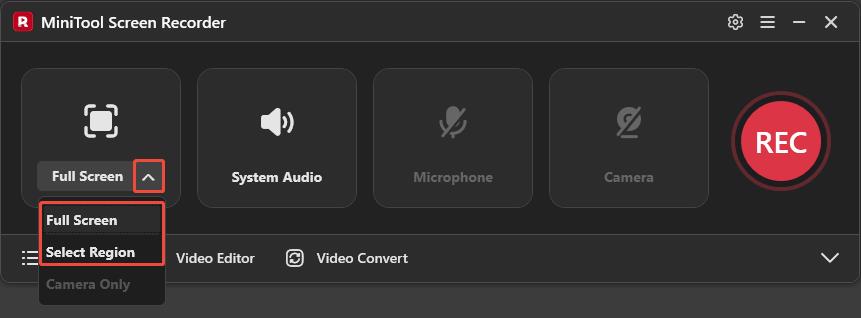
2. Expand the drop-down menu of the Full Screen option.
3. Click Full Screen to capture the entire screen. Or, click Select Region, then drag the red dashed border that appears to define the recording area.
Step 3: Control the Audio Recording
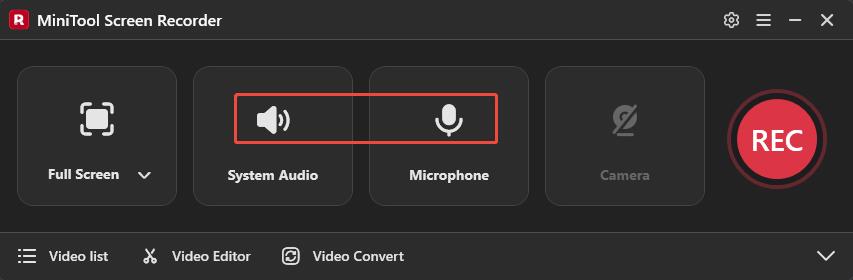
Click on the System Audio icon or Microphone icon to determine whether to record the sound from the system or the microphone.
Step 4: Control Camera Recording
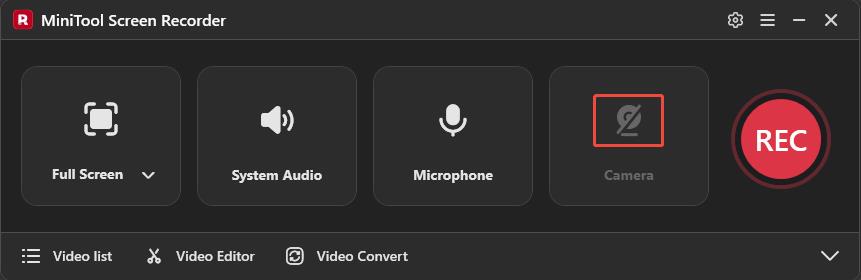
If you want to record Black Desert Online gameplay with your face, simply click the Camera icon on the right.
Step 5: Start and End the Recoding
1. Click the REC button on the right side of the main interface or press the default key F6 on your keyboard to start recording Black Desert Online.
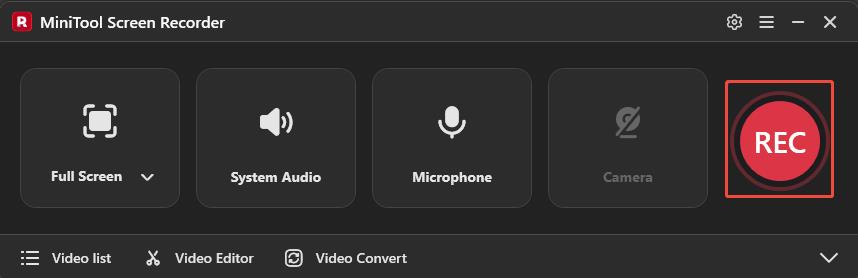
2. After a 3-second countdown, it will record the Black Desert Online. During the recording process, you can press the F9 key to pause or resume the recording.
3. To end the recording process, press the default F6 again.
Step 6: Check the Recorded Video
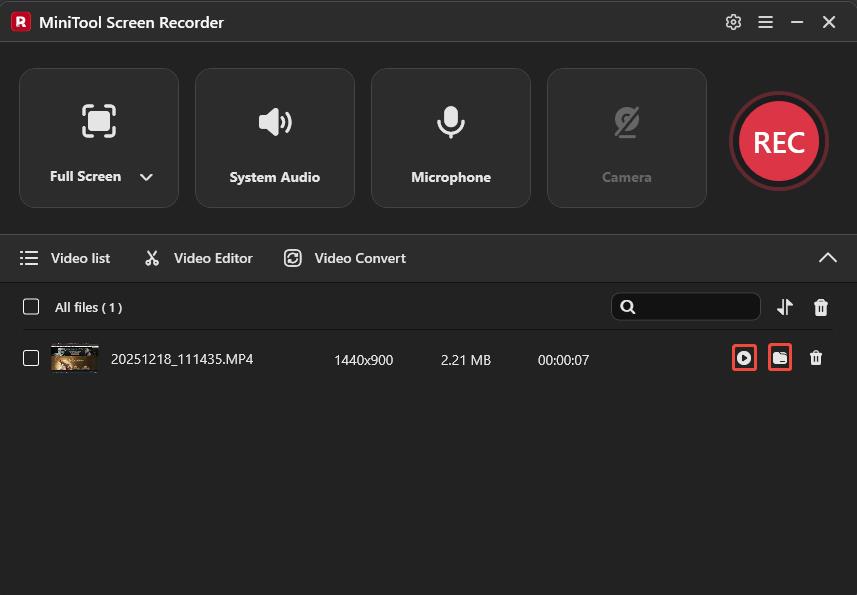
1. After recording completes, you will automatically be redirected to the Video list module in MiniTool Screen Recorder, where your recordings will be displayed.
2. Click the play icon next to the video to watch the Black Desert Online recording or click the folder icon to locate it.
In short, if you want to record Black Desert Online easily and quickly, you can choose to use the built-in camera feature and Game Bar. However, if you require more advanced recording features and unlimited recording time, MiniTool Screen Recorder is the best choice.
Bonus: How to Edit Your Recordings
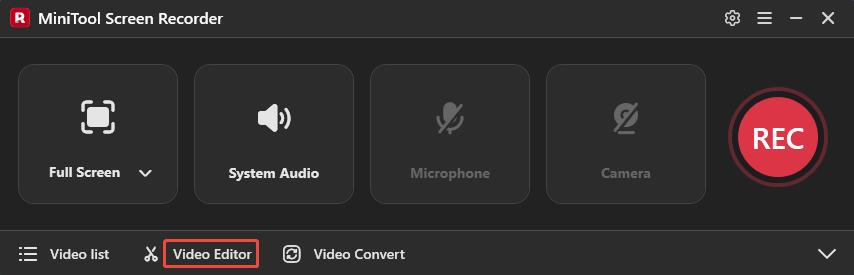
Before sharing recorded Black Desert Online videos on platforms like YouTube, TikTok, and Instagram, editing and optimizing them is a key strategy to attract more viewers and likes. Now, simply click the Video Editor at the bottom of the MiniTool Screen Recorder main interface to get MiniTool MovieMaker on your computer.
MiniTool MovieMaker is a professional video editor for gaming. You can enhance your recording visuals and quality by cropping, flipping, and rotating footage, or adding elements like filters, transitions, text, and music.
Or, you can click the button below to download and install MiniTool MovieMaker on your computer.
MiniTool MovieMakerClick to Download100%Clean & Safe
Bottom Line
All in all, the three screen recording methods above will help you master how to record Black Desert Online without lag, including using the in-game camera, the Windows Game Bar, and MiniTool Screen Recorder. Additionally, if you want to make your recorded videos more engaging, don't forget to use the recommended video editing tool to edit your footage.
If you encounter any issues while trying out MiniTool Screen Recorder or MiniTool MovieMaker, feel free to email us via support@minitool.com or send me a message on X for assistance.