

For those who are looking for ways to record Street Fighter V, this post provides a guide on recording it with its training mode, or even recording the game on PC with a third-party screen recorder, Steam Deck, or PlayStation. In addition, it recommends a video editing tool to help you enhance your recordings.
Introduction of Street Fighter V
Street Fighter V is a fighting video game developed by Capcom and released in 2016. The title continues the series' signature 2D combat gameplay, where two players each control a fighter and aim to defeat their opponent by utilizing various special abilities and attack techniques.
Furthermore, to enhance the game's appeal, Capcom subsequently introduced a series of new gameplay mechanics and characters. These innovative designs have garnered widespread acclaim from players.

How to Screen Record Street Fighter V
Whether you play Street Fighter V on PC or other platforms, we've compiled detailed recording methods for your reference.
Record Street Fighter V with Training Mode
Many Street Fighter V players aspire to enhance their skills and gain practical experience. Utilizing the recording feature in training mode is the optimal strategy to achieve this goal. The recording method is very simple:
Step 1: Choose the Training Mode
Launch Street Fighter V and navigate to the Training Mode.
Step 2: Record Street Fighter V in Training Mode
1. Press the Pause button in Training Mode to access the recording settings interface.
2. After selecting a slot, users can record the moves they wish to practice.
3. Once recording is complete, players can enter the Replay interface to review their training session.
However, this mode does not support saving recorded videos to your device or sharing them on other platforms. If you wish to share Street Fighter V videos on social media platforms, you can use one of the following three recording methods.
Record Street Fighter V on PC
If you're a Street Fighter V PC player, we highly recommend using this professional screen recorder, MiniTool Screen Recorder. As an easy-to-use and free capture tool for Windows, it can capture any activity on your screen, such as gameplay, webinars, live streams, and more. Users can also choose to record system audio, microphone audio, or webcam footage according to their needs.
Additionally, MiniTool Screen Recorder's built-in annotation tools help users create clearer instructional videos. All recorded videos are exported in MP4 format without any watermarks. More notably, it allows users to adjust video frame rate, quality, recording hotkeys, as well as webcam position, shape, size, and other parameters.
Now, follow the detailed guide below to learn how to record Street Fighter V on PC using MiniTool Screen Recorder.
Step 1: Download and Install MiniTool Screen Recorder
Click on the button below to download and install the MiniTool Screen Recorder on your PC.
MiniTool Screen RecorderClick to Download100%Clean & Safe
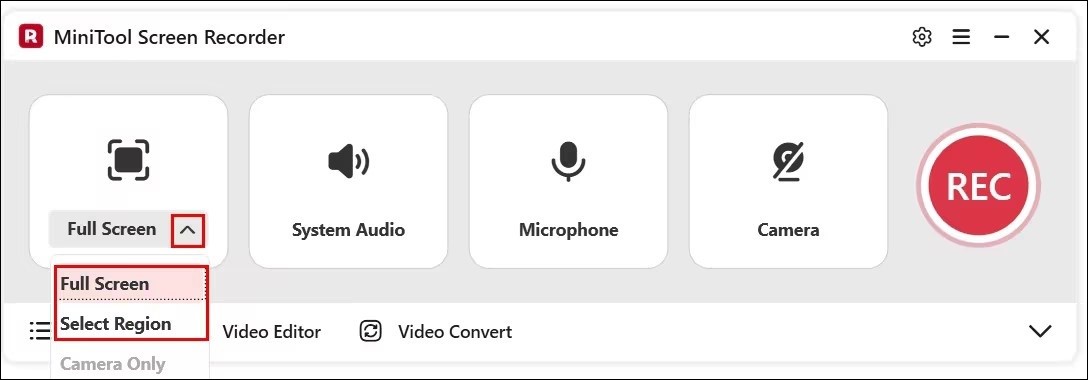
Step 2: Select the Recording Area
1. Launch MiniTool Screen Recorder after you install it.
2. Expand the drop-down menu of the Full Screen option.
3. Click Full Screen to capture the entire screen. Or, click Select Region, then drag the red dashed border that appears to define the recording area.
Step 3: Control the Audio Recording
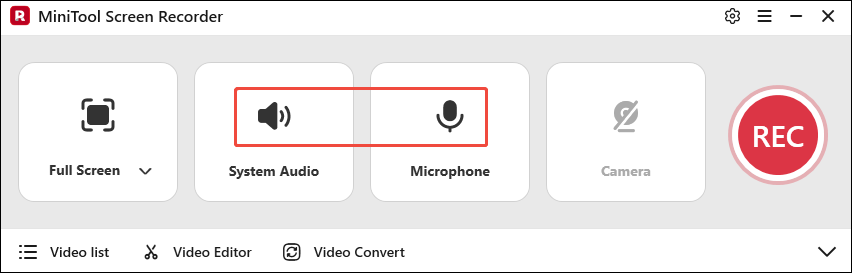
Click on the System Audio icon or Microphone icon to determine whether to record the sound from the system or the microphone.
Step 4: Control Camera Recording
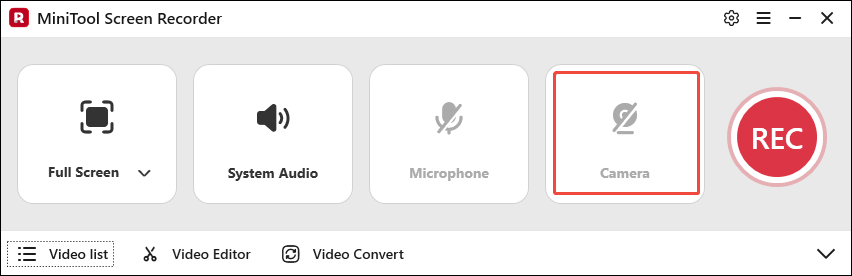
If you want to record your live reactions while playing Street Fighter V, simply click the Camera icon on the right.
Step 5: Start and End the Recoding
1. Click the REC button on the right side of the main interface or press the default key F6 on your keyboard to start recording Street Fighter V.
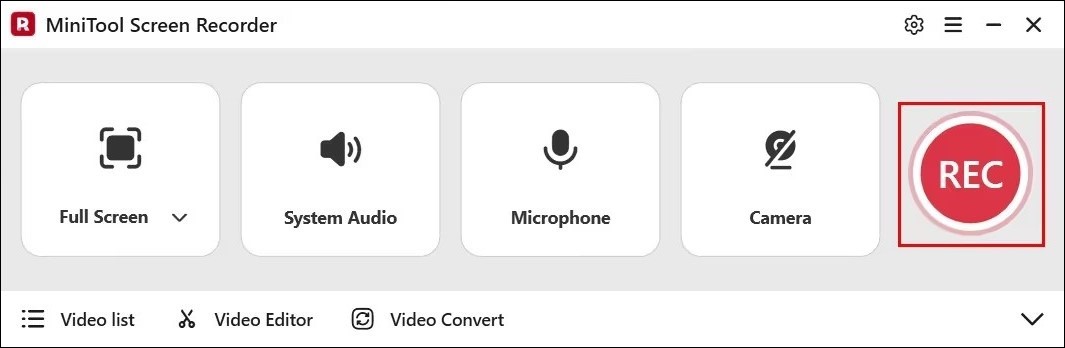
2. After a 3-second countdown, it will record the Street Fighter V gameplay. During the recording process, you can press the F9 key to pause or resume the recording.
3. To end the recording process, press the default F6 again.
Step 6: Check the Recorded Video of Street Fighter V
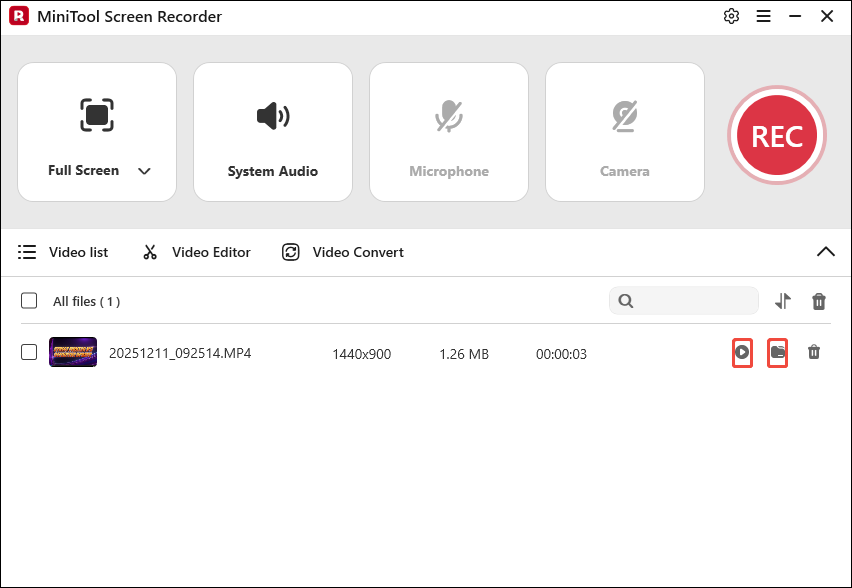
1. After recording completes, you will automatically be redirected to the Video list module in MiniTool Screen Recorder, where your recordings will be displayed.
2. Click the play icon next to the video to watch the Street Fighter V recording or click the folder icon to locate it.
Record Street Fighter V on Steam Deck
The Steam Deck, a popular portable gaming device, also supports gameplay recording for Street Fighter V. Its built-in recording feature focuses on retrospective recording, meaning it can save recently played game segments automatically.
This is particularly suited for quickly capturing thrilling moments and highlight-worthy plays, offering tremendous convenience for players who wish to document their best moments. Now you can check out the recording instructions below:
Step 1: Go to the Recording Interface
1. Navigate to the Settings module and select the Game Recording option.
2. Then, choose the Record in background in the right panel.
Step 2: Start and End Recording
When you start the game, the system automatically begins recording. After you exit the game, the recording will automatically pause.
Record Street Fighter V on PlayStation
For players enjoying Street Fighter V on PlayStation platforms, you can easily capture gameplay footage directly using the built-in recording feature without any external software. Additionally, you can adjust recording resolution and audio options within the settings. After recording, users can share video clips directly through the PlayStation.
The recording method is straightforward:
Step 1: Go to the Recording Interface
1. Open Street Fighter V on PlayStation.
2. Then click the Create button on the PlayStation controller to enter the recording interface.
Step 2: Start and End Recording
1. Select the Start New Recording option in the bottom center area of the screen to begin the recording process.
2. To stop recording, click the Create button again. Then you can check the recordings in the Media Gallery.
In summary, all four methods mentioned above can fulfil your requirements for recording Street Fighter V. However, MiniTool Screen Recorder demonstrates superior overall performance. Compared to other recording methods, it not only supports unlimited recording duration but also permits saving recordings to your device for editing and enables sharing to social media platforms.
Bonus: How to Edit Your Recordings
Before sharing your recorded Street Fighter V videos on platforms, editing and optimizing them can make your content more engaging. Consider using the professional video editing software, MiniTool MovieMaker.
MiniTool MovieMaker is a user-friendly Windows video editing tool for gaming. You can use its trimming, reversing, or rotating features to add more fun to your videos. Additionally, it's built-in media library allows you to add special effects, transitions, filters, and other elements, giving your Street Fighter V recordings superior visual effects and a professional polish.
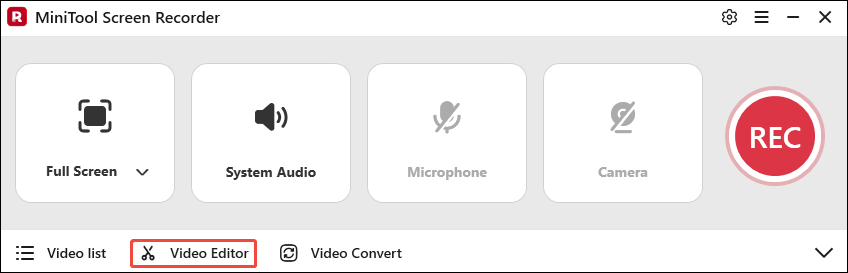
Now, you can click the Video Editor option at the bottom of the MiniTool Screen Recorder main interface to download and install MiniTool MovieMaker, then start editing your Street Fighter V game recordings.
Or, you can click the button below to download and install MiniTool MovieMaker.
MiniTool MovieMakerClick to Download100%Clean & Safe
Final Words
In short, whether you want to record training sessions, highlight moments, or full match replays, you can record Street Fighter V gameplay using the recommended recording methods above, such as utilizing the game's built-in training mode for recording, employing MiniTool Screen Recorder on PC, or even capturing footage on Steam Deck and PlayStation platforms.
Furthermore, using video editing software like MiniTool MovieMaker to polish your footage will help your videos stand out.If you encounter any issues while trying out MiniTool Screen Recorder or MiniTool MovieMaker, feel free to email us via support@minitool.com or send me a message on X for assistance.