

YouTube, as a massive content platform, brings together all kinds of YouTubers, among whom gaming YouTubers have always been particularly popular. Their gaming videos are typically well-produced and quickly attract viewers.
I couldn't help but wonder how they record and create gaming content. So, I started experimenting myself. After some trial and error, I discovered that choosing the right gameplay recorder for YouTube is a crucial step in creating high-quality gaming videos.
How Do You Record Video Games for YouTube
Recording games for YouTube requires not only stable recording software but also a relatively rich set of features. Therefore, considering these two factors, I ultimately chose MiniTool Screen Recorder and Clipchamp.
Quick Comparison
| Features | MiniTool Screen Recorder | Clipchamp |
| Ease of Use | Yes | Yes |
| Price | Free | Free/Paid |
| Game Recording | Yes | Yes |
| Screen Annotation | Yes | No |
| Recording Quality | Up to 4K | Up to 1080P |
| Frame Rate | Up to 60 FPS | Up to 60 FPS |
| Recording Time Limit | No time limit | 30 minutes |
Fast Track Steps:
- Open the game.
- Launch the recording tool.
- Choose the recording mode.
- Select the target game window.
- Manage the audio and webcam recording functions.
- Start recording.
- Annotate the screen if necessary.
- End the recording process and check the recorded game video.
Now, follow the detailed guide below to learn how to record gameplay for YouTube.
Method 1: Use MiniTool Screen Recorder
MiniTool Screen Recorder is a free recording tool that supports various recording options, such as full-screen, region, application windows (game windows, etc.), and other displays. This tool allows users to adjust quality and frame rate before recording, making it easy to upload to YouTube.
The biggest reason I chose this app is that it simplifies the post-production editing process to some extent. For example, users can add camera footage during recording. If necessary, the built-in annotation tools can highlight important areas of gameplay. More importantly, this tool has no recording time limit, which is especially useful when creating long game videos.
1. Open the game.
2. Click the button below to download MiniTool Screen Recorder. Then, launch it on the PC.
MiniTool Screen RecorderClick to Download100%Clean & Safe
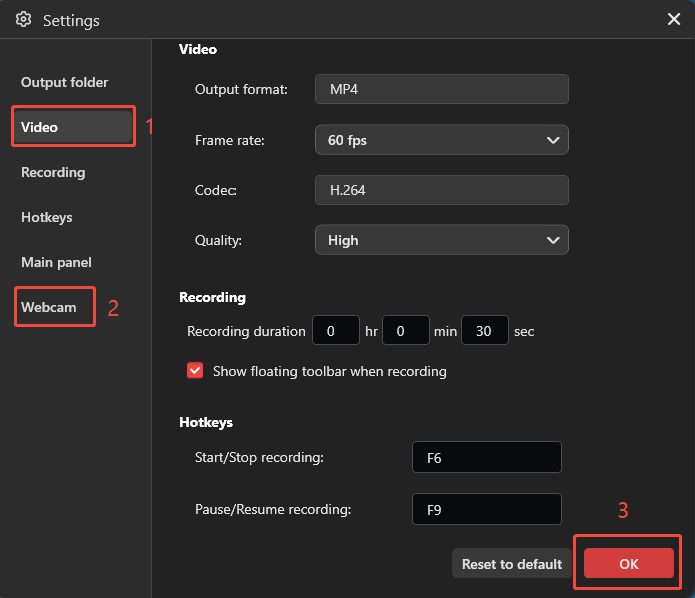
3. Click the Settings icon and go to Video to select a suitable frame rate and video quality for the gameplay recording. Then, open Webcam to customize the camera position, shape, and size if needed. Click OK to save the settings.
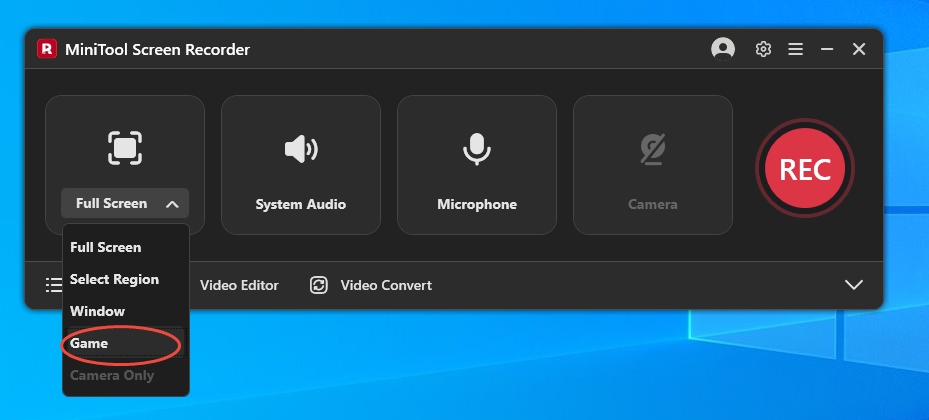
4. To capture the gameplay efficiently, expand the Full Screen option, then choose the Game option.
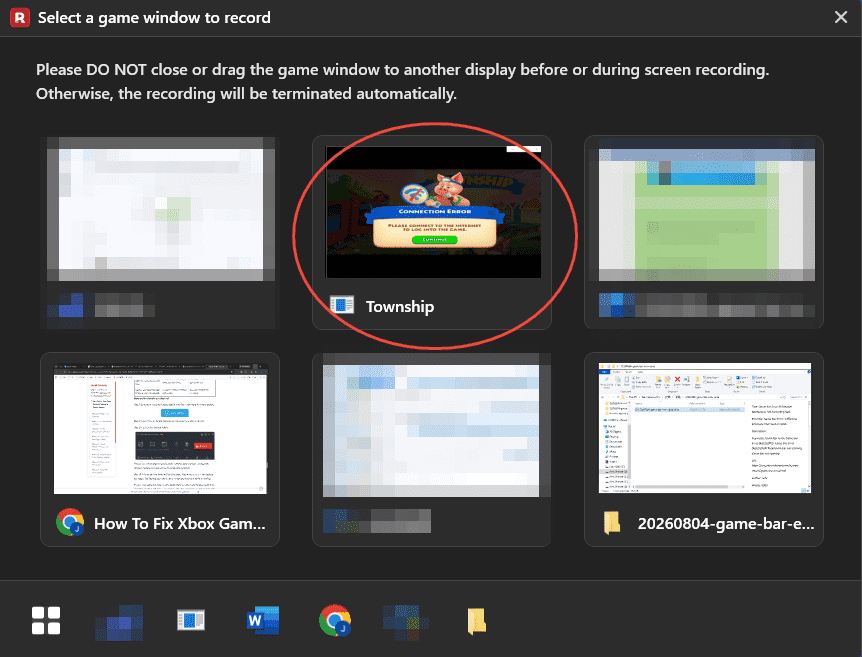
5. Then, choose the target gameplay window.
6. System audio and microphone input are enabled by default. Check the audio icons on the floating bar and adjust them if necessary. To capture the game with webcam footage, click the Camera icon on the floating bar to add a webcam overlay.
7. To begin the gameplay recording process, click the REC button. When the 3-second countdown ends, play the target game.
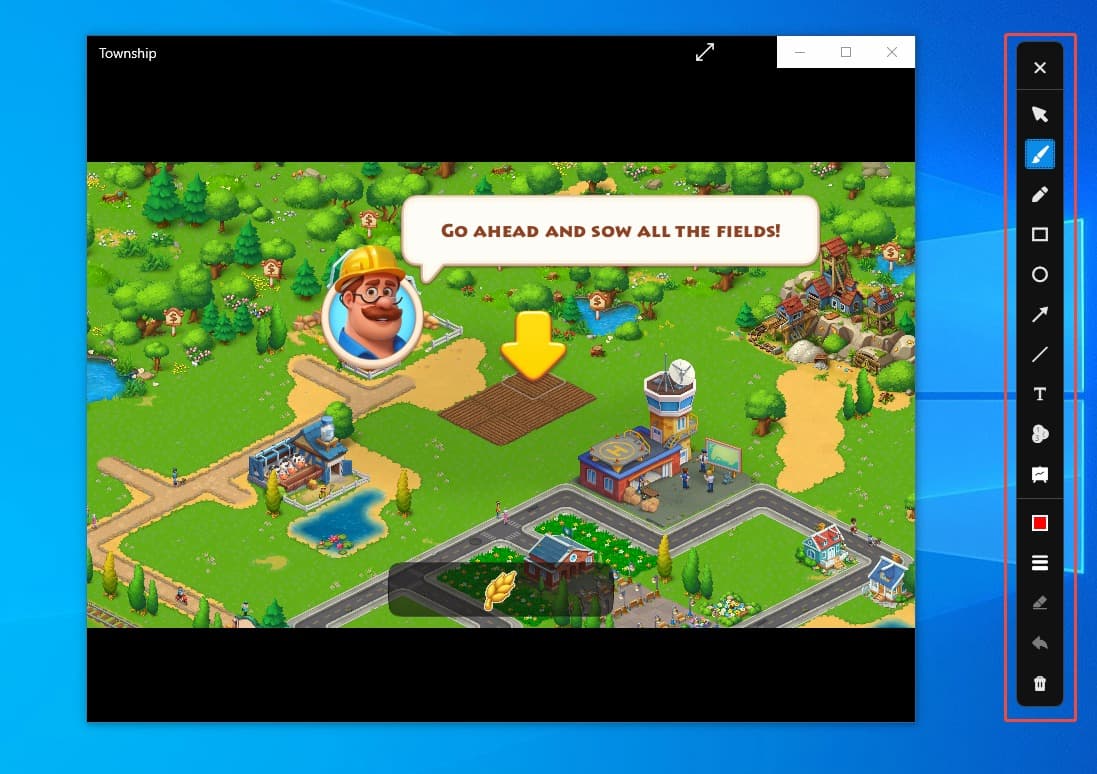
8. During gameplay, use the annotation tools on the right side of the screen to highlight important actions or other moments in the video.
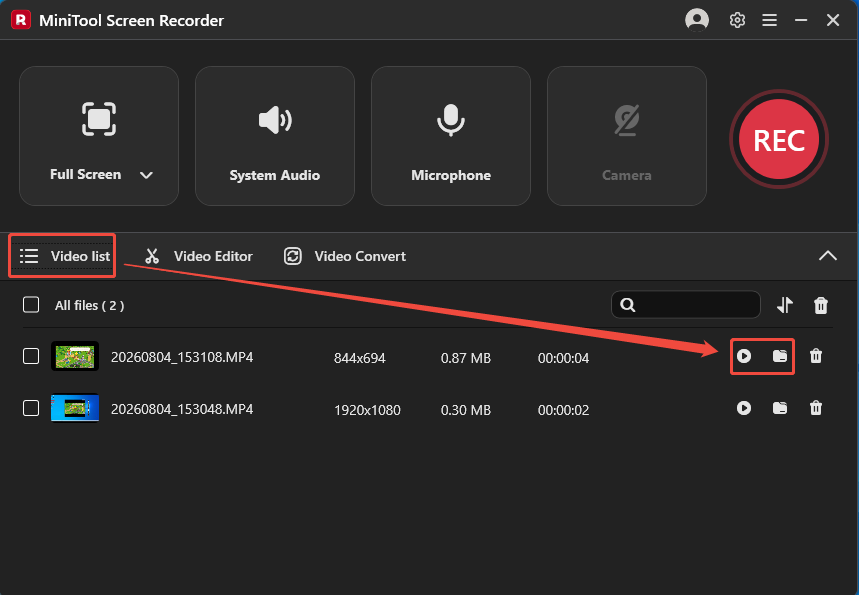
9. Finally, press the F6 key to end the recording process. When the tool automatically switches to the Video list section, click the Play icon to view the recorded video, and click the Folder icon to locate it.
Method 2: Clipchamp
Clipchamp is a more convenient option for capturing game videos. This tool is not only built into Windows systems, but also integrates recording and editing functions into a single software. It allows capturing screen and webcam footage and provides separate control over microphone and system audio recording.
After recording, users can go to the editing page to cut off the unnecessary parts of the recorded game video and add some eye-catching filters, transitions, and other effects. Here are the detailed steps on how to record video games for YouTube with Clipchamp.
1. Open the game.
2. Launch Clipchamp on the PC.
3. Click on Try it within the Record yourself section to enter the recording interface. Then, click the Screen option in the left-hand menu bar.
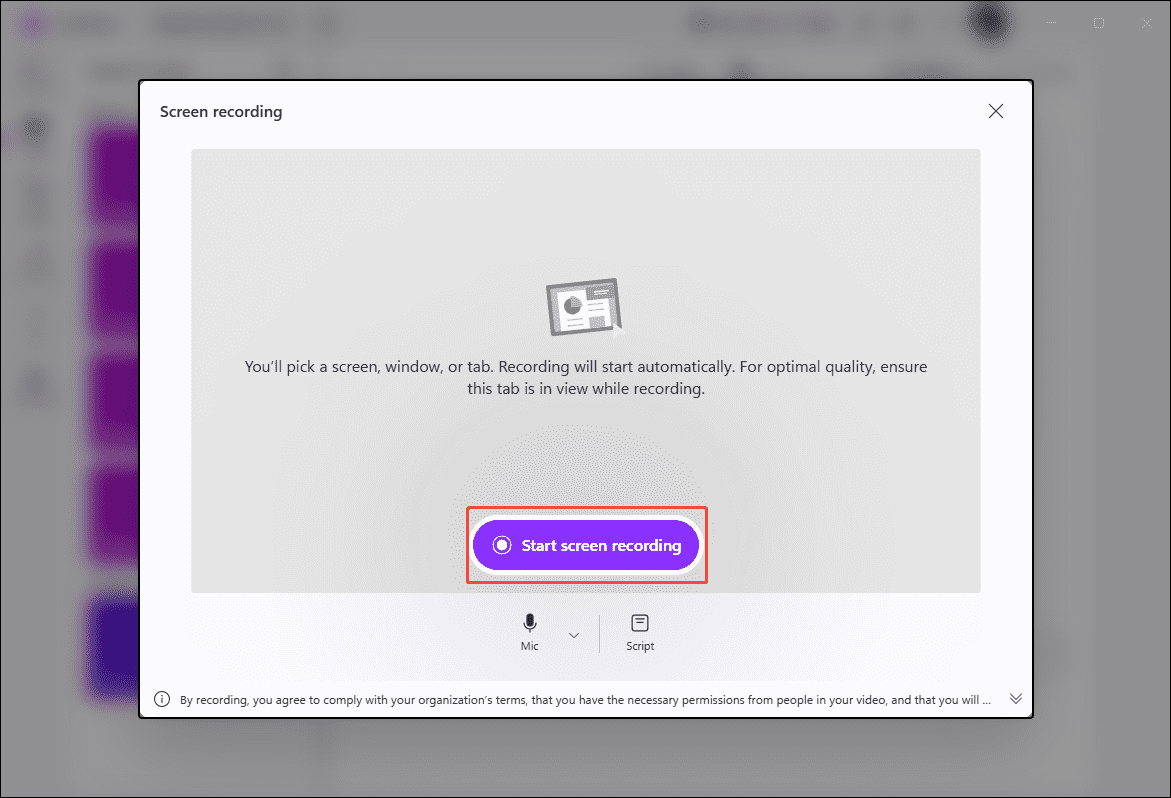
4. In the new pop-up window, make sure the audio recording feature is enabled by default. Then, click the Start screen recording option.
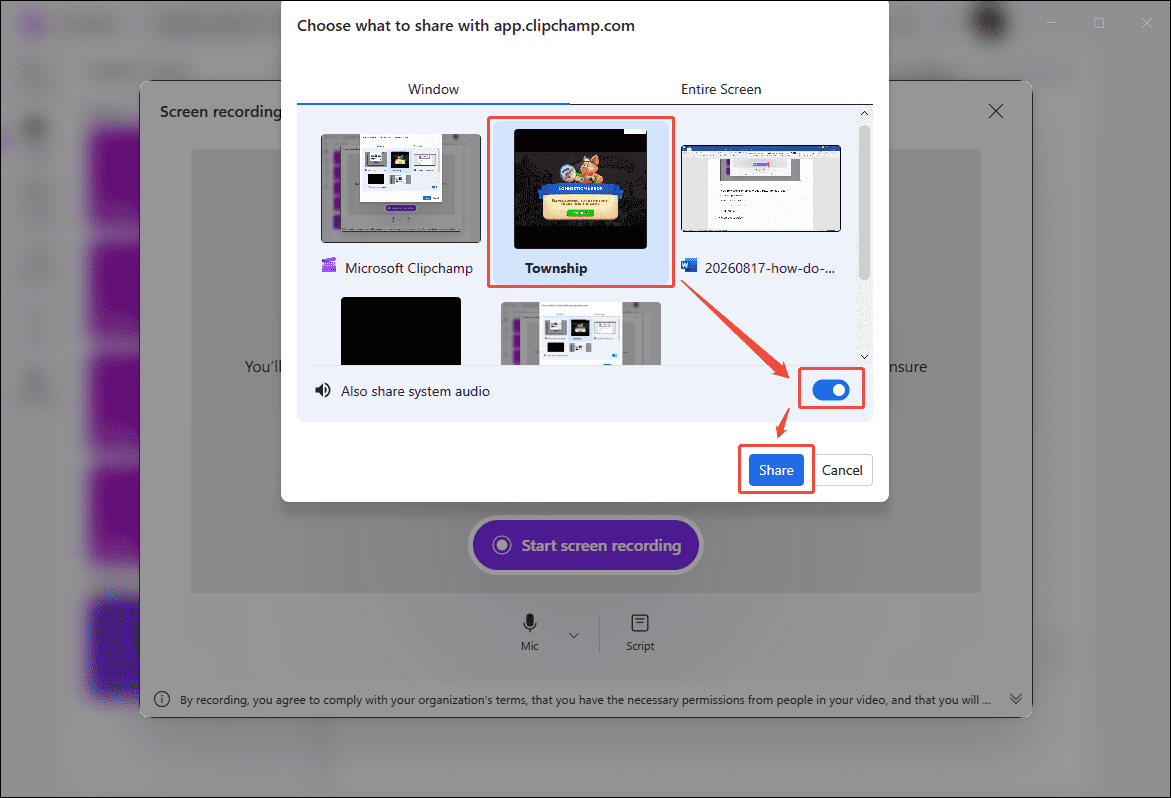
5. Then, select the target game window and enable the Also share the system audio option. To start the game recording process, click the Share option.
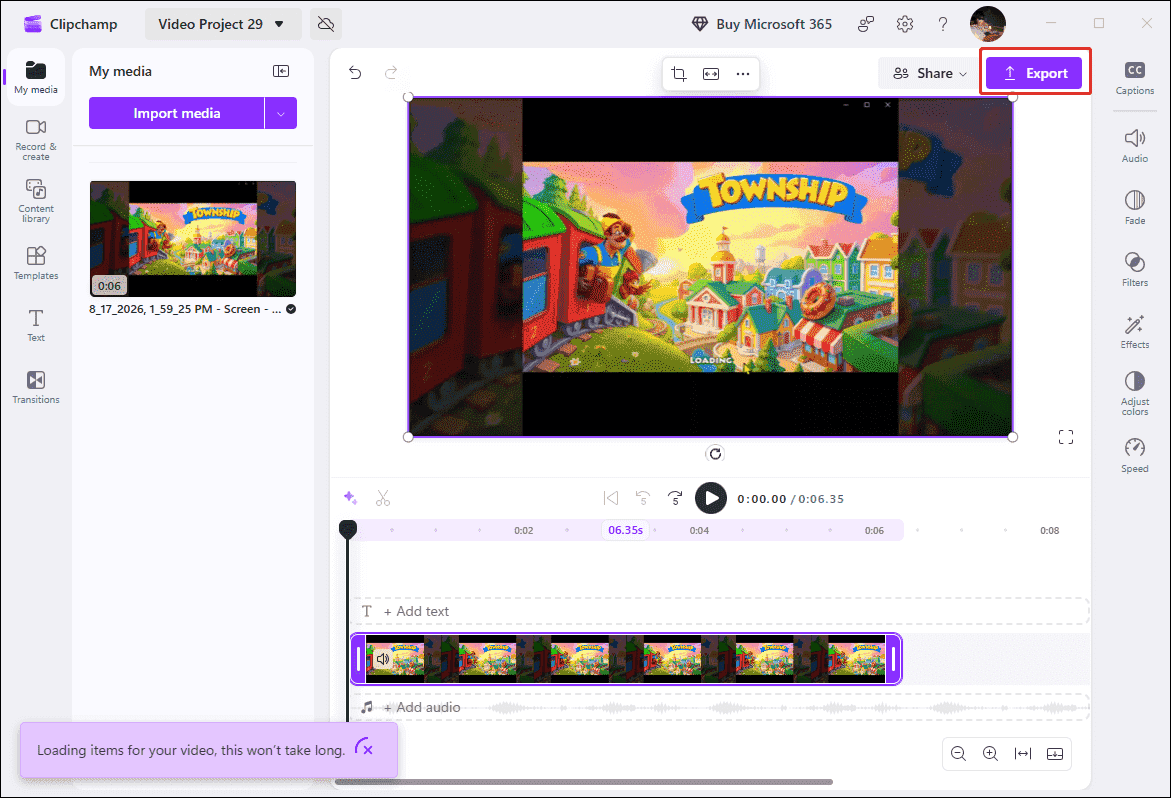
6. To end the recording process, click the Stop sharing option on the floating bar. Then, click the Save and edit option to edit the recorded video.
7. Finally, to save the recorded game video, click the Export option.
Both tools are good choices for capturing game videos. However, the former is more suitable for creating complex game videos, while the latter is more suitable for users who need to record quickly.
How to Make Gameplay Videos Better for YouTube
To achieve a smooth recording experience and to make my game videos look good on YouTube. I also took the following measures.
- Choose the right resolution: Video resolution directly affects image clarity. Generally, 1080P achieves a good balance between file size and video clarity. However, given sufficient storage space and hardware support, I usually choose to upload 4K videos for a better visual experience.
- Use appropriate recording FPS: Before recording, I set the recording frame rate to 60 FPS. This is currently recognized as the best value for recording game videos. While a higher frame rate will make the video smoother, it will affect the stability of the recording process.
- Edit the recorded gameplay video: Before uploading videos to YouTube, I usually use MiniTool MovieMaker to trim out redundant parts. I also add necessary subtitles and calls to action.
MiniTool MovieMakerClick to Download100%Clean & Safe
Final Words
How do you record video games for YouTube? This article provides MiniTool Screen Recorder and Clipchamp, each offering different solutions. Additionally, proper recording settings and video optimization can help produce higher-quality YouTube game videos.
If you encounter any questions when using MiniTool Screen Recorder or MiniTool MovieMaker, send an email to support@minitool.com.