

How do you record while playing a game on PC? If the game offers a built-in recording feature, it can be used directly. Otherwise, dedicated video captures such as MiniTool Screen Recorder provide an alternative solution.
As a game content creator, my daily routine involves recording highlights while playing. In my experience, there are generally two ways to record gameplay: using the game's built-in recording features or using professional recording software. The following section details how to use both methods.
How Do You Record While Playing a Game on PC
How do you record while playing a game? Generally, when playing games with built-in recording features, such as League of Legends, Fortnite, or Minecraft, I simply use those native tools. However, if I want to create higher-quality gaming videos with a more professional look, I opt for professional game recording software.
#1 Use Game Built-in Recording Feature
As far as I know, most games on the market today come with built-in recording features, allowing players to record quickly without installing additional applications. These features generally fall into three categories: replay (demo) recording, automatic highlight capture, and manual recording.
Replay recording differs from traditional screen recording; instead of directly capturing the visual output, it records the game's underlying operational data and saves it as a file that occupies minimal storage space. A drawback of this method is that the file cannot be uploaded directly to social media; users must use screen recording software to capture the replay content as a video file.
The automatic highlight capture feature monitors key moments in the game and records the last ten-plus seconds leading up to them. Finally, the manual recording function lets users control the recording process with a dedicated button.
Key Steps for Capturing Gameplay using Built-in Recording Function
1. Check whether the game supports the recording feature.
2. Enable the game recording function.
3. Play the game and start the recording process.
4. End the recording and check the recorded game video.
#2 Use a Dedicated Screen Recorder
When a game includes a built-in replay mode or lacks native recording capabilities, I typically use professional recording tools. MiniTool Screen Recorder is one of the best game recorders that I often use. It features a clean interface with a wealth of functionality, supporting various recording area options, including full-screen, specific regions, windows, game screens, and multi-monitor setups.
Furthermore, the tool's webcam recording feature allows me to overlay webcam footage while recording gameplay. The annotation tools in this app are particularly useful when I want to create professional-grade gaming tutorials. It also offers great flexibility, enabling me to adjust settings such as recording quality, frame rate, hotkeys, webcam parameters, and recording duration before I start.
Fast Track Steps:
- Open the game.
- Launch MiniTool Screen Recorder.
- Configure the recording parameters in the Settings interface.
- Choose the Game recording mode under the Full Screen option.
- Manage the audio and webcam recording features.
- Click the REC button to start recording.
- Play the game.
- Annotate the screen.
- End the recording process and check the recorded video under the Video list section.
- Edit the recorded video by clicking the Video Editor option.
Here are the detailed steps on how to record while playing a game on PC using MiniTool Screen Recorder.
1. Open the game.
2. Click the button above to download and install MiniTool Screen Recorder. Then, launch it on the PC.
MiniTool Screen RecorderClick to Download100%Clean & Safe
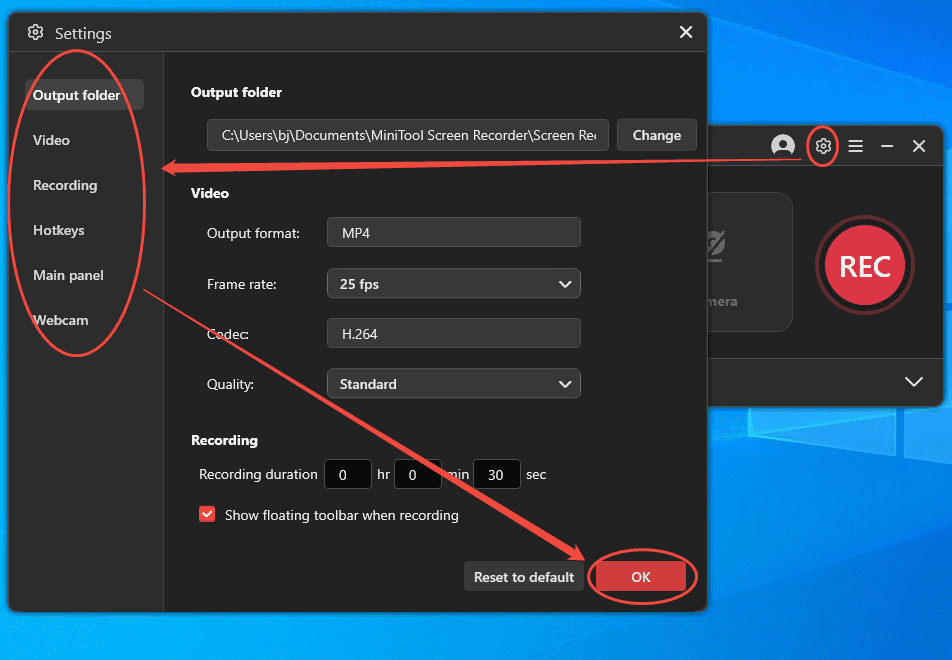
3. In the main interface, click the Settings icon. Then, adjust the relevant recording parameters in the Settings interface. To save the changes, click the OK button.
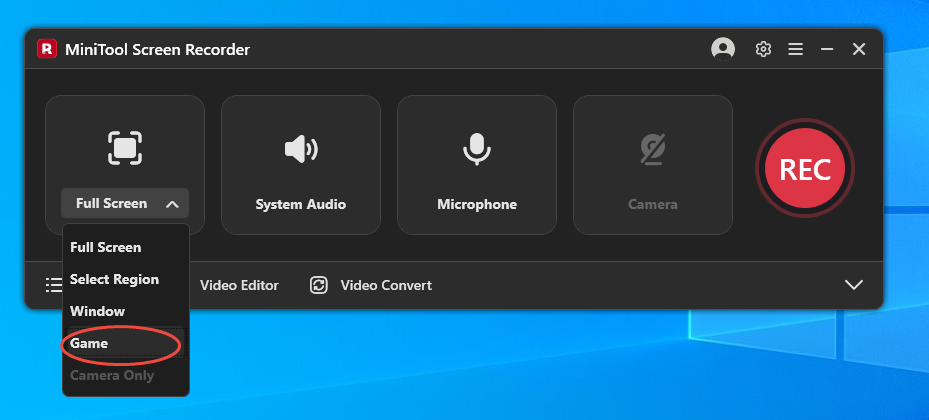
4. This tool sets the entire screen as the default recording mode. To record while playing a game easily, expand the Full Screen option, then choose the Game option.
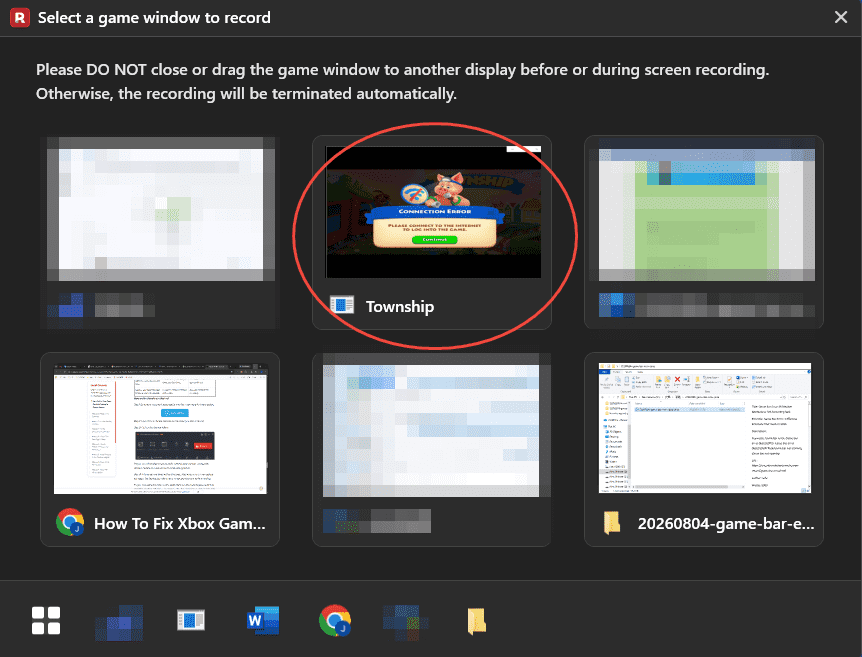
5. Then, select the target window in the new pop-up window.
6. Before starting the recording, check that system audio and microphone input are enabled on the floating toolbar to capture both in-game sounds and commentary.
7. For gameplay videos with a webcam, turn on the Camera option from the floating toolbar to display the webcam feed as an overlay.
8. Then, click the REC button to start recording the gameplay. After a 3-second countdown, play the game.
10. If there is a need to mark the game steps, choose tools from the annotation toolbar.
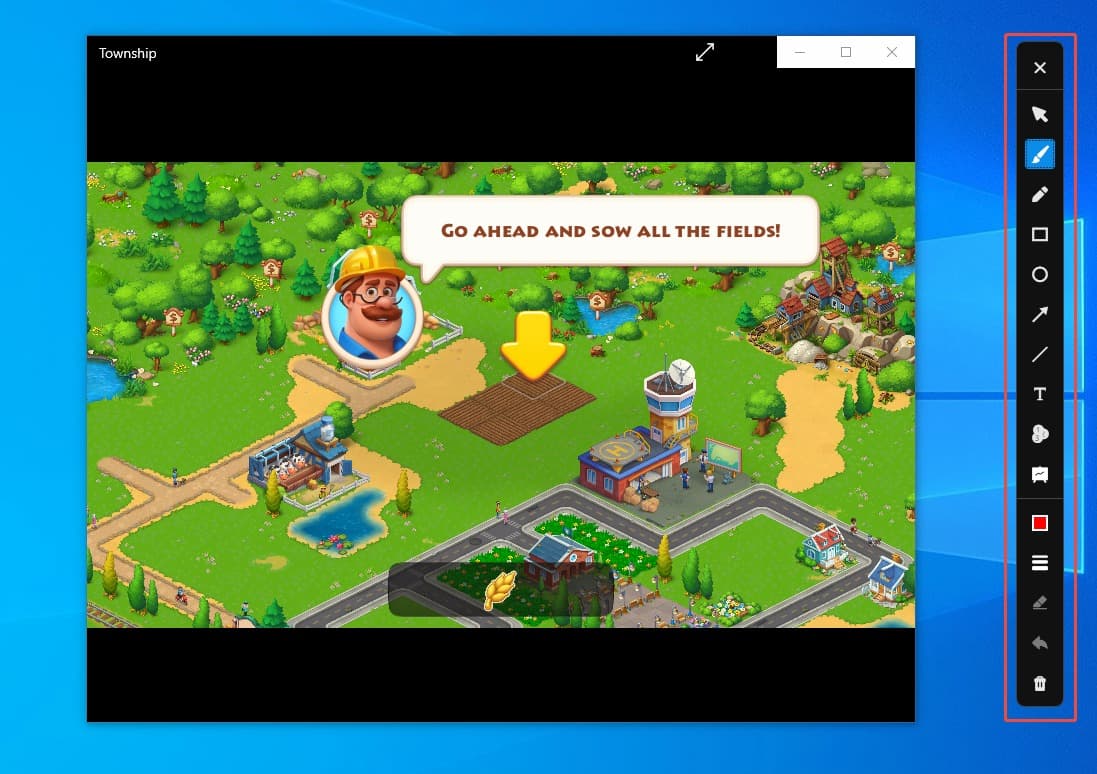
11. To end the recording process, press the F6 key. Then, view and check the recorded video under the Video list section.
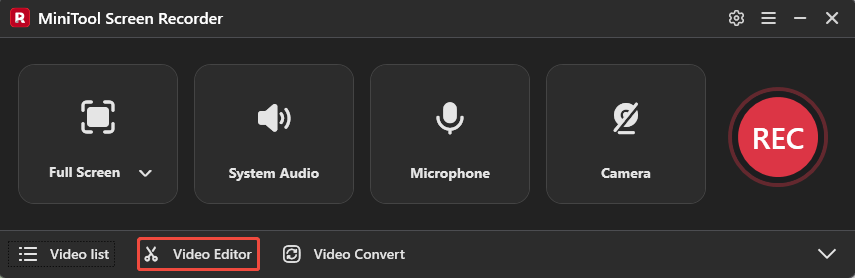
12. Finally, click the Video Editor option on the main interface to edit the recorded gameplay video with the video editing tool, MiniTool MovieMaker.
MiniTool MovieMakerClick to Download100%Clean & Safe
While the built-in recording function offers greater convenience, it has certain limitations regarding recording areas and options. If there is a need to record game footage with professional-grade quality, using specialized recording tools typically provides greater flexibility.

What Should Be Prepared Before Game Recording
Since running the game itself can affect the computer's performance smoothness, I usually make thorough preparations before recording:
- Free up memory: Sufficient storage space not only ensures a smoother recording process but also prevents the loss of recorded files due to a lack of space.
- Check the microphone connection status: Before recording, ensure the microphone is successfully connected to the computer and test whether the recording software can capture the voice.
- Close unnecessary applications: Keyboard shortcuts from certain software may conflict with recording hotkeys; closing unrelated programs ensures the recording function starts correctly.
- Adjust video frame rate: The frame rate affects recording smoothness; it is recommended to adjust the frame rate to an appropriate value in the recording software settings before starting the recording.
Final Words
How do you record while playing a game on PC? Gameplay highlights can be captured with built-in game recording features, while professional recording tools such as MiniTool Screen Recorder provide a more flexible solution for creating gameplay videos in various scenarios.
If you encounter any questions when using MiniTool Screen Recorder or MiniTool MovieMaker, send an email to support@minitool.com.