

Can you record NBA League Pass games? The answer is yes. Since the official service does not provide a built-in recording feature, a professional screen recorder, such as Xbox Game Bar or MiniTool Screen Recorder, is required to complete this task.
Fans like myself likely use NBA League Pass to watch games. It is a subscription-based streaming service provided by the National Basketball Association that allows users to watch live out-of-market games or on-demand content.
Can You Record NBA League Pass Games
The answer is yes. NBA League Pass does not have a built-in screen recording feature. However, it offers a replay function that converts NBA League Pass live broadcasts into on-demand content, which is available exclusively to subscribers. Additionally, subscribers have access to a download feature, allowing them to save live content for offline viewing.
Therefore, if there is a need to save the match for free and watch it offline, screen recording is the best option. I’ve found that this task can be easily accomplished using professional screen recording tools, the Xbox Game Bar, or MiniTool Screen Recorder.
How to Record NBA League Pass Games
The process to record NBA League Pass games is not complicated. With the two tools I’ve selected, Xbox Game Bar and MiniTool Screen Recorder, I can usually complete the task smoothly.
Fast Track Steps:
- Launch the recording tool.
- Configure the recording settings.
- Choose the recording mode.
- Manage the audio recording feature.
- Start recording.
- End and check the recorded NBA League Pass game video.
Method 1: Use the Xbox Game Bar
Xbox Game Bar is a built-in screen-recording overlay for Windows, ideal for users who want to record quickly. It can capture content from applications and games, though not the desktop or File Explorer, thereby meeting basic recording needs. Additionally, this tool allows users to adjust the recording time, with a maximum limit of four hours.
1. Press Windows + G to open the Xbox Game Bar.
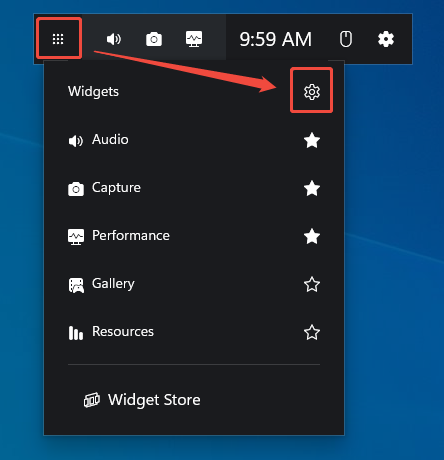
2. Click the Widget Menu option, then click the Settings icon in the expanded interface.
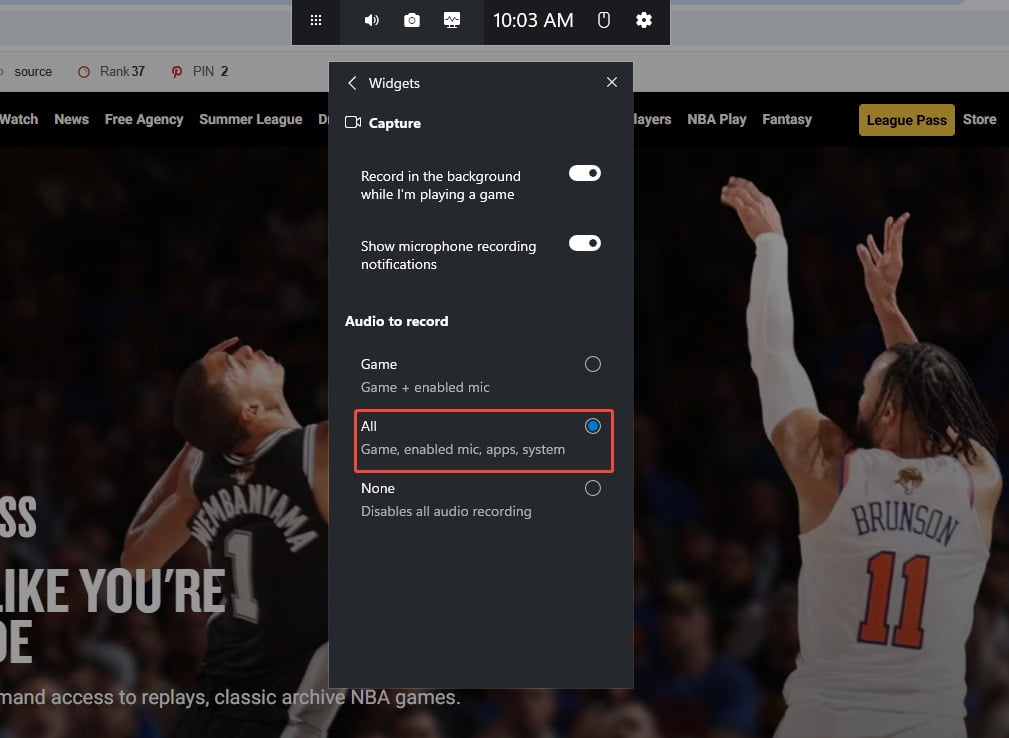
3. In the new interface, enable the All option under the Audio to record section to ensure the NBA League Pass game audio can be recorded.
4. Then, in the Capture section, make sure the Microphone icon is enabled.
5. To begin the recording process, click the Start recording icon or press the Windows + Alt + R keys. Then, go to NBA League Pass to watch the match.
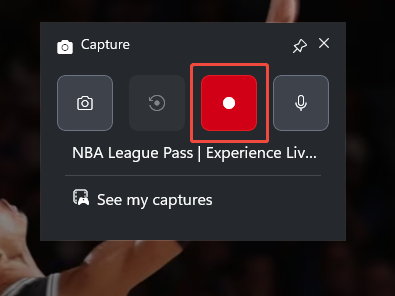
6. To end the recording, press the Windows + Alt + R keys again. Finally, check the recorded NBA League Pass game video under the See my captures section.
The Xbox Game Bar's recording process is very straightforward, but I feel its time limits make it better suited for capturing basketball highlights. Therefore, to record longer videos, I also chose MiniTool Screen Recorder.
Method 2: Use MiniTool Screen Recorder
MiniTool Screen Recorder is a free screen recorder with no time limits. It allows users to capture screen content using various modes, such as full screen, specific regions, windows, and games. Additionally, it features a webcam recording function with customizable settings, making it easy to create diverse picture-in-picture videos.
However, what interests me most is the built-in annotation tool in MiniTool Screen Recorder. Not only can I use arrows, circles, numbers, and other markers to highlight various elements while recording, but I can also use the whiteboard to demonstrate processes.
1. Click the button below to download and install MiniTool Screen Recorder. Then launch it on the PC.
MiniTool Screen RecorderClick to Download100%Clean & Safe
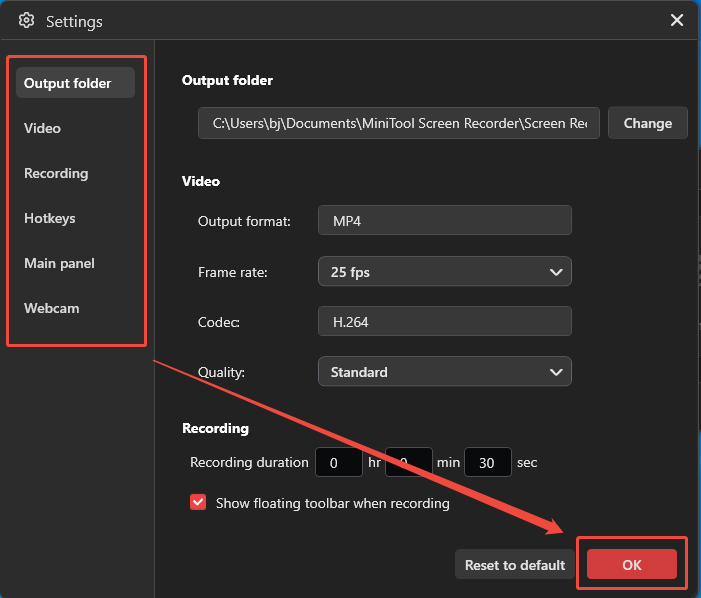
2. Click the Settings icon in the upper-right corner of the main interface. Then, in the new interface, configure the recording parameters under the relevant sections. Finally, click OK to save the changes.
3. By default, the recorder selects the entire screen as the capture area. The recording mode can be changed by expanding the Full Screen menu and selecting a specific window, region, monitor, or game.
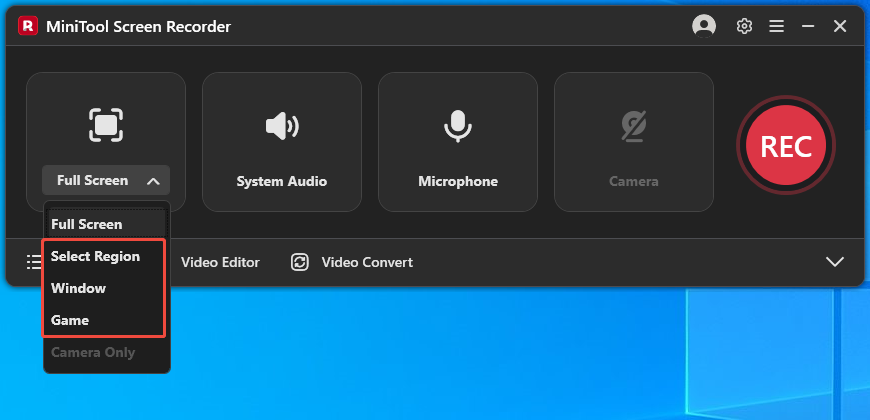
4. By default, this tool will automatically capture the computer audio and microphone input. To disable one of them, click the System Audio option or the Microphone option.
5. If there is a need to record an NBA League Game reaction video, click the Camera option on the right of the main interface.
6. Then, click the REC button or press the F6 key to begin the recording process. When the 3-second countdown ends, switch to NBA League Pass to play the match or its replay.
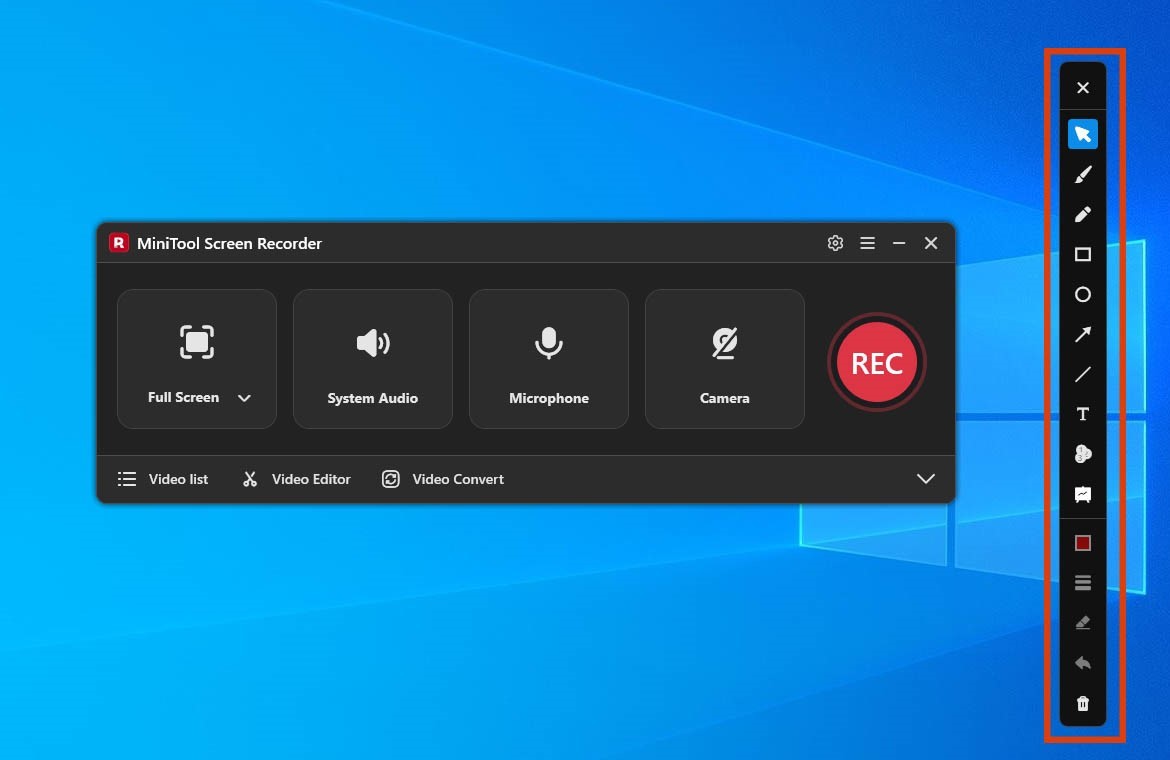
7. If there is a need to highlight key moments or add notes to the recorded NBA footage, use the annotation tools to mark important details directly while capturing the screen.
8. To end the recording, press the F6 key or click the Stop recording option in the floating bar. Then, in the Video list section, click the Play icon to view the NBA League Pass game video and click the Folder icon to locate the recording file on the PC.
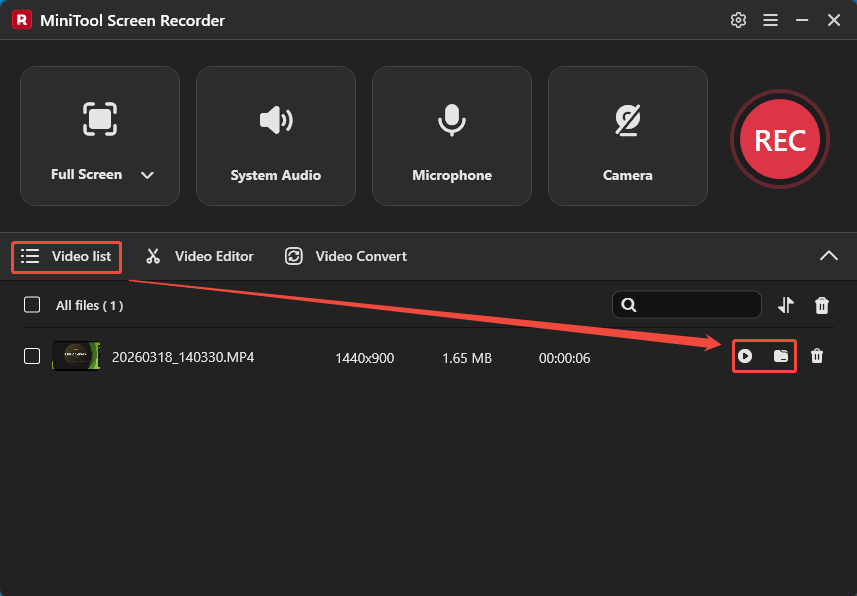
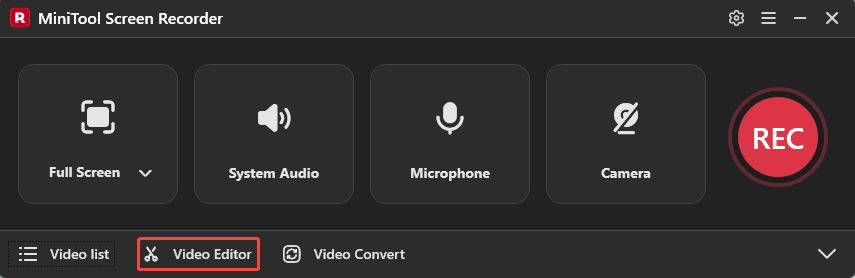
9. Finally, click the Video Editor option to crop and cut the video in MiniTool MovieMaker, or add relevant elements to the video.
MiniTool MovieMakerClick to Download100%Clean & Safe
In short, both tools have their own advantages. Xbox Game Bar is suitable for users who prioritize recording efficiency, while MiniTool Screen Recorder is better suited for those who prioritize recording quality.
Final Thoughts
Can you record NBA League Pass games? Yes. By simply using professional screen recording tools, such as the Xbox Game Bar and MiniTool Screen Recorder introduced in this article, high-quality match videos can be recorded easily and smoothly.
If you encounter any questions when using MiniTool Screen Recorder or MiniTool MovieMaker, send an email to support@minitool.com.