

Peacock is a streaming service that offers a vast library of movies, television shows, news, and live sports. Sometimes I need to save Peacock videos for offline viewing, such as on a trip. Naturally, I’ll first think about downloading them to my device. However, this feature requires a Peacock Premium Plus membership, and not all videos are available to download.
Undoubtedly, I don’t want to pay extra to download videos from Peacock occasionally. Besides, what if my target video cannot be downloaded after a payment? After thinking it over repeatedly and searching for a way out, I found that screen recording is a great alternative for saving Peacock shows to watch later.
You may ask: Can you record on Peacock, and how do you record shows or movies for later viewing? Here’s everything I want to share about recording Peacock videos.
Can You Record on Peacock?
If you’re wondering about recording on Peacock using a built-in DVR feature, such as YouTube TV DVR for recording all current and upcoming airings, I’m sorry to say that’s not possible. The platform does not provide such a built-in recording feature.
The good news is that you can always use a screen recording tool to save videos from Peacock to your computer. Then, you can watch them anytime, anywhere.
What’s the best software for screen recording on Peacock? How to record on Peacock without a black screen? Let’s continue.
How to Record on Peacock [Desktop]
Like other streaming services, Peacock also utilizes high-level Digital Rights Management (DRM) to protect their content. If we start a recording directly, we might end up with a black-screen video due to DRM.
To record shows on Peacock with a black screen, first, we need to turn off hardware acceleration in our browsers.
Step 1: Disable Hardware Acceleration in the Browser
This section takes Google Chrome as an example and shows how to disable hardware acceleration.
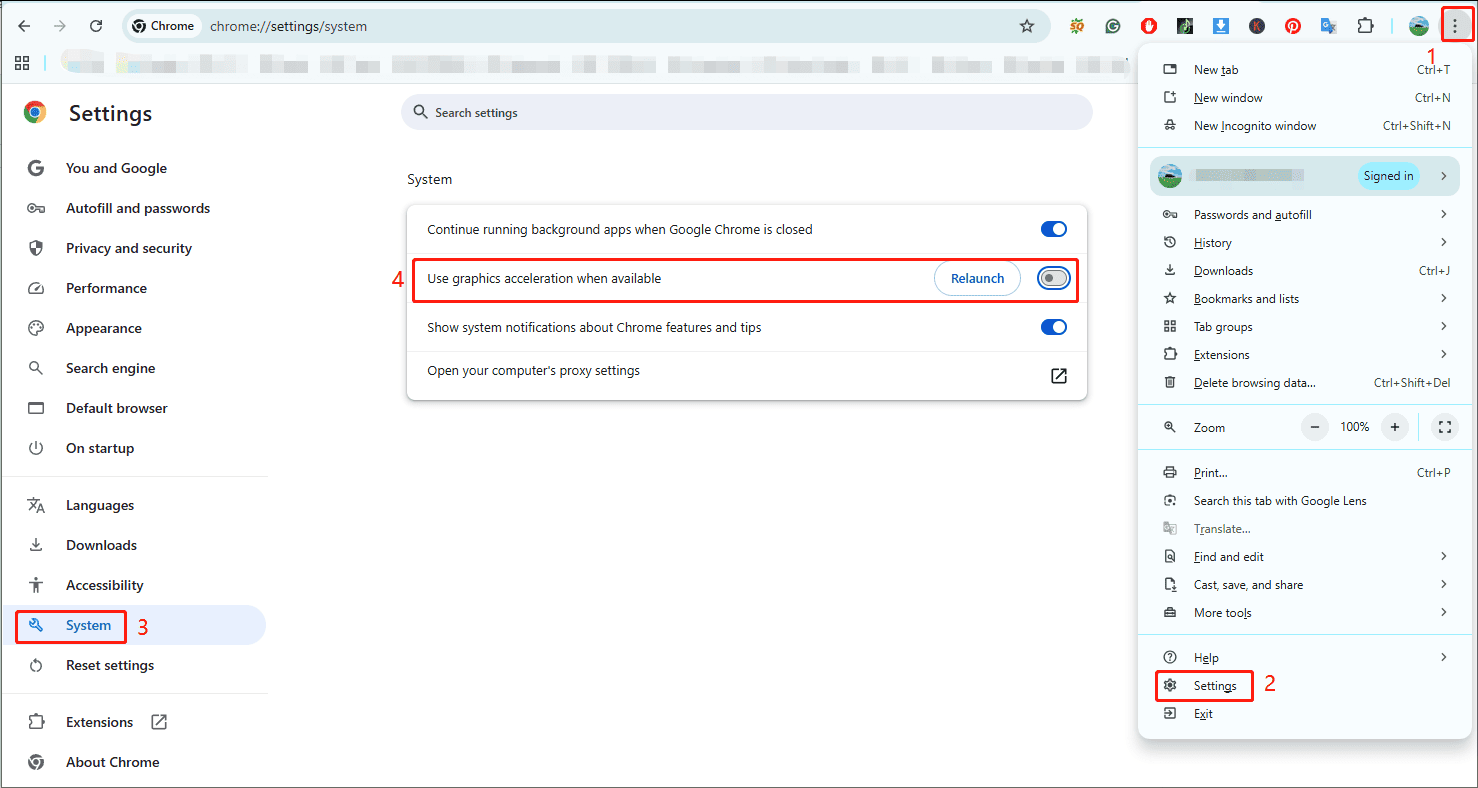
Click the Customize and Control Google Chrome icon (three vertical dots) in the upper-right corner, and choose Settings from the dropdown. From the left sidebar, click System. Then, toggle off Use graphics acceleration when available. Next, click Relaunch to reopen the browser.
Step 2: Choose a Screen Recording Application
I’ve tried many programs for screen recording on Windows, including the built-in Snipping Tool, recording tools provided by major GPU manufacturers, and third-party applications. However, they all have more or less drawbacks.
For instance, the Windows 11 Snipping Tool does not record the webcam. If you want to record yourself while recording Peacock shows, it is not an ideal choice. The GPU-related software cannot copyright content. Some third-party tools may have recording time limits or leave watermarks on the final result, and some are not easy to set up.
Therefore, in this section, I’ll introduce a free, reliable screen recording tool for saving Peacock videos – MiniTool Screen Recorder. It’s a professional screen recorder to capture the screen, webcam, system audio, and microphone input on Windows.
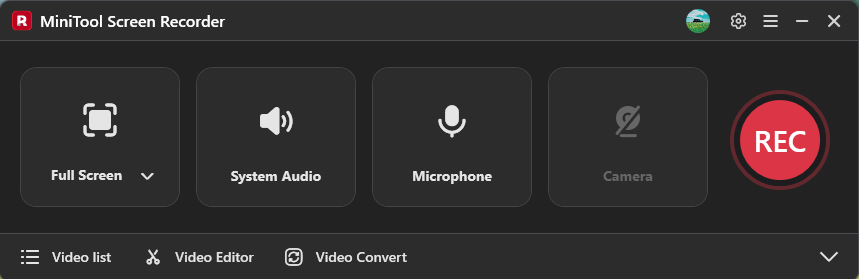
MiniTool Screen Recorder has a simple interface, is easy to use, and doesn’t require complex settings. It can record up to 4K resolution and doesn’t have time limits or watermarks. The software also allows me to choose the recording area flexibly: the whole desktop, a specific part of the screen, or an active window.
With the webcam recording feature, I can easily include myself while recording on Peacock to create reaction videos and make training tutorials, presentations, or demonstrations. Besides, MiniTool Screen Recorder lets me annotate the screen while recording to highlight key elements.
Click the button below to download MiniTool Screen Recorder to your computer.
MiniTool Screen RecorderClick to Download100%Clean & Safe
Step 3: Find the Target Show/Movie to Record on Peacock
Navigate to the Peacock website and sign in with the right email and password. Then, search for or find the target video. Play the video and choose to watch it in full screen or in the default window mode. Pause playback and return to the start of the video.
Step 4: Configure Recording Settings
After installation, launch MiniTool Screen Recorder.
1. Choose the recording region
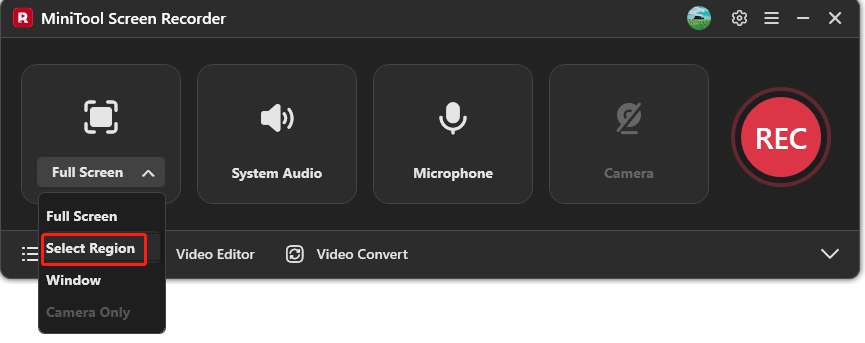
By default, the software records the entire screen. Since I want to play Peacock in full screen later, I don’t need to change it. If you watch the movie in the default window, click Full Screen on MiniTool Screen Recorder, and click Select Region to define the desired recording area.
2. Check audio
Make sure the System Audio is turned on to capture audio while recording a Peacock video. To add commentary, plug in a microphone and make sure the Microphone option is enabled.
3. Adjust other settings
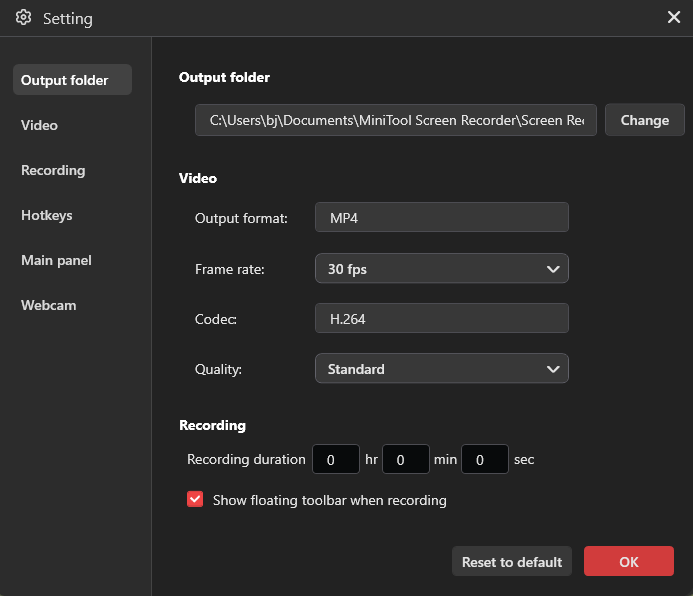
Click the Settings icon in the top-right corner of the main interface. Then, select the save location, recording frame rate, and video quality. Finally, click OK to confirm.
Step 5: Start and Stop the Recording
Click the REC button to start recording. After the 3-second countdown, play the show/movie on Peacock for recording. Don’t want to include ads in the recording? Press F9 to pause the recording. When the ad is over, press P9 again to resume the recording. When the recording is finished, press F6 to stop recording.
Step 6: Check and Edit the Recording
Then the Video list menu will be expanded, and the recording will appear at the top of the video list. Next, watch the video, open its file location, or delete it.
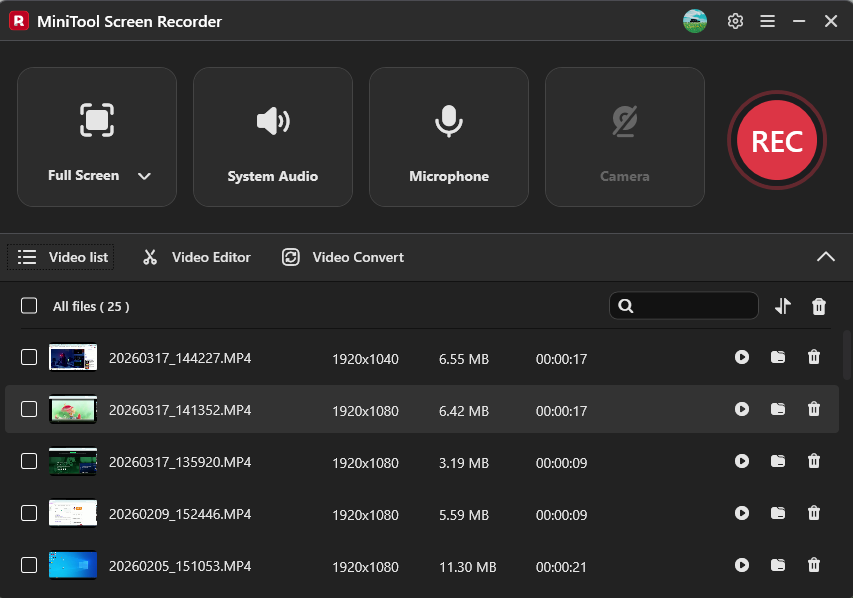
To edit the recording, such as deleting unnecessary parts at the beginning or end, click Video Editor next to the Video list option to open or download MiniTool MovieMaker. Next, import the video and edit freely.
Conclusion
Can you record shows on Peacock? The answer is Yes! The platform doesn’t offer a built-in record button, but we can use third-party screen recording software, such as MiniTool Screen Recorder, to save videos on Peacock for offline viewing.
Finally, if you encounter any difficulties while using MiniTool products, please contact us at support@minitool.com for help.