

Adding overlays while recording gameplay can enhance the videos. This post introduces 7 best apps for recording gameplay with overlays, including Clipchamp, MiniTool Screen Recorder, Bandicam, Camtasia, NVIDIA ShadowPlay, OBS Studio, and Outplayed. Additionally, it details tutorials on how to use these tools for game recording.
As a gamer, whenever I wanted to record and share my gameplay highlights, I found my videos paled in comparison to those created by content creators on platforms like YouTube and TikTok. I noticed that their videos featured not just the gameplay itself, but also a variety of visual elements such as webcam footage, chat windows, and performance metrics.
To make my gaming videos more engaging, I started looking for game recording tools that support overlays, and I found 7 that I think are worth trying:
- Clipchamp
- MiniTool Screen Recorder
- Bandicam
- Camtasia
- NVIDIA ShadowPlay
- OBS Studio
- Outplayed
![How to Record Osu Gameplay Like a Pro on PC [2 Easy Methods]](https://images.minitool.com/recorder.minitool.com/images/uploads/2026/05/how-to-record-osu-gameplay-thumbnail.jpg)
What Is a Game Recorder with Overlays
Unlike standard game screen recorders that support overlays allow users to superimpose visual elements, such as webcam feeds, notifications, chat boxes, and FPS performance data, onto the recording.
These elements not only make the videos more engaging but also boost audience interaction, making such tools the preferred choice for gaming creators and streamers on platforms like YouTube and TikTok.
7 Best Apps for Recording Gameplay with Overlays
I have tested most of the game recording tools on the market and found that they differ in features, performance, ease of use, learning curve, and price. Furthermore, some tools are better suited to professional game streamers, while others are better suited to casual users looking to record their gameplay quickly.
Quick Comparison
| Tools | Supported Overlays | Watermark | Price |
| Clipchamp | Webcam | No | Free version + Pro version |
| MiniTool Screen Recorder | Webcam, real-time annotation | No | Free |
| Bandicam | Webcam, FPS, keystroke, mouse click | Yes | Free version + Pro version |
| Camtasia | Webcam, keystroke, mouse click | Yes | Free version + Pro version |
| NVIDIA ShowPlay | Webcam, FPS | No | Free |
| OBS Studio | Webcam,keystroke, mouse click, livestream comments | No | Free |
| Outplay | Webcam, FPS | No | Free version + Pro version |
#1 Clipchamp
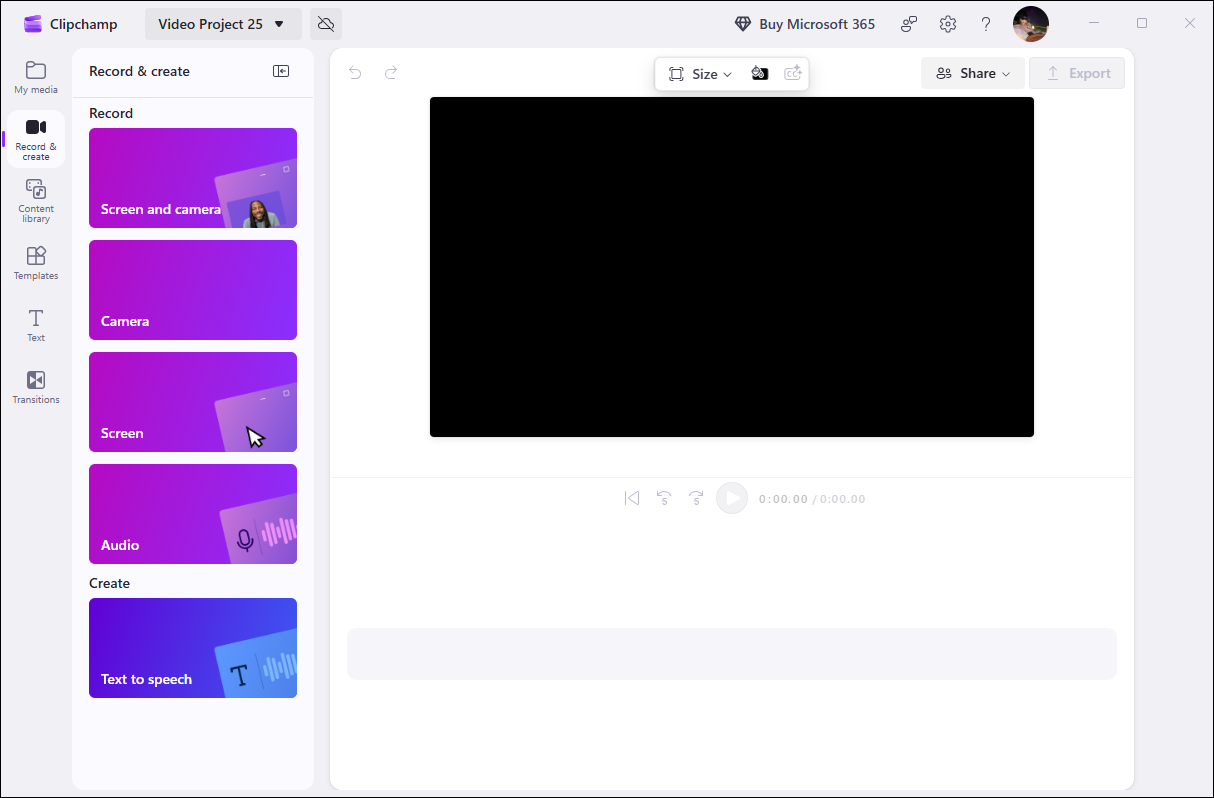
Clipchamp 4.5 is a Microsoft-owned tool that combines screen recording and video editing capabilities. Pre-installed on Windows 11, it is ideal for quick recording tasks. Gamers can add a webcam overlay while recording their screen to create engaging picture-in-picture videos.
After recording, users can edit videos directly within the software with a single click, significantly boosting recording efficiency. Additionally, recorded videos can be saved to the cloud or a local drive and shared instantly on social media platforms like YouTube. However, Clipchamp has recording time limits, making it suitable only for short recording tasks.
Pros:
- Easy to use.
- No watermark.
- Support recording the screen with a webcam.
- Provide a built-in video editing tool.
Cons:
- The recording time limit is 30 minutes.
- Not completely free.
- High CPU usage.
Best for: Users who want to improve game recording efficiency and add simple overlays.
Clipchamp comes with a built-in web camera and screen recording, which is great. https://cristian-70480.medium.com/best-and-worst-practices-with-microsoft-clipchamp-ebf208fdc224
#2 MiniTool Screen Recorder
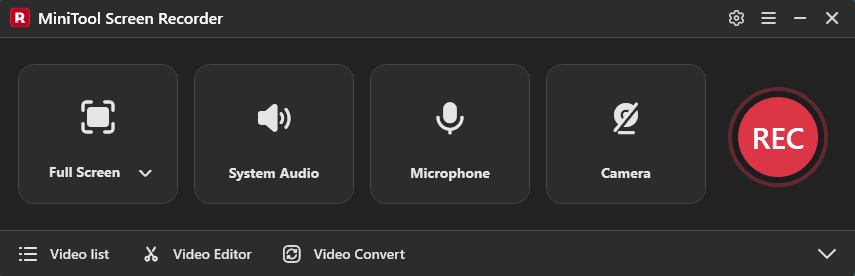
MiniTool Screen Recorder 1.4 is another overlay recording software feature that’s worth trying. Not only is it completely free, but it also allows users to record for an unlimited duration.
This app not only supports adding webcam footage but also provides real-time screen annotation tools. This means gamers can more clearly highlight key steps and actions when recording gameplay commentary or tutorial videos.
In addition, this tool offers a wide range of recording area options, including full screen, a specific area, a window, and other displays. Furthermore, users can customize the recording frame rate, quality, hotkeys, and camera settings before recording. Recorded videos are saved in MP4 format and do not include a watermark.
Pros:
- Easy to use.
- Completely free.
- No watermark.
- No recording time limit.
- Support adding a webcam overlay.
- Support annotating the screen in real time.
Cons:
- Only for Windows users.
- Do not provide a built-in video editing tool.
Best for: Gamers on a budget who want to add overlays.
MiniTool has released Screen Recorder, a free screen recording tool for Windows designed to handle basic screen, audio, and webcam recording tasks without watermarks or time limits. https://betanews.com/article/minitool-releases-free-screen-recorder/
#3 Bandicam
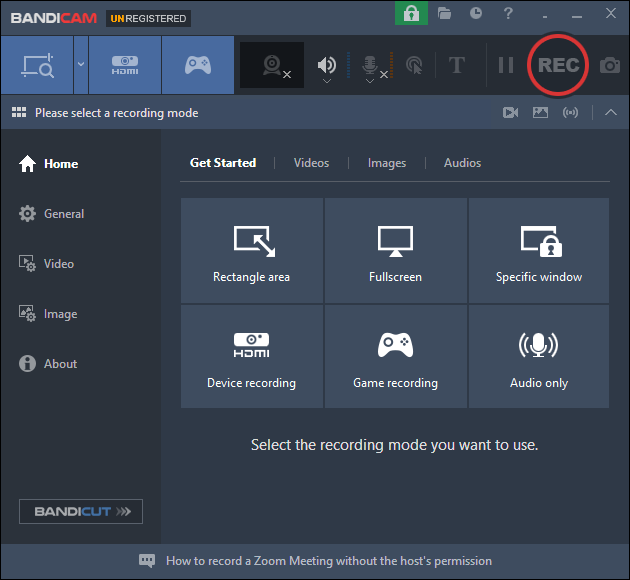
Bandicam 8.3.1 is essentially a lightweight recording tool designed specifically for gamers. It is widely popular among gamers for its low CPU usage. This tool not only supports recording 2D and 3D games but can also work with capture cards to record gameplay from consoles such as Xbox, Switch, and PlayStation.
Moreover, Bandicam offers a mouse cursor tracking feature, which is ideal for recording tutorial videos. Furthermore, the application supports real-time display of the game’s frame rate while players are gaming, allowing them to better monitor the game’s smoothness.
However, it’s important to note that the free version of Bandicam has feature limitations; users need to upgrade to a membership to access the full range of features. Additionally, videos recorded using this tool will have a watermark added.
Pros:
- Easy to use.
- Support various overlays.
- Support displaying FPS.
- Provide a built-in video editing tool.
Cons:
- Only for Windows users.
- Not completely free.
- A watermark will be added to the recorded video.
Best for: Gamers who prioritize recording smoothness.
Bandicam is refreshingly lean. It doesn’t hog system resources when idle, installs quickly, and rarely crashes. For users on mid-range hardware, this stability is a significant selling point. https://atomisystems.com/screencasting/bandicam-screen-recorder-review-2026-real-pros-cons-who-its-actually-for/
#4 Camtasia
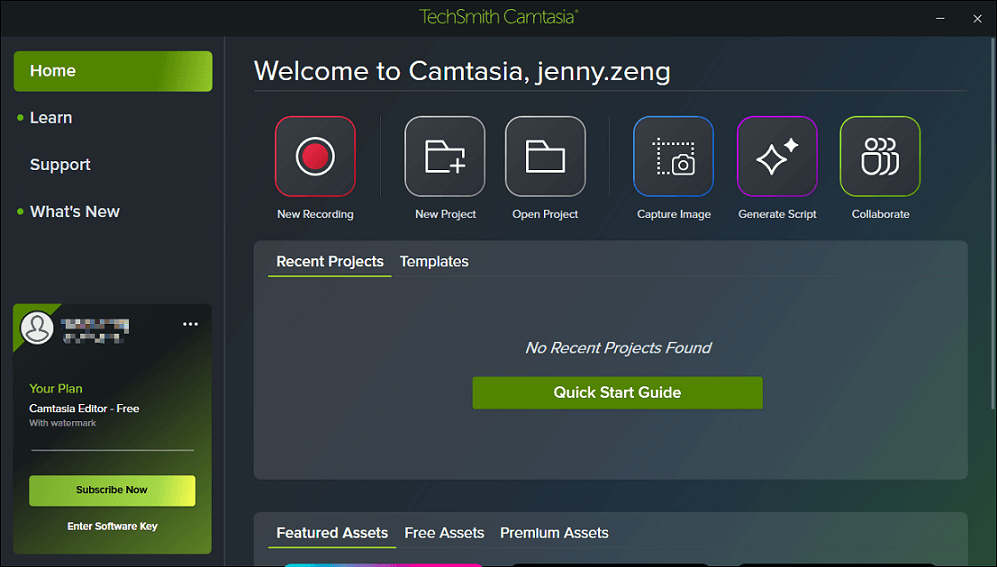
In my opinion, Camtasia 26.1.4 is an excellent tool for recording gaming tutorials. Like the previous tools, it supports adding webcam footage during screen recording and allows users to use virtual backgrounds. In addition, Camtasia displays real-time shortcut tips and cursor paths. Overall, this application is the top choice for creating tutorial videos.
What’s more, Camtasia also includes built-in video editing features that allow users to quickly add transitions, text, music, and more to their recordings. However, a watermark is added when the video is exported. Only paid subscribers can enjoy watermark-free videos and additional advanced features.
Pros:
- Easy to use.
- Provide multiple overlays.
- Provide a built-in video editing tool.
- Support displaying shortcut tips and cursor paths.
Cons:
- Not completely free.
- Place a heavy load on the computer's CPU.
Best for: Players who want to create game tutorials.
TechSmith’s Camtasia is one of the best screen recorders we’ve ever reviewed. Setup is easy, recording is flawless, and the editing capabilities are both simple and incredibly powerful, setting it apart from the competition. https://www.techradar.com/reviews/techsmith-camtasia-2022
#5 NVIDIA ShadowPlay
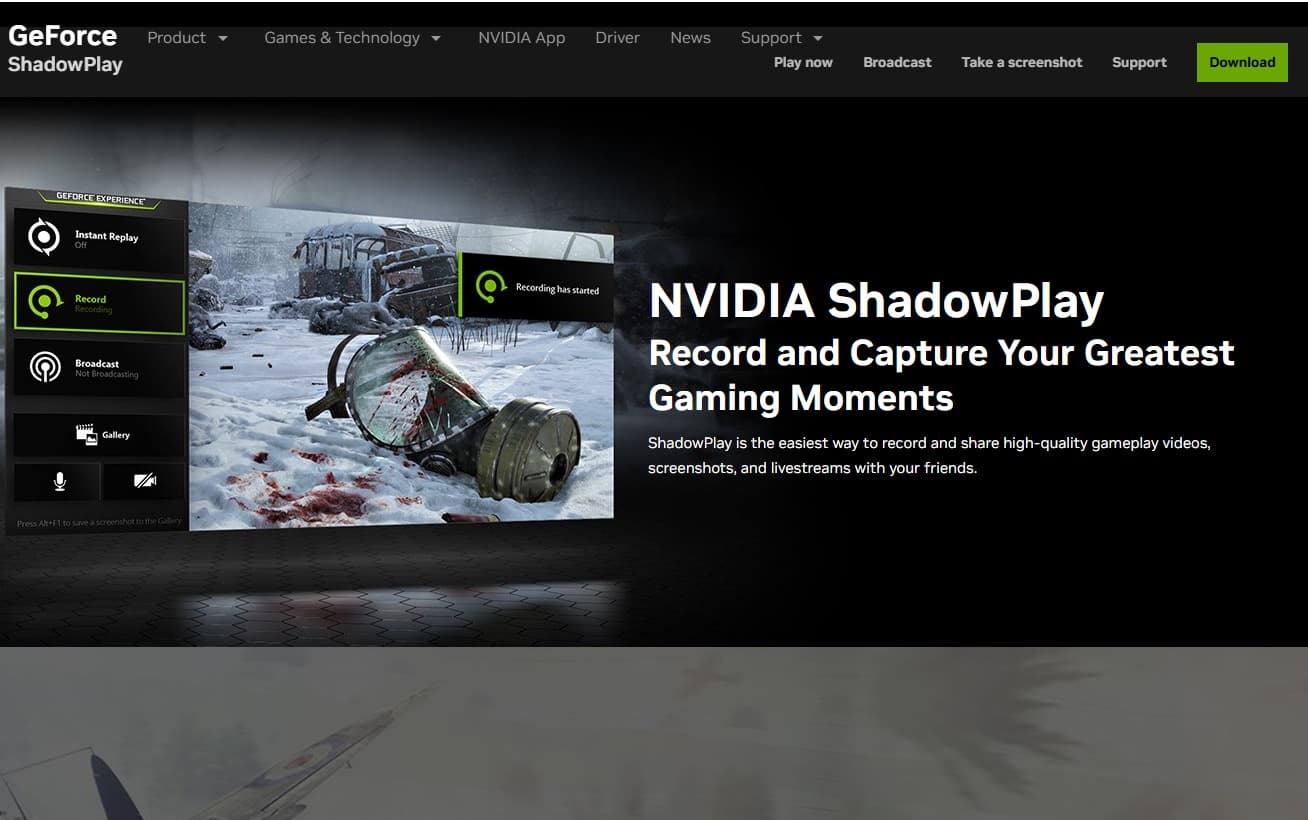
NVIDIA ShadowPlay 11.0.8 is a completely free recording tool integrated into GeForce Experience. Its most notable feature is its ability to display real-time FPS data to monitor game performance, though this data is not recorded in the video.
What I like most about this tool is that it relies on NVIDIA’s own graphics card hardware and does not use the system’s CPU. As a result, the recording process is very smooth.
What’s more, ShadowPlay also supports adding webcam footage, making it easy for users to record gameplay reaction videos. Furthermore, unlike other software, this tool supports an instant replay feature, which means that exciting moments not saved in real time can be automatically saved using this feature. Therefore, this software is ideal for creating short gaming videos.
Pros:
- Completely free.
- Support FPS data display.
- Do not consume CPU resources.
- Provide an instant replay feature.
Cons:
- An NVIDIA graphics card is required to use the tool.
Best for: Users who prioritize smooth gameplay recording.
Nvidia’s ShadowPlay can have up and down performance depending on your PC configuration. But it’s free, easy to use, and can be tweaked for straight-up recording, grabbing the last few action-packed minutes of your game, or broadcasting your adventures on Twitch.https://www.pcworld.com/article/402765/nvidia-shadowplay-review.html
#6 OBS Studio
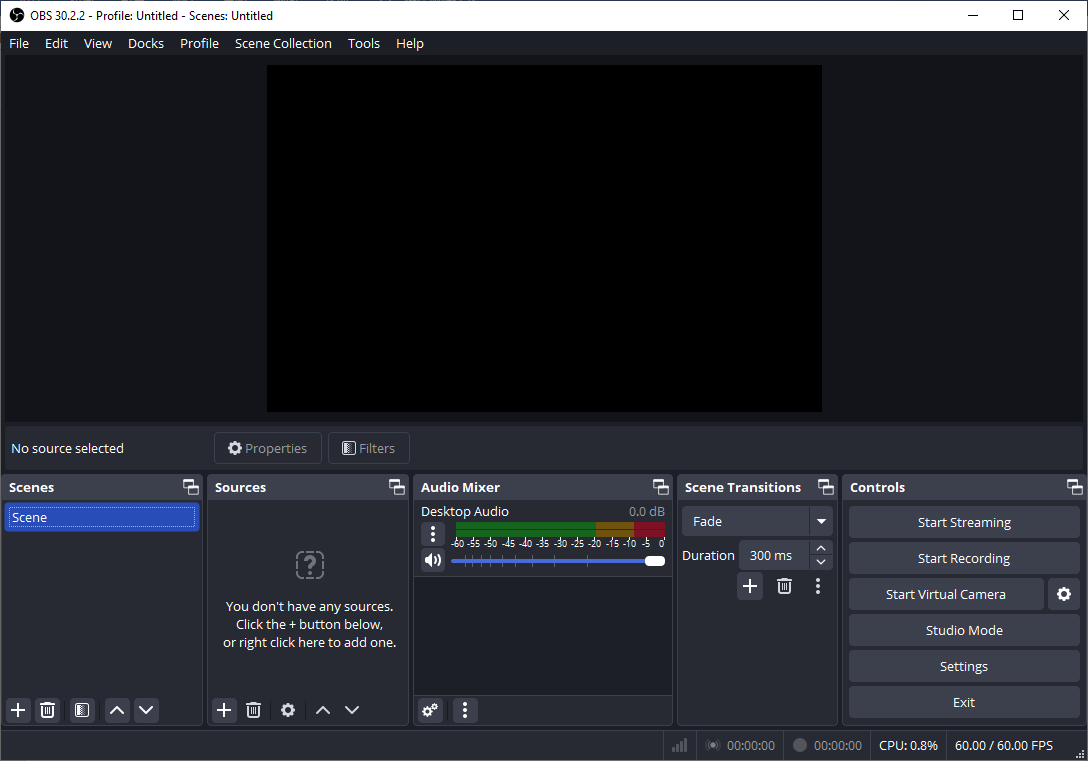
OBS Studio 32.2.1 offers a wide variety of overlay layers, making it ideal for users who frequently stream games. This tool provides users with a highly flexible overlay layout. For example, when recording gameplay, streamers can add various overlays such as camera feeds, live comments, chat windows, and browser content.
Moreover, I find it particularly user-friendly for those who like to capture gameplay from game consoles. This is because OBS Studio can not only receive signals from external devices via a capture card but also capture audio from various devices through its audio mixer.
More importantly, OBS Studio also features hardware acceleration, giving it an edge over most other tools in terms of performance. However, the tool has a complex interface and uses technical jargon, so it’s not suitable for beginners.
Pros:
- Open source and completely free.
- Provide various overlays.
- Support capturing game console footage.
- Provide audio mixer capture.
Cons:
- The learning curve is steep.
Best for: Users with professional knowledge of screen recording or live streaming.
OBS Studio (Open Broadcaster Software) is one of the most popular names out there. It’s free, open-source, and trusted by millions of creators around the world – from gamers and streamers to educators and content producers. https://atomisystems.com/screencasting/obs-studio-review-pros-cons-and-a-great-alternative-you-should-try/
#7 Outplayed
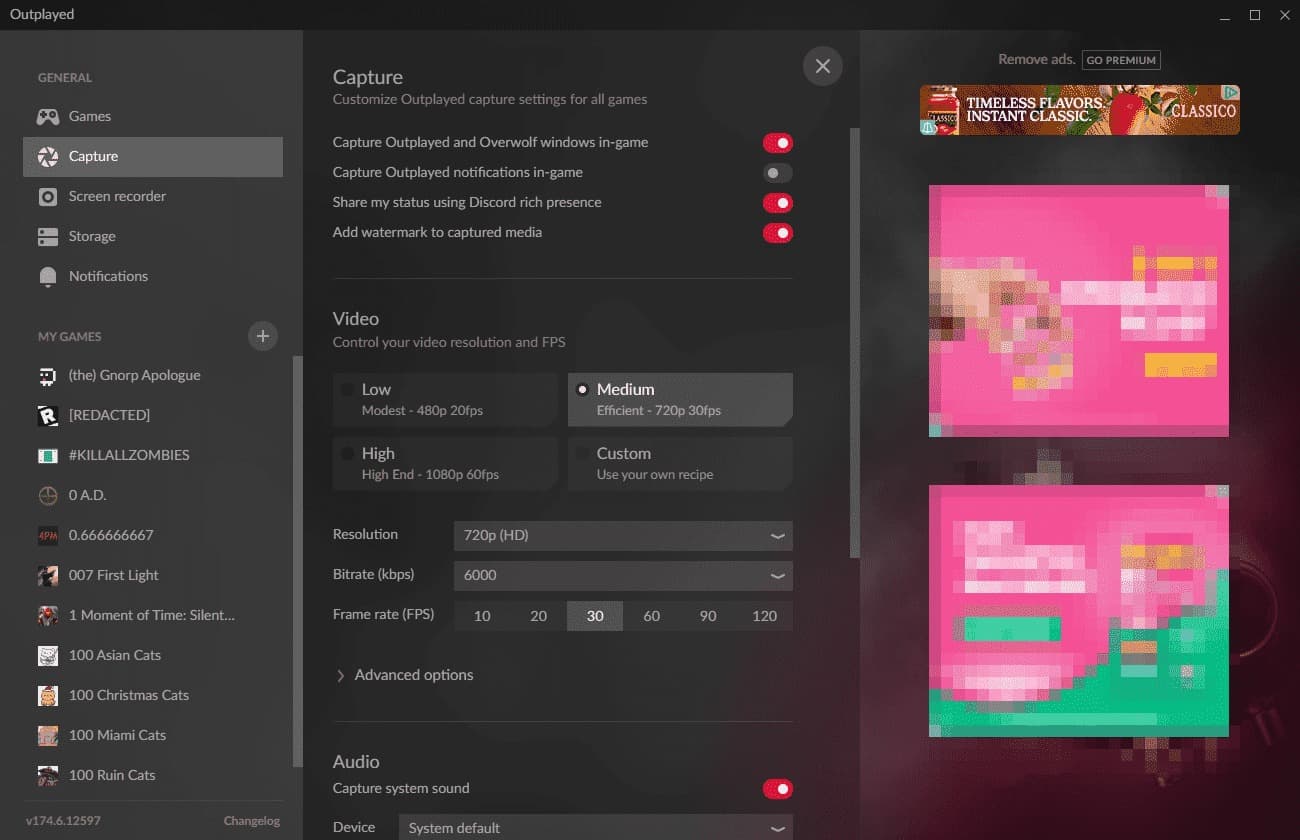
Outplayed 266.1.25 is a recording tool developed by Overwolf that supports capturing gameplay from over 5,000 games. The tool also allows users to capture webcam footage while recording their screen. Outplayed’s core feature is its automatic recording mode. Not only does it automatically capture detected game highlights, but it also frees users’ hands to record the entire gameplay session.
Additionally, Outplayed allows users to adjust parameters such as the frame rate, hotkeys, and capture mode, and more. I find one particularly useful feature of this tool is its ability to automatically free up disk space to ensure smooth recording.
In other words, when disk space reaches the set limit, the program automatically deletes old clips that haven’t been saved to favorites.
Pros:
- Ease to use.
- Support various famous games.
- Support automatic recording.
Cons:
- Not completely free.
- Games that are no longer on the supported list cannot be recorded.
Best for: Players who need to record multiple games.
Outplayed is the ultimate video capturing app for gamers. While playing, the app automatically captures your best moments and biggest plays, as well as manually recording on demand. https://www.overwolf.com/app/overwolf-outplayed
In summary, each of the 7 best apps for recording gameplay with overlay listed above that offer overlay features has its own standout characteristics. Some are suitable for simple and convenient game recording, while others are better suited for professional game streaming and recording. Overall, however, they can all enhance the appeal of the recorded videos.
How to Record Gameplay with Overlays
Although these tools each have their own unique features, they all share similar recording principles. Using MiniTool Screen Recorder as an example, this article explains how to record gameplay and webcam at the same time.
Fast Track Steps:
- Install MiniTool Screen Recorder and launch it on the PC.
- Configure the video recording and webcam recording features in the Settings interface.
- Select the Game recording mode under the Full Screen option.
- Control the audio recording features.
- Enable the Camera recording feature.
- Click the REC button to begin recording.
- Annotate the screen.
- Press F6 to end the recording process and check the recorded game video.
- Edit the recorded game video by clicking the Video Editor section.
MiniTool Screen RecorderClick to Download100%Clean & Safe
1. Click the button above to download and install MiniTool Screen Recorder. Then, launch it on the PC.
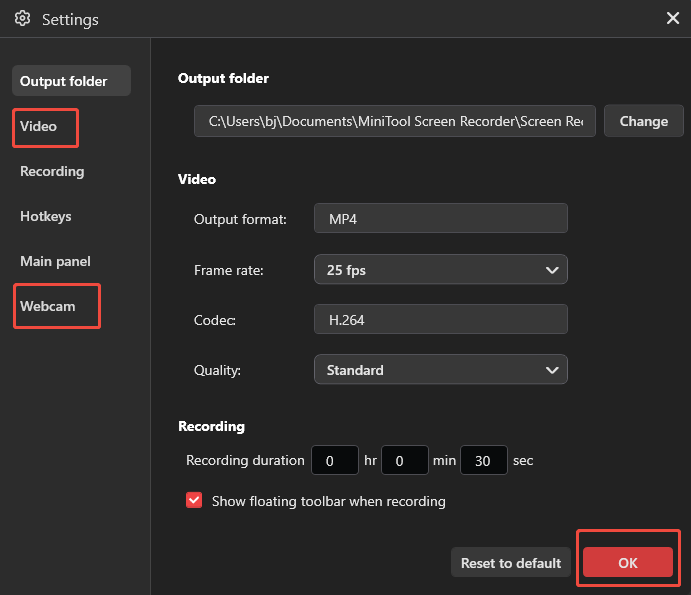
2. Click the Settings icon in the top-right corner. Move to the Video module, then set the video frame rate and quality. To configure the camera settings, switch to the Webcam module. Finally, click the OK button to save the changes.
3. This tool sets the full screen as the default recording mode. To capture the specific gameplay window, expand the Full Screen option, then choose the Game option.
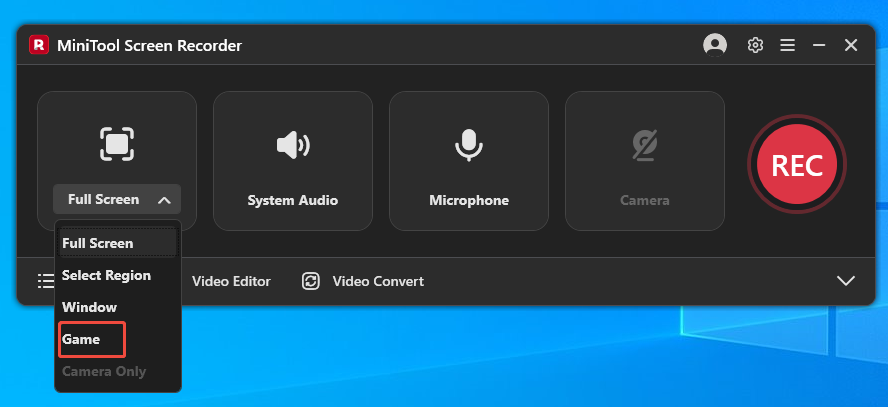
4. In the new pop-up window, choose the target gameplay window.
5. The system audio and microphone input recording features are enabled by default. If there is a need to disable one of them, click the relevant icon in the main interface.
6. To record gameplay with webcam, click the Camera icon to enable the webcam recording feature.
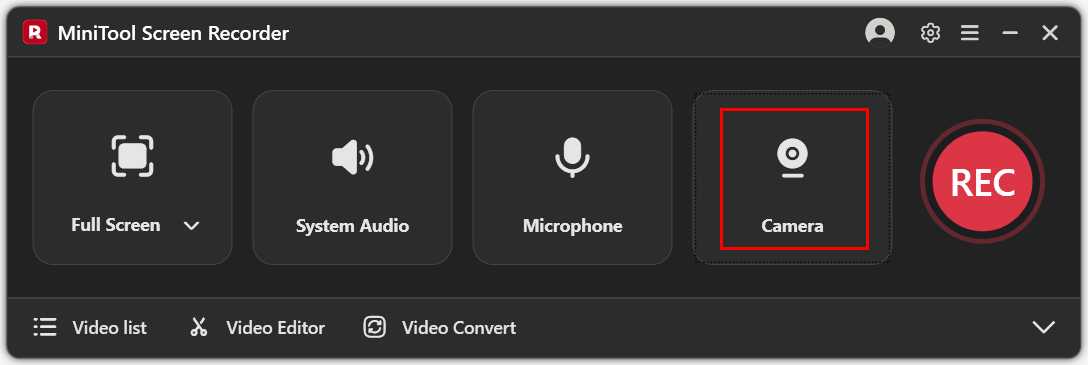
7. Press the REC button to start the game recording process. After a 3-second countdown, play the game.
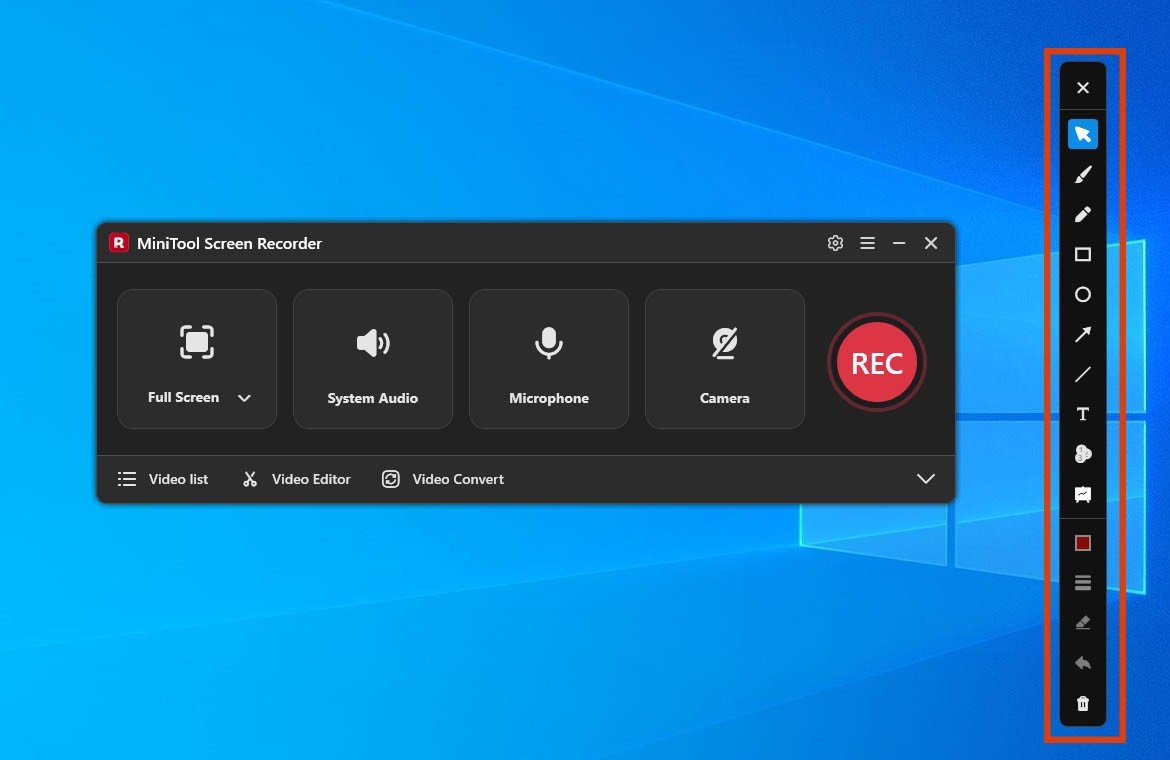
8. If there is a need to mark the highlights when screen recording, choose the tools from the annotation toolbar on the right of the screen.
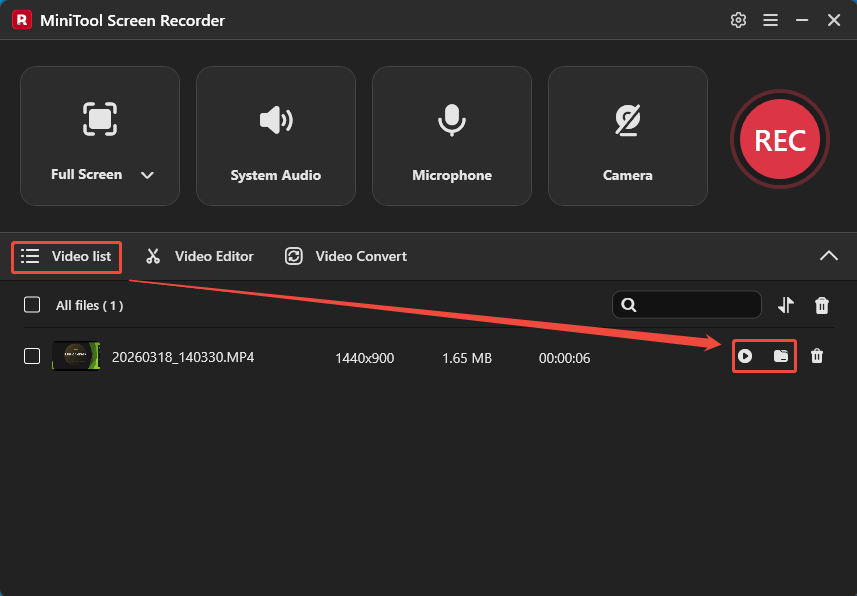
9. To end the recording process, click the Stop recording icon in the floating bar or press the F6 key. When the tool automatically switches to the Video list section, click the Play icon to view the recorded gameplay video and click the Folder icon to locate the recording file on the PC.
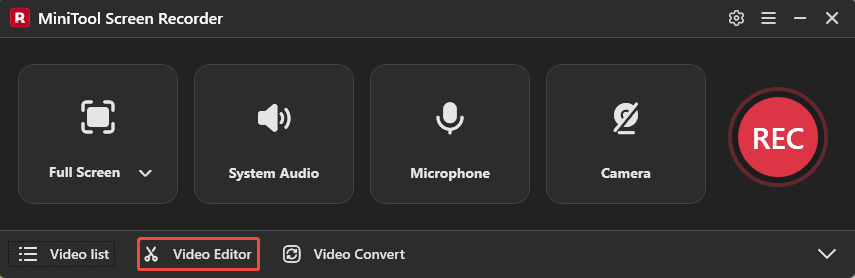
10. If there is a need to optimize the recorded game video, click the Video Editor option to access the video editing tool, MiniTool MovieMaker, for quick editing.
Final Words
This article provides 7 best apps for recording gameplay with overlays. These tools support different types of overlays, including webcam feeds, live-stream comments, chat boxes, FPS data, and more, helping meet various recording and streaming needs.
If you have any questions when using MiniTool Screen Recorder or MiniTool MovieMaker, send an email to support@minitool.com.