

Outplayed is a tool I frequently use to record gaming sessions. It offers both automatic and manual recording modes and supports capturing gameplay from over 5,000 different titles. However, it occasionally encounters issues with failure to record gameplay. To address this, I investigated the root causes and compiled 10 corresponding solutions.
Why Is Outplayed Not Recording
After searching various websites and browsing forums, I found that the issue of Outplayed not working is usually linked to factors such as recording settings, system configuration, and permission settings. Below are the specific reasons that may be causing this issue.
- System below minimum requirements
- Automatic recording turned off
- Incompatible game display mode
- Unsupported or unrecognized game
- Windows recording access blocked
- Overwolf not running as administrator
- Blocked by firewall or antivirus
- Insufficient storage space
- Outdated graphics card drivers
- Overlay and recorder conflicts
How to Fix Outplayed Not Recording
The methods listed below are ones I have tested and found effective for resolving issues such as Outplayed not opening or failing to record.
#1 Check and Upgrade System Specifications
Overwolf requires specific system specifications to enable Outplayed. Consequently, if the computer does not meet the minimum requirements, Outplayed may fail to activate or record. Here are the official system requirements for Outplayed:
CPU: Intel Core i3 or higher models.
AMD: AMF encoders and Ryzen processors with integrated Vega graphics.
CPU Encoding Alternatives
GPU: GPUs supporting the new NVENC encoder (GT/M models are incompatible).
AMD: Graphics cards that support the AMF encoder.
RAM: 8GB (Minimum).
How to Check the Computer’s Specifications
Here are the detailed steps to check the computer’s specifications.
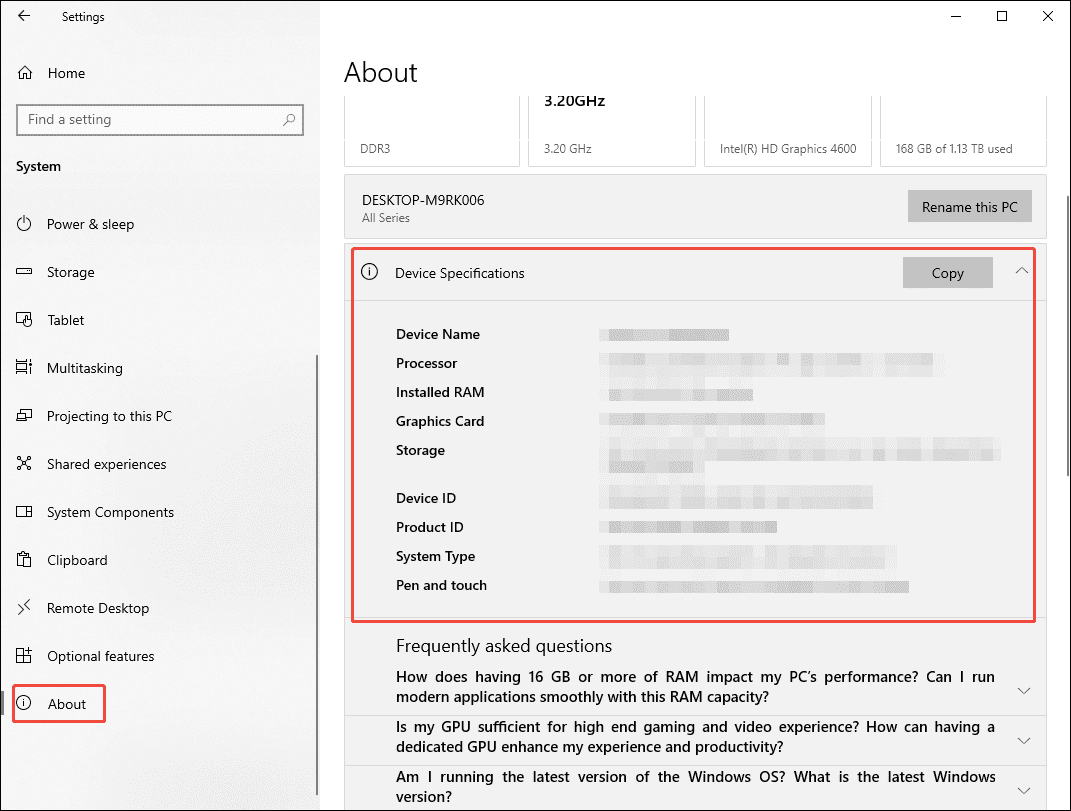
1. Press the Windows + I keys to open Windows Settings. Move to the System module.
2. Then, scroll down the screen and click the About option to enter the new interface.
3. In the new interface, the computer specifications are displayed.
Therefore, if the computer's specifications fall below the minimum requirements for running Outplayed, the best approach is to upgrade the graphics card and RAM.
#2 Enable Automatic Recording Feature
Outplayed's standout feature is its automatic recording capability; it can not only identify and capture highlights but also automatically record the entire game session. Some users encounter issues with Outplayed not recording, often because the automatic recording function has not been enabled. This problem can usually be resolved by checking and activating that feature.
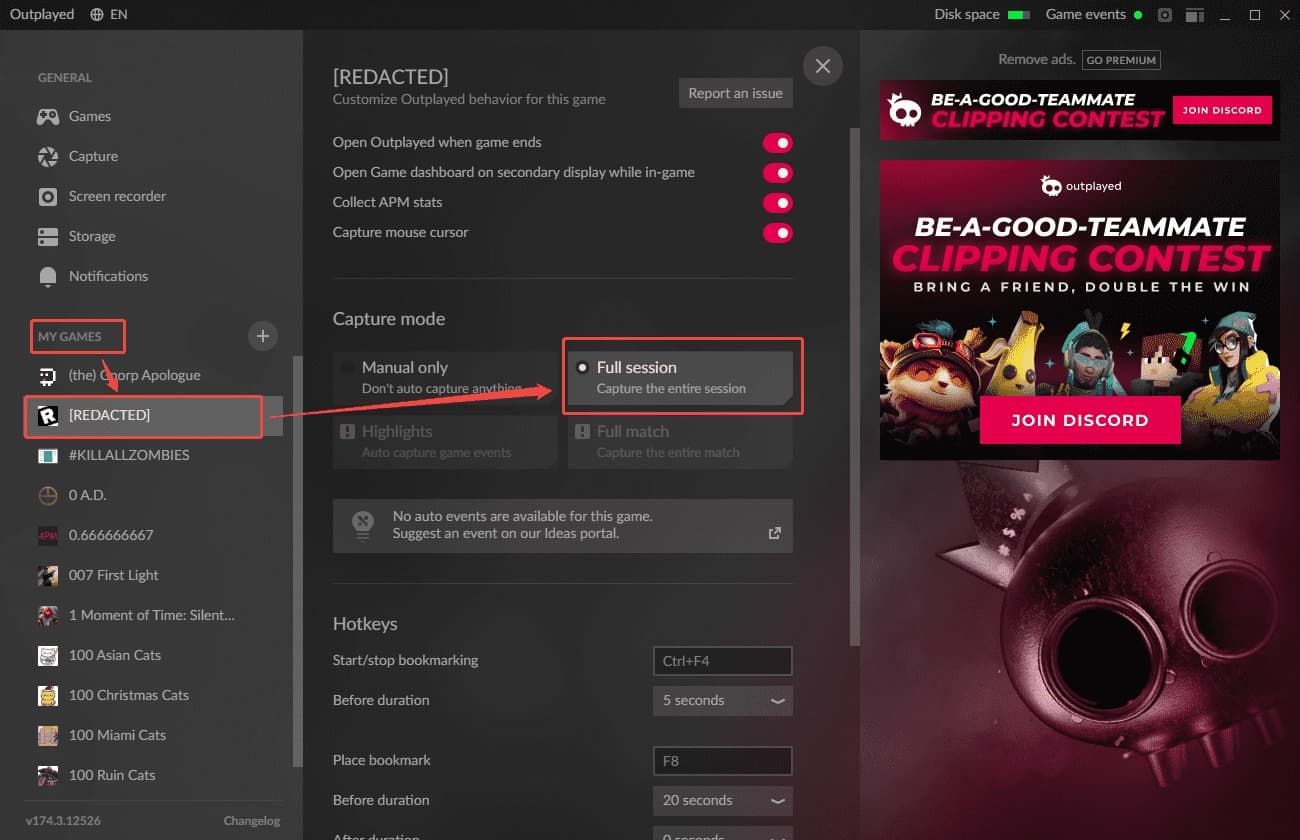
1. Launch Outplayed on the PC.
2. Click the Settings icon in the left-hand menu bar.
3. Choose the game that needs to be played under the My Games section.
4. Then, check the state of automatic recording mode. If it is not enabled, simply click the appropriate automatic recording mode to turn it on.
#3 Change Game Display Mode
This is a point that players often overlook. Games typically offer three display modes: Fullscreen exclusive, borderless windowed, and windowed. Fullscreen exclusive mode allows the game to bypass the Windows Desktop Compositor and directly control the CPU to render frames at high rates; however, this also makes it highly likely that Outplayed will fail to recognize the game.
In contrast, borderless windowed and windowed modes primarily capture the image as finally rendered by the desktop compositor; since this method consumes minimal CPU resources, it is better suited for game recording. If the game is currently running in Fullscreen exclusive mode, switch it to borderless windowed or windowed mode using the following methods.
1. Open the game.
2. Go to the in-game Settings or Options menu and locate the Video or Graphics options.
3. Then, in the Display Mode section, choose the Borderless Windowed option or the Windowed option.
Some games may not support borderless mode, making the standard windowed display mode an alternative option. When available, borderless mode is generally preferred for its better compatibility with Outplayed’s recording features.
#4 Check the Game Detection Feature
Outplayed may also fail to record if the game is not detected. Aside from the display mode mentioned earlier, the most common reasons for this are that the game is not on Outplayed's list of supported games or that the game is being run with administrator privileges.
So, before launching the game, it is necessary to check Outplayed to see if it is on the list of supported games:
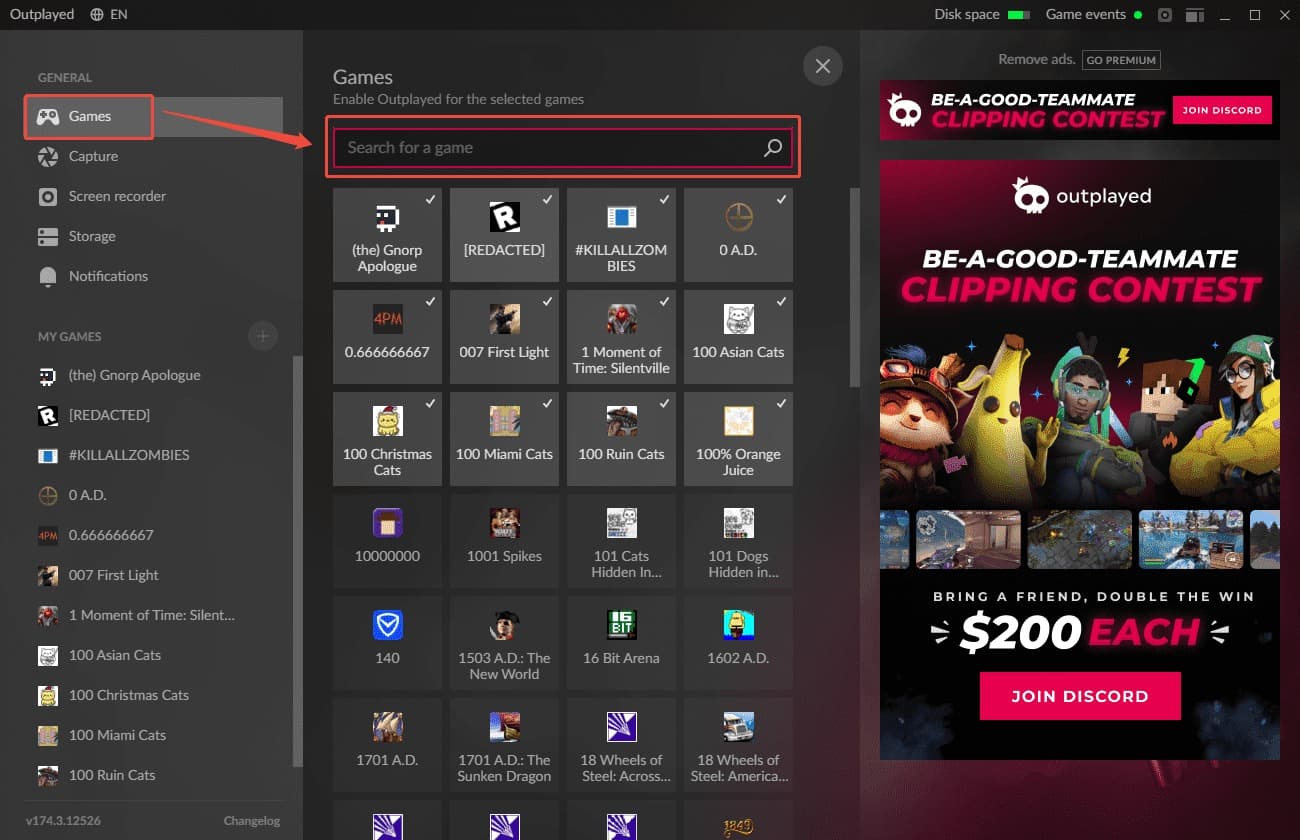
1. Launch Outplayed on the PC.
2. Click the Settings icon in the left-hand menu bar.
3. In the new interface, switch to the Game section, then type the game name in the search box to see if it is in the supported list.
Additionally, when a game runs with administrator privileges, but Outplayed does not have the same permissions, Windows may block Outplayed from detecting the game. The best solution is to set the Overwolf main program (the host application for Outplayed) to run as an administrator.
1. Right-click the Overwolf shortcut.
2. In the expanded interface, select the Run as administrator option.
3. Finally, restart the game and Outplayed to see if Outplayed recognizes the game.
#5 Grant Recording Permissions
Another easily overlooked reason is that Outplayed lacks the necessary recording permissions on Windows, such as access to microphone audio and Windows folders. Below are detailed instructions for enabling microphone recording permissions and lifting restrictions on Windows folder access.
Enable Microphone Recording Permissions
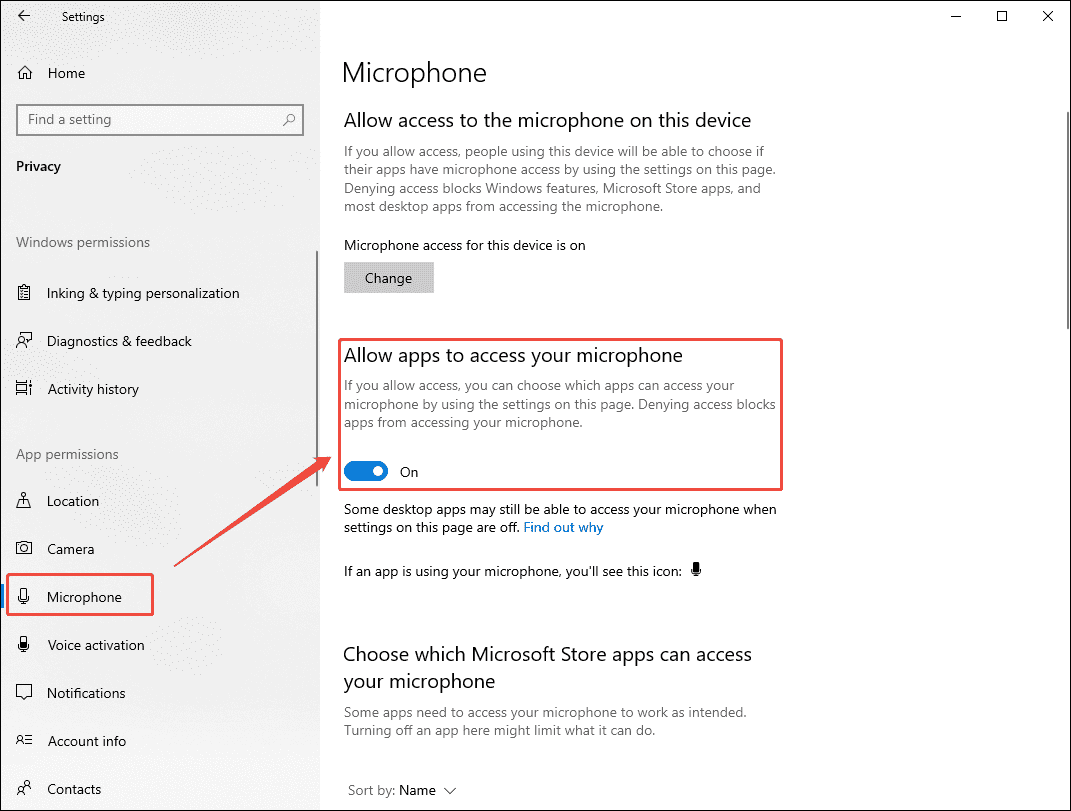
1. Press Windows + I to launch Windows Settings.
2. Navigate to the Privacy section.
3. In the new interface, scroll down the screen, then choose the Microphone option.
4. Under the Allow apps to access your microphone section, turn on the function button.
Disable Restrictions on Windows Folder Access
1. In the Windows Settings interface, switch to the Update & Security section.
2. Then, move to the Windows Security section. Click the Virus & threat protection option.
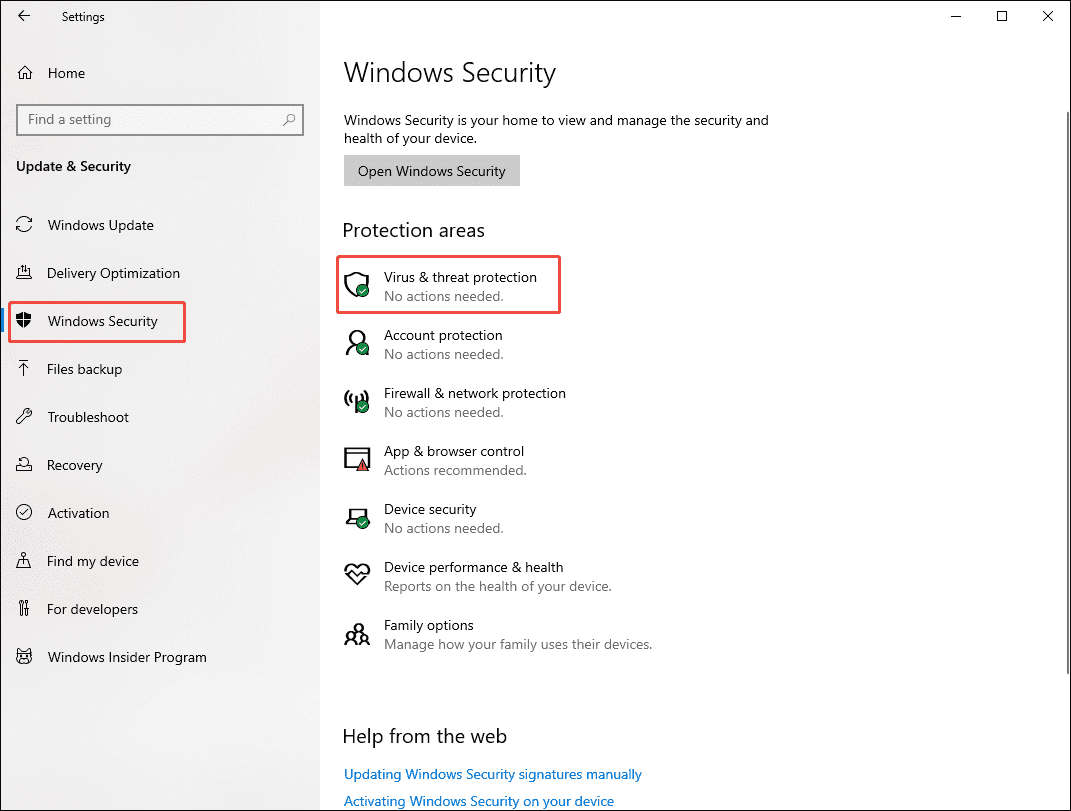
3. In the new pop-up window, scroll down the interface, then click the Manage ransomware protection option.
4. In the new interface, if Controlled folder access is enabled, please add Outplayed and Overwolf to the allowlist.
#6 Allow Outplayed Through the Firewall
The issue for Outplayed not launching due to firewall interference is similar to problems caused by a lack of necessary Windows permissions. However, in this case, the firewall restricts the software during download or suddenly blacklists Outplayed, thereby preventing it from functioning correctly. Follow the steps below to allow Overwolf or Outplayed through the firewall.
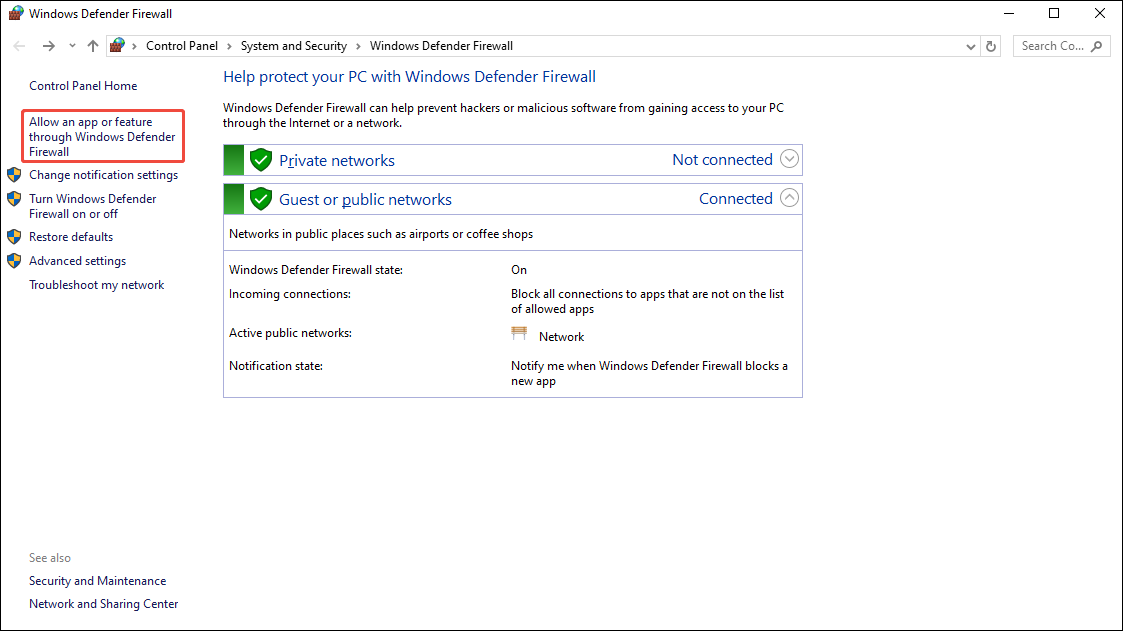
1. Press Windows + I to launch Control Panel.
2. Move to the System and Security section. Then, find Windows Defender Firewall and open it.
3. In the left-hand menu bar, click the Allow an app or a feature through Windows Defender Firewall option.
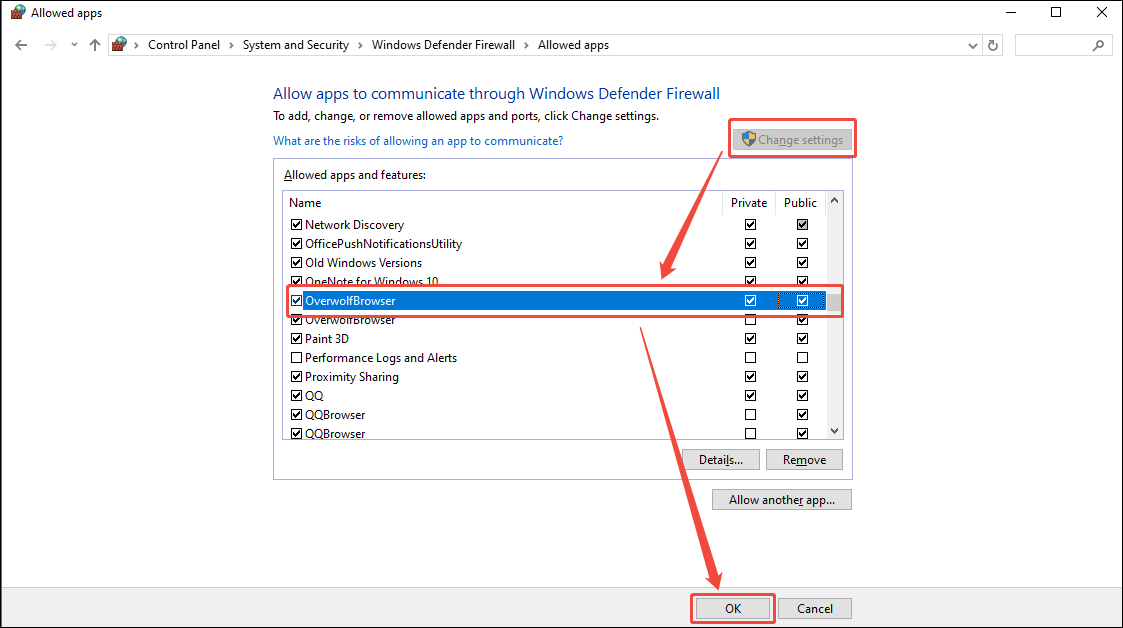
4. In the new interface, click the Change settings option. Then, scroll the interface within the box to find Overwolf or Outplayed.
5. Finally, enable both the Private and Public checkboxes for Overwolf or Outplayed. Then, click on OK to save the changes.
#7 Free up Disk Space
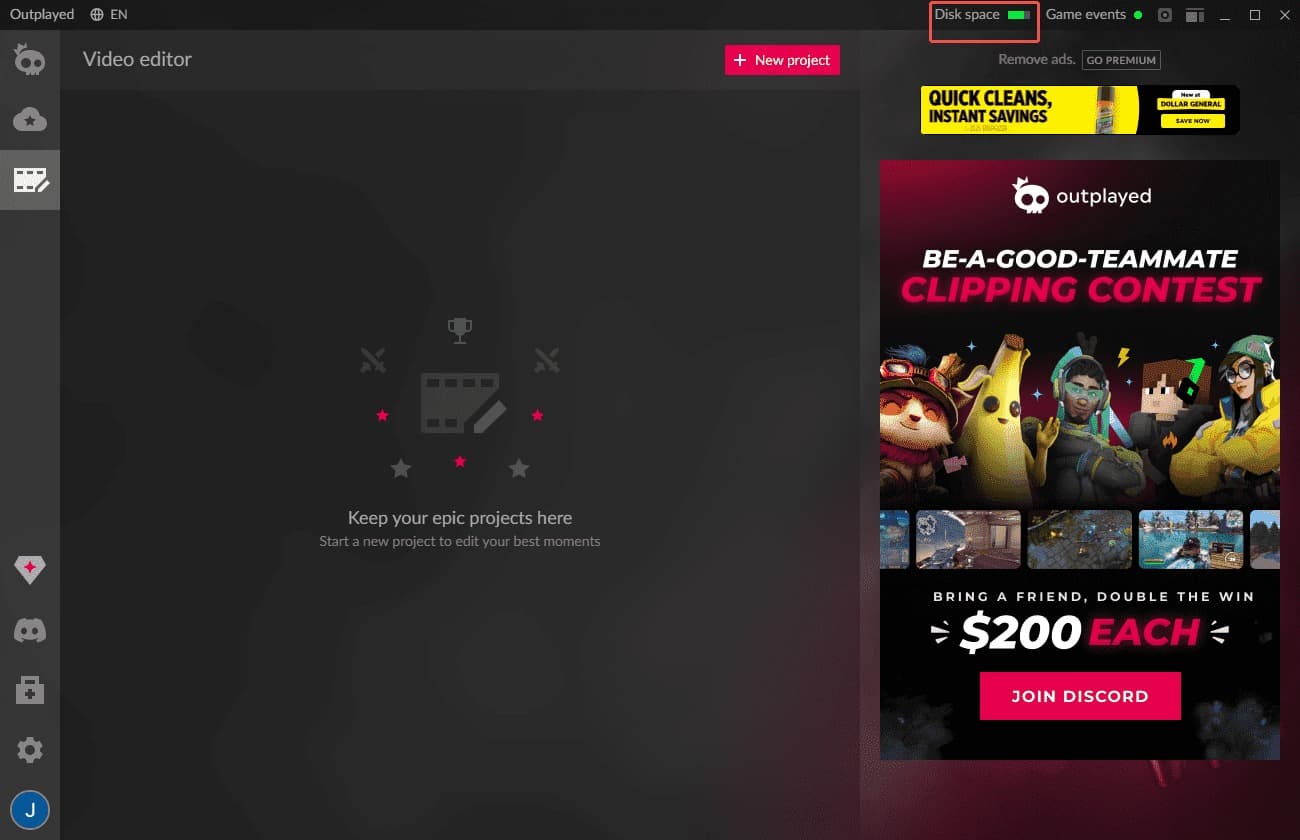
Insufficient disk space is a common cause of recording failures in Outplayed. Clearing up storage space usually resolves the issue. Outplayed displays the remaining disk capacity at the top of the home screen, making it easy for users to spot storage shortages promptly.
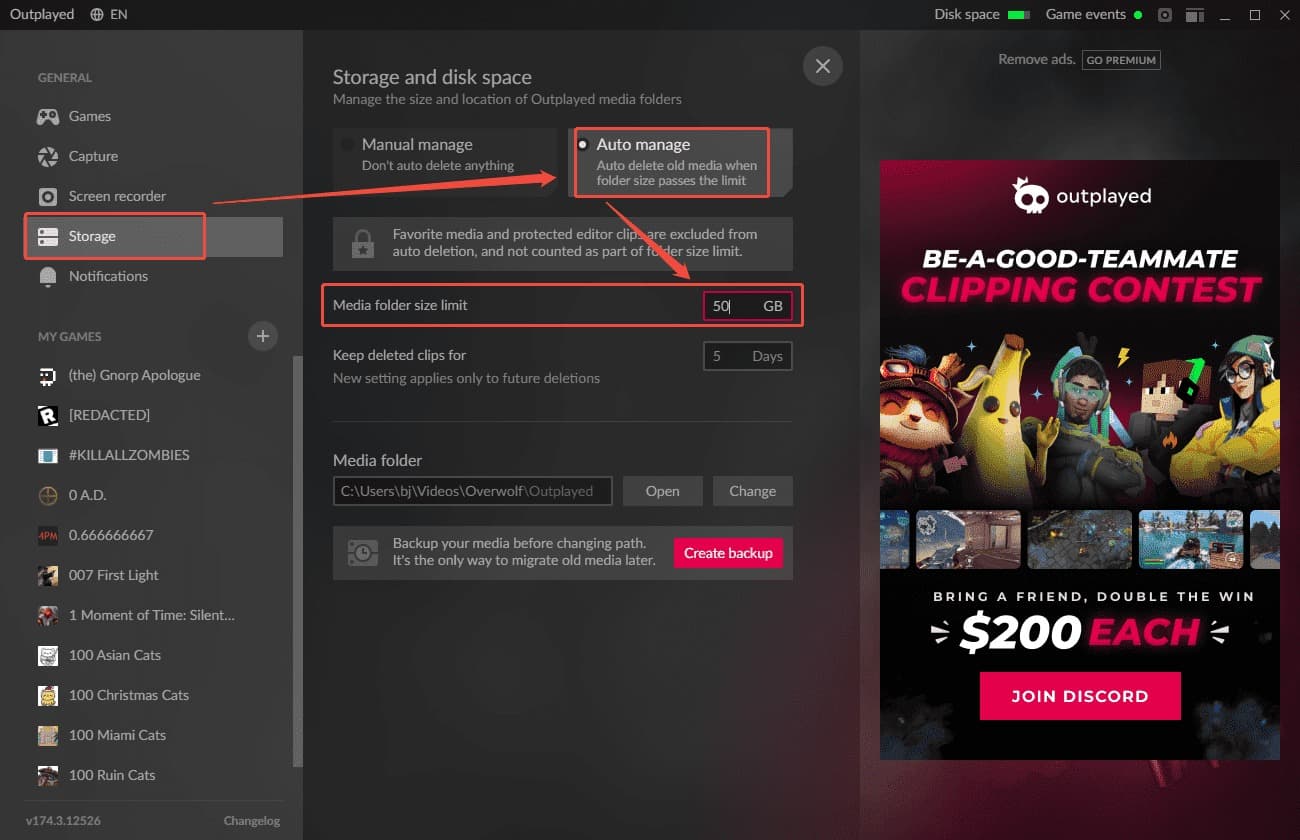
Alternatively, a more time-efficient approach is to set a disk space limit for Outplayed. Once this limit is reached, the application automatically deletes the oldest game recordings that have not been marked as favorites. Here is how to do it:
1. Launch Outplayed.
2. Click the Settings icon in the left-hand menu bar.
3. Move to the Storage module and click the Auto manage option. Then, set the maximum capacity in the box next to the Manage folder size limit option.
#8 Update Graphics Card Drivers
Outdated graphics card drivers often cause compatibility issues with Outplayed, leading to problems such as recording interruptions, black screens, or failure to launch. Therefore, the most direct solution is to check the computer's graphics card model.
If the driver version is outdated, visit the official website to update it, then restart the computer before attempting to use Outplayed's recording function again.
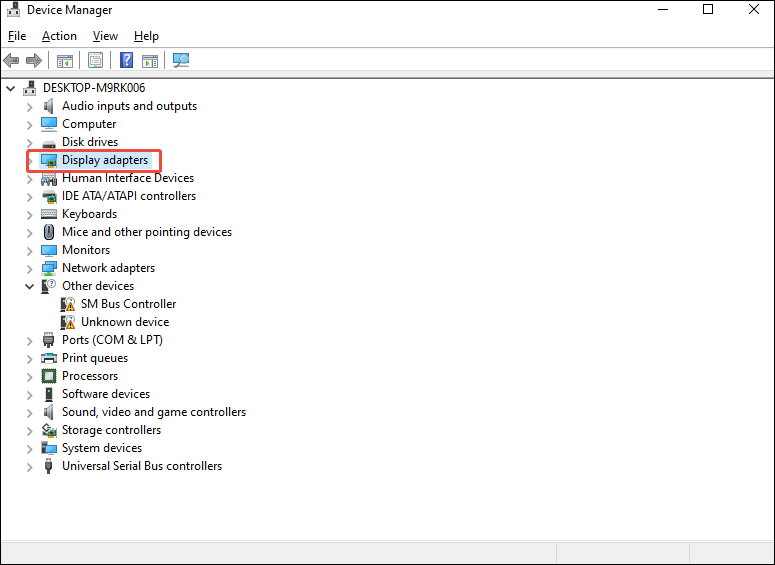
1. Press Windows + X, then click the Device Manager option in the expanded menu.
2. In the new interface, expand the Display adapters option to check the version of graphics card drivers.
#9 Disable Other Overlays
Running other recording software or overlays (such as those from Xbox Game Bar, Steam, or Twitch) simultaneously is a primary reason for Outplayed not recording. Additionally, conflicts between Outplayed's recording hotkeys and those of other screen recording tools can prevent the recording function from starting.
Therefore, it is recommended to close all other overlays and recording tools before you begin recording.
#10 Use an Alternative Tool
Finally, if none of the above methods work, the most efficient solution is to switch to a different tool for the recording task. My top choice is MiniTool Screen Recorder, a free screen recording tool. It not only supports various recording modes to capture any on-screen activity but also allows for webcam recording.
However, what I like best are the annotation tools; they enable me to mark up the screen and utilize a whiteboard function.
Fast Track Steps:
- Install MiniTool Screen Recorder and launch it on the PC.
- Customize the recording settings in the Settings interface.
- Choose the recording area under the Full Screen option.
- Manage the audio and webcam recording functions.
- Click the REC button to begin the recording process.
- Play the game.
- Annotate the screen if necessary.
- Press the F6 key to end recording.
- Click the Video Editor option to edit the recorded video.
1. Click the button below to download and install MiniTool Screen Recorder, then launch it on the PC.
MiniTool Screen RecorderClick to Download100%Clean & Safe
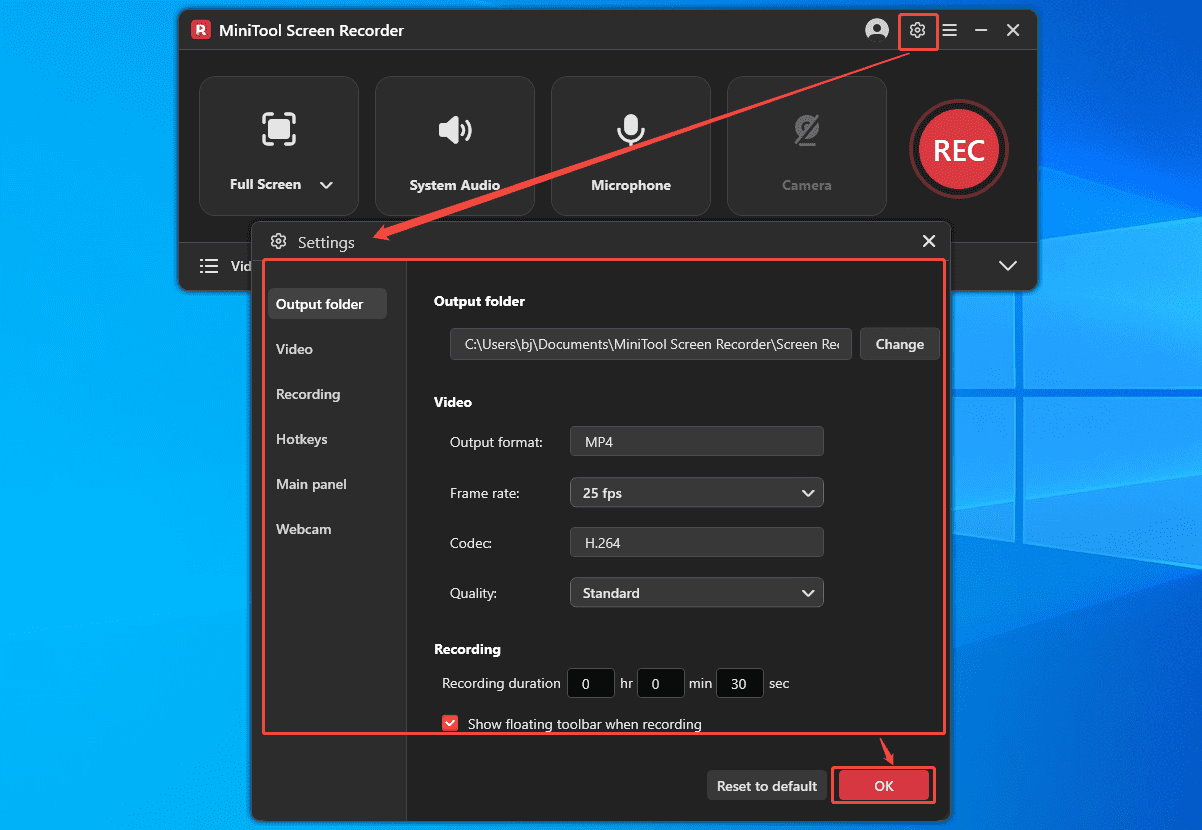
2. Click the Settings icon and customize the recording settings in the relevant sections. Then, click the OK button to save the changes.
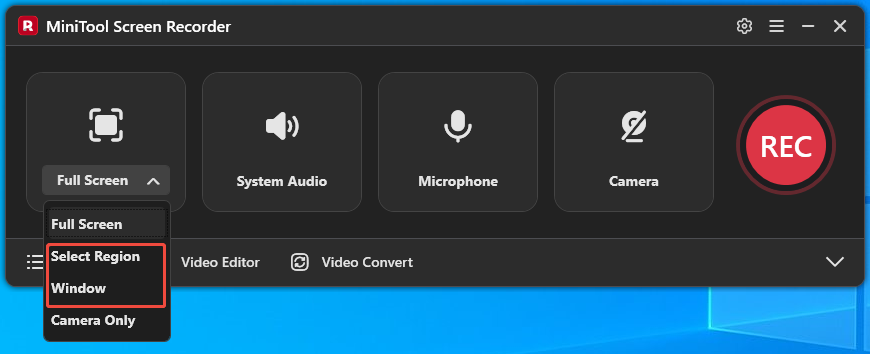
3. When launched, the recorder automatically selects Full Screen as the recording area. If needed, users can expand the Full Screen option and choose to capture a particular window, a selected area, or another monitor.
4. By default, system audio and microphone recording features are enabled. Users can click the corresponding System Audio or Microphone icon to turn either option off when needed.
5. Webcam recording is disabled by default. To record the screen with a camera overlay, click the Camera icon on the right to enable this feature.
6. Click the REC button to begin recording. After a 3-second countdown, play the game on the PC.
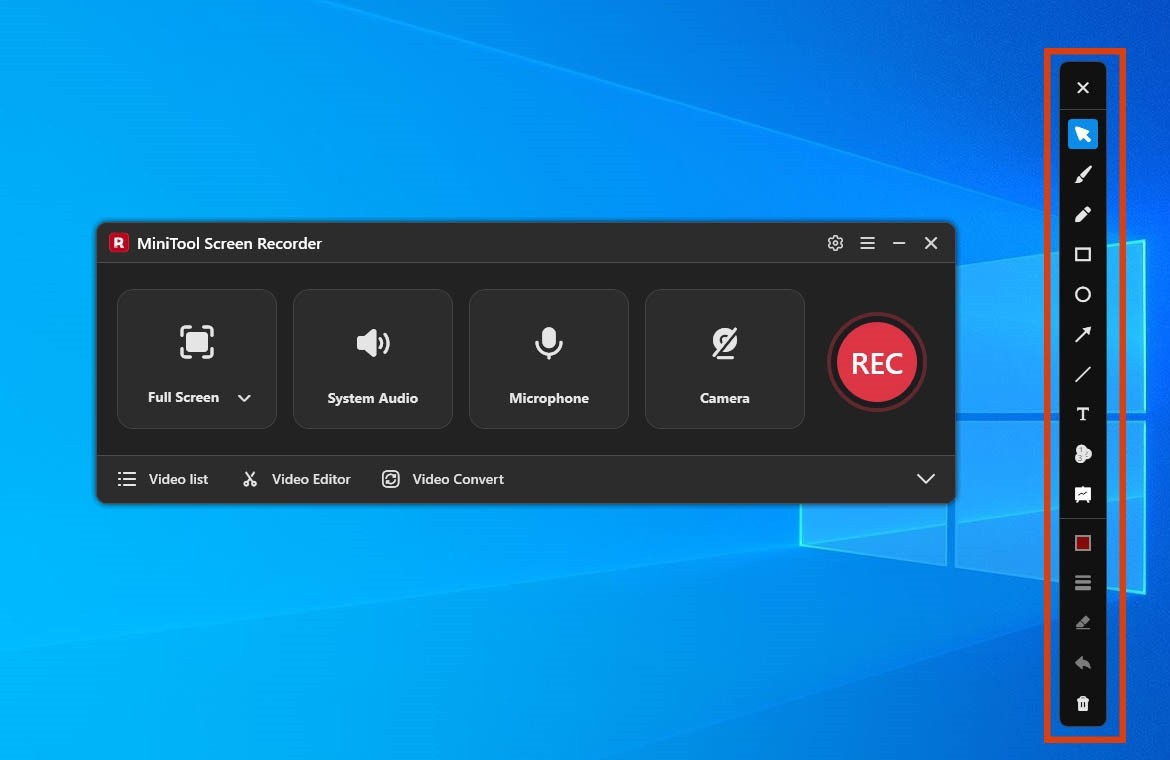
7. If there is a need to capture game tutorial videos, choose tools from the annotation toolbar to mark the specific steps on the screen.
8. Then, click the Stop recording option on the floating bar or press the F6 key to end the recording process.
9. After switching to the Video List section, find the recorded video and click the Play icon to watch it. To access the saved file, click the Folder icon next to the Play icon.
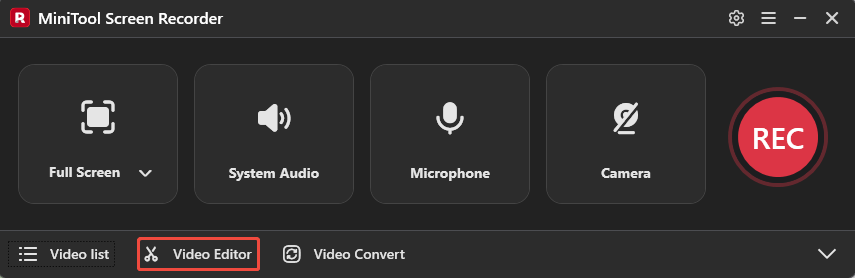
10. Finally, edit the Video Editor option to optimize the recorded video using MiniTool MovieMaker.
MiniTool MovieMakerClick to Download100%Clean & Safe
The issue preventing Outplayed from recording is usually not difficult to fix; following the troubleshooting steps outlined above can help resolve the problem in most cases. If these methods do not work, switching to other high-quality recording tools can be an alternative way to improve recording efficiency.
Bottom Line
Outplayed not recording is typically caused by insufficient permissions, incorrect settings, or a lack of disk space. The 10 solutions provided in this article can easily resolve these problems, such as updating the system and graphics drivers, freeing up disk space, disabling conflicting overlays, or using an alternative tool like MiniTool Screen Recorder.
If there are any questions when using MiniTool Screen Recorder or MiniTool MovieMaker, please contact the support team at support@minitool.com.