

Medal not opening is a common issue that can be caused by corrupted installation files, network problems, software conflicts, or other factors. This article provides 9 practical solutions to fix the problem, including restarting the computer, reinstalling Medal, closing conflicting applications, using an alternative screen recorder such as MiniTool Screen Recorder, and more.
Medal is an all-in-one recording and editing tool for gamers, supporting both full-session recording and the last 30-second capture. I have been using this software for some time and am impressed by its features; however, like many other users, I frequently encounter issues where Medal fails to launch.
Why Is My Medal Not Opening
After searching for information online and asking on forums, I found that the Medal not working issue is often caused by the following factors.
- Corrupted Installation File: If the installation process is interrupted, or if installation files are corrupted, lost, or misconfigured due to an unexpected computer shutdown, Medal may fail to launch.
- Network Issue: An unstable internet connection is one of the reasons Medal is unable to access various online services. Additionally, service outages from the Internet Service Provider (ISP) can prevent Medal from connecting to the server and from launching.
- Software Conflict: One commonly overlooked issue is having other recording software running before launching Medal; if there is a conflict between their recording hotkeys, Medal may fail to start.
- Background Program Malfunction: Sometimes, after closing Medal, its associated background processes continue to run on the system. When Medal is launched again, the new process may conflict with the lingering background processes, preventing the software from starting correctly or even causing it to crash.
- Antivirus Software Interference: Some antivirus software may flag Medal as malware and block it when it is launched.
- Incompatibility with the Computer System: If the computer's operating system version is outdated and incompatible with the version of Medal being run, the issue of Medal not opening may occur.

How to Fix Medal Not Opening
After addressing the aforementioned issues, I sought targeted solutions for the various problems and ultimately found the following methods to be effective.
Fix 1: Restart Medal and the Computer
Regardless of which of the aforementioned issues is preventing Medal from launching, restarting the Medal application or the computer is often the simplest troubleshooting step to begin with.
Restarting the software forces the closure of any abnormal processes and clears out memory and temporary error files left over from previous sessions. If this doesn't work, I usually restart my computer; this resets system resources, which can resolve freezing issues caused by resource contention.
Fix 2: Reinstall Medal
While researching this issue, I found that many users have experienced unexpected interruptions during the Medal installation process. The solution they typically employ is to reinstall the software; this removes potentially corrupted or missing installation files and performs a fresh installation using new files, helping resolve the Medal not opening on PC problem.
Fix 3: Check the Internet Connection and the Service Provider
If Medal fails to run properly due to a network interruption, I would first try reconnecting to the internet and launching Medal again. If that does not work, I would need to check the status of my internet service provider (ISP). Some ISPs may restrict regional access to Medal, so switching to a different provider could resolve the issue.
Fix 4: Close the Conflicting Applications
This solution is often overlooked. I once encountered an issue where Medal wouldn't launch simply because I hadn't closed other screen-recording software I had previously used. Similar conflicts can also be caused by game overlays, security programs, and performance monitoring tools.
As such, before launching Medal, it is recommended to close unnecessary background applications and leave only the program that needs to be recorded running.
Fix 5: End Model in Task Manager
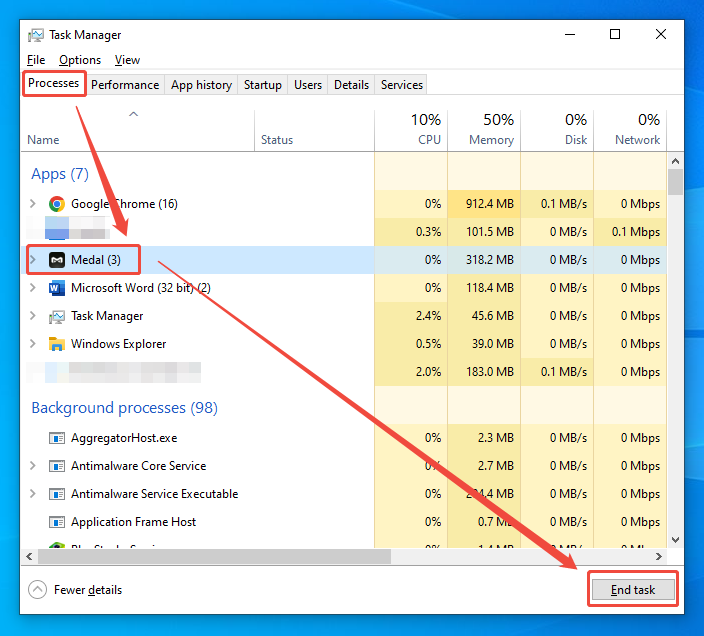
If the program freezes when launching Medal, try closing the Medal background process via Task Manager. The specific steps are outlined below:
1. Press the Ctrl + Shift + Esc keys to launch the Task Manager.
2. Then, find Medal under the Process section.
3. Click on Medal, then click the End task option to close the process.
Fix 6: Add Medal to the Antivirus Whitelist
Some antivirus programs flag Medal as malware by default and block its startup process. In such cases, I usually add Medal to the antivirus software's whitelist, which typically resolves the issue.
Fix 7: Run Medal in Compatibility Mode
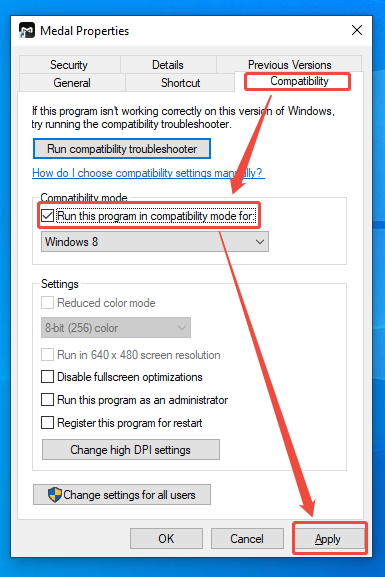
Running Medal in compatibility mode can often resolve startup issues. Below is a summary of the simple steps to do this.
1. Right-click the Medal shortcut and click the Properties option in the window that appears.
2. In the Medal Properties window, switch to the Compatibility section.
3. Check the Run this program in compatibility mode for option, then click the Apply option to save the changes.
Fix 8: Contact Medal’s Support Team
If none of the above methods work, I usually contact the technical support team directly to explain the specific issue. As long as I provide sufficiently detailed information about the problem, they can typically help identify the cause and offer an appropriate solution.
Fix 9: Try an Alternative Software
Additionally, if the aforementioned methods prove ineffective or I need to record something urgently, I typically turn to alternative software. I frequently use MiniTool Screen Recorder; Its interface is straightforward, allowing me to easily capture multi-monitor setups, full screen, specific areas, or windows.
Furthermore, the software enables me to capture webcam footage alongside screen recordings. It also provides real-time annotation tools, making it easy to highlight key steps while recording.
Fast Track Steps:
- Open MiniTool Screen Recorder.
- Choose the recording area under the Full Screen section.
- Control the audio and webcam recording settings.
- Click the REC button to start recording.
- Annotate the screen if necessary.
- Press the F6 key to end recording.
- Play and locate the recorded video under the Video list section.
The detailed steps are listed below.
1. Click the button below to download and install MiniTool Screen Recorder on the PC.
MiniTool Screen RecorderClick to Download100%Clean & Safe
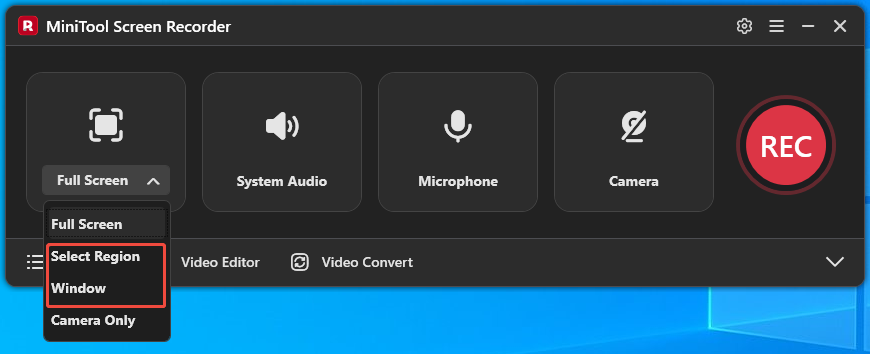
2. This tool defaults to capturing full screen. To record a specific area or a window, expand the Full Screen option, then choose the Select Region option and the Window option.
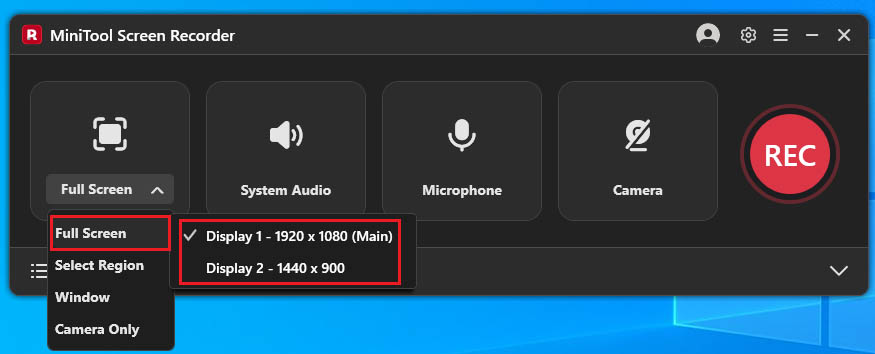
3. If there is a need to capture in the multi-monitor setups, expand the Full Screen option and choose the target display.
4. System and microphone audio are ready to record by default.
5. To capture the screen with webcam footage, click the Camera icon.
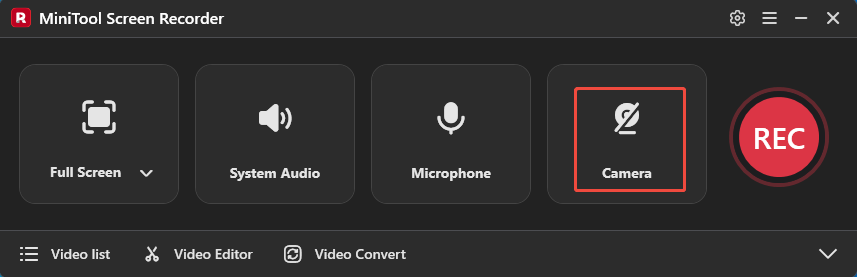
6. Click the REC button to begin recording. Once the three-second countdown ends, switch to the window that needs to be recorded.
7. Use the tools to mark the screen from the annotation toolbar.
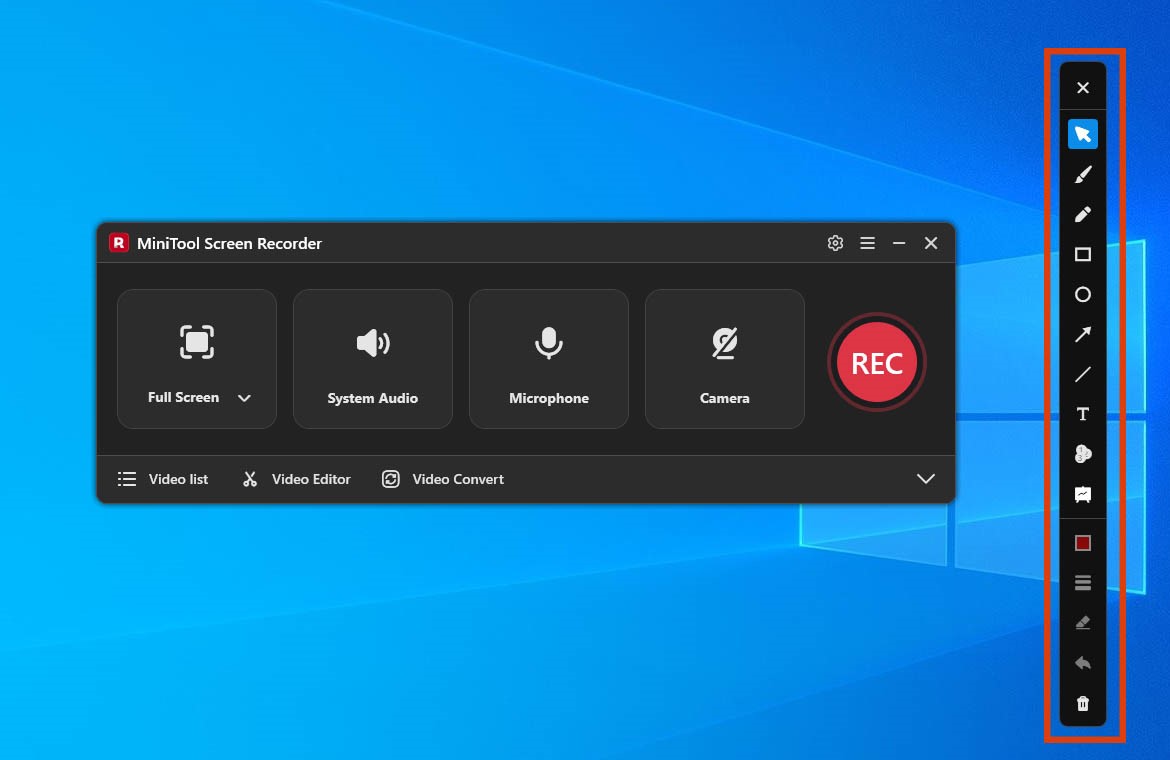
8. To end the recording process, press the F6 key.
9. After recording, the recorded video is automatically added to the Video list section. Then, I can click the Play icon to check it or click the Folder icon to locate it.
Since the issue preventing Medal from launching can stem from various causes, there is no single solution that works for every situation. Trying the methods in the order listed above offers the best chance of getting Medal running successfully.
To Wrap Things Up
This article offers 9 specific solutions for Medal not opening, such as using alternative tools like MiniTool Screen Recorder, restarting the Medal application, running Medal in compatibility mode, and more. Hopefully, one of these methods will help Medal return to normal operation.
If there are any questions about MiniTool Screen Recorder, please contact the support team at support@minitool.com.