

How to record multiple screens on Windows 11? The excellent video capture tool, MiniTool Screen Recorder, offers an efficient way to handle this task, making it easier to capture content across different monitors without a complicated setup.
Since I frequently multitask in a multi-monitor environment, I often need to record content from multiple screens simultaneously. However, my past recording experiences have consistently left much to be desired: not only did I frequently encounter situations in which I could record only a single display, but I also occasionally experienced audio desynchronization.
Consequently, I began testing various professional multiple screen capture tools, and I ultimately found a software solution that better meets my specific needs in terms of both functionality and stability. Below is a quick overview of how to record multiple screens on Windows 11:
- Get MiniTool Screen Recorder.
- Set the video recording frame rate.
- Select the Select Region option to cover all the monitors.
- Control the audio settings.
- Adjust the webcam recording.
- Start recording and annotate the screen if necessary.
- End recording and check the recorded video.

How to Record Multiple Screens on Windows 11
After considering both functionality and stability, I ultimately chose MiniTool Screen Recorder. This tool is not only easy to use but also currently completely free. In addition to screen capture multiple monitors, it offers practical features such as full-screen recording, region recording, window recording, webcam recording, and customizable recording duration.
Furthermore, MiniTool Screen Recorder supports flexible system and microphone audio recording and includes a built-in real-time annotation tool, making it easier to highlight key information when recording presentations, tutorials, or meeting content. Here are the detailed steps on how to record multiple monitors with MiniTool Screen Recorder.
Step 1: Download and Install MiniTool Screen Recorder
MiniTool Screen RecorderClick to Download100%Clean & Safe
Click the button above to download MiniTool Screen Recorder. Then, follow the on-screen instructions to install it on the PC.
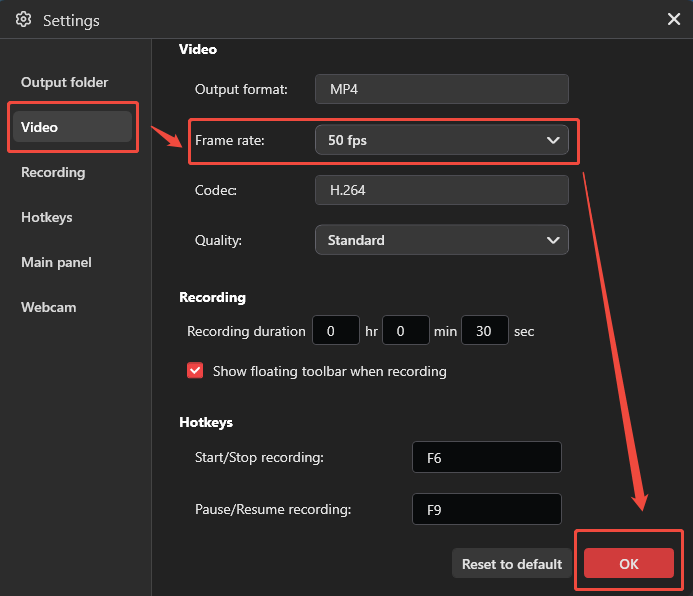
Step 2: Adjust Video Frame Rate
1. Launch MiniTool Screen Recorder.
2. Click the Settings icon in the top-right corner and then move to the Video section.
3. Then, expand the Frame rate option to select an appropriate video frame rate based on the monitor's performance.
4. Click on OK to save the changes.
Step 3: Choose the Recording Area
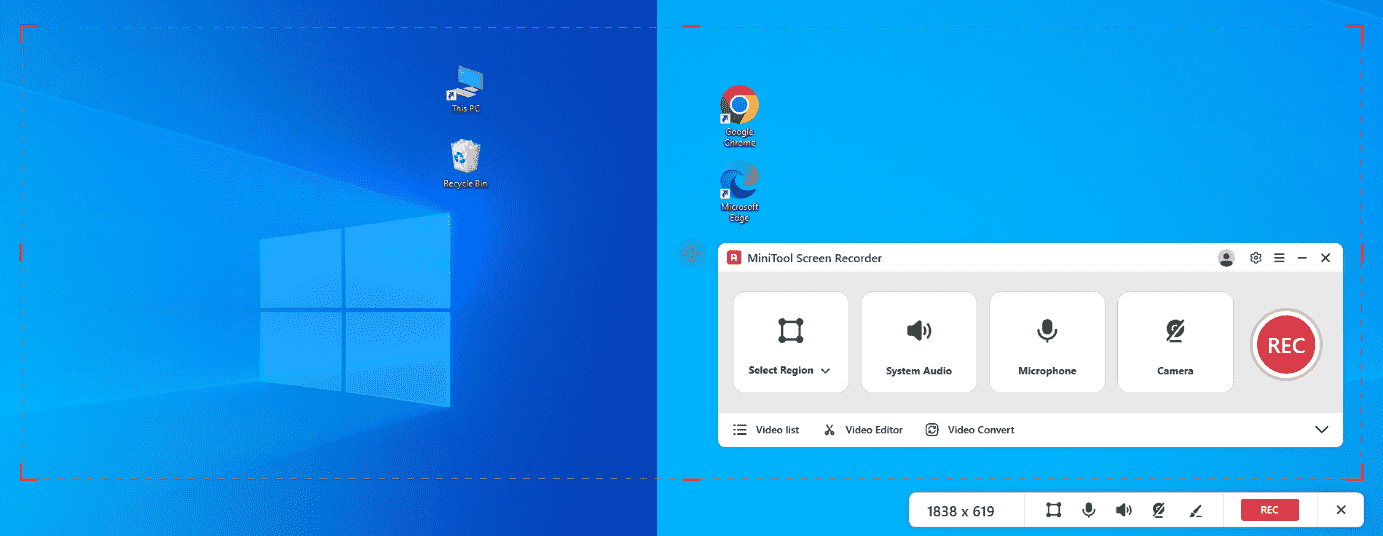
1. Click the Full Screen option to expand the drop-down menu within it.
2. Click the Select Region option, then drag the red dashed border that appears so that it covers all the screens.
Step 4: Adjust the Audio Recording Options
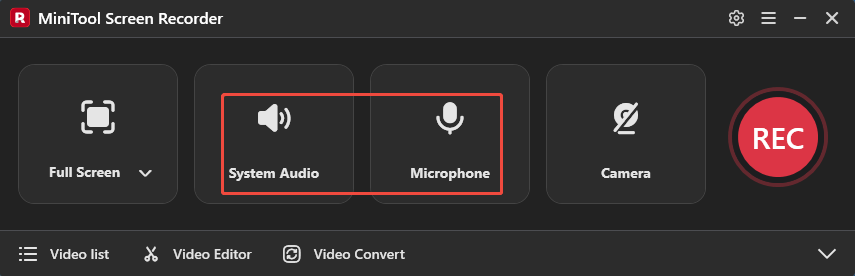
1. MiniTool Screen Recorder supports simultaneous recording of system audio and microphone audio by default.
2. If only one audio source is required, click the related icon to disable the unnecessary audio option.
Step 5: Configure the Webcam Recording
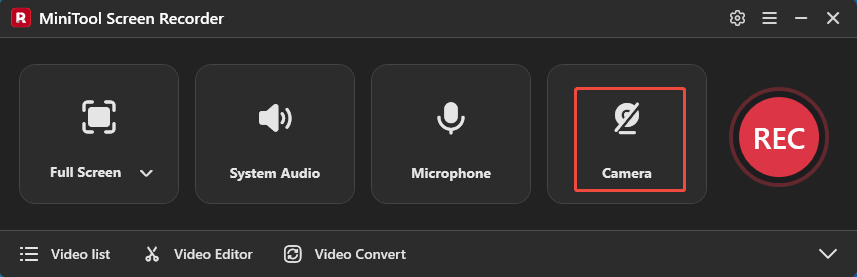
If webcam footage needs to be included in the recording, click the Camera icon on the right to enable the webcam feature before recording starts.
Step 6: Start and End Recording
1. Click the REC button or press the F6 key to start the recording process.
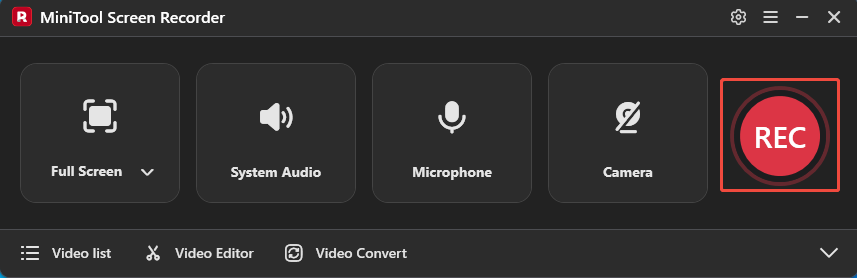
2. After a 3-second countdown, go to the target content that needs to be recorded.
3. The toolbar on the right side of the interface provides multiple annotation features that can be used to emphasize key areas while recording.
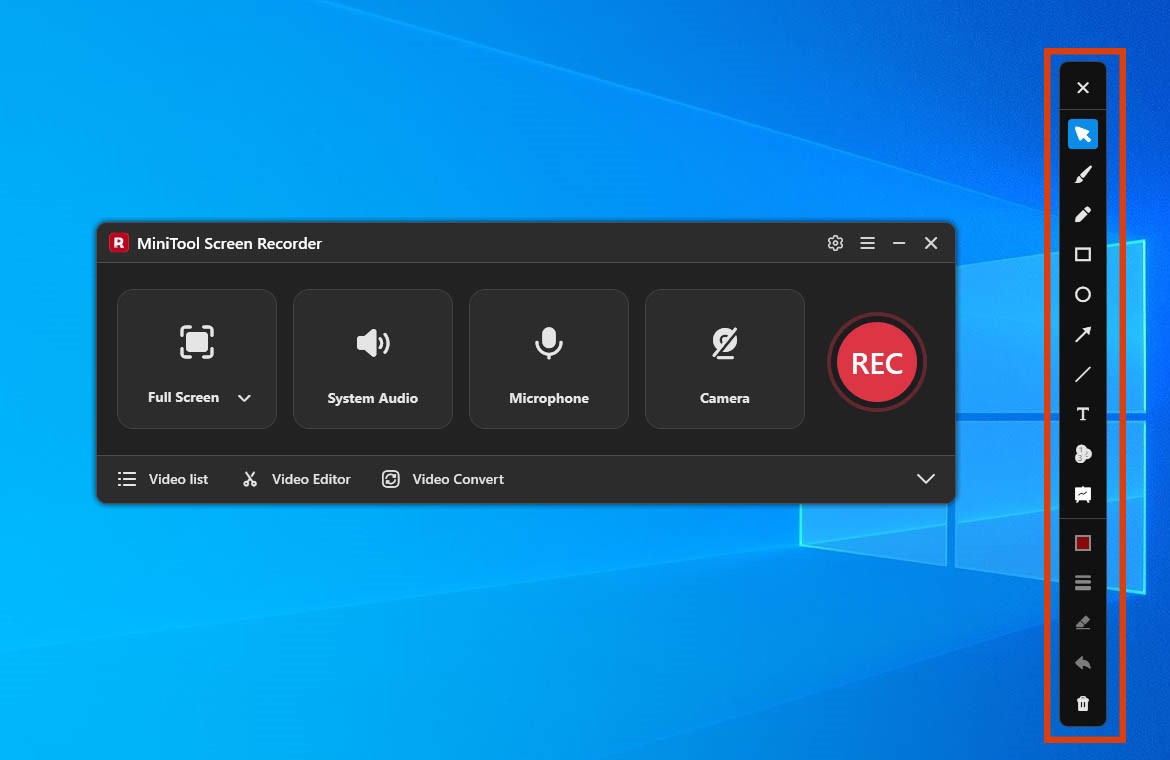
4. To end the recording process, press the F6 key again.
Step 7: View and Locate the Recorded Video
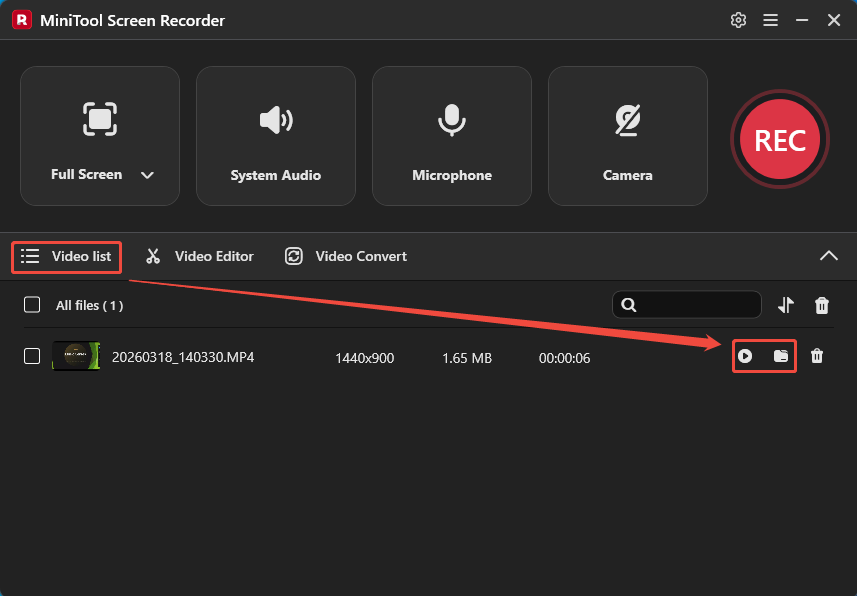
1. After stopping the recording, MiniTool Screen Recorder automatically navigates to the Video list interface.
2. The recording can be viewed immediately or located on the PC using the available Play and Folder icons.
![How to Record Second Monitor with an Excellent Tool [Pro Guide]](https://images.minitool.com/recorder.minitool.com/images/uploads/2026/05/how-to-record-second-monitor-thumbnail.jpg)
Tips to Improve Multiple Monitors Recording
After conducting numerous multi-screen recording sessions, I have distilled the following key insights to help ensure a smoother and more stable recording experience before starting:
- Lower the Recording Frame Rate: To record multiple screens, it is advisable to lower the frame rate to avoid placing an excessive load on the system, which could otherwise lead to stuttering or lag during recording.
- Synchronize Display Resolutions: To enhance the visual quality of the recorded video, consider standardizing the resolution across all your displays.
- Utilize Hardware Acceleration: If you are recording a large number of screens or capturing complex on-screen content, enabling CPU acceleration can significantly improve the overall recording performance and experience.
Conclusion
This article explains how to record multiple screens on Windows 11 using MiniTool Screen Recorder. Additionally, it offers practical tips designed to enhance the stability and smoothness of the recordings, thereby helping complete the multi-screen recording tasks more efficiently.
If you run into any issues when trying out MiniTool Screen Recorder, send an email to support@minitool.com.