

How to record two screens at once for multitasking on PC? The video capture, MiniTool Screen Recorder, can do this effectively. Whether for live streaming, online meetings, tutorials, or other multitasking activities, this tool helps achieve smoother recording performance and stable video quality.
For years, I have been working in a dual-monitor environment. While this configuration significantly boosts multitasking efficiency, standard screen-recording methods often struggle to fully capture the necessary information, as content is spread across separate screens.
As such, I began searching for a professional dual screen capture software that could simultaneously record two screens at once. During my testing, I tried MiniTool Screen Recorder and discovered that it is not only easy to use but also maintains stable and smooth performance when recording across dual screens.
- Launch MiniTool Screen Recorder.
- Adjust recording settings such as frame rate and quality.
- Select the target recording area under the Full Screen section.
- Configure audio and webcam options if needed.
- Click REC to start recording both screens.
- Use annotation tools during recording if necessary.
- Press F6 to stop the recording.
- View the recorded video in the Video List section

How to Record Two Screens at Once
I chose MiniTool Screen Recorder because it offers a rich array of practical recording features that make the dual-monitor recording process significantly more efficient. This tool not only allows me to simultaneously screen record two monitors but also allows for recording on a secondary screen. It also supports recording full screen, specific regions, and windows.
Besides, MiniTool Screen Recorder offers the flexibility to control the system audio and microphone audio. Moreover, this tool features webcam recording capabilities, enabling the creation of more professional-looking picture-in-picture videos. A feature I particularly appreciate is the annotation tools it provides, which make it much easier to highlight key points when creating tutorial videos.
Here are the detailed steps on how to record two screens at once.
Step 1: Download and Install MiniTool Screen Recorder
Click the button below to download MiniTool Screen Recorder. Then, follow the prompts to install it on the PC.
MiniTool Screen RecorderClick to Download100%Clean & Safe
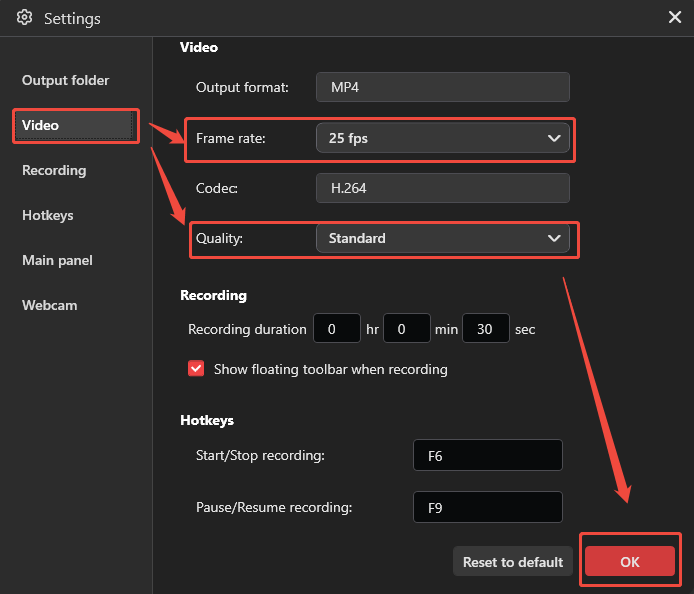
Step 2: Adjust the Video Recording Settings
1. Open MiniTool Screen Recorder.
2. Click the Settings icon in the upper-right corner of the main interface.
3. Navigate to the Video tab in the Settings window.
4. Expand the Frame rate and Quality options to customize the recording settings based on recording needs.
5. Click on OK to save the changes.
Step 3: Select the Recording Region.
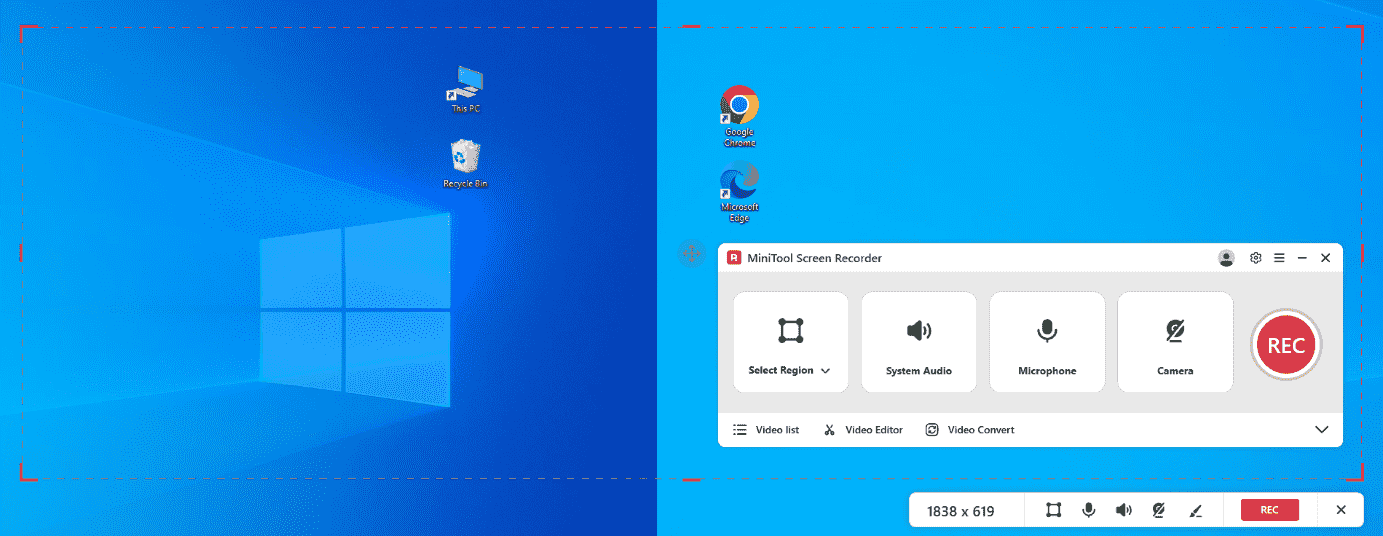
1. Expand the drop-down menu of the Full Screen option.
2. Click the Select Region option, then drag the red dashed border that appears to cover and select the dual-screen display area.
Step 4: Configure the Audio
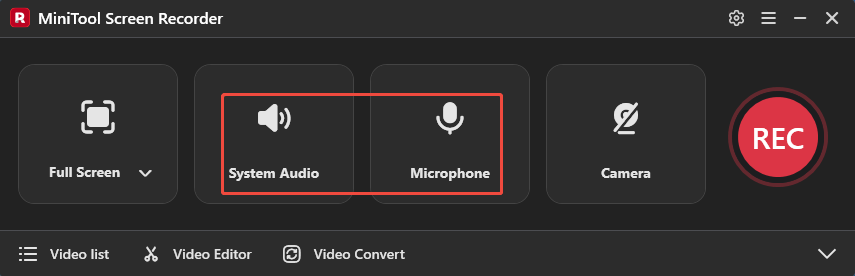
1. By default, MiniTool Screen Recorder will automatically record system audio and microphone input.
2. If needed, click the corresponding audio icons to disable system sound or microphone recording.
Step 5: Control Webcam Recording
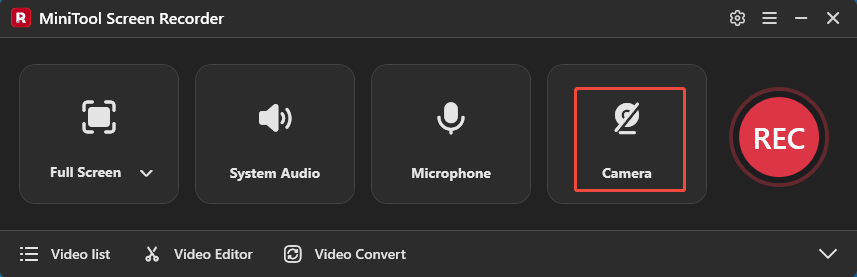
To record dual monitors with the webcam footage, click the Camera icon on the right to turn on the webcam recording feature.
Step 6: Begin and End Recording
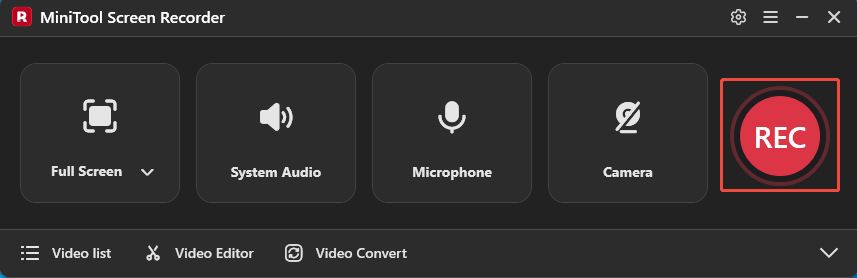
1. Click the REC button or press the F6 key to start recording.
2. After a 3-second countdown, navigate to the target content that needs to be recorded.
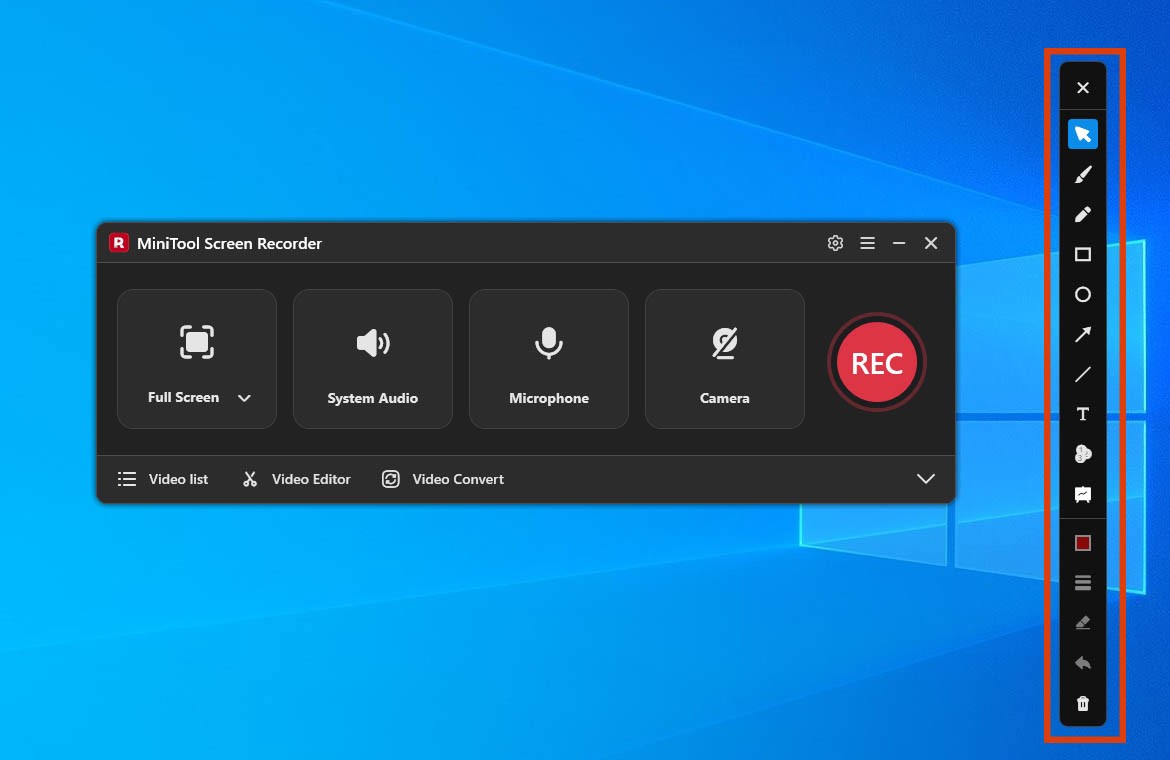
3. Use the annotation toolbar on the right side of the screen to highlight or mark important areas in real time during the recording process.
4. During recording, press the F9 key to stop or resume the process.
5. To end the recording process, press the F6 key again.
Step 7: Check and Locate the Recorded Video
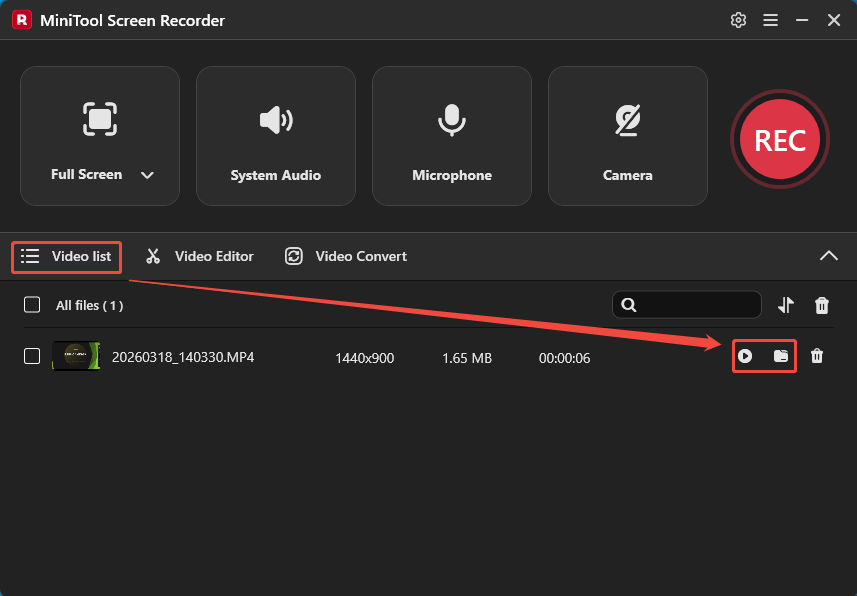
1. Once the recording is stopped, the software will automatically redirect to the Video List section.
2. From there, the recorded video can be viewed by clicking the Play icon or located on the PC by clicking the Folder icon.
Other features of MiniTool Screen Recorder:
- No watermark, ads, and bundles.
- No recording time limits,
- Support adjusting camera parameters.
- Allow pre-setting recording duration.
- Support custom recording shortcut keys.
MiniTool MovieMakerClick to Download100%Clean & Safe
What Can Be Recorded on Two Screens Simultaneously
With MiniTool Screen Recorder, I can perform dual-screen recording across a wide range of multitasking and content-creation scenarios. These scenarios typically include:
- Game streaming and interactive chat
- Online meetings and presentations
- Online learning and note-taking
- Remote work and team collaboration
- Software testing and data analysis

Final Words
Learning how to record two screens at once is especially useful for users who work with dual monitors in different productivity and content creation scenarios. The MiniTool Screen Recorder, introduced in this article, offers a viable solution to help you achieve a smooth recording experience.
If you run into any issues when trying out MiniTool Screen Recorder or MiniTool MovieMaker, send an email to support@minitool.com.