

How to record second monitor on PC without lag? MiniTool Screen Recorder is an excellent screen recorder that can accomplish this task with stable performance and high-quality video output.
With the development of the digital office, individuals are beginning to equip their computers with a second monitor to obtain a more efficient multitasking experience. This configuration is now widely used in game live streams, online meetings, and video production. As such, people's demand for recording the second screen content is also gradually increasing.
Can You Record Second Monitor
Absolutely yes. If the video capture used supports the second-monitor recording function, the way to record on a second monitor is relatively straightforward. However, during the actual test, I found that some of the built-in recording tools in Windows systems do not fully support secondary screen recording. Even if recording is possible, there may be cases where the second monitor is not detected.
Therefore, I started trying some professional screen recording tools and eventually found that MiniTool Screen Recorder provided a more stable and practical solution.

How to Record Second Monitor
The following quick guide shows the basic steps on how to screen record on second monitor with MiniTool Screen Recorder:
- Get MiniTool Screen Recorder.
- Set the video recording frame rate and quality by clicking the Settings icon.
- Choose the Display 2 option under the Full Screen option.
- Click the audio icons to control the audio recording.
- Click the Camera icon to enable the webcam recording feature.
- Click the REC button to start recording.
- Find the target content.
- Choose the annotation tools to mark the screen.
- Press the F6 key to end the recording.
- Check the recorded video under the Video list section.
Now, let’s take a closer look at the detailed steps on how to record second monitor with MiniTool Screen Recorder.
Step 1: Download and Install MiniTool Screen Recorder
MiniTool Screen RecorderClick to Download100%Clean & Safe
Click the button above to download MiniTool Screen Recorder. Then, follow the on-screen instructions to install it on the PC.
Step 2: Configure the Video Recording Settings
1. Launch MiniTool Screen Recorder.
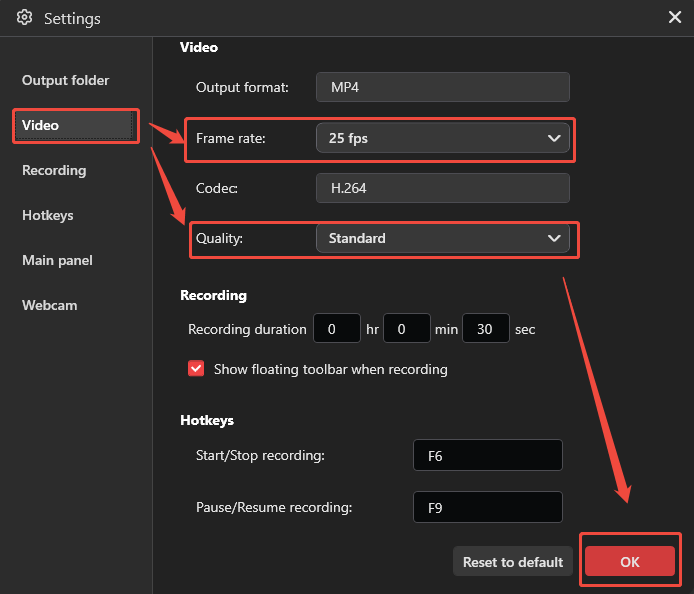
2. Click the Settings icon in the upper-right corner of the main interface.
3. In the Settings interface, switch to the Video section.
4. Then, decide the video recording frame rate and quality by expanding the Frame rate option and the Quality option, respectively.
5. Finally, click OK to save the changes.
Step 3: Select Recording Area
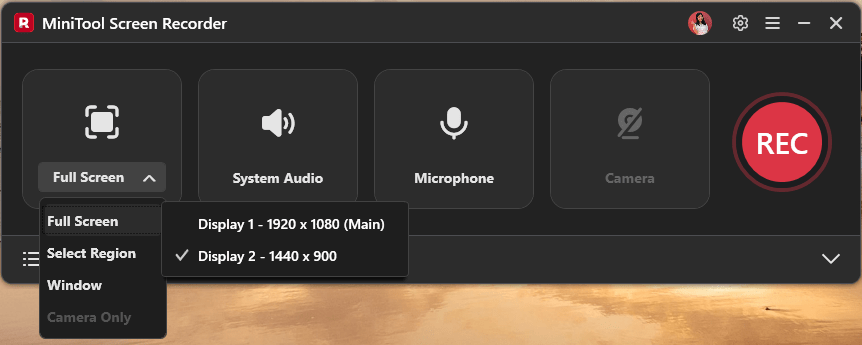
1. Expand the drop-down menu of the Full Screen option.
2. Then, select the Full Screen option to choose the Display 2 option.
Step 4: Control the Audio Recording
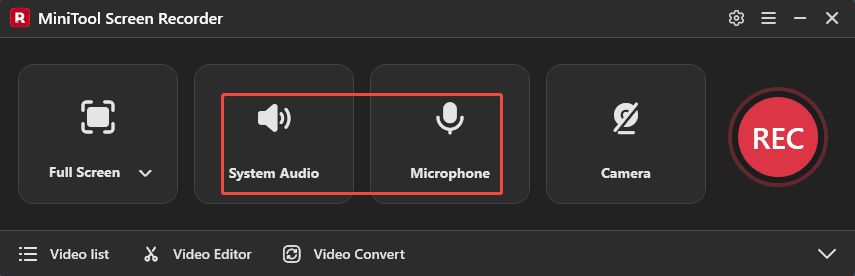
1. MiniTool Screen Recorder will automatically capture the computer audio and voiceover by default.
2. To disable one or both audio sources, click their corresponding icons.
Step 5: Manage the Webcam Recording
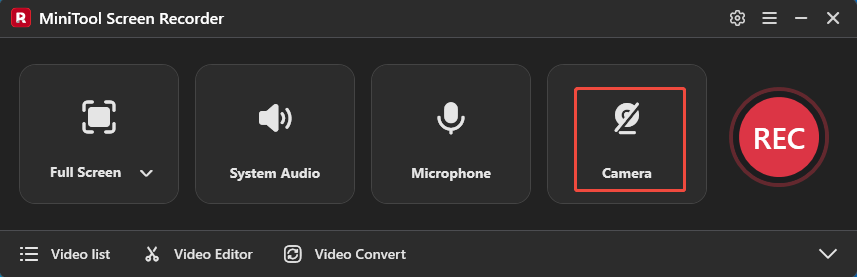
To screen capture second monitor with the webcam, click the Camera icon to turn on the webcam recording function.
Step 6: Start and End Recording
1. Click the REC button or press the F6 key to begin the recording process.
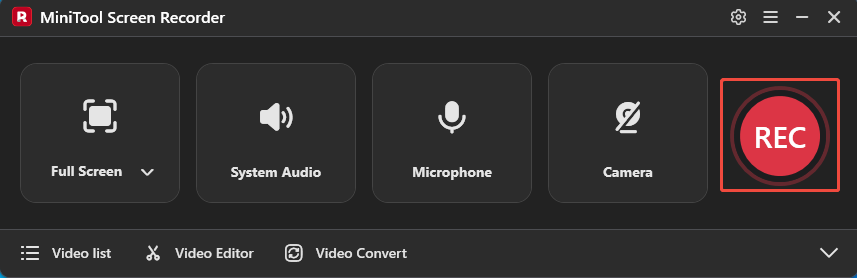
2. After a 3-second countdown, go to the target content that will be recorded.
3. On the right side of the screen, there is a toolbar that provides multiple annotation tools, allowing real-time screen marking during recording.
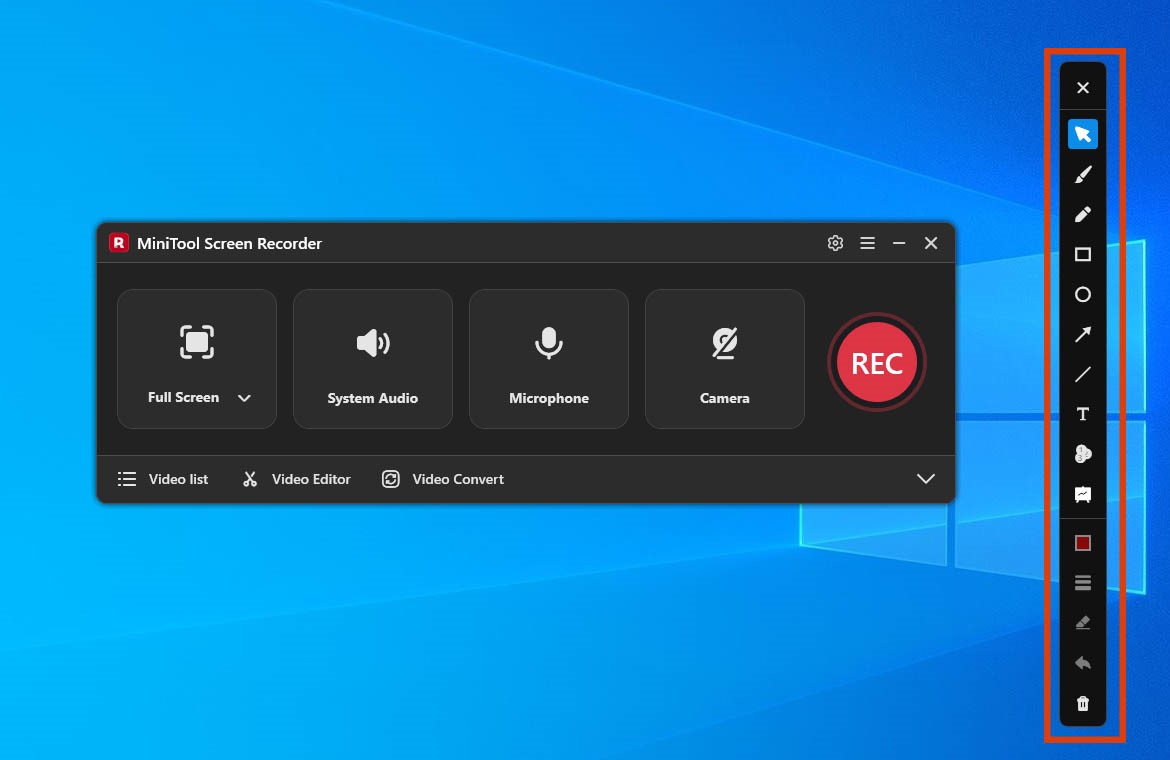
4. Finally, press the F6 key again to end the recording process.
Step 7: View and Locate the Recorded Video
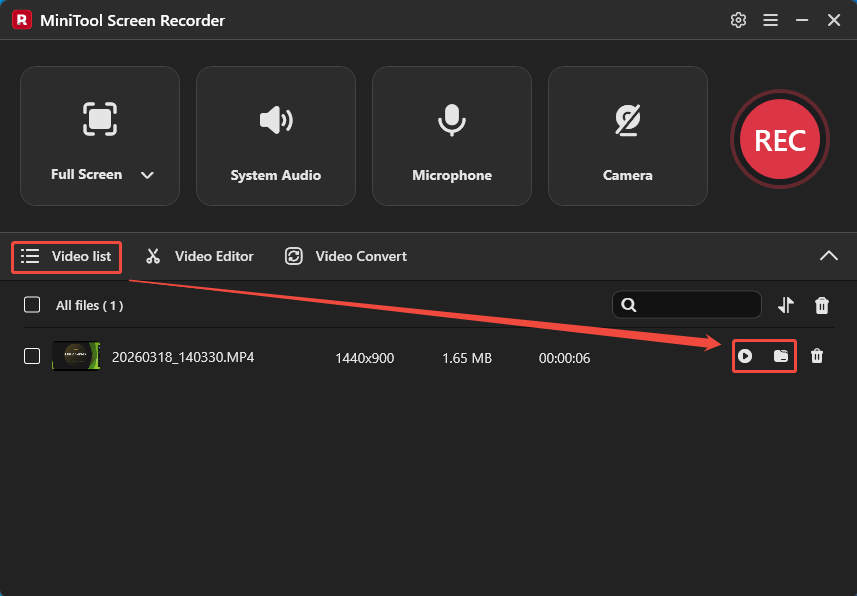
1. After stopping recording, the tool will automatically move to the Video list section.
2. From there, I can view the recorded video directly by clicking the Play icon, and access the video file on my PC by clicking the Folder icon.
Why Choose MiniTool Screen Recorder
Based on comprehensive testing, MiniTool Screen Recorder demonstrates more stable performance. It is a user-friendly and free recording tool. MiniTool Screen Recorder offers a variety of recording options: it not only supports recording the full screen, specific regions, and individual windows, but also allows me to select a specific screen to record when using a multi-monitor setup.
Besides, MiniTool Screen Recorder supports recording system audio and microphone audio simultaneously or independently, a feature that is highly beneficial for users who require precise control over their audio recording. What surprised me most was that this tool also offers webcam recording capabilities and annotation tools, helping me create more professional-quality videos.
What’s more, with MiniTool Screen Recorder, I can enjoy a more flexible recording experience. For instance, I can select the frame rate and video quality, change the video save path, customize recording shortcuts and webcam settings, and even preset the recording duration.
In short, MiniTool Screen Recorder is a feature-rich screen recording tool fully capable of capturing a wide range of activities, including online meetings, webinars, video calls, gameplay, live streams, and more.
![How to Record Osu Gameplay Like a Pro on PC [2 Easy Methods]](https://images.minitool.com/recorder.minitool.com/images/uploads/2026/05/how-to-record-osu-gameplay-thumbnail.jpg)
Tips for Recording Second Display
Before recording a secondary display, I typically take the following steps to ensure the resulting footage is as smooth and clear as possible:
- Verify secondary display functionality: Before beginning recording, ensure that the secondary display is properly connected to prevent the recording software from failing to detect it.
- Adjust the recording frame rate: Based on the secondary display's operation performance, pre-adjust the recording software's video frame rate to an appropriate value. This helps ensure a smoother recording process and prevents frame drops.
- Close unnecessary background programs: Close all idle background applications in advance to avoid recording stuttering caused by excessive CPU usage.
- Check audio settings: Confirm that all external audio devices are properly connected and that the computer's built-in audio system is functioning correctly.
Final Thoughts
This article introduces how to record second monitor on PC using MiniTool Screen Recorder. Whether for online meetings, game streaming, presentations, or content creation, this software provides you with a simple and reliable solution for capturing a second display.
If you run into any issues when trying out MiniTool Screen Recorder, send an email to support@minitool.com.