

Wondering how to record video chats without lag? This article introduces 2 simple ways to do that, including using the application’s built-in recording feature (when available) and a more flexible and professional video recorder: MiniTool Screen Recorder.
Can You Record a Video Chat on PC
Recently, I have noticed that I am becoming increasingly reliant on video chats for communication in both my professional and daily life, whether for casual chats, attending remote meetings, job interviews, or similar activities. I believe that many others are currently experiencing this as well.
Can you record a video chat on PC? The answer is yes. I frequently encounter situations where I need to record video chats; some video chat applications actually provide built-in recording features for this purpose. However, certain software may impose various restrictions on recording capabilities, such as limiting the recording duration or adding watermarks.
In such cases, or when I encounter software that does not offer a recording feature, I turn to a more specialized third-party video recorder instead.
How to Record a Video Chat on PC
As demonstrated in the previous section, recording video chats can be accomplished without relying on the chat software's built-in recording feature or third-party recording software. Next, I will explain in detail how to utilize these two methods.
#1 Use the Application’s Built-in Recording Feature (If Available)
Many video chat applications offer built-in recording features, such as Microsoft Teams, Zoom, and Google Meet. Additionally, I also frequently record video chat on WhatsApp. The process on these platforms is very similar: I simply start a video chat, locate the record button on the toolbar, and begin recording.
However, I found that the recording features on most video chat platforms suffer from various limitations. Some platforms require a paid subscription to access recording capabilities, while others offer recording options that are simply too limited to meet my diverse needs. Consequently, I began searching for a professional third-party video chat recorder.
#2 Use a Professional Screen Recorder
To be honest, compared to the built-in screen recording features found in chat applications, I prefer to use my go-to professional screen recording tool: MiniTool Screen Recorder.
This is because MiniTool Screen Recorder not only lacks any time limits on recordings but also offers more flexible recording options. For instance, I can freely choose to record the entire screen, a specific region, or a particular application window. Meanwhile, the software allows me to control the recording of both system audio and microphone audio while capturing the screen.
Furthermore, when recording other types of activities, such as creating a picture-in-picture video that includes footage of my own face, I can utilize MiniTool Screen Recorder's webcam recording feature.
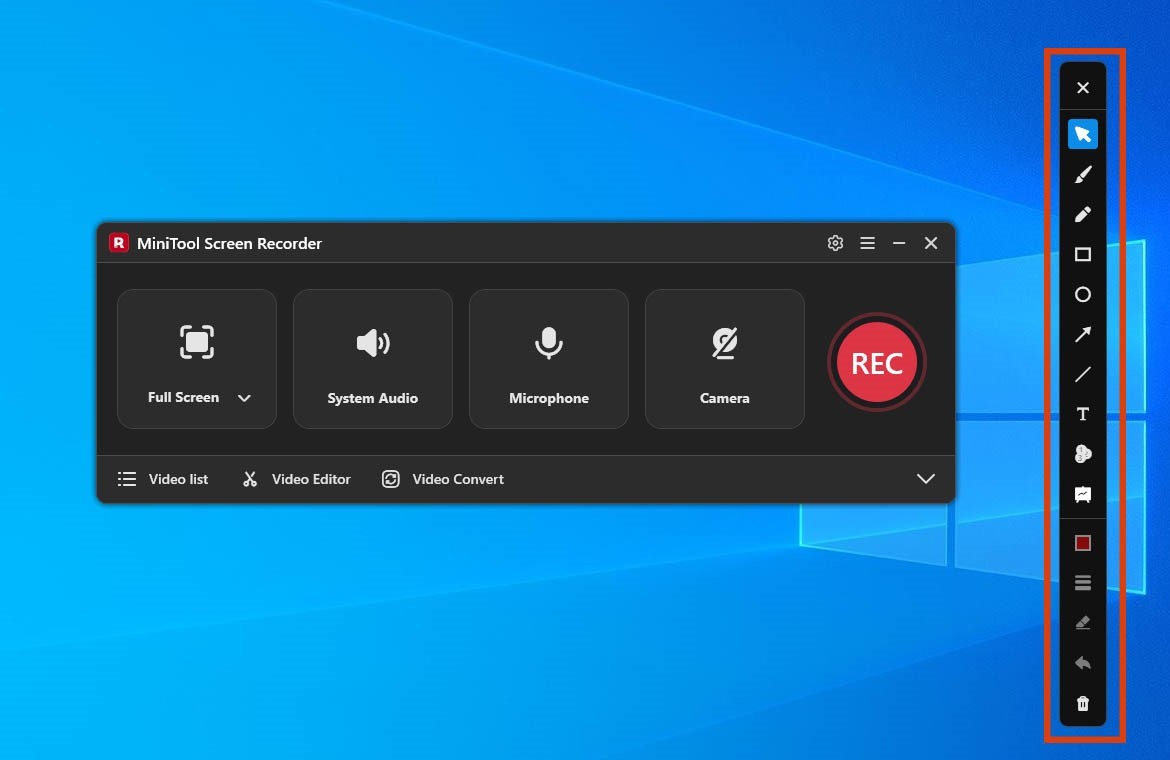
What impressed me most is that MiniTool Screen Recorder also features built-in screen annotation tools; not only can I highlight key information, but I can also utilize its whiteboard tool for presentations and explanations. What’s more, it does not add any watermarks to the recorded videos.
Step 1: Download and Install MiniTool Screen Recorder
Click the button below to download MiniTool Screen Recorder. Then, follow the on-screen instructions to install it on the PC.
MiniTool Screen RecorderClick to Download100%Clean & Safe
Step 2: Choose the Recording Area
1. Launch MiniTool Screen Recorder.
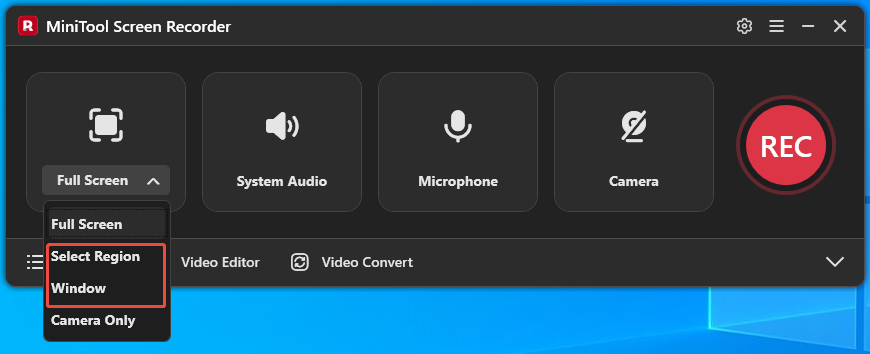
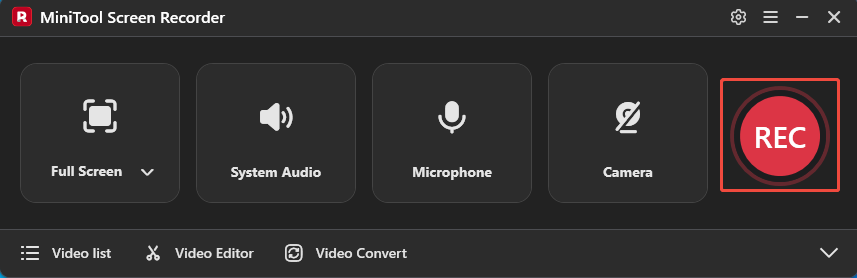
2. By default, the tool records full-screen. Since I want to capture the video chat interface, I simply open the drop-down menu of the Full Screen option.
3. Then, choose either the Select Region option or the Window option, depending on my needs.
Step 3: Adjust Audio Settings
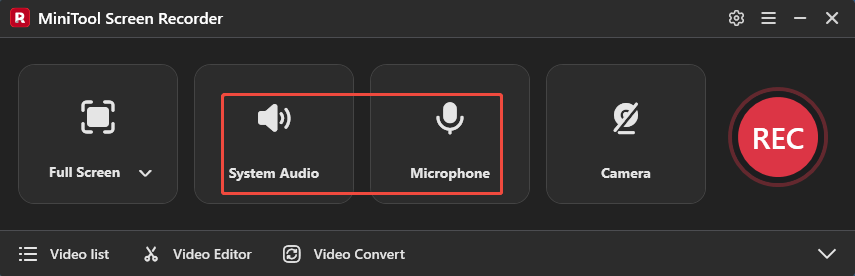
MiniTool Screen Recorder will automatically record the system audio and microphone audio. If I want to disable one of them, I can simply click the System Audio icon or the Microphone icon.
Step 4: Control the Camera
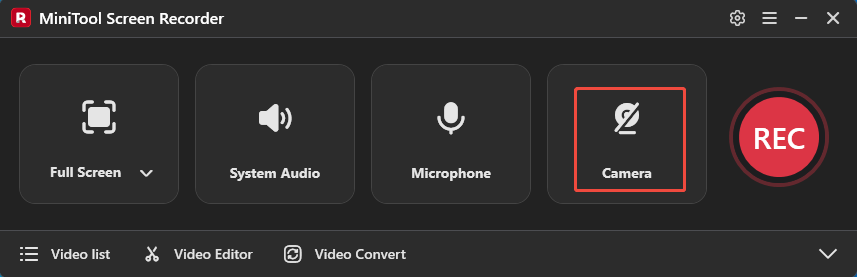
Given that I need to record a video chat, to ensure the conversation proceeds smoothly, I will make sure that the camera's recording function remains turned off.
Step 5: Start and Stop Recording
1. I can start the recording process by clicking the REC button or pressing the F6 key.
2. After a 3-second countdown, start a video chat in the application.
3. During recording, I always use the tool from the annotation toolbar to mark the important information.
4. To end the recording process, press the F6 key again.
Step 6: Review and Locate the Recording
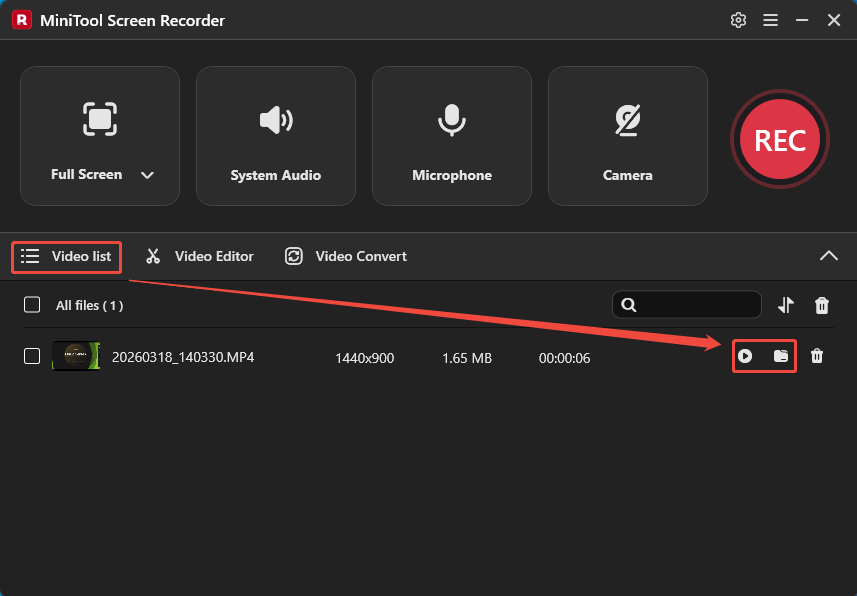
1. Once the recording stops, the tool will automatically switch to the Video list section, where I can see my recorded video.
2. Then, I can click the Play icon to review the recorded video and click the Folder icon to locate it on the PC.
MiniTool Screen Recorder can not only record video chats but also capture any activity on your screen, such as online meetings, live streams, gameplay, webinars, and many more.
MiniTool MovieMakerClick to Download100%Clean & Safe
Conclusion
How to record video chats on PC? If the chat application features a built-in recording function, use it directly. However, if it lacks this capability or if you require more advanced recording features, try utilizing the professional recording software mentioned in this article: MiniTool Screen Recorder.
If you run into any issues when trying out MiniTool Screen Recorder or MiniTool MovieMaker, send an email to support@minitool.com.