

There are many video recorders on the market. Choosing one can be both time-consuming and difficult. But don’t worry. This article offers the top 9 video recorder apps: MiniTool Screen Recorder, OBS Studio, Microsoft Clipchamp, Bandicam, etc. They are all user-friendly and support smooth video recording.
In the digital era, video has become an indispensable part of people's lives. As demand for high-quality content creation surges, video recorder apps have emerged to meet this need. However, with so many options available, how can you pick the one that best meets your requirements? In the content below, we’ll first discuss what a nice video recorder should be, and then explore reliable video recorder apps. Read on for more.
What Makes a Great Video Recorder
An excellent video recorder app should deliver stable, high-quality recording performance and adapt to diverse usage scenarios. Whether you need to capture 4K highlights, create instructional videos, or record online meetings, the right tool makes content creation effortless and enjoyable. Here are some aspects to take into consideration when selecting a video recorder.
Ease of Use
The ease of use for screen recording tools is paramount. Even professional-grade tools should be accessible to beginners. A reliable screen recorder should feature a clean, intuitive interface, stable performance without crashes, and low latency. It should offer customizable hotkeys for quick start/stop and pause functions. Additionally, it consumes minimal system resources, launches rapidly, and operates smoothly.
Exceptional Quality and Performance
The best video recorder should deliver lossless or near-lossless footage quality. It should support ultra-high-definition resolutions, like 1080p, 4K, etc.—along with high frame rates: 60 FPS, 120 FPS, and higher. Leveraging GPU hardware acceleration ensures smooth performance without stuttering, ghosting, or pixelation, even during lengthy recording tasks.
Flexible Recording Options
Diverse recording modes cater to a wide range of usage scenarios. A good video recorder app supports multiple screen modes, such as full-screen, custom region, and specific window recording. It features webcam overlay (picture-in-picture) and adjustable audio synchronization: system sound and microphone. Built-in annotation tools – adding comments, numbers, and drawing on the screen – are essential for creating tutorial videos. Moreover, a good video recorder offers various adjustable parameters for videos, like frame rate, resolution, quality, etc.
Affordability
Excellent video recording software should balance price and functionality. The free version offers basic features, making it accessible for everyday users. Additionally, some video recording tools provide professional editions with reasonable pricing and advanced capabilities, appealing to professionals.
![9 Best Webcam Recorders for Windows [Beginners & Professionals]](https://images.minitool.com/recorder.minitool.com/images/uploads/2025/12/webcam-recorder-thumbnail.png)
Windows Built-in Video Recorder Apps
Windows includes several built-in video recording tools suitable for everyday use. If your recording needs are basic and only involve capturing video, the following four tools can meet your requirements.
Option 1. Windows Camera
Windows Camera is Microsoft's official built-in app for capturing images and videos on Windows 10/11 devices. It offers an intuitive interface, meeting the needs of casual and professional users. In addition, Windows Camera supports up to 4K resolution and allows for pausing/resuming when recording. No download required for quick use. More than that, it is lightweight and portable, features extremely low latency, and operates stably.
Pros:
- Quick access.
- Ease of use.
- Reliable performance.
- Use for free.
Cons:
- Advanced function limitations.
- Only for Windows.
Option 2. Game Bar
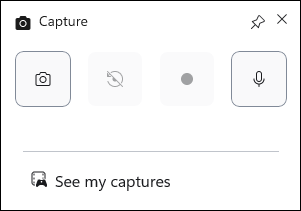
Game Bar, formerly called Xbox Game Bar, is a free and pre-installed screen-capturing tool for Windows 10/11. It is primarily designed for gamers to capture gameplay footage and can be activated using the Win + G shortcut key. Additionally, it supports game audio and microphone input with independent volume control, making it ideal for game commentary creators. Moreover, Game Bar offers hardware acceleration, leveraging Intel Quick Sync, NVIDIA NVENC, or AMD VCE for efficient encoding to deliver smooth recording.
Pros:
- User-friendly.
- Instant access.
- Free and no downloads needed.
- Lightweight and features smooth performance.
- Controllable audio settings.
Cons:
- Lacks customizable region recording functionality.
- Limited advanced recording options.
Option 3. Microsoft Clipchamp
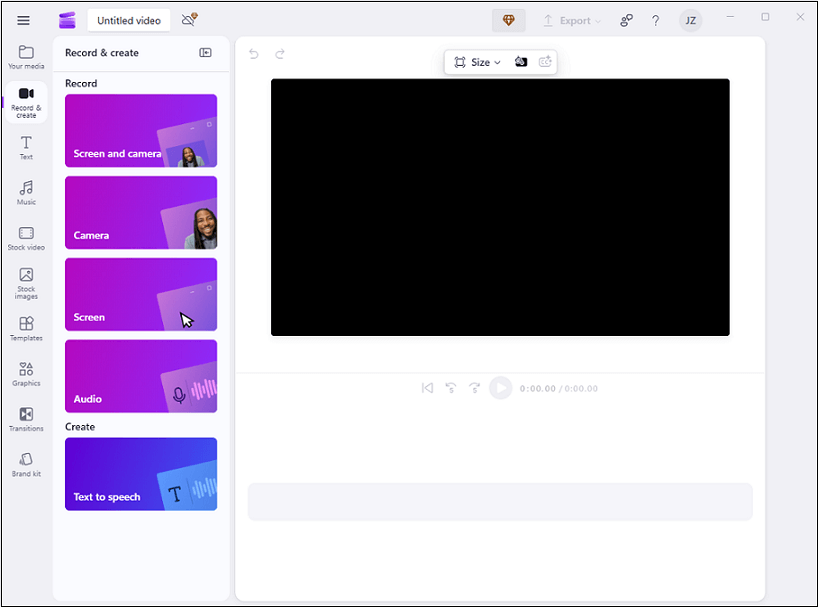
Microsoft Clipchamp is a web-based and Windows-integrated tool designed for videos. Its screen recorder comes with multiple recording modes, including full-screen recording, specific window recording, webcam recording, and audio-only recording, catering to diverse requirements.
Plus, Clipchamp features a built-in teleprompter, allowing you to read from a script while recording. This makes it perfect for capturing online meetings, virtual courses, tutorial videos, and more.
Pros:
- Ease of use.
- Versatile recording modes.
- AI-powered tools.
- Generous free plans.
Cons:
- Limited advanced functions.
While these built-in Windows screen recorders can meet basic recording needs, they remain insufficient for those seeking more advanced features or for professionals. For example, they cannot adjust the parameters of the output video, lack real-time annotation capabilities, cannot schedule recording plans, cannot specify recording areas, etc.
Therefore, in the next part, I’d like to recommend some professional third-party video recorder apps for high-quality video capturing. Read on.
Powerful Third-Party Video Recorder Apps for Windows
Here are five expert video recorders for Windows.
Option 1. MiniTool Screen Recorder
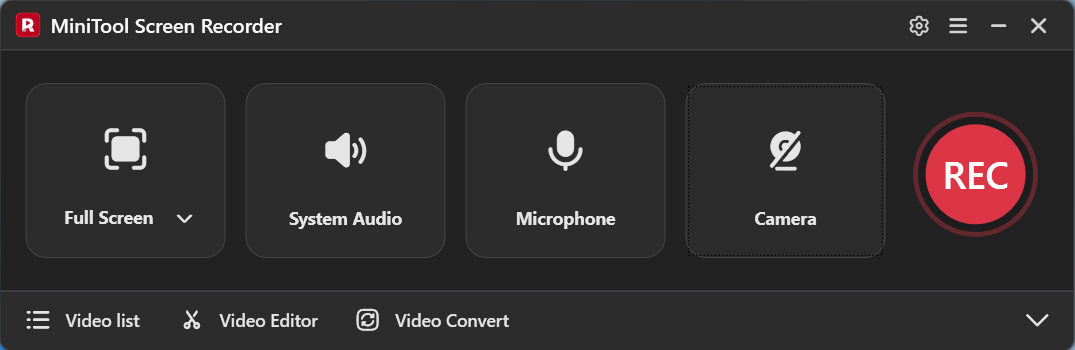
MiniTool Screen Recorder is a free, lightweight Windows screen recording tool designed to easily capture your screen, webcam, and audio without watermarks or time limits. It offers flexible recording modes, including full-screen, custom region, camera-only, or picture-in-picture, making it ideal for creating tutorial videos, game commentary videos, online meeting recordings, and more.
In addition, MiniTool Screen Recorder enables audio control, allowing you to record system audio and microphone audio simultaneously or separately. It also features real-time screen annotation tools that let you draw arrows, shapes, text, and more directly on the screen. Moreover, this screen recorder offers multiple customizable video parameters, including frame rate and quality. You can also set the recording duration in advance to avoid having to wait at your computer.
Furthermore, MiniTool Screen Recorder has an intuitive user interface. Whether you’re a beginner or an experienced user, you can have a quick start. It consumes minimal resources on your device and runs smoothly even on low-end systems.
Click the download button below to try it!
MiniTool Screen RecorderClick to Download100%Clean & Safe
Pros:
- Ease of use.
- 100% free and clean.
- Lightweight and efficient.
- Real-time annotation tools.
- Customizable video parameters.
- Powerful and flexible recording options.
Cons:
- Only for Windows users.
Option 2. OBS Studio
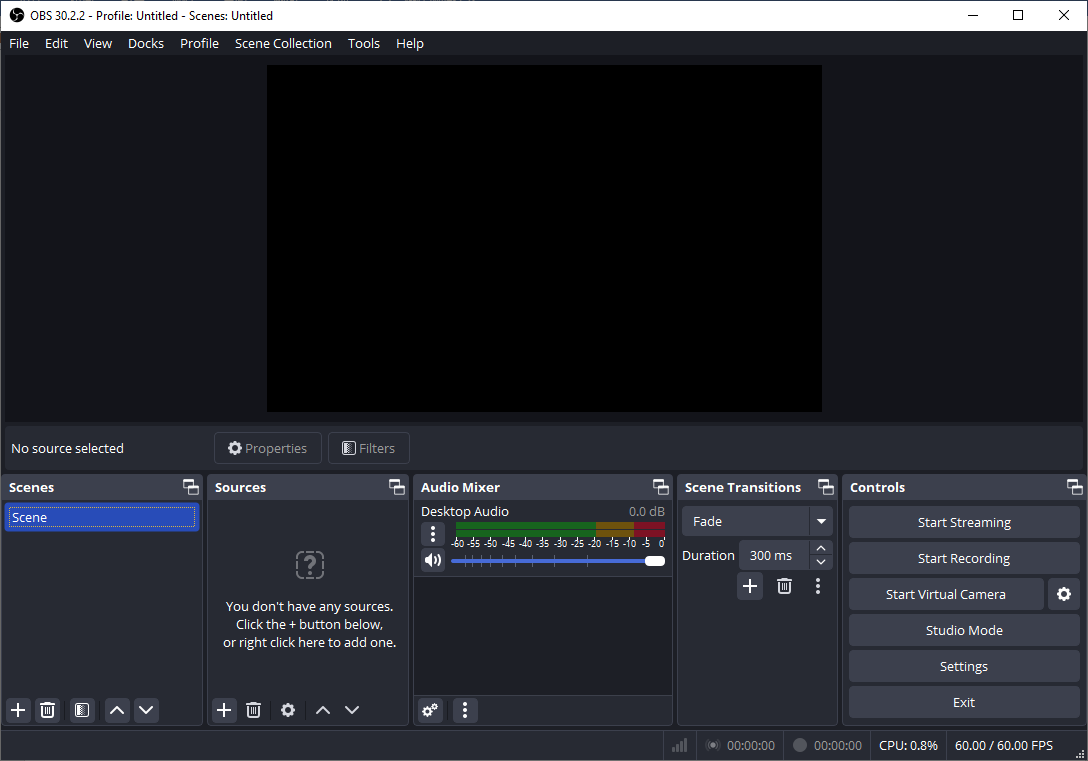
OBS Studio, short for Open Broadcaster Software Studio, is a free and open-source screen recording tool compatible with Windows, Mac, and Linux. It enables multi-source capture, which allows for the recording of full screens, specified regions, webcams, audio tracks, and live video/audio. Plus, it also interacts with popular streaming sites such as YouTube, Twitch, Facebook Live, and other platforms.
In addition, with features like scene switching, custom transitions, filters, and hardware acceleration, OBS Studio strikes the ideal balance between sophisticated functionality and adaptability. With no watermarks or additional costs, all of these features are free.
Whether you're a beginner or a professional content creator, you can record high-quality game videos, tutorials, webinars, and more, with full customization of all recording parameters.
Pros:
- Completely free for use.
- Cross-platform feature.
- High-quality outputs.
- Professional-level functions.
Cons:
- The learning curve for advanced features is steep.
Option 3. Bandicam
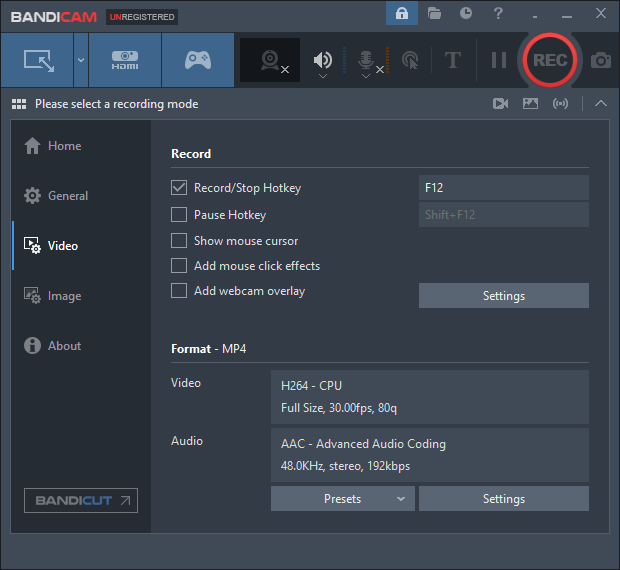
Bandicam is a professional screen recording software renowned for its exceptional recording performance, perfectly balancing footage quality, efficiency, and ease of use. It is highly favored by gamers, educators, content creators, and more.
This screen recorder supports multiple recording modes, including screen recording, game recording, and device recording. You can capture the entire screen, a selected area, or a specific window, and capture footage from webcams and external cameras smoothly, making it perfect for recording online webinars, on-screen tutorials, etc.
In addition, Bandicam supports up to 4K Ultra HD resolution and 480 FPS, delivering a smooth gaming experience. With hardware acceleration, it reduces CPU load for seamless recording while compressing files to save storage space without compromising footage quality. Furthermore, Bandicam supports multiple digital formats, including MP4, AVI, AAC, MP3, BMP, PNG, and JPG, enabling seamless uploading and sharing.
Pros:
- High-quality recording.
- Great performance.
- Easy to use.
- Versatile recording modes.
Cons:
- Lacks advanced editing functions.
Option 4. Camtasia
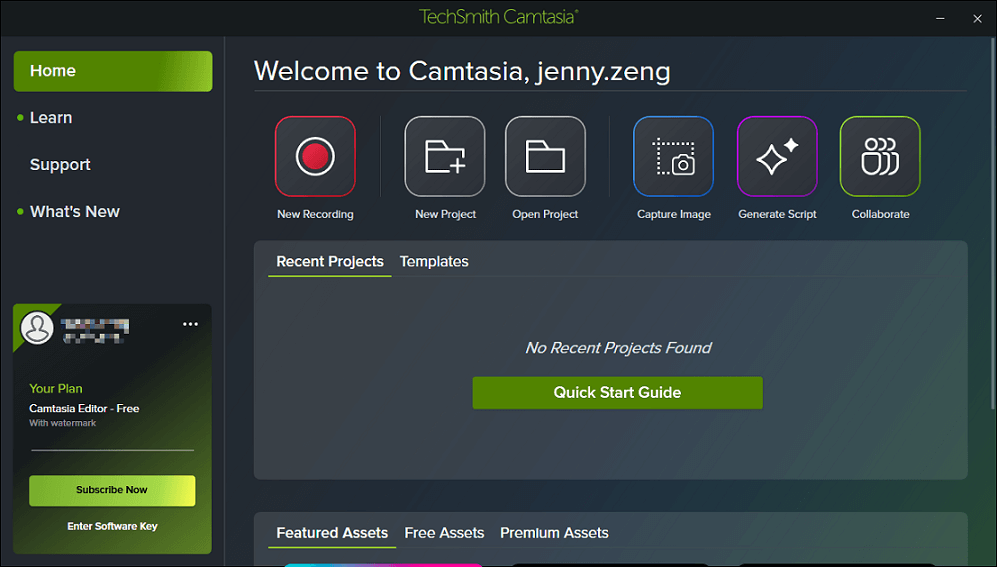
Camtasia, developed by TechSmith, is a professional screen recording and video editing program compatible with Windows 10/11 and macOS 13 and later. It supports seamless screen recording, including full-screen/custom area/window capture, with support for up to 4K resolution; it also supports picture-in-picture webcam capture, making it ideal for recording online meetings, webinars, online courses, and more.
Besides, Camtasia supports real-time annotations, cursor effects, motion paths, and more. This allows you to mark up your computer screen while narrating, thereby enhancing audience engagement. It features 4K Ultra HD resolution, delivering crisp and smooth video footage.
Pros:
- Simple layout.
- Friendly for beginners.
- Advanced recording features.
- Cross-platform compatibility.
Cons:
- Need a subscription.
Option 5. iTop Screen Recorder
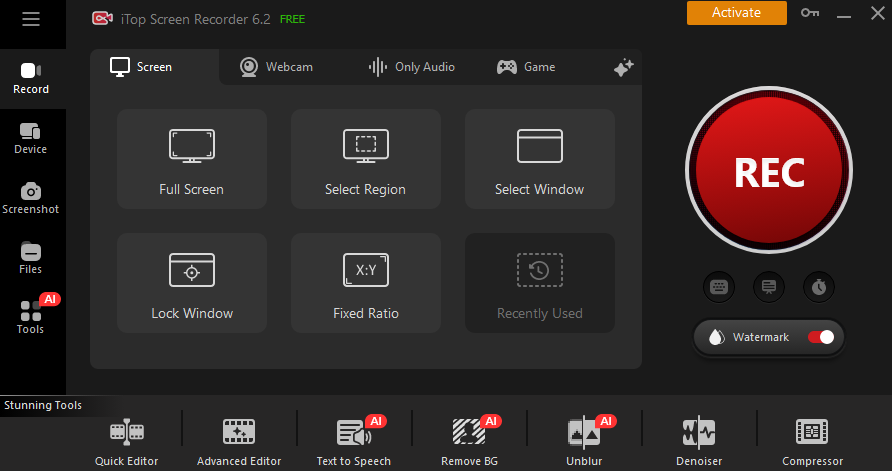
iTop Screen Recorder is a powerful and user-friendly screen recorder designed for the Windows system. It features a straightforward user interface, allowing for easy and quick navigation, meeting the requirements of beginners and professionals.
iTop Screen Recorder features flexible recording options, enabling you to capture the entire computer screen, a custom region, a specific window, and webcam footage. In addition, this tool supports up to 4K resolution and frame rates from 30 FPS to 120 FPS, making it suitable for recording gameplay, movies, on-screen instructions, etc.
More than that, this application captures system audio and microphone sound at the same time or separately. It also provides real-time annotations, allowing you to add shapes, arrows, text, and more on the computer screen.
Pros:
- User-friendly.
- High-quality outputs.
- Multiple formats supported.
- Lightweight and highly efficient.
- Powerful recording features.
Cons:
- Only for the Windows system.
Step-by-Step Guide on How to Screen Record on Windows
In this part, I’ll take MiniTool Screen Recorder as an example to show you how to screen record on a Windows computer.
Step 1. Download and Install MiniTool Screen Recorder
Click the download button below to download this video recorder app. Then, follow the on-screen setup instructions to install it on your computer. After that, click its shortcut icon on the desktop to launch the program.
MiniTool Screen RecorderClick to Download100%Clean & Safe
Step 2. Configure the Recording Settings
#1. Adjust Audio Settings
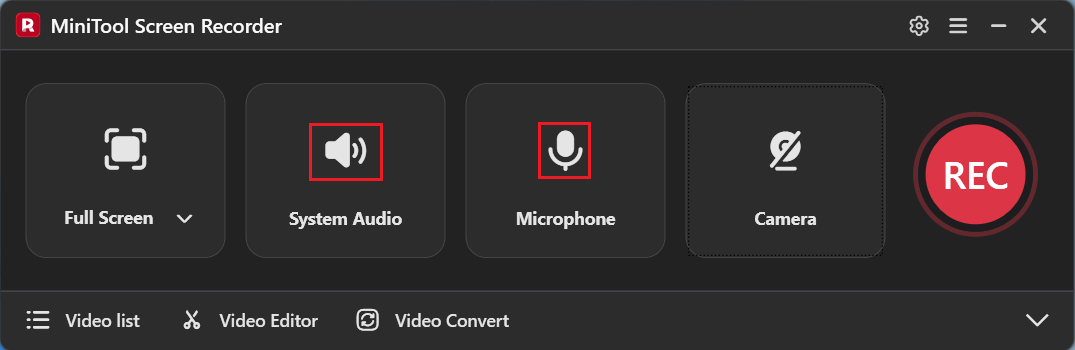
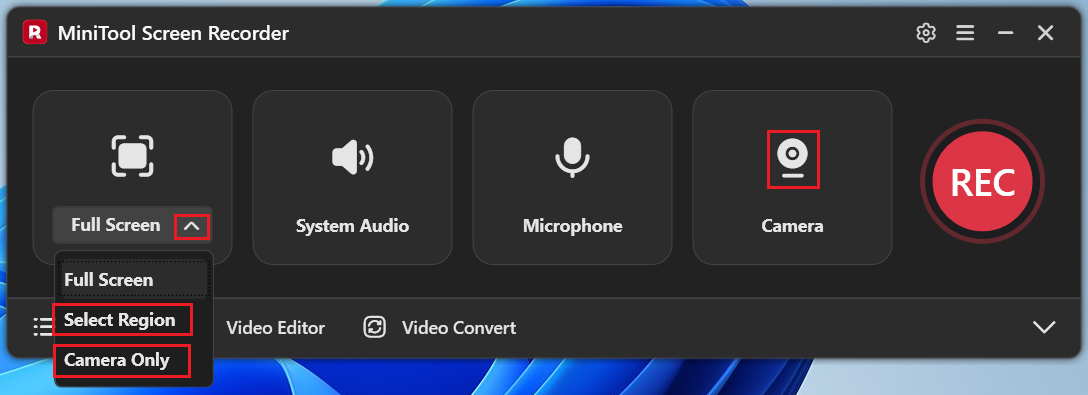
The system audio and microphone sound are turned on by default. According to your requirements, you can click the System Audio icon and the Microphone icon to turn them on or off simultaneously or separately.
#2. Select the Recording Area
The screen recorder is set to capture the entire screen by default. If you want to record a specific region, expand the Full Screen option, choose Select Region, and drag the mouse to define the recording region. If you want to capture the webcam footage, click the Camera icon to enable it. The webcam and screen will be captured at the same time by default. If you want to capture the camera only, choose the Camera Only option from the Full Screen drop-down menu.
#3. Adjust More Settings
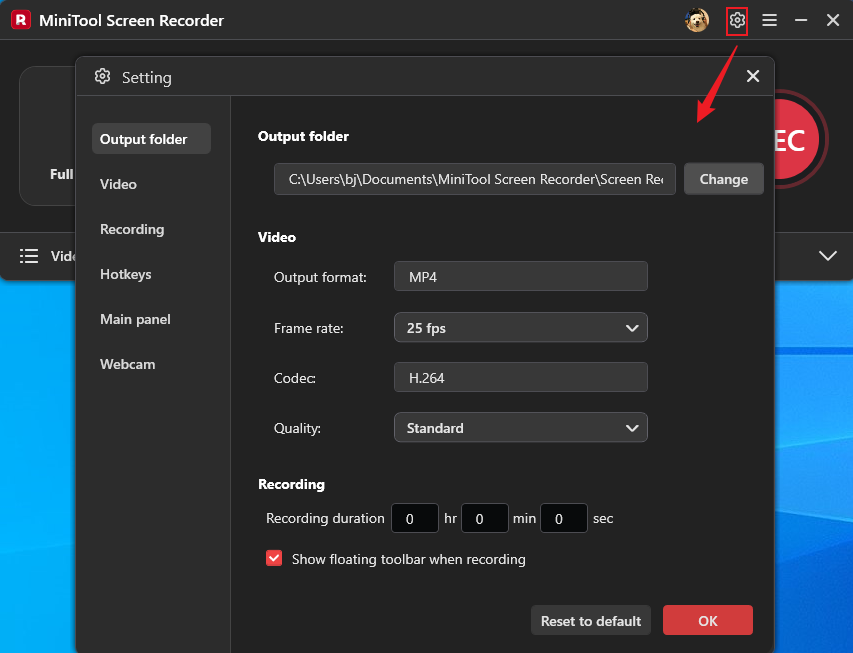
To access more settings, click the Settings icon in the upper-right corner of the screen to open the Settings window. There, you can change the output format, frame rate, quality, hotkeys, and schedule recording duration.
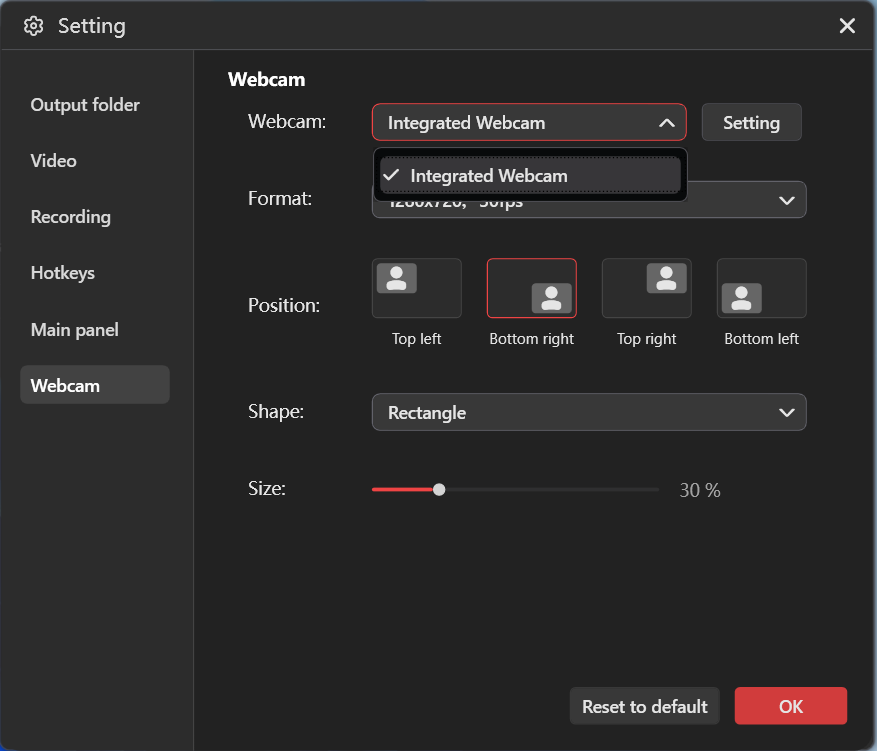
To adjust webcam settings, go to the Webcam section. Then, you can adjust the webcam footage resolution, position on the screen, shape, and size. After that, click OK to save all the changes.
Step 3. Start Recording
Click the REC button in the program. After a three-second buffer time, the recording will begin. During recording, you can press the F9 key to pause/resume.
Step 4. Access Advanced Features (Optional)
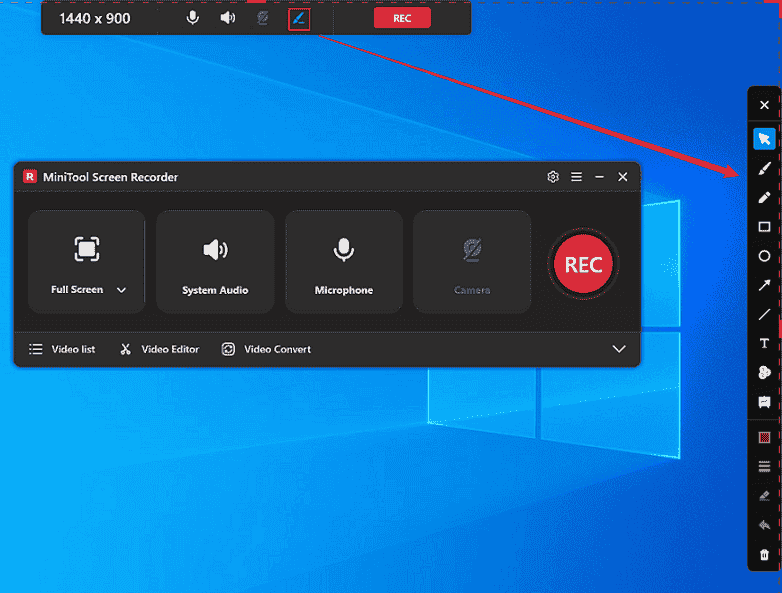
Move your mouse cursor over the top-center region of the screen until the floating toolbar appears. Then, click the Brush icon to expand the annotation column on the right side of the screen. Based on your needs, choose the desired tool to add annotations for your recording.
Step 5. Stop the Recording
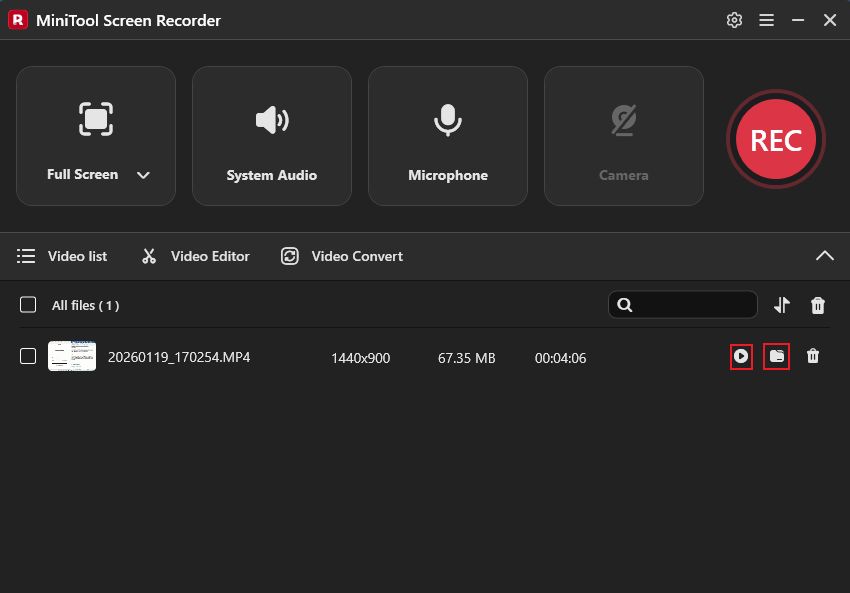
Press F6 to end the recording. Then, you can check the recorded video in the Video List menu. Click the Play icon or the Folder icon to watch or locate the recording.
Bonus: How to Edit a Recorded Video
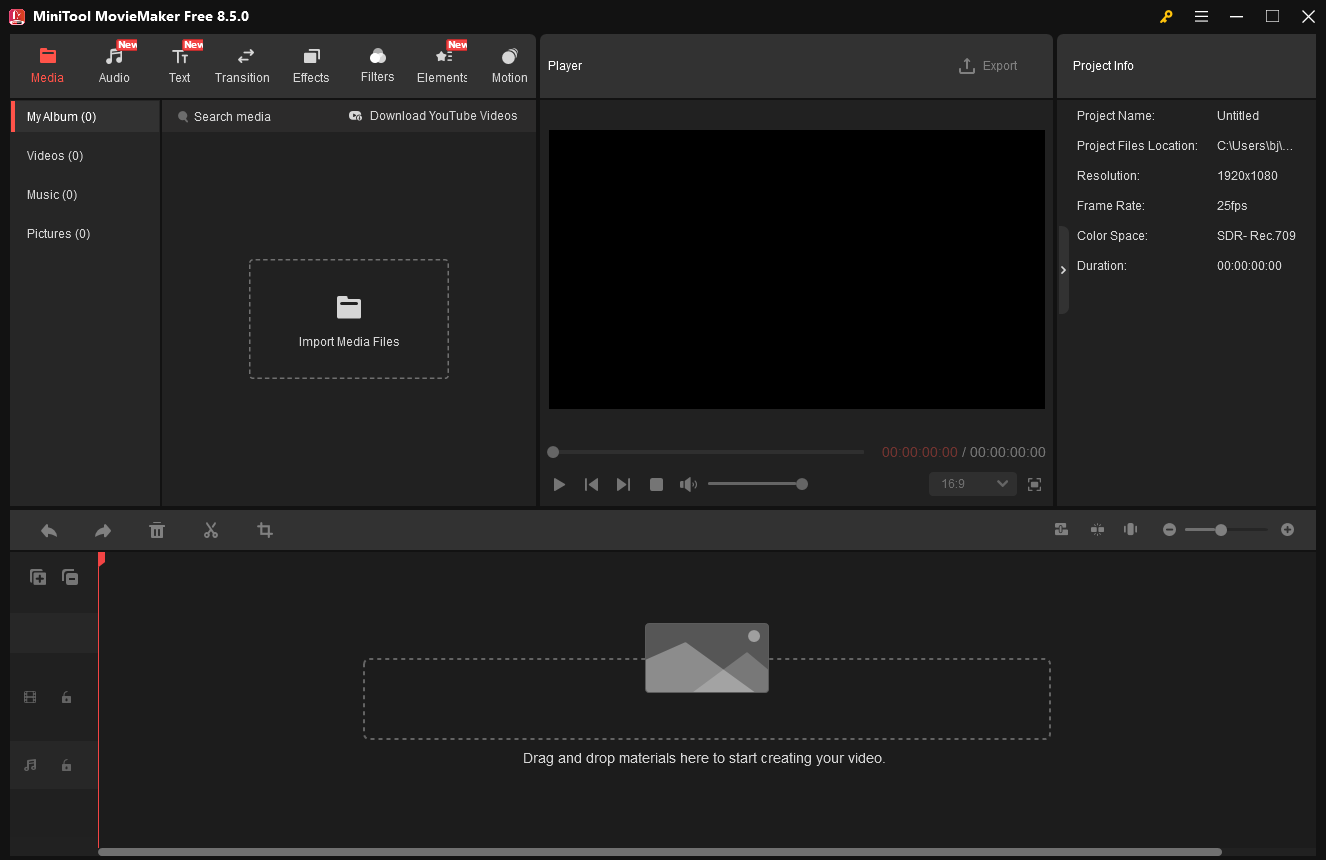
Want make your recorded videos more appealing? Use MiniTool MovieMaker to edit them! MiniTool MovieMaker is a powerful and free video/GIF editor that comes with various features.
For basic editing, it can trim, split, crop, rotate, reverse, and change video speed. For advanced editing, this application supports multi-track editing, photo collage, audio overlap, copy and paste on the timeline, 4K editing, etc.
Additionally, MiniTool MovieMaker has no ads, bundles, or watermarks, allowing you to polish your recordings with no hassle. Click the download button below to give it a try!
MiniTool MovieMakerClick to Download100%Clean & Safe
In Summary
This post provides 9 reliable and easy-to-use Windows video recorder apps. For basic recording, Windows Camera, Game Bar, and Microsoft Clipchamp can meet the needs. If you pursue advanced features, MiniTool Screen Recorder, Bandicam, OBS, etc., are worth trying. Just choose the preferred one based on your needs. Hope you find the article helpful!
You can contact us via support@minitool.com if you have any questions about using MiniTool Screen Recorder or MiniTool MovieMaker. Also, you can send me messages directly on X, and I’ll help you as quickly as I can.