

If you search the question “how to record screen with microphone” on Google, the answer to this question is that you just need a handy screen and microphone recorder. Definitely, this is the correct answer, and we also provide 2 free and newbie-friendly recorders for you to choose from.
What makes people record the screen with a microphone? You can quickly browse through the information below before using a screen and audio recorder.
Why Record Screen with Microphone
Recording the screen with microphone delivers multiple benefits:
Add Personal Narration
Imagine how boring it would be if you only recorded the clicks and menu selections for the software operation on the screen. If you record screen with microphone, your voice can become a guide to walk your audience through the process, explain key concepts, highlight potential pitfalls, and emphasize important details, turning confusing visuals into a clear, easy-to-follow lesson.
Enhances Interactivity
Recording the screen with a microphone could enhance interactivity, especially for some scenarios like online meetings, webinars, or live streams. During a meeting, a microphone allows you to communicate in real time and get feedback from listeners, building trust and connection with them.
Increase the Realism of the Scene
Although some people may think background noise is a distraction, the microphone can record natural sounds in the environment, making the recorded content closer to the real scene and enhancing the immersive viewing experience.
![9 Methods to Fix VLC Not Recording Issue [100% Work]](https://images.minitool.com/recorder.minitool.com/images/uploads/2026/01/vlc-not-recording-thumbnail.png)
How to Screen Record with Microphone
Capturing the screen with a microphone is essential for creating engaging content and clearly explaining the content. How to screen record on Windows with microphone? Here are two free and reliable recorders – Xbox Game Bar and MiniTool Screen Recorder. Now, let’s learn about them first and then use them to screen record with microphone.
Tool 1. Xbox Game Bar
Xbox Game Bar is a pre-installed application on Windows. This tool is mainly designed for capturing gameplay for game users. You can also use it to capture other software or windows. Additionally, Xbox Game Bar supports simultaneous recording of both system audio and microphone audio.
Below are the steps for recording a screen with a microphone using Xbox Game Bar. Please open the interface or the video you want to record in advance.
Step 1. Launch Xbox Game Bar
Press the shortcut Windows + G to open the Xbox Game Bar on your Windows PC.
Step 2. Open Microphone
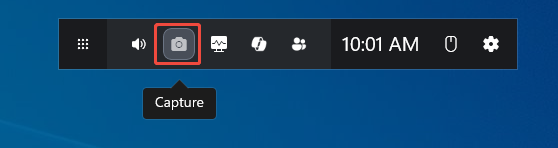
1. When you launch the app, you need to click Capture first at the top.
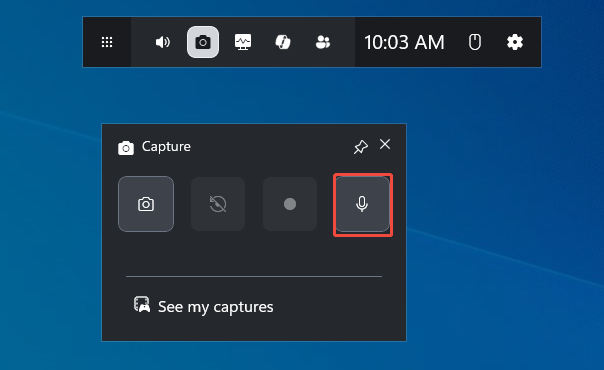
2. In the Capture interface, click on the mic icon to turn on the microphone.
Step 3. Start and End Recording
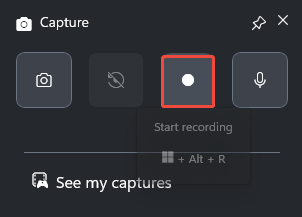
1. Click the Start recording icon or press the Windows + Alt + R key on your keyboard to record the screen with the microphone.
2. Play the video you want to record.
3. When you finish recording, click on Stop Recording or press Windows + Alt + R again. Then the recorded video will save on your computer.

Tool 2. MiniTool Screen Recorder
While Xbox Game Bar is useful for basic capture, it lacks advanced, specialized features found in dedicated capture software, like MiniTool Screen Recorder.
MiniTool Screen Recorder is an intuitive screen and audio recorder for Windows. You can capture system audio or microphone simultaneously or separately while recording the full or selected screen. Except for this audio and video recording function, this screen capture software also supports recording a webcam.
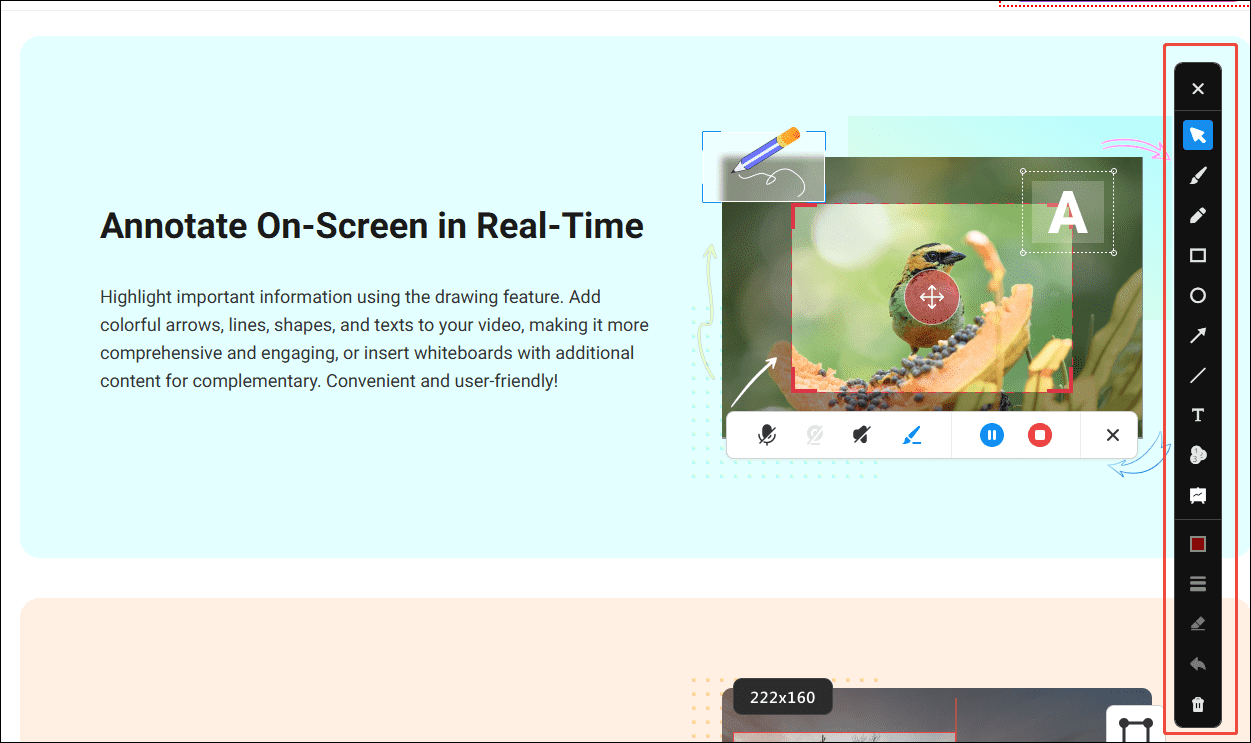
During recording, you can annotate the screen in real-time with some drawing tools, like an arrow, a line, or a shape, to mark important information. All of the recorded videos can be exported in 4k without time limitations and watermarks.
Here’s the tutorial on how to screen record with microphone on Windows using MiniTool Screen Recorder.
Step 1. Install MiniTool Screen Recorder
Click the button below to download the free screen and audio recorder to your computer. Then, follow the instructions to complete the installation.
MiniTool Screen RecorderClick to Download100%Clean & Safe
Step 2. Choose Recording Area and Open Microphone
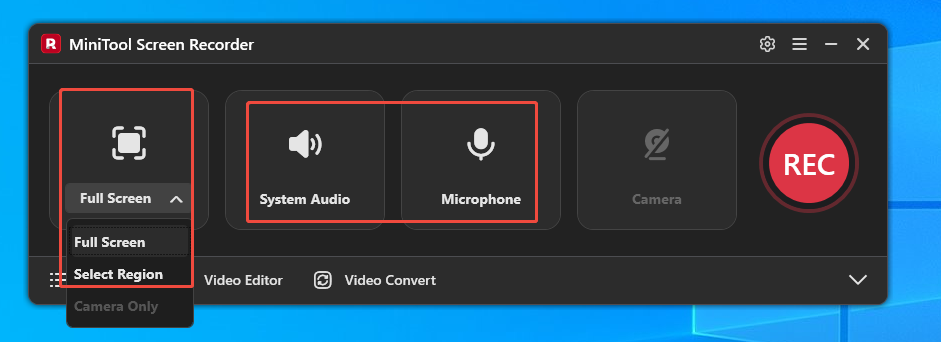
1. By default, MiniTool Screen Recorder records the entire screen. To record a custom area, click Full Screen, and click Select Region from the dropdown.
2. The system audio and microphone recording are turned on by default. If you don’t want to record system audio, click on it to turn it off.
Step 3. Start Recording and Add Annotations
1. Click the red REC button at the top to start recording. Alternatively, press the default F6 key on your keyboard. The recording will begin after a 3-second countdown. Open the interface or video you want to record.
2. During recording, choose the desired tools on the right side to add annotations to your recording in real time.
Step 4. Stop and Access the Recording
1. Press F6 again to stop recording.
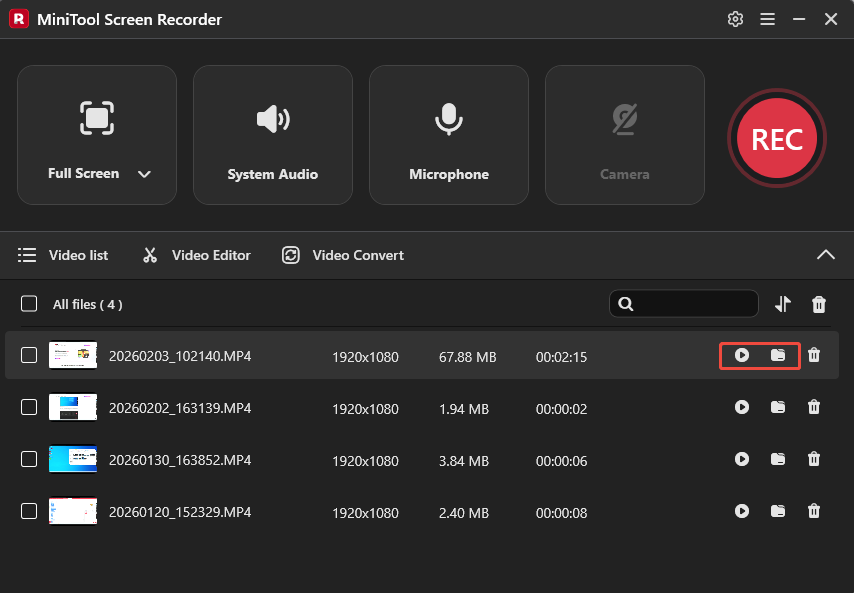
2. Then, the latest recording will appear at the top of the Video list module.
3. Here, you can click the Play icon to preview the recording with microphone audio and click the Folder icon to check its file location.
How to Edit Your Recordings
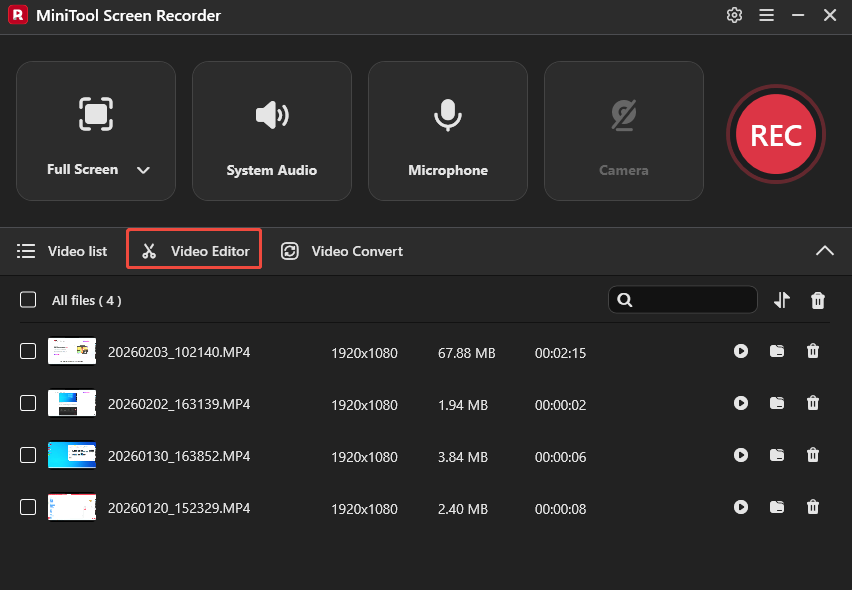
If you forget to pause recording unwanted clips, splitting and trimming the recorded video is the inevitable step for a better viewing experience. Click on Video Editor at the bottom of the MiniTool Screen Recorder main interface to edit your recording.
You can also directly click on the button below to get this video editor.
MiniTool MovieMakerClick to Download100%Clean & Safe
The free video editor not only removes unwanted clips but also adds elements to cover up sensitive information, highlights important parts, adds titles or subtitles, adds transitions to create a natural transition between chapters, shortens the recorded time by speeding up, etc. Once editing is complete, you can export videos in multiple formats such as MP4, MOV, MKV, WebM, and GIF.
Final Words
Recording the screen with a microphone adds personal narration, enhances interactivity, and increases the realism of the scene. This article guides you on how to screen record with microphone using the Xbox Game Bar and MiniTool Screen Recorder. Also, try to use the recommended video editor to make the recording wonderful.
If you encounter any issues while using MiniTool Screen Recorder or MiniTool MovieMaker, you can reach out for assistance by emailing us via support@minitool.com or sending a message on X.