

How to record in GMod? This article provides 2 quick and easy methods, including using the Xbox Game Bar and MiniTool Screen Recorder – a Windows screen recorder. Meanwhile, there are practical tips for editing the recorded videos.
As an avid gamer, I recently discovered a really fun sandbox game called Garry’s Mod. What sets it apart is that it lets me freely create all sorts of objects, such as ragdolls, various props, and even NPCs. While playing, I found that the mode, Trouble in Terrorist Town, is definitely worth documenting and sharing on social media.
However, I learned that Garry’s Mod doesn’t have a built-in screen recording feature. So, I took the time to test several third-party screen recorders. In the end, I narrowed it down to the two appropriate tools and included a detailed guide on how to record videos in GMod below.
![How to Record Minecraft Effortlessly [2 Efficient Methods]](https://images.minitool.com/recorder.minitool.com/images/uploads/2026/03/how-to-record-minecraft-thumbnail.jpg)
How to Record in GMod
After testing several recorders, I found that the Xbox Game Bar and MiniTool Screen Recorder are the best tools for recording GMod. Below is a detailed overview of both tools and instructions on how to record in GMod on PC.
#1 Xbox Game Bar
My first recommendation is the Xbox Game Bar, which stands out for its exceptional convenience. It is a Windows overlay designed specifically for gamers. The Xbox Game Bar comes pre-installed on the system, so there is no need for me to install it separately.
Furthermore, I can quickly launch the Xbox Game Bar and start recording gameplay or other applications simply by pressing the Windows + G keys. Moreover, this tool allows me to record both system audio and microphone audio. The simple steps on how to record in GMod are outlined below.
Step 1: Launch the Xbox Game Bar
Press the Windows + G keys to open the Xbox Game Bar.
Step 2: Control the Audio
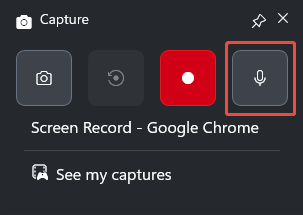
The Microphone recording feature is enabled by default. To turn it off, click it.
Step 3: Start and End Recording
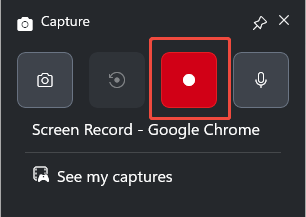
1. Click the Start recording icon or press the Windows + Alt + R keys to start the recording process.
2. Play the game Garry's Mod.
3. To end the recording process, press the Windows + Alt + R keys again.
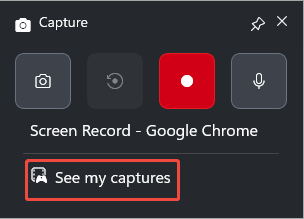
4. Finally, check the recorded video under the See my captures option.
As described above, while the Xbox Game Bar helps me record in GMod conveniently, it doesn’t meet my needs for recording specific areas. That is why I also chose a recording tool equipped with more advanced features, as described below.
#2 MiniTool Screen Recorder
MiniTool Screen Recorder is a free video recorder that offers me more options during the recording process. It supports recording the entire screen, a specific area, or a single window. In addition, MiniTool Screen Recorder’s webcam recording feature allows me to capture myself simultaneously while gaming.
Meanwhile, MiniTool Screen Recorder supports me to record system audio and microphone audio simultaneously or separately. With this tool, I can also use annotation tools to create clearer game tutorial videos. Most importantly, MiniTool Screen Recorder doesn’t add any watermarks to the recorded videos.
Here are the specific steps on how to record GMod gameplay using MiniTool Screen Recorder.
Step 1: Download and Install MiniTool Screen Recorder
MiniTool Screen RecorderClick to Download100%Clean & Safe
Click the button above to download MiniTool Screen Recorder. Then, follow the prompts to install it on the PC. Next, run MiniTool Screen Recorder.
Step 2: Choose the Recording Area
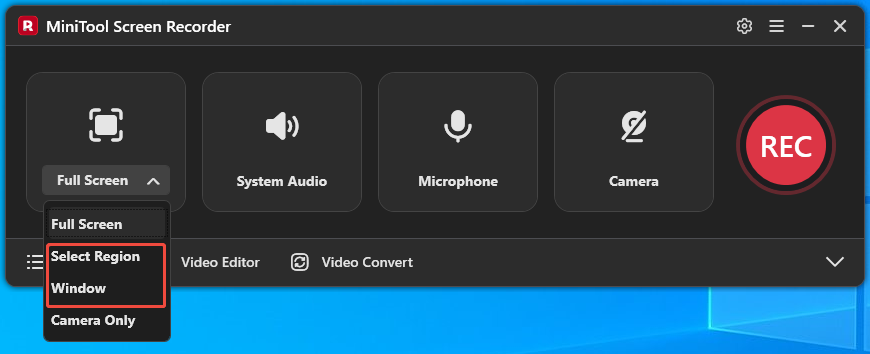
1. By default, MiniTool Screen Recorder records in full-screen mode. To record a part of the screen or a specific window, expand the drop-down menu of the Full Screen option.
2. Then, click the Select Region option or click the Window option.
Step 3: Configure the Audio Recording Settings
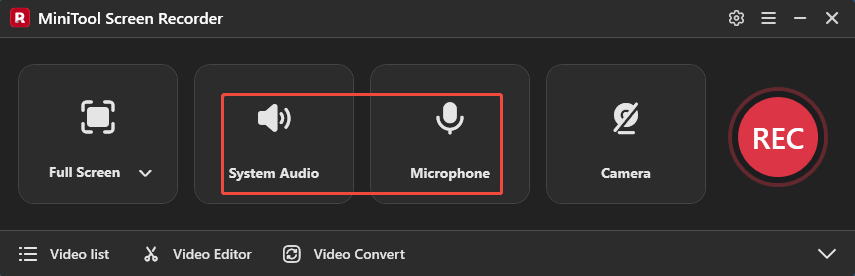
MiniTool Screen Recorder defaults to recording the system audio and the microphone audio. To turn off these features, click the System Audio icon and the Microphone icon respectively.
Step 4: Control the Camera Recording
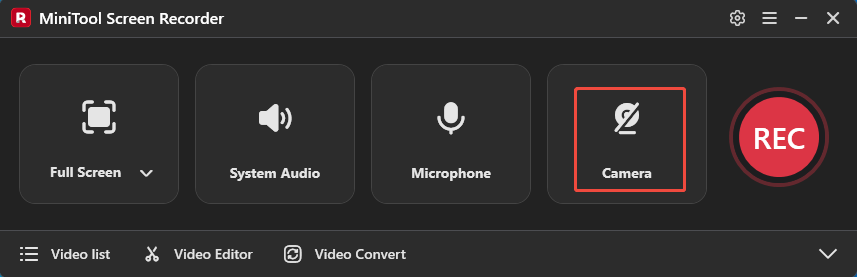
To screen record with webcam footage, click the Camera icon on the right.
Step 5: Start and End Recording
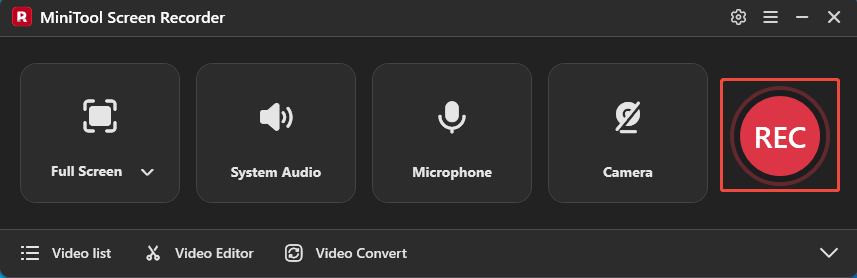
1. To begin recording, click the REC button or press the F6 key.
2. Play the game Garry’s Mod.
3. To end the recording process, press the F6 key again.
Step 6: Check the Recorded Game
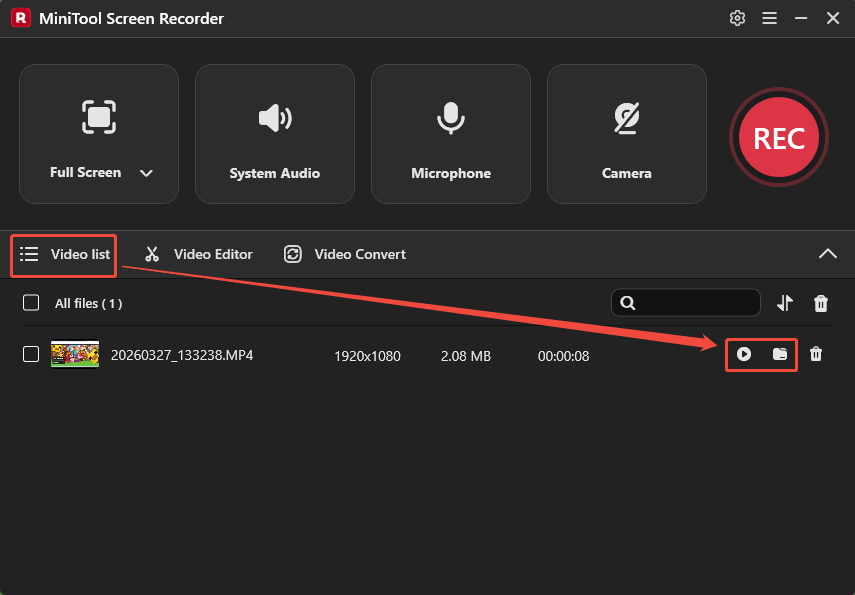
1. When the recording process ends, this tool will automatically shift to the Video list section, where the recorded video is listed.
2. Click the Play icon to check the Garry’s Mode recording and click the Folder icon to locate it.
Moreover, by following the steps above, I can also use MiniTool Screen Recorder to record online meetings, live streams, video calls, and other activities.
Bonus: How to Edit Recorded Videos
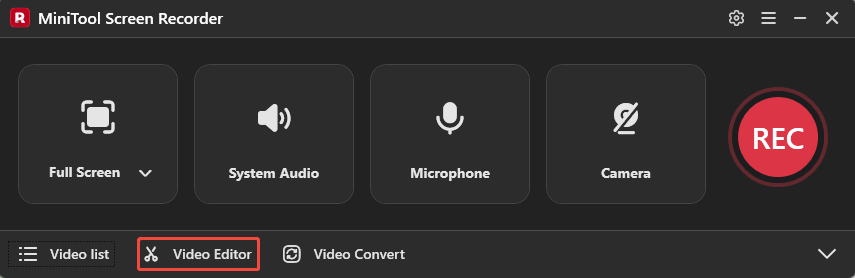
To make my Garry’s Mod gameplay videos more engaging for viewers, I also use a professional editing tool, MiniTool MovieMaker, to edit and optimize the videos. To access this tool, click the Video Editor option in MiniTool Screen Recorder’s main interface.
Alternatively, click the button below to get the tool directly.
MiniTool MovieMakerClick to Download100%Clean & Safe
MiniTool MovieMaker allows me to easily rotate, flip, reverse, trim, and cut videos. I also used the software to add filters, transitions, and effects to my Garry’s Mod gameplay videos. In addition, MiniTool MovieMaker supports me in freely adding music to my video. More importantly, it supports exporting videos to formats such as MP4, MOV, AVI, WEBM, and MKV.
Conclusion
How to Record in Gmod? The two tools I’ve selected, Xbox Game Bar and MiniTool Screen Recorder, make this easy to do, and I’ve also provided detailed instructions on how to use them. In addition, the video editing tools I’ve recommended can significantly enhance the appeal of the recorded videos.
If you encounter any issues when trying out MiniTool Screen Recorder or MiniTool MovieMaker, send an email to support@minitool.com.