

What Are Game Recorders
Game recorders are applications or hardware devices specifically designed to capture gameplay footage from computers or gaming consoles. These tools feature high-performance capabilities to ensure smooth, lag-free recording of high-definition gameplay.
Additionally, they enable users to save recordings to their devices for subsequent editing and sharing.
Why Record Gameplay
With the development of the internet, game recording has become a common practice. Below are the common motivations:
1. Share Gaming Moments
As a form of leisure and entertainment, gaming often delivers enjoyable experiences to users. Whether it's laugh-out-loud comedic moments, heart-pounding adventures, or awe-inspiring gameplay skills, these experiences are worth sharing with fellow players or friends. By recording gameplay sessions, players can quickly share these unforgettable highlights with others.
2. Improve Skills through Review
Recorded gameplay videos serve as vital resources for game analysis. Players can identify mistakes or tactical flaws during gameplay by reviewing replays, thereby correcting these issues and improving their skills.
3. Create Streaming Content
For game content creators, recording gameplay is an essential step. After editing the videos, they can share them on platforms like YouTube, Instagram, and TikTok to attract more followers and generate revenue.
What Makes an Excellent Game Recorder
Game recorders available on the market vary significantly in performance, so selecting a reliable one requires careful consideration of multiple factors. After thorough research, we have summarized the following key points:
1. Ease of Use
The best game capture software should let you focus on the game itself, rather than wasting energy learning how to operate the software. In short, it should feature an intuitive interface design that helps you quickly master recording techniques without spending a lot of time learning.
2. Multiple Content Recording Options
An excellent game recording tool should be capable of capturing multiple types of content, including both game footage and camera footage, while also recording system audio and microphone audio either simultaneously or separately.
3. High Performance without Lag
Top-tier game recording software must deliver exceptional performance. It should incorporate advanced hardware acceleration technology to ensure games run smoothly in the background during recording, enabling zero-latency capture.
4. High Video Quality and Frame Rate
Regardless of the purpose for recording gameplay footage, high-quality game recording software should support high resolution to ensure video quality. Additionally, the software must support high frame rates to guarantee smooth playback of fast-paced game videos.
Popular Game Recorders for Your Reference
Based on the above selection criteria, we have carefully curated six outstanding game screen recording tools to help you efficiently capture gameplay. They include:
- MiniTool Screen Recorder
- Xbox Game Bar
- Snipping Tool
- Clipchamp
- Medal.tv
- FBX Game Recorder
The following section will detail their respective performance advantages and disadvantages.
#1 MiniTool Screen Recorder
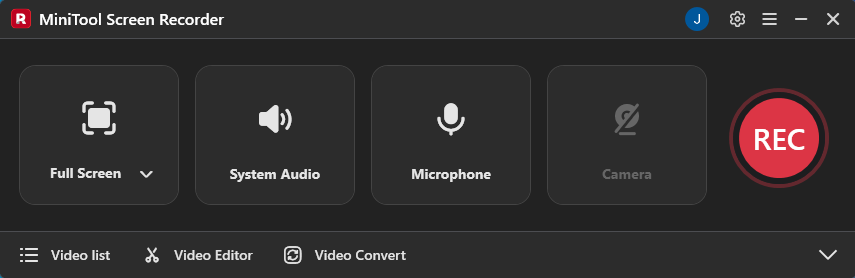
MiniTool Screen Recorder is a free game recorder that seamlessly blends professional performance with user-friendly operation. It supports full-screen or region-specific recording while allowing flexible control over system audio and microphone audio capture. MiniTool Screen Recorder also provides professional annotation tools to help you create clearer game tutorial videos.
Additionally, MiniTool Screen Recorder supports overlaying your camera feed while recording your screen, helping you effortlessly create engaging gameplay reaction videos. For a more personalized recording experience, this tool also allows you to select video quality and frame rate, change recording hotkeys, adjust camera recording parameters, and more.
What's more, you can use MiniTool Screen Recorder to capture 4K videos with no time limits and no watermarks.
Pros:
- Ease of use.
- No watermark.
- No ads and no bundles.
- No recording time limit.
- Support webcam recording.
- Support high video quality and frame rate.
- Support 4K HD recording.
- Support preset recording times.
- Support annotate screen while recording.
Cons:
- Only for Windows users.
#2 Snipping Tool
As the name suggests, this tool is a screenshot application integrated into the Windows operating system. With the release of Windows 11, the Snipping Tool received a major upgrade, adding basic video recording capabilities. It allows users to record specific game windows or select custom recording areas based on their needs.
The Snipping Tool also supports capturing system audio and microphone audio, enabling gamers to record game audio alongside clear commentary. Furthermore, after recording, users can directly edit videos using the built-in editing tool. Once editing is complete, videos can be instantly shared via direct links or uploaded directly to social media platforms like YouTube, Instagram, and TikTok.
Pros:
- Ease of use.
- No software installation.
- Support recording a specific area.
- Provide a built-in video editing tool.
- Support one-click sharing of recorded videos.
Cons:
- Does not support camera recording.
- Lack of advanced recording features.
- The screen recording feature is only for Windows 11 users.
#3 Xbox Game Bar
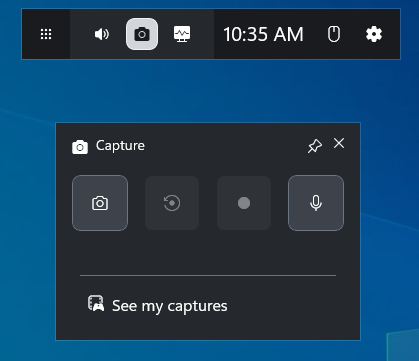
If you're a Windows 10 or 11 user, we recommend trying the built-in Xbox Game Bar, a screen recorder for gaming. Players can simply press the Windows + G key to bring up the Game Bar and start recording. The Xbox Game Bar supports capturing application windows, system audio, and microphone audio. It also allows users to record the last 30 seconds of gameplay highlights.
As a lightweight screen recording tool, its performance is deeply integrated into the operating system, ensuring users enjoy a smooth game recording experience. However, its limitations include the inability to record File Explorer or desktop content, along with restrictions on recording duration.
Pros:
- Ease of use.
- No software installation.
- All features are absolutely free.
- Support recording the system audio and the microphone audio simultaneously.
Cons:
- The maximum recording duration is 30 minutes.
- Does not support recording the desktop and File Explorer.
- Does not support recording the specific area.
- Does not support webcam recording.
- Limited to Windows 10 and 11 users.
#4 Clipchamp
Clipchamp is a video editor developed by Microsoft that offers powerful video recording capabilities. As a result, users can edit their recordings without leaving the software after capturing gameplay footage. Additionally, users can access the software via its website or desktop application.
Clipchamp supports capturing your screen, audio, and webcam simultaneously or individually. Users can choose to record the entire screen or a single application. After completing your game recording, you can immediately access the editor timeline to add transitions, filters, captions, and other elements to your video.
Pros:
- Ease of use.
- Support recording multiple types of content.
- Provide a built-in video editing tool.
- Support saving recorded videos in the cloud.
Cons:
- Does not support recording the specific area.
- The free version offers limited video quality options.
- The maximum duration for a single recording is thirty minutes.
#5 Medal.tv
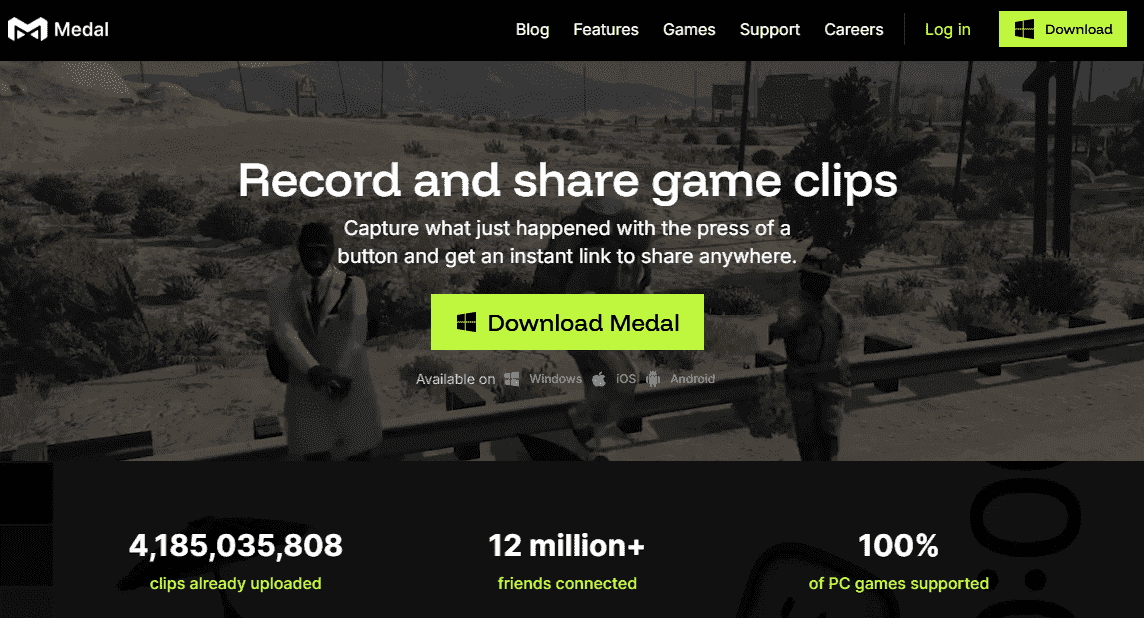
Medal.tv is a screen recording tool widely popular among competitive players. Unlike other screen recorders, Medal.tv runs in the background. When players launch a game, it automatically detects and activates the recording overlay.
Players can click the record button to capture 30-60 seconds of gameplay highlights or longer high-definition videos. Medal.tv also supports recording computer and microphone audio. The software features built-in editing and sharing capabilities, allowing players to upload finished clips as videos or GIFs to platforms like TikTok and Discord to share with friends.
Pros:
- Provide an in-game recording overlay.
- Provide system audio and microphone recording options.
- Support 4K HD recording.
- Support video editing and sharing features.
Cons:
- The recording area cannot be customized.
- Lack of advanced recording features.
#6 FBX Game Recorder
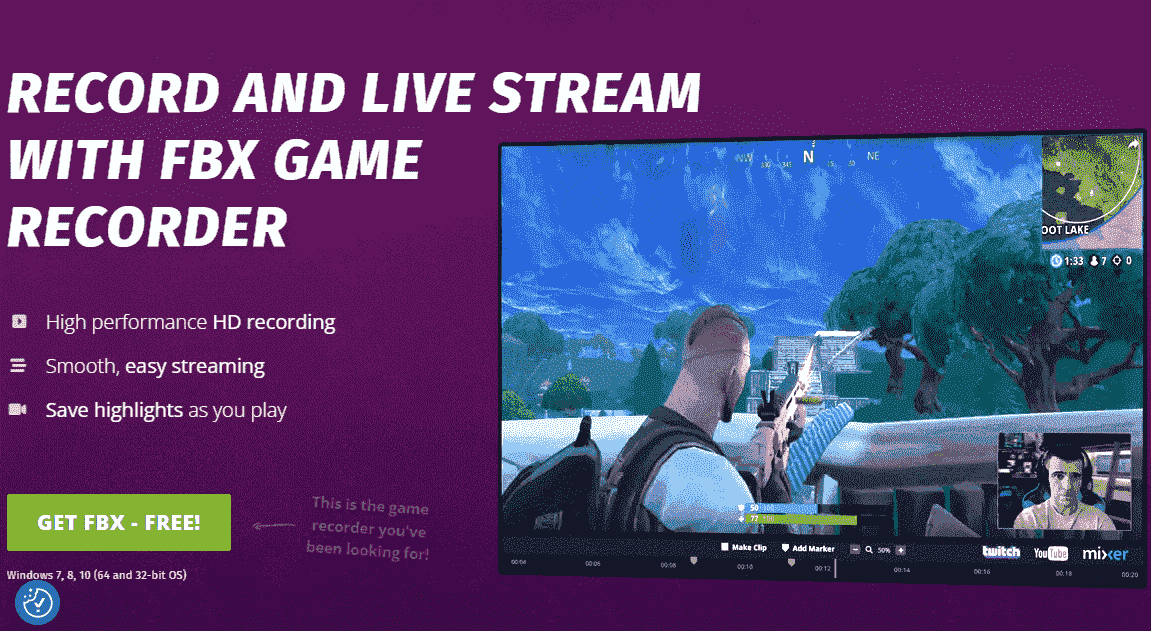
FBX Game Recorder is a lightweight Windows screen recorder that delivers smooth, lag-free gameplay capture. It supports overlaying camera footage during game recording and simultaneously captures both system audio and microphone audio, each with independent volume controls. Additionally, players can capture highlights from the last few seconds of gameplay during recording.
Moreover, FBX Game Recorder’s editing features allow users to add personalized elements such as stickers and GIFs to recorded gameplay videos. It also supports seamless live streaming on platforms like Twitch and YouTube. However, the free version of this tool has a recording time limit and will add a watermark to recorded videos.
Pros:
- Provide a user-friendly interface.
- Utilize advanced hardware accelerators.
- Support webcam recording.
- Provide a built-in editing tool.
Cons:
- The free version has a recording time limit of 15 minutes.
- Recorded videos will be add watermark in the free version.
- Only for Windows users.
The 6 game recorders listed above cater to the needs of users with varying levels of technical expertise. If you prefer not to download any software, you can use the Xbox Game Bar and Snipping Tool. For more advanced recording features, we recommend MiniTool Screen Recorder, Clipchamp, Medal.tv, or FBX Game Recorder.
How to Record Gameplay using a Game Recorder
This section will use MiniTool Screen Recorder as an example to demonstrate how to efficiently record game footage.
Step 1: Download and Install MiniTool Screen Recorder
Click on the button below to download and install the latest version of the MiniTool Screen Recorder.
MiniTool Screen RecorderClick to Download100%Clean & Safe
Step 2: Choose the Recording Area
1. Launch MiniTool Screen Recorder after you install it.
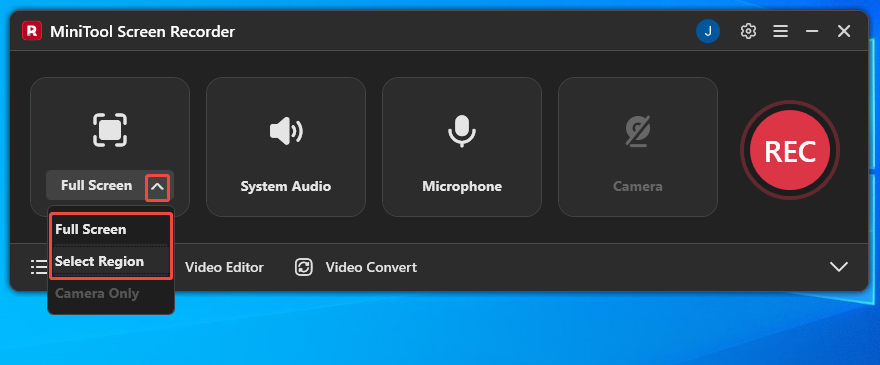
2. The full-recording mode is set by default. If you want to record a specific area, expand the drop-down menu next to the Full Screen option, then select the Select Region option to customize the recording area.
Step 3: Control the Audio
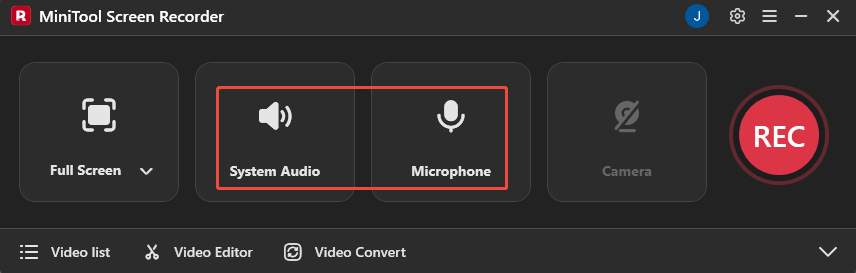
System audio and microphone audio recording features are enabled by default. To disable either option, you just need to click the corresponding icons.
Step 4: Set the Camera Recording
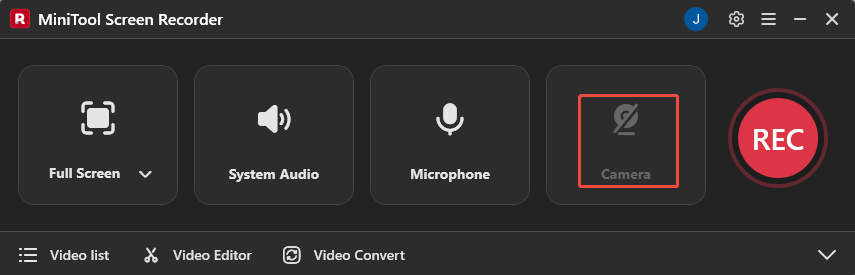
If you want to record exciting gameplay videos with your face visible, click the Camera icon on the right to enable this feature.
Step 5: Start and End Recording
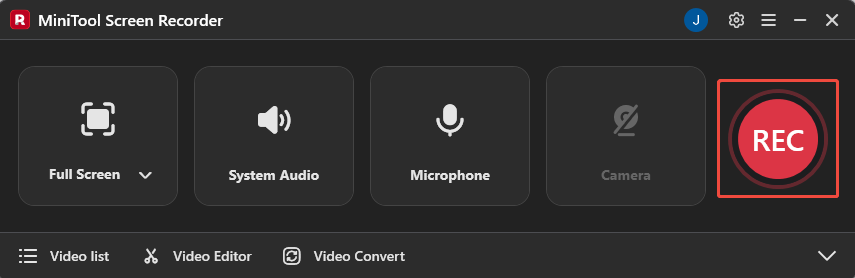
1. When you want to start recording the gameplay, click the REC button on the right side of the main interface or press the F6 key. After a 3-second countdown, it will automatically begin.
2. Play the video game you want to record.
3. If you're recording a game tutorial, you can select the appropriate tool from the annotation toolbar on the right side of the screen during recording to mark key steps.
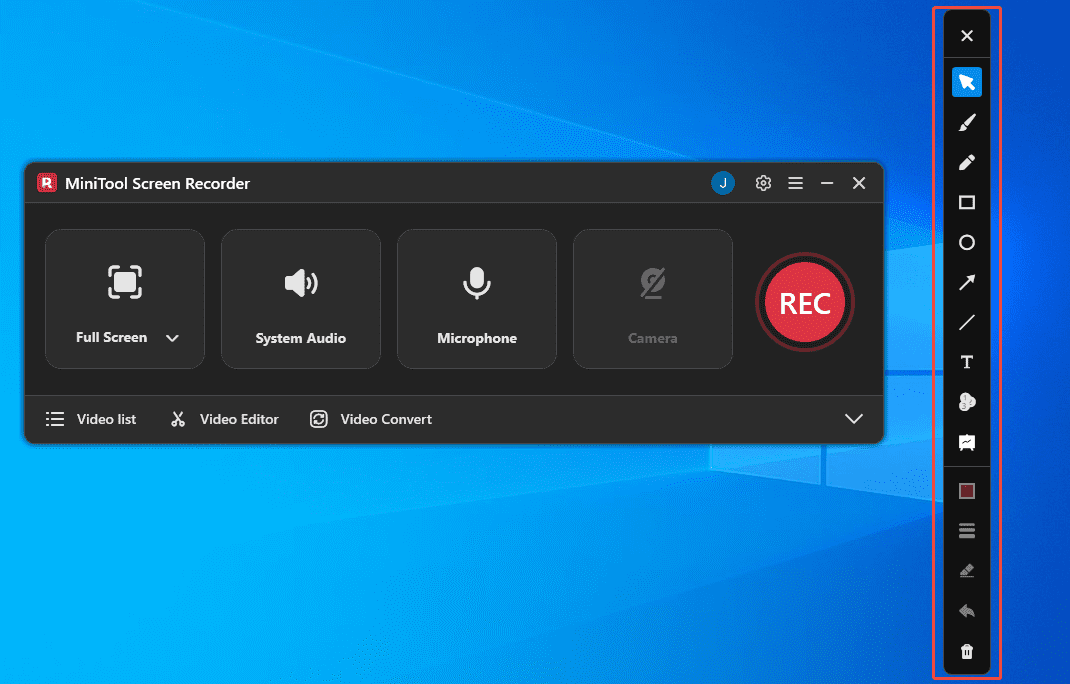
4. When you want to end the recording process, simply press the F6 key again.
Step 6: Check the Recorded Gameplay
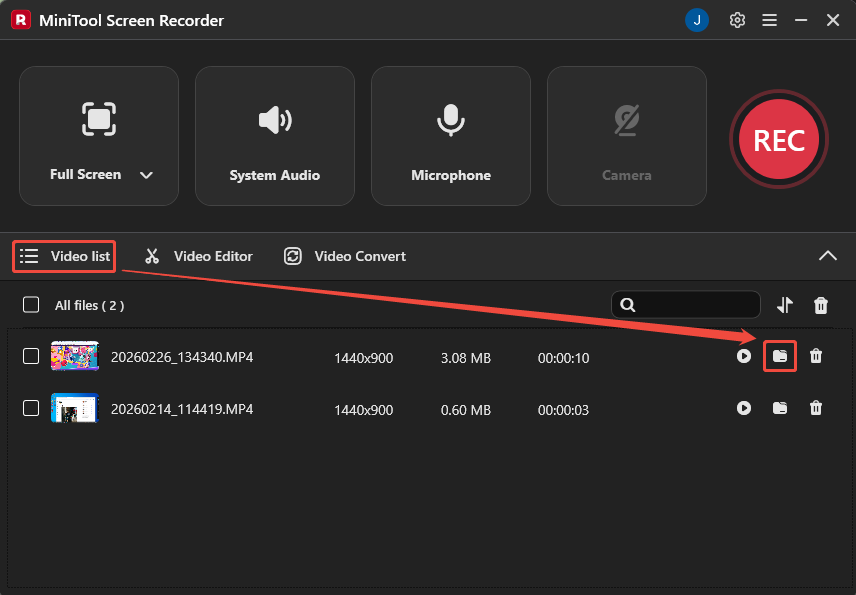
Once the recording is complete, you will be redirected to the Video list section. Then, you can click the folder icon to check the recorded gameplay.
Bonus: How to Edit Gameplay Recording
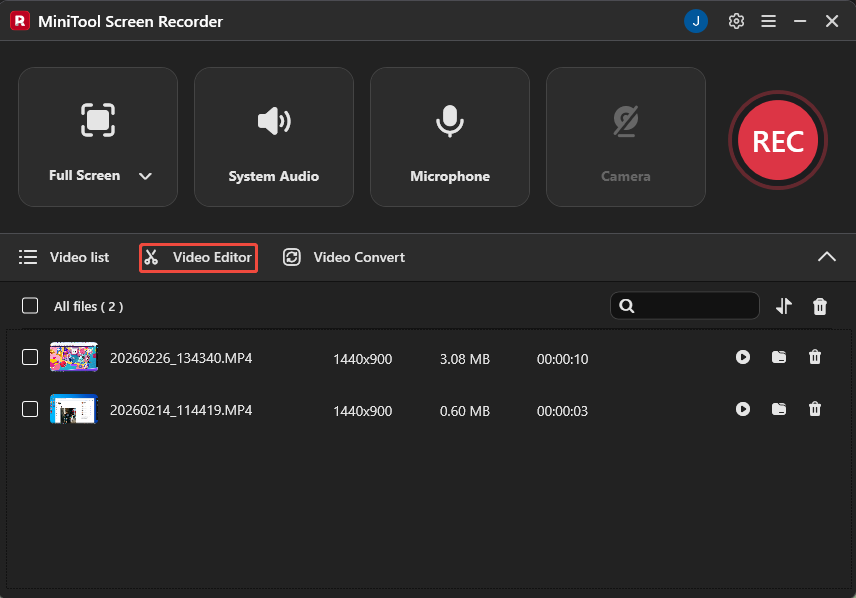
If you need to share recorded gameplay videos on social media platforms to attract more viewers, video editing is an essential step. Now, simply click the Video Editor option on the MiniTool Screen Recorder main interface to get the professional-grade editing tool.
Or, simply click the button below to get this video editor.
MiniTool MovieMakerClick to Download100%Clean & Safe
You can use this editing tool to adjust the video canvas size to meet the requirements of different platforms. Its trimming feature also helps you remove unwanted segments.
Additionally, this tool comes with a rich media library where you can add filters to your recorded gameplay footage, making scene transitions smoother. To create a unique video atmosphere, you just need to apply filters, add background music, and more. After editing, you can customize export settings, including output path, video format, resolution, and frame rate.
Final Words
Using game recorders enables zero-latency capture of high-definition gameplay footage. The 6 tools recommended above each offer distinct features. You need to select the one that best suits your skill level and usage scenario. To create more visually impactful videos, we suggest further refining your recordings with the recommended video editor.
If you encounter any issues while trying out MiniTool Screen Recorder or MiniTool MovieMaker, feel free to email us via support@minitool.com or send me a message on X for assistance.