

Firefox is a free, open-source web browser developed by the Mozilla Foundation, compatible with all major platforms, including Windows, macOS, and Linux. With its flexible user interface, vast library of themes and extensions, and robust security features, Firefox has amassed over a million users.
When capturing browser activity for specific needs, a powerful and professional Firefox screen recording tool becomes indispensable.
When Do You Need a Firefox Screen Recorder
The Firefox Screen Recording Tool is designed to capture various browser activities. Understanding common use cases can also help you choose the right tool.
Create or Watch Online Courses
If you're an online instructor who frequently uses Firefox to create tutorials, Firefox's screen recording tool can help you capture and produce clear instructional content. If you're a learner searching for online courses, you can use screen recording tools to save live or paid courses for offline viewing.
Share Streaming Videos
When you're immersed in exciting games, watching entertaining live streams, or browsing real-time content on streaming platforms like YouTube and TikTok, capturing these moments lets you relive the fun anytime or share the joy with friends and family.
Save Important Website Information
When you need to save website information unavailable for download in Firefox, content frequently deleted by authors, or important details that cannot be shared through simple screenshots, use the Firefox Screen Recording tool to permanently preserve this information for future reference or sharing.
Collaborate Remotely
Remote collaboration often requires screen recording tools. When completing work projects using Firefox, you can capture workflow processes or create clear, intuitive demonstration recordings to share with your team or clients. This not only boosts productivity but also reduces misunderstandings and disputes caused by repeated communication.
What Makes a Good Firefox Screen Recorder
The market is flooded with numerous screen recorders for Firefox. Referencing the following criteria can help you maximize your chances of selecting a high-quality tool.
Ease of Use
An excellent screen recording tool should feature a clean and intuitive interface, allowing users to quickly master its recording functions without repeated learning or trial.
Multiple Recording Mode
A powerful screen recorder for Firefox should also support flexible recording modes. For instance, it should allow users to choose between recording the entire screen or specific areas and windows based on their needs, while supporting simultaneous or separate recording of system audio and microphone audio.
Additionally, it should provide webcam recording functionality to meet users' personalized recording requirements.
High Output Quality
Recorded videos must maintain basic image clarity. Therefore, an excellent screen recording tool should support high-definition recording and allow users to adjust the frame rate and image quality of the output video to ensure video clarity.
4 Desktop Screen Recorders for Firefox
Whether you need basic recording capabilities or want to capture more professional video content, one of the four desktop Firefox screen recorders introduced in this section is sure to meet your needs. They include:
- MiniTool Screen Recorder
- Xbox Game Bar
- Snipping Tool
- Clipchamp
The following is a detailed explanation of their performance.
#1 MiniTool Screen Recorder
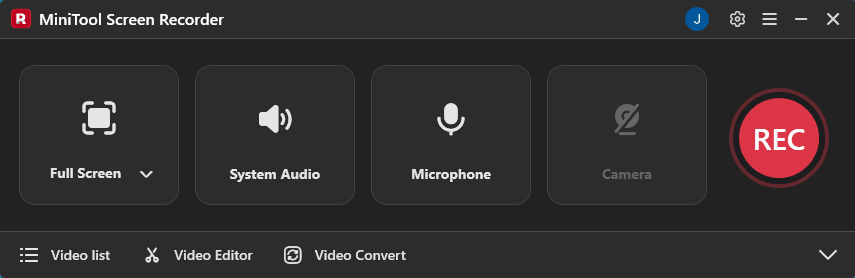
MiniTool Screen Recorder is a Firefox free screen recorder. It supports full-screen recording, region-specific recording, and webcam capture. Users can simultaneously or separately record system audio or microphone audio. MiniTool Screen Recorder also features comprehensive annotation tools to help users create clearer instructional or presentation videos.
Additionally, users can customize recording parameters such as video frame rate, quality, and recording hotkeys, while also adjusting the webcam's position, size, and shape. Notably, MiniTool Screen Recorder supports unlimited recording duration and exports watermark-free MP4 format videos.
In short, MiniTool Screen Recorder meets basic recording needs while also providing advanced solutions for professionals seeking more complex functionality.
Pros:
- No watermark.
- No ads.
- No recording time limits.
- Support flexible recording mode.
- Support multiple recording frame rates.
- Support 4k HD recording.
- Provide a convenient screen annotation tool.
- Support capturing all activities on the screen.
Cons:
- Only for Windows users.
#2 Xbox Game Bar
The Xbox Game Bar is a free built-in overlay for Windows that lets players record gameplay, capture screenshots, and chat. While primarily designed for gamers, it also serves as a convenient screen recording tool for any application. Users simply press the Windows + G key to instantly activate capturing gameplay, application interfaces, or browser interfaces like Firefox.
Additionally, the Xbox Game Bar enables users to simultaneously record both system audio and microphone audio. While it lacks more advanced recording features, it is sufficient for everyday recording needs. What’s more, its user-friendly interface allows users to quickly master recording methods.
Pros:
- Easy to use.
- Completely free.
Cons:
- Recording time is limited.
- Does not support recording the desktop.
- Limited to Windows 10/11 users.
#3 Snipping Tool
The Snipping Tool also helps users capture Firefox browser interfaces. While previously known primarily for its screenshot capabilities, the release of Windows 11 introduced convenient screen recording functionality. Users can record full screens, selected areas, and application windows while simultaneously capturing audio.
Additionally, Snipping Tool features built-in editing capabilities, allowing users to trim videos after recording or enhance professionalism by adding filters, text, and other elements. Once editing is complete, users can directly share the generated link for others to view, significantly boosting work efficiency.
Pros:
- Easy to use.
- Provide a built-in video editing tool.
- Support multiple selections of the recording area.
Cons:
- Lack of advanced recording features.
- The screen recording feature is only available for Windows 11 users.
#4 Clipchamp
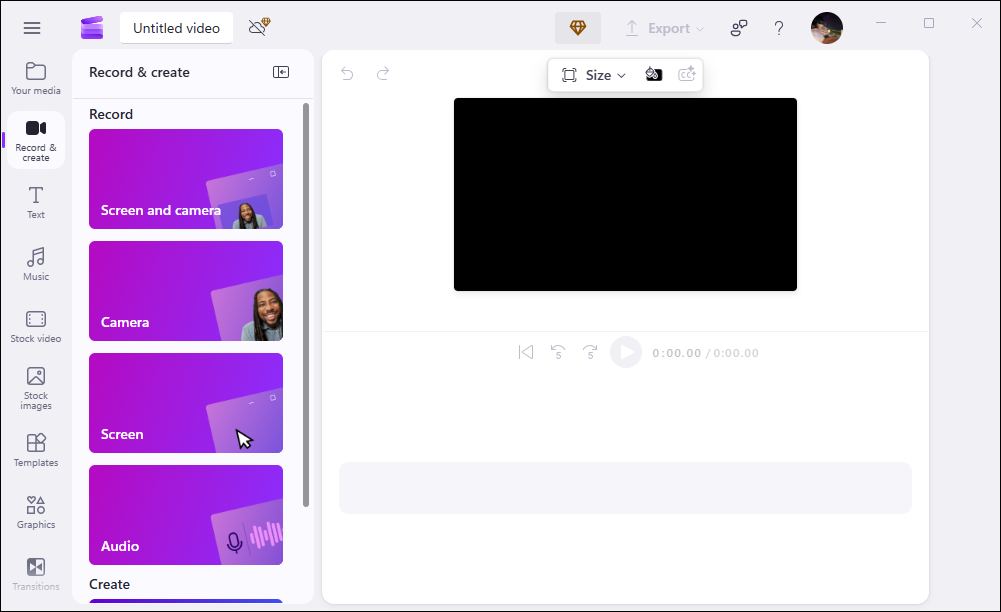
Clipchamp is also the best screen recorder for Firefox. This screen recording and video editing tool functions both as a desktop application and via its web service. It supports simultaneous or separate recording of screen and webcam footage while capturing audio.
Users can choose to record the entire screen, a custom region, or a single application. After recording, the built-in editing tools allow for video optimization. What’s more, users can directly link their Clipchamp account to their YouTube, TikTok, and LinkedIn accounts, then share recorded content to these platforms with just one click.
Pros:
- Easy to use.
- Support flexible recording modes.
- Support direct sharing of recorded content to streaming platforms.
- Provide a built-in video editing tool.
Cons:
- Exported options can be limited for the free version.
- The maximum recording duration per session is 30 minutes.
In summary, each of the four Firefox screen recorders above has its own strengths and weaknesses. Xbox Game Bar and Snipping Tool are suitable for users of basic level, while MiniTool Screen Recorder and Clipchamp are better suited for all skill levels. You can choose the one that best fits your needs.
2 Screen Recorder Extensions for Firefox
If you prefer not to install any software, you can also record Firefox screen using the two extensions below:
- Nimbus Screenshot & Screen Video Recorder
- Awesome Screenshot & Screen Recorder
Below is a description of the features of these two tools.
#1 Nimbus Screen Recorder
Nimbus Screen Recorder is a completely free screen recorder extension for Firefox. It enables users to capture high-definition images and record entire webpages or specific areas within the Firefox browser.
After completing a video recording, users can directly utilize its built-in editing tools within the browser to add elements like arrows and stickers to the recorded content. Additionally, a blur tool is available to obscure sensitive information. Moreover, Nimbus Screen Recorder enables users to directly upload recorded content to Nimbus Note, Slack, Dropbox, or Google Drive after recording.
Pros:
- Easy to use.
- Support annotating and editing the recordings.
- Allow saving the recordings to the cloud storage.
Cons:
- Lack of advanced recording features.
- Does not support recording the desktop.
#2 Awesome Screen Recorder & Screen Capture
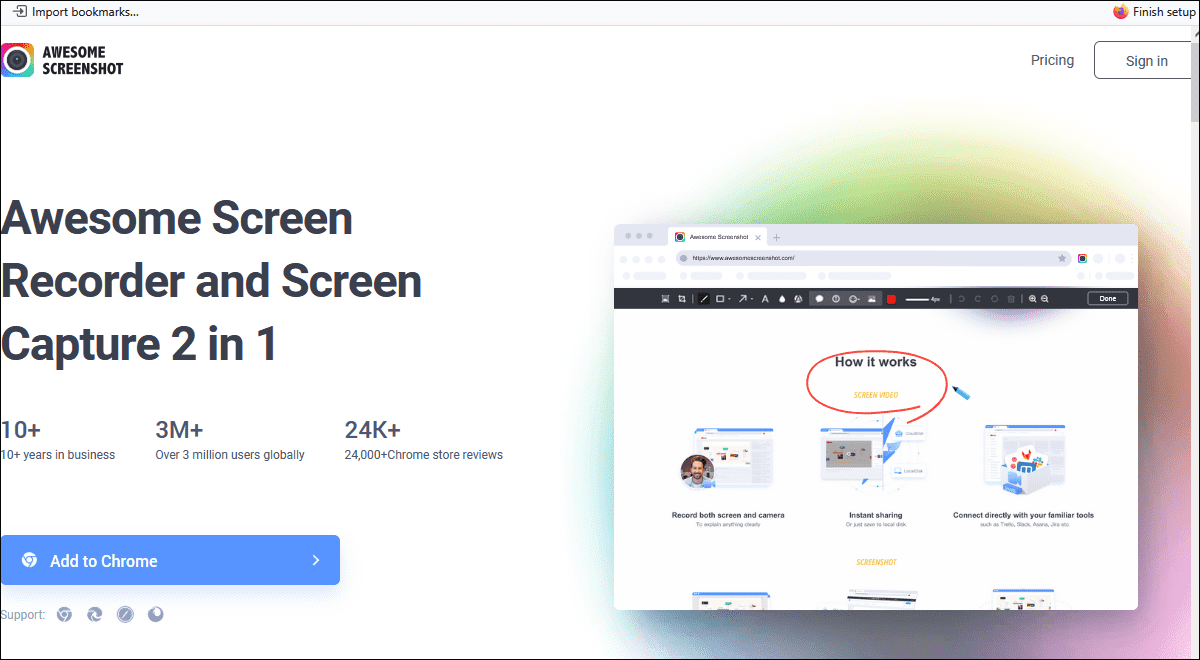
Awesome Screen Recorder & Screen Capture is another Firefox screen recording extension worth trying. It supports capturing the entire browser window or specific regions, and can also record webcam footage. After recording, you can instantly share the generated link. Premium accounts can share recorded videos directly on platforms like Jira, GitHub, and Asana.
Pros:
- Provide flexible recording modes.
- Provide a built-in editing tool.
Cons:
- The free version has a recording time limit.
The two convenient screen recording extensions mentioned above can meet users' needs for simple recording methods. However, please note that some features may be restricted based on your account version. Therefore, you can decide whether to upgrade your account after trying them out.
How to Record Screen with a Firefox Screen Recorder
After exploring these six excellent screen recorders for Firefox, we'll use MiniTool Screen Recorder as an example to show you how to easily capture content within the Firefox browser. Below is a step-by-step guide for your reference.
Step 1: Get MiniTool Screen Recorder
Click on the button below to download and install MiniTool Screen Recorder on your PC.
MiniTool Screen RecorderClick to Download100%Clean & Safe
Step 2: Select the Recording Area
1. Launch MiniTool Screen Recorder.
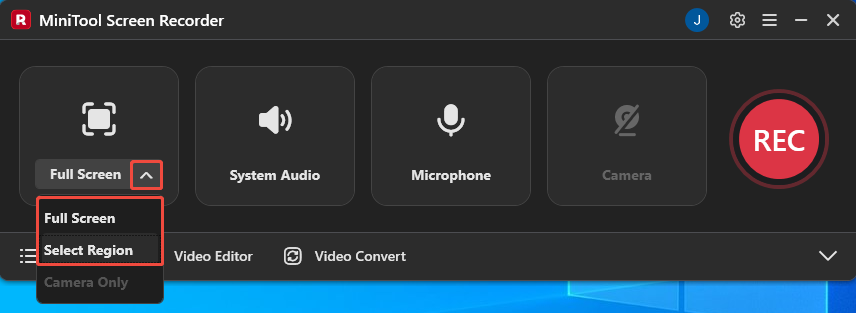
2. Expand the drop-down menu of the Full Screen option.
3. Click on the Full Screen option or the Select Region option to determine whether to record the entire screen or the specific area.
Step 3: Control the Audio Recording
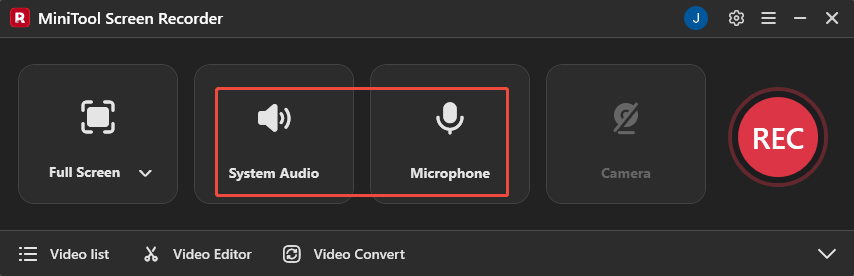
Click on the System Audio icon or the Microphone icon to decide whether to record the audio from the system or the microphone.
Step 4: Set the Camera Recording
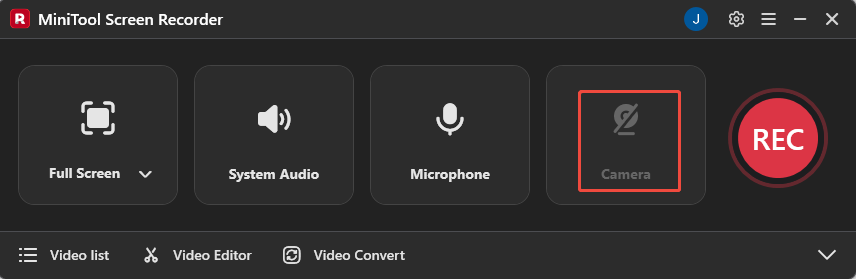
If you want to record the Firefox content with your face, simply click on the Camera icon on the right.
Step 5: Start Recording
1. Make sure the Firefox content you want to record is ready.
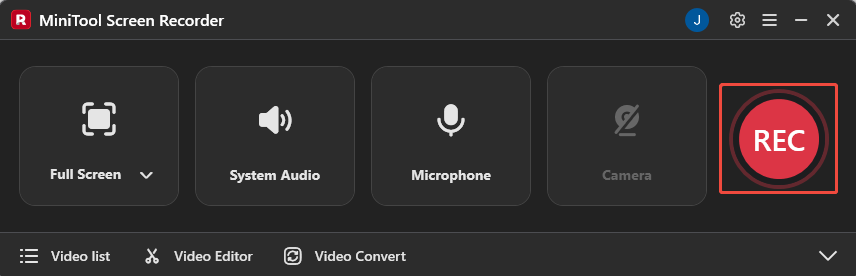
2. When you want to start the recording process, click on the REC button on the right side of the main interface or press the F6 key. After a 3-second countdown, it will start automatically.
3. You can press the F9 key to pause or resume the recording process.
Step 6: Annotate the Screen
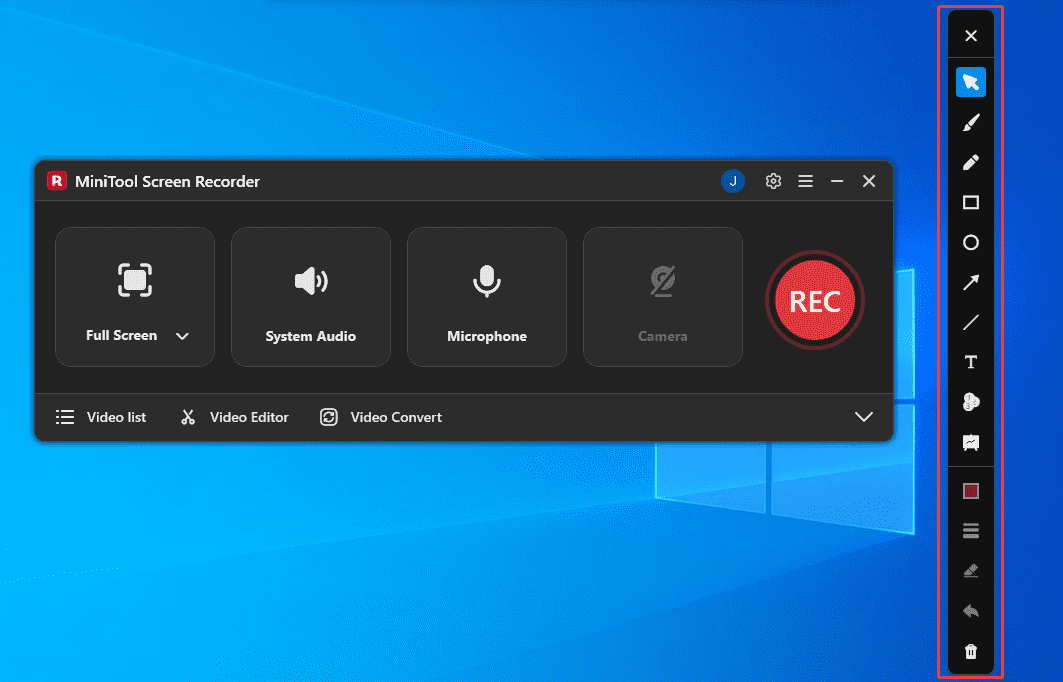
If you want to annotate the screen while recording, you can select the appropriate annotation shapes from the drawing tool panel on the right side of the screen.
Step 7: End Recording
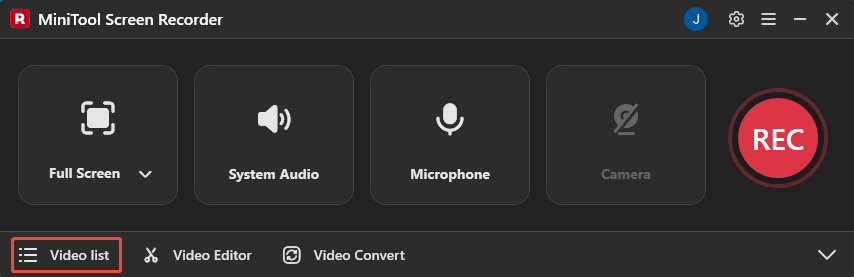
If you want to end the recording process, press the F6 key again. Then, you can check the recorded video under the Video list section.
![How to Record on Steam without Lag [3 Efficient Methods]](https://images.minitool.com/recorder.minitool.com/images/uploads/2026/02/how-to-record-on-steam-thumbnail.jpg)
Bonus: How to Polish Your Recordings
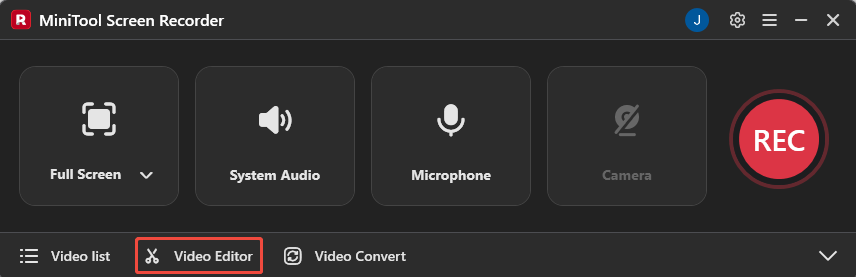
Optimizing your recordings significantly enhances visual quality, regardless of what you capture in Firefox. Now, you can click on the Video Editor option on the MiniTool Screen Recorder main interface to get the professional-grade video editing tool.
Or click the button below to get this editing tool directly.
MiniTool MovieMakerClick to Download100%Clean & Safe
This video editing tool boasts powerful editing features, including rotating, reversing, cropping, splitting, and trimming. You can also enhance your videos by adding filters, transitions, effects, text, and more.
Additionally, this tool supports multi-track editing, allowing you to layer videos, images, music, and other elements. What’s more, this editing tool supports multiple export formats, including MP4, AAC, MP3, WAV, MKV, MOV, and more.
Final Words
Choosing the right Firefox screen recorders depends on your specific needs. MiniTool Screen Recorder and Clipchamp are suitable for users who need advanced recording features, while those with basic daily recording needs can use the Xbox Game Bar and Snipping Tool. If you prefer not to download any software, you can use the 2 screen recording extensions mentioned above.
Additionally, using the video editor recommended in this article can make your recordings look more professional. If you encounter any issues while using MiniTool Screen Recorder or MiniTool MovieMaker, you can reach out for assistance by emailing us via support@minitool.com or sending a message on X.