

Minecraft is a sandbox game featuring blocks, creatures, and players. Players can use blocks to build all kinds of structures, or team up with friends to fight off creatures. The game has no set objectives, giving players complete freedom to unleash their creativity to construct structures.
As a seasoned Minecraft player, I’ve built structures and worlds that reflect my unique personality. Now, I want to document my building process and share it on social media to attract more viewers. Considering the game’s performance and video quality during recording, I tested various recording methods one by one. Ultimately, I narrowed it down to two methods that meet my recording needs.
How to Record Minecraft
Among the methods available, one involves using the replay mod designed for Minecraft, while the other utilizes a more feature-rich third-party video recorder: MiniTool Screen Recorder. Below is a detailed explanation of how to record Minecraft gameplay on PC with them.
#1 Use Minecraft Replay Mod
Most games feature a replay function, so I first searched to see if Minecraft included such a mode. Upon investigation, I discovered that the game itself does not have this feature; however, it is possible to record Minecraft gameplay by utilizing a compatible replay mod.
The Minecraft Replay Mod allows me to record gameplay and watch the recorded videos from any angle. Although the mod works by saving game data, unlike other replay modes, this data can also be shared as a video stream across various platforms.
Here are the steps on how to record Minecraft using the Minecraft Replay Mod.
Step 1: Download Replay Mod
1. Go to Fabric and download the Replay Mod installer file.
2. Then, launch Minecraft Launcher and install it on the PC.
Step 2: Start and End Recording
1. Open Minecraft and enter a world.
2. Press the Esc key to enter the Game Menu. Then, click on the Start Recording option in the bottom right corner.
3. Perform game actions.
4. To end the recording process, press the Esc key again and click on the Stop Recording option.
Step 3: Check the Recorded Minecraft Video
1. Go to the main menu of Minecraft and switch to the Replay Reviewer section.
2. Select the recorded video and click the Load option to play it.
Although the Replay Mod allows me to record videos with cinematic-quality graphics, it does not record audio by default. To record it, there is a need to install a separate plugin. As such, I’ve also selected a more comprehensive Minecraft screen recorder, MiniTool Screen Recorder, which offers more flexible recording options.
#2 Use MiniTool Screen Recorder
Based on my testing, MiniTool Screen Recorder is the best way to record Minecraft gameplay. It supports unlimited recording duration; I’ve used it to record several hours of Minecraft without ever experiencing lag or crashes. In addition to full-screen recording, MiniTool Screen Recorder also allows me to record specific regions and windows, which makes it easy to edit out cluttered elements later.
With MiniTool Screen Recorder, I can also capture both system audio and microphone audio. Moreover, this tool’s webcam recording feature allows me to record gameplay videos that show my facial reactions. Another feature I find particularly useful is the annotation tool, which lets me circle key points directly on the screen while explaining game controls.
Step 1: Get and Launch MiniTool Screen Recorder
Click the button below to download MiniTool Screen Recorder. Then, follow the prompts to install it on the PC. Next, Launch MiniTool Screen Recorder.
MiniTool Screen RecorderClick to Download100%Clean & Safe
Step 2: Choose the Recording Area
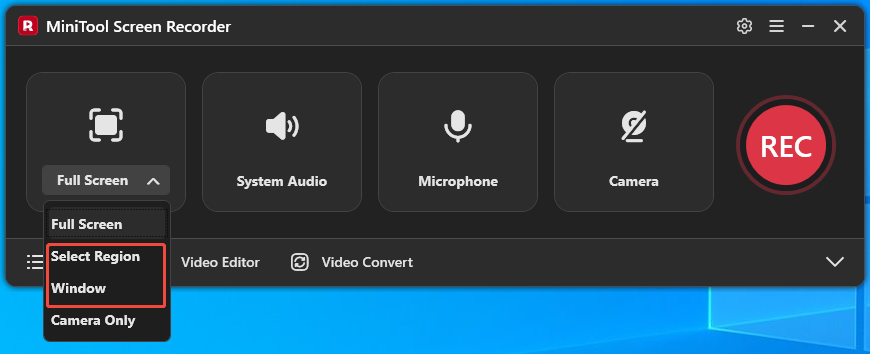
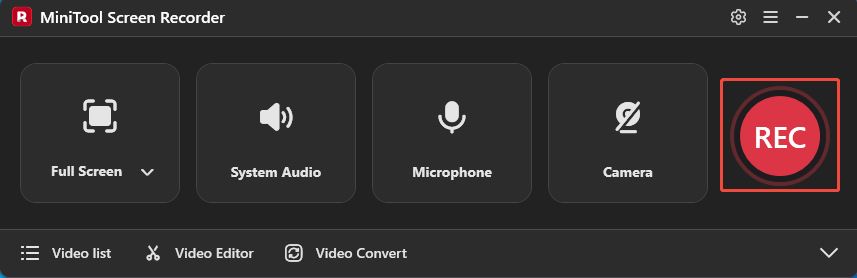
1. MiniTool Screen Recorder records full-screen by default.
2. To capture the specific region or window, expand the dropdown menu of the Full Screen option. Then, click the Select Region option or the Window option.
Step 3: Set the Audio Recording
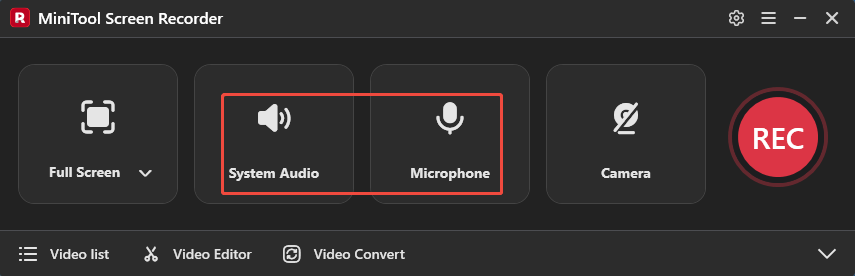
The system audio and microphone recording features are enabled by default. To disable these functionalities, click on the System Audio icon and the Microphone icon respectively.
Step 4: Control the Camera Recording
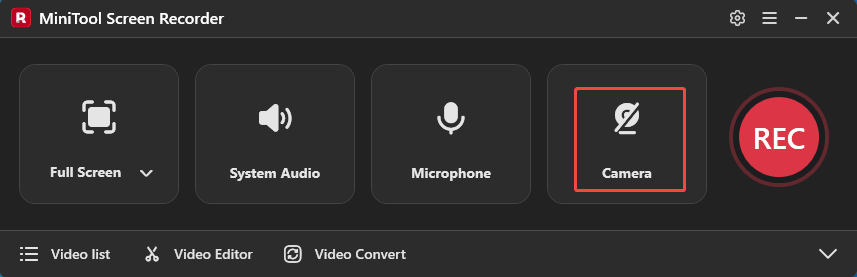
To screen record with the webcam footage, click the Camera icon on the right to enable it.
Step 5: Start and End Recording
1. To start the recording process, click the REC button or press the F6 key. After a 3-second countdown, play Minecraft on the PC.
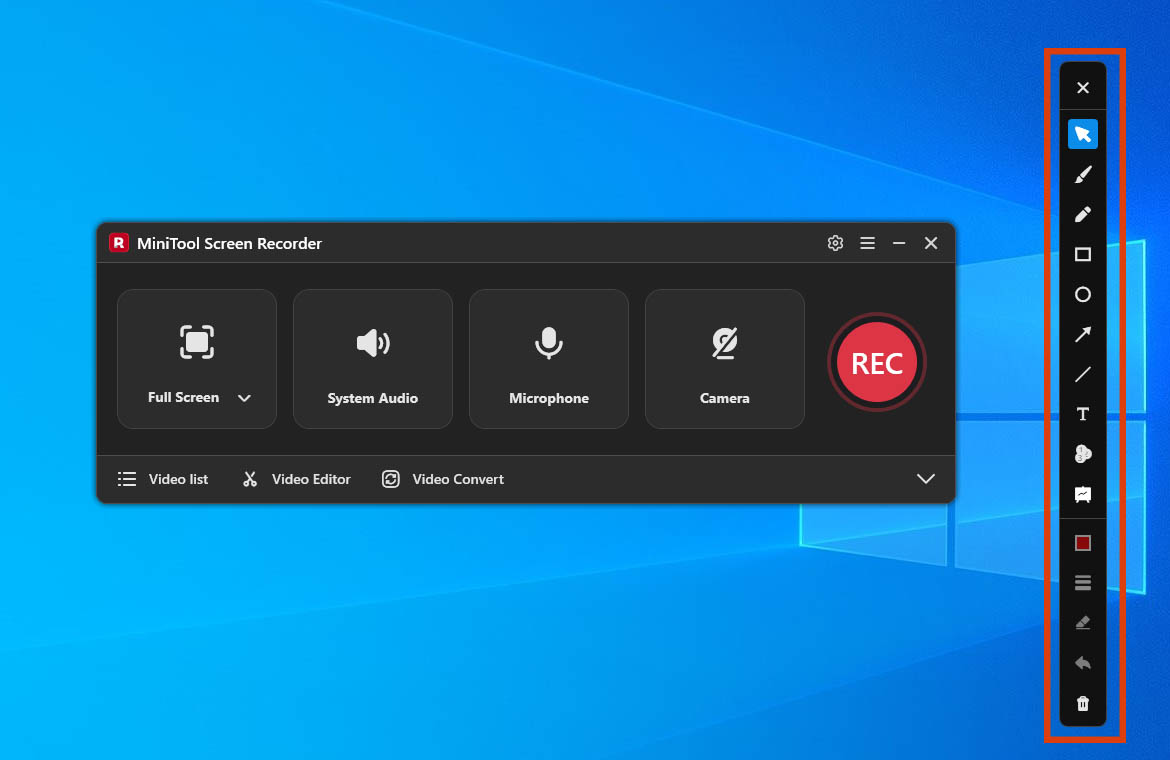
2. For the game tutorial videos I recorded, I also utilized the markup tool from the annotation toolbar on the right side of the screen to highlight key steps.
4. To end the recording process, press the F6 key again.
Step 6: Check the Recorded Minecraft Video
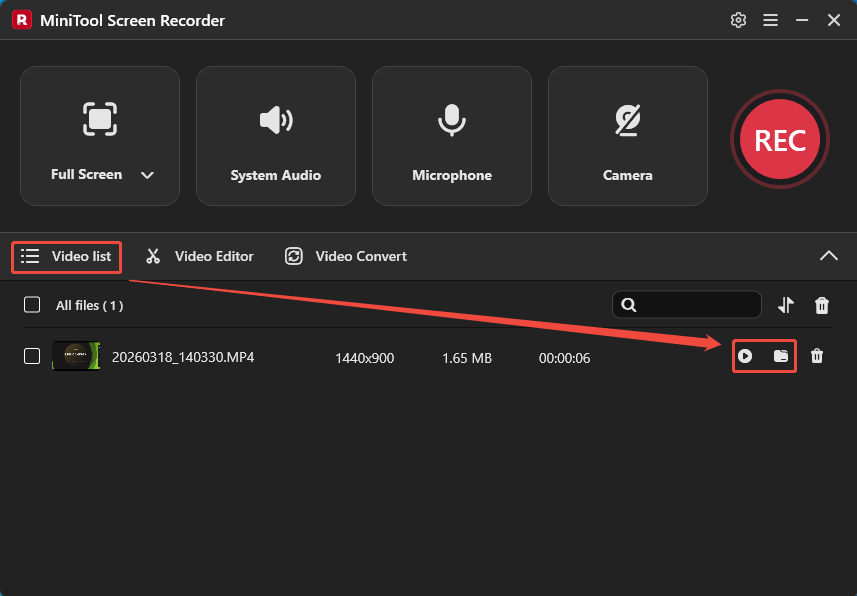
1. When the recording process ends, MiniTool Screen Recorder will switch to the Video list section.
2. Then, click the Play icon to check the recorded Minecraft video and click the Folder icon to locate it.
I also tried using MiniTool Screen Recorder to record other activities and found it to be an effective tool for capturing online meetings, video calls, live streams, webinars, and more.
Bonus: How to Edit Minecraft Screen Recordings
Before sharing, I typically edit my recorded videos to attract more viewers. I often use MiniTool MovieMaker for this task. Obtaining the software is quite simple: just click the Video Editor option on the main interface of MiniTool Screen Recorder.
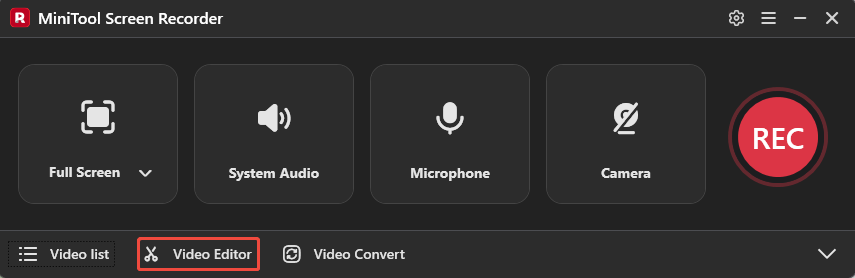
Alternatively, you can download it directly by clicking the button below.
MiniTool MovieMakerClick to Download100%Clean & Safe
I usually use MiniTool MovieMaker to trim the opening intro and then edit the highlights together. This tool also allows me to add background music to set the mood. In addition, MiniTool MovieMaker lets me add subtitles to the video based on the audio and apply filters, transitions, and other effects to the entire video.
Furthermore, MiniTool MovieMaker also supports a variety of mainstream formats, including MP4, MKV, MOV, WebM, GIF, and more.
Bottom Line
How to record Minecraft? This article offers 2 proven methods, including using Minecraft Replay Mod or MiniTool Screen Recorder. It also explains how to optimize the recorded video for sharing with MiniTool MovieMaker, thereby attracting more viewers.
If you run into any issues when trying out MiniTool Screen Recorder or MiniTool MovieMaker, send an email to support@minitool.com.