

How to Record on Roblox with ease? This article recommends 3 reliable methods, including using Roblox’s built-in game recorder, MiniTool Screen Recorder, and the Xbox Game Bar, to help you achieve that. Additionally, you will also receive a guide to optimizing your recorded content.
What Is Roblox
Roblox is an online gaming platform and game creation system launched in 2006 by David Baszucki and Erik Cassel. It offers a wide variety of game genres for players to choose from, including obstacle courses, role-playing games, racing games, and prison escape games.
Additionally, players can unleash their creativity through Roblox Studio to create new games and share them with others to play and experience.
How to Record on Roblox
Many Roblox players want to share their gameplay highlights with others or post them on social media. This section will teach you how to screen record on Roblox with ease.
#1 Use Roblox Built-in Game Recorder
Roblox provides players with built-in game recording functionality. Players can initiate recording directly during gameplay, with recordings saved to their device in MP4 format. After recording, players can instantly share their content with other Roblox users.
Here is a step-by-step guide on how to record a Roblox video using its built-in game recorder.
Step 1: Open Roblox and Play the Game
Launch Roblox on your computer and make sure the game you want to record is ready.
Step 2: Start Recording
1. During gameplay, press the Esc key on your keyboard to open the in-game menu.
2. Within the menu bar interface, click on the Captures option in the top menu bar.
3. Then, click on the Record Video option under the Captures module to start the recording process.
Step 3: End Recording
When you want to end the recording process, simply press the F12 key on your keyboard.
Although Roblox's built-in recording feature offers players a convenient way to capture gameplay footage, its maximum recording duration is limited to 30 minutes. Players requiring longer recording times will need to utilize third-party recording tools with advanced capabilities. Below is one such tool we've carefully selected for you.
![How to Record Messenger Calls Efficiently [Step-by-Step Guide]](https://images.minitool.com/recorder.minitool.com/images/uploads/2026/04/record-messenger-calls-thumbnail.jpg)
#2 Use MiniTool Screen Recorder
MiniTool Screen Recorder is the best screen recorder for Roblox, which maximizes gamers' needs for advanced recording features. It allows users to record videos of unlimited duration for free and offers preset recording times to free up their hands.
It also supports flexible recording modes, capturing either the entire screen or specific areas, while enabling simultaneous or separate recording of system audio and microphone audio. Additionally, users seeking to create engaging picture-in-picture videos can leverage its built-in webcam recording functionality.
What’s more, MiniTool Screen Recorder features built-in annotation tools to help users create more professional instructional or tutorial videos. Notably, recorded videos are saved in MP4 format without any watermarks added to the content.
Now, you can follow the detailed instructions to record a Roblox video using MiniTool Screen Recorder.
Step 1: Download and Install MiniTool Screen Recorder
Click on the button below to download MiniTool Screen Recorder. Then, follow the prompts to install it on your computer.
MiniTool Screen RecorderClick to Download100%Clean & Safe
Step 2: Select the Recording Area
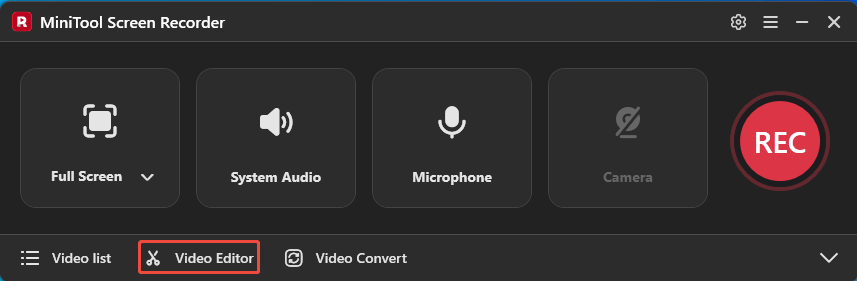
1. Launch MiniTool Screen Recorder after you install it.
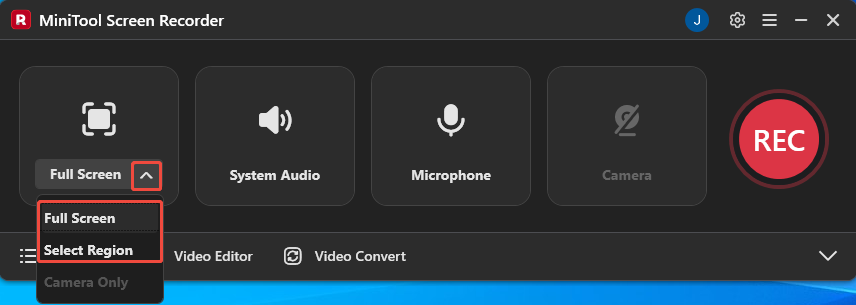
2. Expand the drop-down menu next to the Full Screen option.
3. Then, click on the Full Screen to record the entire screen; or, click on the Select Region to select the specific area you want to record.
Step 3: Control the Audio Recording
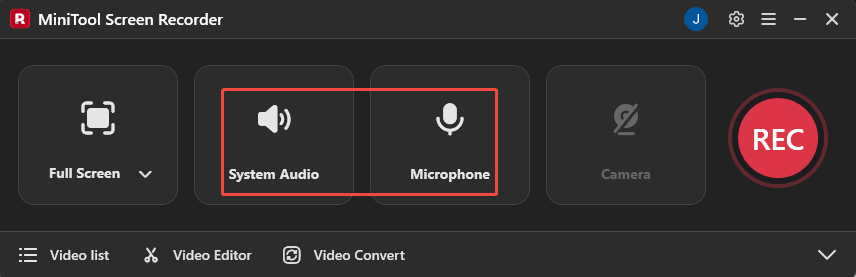
Click on the System Audio icon or the Microphone icon to determine whether to record the audio from the system or the microphone.
Step 4: Set the Camera Recording
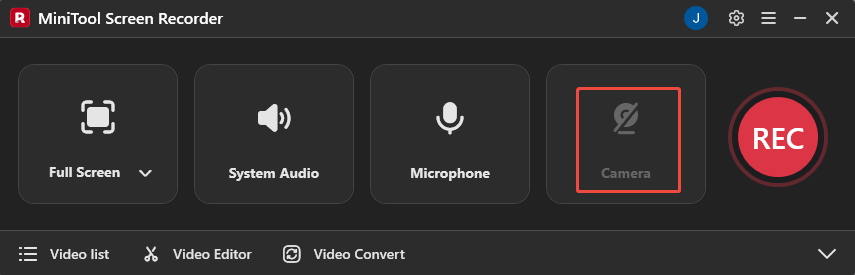
If you want to record your face when playing the game, you can click on the Camera icon on the right to enable the webcam recording feature.
Step 5: Start and End Recording
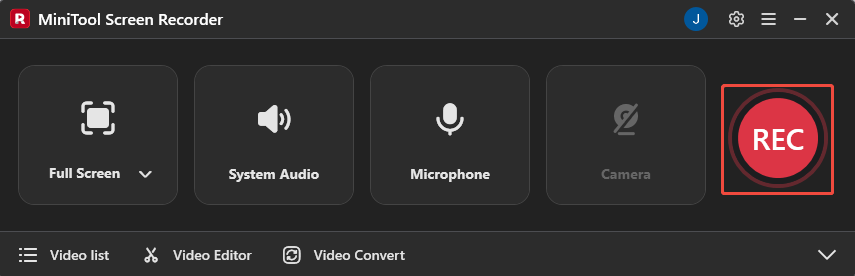
1. When you want to start the recording process, click on the REC button on the right side of the main interface or press the F6 key. After a 3-second countdown, it will automatically begin.
2. Play the game you want to record.
3. If you're recording a Roblox game tutorial, you can select shapes from the annotation toolbar on the right side of the screen during recording to mark key steps.
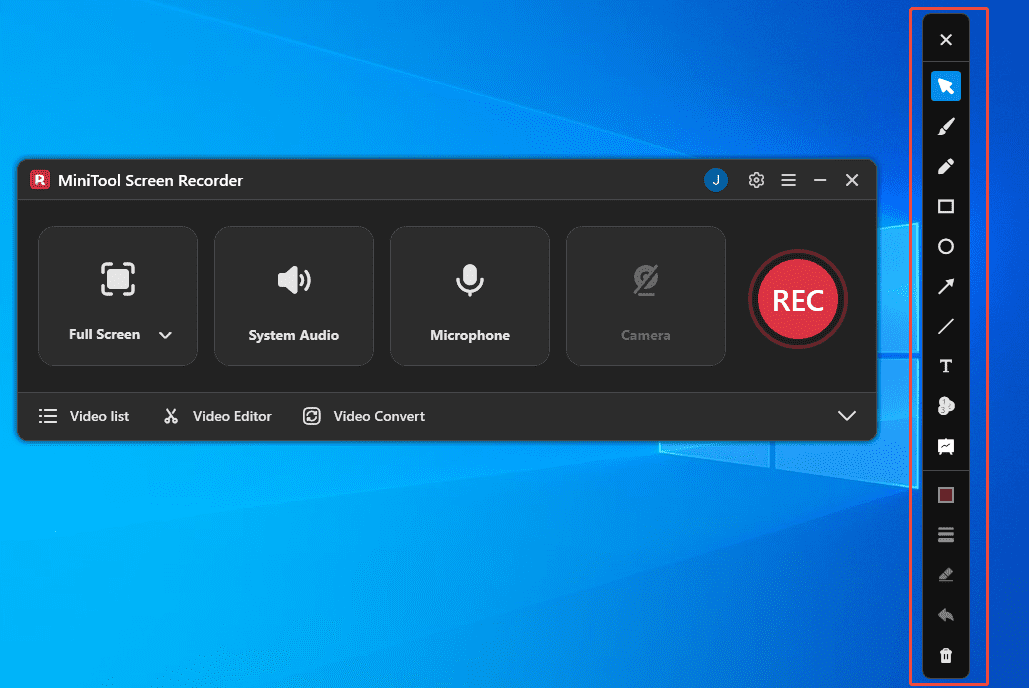
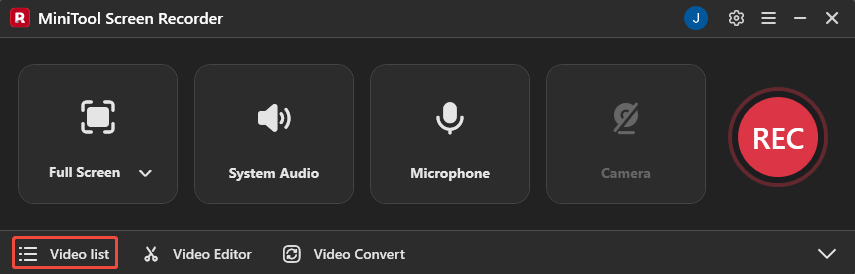
4. To end the recording process, press the F6 key again. Then, you can check the recorded video under the Video list module.
#3 Use Xbox Game Bar
If you only need basic recording functionality and prefer not to download any software, we recommend using this convenient Roblox recorder, the Xbox Game Bar. This is a built-in overlay tool designed specifically for gamers in the Windows system, supporting screen recording, screenshots, interacting with friends on your channel, and more.
Below is the detailed recording process on how to record a Roblox video using Xbox Game Bar.
Step 1: Launch the Game
Make sure the game you want to record is ready.
Step 2: Open Xbox Game Bar
Press the Windows + G key on your keyboard to launch the Xbox Game Bar.
Step 3: Start and End Recording
1. In the Capture panel, click on the Start recording icon or press the Windows + Alt + R key to start the recording process.
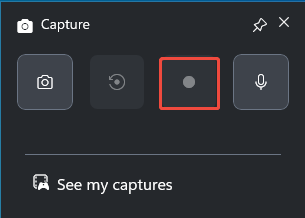
2. Play the game you want to record on Roblox.
3. To end the recording process, press the Windows + Alt + R key again.
In short, all three methods above can easily record Roblox content. However, if you need a tool that meets basic requirements while also handling professional-grade screen recording tasks, we recommend choosing MiniTool Screen Recorder.
Bonus: How to Edit Your Recordings
After completing your recording, you can optimize and edit your recorded content to achieve better visual effects. Now, click the Video Editor option at the bottom of the MiniTool Screen Recorder main interface to get the professional video editing tool.
Alternatively, click the button below to get this video editing tool directly.
MiniTool MovieMakerClick to Download100%Clean & Safe
This video editing tool features functions such as cropping, splitting, reversing, and rotating. Its extensive media library also supports enhancing the professional quality of recorded videos through filters, transitions, effects, text overlays, and more.
You can also select suitable background music for screen recordings from the tool's built-in music library. Additionally, it offers multiple video export format options, including MP4, MOV, MKV, GIF, AVI, and more.
Final Words
How to record on Roblox? This article offers three solutions. For users with basic screen recording needs, the built-in recording feature within Roblox and the Xbox Game Bar can be utilized. Users requiring advanced recording capabilities should consider using MiniTool Screen Recorder.
Additionally, the recording optimization guidelines provided in this article can help you create professional-grade videos. If you encounter any issues while trying out MiniTool Screen Recorder or MiniTool MovieMaker, feel free to email us via support@minitool.com or send me a message on X for assistance.