

How to record Messenger calls without lag? Messenger does not offer a built-in screen recording feature. Therefore, to accomplish this task, I recommend using a third-party screen recorder, such as MiniTool Screen Recorder.
Messenger is a free instant messaging app developed by Meta, available on Windows, Mac, Android, and iOS. The app is currently available in both desktop and mobile versions. Users can make voice and video calls with contacts in their address book via Messenger, and send text messages, photos, and videos at any time within the chat interface.
I’ve been using Messenger for years, and lately I’ve been calling my colleagues frequently to discuss work matters. For some reason, I’d like to capture the calls so I can review them later. However, I’ve just discovered that Messenger doesn’t have a built-in recording feature.
So, can I record a Messenger calls yet? The answer is yes. I tried using a third-party screen recording tool and finally managed to record one.
Preparations Before Recording Messenger Calls
Before I explain how to record a call, I’ve put together some tips to help get better-quality recordings of Messenger calls.
#1 Connect to A Stable Network
Maintaining a stable internet connection is the most critical factor. This not only prevents Messenger calls from stuttering or experiencing lag, but also ensures that recorded videos are of the highest quality.
#2 Keep the Camera Lens Clean
Keeping the camera lens clean ensures that the recorded footage is clear and sharp. Hence, before recording, I usually wipe the lens with a lens cloth or a clean tissue to ensure the final video quality.
#3 Stay in A Quiet Environment
Since my calls are mostly work-related, I always find a quiet place beforehand to make sure everything goes smoothly. This ensures there is no background noise in the recorded video.
How to Record Messenger Calls
When I realized that Messenger didn’t have a built-in screen recording feature, my first thought was to use a third-party screen recording tool. As it happened, I was already using a free video recorder called MiniTool Screen Recorder for work. After trying it out, I found it to be the best Messenger call recorder.
How to Record Messenger Calls with MiniTool Screen Recorder
Here are the step-by-step guides on how to record Messenger video calls using MiniTool Screen Recorder:
Step 1: Download and Install MiniTool Screen Recorder
MiniTool Screen RecorderClick to Download100%Clean & Safe
Click the button above to download MiniTool Screen Recorder. Then, follow the prompts to install it on the PC.
Step 2: Choose the Recording Area
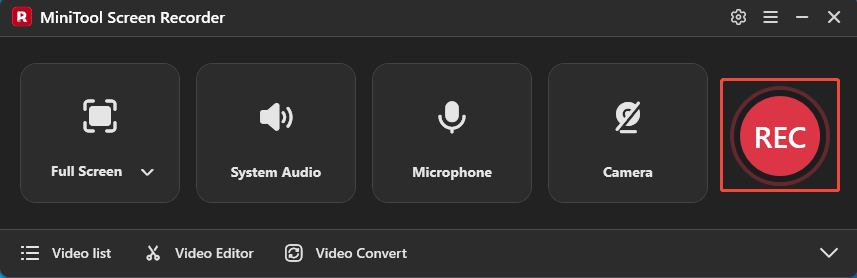
1. Launch MiniTool Screen Recorder.
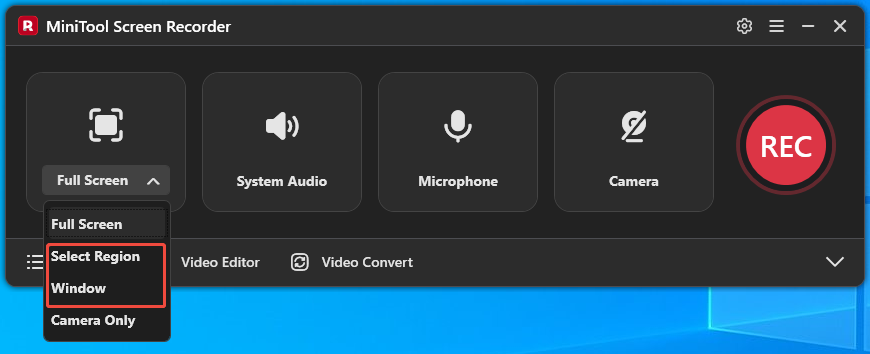
2. By default, MiniTool Screen Recorder records full-screen. To capture a specific region or window, expand the drop-down menu next to the Full Screen option.
3. Then, choose the Select Region option or the Window option.
Step 3: Configure Audio Recording Settings
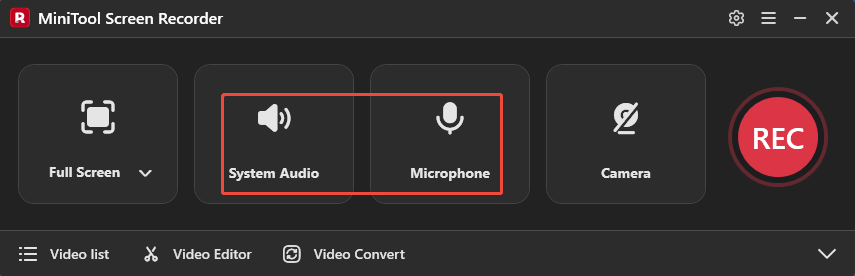
The system audio and microphone audio recording features are enabled by default. To turn them off, click the System Audio icon and the Microphone icon, respectively.
Step 4: Control Camera Recording
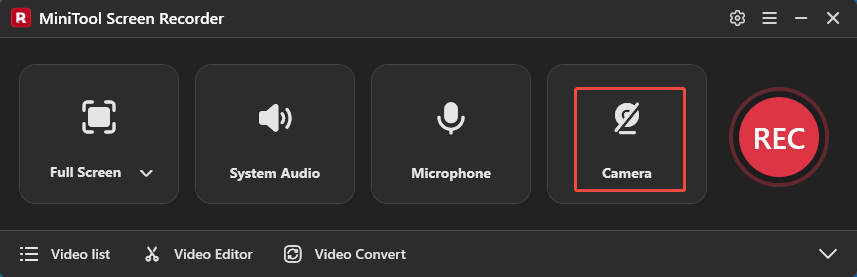
To capture a Messenger audio call while showing a face, click the Camera icon on the right to enable the webcam recording feature.
Step 5: Start and End Recording
1. To start the recording process, click the REC button or press the F6 key.
2. After a 3-second countdown, go to Messenger and start a call.
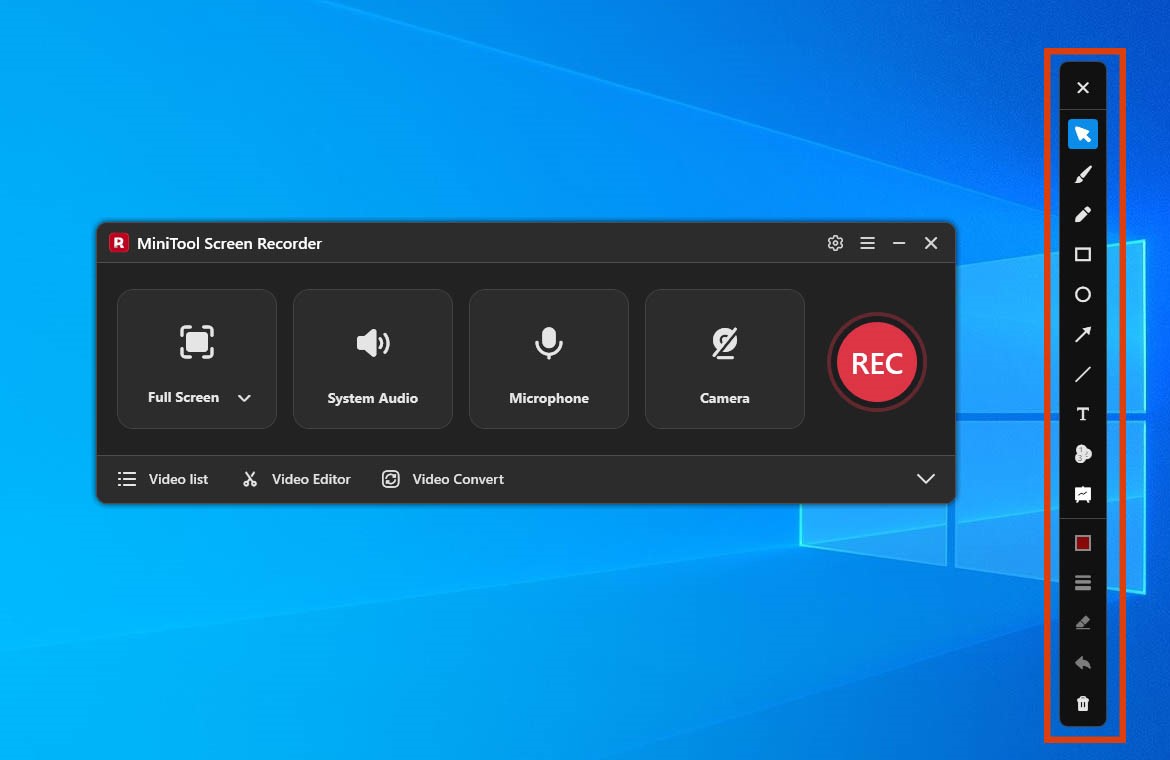
3. To annotate the screen while capturing a Messenger call, utilize the markup tool from the annotation toolbar on the right side of the screen to highlight key information.
4. To end the recording process, press the F6 key again.
Step 6: Check the Recorded Call
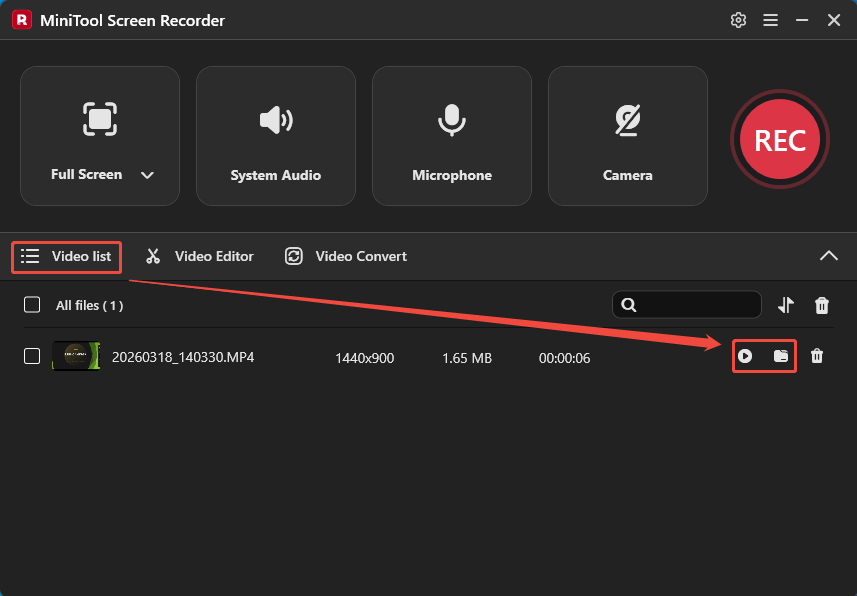
1. When the recording process ends, the MiniTool Screen Recorder interface will automatically switch to the Video list section, where the recorded video is listed.
2. Then, click the Play icon to check the recorded call and click the Folder icon to locate it on the PC.
Why Choose MiniTool Screen Recorder
- No watermarks, ads: MiniTool Screen Recorder is not only free but also doesn’t add watermarks to recorded videos, saving me the trouble of post-processing. Plus, it doesn’t include any annoying ads that might interrupt the recording process.
- Flexible screen recording features: This is my favorite feature. With MiniTool Screen Recorder, I can record the entire screen, a specific area, or a window. It also lets me adjust the recording features of system audio and microphone audio separately as needed. Additionally, I often use MiniTool Screen Recorder’s webcam recording feature to create picture-in-picture videos.
- Convenient annotation tools: This feature surprised me the most, as it lets me annotate the screen while recording. Moreover, MiniTool Screen Recorder offers a comprehensive set of annotation tools: I can add arrows, circles, text in real time, and even use a whiteboard.
- No recording time limit: This is the main reason I chose MiniTool Screen Recorder. After trying out several different programs, I found that most of them had time limits. However, MiniTool Screen Recorder has no recording time limit, ensuring smooth playback without lag even when recording long videos.
In addition to recording calls, MiniTool Screen Recorder also supports capturing various types of screen activity, including online meetings, live streams, online classes, gameplays, webinars, and many more.
MiniTool MovieMakerClick to Download100%Clean & Safe
Final Thoughts
In this article, I explain how to record Messenger Calls with a third-party screen recording tool, MiniTool Screen Recorder, since Messenger does not provide a built-in screen recording feature. Hope the method I’ve provided will help you achieve a smooth recording experience.
If you run into any issues when trying out MiniTool Screen Recorder or MiniTool MovieMaker, send an email to support@minitool.com.