

How to record Fortnite on PC without lag? This article provides 3 methods to do that, including using Fortnite’s replay mode, MiniTool Screen Recorder, and Snipping Tool. Additionally, you can learn how to use the recommended video editing tool to optimize your recorded content.
Fortnite is an online game developed by Epic Games and released in 2017. It is now available on multiple platforms, including Windows, macOS, PlayStation, Nintendo Switch, Xbox, etc. Fortnite offers various modes such as “Save the World,” “Battle Royale,” and “Fortnite Creative,” and has gained immense popularity among younger audiences.
As its influence grows, an increasing number of creators are dedicating themselves to sharing recorded Fortnite gameplay videos on mainstream platforms like YouTube, TikTok, and Instagram. How to record Fortnite without lag? The following content will provide you with a clear solution.
![How to Record a Teams Meeting Easily [2 Proven Methods]](https://images.minitool.com/recorder.minitool.com/images/uploads/2026/04/how-to-record-a-teams-meeting-thumbnail.jpg)
How to Record Fortnite on PC
This section provides three efficient methods to help you master how to screen record Fortnite on PC. For specific steps, please refer to the following content.
#1 Use Fortnite Replay Mode
Fortnite features a built-in game replay function that automatically records gameplay footage during matches. Here's how to use Fortnite's replay feature:
Step 1: Open Fortnite
Launch Fortnite on your computer.
Step 2: Enable Replay Mode
1. In the main lobby, press the Esc key to open the side bar, then click on the Settings icon to enter the main menu.
2. In the main menu, navigate to the Game module and click on the Replays option.
3. Then, click on the Record Replays option to enable the feature.
Step 3: Start and End Recording
1. In the main lobby, navigate to the Career module and click the REPLAYS option.
2. Choose the game you want to replay from the list and tap the PLAY option to start the recording process.
3. To end the recording process, you just need to end the game.
Fortnite's replay mode allows players to record gameplay footage at any time to hone their skills. However, please note that videos captured through this feature cannot be downloaded, and older recordings will be automatically deleted when new content is recorded.
Therefore, to capture and share memorable gameplay moments, players can consider utilizing more professional screen recorders. The following content will introduce two screen recording tools we've carefully selected.
#2 Use MiniTool Screen Recorder
MiniTool Screen Recorder is one of the best Fortnite screen recorders my friends and I frequently use. This is a free and easy-to-use Windows screen recording tool that captures screen activity, audio, and webcam footage.
MiniTool Screen Recorder also features convenient annotation tools, allowing users to mark key information during recording. Additionally, it supports recording the screen without time limits while offering a preset recording timer function.
What’s more, MiniTool Screen Recorder supports personalized settings. Users can customize video output paths, quality, and frame rates; adjust recording hotkeys and webcam parameters. Below is a detailed guide on how to record on Fortnite using MiniTool Screen Recorder.
Step 1: Download and Install MiniTool Screen Recorder
MiniTool Screen RecorderClick to Download100%Clean & Safe
Click on the button above to download and install the latest version of MiniTool Screen Recorder.
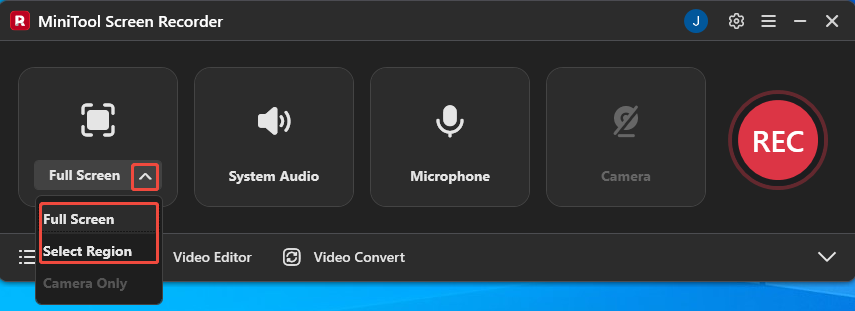
Step 2: Choose the Recording Area
1. Launch MiniTool Screen Recorder after you install it.
2. Expand the drop-down menu next to the Full Screen option.
3. By default, MiniTool Screen Recorder automatically selects full-screen recording mode. To customize the recording area, click the Select Region option.
Step 3: Control the Audio Recording
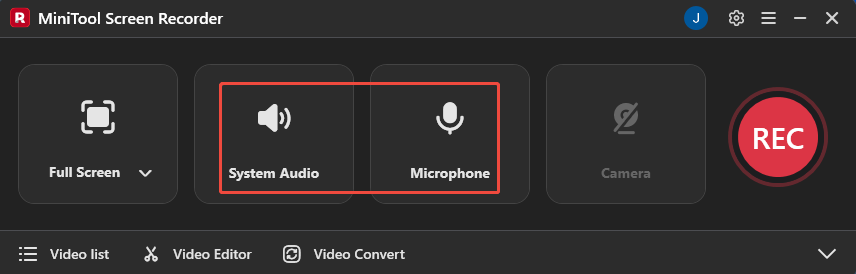
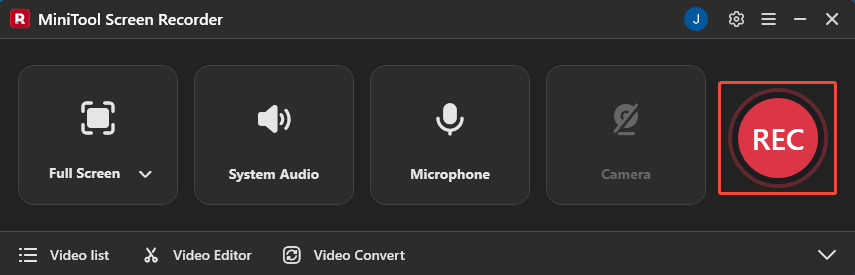
If you don’t want to capture the audio from the system or the microphone, you can click the System Audio icon or the Microphone icon to disable the feature.
Step 4: Set the Camera Recording
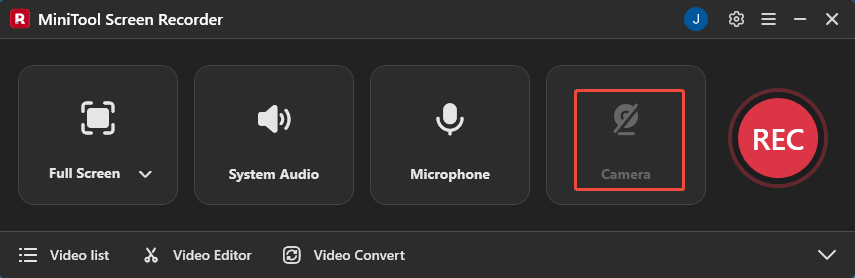
If you want to record the Fortnite gameplay with your face, click on the Camera icon on the right.
Step 5: Start and End Recording
1. To start the recording process, click on the REC button on the right side of the main interface or press the F6 key.
2. Play the game you want to record on Fortnite.
3. When you want to end the recording process, press the F6 key again.
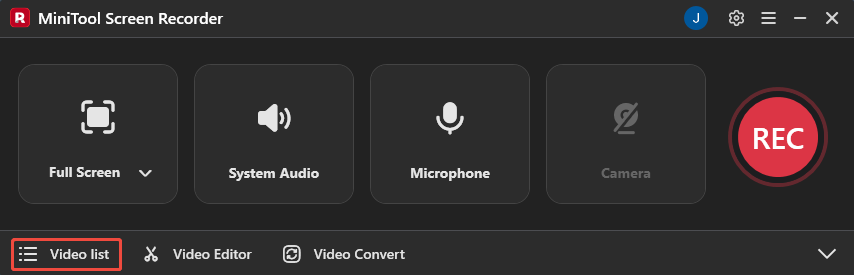
4. Then, you will be automatically redirected to the Video list module so you can check the recorded Fortnite video.
#3 Use Snipping Tool
If you prefer not to install any additional software, you can use the built-in Windows Snipping Tool. It supports screen captures and offers basic recording functionality.
Additionally, the Snipping Tool allows users to enhance video content with its built-in editing tools after recording and share recordings directly with others via generated links. You can now follow the tutorial below to record Fortnite gameplay.
Step 1: Launch the Snipping Tool
Press the Print Screen key to launch the Snipping Tool on your computer.
Step 2: Select the Recording Area
1. Click the New option in the main interface.
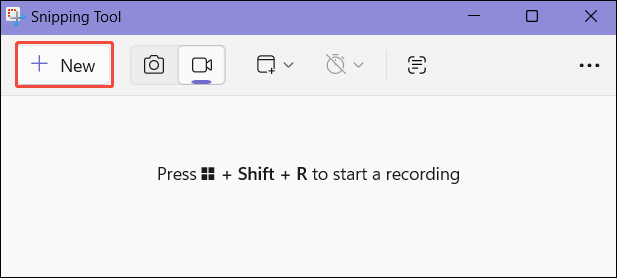
2. Tap the Record icon to enter the recording interface.
3. Expand the Snipping area option.
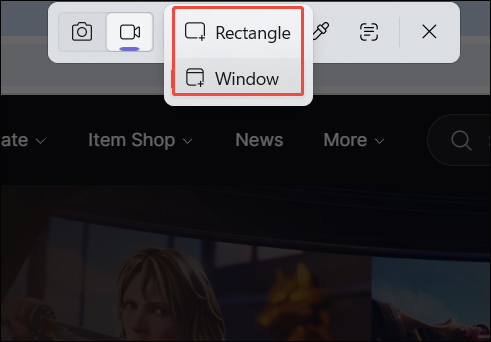
4. Click on the Rectangle option to record the specific region; or, click on the Window option to record the entire screen.
Step 3: Set the Audio Recording
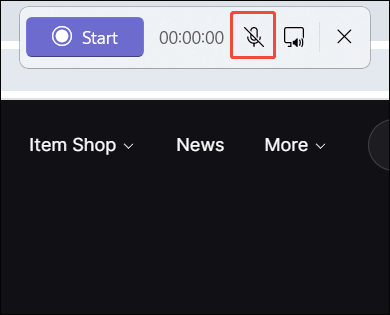
In the newly displayed horizontal panel, click on the Microphone icon to enable the audio recording functionality.
Step 4: Start and End Recording
1. When you want to start the recording process, simply click on the Start option or press the Shift + R key.
2. Play the game you want to record on Fortnite.
3. To end the recording process, click on the Stop recording button in the horizontal panel.
Now you should know how to record Fortnite on your computer. For more advanced recording features, we recommend using the professional MiniTool Screen Recorder. If you only need basic recording functionality, the Snipping Tool is also a good choice.
Bonus: How to Optimize Your Recordings
To make your Fortnite recordings more engaging, editing and optimization are the best approaches. Now, click the Video Editor option at the bottom of the MiniTool Screen Recorder main interface to get the professional-grade video editing tool.
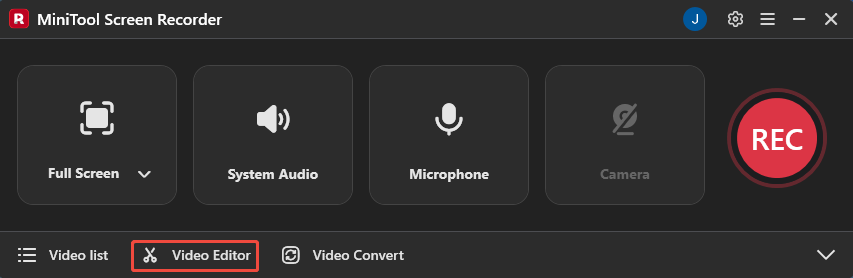
Alternatively, you can also click the button below to get this video editing tool directly.
MiniTool MovieMakerClick to Download100%Clean & Safe
This editor enables trimming, splitting, rotating, and other operations to make your recordings smoother and more natural. For professional, eye-catching effects, utilize the built-in media library to add filters, transitions, effects, and text elements. Its multi-track editing feature even supports layering music, images, and video clips.
Additionally, the tool offers diverse output formats, including MP4, MOV, MKV, WebM, and GIF for your selection.
Conclusion
How to record Fortnite on PC? For basic screen recording, utilize Fortnite's replay feature and Snipping Tools. For professional-grade recording capabilities, we recommend MiniTool Screen Recorder. Don't forget to use the recommended editing tools to optimize your recorded content.
If you encounter any issues while trying out MiniTool Screen Recorder or MiniTool MovieMaker, feel free to email us via support@minitool.com or send me a message on X for assistance.