

How to record online meetings with ease and efficiency? If you are looking for the answer to this question, you’ve come to the right place. Just read the following content to find out.
Why Record Online Meetings
This section walks you through why it is necessary to record meetings online.
Reason 1. Avoid Miss Meetings
Sometimes, you may miss some important meetings due to time/geographical restrictions or other factors. In this situation, it is workable to record these online meetings to access the important information discussed during the meeting.
Reason 2. Improve Meeting Engagement
During the meeting, to understand the key points of the speakers, it is necessary for you take some notes. However, when you are writing some words, your attention may be distracted from the hot discussion. To solve that problem, you can record the online meeting, which helps you take all notes while improving your meeting engagement.
How to Select a Great Online Meeting Recorder
In the following paragraphs, I will give you some advice to help you find a remarkable online meeting recorder.
Suggestion 1. Ease of Use
Considering that some of you may be recording novices, it is advisable to select an easy-to-use tool with an intuitive interface. This way, you won’t need to spend a lot of time learning how to use this application and accomplish your recording tasks more efficiently.
Suggestion 2. No Limit for Recording Duration
Generally speaking, online meetings may last for 30 minutes or longer. As such, to ensure that your recording won’t be interrupted due to time constraints, it is suggested that you choose a video recorder without any time limitations.
Suggestion 3. No Watermarks
Some screen recorders will embed the watermarks into the recorded videos. To remove those watermarks, you may need to crop the video or pay for the upgrade. However, the former one takes you more time, while the latter one cost your money. To bypass those limitations, you can look for a watermark-free recording software.
Suggestion 4. Compatibility Convenience
Pay attention to the output format of the recorders you have selected. It is great to choose a screen recorder that saves the recordings in a format with high compatibility, like MP4. In this context, you are free to share, edit, or play the recorded videos without any compatibility issues.
Method 1. Use MiniTool Screen Recorder
Following the advice above, I highly recommend MiniTool Screen Recorder.
Why Select MiniTool Screen Recorder
MiniTool Screen Recorder is a top-grade recording software with no time limits or watermarks. As such, it enables you to capture online meetings effortlessly, regardless of their length. Meanwhile, MiniTool Screen Recorder, serving as an MP4 recorder, allows you to edit or share your recordings without compatibility issues.
Featuring a well-organized interface, MiniTool Screen Recorder is an easy-to-use program for users of all skill levels. What’s more, it supports webcam recording and screen annotation, which makes your recording more professional.
How to Record Online Meetings with MiniTool Screen Recorder
Below is a step-by-step tutorial on how to capture online meetings with MiniTool Screen Recorder.
Step 1. Download and install MiniTool Screen Recorder.
MiniTool Screen RecorderClick to Download100%Clean & Safe
Click on the download button above to download and install MiniTool Screen Recorder on your PC.
Step 2. Select the recording area and manage the audio recording.
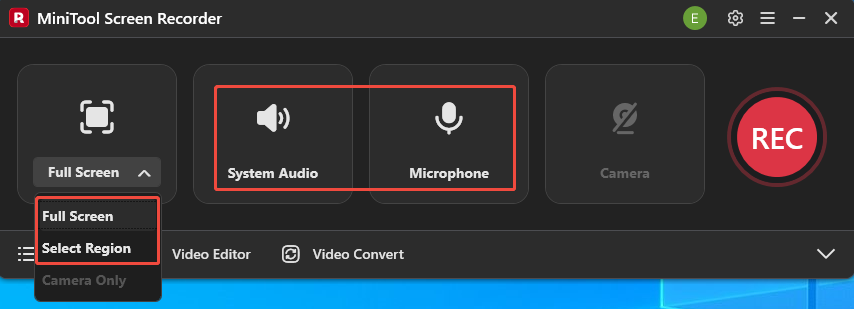
After launching MiniTool Screen Recorder, expand the leftmost drop-down option. There, if you want to capture the whole screen, choose Full Screen. On condition that you want to customize the recording area, click on Select Region. Next, click on the System Audio icon and Microphone icon to turn on/off the recording of system and microphone sounds.
Step 3. Enable webcam recording and configure other settings.
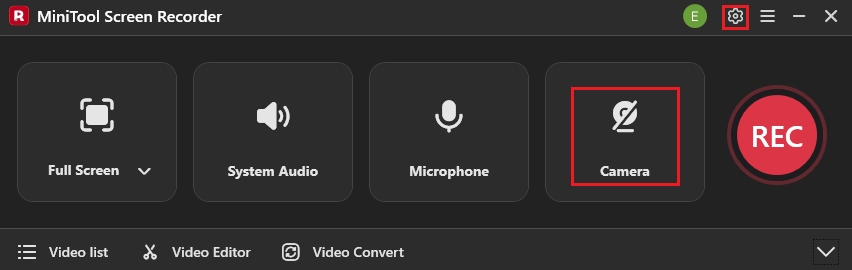
If you want to record your webcam, click on the Camera icon. Then, click on the upper-right Settings icon to enter the Setting window.
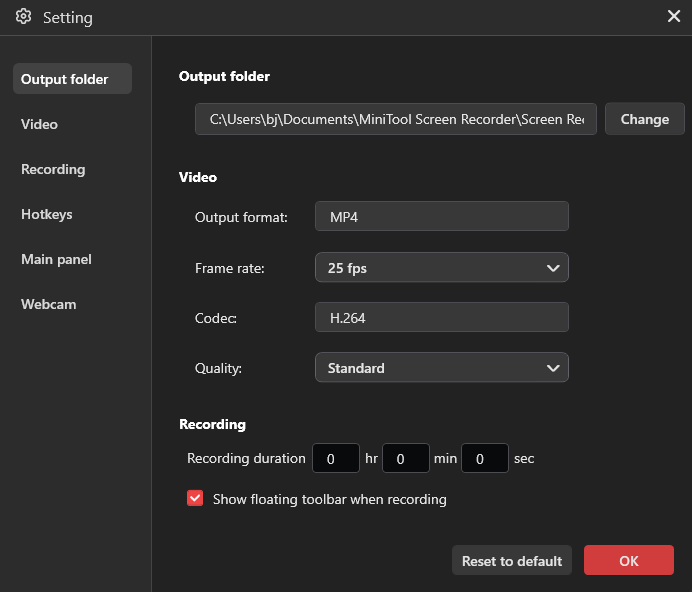
In the pop-up window, you can click on the Change option to select a saving path for the recorded video. If you want to customize the frame rate of recording, expand the Frame rate option and make a choice among 15fps, 20fps, 25fps, 30fps, and 50fps. Meanwhile, to customize the recording quality, expand the Quality option and choose Standard, Original, or High. Finally, click on the OK button to save the changes.
Step 4. Begin/end recording and check the output files.
Press the F6 key to begin the recording process. After a 3-second countdown, begin the online meetings that you want to capture. When you have captured what you want, stop the recording by pressing the F6 key. By the way, provided that you want to pause/resume the recording, press the F9 key.
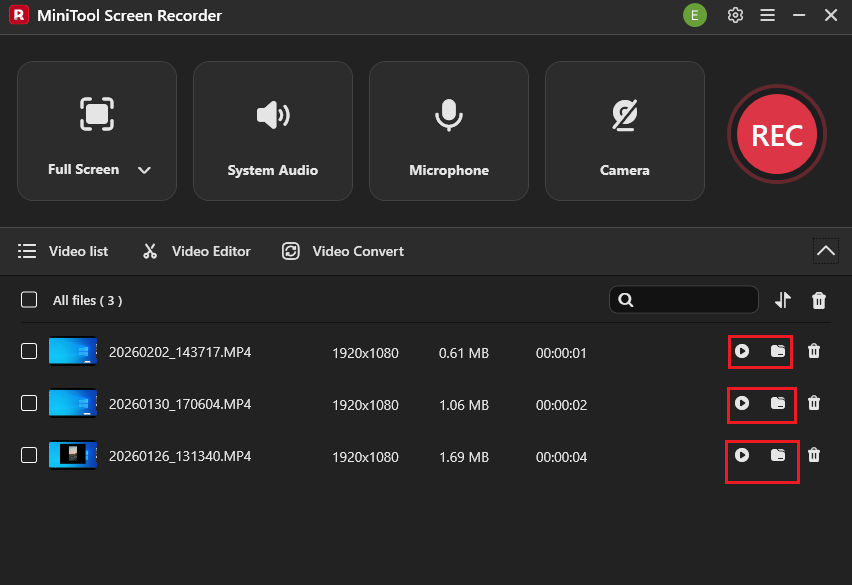
You can see your recorded files in the expanded file list. If you want to directly view the files, click on the Play icons. On condition that you want to locate them, click on the Folder icons.
With the above-detailed steps, it is believed you have grasped how to record online meetings for note taking.
MiniTool MovieMakerClick to Download100%Clean & Safe
Method 2. Use Xbox Game Bar
If you want to capture online meetings without downloading extra software, the Xbox Game Bar is a must-have option. It is a pre-installed video recorder available on your Windows PC. Below is the detailed guidance on how to record online meetings for note taking with Xbox Game Bar.
Step 1. Run Xbox Game Bar.
Press the Windows + G keys to activate Xbox Game Bar.
Step 2. Begin/end the recording.
Start the recording process by pressing the Windows + Alt + R keys. Then, begin the online meetings that you want to capture. If you have recorded what you want, stop the recording by pressing the Windows + Alt + R keys again.
Step 3. Check the recorded video.
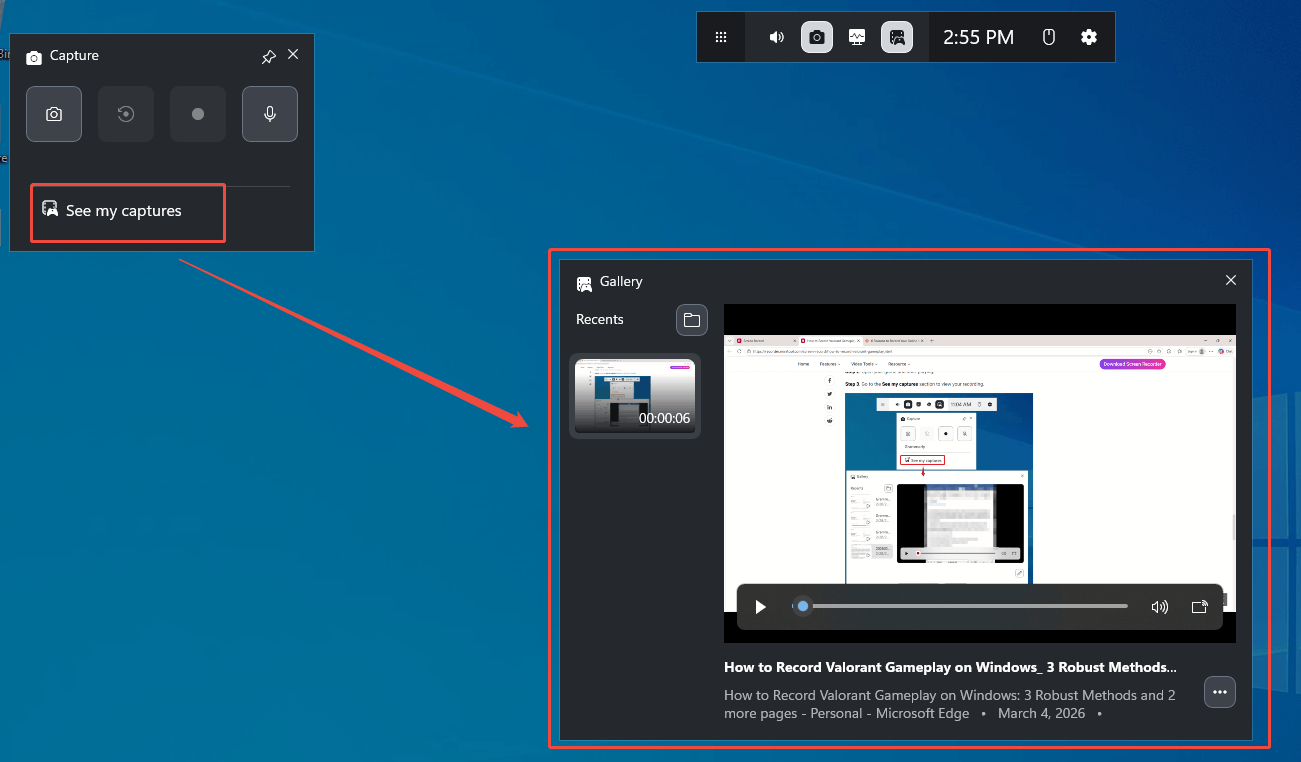
Click on the See my captures option to access the Gallery interface. There, view and check the recording file.
For people who don’t want to download a screen recorder, using Xbox Game Bar is the best way to record online meetings. However, it doesn’t capture File Explorer.
Final Words
Both MiniTool Screen Recorder and Xbox Game Bar enable you to record online meetings. If you want to record File Explorer and need richer recording functions, try the former one. On condition that you prefer a pre-installed screen recorder, try the latter one.
If you have encountered any problems when using MiniTool Screen Recorder, please send an email to support@minitool.com to ask for help. Also, you can directly share your problems with me on X. I will help you solve them as quickly as possible.