

Recording gameplay with your face visible can attract more viewers. How do you record yourself playing video games? You can use MiniTool Screen Recorder and Clipchamp to do this efficiently. Additionally, you can learn how to edit your recorded content.
With the rise of competitive gaming, a diverse array of gaming videos has emerged on the internet. Some creators have gained popularity through exceptional gameplay skills, commentary, or unique video styles. Today, adopting the novel approach of recording yourself during gameplay may help you stand out. Therefore, the following content will focus on capturing yourself playing games.
Why Do You Record Yourself Playing a Game
Most people may choose to record their faces while playing video games for the following reasons.
#1 Create Reaction Videos
Reaction videos have taken the internet by storm, such as horror game or comedic gameplay reaction videos. By creating these entertaining game reaction videos, creators can not only significantly boost their traffic but also broaden their revenue streams to some extent. Furthermore, these reaction videos can be easily created by recording yourself while playing the games.
#2 Attract Audiences
Recording yourself playing games instantly captures viewers' attention. Additionally, a clearly visible face in your videos allows audiences to more effectively perceive your emotions and connect with you, thereby boosting viewer engagement and strengthening their trust in you.
#3 Boost Confidence
If you're a gaming commentary video creator, delivering professional commentary during recording is essential. Simultaneously capturing your facial expressions alongside gameplay footage allows you to review your performance and identify areas for improvement in your commentary skills. This approach not only enhances your communication abilities but also gradually builds your confidence.
How Do You Record Yourself Playing Video Games
This section outlines two simple methods to help you learn how to record yourself playing video games on PC.
Method 1: Use MiniTool Screen Recorder
MiniTool Screen Recorder is a professional tool for recording videos with your face. It supports simultaneous recording of both screen and camera footage, and can even record camera footage independently. It allows users to adjust camera settings before recording, including brightness, color, position, shape, size, and more.
Additionally, MiniTool Screen Recorder supports unlimited-duration recording of high-definition game footage. It offers full-screen or region recording modes, enabling simultaneous or separate capture of system audio and microphone audio to help users create clear game commentary videos.
What’s more, MiniTool Screen Recorder also features built-in screen annotation tools to help users highlight key points when recording tutorial videos. Now, follow the recording steps below to record yourself playing a video game using MiniTool Screen Recorder.
Step 1: Download and Install MiniTool Screen Recorder
Click on the button below to download MiniTool Screen Recorder. Then, follow the prompts to install it on your PC.
MiniTool Screen RecorderClick to Download100%Clean & Safe
Step 2: Select the Recording Area
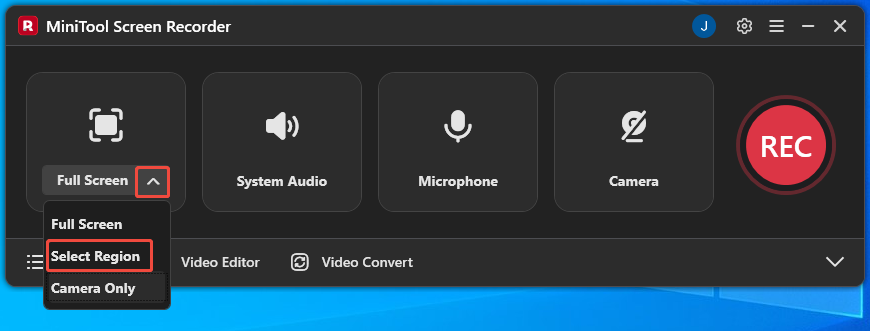
MiniTool Screen Recorder defaults to the full-screen recording mode. If you want to record a specific area, expand the drop-down menu next to the Full Screen option, then choose the Select Region option.
Step 3: Control the Audio
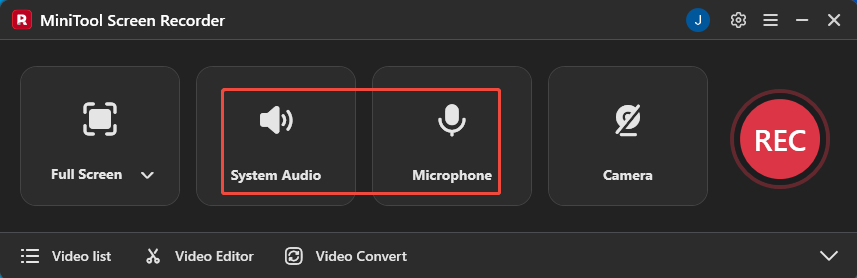
Microphone and system audio recording functions are enabled by default. To turn off these features, simply click the corresponding icons.
Step 4: Enable the Webcam Recording Feature
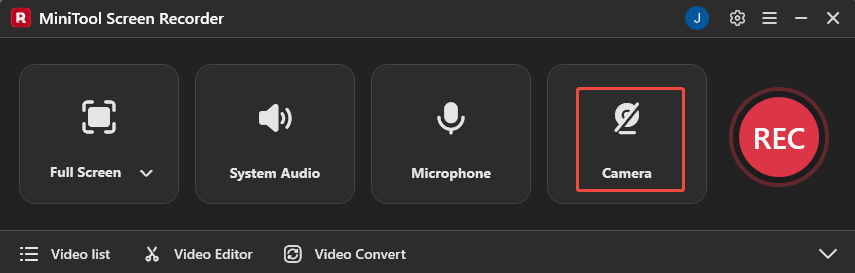
To record yourself playing video games, you need to click the Camera icon on the right to enable the webcam recording feature.
Step 5: Adjust the Webcam Parameters
1. Click the Settings icon in the upper-right corner of the main interface to enter the advanced settings page.
2. Navigate to the Webcam section. Then you can adjust the webcam's brightness, contrast, shape, and size, as well as modify its format.
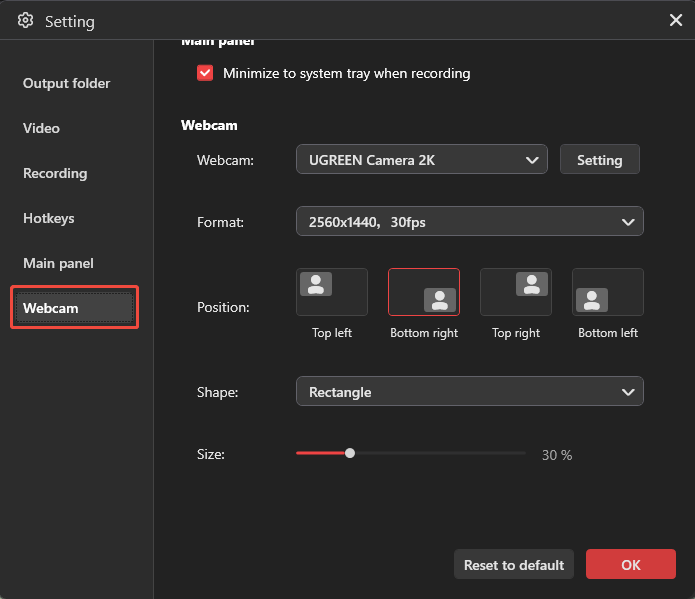
3. To save the modified parameters, click the OK button in the lower-right of this page.
Step 6: Start and End Recording
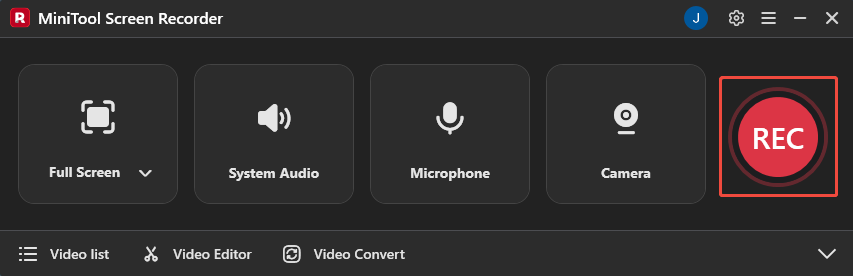
1. To begin the recording process, click the REC button on the right side of the main interface or press the F6 key.
2. Play the game you want to record.
3. To end the recording process, press the F6 key again.
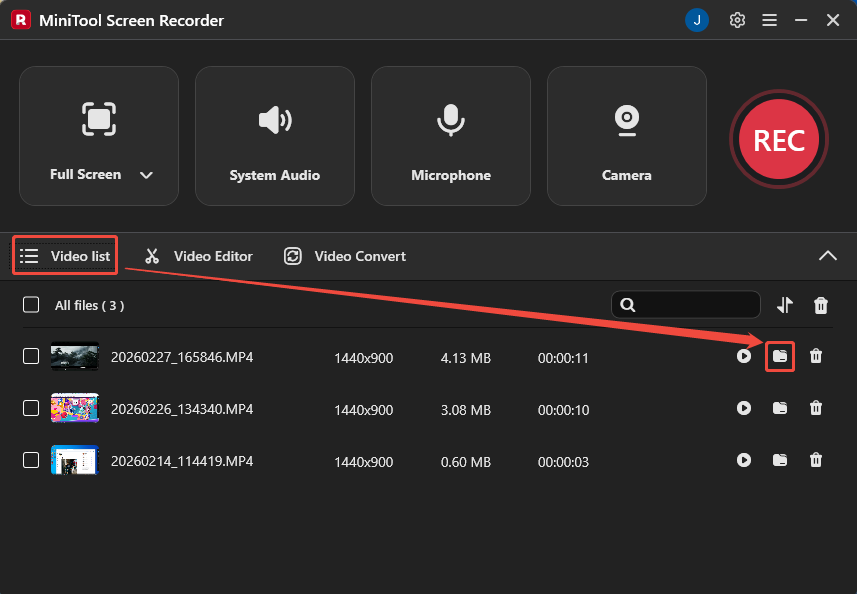
4. Finally, you can check the recorded game video under the Video list module by tapping the folder icon.
Method 2: Use Clipchamp
You can also use Microsoft's Clipchamp to record gameplay videos with face overlays. While renowned for its video editing capabilities, this software's robust recording features are equally impressive.
Clipchamp supports capturing screen activity, webcam footage, system audio, and microphone audio. Additionally, it records high-definition video in either full-screen or window mode. After recording, you can seamlessly transition to the editing interface for trimming and refining your footage.
Here is a detailed guide on how to record yourself playing video games using Clipchamp.
Step 1: Open Clipchamp
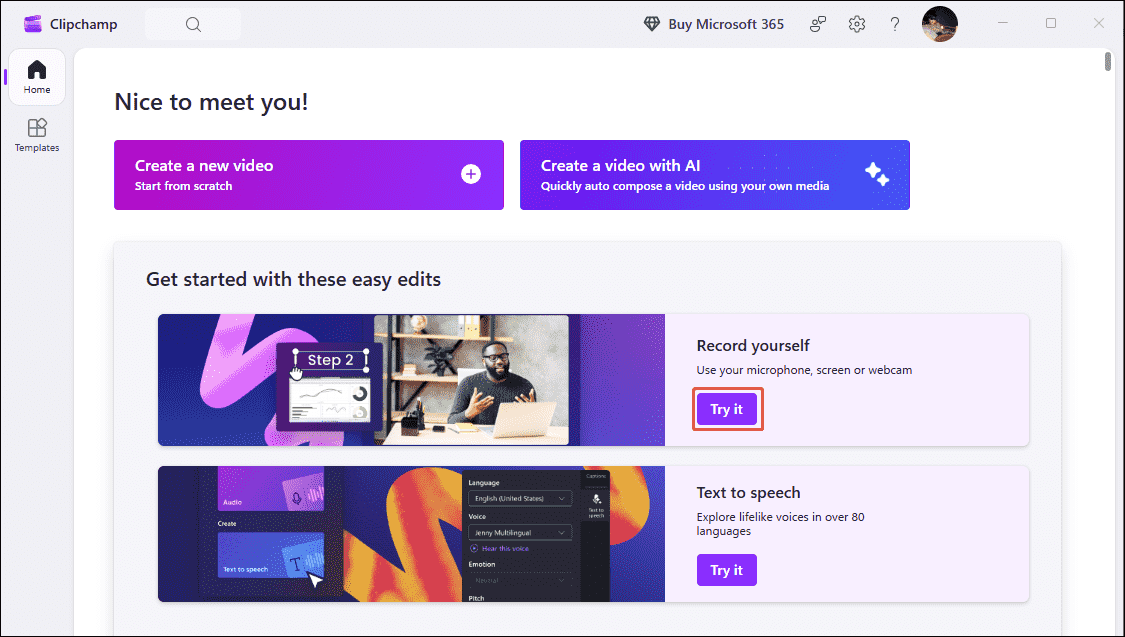
Launch Clipchamp on your computer and click on Try it within the Record yourself option on the homepage to enter the recording interface.
Step 2: Choose the Recording Mode
To record yourself while playing games, choose the Screen and camera recording mode from the left-hand menu bar.
Step 3: Select the Target Camera
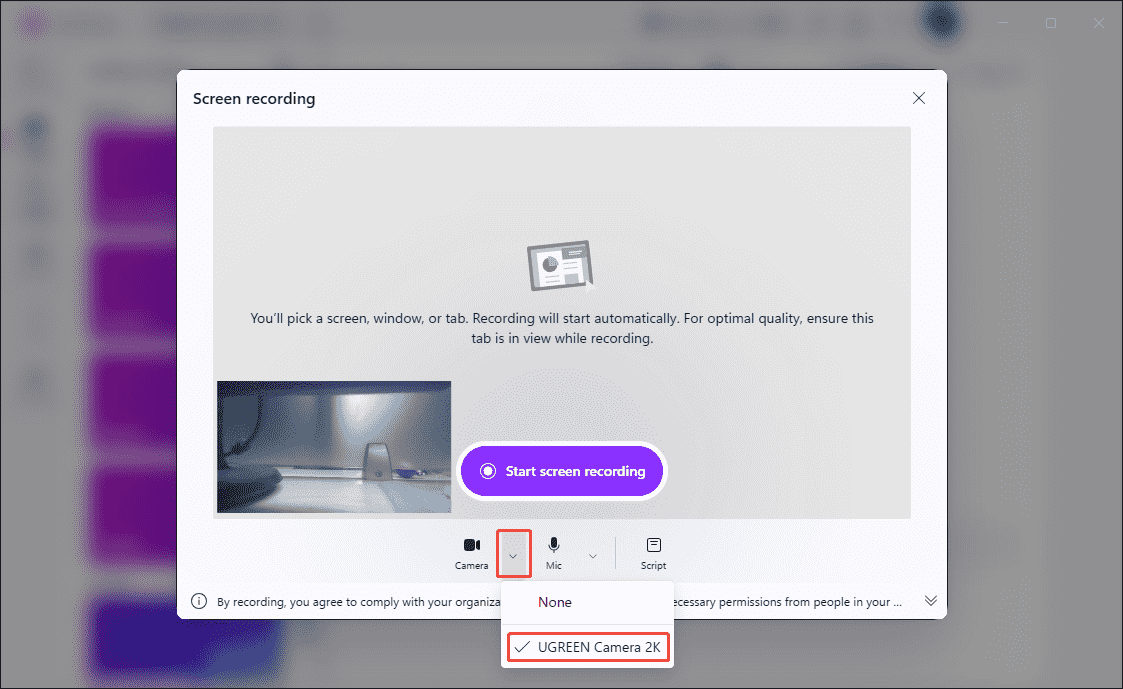
1. In the new pop-up window, expand the drop-down menu next to the Camera option.
2. Then, select the target camera you want to use.
Step 4: Control the Audio
The audio recording feature is enabled by default. If you want to turn it off, simply tap the Microphone icon.
Step 5: Start and End Recording
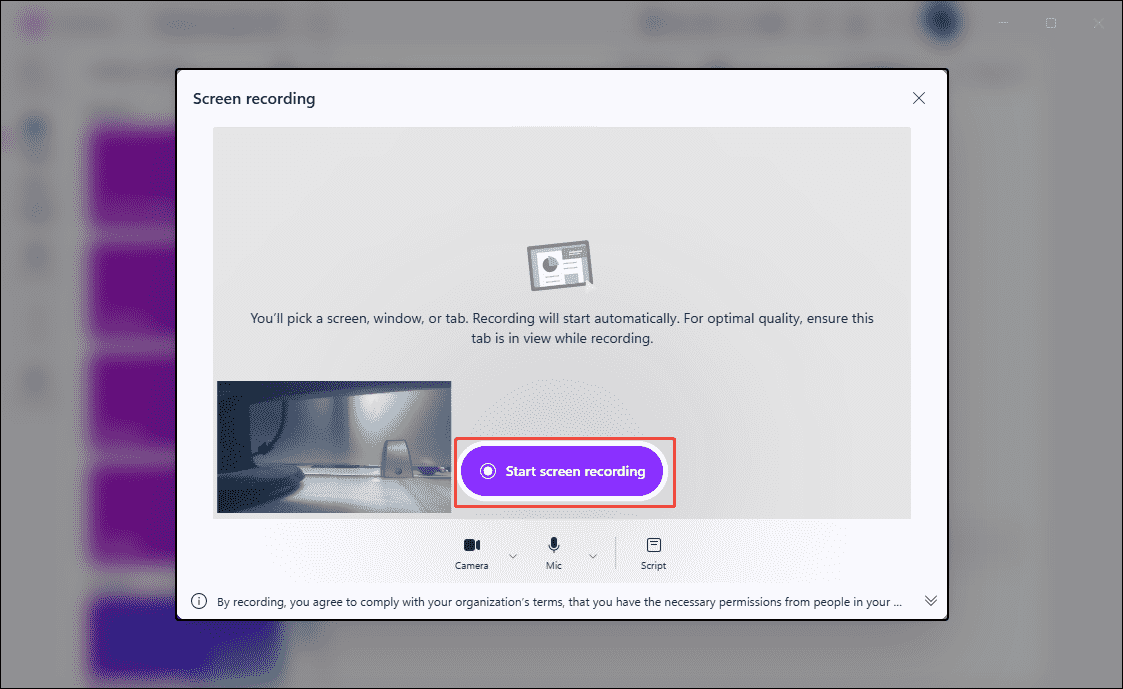
1. To begin the recording process, click the Start screen recording button and select the game window. Then, click the Share option to start recording.
2. Play the game you want to record.
3. To end the recording process, click the Stop sharing button.
Please note that Clipchamp has a recording time limit of 30 minutes. If you prefer not to record multiple segments in a single session, we recommend using MiniTool Screen Recorder, which offers unlimited recording time.
Bonus: How to Edit Your Gaming Recordings
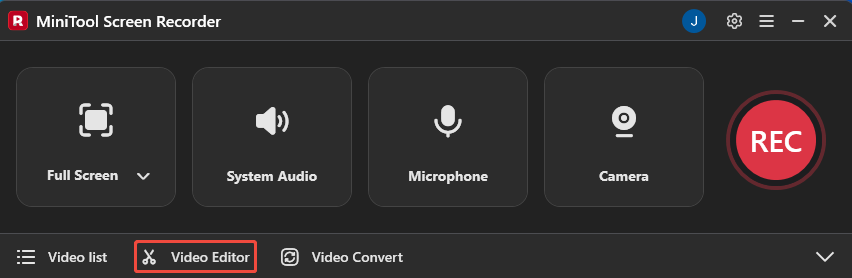
Before uploading recorded videos to social media platforms, it’s necessary to trim out redundant segments and keep the highlights to capture your audience's attention. Now you can click the Video Editor option on the MiniTool Screen Recorder main interface to get the video editing software.
Or, simply click the button below to get this video editing tool.
MiniTool MovieMakerClick to Download100%Clean & Safe
In addition to trimming redundant footage, MiniTool MovieMaker supports adding transitions, effects, filters, and background music, while also allowing you to adjust video volume and playback speed. You can fully leverage these features to craft a distinctive style for your gaming video edits, further establishing a unified brand image for your account.
Conclusion
How do you record yourself playing video games? You can choose to use either MiniTool Screen Recorder or Clipchamp as described in this article, depending on your needs. Additionally, to make your gaming recordings more professional, you can use the recommended video editor.
If you encounter any issues while trying out MiniTool Screen Recorder or MiniTool MovieMaker, feel free to email us via support@minitool.com or send me a message on X for assistance.