

How to record Osu gameplay on PC? The Windows Game Bar and professional screen recorder, MiniTool Screen Recorder, can accomplish this task efficiently while minimizing issues such as stuttering and dropped frames.
Osu is a free-to-play rhythm game centered around music; players must use a cursor to click on circular notes that appear on the screen, in time with the musical beat. Currently, the game supports multiple platforms, including Windows, macOS, Linux, and more.

How to Record Osu Gameplay
When I first started playing Osu, I approached it with a casual “just giving it a try” mindset. However, as I continued to experiment with it, I found myself becoming increasingly captivated by its rhythm-based gameplay. Consequently, I decided to record Osu gameplay to share with my friends.
Unfortunately, Osu itself does not feature a built-in recording function. To address this, I tested several popular Osu recorders and ultimately concluded that the following two options were the most stable and user-friendly for capturing gameplay footage:
- MiniTool Screen Recorder
- Xbox Game Bar
Below is an explanation of the performance of these two tools, along with instructions on how to use them.
#1 MiniTool Screen Recorder
Among the many tools I tested, MiniTool Screen Recorder demonstrated highly stable performance. Featuring an intuitive interface, it allows users to get started more easily and quickly compared to more complex screen recording software.
MiniTool Screen RecorderClick to Download100%Clean & Safe
The primary reason I chose MiniTool Screen Recorder is that it allows me to record the full screen, a secondary monitor, specific regions, windows, as well as system audio and microphone audio. This means that, in addition to recording games, I can capture a wide variety of screen activities, such as online meetings, live streams, and video calls.
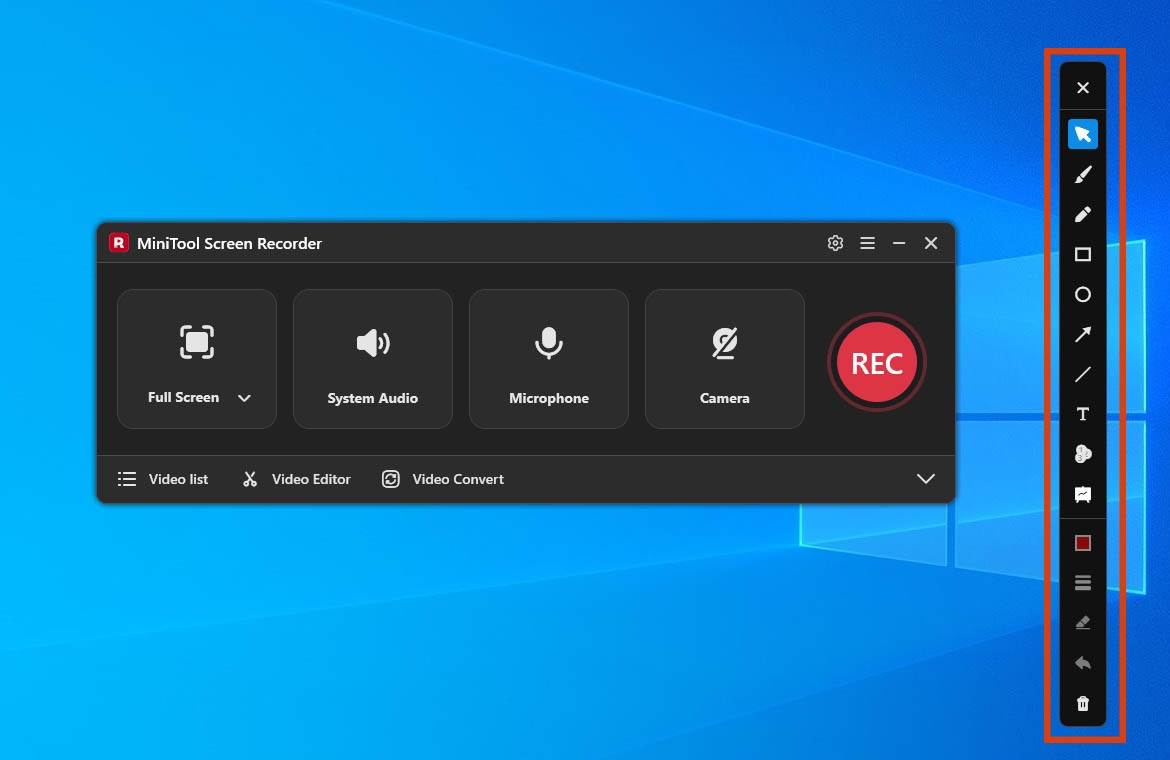
At the same time, MiniTool Screen Recorder features a built-in webcam recording function, enabling the creation of picture-in-picture videos. Moreover, the tool's annotation tools are the features I use most frequently, as I make it a habit to highlight key information while recording.
Here is a simple guide to follow:
- Download and install MiniTool Screen Recorder.
- Click the Full Screen option to select the recording area.
- Control the audio by clicking the System Audio and Microphone icon.
- Manage the camera by clicking the Camera icon.
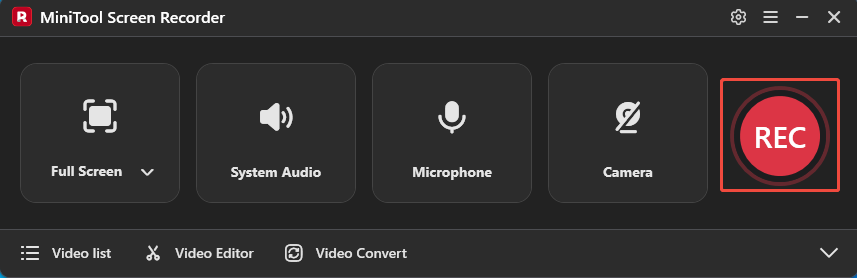
- Click the REC button or press the F6 key to start recording.
- Press the F6 key again to end recording.
- Play and check the recorded video under the Video list section.
Let’s take a closer look at the detailed steps on how to screen record Osu.
Step 1: Download and Install MiniTool Screen Recorder
1. Click the button below to download and install MiniTool Screen Recorder on the PC.
MiniTool Screen RecorderClick to Download100%Clean & Safe
2. Launch MiniTool Screen Recorder.
Step 2: Select the Recording Area
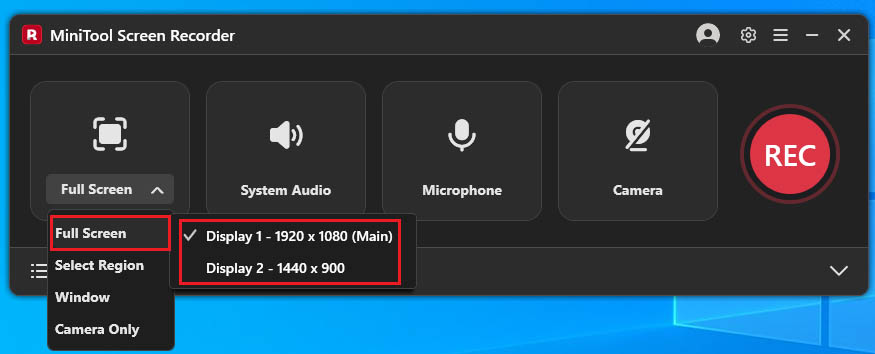
1. By default, MiniTool Screen Recorder records the entire screen. To change the recording area, expand the drop-down menu of the Full Screen option.
2. Then, click the Full Screen option and select a display to capture.
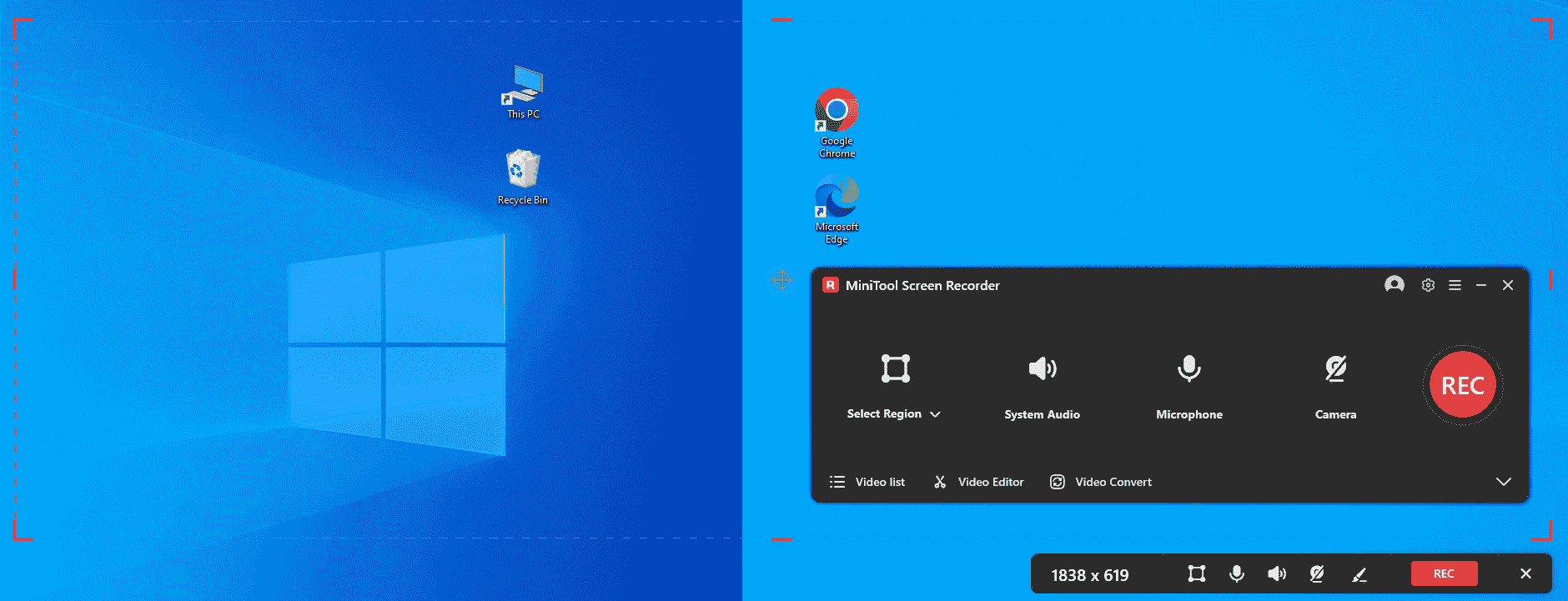
3. Alternatively, choose the Select Region option and drag the red dashed border that appears to define the specific recording area (it can range from the main display and multiple external displays).
4. Or, choose the Window option and select a window to record.
Step 3: Manage the Audio
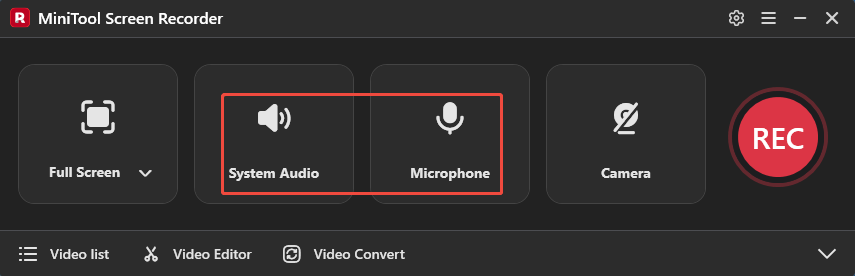
By default, both system audio and microphone audio are enabled. If necessary, I can disable one or both audio sources by clicking their corresponding icons.
Step 4: Control the Camera
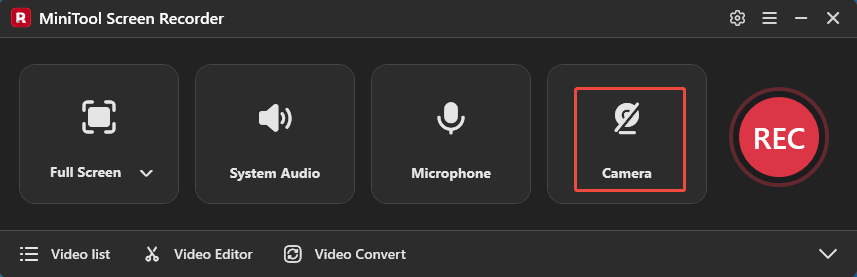
If I want to record my reactions while playing Osu, I can click the Camera icon to enable the webcam recording feature.
Step 5: Begin and End Recording
1. To start the recording process, click the REC button or press the F6 key.
2. After a 3-second countdown, play the Osu game.
3. During recording, I can use the tools to mark the screen from the annotation toolbar on the right of the screen.
4. To end the recording process, press the F6 key again.
Step 6: Play and Locate the Recorded Video
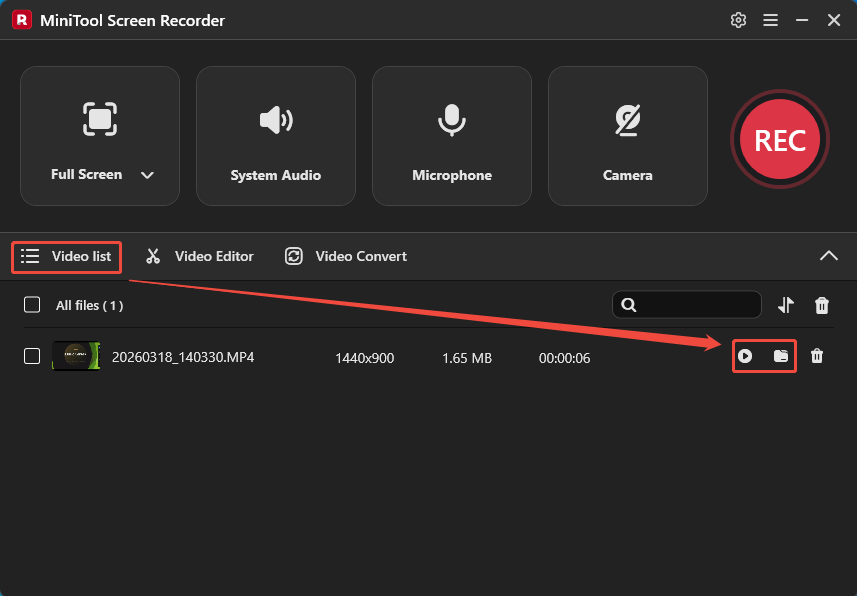
1. Once the recording is finished, the recorded file will automatically appear in the Video list module for quick access.
2. I can then click the Play icon to check the recording quality or open its save location for further use by clicking the Folder icon.
#2 Xbox Game Bar
When I want to quickly record highlights in Osu, I typically turn to Windows' built-in Xbox Game Bar. By simply pressing the Windows + G keys, I can rapidly open the recording interface and begin capturing gameplay footage.
In addition to offering basic screen recording capabilities, the Xbox Game Bar allows for the customization of recording parameters, such as maximum recording duration, video frame rate, and video quality settings. One feature I find particularly useful is the record the last 30 seconds function, which allows me to instantly save the gameplay footage from the moments that just transpired.
The following quick guide shows the basic steps.
- Press Windows + G keys to open the Xbox Game Bar.
- Control the audio settings.
- Click the Start recording icon.
- Play the Osu game.
- Press the Windows + Alt + R keys to end the recording process.
- Check the recorded video under the See my captures section.
The detailed guides on how to record Osu gameplay are as follows.
Step 1: Open the Xbox Game Bar
Press the Windows + G keys to open the Xbox Game Bar.
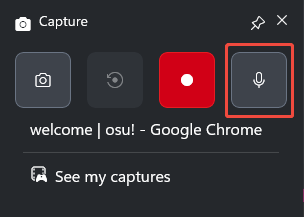
Step 2: Manage the Audio
The Xbox Game Bar defaults to record the system audio and microphone audio, so there is no need to turn on the audio recording feature.
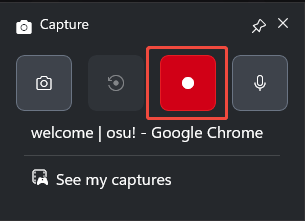
Step 3: Start and End Recording
1. Click the Start recording icon or press the Windows + Alt + R keys to start recording.
2. Play the Osu game.
3. To end the recording process, press the Windows + Alt + R keys again.
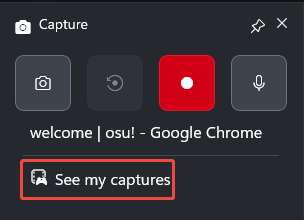
4. Finally, view and check the recorded video under the See my captures section.
In short, the two Osu recording software mentioned above can meet recording needs across a variety of scenarios. MiniTool Screen Recorder is suitable for professional recording tasks, while Xbox Game Bar proves particularly useful when quick recording is required.
MiniTool MovieMakerClick to Download100%Clean & Safe
Final Words
This article explains how to record Osu gameplay with MiniTool Screen Recorder and Xbox Game Bar. Among them, MiniTool Screen Recorder is better suited for recording tasks that demand high stability and a rich feature set, and the Xbox Game Bar is the ideal choice for quickly capturing exciting gaming moments.
If you run into any issues when trying out MiniTool Screen Recorder or MiniTool MovieMaker, send an email to support@minitool.com.