

How to record Discord audio? Since Discord itself does not offer a built-in recording feature, specialized video capture tools such as Xbox Game Bar and MiniTool Screen Recorder are required to accomplish this task.
Discord is a free social communication platform that currently supports a wide range of devices, including desktops, web browsers, and mobile devices. Through this tool, users can communicate using text, voice, and video within private servers.
Can You Record Discord Calls
Can you record audio from Discord? The answer is, of course, yes. However, the specific recording method I need depends on my requirements. As far as I know, Discord itself does not provide a built-in audio recording feature, which means I need to rely on third-party tools to accomplish this task.
Based on my experiments, I have found that for simple audio recording tasks, a basic recording tool is sufficient. However, when greater flexibility is required to synchronize system audio and microphone inputs, a more specialized screen recording tool becomes indispensable.
How to Record Discord Audio
After trying out various tools, I ultimately selected the following two Discord voice recorders, which I consider the most suitable for capturing Discord audio:
- Xbox Game Bar
- MiniTool Screen Recorder
The following is a detailed introduction to these tools, accompanied by demonstrations of their operation methods.
Method 1: Use the Xbox Game Bar
Xbox Game Bar is a screen recording tool built into Windows. Since it requires no installation and can be quickly launched by pressing Windows + G keys, I usually prefer this method whenever I need to make a quick and basic recording.
Although the Xbox Game Bar was originally designed for gamers to record gameplay footage and audio, this tool now supports users in recording applications and windows. Additionally, the Xbox Game Bar allows users to record the last 30 seconds of screen activity. Here are the steps on how to record Discord calls with the Xbox Game Bar.
Step 1: Launch the Xbox Game Bar
Press the Windows + G keys to open the Xbox Game Bar on the PC.
Step 2: Enable Audio Recording Permissions
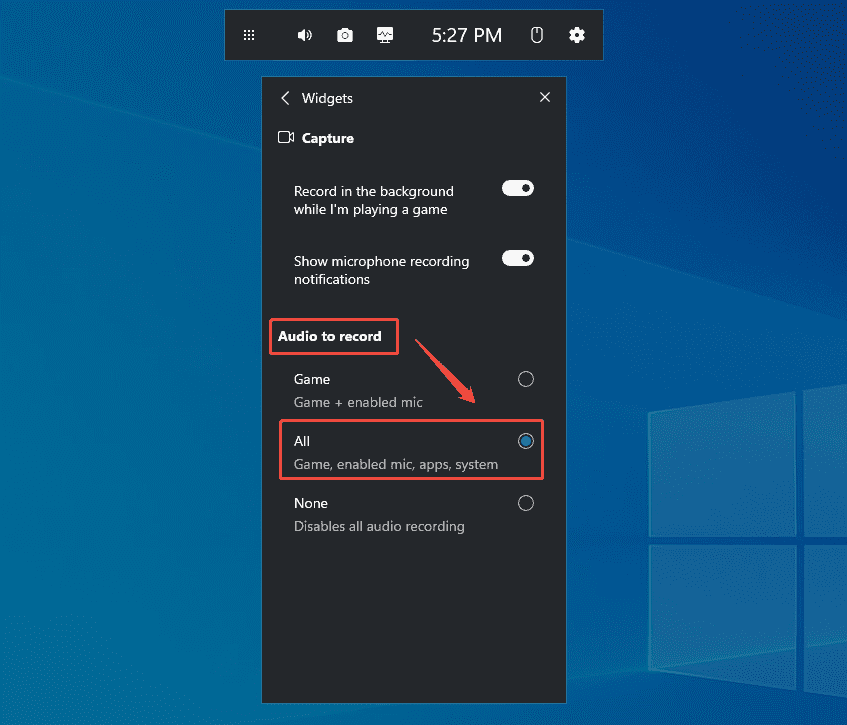
1. By default, the Xbox Game Bar records only game audio.
2. To record Discord audio, click the Customize menu icon located in the top-right corner of the Widgets Menu. Then, under the Audio to record section, select the All option.
Step 3: Control the Audio
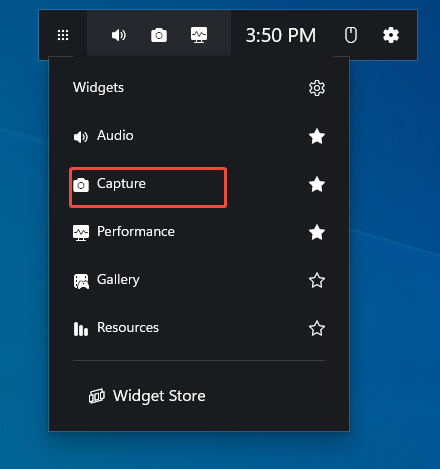
1. In the Widget Menu, choose the Capture option to enter the Capture panel.
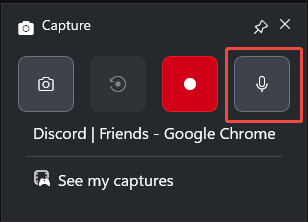
2. The audio recording feature is enabled by default in the Capture panel, so you can capture Discord audio directly.
Step 4: Start and End Recording
1. To start the recording process, click the Start recording icon or press the Windows + Alt + R keys.
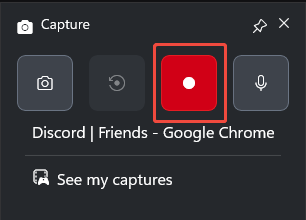
2. Then, go to Discord and find the target audio.
3. To end the recording process, press the Windows + Alt + R keys again.
4. Finally, check the recorded audio under the See my captures section.
Clearly, Xbox Game Bar is capable of handling basic screen recording tasks. However, it does have certain limitations, such as restricted recording duration and the inability to customize the recording area. For these reasons, I opted for the more professional screen recording tools introduced below to execute more advanced recording tasks.
Method 2: Use MiniTool Screen Recorder
MiniTool Screen Recorder is another voice recorder for Discord that I selected for handling more advanced recording tasks. It is a professional yet user-friendly screen recording tool designed specifically for Windows systems.
Upon launching MiniTool Screen Recorder, I can choose to record the entire screen, a specific region, or a single window. Furthermore, the tool supports independent control over both system audio and microphone audio.
Furthermore, MiniTool Screen Recorder offers more advanced recording features: webcam recording and screen annotation tools. This means I can create more professional picture-in-picture videos or tutorials. The recording methods on how to record Discord audio with MiniTool Screen Recorder are as follows.
Step 1: Get and Open MiniTool Screen Recorder
1. Click the button below to download and install MiniTool Screen Recorder.
MiniTool Screen RecorderClick to Download100%Clean & Safe
2. Then, launch it on the PC.
Step 2: Choose the Recording Region
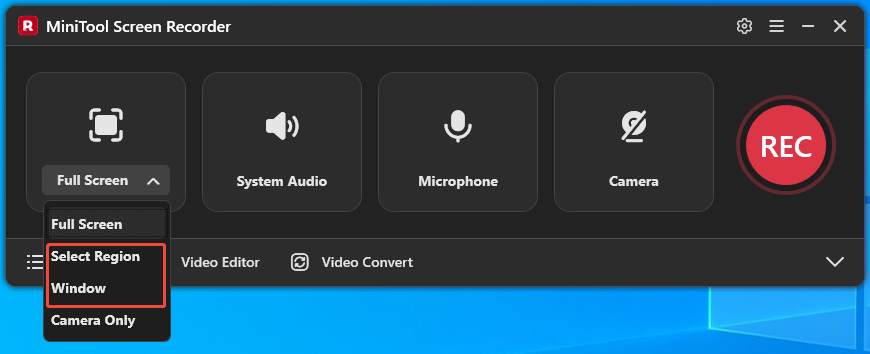
1. MiniTool Screen Recorder defaults to capture the full screen.
2. If there is a need to record a specific area or window, simply expand the drop-down menu of the Full Screen option.
3. Then, choose the Select Region option or the Window option.
Step 3: Control the Audio
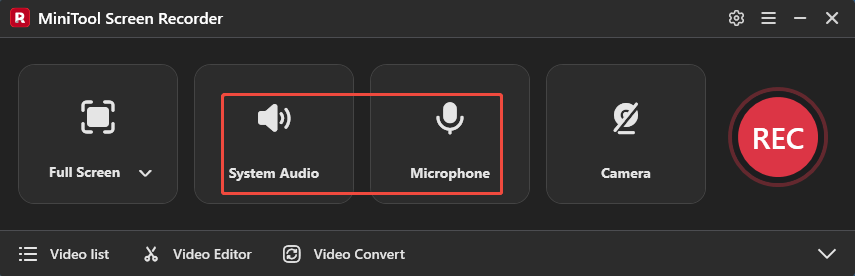
1. The system audio and microphone audio recording features in this software are enabled by default. So both system audio and microphone audio can be captured simultaneously and automatically.
2. Alternatively, only one audio source can be recorded by clicking the corresponding System Audio icon or Microphone icon as needed.
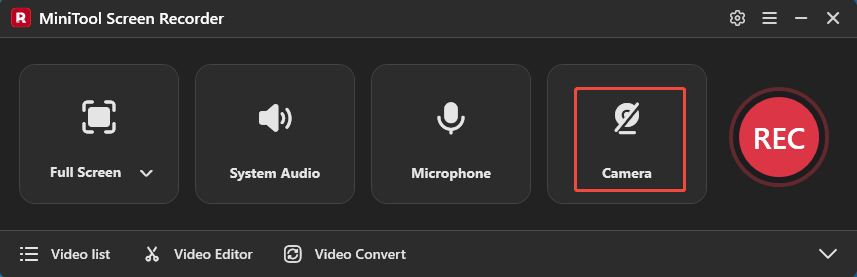
Step 4: Enable the Camera (If needed)
If there is a need to record video footage from your webcam while recording Discord audio, click the Camera icon to enable it.
Step 5: Start and End Recording
1. To begin the recording process, click the REC button or press the F6 key on the keyboard.
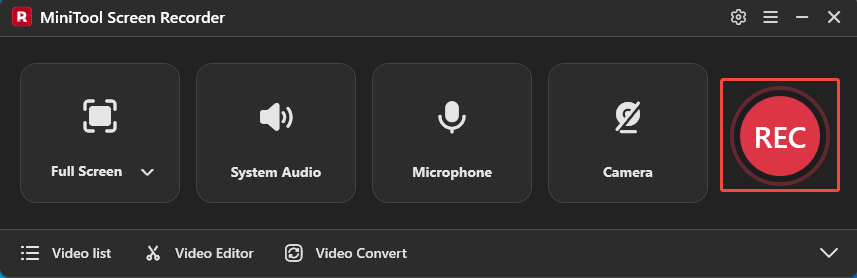
2. After a 3-second countdown, switch to Discord and choose the target audio.
3. To end the recording process, press the F6 key again.
Step 6: View and Locate the Recorded Video
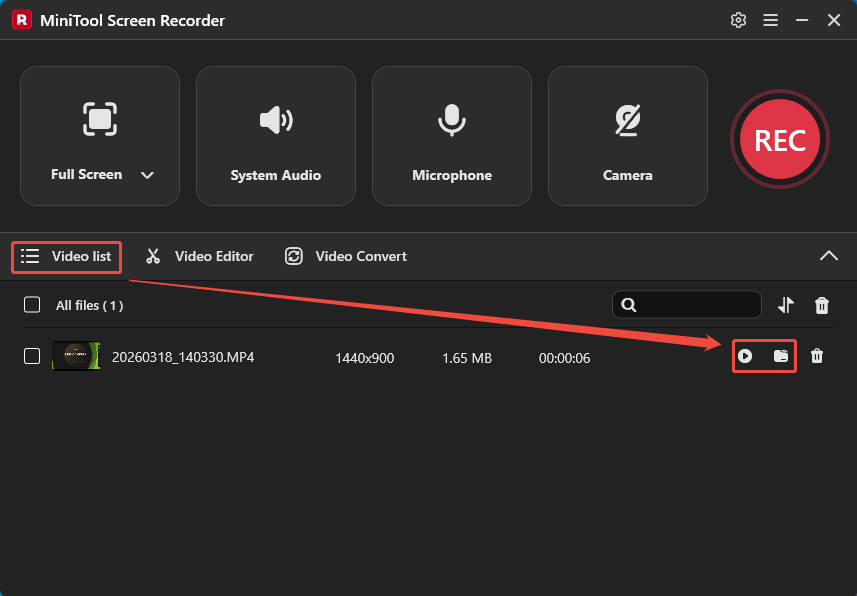
1. Once the recording ends, MiniTool Screen Recorder will automatically switch to the Video list section, where the recorded video is listed.
2. Then, click the Play icon to view the recorded video and click the Folder icon to locate it on the PC.
MiniTool MovieMakerClick to Download100%Clean & Safe
Bottom Line
This article explains how to record Discord audio in the absence of a built-in recording feature. By utilizing either Windows' native Xbox Game Bar or the professional recording tool MiniTool Screen Recorder, you can accomplish this task efficiently.
If you run into any issues when trying out MiniTool Screen Recorder or MiniTool MovieMaker, send an email to support@minitool.com.