

How to record audio on Google Slides with no effort? This post offers two effective methods: using a Windows built-in tool – Windows Voice Recorder, and a professional third-party screen recorder – MiniTool Screen Recorder.
Google Slides is a free web-based presentation tool developed by Google that allows users to easily create, edit, and share slides from any connected device. How to record audio on Google Slides? This post offers two robust methods. Read on for more.
Why Add Audio on Google Slides
Many people only use text and images to create slides, but audio can enhance the effectiveness of presentations, making them better suited to modern learning and communication needs.
Voice narration captures attention more effectively than plain text alone. It keeps viewers engaged for longer periods. When people hear clear explanations of concepts, they actively listen and connect with the information – rather than merely reading it.
Additionally, slides often appear cluttered due to excessive text. With audio, you can keep slides clean and use voice to explain complex concepts. This not only helps listeners understand slides more easily but also reduces the workload for creators.
![How to Record Twitter Spaces on Windows [4 Reliable Methods]](https://images.minitool.com/recorder.minitool.com/images/uploads/2026/02/record-twitter-spaces-thumbnail.png)
How to Record Audio on Google Slides
Google Slides does not feature a built-in recording tool. In that case, you need to use some third-party recorders to record audio, then insert it into Google Slides. Here are two effective methods to record audio on Google Slides.
Method 1. Use Windows Voice Recorder
Windows Voice Recorder is a built-in and free voice recording tool on Windows. It features an intuitive user interface and offers a quick recording, allowing you to record audio easily. In addition, this recorder provides trimming features, which means you can trim your recorded audio until you are satisfied with it before exporting.
How to record audio on Google Slides with this audio recorder? Follow the quick guide below.
Step 1. Launch Windows Voice Recorder from the Start menu.
Step 2. Click the Microphone icon in Windows Voice Recorder to start recording audio.
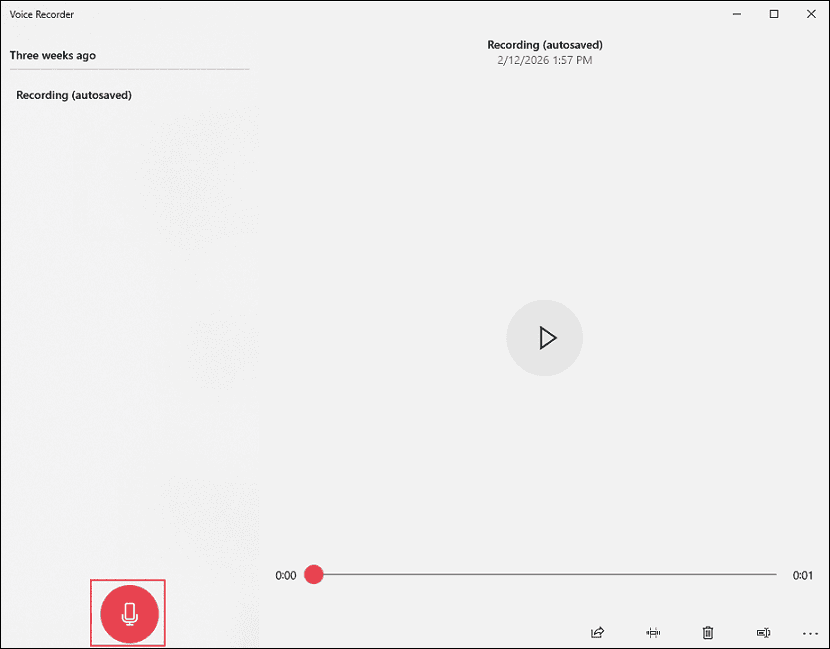
Step 3. Start speaking when the recording begins.
Step 4. Click the Stop recording button to end the recording.
Step 5. The recorded audio will be listed in the left section.
Method 2. Use MiniTool Screen Recorder
You can also add audio to Google Slides by recording slides with audio and saving them as videos. To do that, MiniTool Screen Recorder can help you.
MiniTool Screen Recorder is a professional and user-friendly screen recorder. It includes no commercials, bundles, watermarks, or time limits. It provides multiple recording choices, including full-screen, selected region, and webcam recording. Also, it allows you to record the screen with microphone sound and system audio concurrently or individually, making it perfect for recording presentations, online webinars, etc.
In addition, MiniTool Screen Recorder has real-time screen annotation features that allow you to add arrows, numbers, text, and draw on the screen. Before recording, you can set the video quality (original/standard/high) and frame rate based on your needs. Moreover, this screen recorder supports picture-in-picture recording with a webcam. When presenting in Google Slides, you can display your face on the screen to connect more closely with your audience.
Here’s how to record a Google Slides presentation with audio using MiniTool Screen Recorder.
Step 1. Download and Install MiniTool Screen Recorder
Click the download button below to download and install MiniTool Screen Recorder on your PC. Then, double-click the shortcut to launch it.
MiniTool Screen RecorderClick to Download100%Clean & Safe
Step 2. Configure Recording Settings
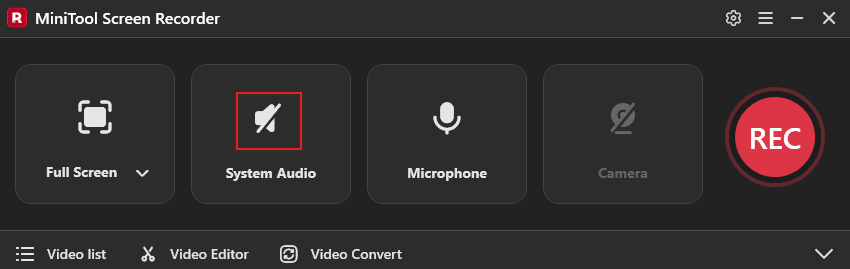
Set audio settings
- Record system audio and microphone: The system audio and microphone are turned on by default. To record both narration and system audio (such as background music) simultaneously, it is recommended to adjust your computer's audio settings beforehand (lower the system volume and set the microphone volume to maximum) to ensure the clarity of the narration. Also, keep MiniTool Screen Recorder’s microphone and system audio on.
- Record voiceover only: If you only want to record the voiceover, turn off the system audio.
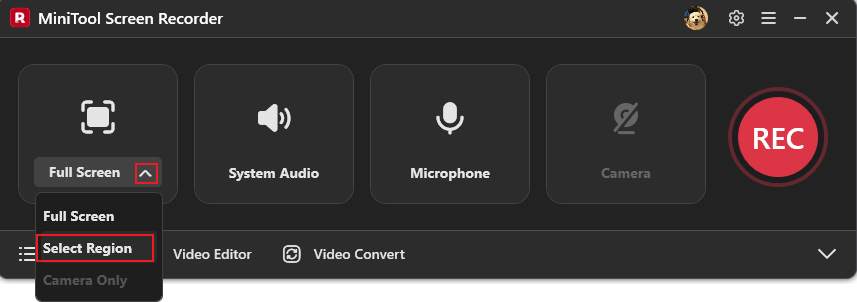
Choose the recording area
By default, the full screen is recorded. If you want to record a specific area, expand the Full Screen drop-down menu and choose Select Region, then hold and drag the mouse to select the Google Slides area.
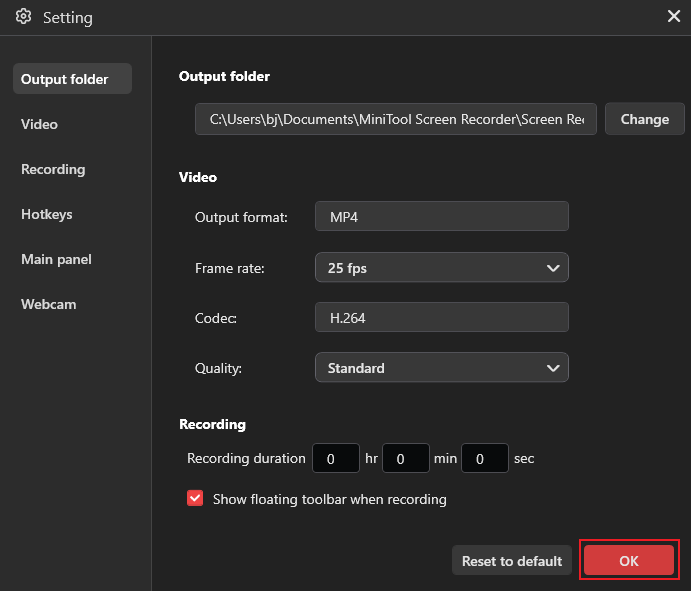
Adjust more settings
Click the Settings icon in the top right to access the Settings window. There, you can choose the video frame rate and quality. After that, click the OK button to save the changes.
Step 3. Start Recording Your Google Slides Presentation with Audio
Open your Google Slides and be ready to present. Then, click the REC button. After a three-second countdown, the recording will begin. Press the F9 key to pause/resume the recording.
Step 4. Stop the Recording
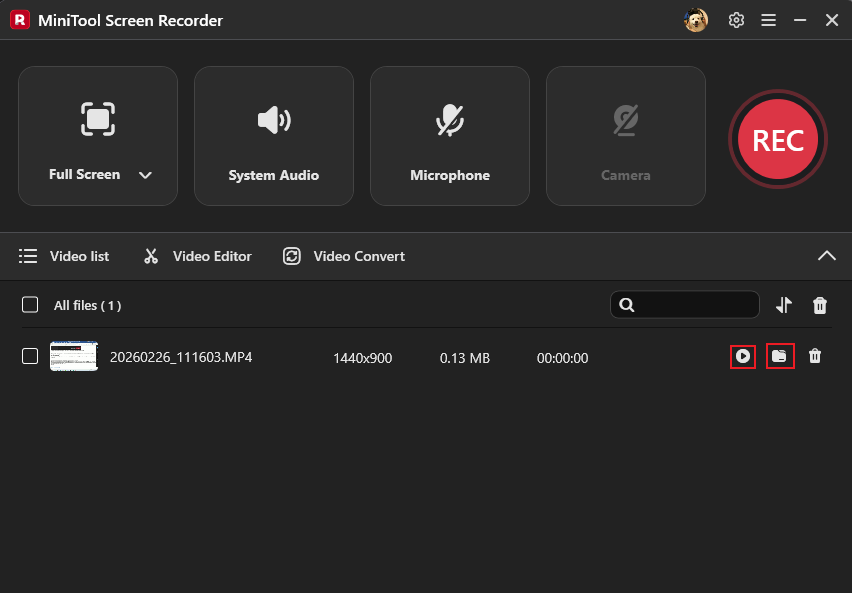
Press F6 to end the recording. Then, find the recorded video in the Video list part. Click the Folder icon to locate the recording or click the Play icon to view it.
Want to make your presentation videos more interesting? Click the Video Editor option next to the Video list to open or download MiniTool MovieMaker! It is a powerful video editor. There, you can cut, crop, reverse, rotate, speed up/slow down your video.
Also, with the vast library of transitions, music, stickers, motion, and filters, you can make your recording more appealing. Click the download button below to give it a try!
MiniTool MovieMakerClick to Download100%Clean & Safe
Bonus: How to Insert Audio/Video in Google Slides
Insert Audio in Google Slides
1. Open your presentation and select the slide you want to add audio to.
2. Windows Voice Recorder saves audio recordings in the M4A format, which is not accepted by Google Drive. Use MiniTool Video Converter to convert M4A to MP3 and other Google Drive-supported audio formats.
MiniTool Video ConverterClick to Download100%Clean & Safe
3. Upload the converted audio to Google Drive.
4. In Google Slides, click the Insert tab on the menu bar and choose Audio.
5. Select and insert the target audio file.
Insert Video in Google Slides
1. Open your presentation and select the target slide.
2. Click Insert and click Video.
3. Select a video from YouTube or Google Drive. Click Select to insert the video.
In Summary
How to record audio on Google Slides? This post recommends two reliable and easy methods to help you complete the task. With MiniTool Screen Recorder or Windows Voice Recorder, you can record audio on Google Slides with no effort!
Feel free to contact us via support@minitool.com if you have any questions about using MiniTool Screen Recorder or MiniTool MovieMaker. Alternatively, you can send me messages directly on X, and I’ll help you as soon as possible.