

How do you record Twitter Spaces on Windows to capture interesting conversations, whether you're a host or a listener? This post offers 4 reliable methods: using Twitter’s built-in recording tool and three reliable third-party screen recorders – MiniTool Screen Recorder, Microsoft Clipchamp, and Bandicam.
Before we dive into how to record Twitter Spaces on Windows, let’s explore what Twitter Spaces is.
What Is Twitter Spaces
Twitter Spaces is a built-in real-time audio feature on the X platform designed to enable users to connect, communicate, and participate in live voice discussions without requiring cameras, recording, or complex setup. Any user with an X account can create or join a live audio room with just a few taps, transforming text-based interactions into vivid, natural conversations that feel more personalized and immediate.
In addition, in Twitter Spaces, hosts can moderate conversations while listeners can quietly join, speak, interact with emojis, or listen to learn, discuss, or be entertained. It works perfectly for everyday chats, industry discussions, fan meetups, and more – helping you build stronger connections with your audience.
Moreover, Twitter Spaces requires no additional apps or devices – all actions are completed within the X platform. Users can easily join anytime, anywhere via their mobile devices or computers. Spaces can be public for anyone to discover, or locked for access by private groups only.
These days, Twitter Spaces remains an essential part of the X experience, connecting people, groups, and international discussions. In a natural, instantaneous, and genuinely human way, it turns passive browsing into active engagement, enabling people to voice their opinions, listen to others, and make connections.
Advantages of Using Twitter Spaces
Here is a breakdown of using Twitter Spaces:
Accessibility and Immediacy
This feature allows users to quickly initiate or join voice chats within seconds, without the need for prior arrangements, making it a perfect choice for urgent discussions, breaking news commentary, etc. Plus, the voice-first, camera-free environment is ideal for introverts, and the captioning feature ensures accessibility for the hearing impaired. Listeners can join the conversation at almost any time without needing to focus on the video or read lengthy text.
Authenticity and Interaction
Voice enhances the authenticity and intimacy of talks by expressing tone, emotion, and personality that text frequently finds difficult to properly capture. Compared to passive content consumption, it strengthens the sense of community belonging by establishing emotional ties and trust between speakers and listeners.
Inclusivity and Scalability
Twitter Spaces can host a large number of listeners, making it appropriate for large-scale events like press conferences, fan meet-and-greets, and more. At the same time, it provides a space for people with niche interests to connect.
How to Host Twitter Spaces
Here’s how to host Twitter Spaces on a Windows computer:
Step 1. Log in to your Twitter account.
Step 2. Click the More option in the left menu.
Step 3. Choose the Create your Space option.
Step 4. Set who can speak, input the topic you want to discuss, and click Start now.
How to Join Twitter Spaces
There are several methods to join Twitter Spaces. You can click the link that other people send you to join it. Or, you can log into your Twitter account and search for filter: spaces in the search bar. Browse the results and join the desired Twitter Spaces based on your needs.
Why Record Twitter Spaces
Listening to Twitter Spaces live streams is engaging and interactive, and recording these audio conversations offers numerous practical and long-term benefits. Recording Twitter Spaces enables content repurposing, transforming the recordings into podcasts, short videos, blogs, and more to maximize their value.
Additionally, for listeners, recording and saving Twitter Spaces content allows them to revisit confusing points or discuss them with others, deepening their understanding of the topics discussed before. For speakers, the recording can be used to review the whole process, identify areas for improvement, adjust their presentation style, and prepare more thoroughly for future events.
Sometimes, many users may be unable to attend sessions due to personal reasons. Recording Twitter Spaces allows them to listen later, anytime and anywhere, ensuring they never miss valuable presentations, important conversations, and more.
Moreover, recorded files can be shared on other social platforms, allowing people who don't use Twitter Spaces to access the conversation. This brings new audiences to original hosts or speakers and enables more people worldwide to participate in meaningful discussions.
How to Record Twitter Spaces as a Host
Twitter Spaces offers a built-in feature that allows hosts to record the live content. Follow the instructions below.
Step 1. Log in to your Twitter account.
Step 2. Click the More option in the left menu.
Step 3. Click Create your Space.
Step 4. Finish the custom settings.
Step 5. Enable the Record Space option.
Step 6. The recording will begin automatically after you click the Start now option.
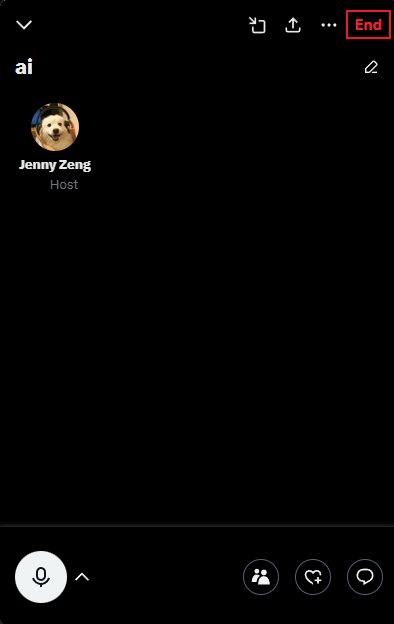
Step 7. To stop the recording, click the End option in the top right corner of the Twitter Spaces box.
How to Record Twitter Spaces as a Listener
Twitter Spaces doesn’t offer a recording feature for listeners. But don’t worry, you can use a third-party recording tool to complete the task. In the following section, I recommend three expert screen recording programs for a listener to record Twitter Spaces on Windows.
Method 1. Use MiniTool Screen Recorder
MiniTool Screen Recorder is a professional and user-friendly screen recorder that is specially designed for Windows users. It features an intuitive user interface, allowing everyone to record their computer screen without any effort. Plus, it has no ads, bundles, or watermarks, creating high-quality recording results.
MiniTool Screen Recorder has multiple recording modes, such as full-screen recording, selected-area recording, screen and webcam recording, and camera-only recording. It can capture the system audio and microphone sound simultaneously or separately, making the program perfect for creating gameplay videos, on-screen tutorials, presentations, etc.
In addition, MiniTool Screen Recorder provides various custom options. You can configure output video frame rates, quality, custom shortcut hotkeys, schedule recording durations, etc. Moreover, you can adjust webcam position, shape, size, etc., based on your needs.
Furthermore, MiniTool Screen Recorder includes a screen annotation tool that lets you highlight, draw, add arrows, rectangles, and text to the screen while recording. With this desktop tool, you can record Twitter Spaces easily and smoothly.
Now, follow the instructions below to record Twitter Space as a listener.
Step 1. Download and Install MiniTool Screen Recorder
Click the download button below to download this program. Then, follow the on-screen setup instructions to install it on your computer. Next, launch the program.
MiniTool Screen RecorderClick to Download100%Clean & Safe
Step 2. Set the Recording Settings
Adjust audio settings: The system audio and microphone sound are turned on by default. Since you want to record audio on Twitter Spaces, it is recommended to keep system audio and microphone sound both on.
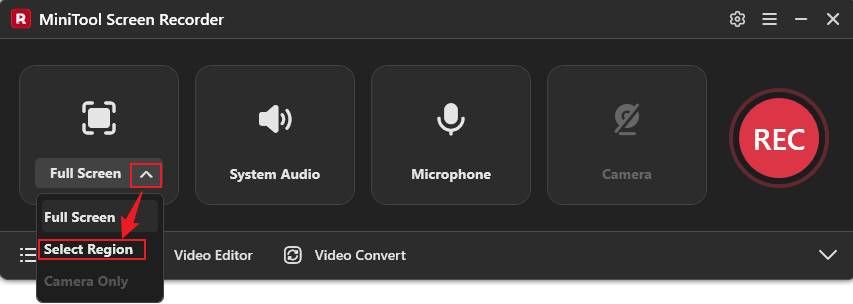
Choose the recording region: The program records the full screen by default. The Twitter Spaces window is quite small, so it will be better to specify the recording area. Get your Twitter Spaces ready. Then, expand the Full Screen option, choose Select Region, and then hold and drag the mouse cursor to choose the recording area.
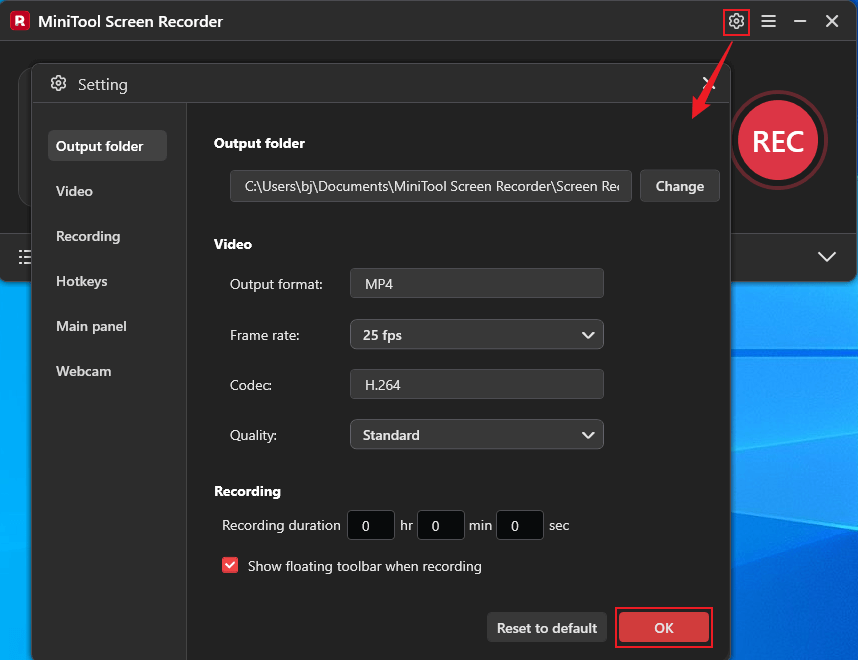
Configure more settings: Click the Settings icon in the upper-right corner to enter the Settings window. There, you can change the output video frame rate, quality, hotkeys, etc. Then, click the OK button to save the changes.
Step 3. Start Recording the Twitter Spaces
Click the REC button on the floating toolbar. After a three-second delay, the recording will start. During the recording, you can press the F9 key to pause or resume.
Step 4. Use the Annotation Tool (Optional)
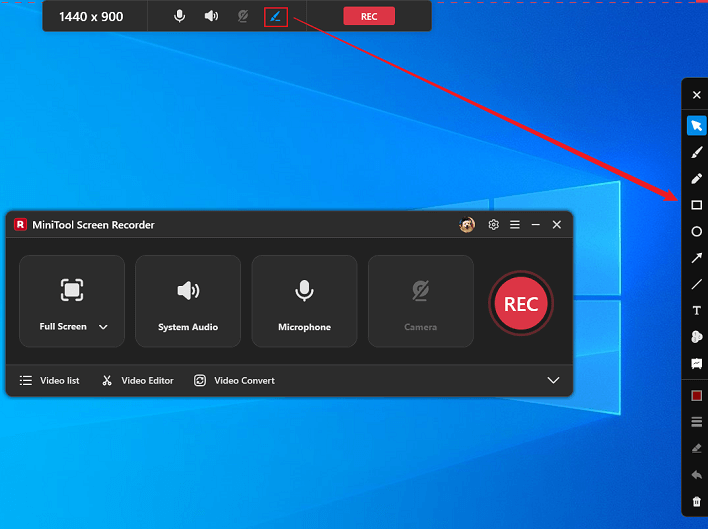
Move your mouse cursor to the top middle area of the screen to activate the floating toolbar. Next, click the Brush icon to open the annotation toolbar on the right side of the screen. Based on your needs, you can select the desired tool to add annotations.
Step 5. Stop the Recording
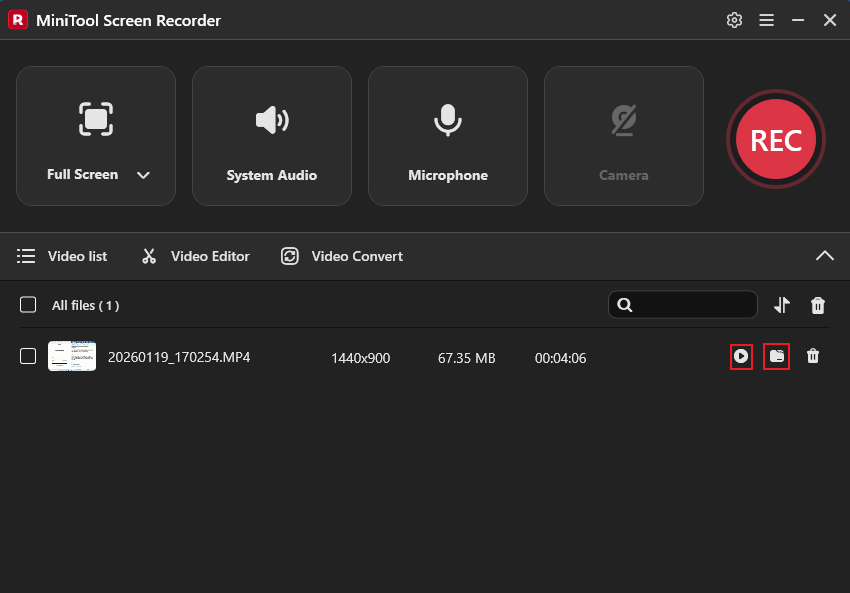
Press the F6 key to stop recording. Check the recording in the Video List area. Click the Play icon to watch the recording or click the Folder icon to locate it.
Step 6. Convert the Recording to Audio
The recorded result is saved in the MP4 format. If you want an audio file, simply convert the recording to an audio format. Click the Video Convert option in the toolbar above the recording list to open or download and install MiniTool Video Converter. Or, you can click the download button below to get it.
MiniTool Video ConverterClick to Download100%Clean & Safe
Step 7. Import Your Recording
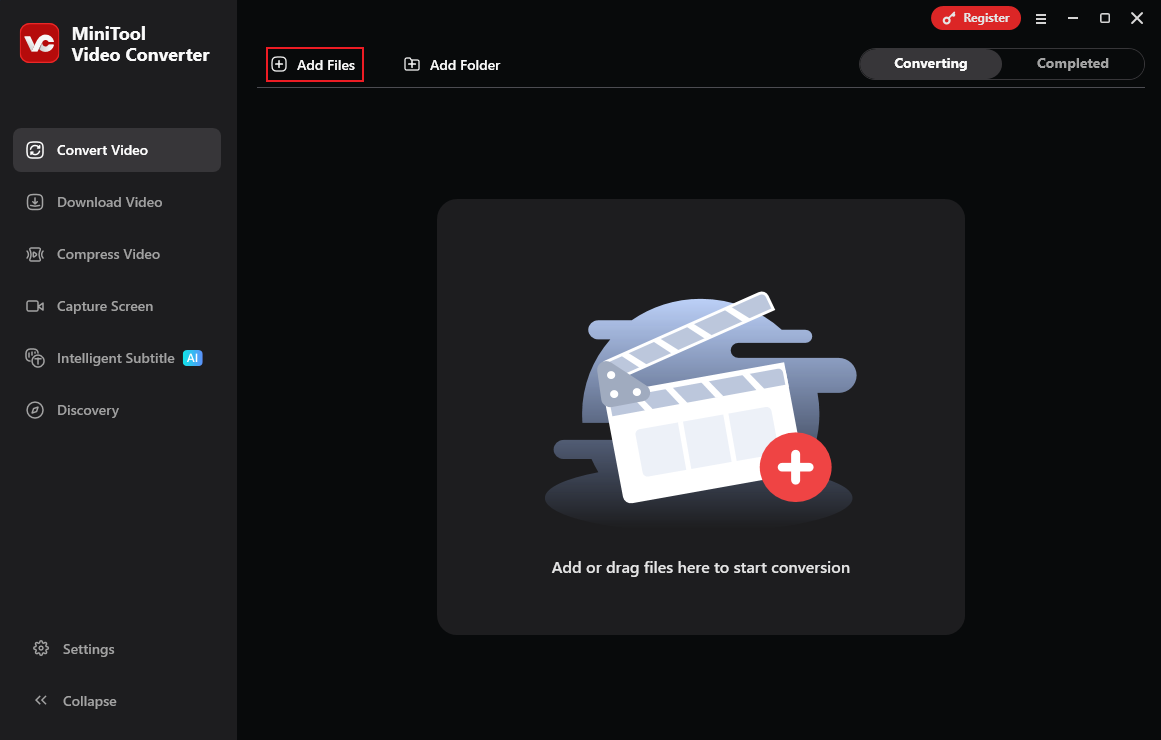
Click the Add Files option at the top left to add the video you just recorded.
Step 8. Convert the Recording to MP3
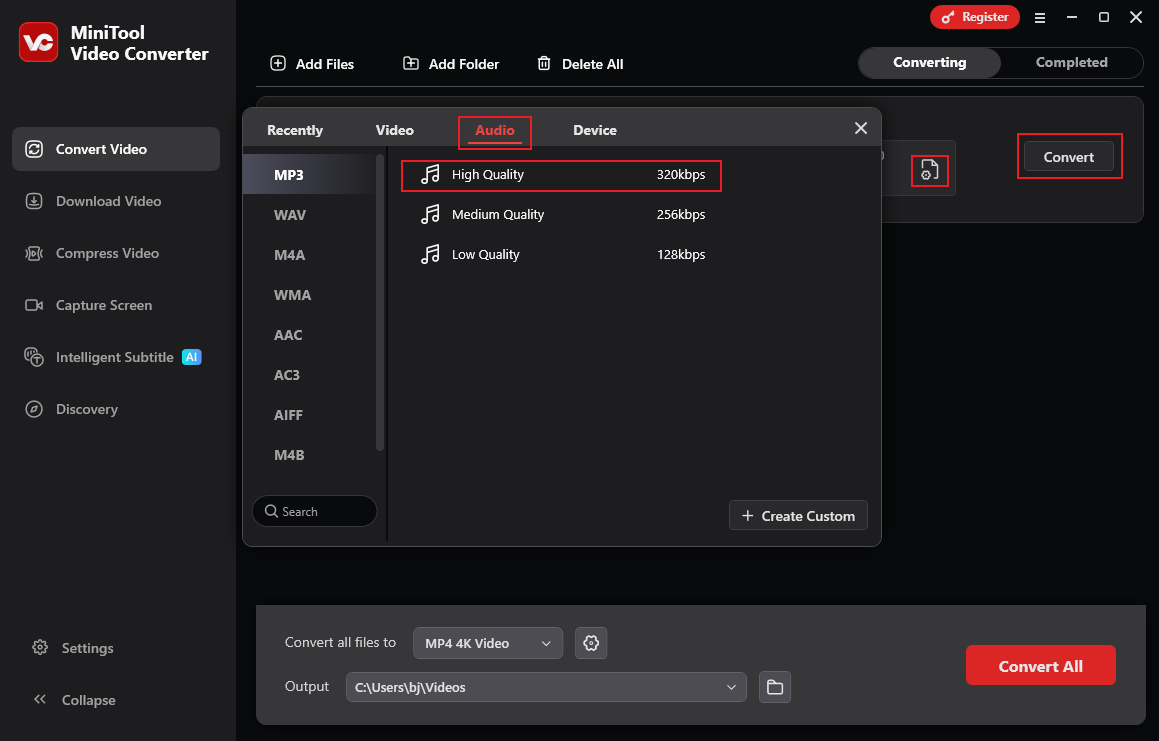
Click the Settings icon on the imported file to open the format library. Choose the Audio tab, click MP3, and select an audio quality (for example, High Quality). Then, click Convert to start the conversion.
Step 9. Play or Locate the Audio
When the conversion process completes, the converted audio file will be listed in the Completed section. Click the Play icon or the Folder icon to play the audio or locate it.
All finished! With MiniTool Screen Recorder, you can record Twitter Spaces with no hassle.
Method 2. Use Microsoft Clipchamp
Microsoft Clipchamp is a free, easy-to-use screen recording and video editing tool widely used for capturing computer screens and creating tutorials, product demos, online courses, presentations, and more. Its integrated screen recording capability is well known for being easy to use, effective, and integrating seamlessly with web and Windows platforms, making it a great option for both novices and experts.
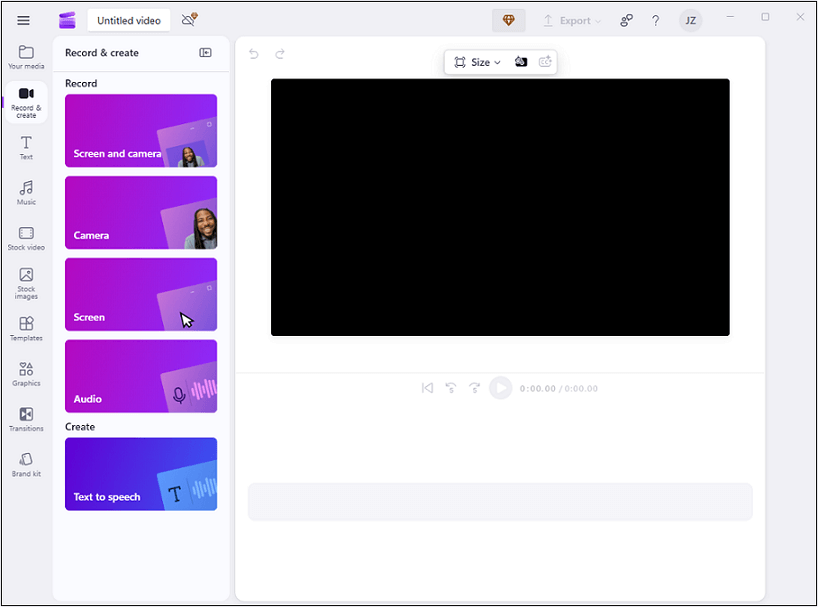
Additionally, Clipchamp supports multiple flexible recording modes to accommodate different needs. You can choose to record the full screen, a single window, or a specific area. It also supports picture-in-picture recording, combining screen capture with webcam footage. Moreover, Clipchamp allows simultaneous or separate capture of system audio and microphone input, ensuring clear recording of both voice and background sounds.
After recording, you can easily trim unwanted sections using Clipchamp's built-in video editor, then enhance your video by adding text, annotations, transitions, background music, and more. It supports audio-only outputs, making it suitable for recording Twitter Spaces.
Method 3. Use Bandicam
Bandicam is a lightweight and professional screen recorder developed by Bandisoft. It offers three recording modes to suit different requirements: Screen Recording, Game Recording, and Device Recording.
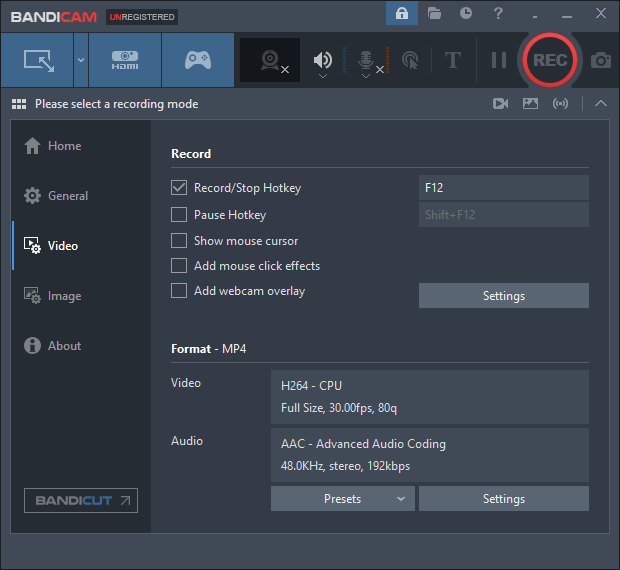
Screen Recording supports capturing full screen, custom regions, or specific windows. Game Recording supports up to 4K resolution with minimal performance impact. Device Recording allows you to capture footage from webcams and other external hardware, featuring picture-in-picture functionality for easily adding a face camera.
Besides, Bandicam offers flexible audio control. You can record system audio, microphone input, or both simultaneously. It supports exporting to widely compatible video formats like MP4 and AVI, making it easy to share, edit, or upload to other platforms. For recording Twitter Spaces, Bandicam is a reliable choice.
![How to Record on YouTube TV with Ease [Step-by-Step Guide]](https://images.minitool.com/recorder.minitool.com/images/uploads/2026/02/how-to-record-on-youtube-tv-thumbnail.png)
In Summary
This post shows you how to record Twitter Spaces as a host or a listener. A host can record Twitter Spaces using its built-in recording tool. If you want to record Twitter Spaces on a PC as a listener, you have to use some third-party tools, like MiniTool Screen Recorder, Microsoft Clipchamp, or Bandicam. They are all high-performance and easy-to-use. Choose your preferred one and start your recording! Hope this article can do you a favor.
You can contact us via support@minitool.com if you have any questions about using MiniTool Screen Recorder or MiniTool MovieMaker. Alternatively, you can send me messages directly on X, and I will help you as soon as I can.