

How to record YouTube videos? The platform doesn't have a built-in recording tool, so it needs to use a professional screen recorder to do that, such as the Xbox Game Bar or MiniTool Screen Recorder.
I believe many people need to download YouTube videos for offline viewing or personal use. However, even with a YouTube Premium subscription, downloads are restricted to viewing within the platform itself. Ultimately, I discovered that screen recording is the simplest and quickest method.
Can You Screen Record YouTube
The answer is definitely yes. Even though YouTube does not offer a built-in recording feature, I can still accomplish this task using a professional YouTube recorder. However, it is important to remember that any recorded videos should only be used for personal purposes rather than commercial use.
How to Record YouTube Videos
Not all screen recording software offers a good recording experience. Therefore, after testing, I have carefully selected the following two high-quality screen recorders:
- Xbox Game Bar
- MiniTool Screen Recorder
Option 1: Xbox Game Bar
Xbox Game Bar is a recording pre-installed on Windows systems. Whenever I need to complete a quick and simple video recording task for YouTube, it is often my go-to choice. Xbox Game Bar supports recording the full screen, specific windows, and individual applications, while also allowing users to control audio recording settings.
Before going into the detailed steps, here’s a quick guide:
- Press Windows + G keys to open the Xbox Game Bar.
- Control the audio settings.
- Click the Start recording icon.
- Go to YouTube and play the target video.
- Click the Stop recording icon to end the recording process.
- Check the recorded video under the See my captures section.
Now, let’s go through the detailed steps on how to record YouTube videos.
Step 1: Launch the Xbox Game Bar
Press the Windows + G keys to open the Xbox Game Bar.
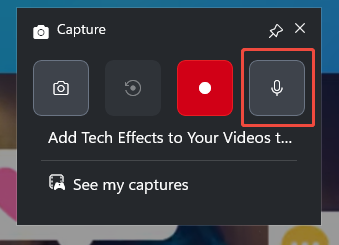
Step 2: Control the Audio
The computer audio will be automatically recorded, so there is no need to turn on the audio recording feature.
Step 3: Start and End Recording
1. Click the Start recording icon or press the Windows + Alt + R keys to begin recording.
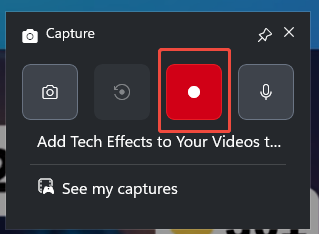
2. Go to YouTube and play the target video.
3. To end the recording process, press the Windows + Alt + R keys again.
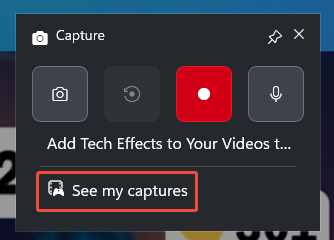
4. Finally, view and check the recorded video under the See my captures section.
All in all, the Xbox Game Bar is excellent for quick recordings. However, it falls somewhat short when it comes to customizing recording settings; consequently, whenever I need to handle more complex recording tasks, I opt for the tool introduced below.
Option 2: MiniTool Screen Recorder
MiniTool Screen Recorder is also a screen recorder for YouTube, particularly adept at handling various advanced recording tasks. It offers a wide range of flexible recording options, allowing me to freely choose whether to capture the entire screen, a specific region, a single window, or the computer audio and voice over.
MiniTool Screen Recorder features a webcam recording capability, allowing me to record the webcam feed independently or simultaneously while recording the screen. However, the feature I use most frequently is its annotation tool, which supports marking up the screen in real-time during the recording process.
Here’s a brief overview of the recording process.
- Get MiniTool Screen Recorder.
- Set the video recording frame rate and quality in the Settings interface.
- Click the Full Screen option to select the recording area.
- Control the audio by clicking the System Audio and Microphone icon.
- Manage the camera by clicking the Camera icon.
- Click the REC button or press the F6 key to start recording.
- Press the F6 key again to end recording.
- Play and check the recorded video under the Video list section.
Below are the detailed steps on how to record a YouTube video on PC.
Step 1: Download and Install MiniTool Screen Recorder
MiniTool Screen RecorderClick to Download100%Clean & Safe
1. Click the button above to download MiniTool Screen Recorder.
2. Then, follow the prompts to install it on the PC.
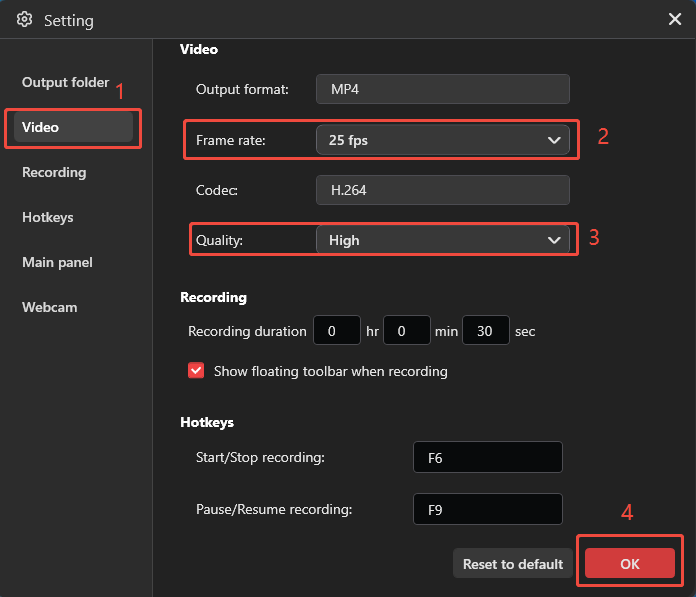
Step 2: Configure the Recording Settings
1. Launch MiniTool Screen Recorder.
2. Click the Settings icon in the upper-right corner of the main interface.
3. In the Setting interface, move to the Video tab, then adjust the frame rate and video quality.
4. Then, click OK to save the changes.
Step 3: Select the Recording Region
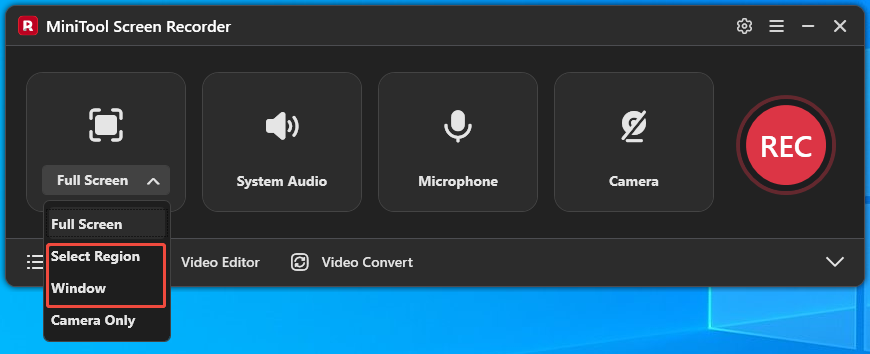
1. This tool defaults to capturing the entire screen.
2. To customize the recording area or capture a specific window, expand the drop-down menu of the Full Screen option.
3. Then, choose the Select Region option or the Window option.
Step 4: Manage the Audio
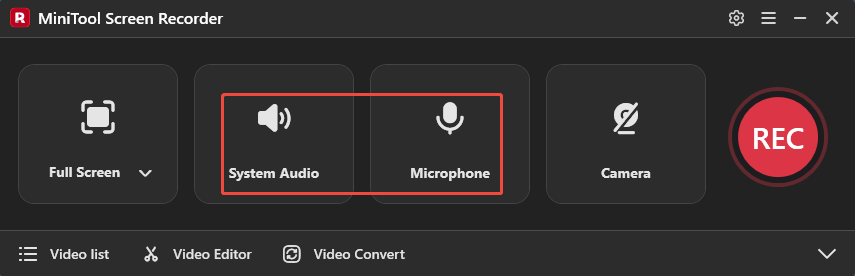
1. MiniTool Screen Recorder will automatically capture the computer audio and the microphone audio.
2. To turn off either one or both, click the corresponding System Audio and Microphone icon.
Step 5: Control the Camera
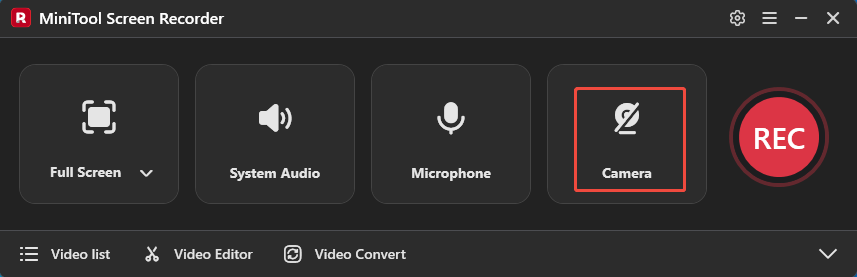
1. The webcam recording functionality is disabled by default.
2. To capture the screen with the webcam footage, click the Camera icon.
Step 6: Start and Stop Recording
1. Click the REC button or press the F6 key to begin the recording process.
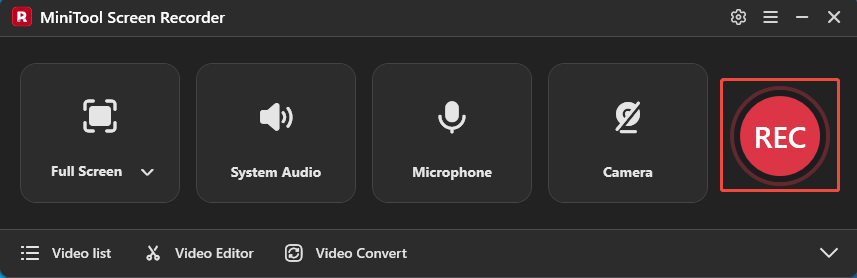
2. After a 3-second countdown, go to YouTube and play the target video.
3. To end the recording process, press the F6 key again.
Step 7: View and Locate the Recorded Video
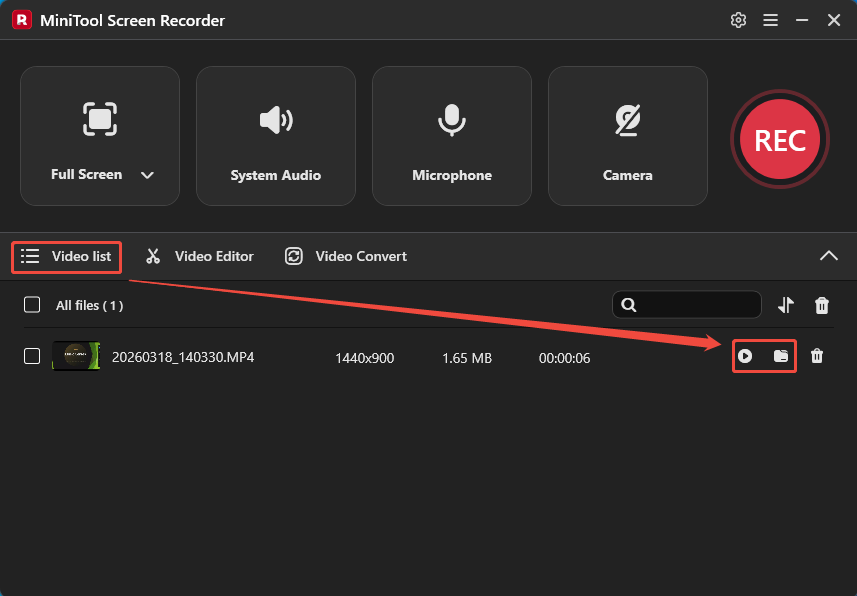
1. Once the recording ends, this tool will automatically switch to the Video list module, where I can see the recorded video.
2. Then, click the Play icon to view the recorded video and click the Folder icon to locate it.
MiniTool MovieMakerClick to Download100%Clean & Safe
Bottom Line
This article explains how to record YouTube videos without a built-in recording feature. With tools such as the Windows Xbox Game Bar or the professional screen recorder MiniTool Screen Recorder, this task can be completed smoothly and efficiently.
If you run into any issues when trying out MiniTool Screen Recorder or MiniTool MovieMaker, send an email to support@minitool.com.