

VR video is a type of content generated using virtual reality technology. Users typically need to wear a headset to experience the immersive virtual world. Additionally, VR content can be simultaneously displayed on a computer monitor, offering a more convenient method for users who wish to capture VR videos.
How to Record VR Video on PC
With the growing popularity of immersive applications like VR games, more people want to save VR content. Although direct capture via the headset is possible, body movement often results in poor recording quality. In fact, VR video can be output to a computer monitor, ensuring the best possible image quality for the recording.
I used two high-quality screen recorders, MiniTool Screen Recorder and Clipchamp, and found that both delivered good results. The table below outlines their key features.
| Features | MiniTool Screen Recorder | Clipchamp |
| Price | Free | Limited |
| Easy-to-Use | Yes | Yes |
| Various Recording Modes | Yes | Yes |
| Audio Recording | Yes | Yes |
| Frame Rate Control | Yes | No |
| No Recording Time Limit | Yes | No |
| Real-time Annotation Tools | Yes | No |
| Built-in Editing Tool | No | Yes |
Fast Track Steps:
- Launch the screen recording tool.
- Choose the recording area.
- Manage the audio recording settings.
- Start the recording process
- Open the VR mirror window on PC and play the VR video.
- End and check the recorded video.
- Edit the recorded video.
Recorder 1: MiniTool Screen Recorder
MiniTool Screen Recorder is a free screen recording tool that offers multiple recording modes. Since VR videos are displayed on the computer in VR mirror window mode, I can choose the Window or Select Region recording mode to achieve better results.
Additionally, this tool features a camera recording function, making it suitable for creating VR picture-in-picture videos. Its annotation tools also allow users to add on-screen prompts, such as step-by-step instructions, in real time. Furthermore, the program enables users to adjust the video frame rate, making it ideal for capturing VR gameplay.
MiniTool Screen Recorder supports resolutions up to 4K, with adjustable frame rates between 15FPS and 50FPS. https://betanews.com/article/minitool-releases-free-screen-recorder/
There is a guide on how to record VR gameplay with MiniTool Screen Recorder.
1. Get MiniTool Screen Recorder and launch it on the PC.
MiniTool Screen RecorderClick to Download100%Clean & Safe
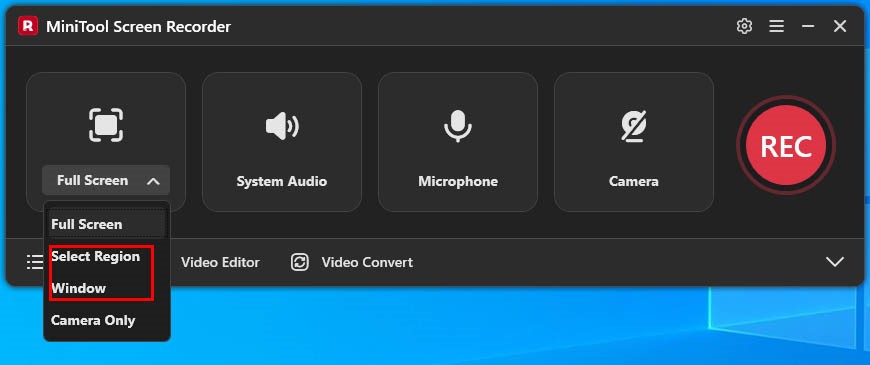
2. This tool records the full screen by default. For recording a VR video, it's recommended to select the Window or Select Region option by expanding the drop-down menu of the Full Screen option to capture only the VR mirror window.
3. Then, control the system audio and microphone recording features in the main interface on the floating bar.
4. If there is a need to add the webcam overlay while recording VR video, click the Camera icon in the main interface or floating bar.
5. Click the REC button or press the F6 key to begin the recording process. After a 3-second countdown, open the VR mirror window and play the VR video.
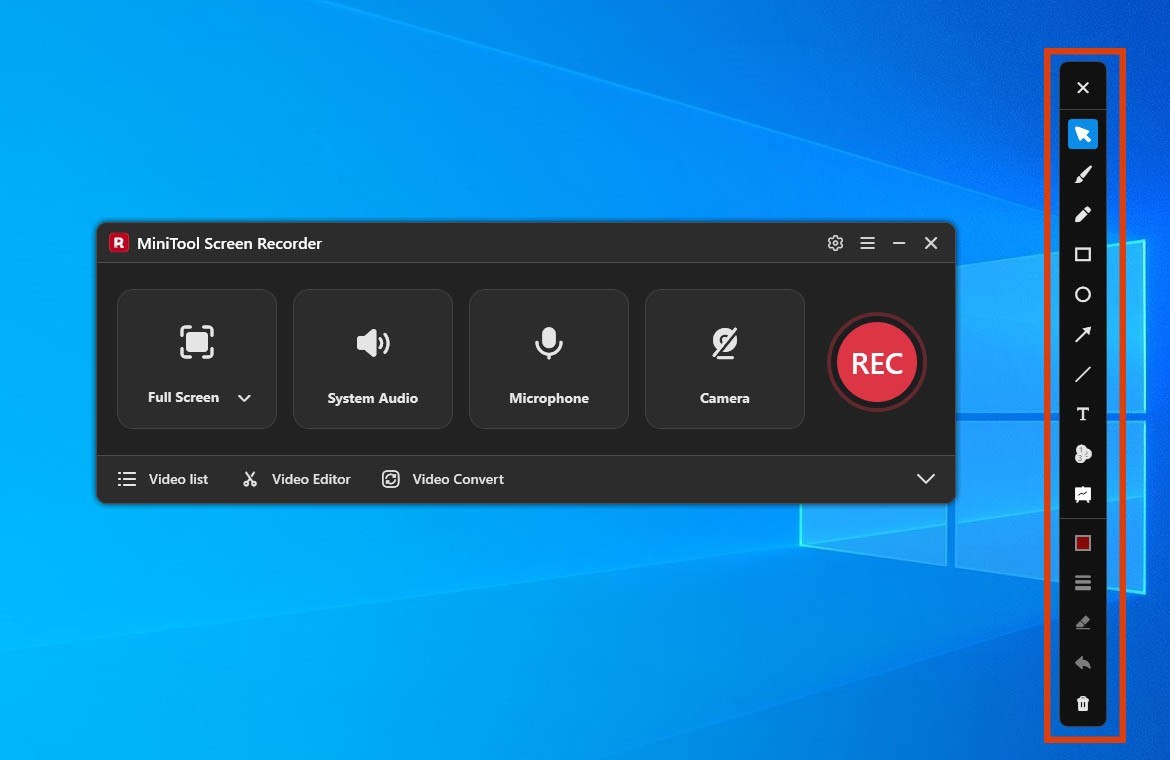
6. To annotate the screen while screen recording, select the tools from the annotation toolbar.
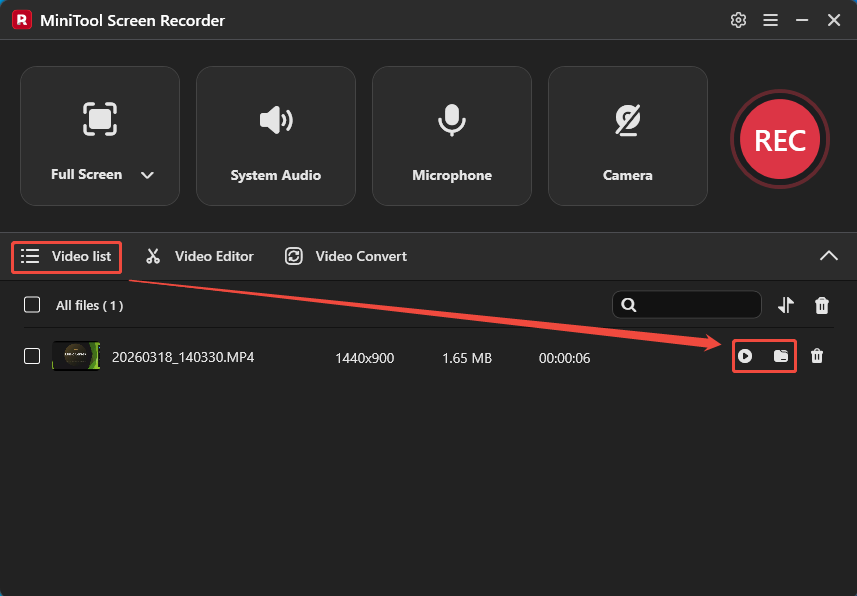
7. To end the recording process, press the F6 key again. Then, when the tool switches to the Video list section, click the Play icon to play the recorded VR video or check it by clicking the Folder icon.
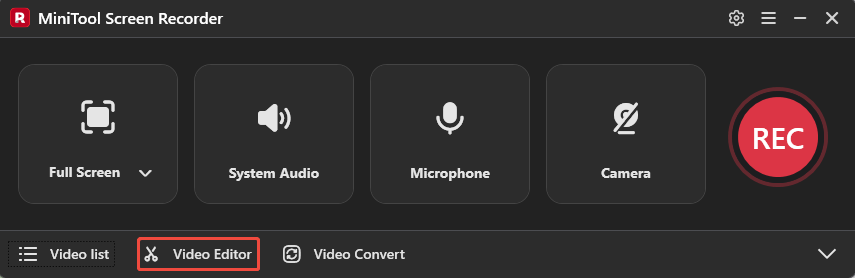
8. If the recorded VR video needs further editing, click the Video Editor option to access the companion video editing tool for quick edits.
Recorder 2: Clipchamp
Clipchamp is a tool that integrates recording and editing capabilities and comes built into Windows, making it ideal for quick and convenient VR video recording. When using this tool, users can choose between full-screen and windowed modes to capture the VR mirror window.
After recording is complete, users can proceed directly to the editing interface to crop or trim the recorded video, or add elements such as filters, subtitles, and music.
Now follow the steps below to learn how to record VR video using Clipchamp.
1. Launch Clipchamp on the PC.
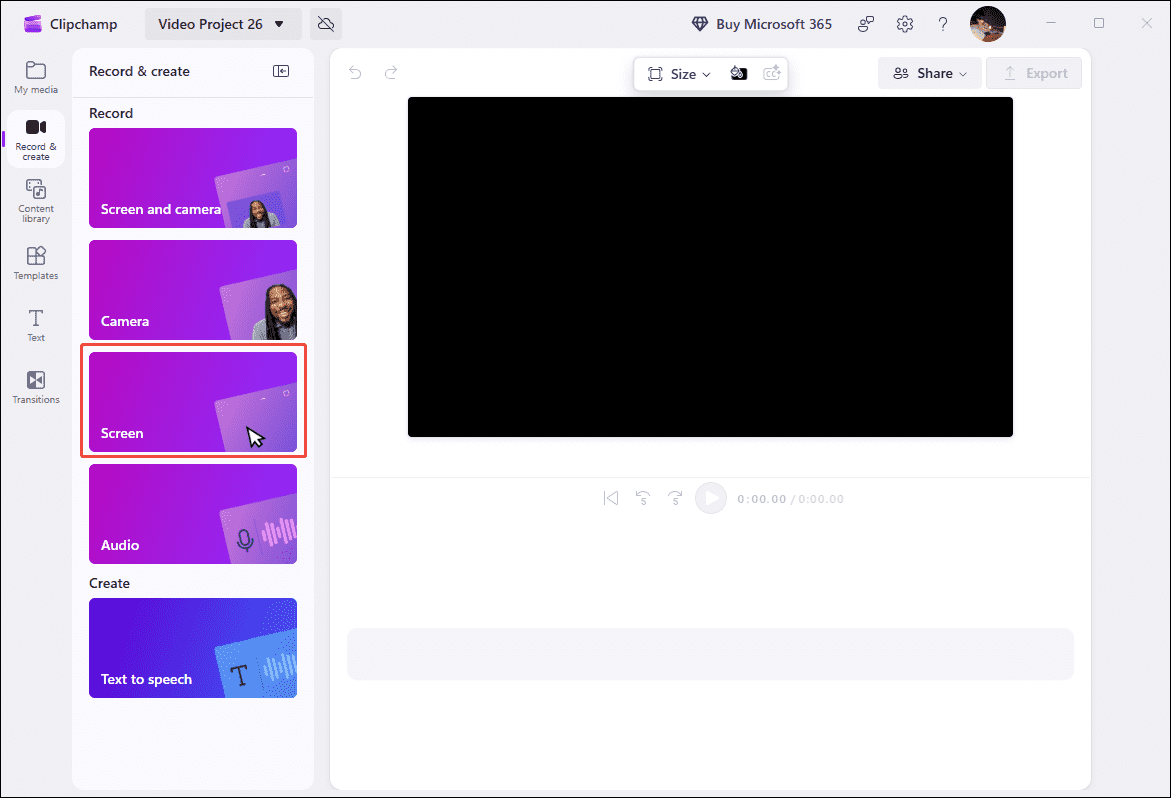
2. Click the Record yourself option within the Try it section. Then, click the Screen option in the left-hand menu bar.
3. In the new pop-up window, control the microphone recording feature. Then, click the Start screen recording option.
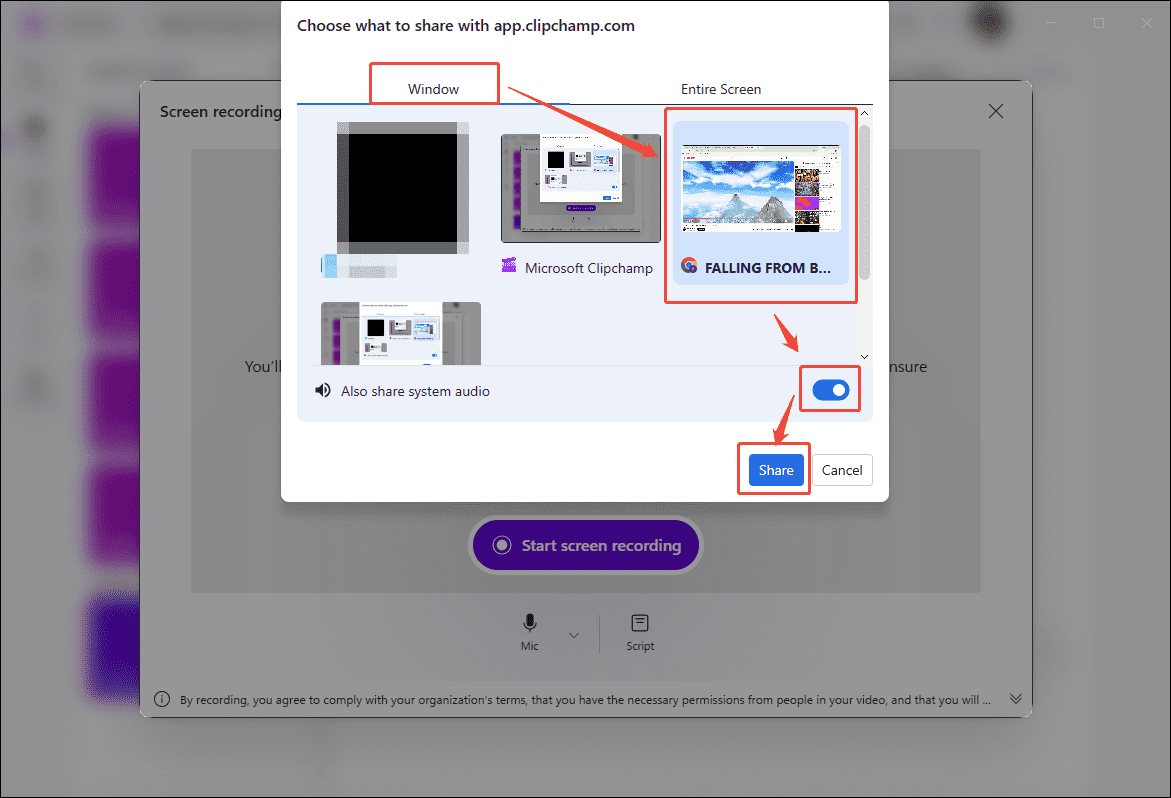
4. In the new interface, choose the VR mirror window and check the Also share the system audio option under the Window option. Then, click the Share option to begin capturing VR video.
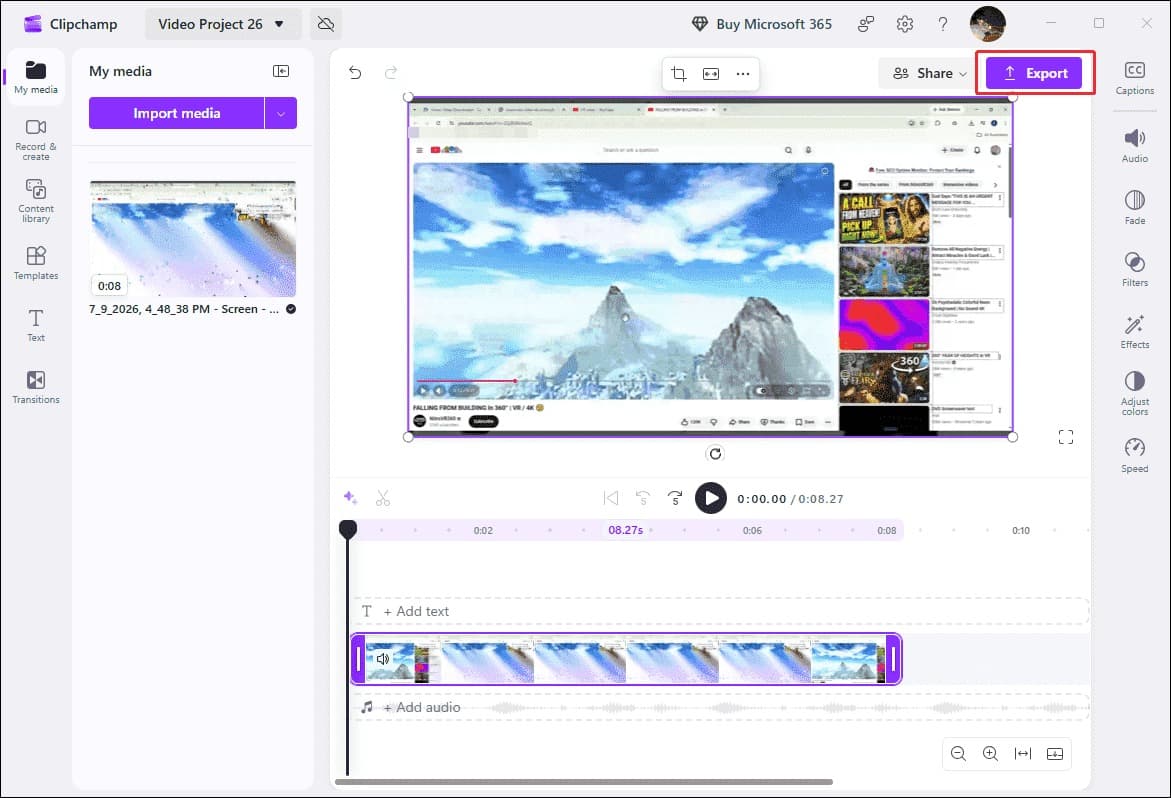
5. To end the recording process, click the Stop sharing option on the floating bar. Then, in the new interface, click the Save and edit option and edit the recorded video if needed. Finally, click the Export option to save it on the PC.
A benefit of Clipchamp being a web app is that you can access a project you create on your PC from wherever else you sign into your account. https://www.pcmag.com/reviews/clipchamp
Overall, MiniTool Screen Recorder and Clipchamp have their own strengths. The best choice ultimately depends on specific recording needs and the preferred workflow.
Bonus: How to Open the VR Mirror Window on PC
To ensure a smoother recording process, I usually display the VR content on a computer before I start recording. However, please note that the procedures vary depending on the device; below are the operating methods for several common devices.
#1 Meta Quest
Meta Quest users can utilize the web-based wireless casting feature. However, please note that both the computer and the headset must be connected to the same wireless network.
1. Log in to your account on the official Meta Quest website in the browser.
2. Press the Meta button on the right controller to access the navigation bar.
3. Then, click the Share icon and select Cast.
4. Finally, select the corresponding computer or browser from the list in the pop-up window.
#2 SteamVR
SteamVR operates very similarly to Meta Quest and also supports wireless connectivity (no data cable required).
1. Open the Steam Link app on the headset and connect the device to the computer.
2. Launch SteamVR on the computer, then click the Menu icon in the top-left corner of the status window.
3. Select the Developer option and click Display VR View in the pop-up window.
In addition, some other VR devices automatically display a mirror window on the computer once they are connected.
Final Words
How to Record VR Video on PC? This task can be accomplished by using a desktop VR video recorder, such as MiniTool Screen Recorder or Clipchamp, to capture the VR mirror window displayed on the computer screen.
If there are any problems when using MiniTool Screen Recorder or MiniTool MovieMaker, please contact the support team at support@minitool.com.