

Do you need a capture card to record on PC? The answer is no. When recording content on a PC, the video is captured directly from the screen, so a screen recorder like MiniTool Screen Recorder or Snipping Tool is all that's required.
What Is a Capture Card
A capture card is a hardware device that receives video signals sent from external devices via HDMI and transmits them to a computer, enabling users to live stream and record. In other words, when I need to capture content from an external device, a capture card is required.
Do You Need a Capture Card to Record on PC
The answer is no. This is because screen recording software can directly capture the content displayed on the computer screen and save it as a video file. Therefore, if I only need to record what is shown on the computer screen, such as gameplay, video conferences, presentations, or live streams, using the appropriate screen recording tool is sufficient.
When Do You Actually Need a Capture Card
While recording most computer-based content does not require a capture card, recording video signals from external display devices necessitates a capture card to feed the signal into the computer for recording. The table below clearly outlines the various scenarios where a capture card is or is not required.
| Recording Source | Capture Card Required? |
| PC games | No |
| PC desktop | No |
| Web browsers | No |
| VR mirror windows | No |
| PS5 | Yes |
| Nintendo Switch | Yes |
| Xbox | Yes |
| Mirrorless camera | Yes |
How to Record without a Capture Card on PC
As previously mentioned, recording the computer screen typically does not require a capture card. So, can I record gameplay without a capture card on PC? Absolutely, a high-quality screen recording tool is all that's needed.
In most cases, I use a versatile piece of software that has become an essential tool in my daily workflow: MiniTool Screen Recorder. Not only is it completely free, but it also features an intuitive interface. Additionally, this tool meets a wide range of recording needs, supporting capture modes that cover the full screen, specific areas, individual windows, and even webcam footage.
Furthermore, I frequently use this software to streamline my recording workflow. For instance, when recording tutorials, I often utilize its built-in annotation tools to highlight key steps or mark information. This program also performs exceptionally well for recording gameplay, allowing me to adjust settings, like frame rate, image quality, and even recording duration, to suit my specific needs.

Fast Track Steps:
- Open MiniTool Screen Recorder.
- Adjust the recording settings under the Settings module.
- Determine the recording area under the Full Screen section.
- Manage audio and webcam recording settings.
- Click the REC button to begin recording.
- Annotate the screen.
- Press the F6 key to end recording.
- Check the recorded video under the Video list section.
- Edit the recorded video by clicking the Video Editor option.
Here are the detailed instructions to record screen without a capture card using MiniTool Screen Recorder.
1. Click the button below to download MiniTool Screen Recorder, then install it on the PC.
MiniTool Screen RecorderClick to Download100%Clean & Safe
2. Launch MiniTool Screen Recorder. Click the Settings icon, then manage the relevant recording settings. Finally, click the OK button to save the changes.
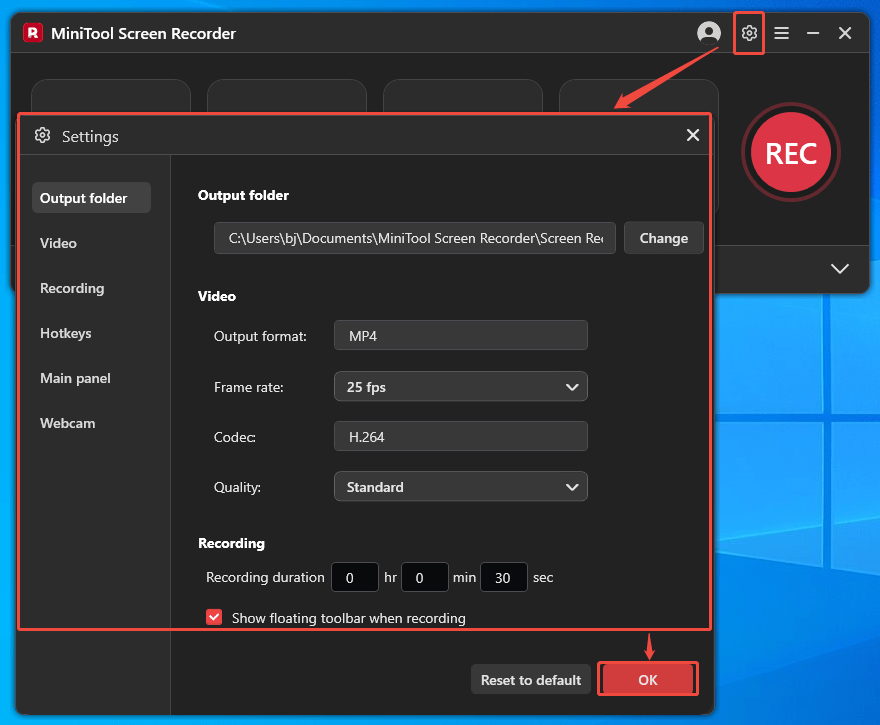
3. This tool provides multiple recording area options. To capture the full screen, the default setting can be kept. To record a specific area or window, expand the Full Screen option and choose the Select Region or Window option.
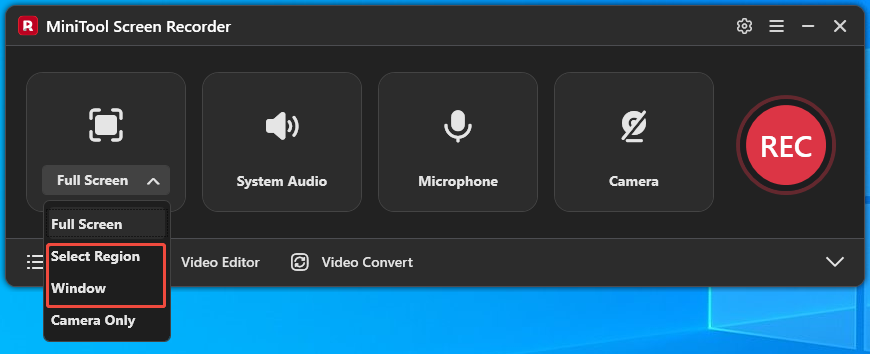
4. Then click the corresponding audio and camera icons on the main interface to enable or disable audio and camera recording functions.
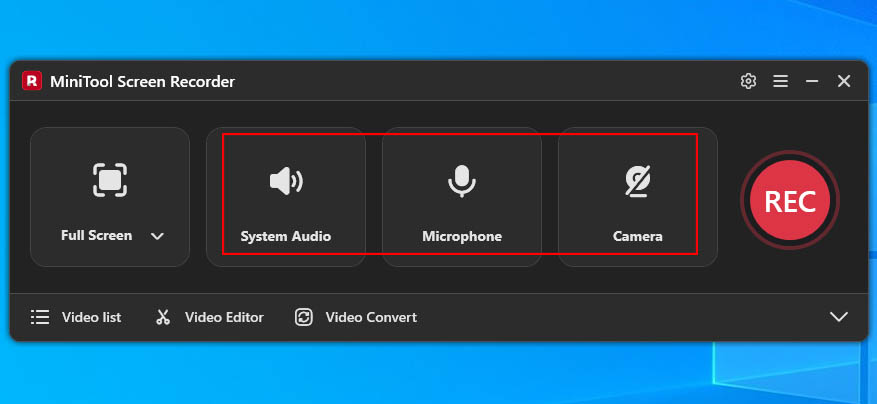
5. Click the REC button to begin the recording process. After a 3-second countdown, move to the content that needs to be captured.
6. Then, select the annotation tools from the toolbar on the right of the screen to mark the screen.
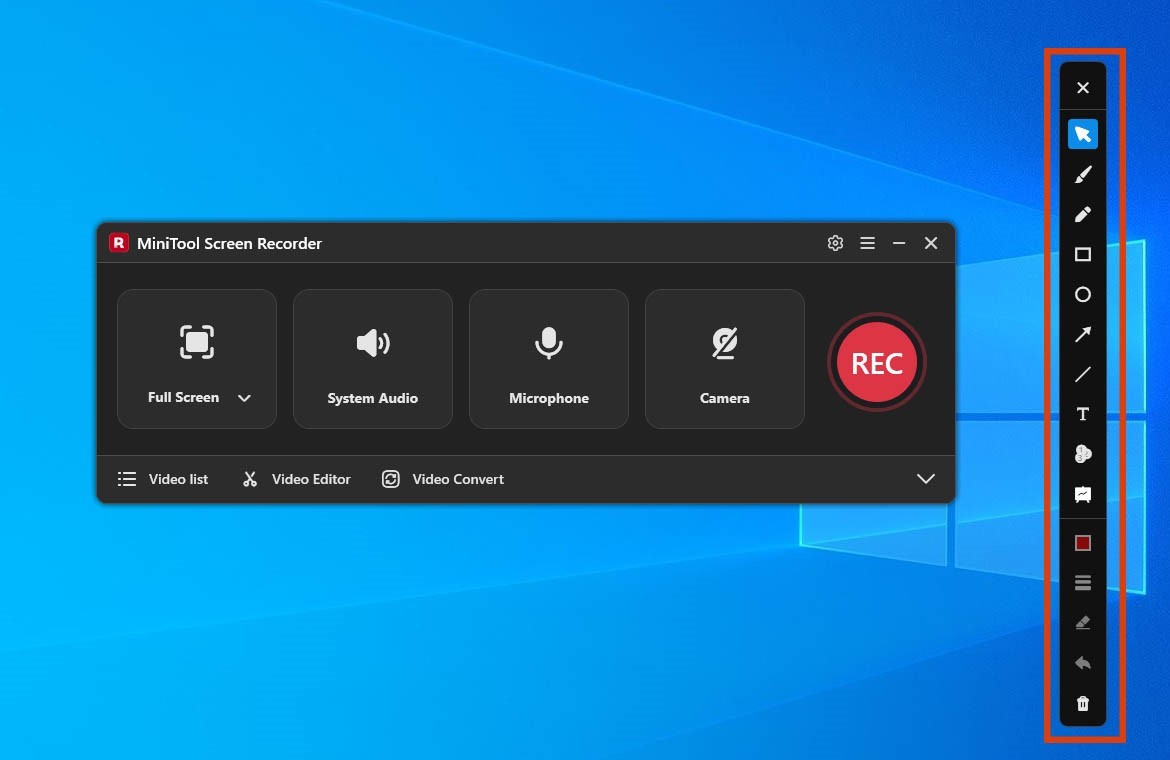
7. To end the recording process, click the Stop recording icon in the floating bar or press the F6 key. Finally, when the tool automatically switches to the new interface, check the recorded video under the Video list section.
8. If there is a need to edit the video after recording, click the Video Editor option to access the accompanying video editing tool, MiniTool MovieMaker.
MiniTool MovieMakerClick to Download100%Clean & Safe
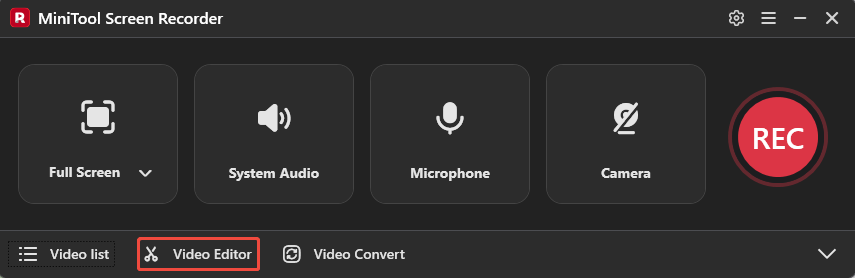
Clearly, MiniTool Screen Recorder is an excellent choice for capturing various activities. Additionally, to further boost productivity, I also use built-in Windows tools such as Xbox Game Bar and the Snipping Tool.
Final Words
Do you need a capture card to record on PC? Usually not. When recording content displayed on the computer itself, recording software such as MiniTool Screen Recorder is all that is required; however, capturing content from an external display device requires a capture card.
If there are any questions when using MiniTool Screen Recorder or MiniTool MovieMaker, please contact the support team at support@minitool.com.