

GeForce Experience not working? This issue is typically caused by factors such as a corrupted download, outdated graphics card drivers, conflicting overlays, etc. This post outlines 8 proven solutions, such as reinstalling or updating GeForce Experience, disabling conflicting overlays, or using alternative video captures like MiniTool Screen Recorder.
GeForce Experience is a free application designed for NVIDIA graphics card users that integrates driver updates, game recording and optimization, as well as live streaming capabilities. Although the software is popular due to its extensive features, some users have reported encountering issues during actual use, such as the application failing to launch or the recording function not working.
Common Scenarios of GeForce Experience Not Working
Based on my own experience and the reactions of some users on forums, when GeForce Experience fails to work, one of the following three scenarios usually occurs:
- GeForce Experience not opening: Some users encounter issues where GeForce Experience can’t open upon clicking the shortcut, gets stuck on the loading screen, or closes immediately after launching, rendering all its features unusable.
- Display: Something went wrong: Some people may be able to launch GeForce Experience successfully but encounter a "Something went wrong" error message within the interface.
- Recording feature not working: This issue typically manifests as ShadowPlay not recording or the recording overlay not appearing.
Why Is My GeForce Experience Not Working
The three common situations mentioned above usually stem from a variety of factors; after researching the relevant information, I found the primary reasons to be as follows:
- Corrupted Installation Files: Corrupted installation files often prevent GeForce Experience from launching properly.
- Outdated Graphics Drivers: This is the key reason why the recording function of GeForce Experience fails to work properly.
- Disabled NVIDIA Services: If NVIDIA's background services are shut down, GeForce Experience will not function.
- Windows Compatibility Issues: Incompatibility between the Windows version and GeForce Experience is a major reason for startup failures or malfunctions.
- Antivirus Software Interference: If antivirus software blacklists GeForce Experience, the program will also fail to run.
- Overlay Conflicts: This is the issue users most often overlook. Conflicts between other overlays and GeForce Experience can also typically cause startup failures or render the recording function unusable.
How Can I Fix GeForce Experience Not Working
After fully understanding the reasons, I looked for methods on how to fix GeForce Experience not working, and the following methods were both practical and effective.
Fix 1: Reinstall or Update GeForce Experience
Regardless of the specific issue preventing GeForce Experience from running correctly, I believe the first step should be to try reinstalling the software or upgrading to the latest version. This approach effectively resolves problems, such as application launch failures or non-functional features, caused by corrupted installation files or system compatibility issues.
Normally, GeForce Experience automatically checks for and installs updates. However, if the software malfunctions, the automatic update feature may fail to work; in such cases, visit the website to download the latest version manually.
Fix 2: Update NVIDIA Graphics Driver
If GeForce Experience frequently encounters recording issues or fails to launch due to compatibility problems, updating the NVIDIA graphics driver may help resolve these issues. The update process is straightforward:
1. Launch the NVIDIA app on the PC.
2. Click the DRIVERS option in the upper-left corner of the main interface.
3. Then, in the new interface, click the CHECK FOR UPDATE option in the top-right corner. If a new version is available, it will appear automatically; then click the Download button on the right to update it.
Fix 3: Restart NVIDIA Services
Software generally relies on background services to operate, and GeForce Experience also depends on multiple background services to perform functions such as graphics driver updates, game recording, and optimization. If any of these services malfunction, GeForce Experience will fail to operate.
In this case, try restarting the NVIDIA service through the Windows Services Manager:
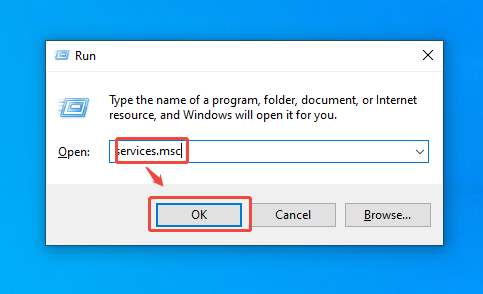
1. Press the Windows + R keys to open the Run box.
2. Type services.msc into the box, then click the OK button to enter the Services interface.
3. Then, in the Services interface, find the NVIDIA Display Container LS, NVIDIA LocalSystem Container, and NVIDIA NetworkService Container options.
4. Finally, right-click on these options, then select the restart option.
Fix 4: Update Windows
Outdated Windows versions can easily cause GeForce Experience compatibility issues and prevent all functions from working properly. Furthermore, since GeForce Experience updates automatically, running an outdated version of Windows increases the likelihood of such compatibility problems.
My suggestion is to update the Windows system to the latest version to fundamentally prevent such problems from occurring.
1. Press the Windows + I keys to launch Windows Settings.
2. Select the Update & Security option.
3. In the new interface, move to the Windows Update section. Then, click the Check for updates option on the right.
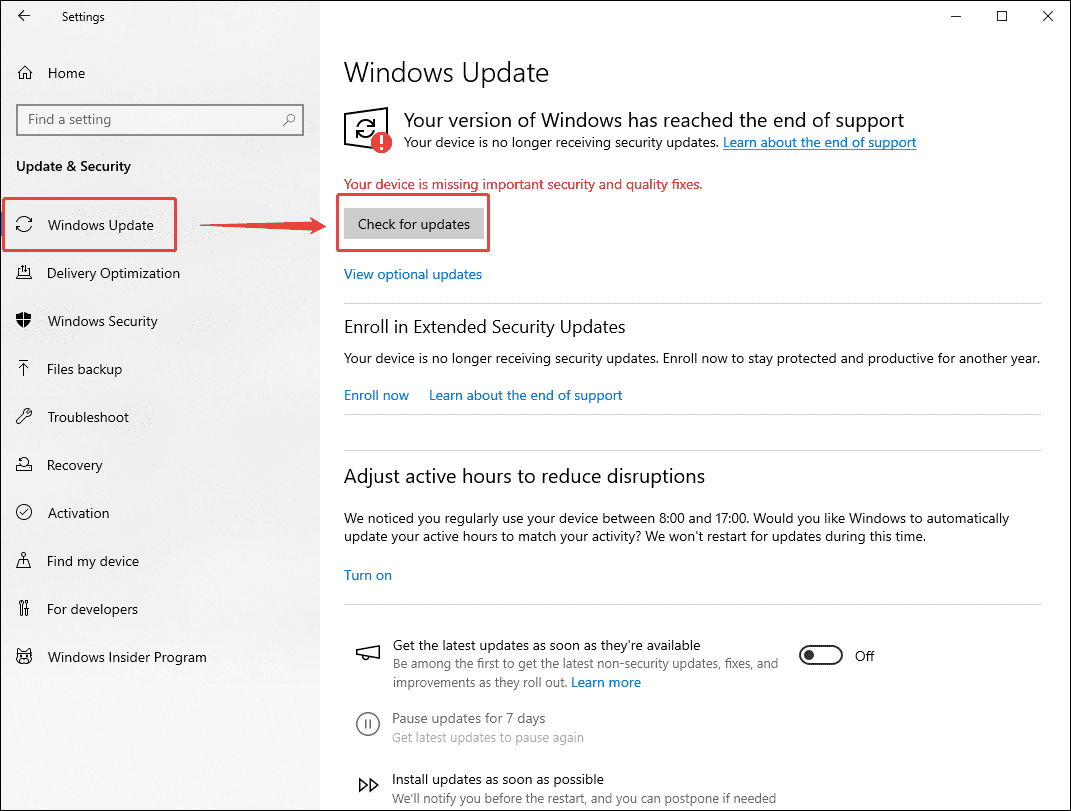
4. If there is a new version available, click the Download & install option.
Fix 5: Run GeForce Experience in Compatibility Mode
If GeForce Experience fails to run due to compatibility issues, in addition to updating Windows, try running the application in compatibility mode. As far as I know, GeForce Experience is no longer receiving updates or technical support, which often leads to compatibility issues between the older software and newer versions of Windows.
The most straightforward solution I’ve found is to run GeForce Experience in compatibility mode; here is how to do it:
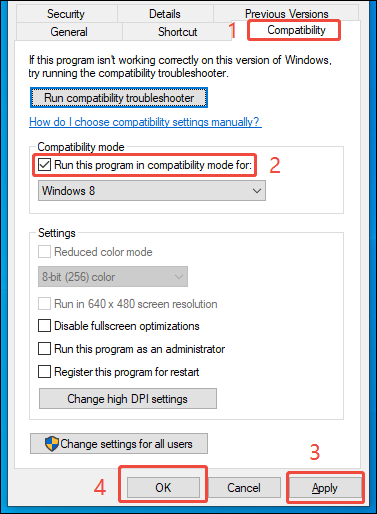
1. Right-click the GeForce Experience shortcut.
2. Select the Properties option from the menu that appears.
3. In the new window, navigate to the Compatibility tab and check the box for the Run this program in compatibility mode for option.
4. Finally, click Apply and then click the OK button.
Fix 6: Whitelist GeForce Experience
While troubleshooting the issue where GeForce Experience fails to launch, I discovered that overly aggressive antivirus defense mechanisms can also be the cause. Investigations revealed that antivirus auto-defense systems do not always accurately identify software behavior; consequently, GeForce Experience often fails to run because it has been blacklisted by the antivirus software.
The solution to this problem is relatively simple: just manually add GeForce Experience to the antivirus software's whitelist and then restart the application.
Fix 7: Disable Conflicting Overlays
If the GeForce Experience recording panel fails to appear or the recording function does not start correctly, please check if other screen recorders or overlays, such as Xbox Game Bar or Discord Overlay, are running in the background.
These programs may conflict with GeForce Experience's recording features, preventing recordings from starting or rendering recording hotkeys unresponsive. If any related software or overlays are running in the background, close them and try enabling the GeForce Experience recording feature again.
Fix 8: Use an Alternative Tool
If software conflicts don't cause the issues with the GeForce Experience recording function, I would switch to a suitable alternative tool to improve efficiency.
MiniTool Screen Recorder is a tool I’ve found to be excellent. Not only is it completely free, but its extensive recording features also fully meet my daily needs. Unlike tools that rely on in-game overlays, this application can directly capture any on-screen activity as well as webcam footage.
Additionally, this application offers real-time screen annotation capabilities, making it ideal for recording gameplay, tutorials, and presentations. Furthermore, what I appreciate most about this tool is that it places no limits on recording duration and adds no watermarks to the recorded videos.
Fast Track Steps:
- Launch MiniTool Screen Recorder.
- Configure the recording parameters in the Settings interface.
- Determine the recording mode.
- Manage the audio and camera recording functions.
- Click the REC button to begin recording.
- Annotate the screen.
- End the recording process and check the recorded video under the Video list section.
- Edit the recorded video.
1. Click the button below to download and install MiniTool Screen Recorder. Then, install it on the PC.
MiniTool Screen RecorderClick to Download100%Clean & Safe
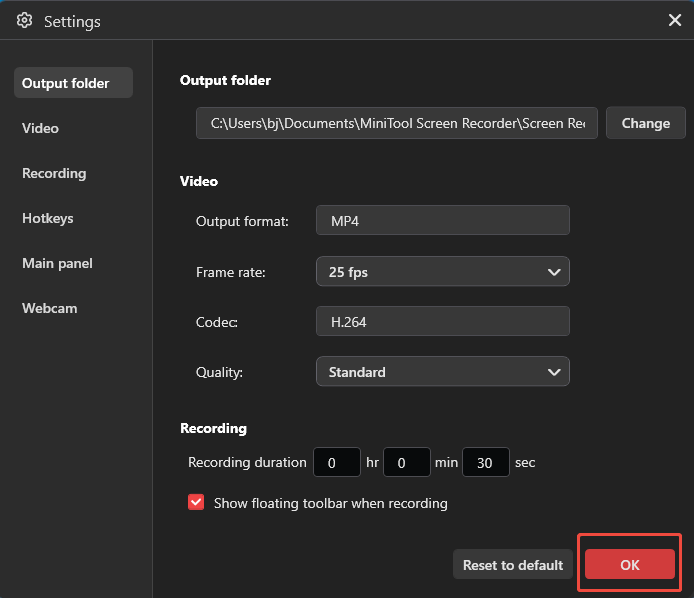
2. Launch MiniTool Screen Recorder. Click the Settings icon in the upper-right corner of the main interface. Then, configure relevant recording parameters in the Settings interface, such as video quality, frame rate, webcam size, and so on. Finally, click OK to save the changes.
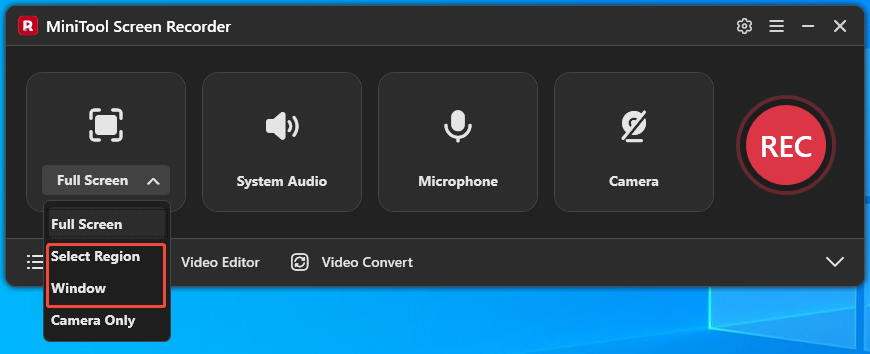
3. This tool defaults to capturing the entire screen. To record a part of the screen or a specific window, expand the Full Screen option and choose the Select Region option or Window option.
4. Click the System Audio icon or Microphone icon to disable the relevant recording function based on the specific needs.
5. If there is a need to capture the screen with the webcam footage, click the Camera icon on the right.
6. Click the REC button on the right side of the main interface or press the F6 key to start the recording process. After a 3-second countdown, move to the target content.
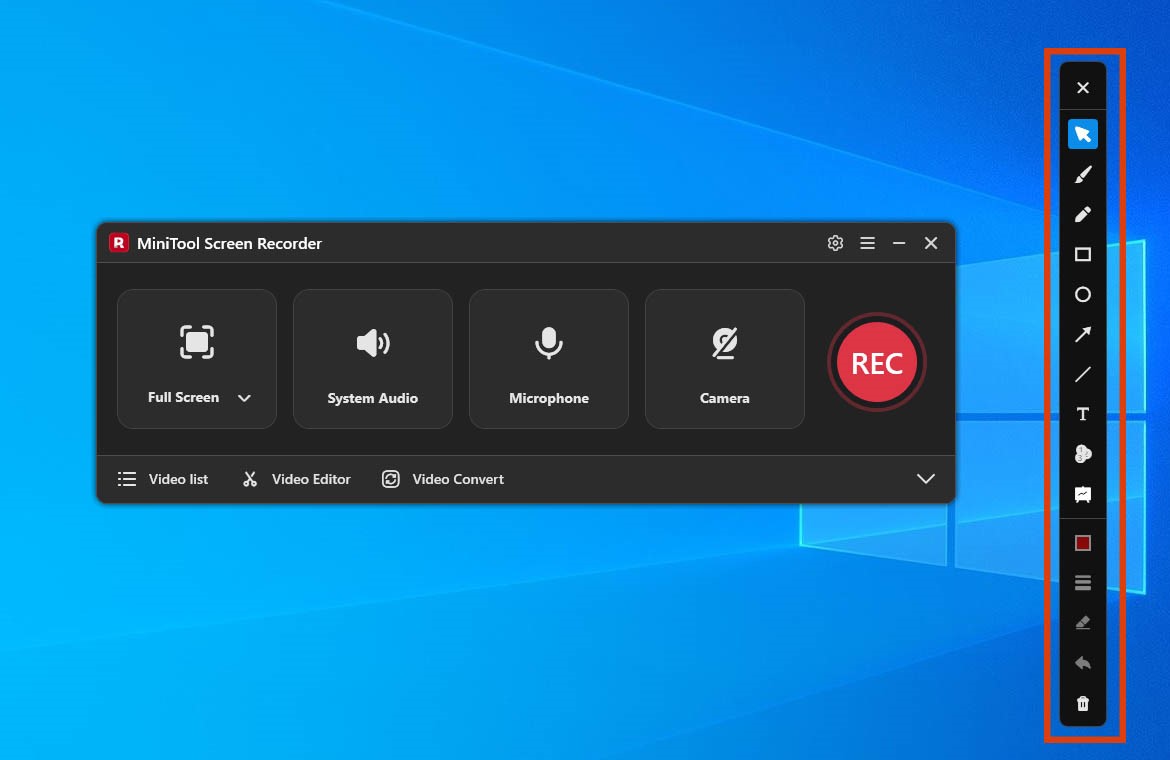
7. Then, choose the tools from the annotation toolbar on the right of the screen to mark the recording area if needed.
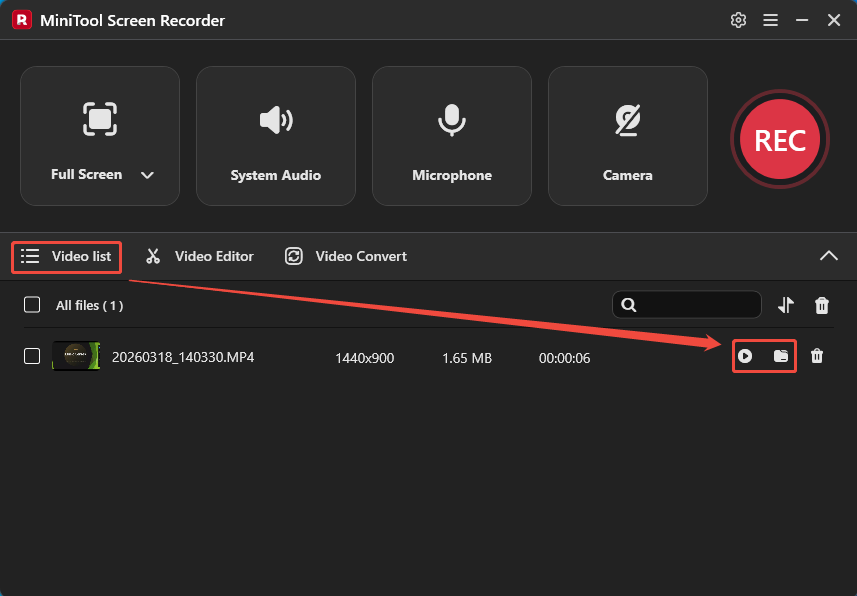
8. Then, press the F6 key to end the recording process. Finally, the tool will switch to the Video list section; then check the recorded video by clicking the Play icon or locate the recording file by clicking the Folder icon.
9. Then, click the Video Editor option to get MiniTool MovieMaker for quick video editing.
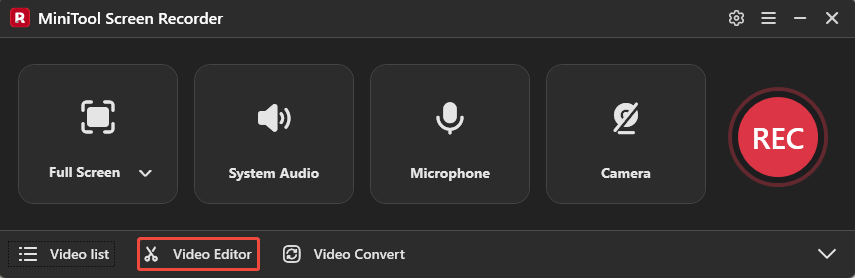
MiniTool Screen Recorder's interface is straightforward, with most controls accessible from the one screen. The recorder can capture full-screen activity, or individual windows and selected regions, allowing you to focus on specific areas. https://betanews.com/article/minitool-releases-free-screen-recorder/
In summary, the 8 methods outlined above can typically resolve issues preventing GeForce Experience from running, such as file corruption, software conflicts, or compatibility problems. However, given that the application is no longer being maintained, if the first seven methods prove ineffective, it is recommended to use an alternative tool.
Pro Tips for Using GeForce Experience
After encountering several issues with GeForce Experience, I gradually figured out some effective ways to improve its operational stability and ensure a smoother user experience.
- Regularly update graphics drivers: Although the GeForce Experience application itself no longer receives updates, the graphics drivers continue to be updated alongside new game releases. Regularly checking for and installing driver updates helps ensure the smooth operation of GeForce Experience.
- Close other recording software: Before using GeForce Experience, please close any other recording software or overlays to avoid software conflicts and ensure the recording function works correctly.
- Check keyboard shortcuts: Ensure that the GeForce Experience recording shortcut is not being used by another application; this is crucial for ensuring the recording function works correctly.
- Free up disk space: Sufficient disk space helps GeForce Experience run smoothly. Additionally, recorded video files can be large and consume significant storage; insufficient disk space may prevent videos from being saved.
- Enable convenient features: Additionally, when using GeForce Experience, enabling features such as desktop capture, automatic tuning, and game filters can improve recording efficiency and streamline the video editing workflow.
Final Thoughts
When encountering issues with GeForce Experience not working, first rule out causes such as outdated graphics drivers, compatibility problems, software conflicts, and more. Then, resolve the issue using methods outlined in this article, such as updating drivers or Windows version, disabling conflicting software, or using alternative tools.
If there are any issues when using MiniTool Screen Recorder or MiniTool MovieMaker, please contact the support team at support@minitool.com.