

How to record WoW gameplay on PC easily? This guide introduces two excellent screen recorders, MiniTool Screen Recorder and Xbox Game Bar, and provides detailed steps for capturing the game with audio and high video quality.
World of Warcraft (WoW) is a classic massively multiplayer online role-playing game with a huge player base. During my long gaming sessions, I often encountered memorable moments worth recording. However, when I tried to capture these moments, I discovered that the game itself didn't offer a built-in recording function.
After some experimentation, I successfully recorded the game using professional Warcraft recorders. Below, I will share two tools I used and the detailed steps involved.
![How to Record Osu Gameplay Like a Pro on PC [2 Easy Methods]](https://images.minitool.com/recorder.minitool.com/images/uploads/2026/05/how-to-record-osu-gameplay-thumbnail.jpg)
How to Record WoW Gameplay
After testing several screen recording tools, I ultimately chose MiniTool Screen Recorder and Xbox Game Bar as my main focus. While both can record WoW gameplay, they differ in terms of feature richness, recording flexibility, and overall user experience.
The comparison table below provides a clearer overview of the characteristics of both tools, making it easier to identify the option that best fits different recording needs.
| Feature | MiniTool Screen Recorder | Xbox Game Bar |
| Best for | Any on-screen activities | Gameplay recording |
| System Audio Recording | Yes | Yes |
| Microphone Recording | Yes | Yes |
| Webcam Recording | Yes | No |
| Custom Recording Area | Yes | No |
| Real-time Annotation | Yes | No |
| Multiple Recording Modes | Yes | No |
| Watermark | No | No |
| Esay of Use | Yes | Yes |
The comparison above highlights the core features of these two video captures. The following guide will provide a step-by-step demonstration of how to record WoW gameplay on PC with them.
Record WoW Gameplay with MiniTool Screen Recorder
MiniTool Screen Recorder is a user-friendly recording tool that impressed me with its streamlined recording process and array of practical features. In my opinion, it is undoubtedly one of the best software to record WoW gameplay. In addition to supporting full-screen, specific-region, and window recording, MiniTool Screen Recorder effortlessly allows capturing in multi-monitor environments.
Furthermore, MiniTool Screen Recorder supports webcam recording, making it ideal for creating game commentaries or reaction videos. Additionally, this tool offers real-time screen annotation features that allow me to highlight key content during the recording process, thereby enabling the more efficient production of videos such as game tutorials and walkthroughs.
Quick Steps:
- Launch MiniTool Screen Recorder.
- Adjust video recording settings and hotkeys.
- Choose the recording region under the Full Screen section.
- Configure audio and webcam recording settings.
- Click on the REC button to begin the recording process.
- Use annotation tools during recording if necessary.
- Press the F6 key to end the recording process.
- Play and locate the recorded video under the Video list section.
Now, here are the detailed steps on how to record WoW gameplay using MiniTool Screen Recorder.
Step 1: Download and install MiniTool Screen Recorder
MiniTool Screen RecorderClick to Download100%Clean & Safe
Click the button above to download MiniTool Screen Recorder, and then follow the on-screen instructions to install it on the PC.
Step 2: Configure the video recording settings and hotkeys
1. Launch MiniTool Screen Recorder.
2. In the upper-right corner of the main interface, click the Settings icon.
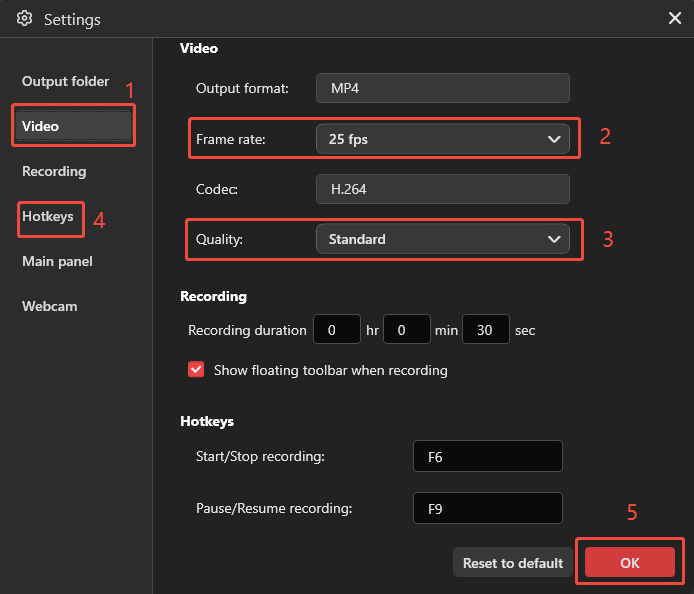
3. Navigate to the Video section, and then adjust the recording frame rate and quality by expanding the Frame rate and Quality option.
4. Then, move to the Hotkeys section and change the shortcut keys depending on needs.
5. Click on OK to save the changes.
Step 3: Select the recording area
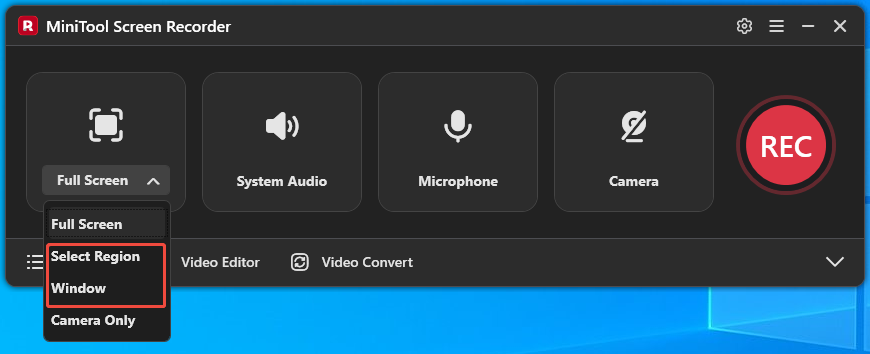
1. MiniTool Screen Recorder records the entire screen by default.
2. To record only part of the screen or a specific application window, expand the Full Screen menu and select the Select Region option or Window option.
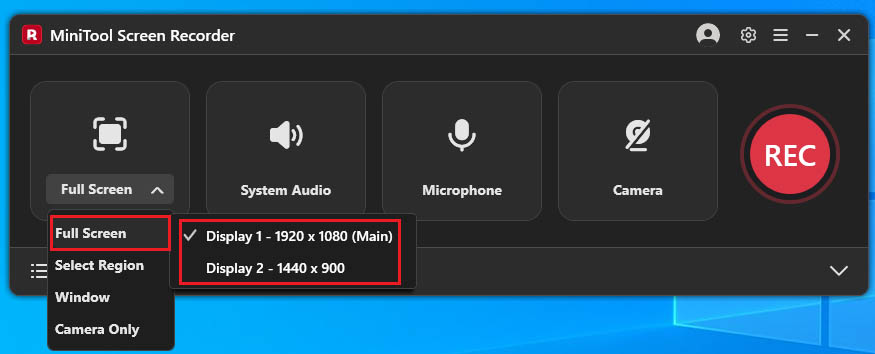
3. For a multi-monitor setup, click the Full Screen option and then select the target screen for recording.
Step 4: Control the audio recording
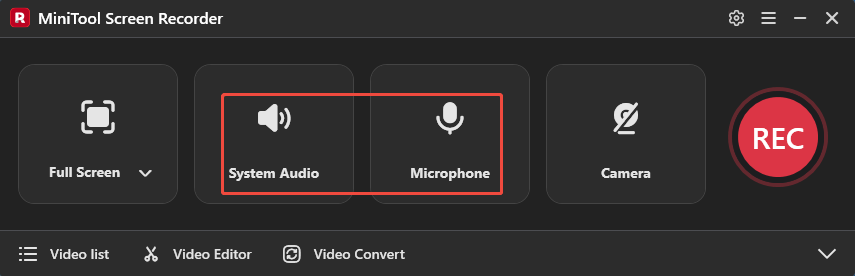
1. Both system audio and microphone input are enabled automatically in MiniTool Screen Recorder.
2. Click the relevant icon to turn off any audio source that is not required.
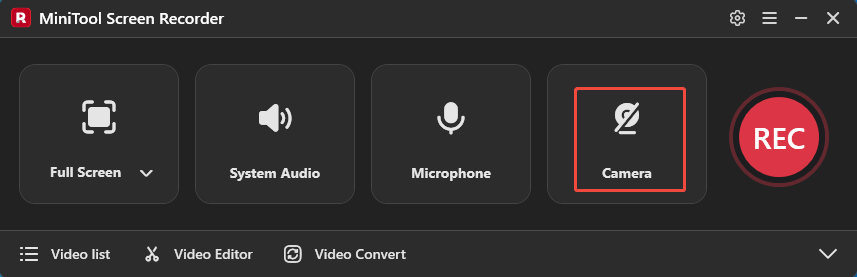
Step 5: Adjust the webcam recording
Webcam capture can be enabled by selecting the Camera icon when webcam footage is needed while recording gameplay.
Step 6: Start and end recording
1. Recording can be initiated by clicking the REC button or pressing the F6 key.
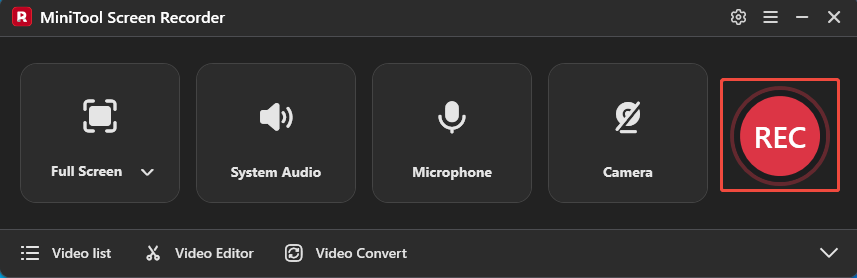
2. Following the 3-second countdown, switch to the WoW game and make sure it’s ready.
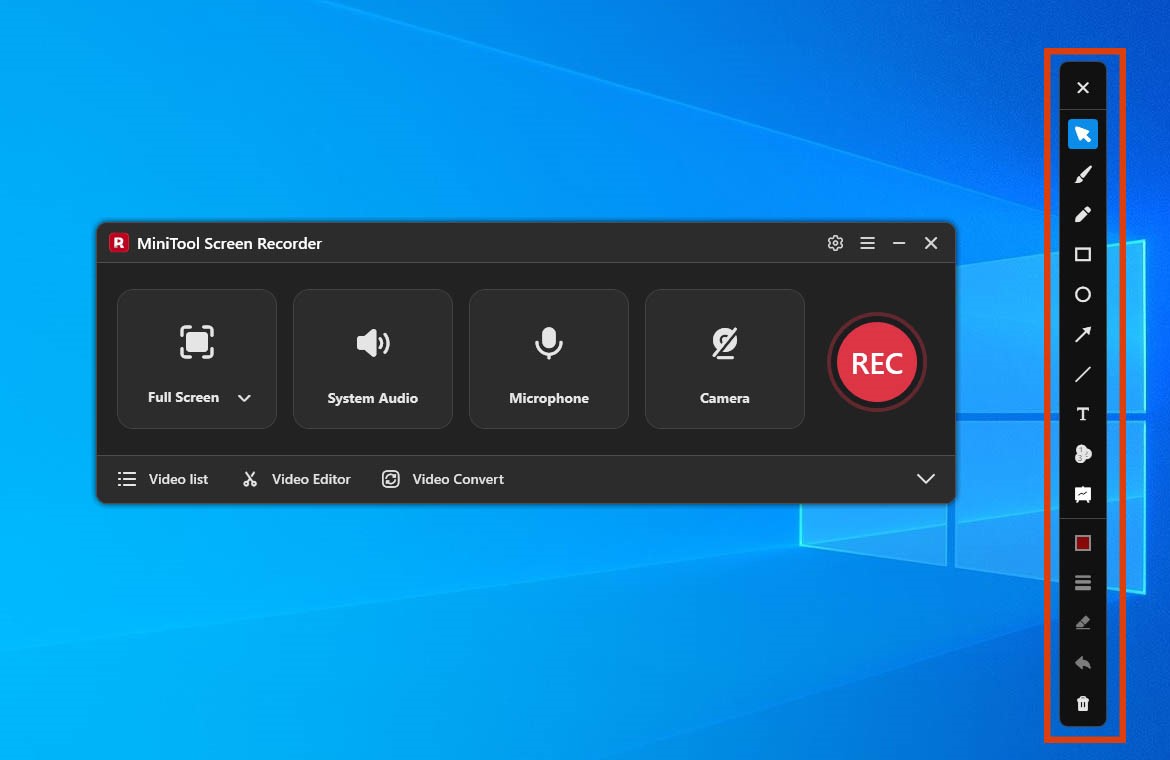
3. Real-time annotations can be added through the toolbar displayed on the right side of the screen.
4. During recording, press the F9 key to stop or resume the recording process.
5. Press the F6 key again to stop recording and save the session.
Step 7: View and locate the recording
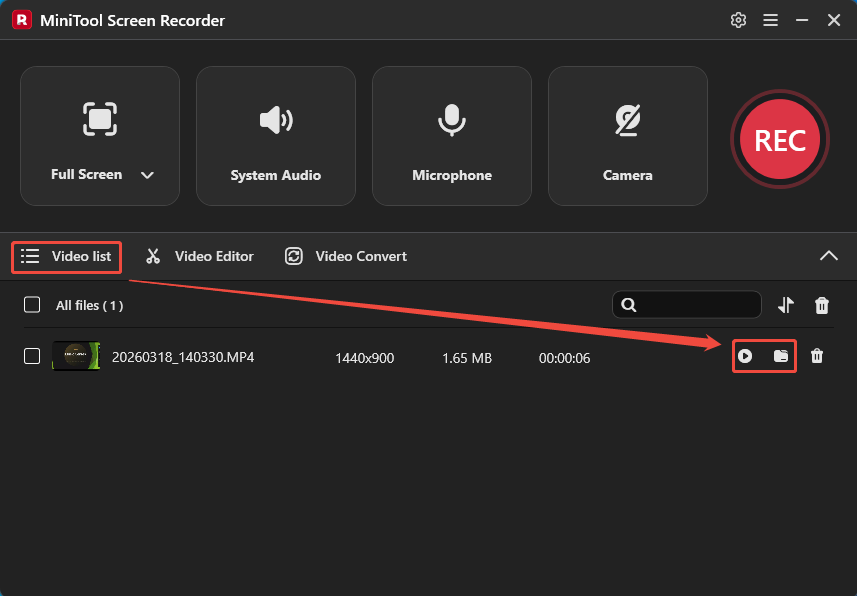
1. When the recording ends, the tool will automatically switch to the Video list section, where the newly recorded video is displayed.
2. Then, click the Play icon to view the recorded WoW gameplay video and click the Folder icon to locate it on the PC.
Other Features of MiniTool Screen Recorder:
- System audio and microphone recording: Recording the computer audio and voice simultaneously or separately.
- Multiple frame rate options: Adjust recording frame rates according to different performance requirements.
- 4K HD recording: Capturing any on-screen activities in 4K resolution.
- Custom recording duration: Set a specific recording length before recording to automatically stop recording.
Record WoW Gameplay with the Xbox Game Bar
In addition to third-party software like MiniTool Screen Recorder, the Windows operating system itself features a built-in recording tool: the Xbox Game Bar. Since it requires no installation, it offers a more convenient way to capture World of Warcraft gameplay.
The Xbox Game Bar is designed specifically for gamers; users simply need to press the Windows + G keys combination while playing a game to bring up the recording interface and begin recording. Although this tool lacks the extensive features of professional screen-recording software, it is generally sufficient to meet users' needs for recording full-screen content, applications, and audio.
Fast Track Steps:
- Open the Xbox Game Bar by pressing the Windows + G keys.
- Adjust the audio settings.
- Click the Start recording icon or press the Windows + Alt + R keys to begin recording.
- Play the WoW game.
- Press the Windows + Alt + R keys again to end the recording.
- Check the recorded WoW gameplay under the See my captures section.
Now follow the step-by-step guide to capture the WoW gameplay with the Xbox Game Bar.
Step 1: Launch the Xbox Game Bar
Press the Windows + G keys to open the Xbox Game Bar on the PC.
Step 2: Configure audio settings
System sound and microphone audio are enabled automatically in Xbox Game Bar. As the recording focuses on gameplay, all audio sources can remain enabled.
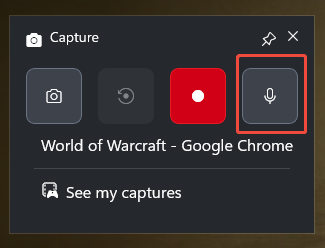
Step 3: Begin and end recording
1. Click the Start recording icon or press the Windows + Alt + R keys to begin the recording process.
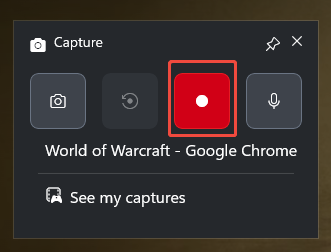
2. Then, play the WoW game.
3. To end the recording process, press the Windows + Alt + R keys again.
4. Finally, check the recorded video under the See my captures section.
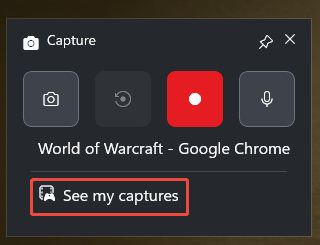
After extensively using both tools, I have found that each possesses its own unique strengths. Although the Xbox Game Bar stands out for the convenience of its recording capabilities, it is unable to capture specific screen regions, and it also lacks other advanced features. For users with broader recording requirements, MiniTool Screen Recorder is undoubtedly a more comprehensive choice.
![How to Screen Capture Extended Monitor Easily [Detailed Guide]](https://images.minitool.com/recorder.minitool.com/images/uploads/2026/05/screen-capture-extended-monitor-thumbnail.jpg)
Tips for High Quality Gameplay Recording
Recording high-quality gameplay footage requires not only selecting a recording tool with excellent performance, but also, just as importantly, properly optimizing the recording settings. The following are some practical tips I frequently employ before recording WoW gameplay; they effectively enhance recording quality and help achieve smoother, clearer video results.
- Utilize Hardware Acceleration: Running a game inherently consumes CPU resources; however, enabling hardware acceleration during recording can significantly reduce CPU usage, ensuring a smoother experience for both gameplay and the recording process.
- Close Unnecessary Background Programs: Certain applications running in the background may consume excessive system resources; closing them helps prevent issues such as recording stuttering or frame rate drops.
- Set Appropriate Recording Frame Rate and Quality: Before recording, adjust the frame rate and quality settings to optimal parameters to strike an effective balance between recording fidelity and file size, thereby alleviating system load.
- Conduct Pre-Recording Tests: To avoid unexpected issues during the actual recording session, I typically verify settings, such as audio and webcam configurations, beforehand, and then perform a brief test recording to ensure that the video output is functioning correctly.
Bonus: How to Edit WoW Gameplay Recordings
After recording gameplay footage, some videos may require further editing to enhance their final quality. I typically trim out unnecessary segments, add transitions, insert subtitles, or add background music. MiniTool MovieMaker is the tool I use most frequently to accomplish these tasks. To get this tool, click the Video Editor option on the main interface of MiniTool Screen Recorder.
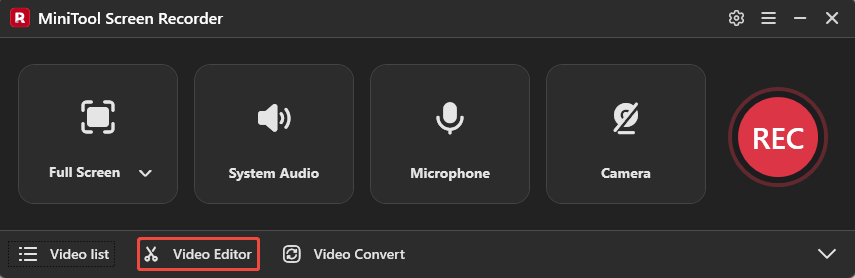
Alternatively, obtain this tool simply by clicking the button below.
MiniTool MovieMakerClick to Download100%Clean & Safe
Once the video is imported, I can perform various edits, such as trimming, cutting, and rotating directly on the multi-track timeline. MiniTool MovieMaker also provides a built-in media library containing a variety of templates, like effects, filters, text overlays, and music resources, which can be added to enrich the video.
After completing the edits, I can export the video in several formats, including MP4, MKV, MOV, AVI, GIF, and other formats.
Final Words
Now that the process of how to record WoW gameplay has been covered, choosing the right screen recorder should be much easier. Whether using MiniTool Screen Recorder or the Xbox Game Bar, both can help capture gameplay footage effectively. For the best results, be sure to apply the recommended recording settings and optimization tips.
For any questions or technical issues related to MiniTool Screen Recorder or MiniTool MovieMaker, please contact the support team at support@minitool.com.