

For people who want to capture a high-quality video, finding an app that supports high-resolution recording is important. A 4K video recorder can be great. How to choose a reliable one for your screen recording. The following content can help.
What Is a 4K Video Recorder for PC
A 4K video recorder for PC refers to the hardware or software that allows you to record your webcam, gameplay, or PC screen in 4K resolution (3840 x 2160 pixels). Compared with 1080p, 4K recording provides greater detail and a more professional look.
The Benefits of Recording Videos in 4K
Apart from offering outstandingimage quality and detail, 4K recordingalso facilitates your video editing. For example, you can zoom in on a 4K video to 2x while maintaining a 1080p resolution for video exporting. As such, in the context of post-production, you are free to crop, pan across, or reframe images while losing quality as little as possible.
Tips for Selecting a Great 4K Video Recorder
Here, I will give you some advice on how to find an amazing 4K video screen recorder.
Advice 1. Pay Attention to Ease of Use
A standout 4K video recording application needs to be accessible to users with different skill levels. It means that you’d better choose a recorder with a well-organized interface, which ensures that you can access the recording functions easily and quickly.
In addition, it is more convenient to try a video recorder that allows you to preset the recording duration. In this background, you don’t need to end the recording manually. By the way, since you are looking for a 4K video recording program, ensure that it supports 4K recording.
Advice 2. Pay Attention to the Watermark/Time Limitations
Although some screen recorders enable you to capture a 4K video, they embed the watermarks into the recorded files. To remove the watermarks, you may need to crop the video or pay for the upgrade. However, such watermark removal costs you more time and money.
On the other hand, if you plan to record a long 4K video, it is advisable to find a video recorder that has no limitations on the recording duration. This way, you will never be bothered by recording interruptions.
Advice 3. Pay Attention to the Advanced Recording Options
More advanced recording options are also required for a top-grade 4K video recorder. Sometimes, you may want to capture a 4K video with your webcam. In this way, you should ensure that the program supports webcam recording. What’s more, if you want the audience to quickly grasp the key points of your 4K recordings, screen annotation is indispensable.
The Best 4K Video Recorder
Based on the tips above, MiniTool Screen Recorder can be the best 4K video recorder app for you.
What Is MiniTool Screen Recorder
MiniTool Screen Recorder allows for 4K recording as long as your PC screen supports the 4K resolution. Meanwhile, this application is a watermark-free screen recorder that doesn’t set any limit for the recording duration. Furthermore, it will automatically save the recorded files in the MP4 format, which allows you to share or edit the output videos.
Moreover, MiniTool Screen Recorder is also a webcam recorder with a wide range of screen annotation functions. In addition, it offers you enough advanced options that empower you to customize the frame rate and recording quality. Since MiniTool Screen Recorder has an intuitive interface, it is accessible to all users, ranging from beginners to experts.
How to Capture a Video with MiniTool Screen Recorder
Below is the detailed guidance on how to record a 4K video using MiniTool Screen Recorder.
Step 1. Download and install MiniTool Screen Recorder.
MiniTool Screen RecorderClick to Download100%Clean & Safe
Download MiniTool Screen Recorder by clicking on the download button above. Then, follow the on-screen instructions to install this 4K video recorder on your PC.
Step 2. Select the recording area and manage the audio recording.
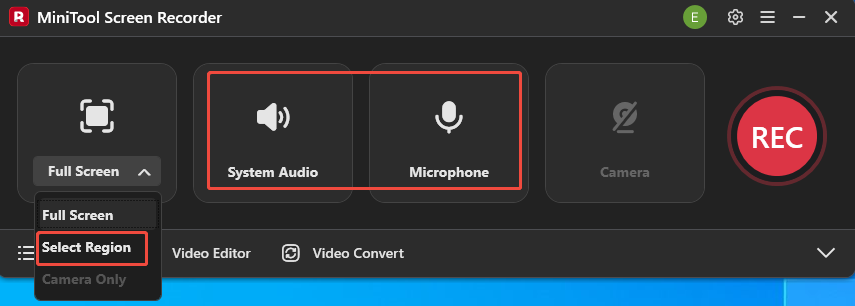
Launch MiniTool Screen Recorder. The full-screen mode has been set by default. If you want to capture the whole screen, please skip this step. If not, expand the leftmost dropdown option and choose the Select region option. Then, customize the recording area as you want. To turn on/off the recording of system and microphone sounds, click on the System Audio icon and the Microphone icon.
Step 3. Enable the webcam recording and set other settings.
If you want to record the webcam, click on the Camera icon. Then, click on the upper-right Settings icon to enter the Setting window.
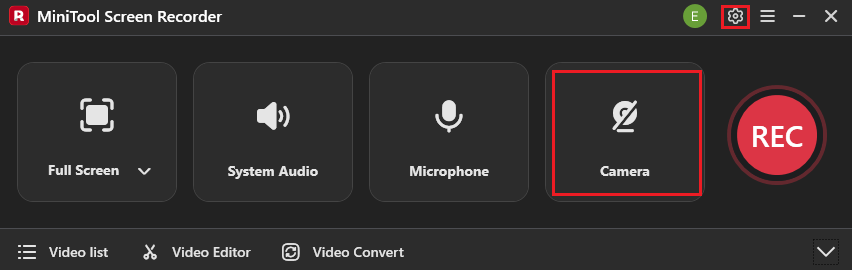
In the pop-up window, you are free to set a destination folder, customize the recording quality, and configure the recording frame rate. Meanwhile, you can preset the recording duration. Finally, click on the OK button to confirm the changes.
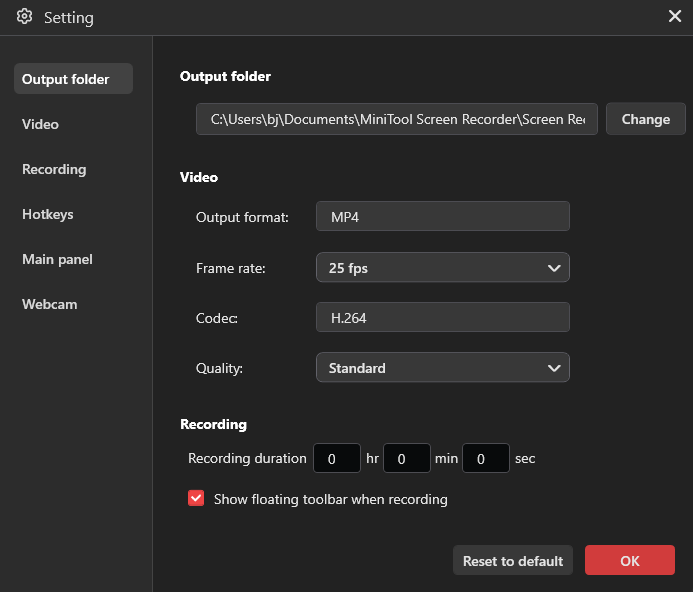
Step 4. Begin/end the recording and check the output files.
Begin the recording process by pressing the F6 key. After a 3-second countdown, play the computer activity that you want to capture. When you have recorded what you want, end the recording by pressing the F6 key. Then, in the expanded file list, click on the Play icons to view the output files. If you want to locate the recorded videos, click on the Folder icons.
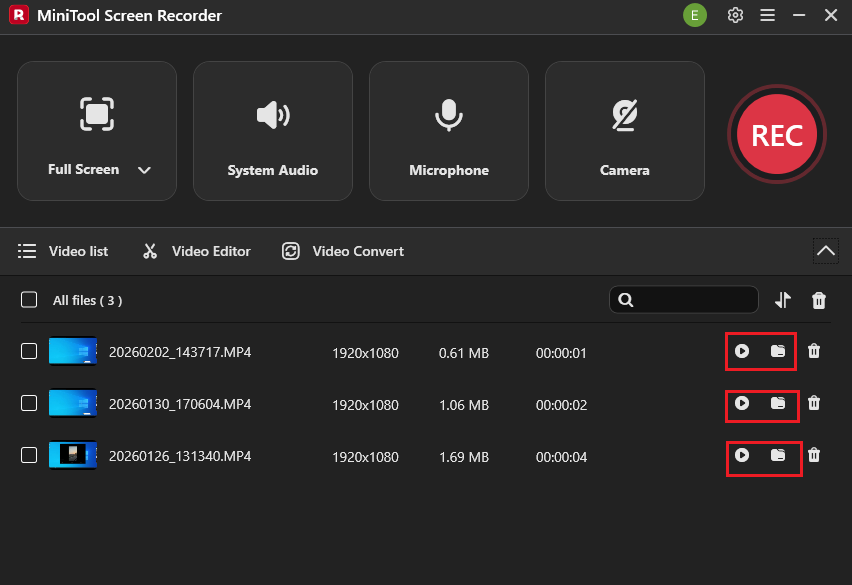
With the above-detailed steps, it will never be difficult for you capture a 4K video.
To Wrap Things Up
How to choose a fabulous 4K video recorder? Just select an easy-to-use and watermark-free tool with rich advanced options and unlimited recording duration. MiniTool Screen Recorder is such a tool. Never miss it!
If you have encountered any problems when using MiniTool Screen Recorder, please ask for help by sending an email to support@minitool.com. Also, you can directly share your problems with me on X. I will help you solve them as quickly as possible.