

How to screen capture extended monitor during a multitasking workflow? The video recorder, MiniTool Screen Recorder, provides flexible recording controls and stable performance for a smooth recording experience.
Unlike traditional single-screen setups, extended displays allow different content to be displayed simultaneously across multiple screens, thereby creating a more efficient digital work environment. I frequently need to record extended monitor in this mode.
After extensive testing, I found a screen recorder for extended monitors, MiniTool Screen Recorder, which offers excellent stability and a smooth user experience when recording across extended displays.
- Launch MiniTool Screen Recorder.
- Adjust recording frame rate and quality.
- Choose the recording area under the Full Screen section.
- Control audio and webcam options if needed.
- Click on REC to start the recording process.
- Utilize annotation tools during recording if necessary.
- Press F6 to end recording.
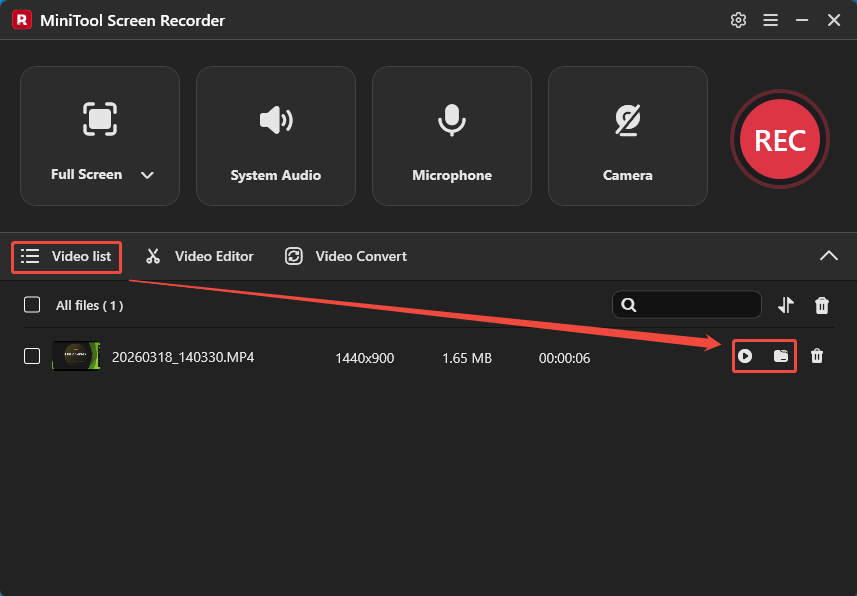
- Play and locate the recorded video under the Video list section.
How to Screen Capture Extended Monitor
MiniTool Screen Recorder is a professional screen recording tool that is currently completely free, which is the main reason I chose it to capture extended display. I also discovered that this software not only supports recording multiple screens simultaneously, but also allows capturing a single screen in dual-monitor mode.
In addition, MiniTool Screen Recorder offers flexible recording area options, covering full-screen recording, specific area and window recording, webcam recording, as well as system audio and microphone recording. Furthermore, it includes a built-in annotation tool to make the recorded content clearer and more concise. Here are the steps for screen recording in extended mode.
Step 1: Get MiniTool Screen Recorder
Click the button below to download MiniTool Screen Recorder. Then, follow the on-screen instructions to install it on the PC.
MiniTool Screen RecorderClick to Download100%Clean & Safe
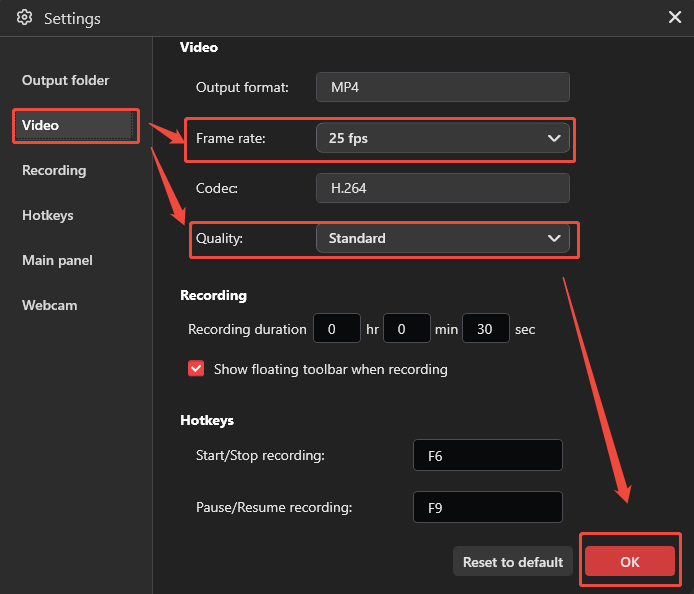
Step 2: Adjust Video Recording Settings
1. Launch MiniTool Screen Recorder.
2. Click the Settings icon in the top-right corner of the main interface.
3. Move to the Video section, then adjust the video quality and frame rate under the Quality and Frame rate section.
4. Finally, click on OK to save the changes.
Step 3: Choose the Recording Area
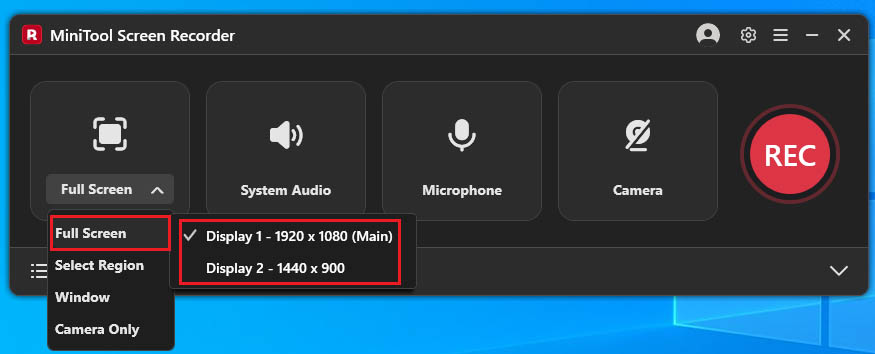
1. Expand the drop-down menu of the Full Screen option.
2. Click the Full Screen option, then choose the target display that needs to be recorded.
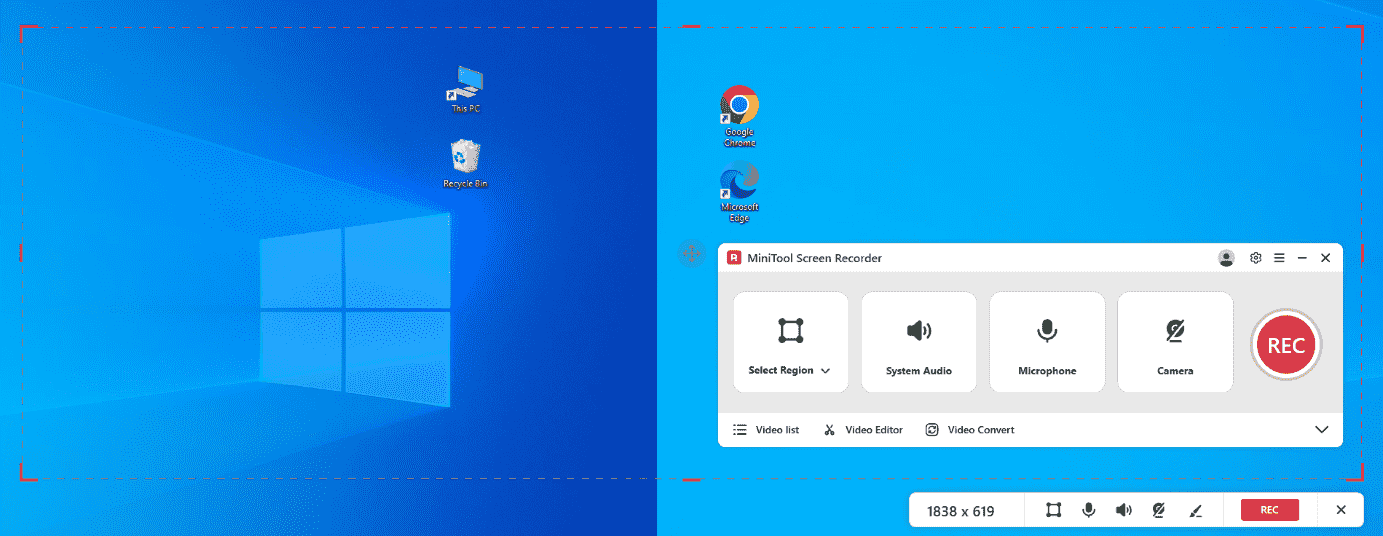
3. Or, click the Select Region option, then drag the red dashed border that appears to cover the region that needs to be recorded.
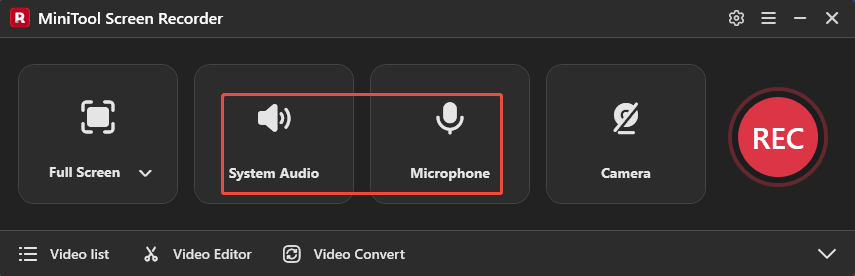
Step 4: Control the Audio Recording
1.MiniTool Screen Recorder captures both system audio and microphone automatically during recording.
2. Depending on the recording environment, unnecessary audio inputs can be turned off by clicking the corresponding icons.
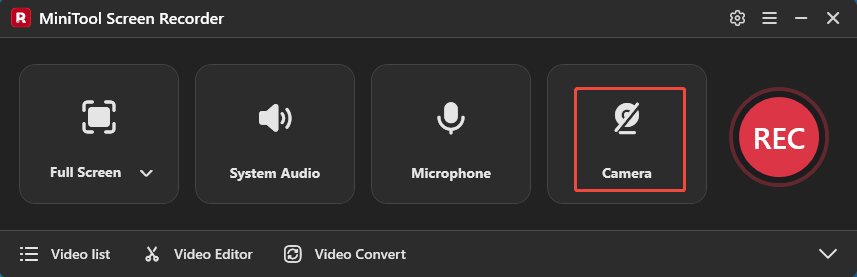
Step 5: Configure the Webcam Capture
If webcam footage is needed in the recording, simply click the Camera icon to enable webcam capture.
Step 6: Begin and End Recording
1. To begin the recording process, click the REC button or press the F6 key.
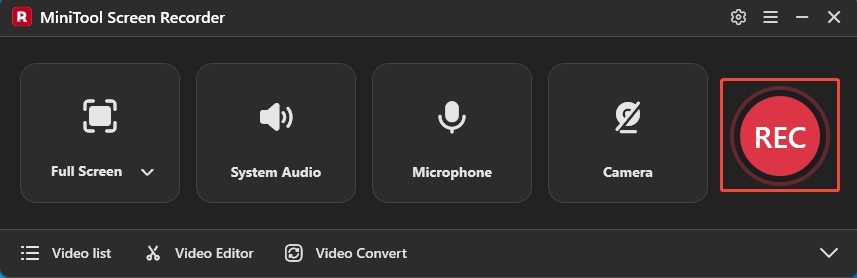
2. After a 3-second countdown, open or switch to the content that will be captured.
3. The annotation toolbar on the right of the screen allows content to be marked or highlighted instantly while recording.
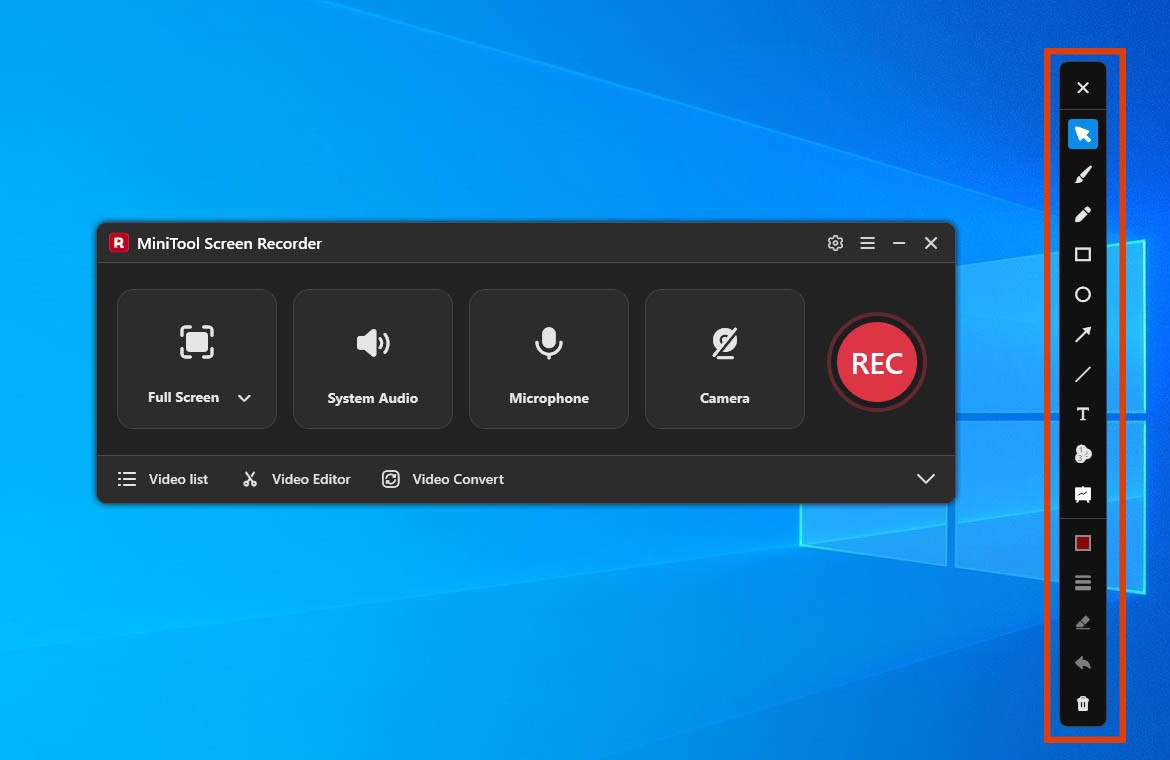
4. To end the recording process, press the F6 key again.
Step 7: Play and Locate the Recorded Video
1. When the recording ends, the tool will automatically switch to the Video list section, where I can view the recorded video.
2. Then, I can click the Play icon to watch the recorded video and click the Folder icon to locate it on the PC.
How to Edit Recordings
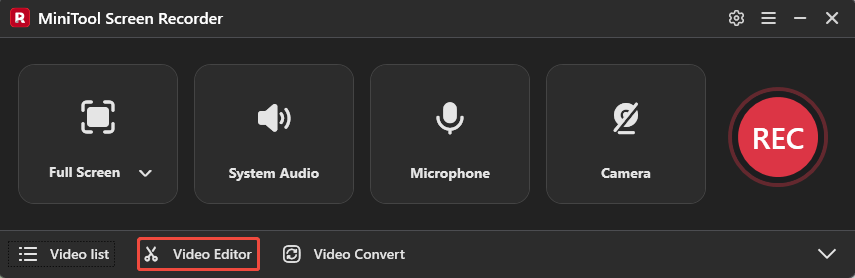
Sometimes recorded videos may require simple or more professional editing, such as cutting out unwanted parts or adding transitions, filters, or subtitles. MiniTool MovieMaker can help accomplish these tasks. To obtain this tool, simply click the Video Editor option on the main interface of MiniTool Screen Recorder.
Alternatively, click the button below to obtain this tool directly.
MiniTool MovieMakerClick to Download100%Clean & Safe
With MiniTool MovieMaker, I can edit recorded videos on a multi-track timeline and perform trimming, reversing, or rotating with ease. Furthermore, I can freely use elements from its library to add effects, music, or text to the videos. The tool also supports exporting videos to formats such as MP4, MKV, MOV, AVI, GIF, and more.
Bottom Line
How to screen capture extended monitor without any lag? This article introduces a practical screen recording tool, MiniTool Screen Recorder. With its various recording area options, it makes screen recording in extended monitor environments much easier.
If you run into any issues when trying out MiniTool Screen Recorder or MiniTool MovieMaker, send an email to support@minitool.com.