

How to capture only one screen with dual monitors? The video recorder, MiniTool Screen Recorder, makes this possible by allowing a specific monitor to be selected and recorded independently in a dual-screen environment, while also providing flexible recording options and stable performance.
Many dual-monitor users (myself included) are likely looking for a way to capture only one screen on dual monitors. This is because secondary monitors typically display unrelated content, such as chat interfaces or web browsers, which not only makes the recording appear cluttered but can also lead to privacy breaches.
- Get MiniTool Screen Recorder.
- Set the video recording frame rate.
- Select the recording area.
- Control the audio settings.
- Adjust the webcam recording.
- Start recording and annotate the screen if necessary.
- End recording and check the recorded video.
Can You Record One Screen on Dual Monitors
Yes. After numerous attempts, I discovered that the solution depends entirely on the screen recorder being used. If the software offers an option to "record only a specific display," the problem is instantly resolved. Ultimately, I found a tool that is both professional and user-friendly, MiniTool Screen Recorder, which allowed me to complete this task with ease.
How to Capture Only One Screen with Dual Monitors
The following are the detailed steps on how to capture one screen on dual monitors using MiniTool Screen Recorder.
Step 1: Get MiniTool Screen Recorder
MiniTool Screen RecorderClick to Download100%Clean & Safe
Click the button above to download MiniTool Screen Recorder. Then, follow the on-screen prompts to install it on the PC.
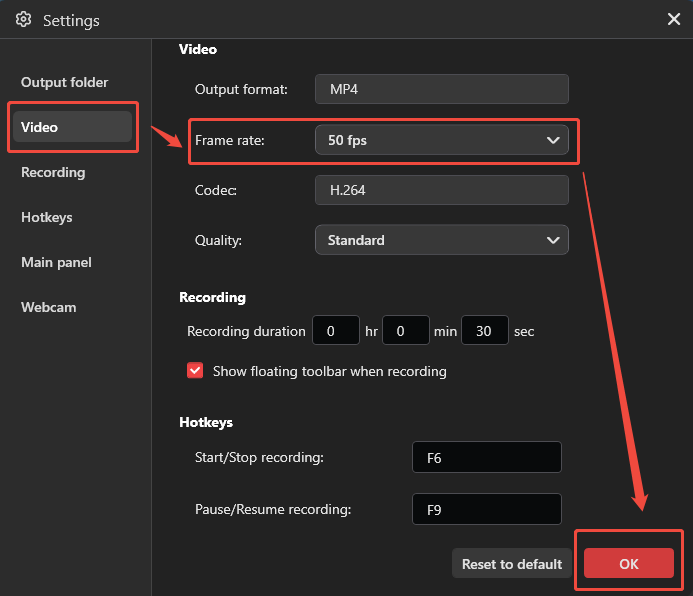
Step 2: Adjust the Recording Frame Rate
1. Launch MiniTool Screen Recorder.
2. In the top-right corner of the main interface, click the Settings icon.
3. Then, switch to the Video section and expand the Frame rate option to adjust the recording frame rate.
4. Click on OK to save the changes.
Step 3: Choose the Recording Area
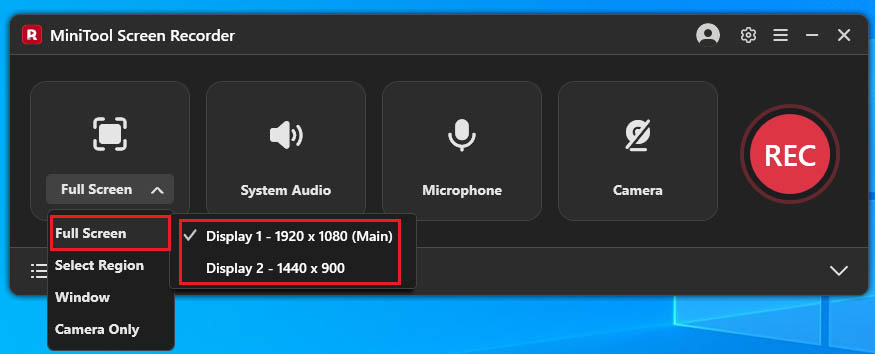
1. Expand the drop-down menu of the Full Screen option.
2. Click the Full Screen option to select the target display that needs to be recorded.
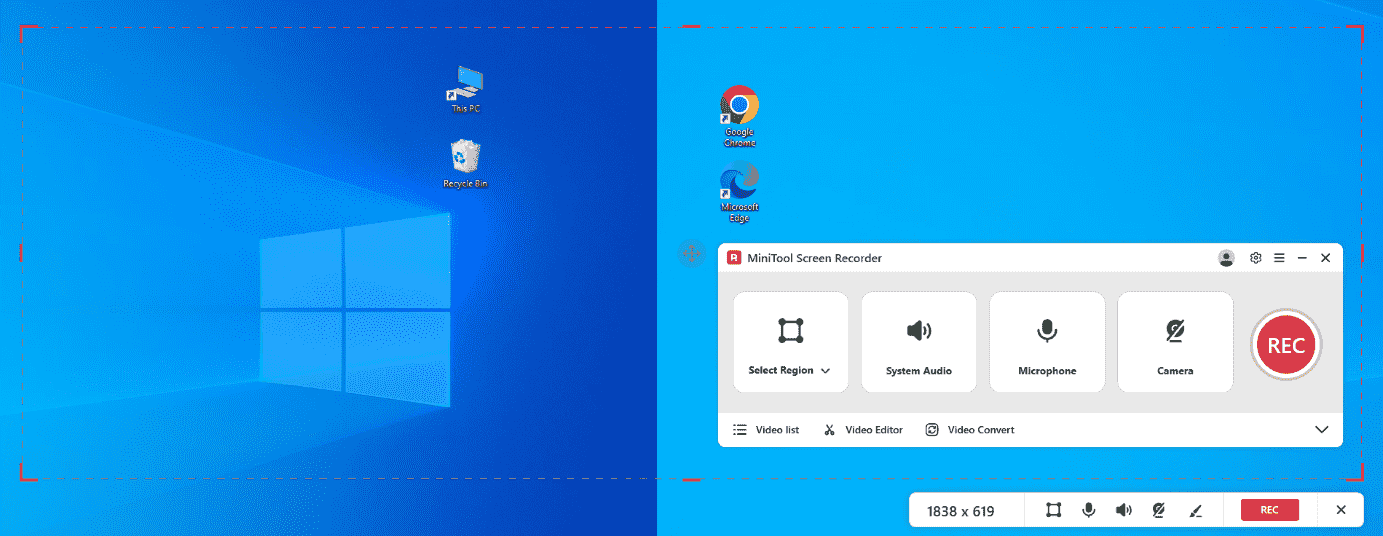
3. Alternatively, click the Select Region option, then drag the red dashed border that appears to cover the only one screen.
Step 4: Customize Audio Recording Settings
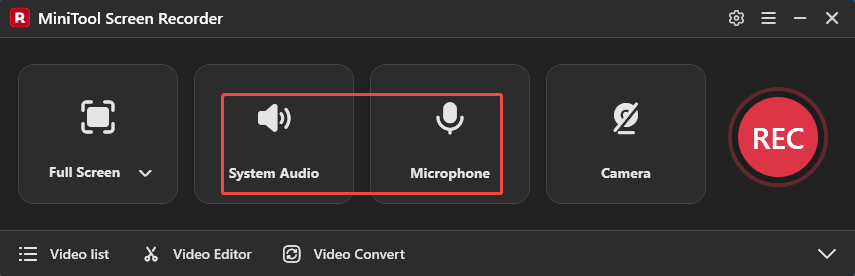
1. System audio and microphone input are enabled by default.
2. Depending on the recording needs, either audio source can be disabled directly by clicking the relevant icons.
Step 5: Manage the Webcam Recording
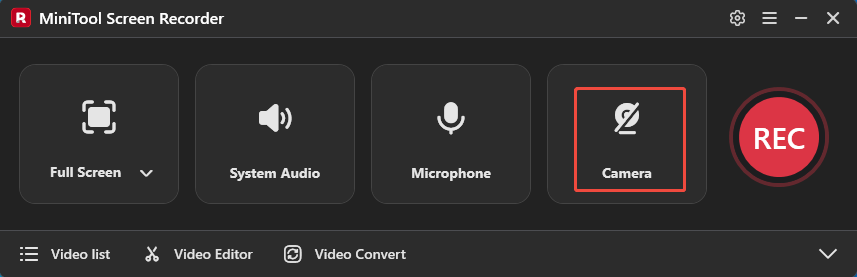
To record one screen on dual monitors with webcam footage, click the Camera icon to enable the webcam recording feature.
Step 6: Start and End Recording
1. Press the F6 key or click the REC button to start the recording process.
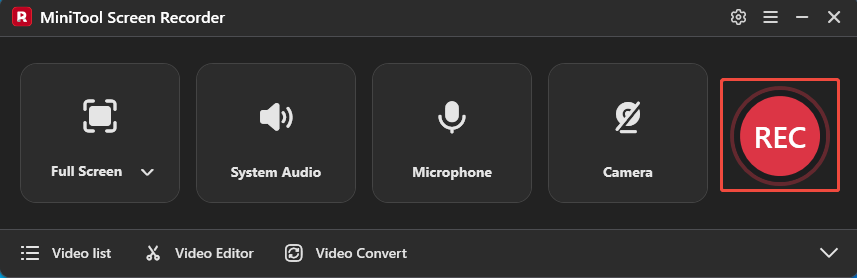
2. After a 3-second countdown, go to the target content that needs to be recorded.
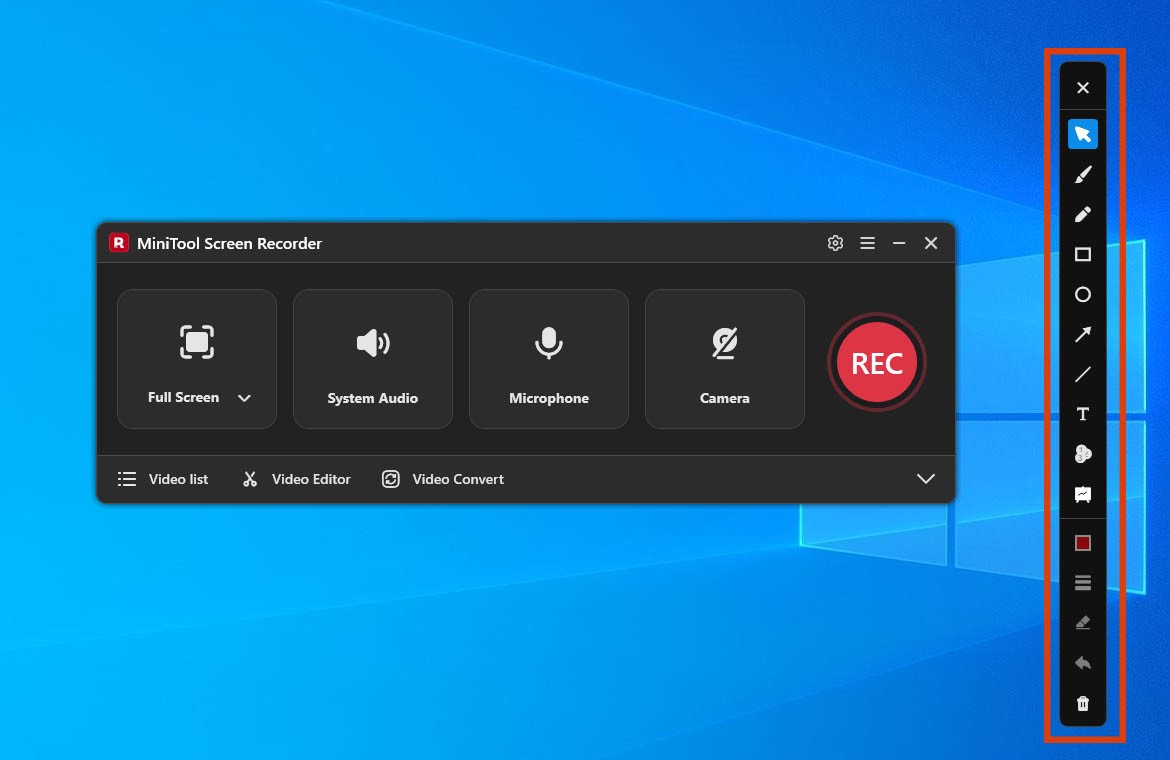
3. During recording, important areas of the screen can be marked in real time using the annotation tools on the right panel.
Step 7: View and Locate the Recorded Video.
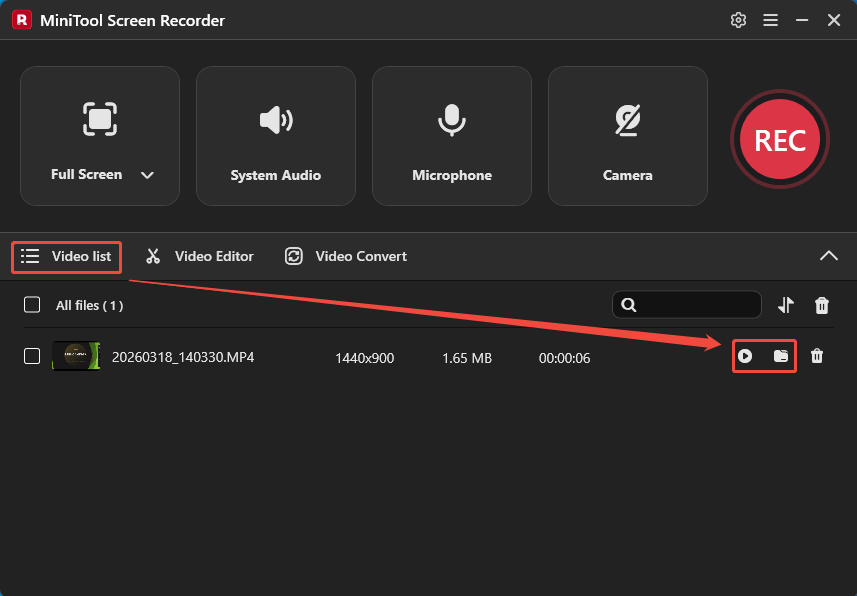
1. Once recording is completed, the software automatically displays the recorded videos in the Video list section.
2. Then, click the Play icon to view the recorded video, or click the Folder icon to locate it on the PC.
Why I Choose MiniTool Screen Recorder
The main reason I chose MiniTool Screen Recorder is that it makes recording a single screen much easier when using a dual-monitor setup. This tool allows me to select a specific monitor, making it easy to focus the recording on the target screen. Meanwhile, MiniTool Screen Recorder also supports recording two screens at once or multiple screens.
Besides, MiniTool Screen Recorder offers a variety of other recording area options, including full-screen recording, specific area recording, and window recording, as well as system audio and microphone audio recording. What surprised me most was its ability to enable camera recording while capturing a single screen.
More importantly, MiniTool Screen Recorder has a built-in annotation tool that allows me to annotate the screen in real time while recording, resulting in clearer tutorial videos.
MiniTool MovieMakerClick to Download100%Clean & Safe
![How to Record Second Monitor with an Excellent Tool [Pro Guide]](https://images.minitool.com/recorder.minitool.com/images/uploads/2026/05/how-to-record-second-monitor-thumbnail.jpg)
Why Single Screen Capture with Dual Monitors
When using dual monitors, many users typically separate work content and private information across different screens. For this reason, including myself, many people prefer recording only a single screen in order to:
- Keep the audience focused on key information.
- Reduce distractions from unrelated content during recording.
- Improve the overall smoothness of the recording process.
- Create cleaner and more professional-looking videos.
- Simplify the post-recording video editing process.
- Avoid exposing private or sensitive information.
Bottom Line
This article explains how to capture only one screen with dual monitors using MiniTool Screen Recorder. Recording only the target display can help keep videos more organized and reduce distractions during recording.
If you run into any issues when trying out MiniTool Screen Recorder or MiniTool MovieMaker, send an email to support@minitool.com.