

This article introduces the 7 best online game recording software, including Xbox Gam Bar, MiniTool Screen Recorder, Medal, RecMaster, and more. It compares their recording quality, feature support, and performance to help identify a suitable tool for capturing online game highlights.
Online games are video games that require an internet connection to run. Players can use these games to compete online, chat, hone their skills, and more. With the increasing popularity of online games, the demand for game recording has grown. Therefore, finding and selecting suitable online game recording tools has become essential.
What Makes a Good Online Game Recording Software
There are various online game video recorders on the market, and they differ in performance and functionality. It is easy to choose the right one by measuring them according to the following criteria.
- Ease of use
- Recording quality.
- Frame rate
- Recording length
- Price
7 Best Online Game Screen Recorders
As someone who frequently captures game footage, I know that efficiency and practicality are our primary considerations. Therefore, I've excluded tools that significantly impact the recording process and selected 7 that I believe are worth trying, including both built-in and third-party tools:
- Xbox Game Bar
- Snipping Tool
- Clipchamp
- MiniTool Screen Recorder
- Medal
- Bandicam
- RecMaster
Quick Comparison
| Ease of Use | Recording Quality | Frame Rate | Recording Length | Price | |
| Xbox Game Bar | Yes | Up to 1080p | Up to 60FPS | 4 Hours | Free |
| Snipping Tool | Yes | Up to 1080p | Up to 30FPS | No limit | Free |
| Clipchamp | Yes | Up to 1080p | Up to 60FPS | 30 minutes | Free / Paid |
| MiniTool Screen Recorder | Yes | Up to 4K | Up to 60FPS | No limit | Free |
| Medal | Yes | Up to 1440p | Up to 144FPS | No limit | Free / Paid |
| Bandicam | Yes | Up to 4K | Up to 480FPS | 10 min Free | Free / Paid |
| RecMaster | Yes | Up to 4K | Up to 60FPS | No limit | Free / Paid |
Option 1: Xbox Game Bar
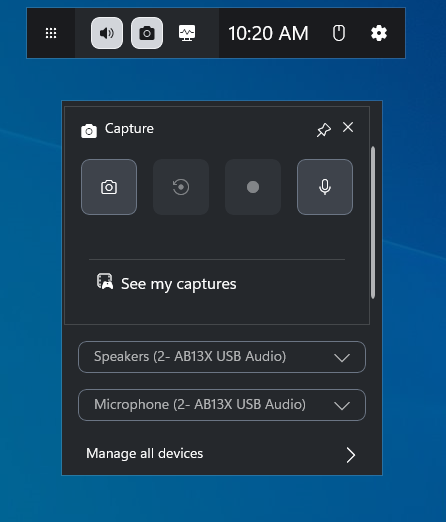
Some players may not need complex tools; they simply want to quickly capture the action when a highlight occurs. That’s where Xbox Game Bar 7.326.6011.0 comes in handy. Since it is built into Windows, it runs automatically in the background whenever I launch a game.
This tool offers two recording modes: background recording and manual recording. The former captures footage ranging from the last few seconds up to a maximum of 10 minutes, while the latter allows for manual recording via keyboard shortcuts.
Although I wouldn't call Xbox Game Bar's recording capabilities flawless, it is undoubtedly an excellent choice for quickly capturing exciting in-game moments. It is precisely this convenience that led me to choose it.
Core Highlights: No manual installation is required; simply press the keyboard shortcut Windows + G to launch it.
Drawbacks: Only the current application window can be recorded, and the desktop area cannot be captured. Recording time is up to four hours.
Game Bar’s performance was excellent overall, and the hit to performance should be nominal for already taxed resources on budget gaming machines.https://www.pcworld.com/article/402801/game-bar-for-windows-10-review.html
Option 2: Snipping Tool
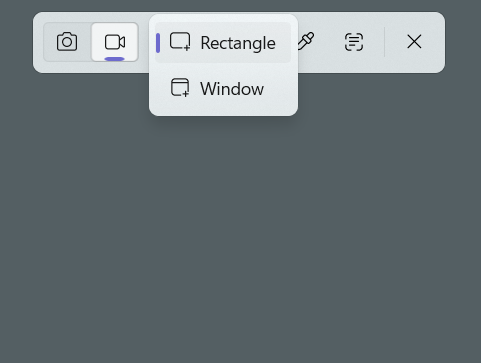
The Snipping Tool 4.1 is another built-in Windows utility. Unlike Game Bar, which was originally designed with gamers in mind, this tool is better suited for basic recording tasks. However, in my experience, it is fully capable of handling the recording of basic online games.
Furthermore, compared to Game Bar, it offers more flexible options for selecting the recording area. Therefore, if I need to record both the game window and the area outside of it, I choose to use the Snipping Tool.
Of course, the Snipping Tool still has some shortcomings. Although it supports unlimited recording time, my repeated tests indicate that the optimal duration is around 30 minutes. Exceeding this limit not only leads to stuttering and dropped frames but also results in excessively large file sizes.
Core Highlights: No manual installation required; the recording area is customizable.
Drawbacks: Performance is relatively poor; prolonged recording often results in stuttering and dropped frames.
Snipping Tool is one of the easiest screen-capture utilities to come by if you work or play on a PC, as it is built into Windows 11. You can quickly launch the Snipping Tool at any time by pressing the Windows key + Shift + S. https://www.pcmag.com/reviews/microsoft-snip
Option 3: Clipchamp
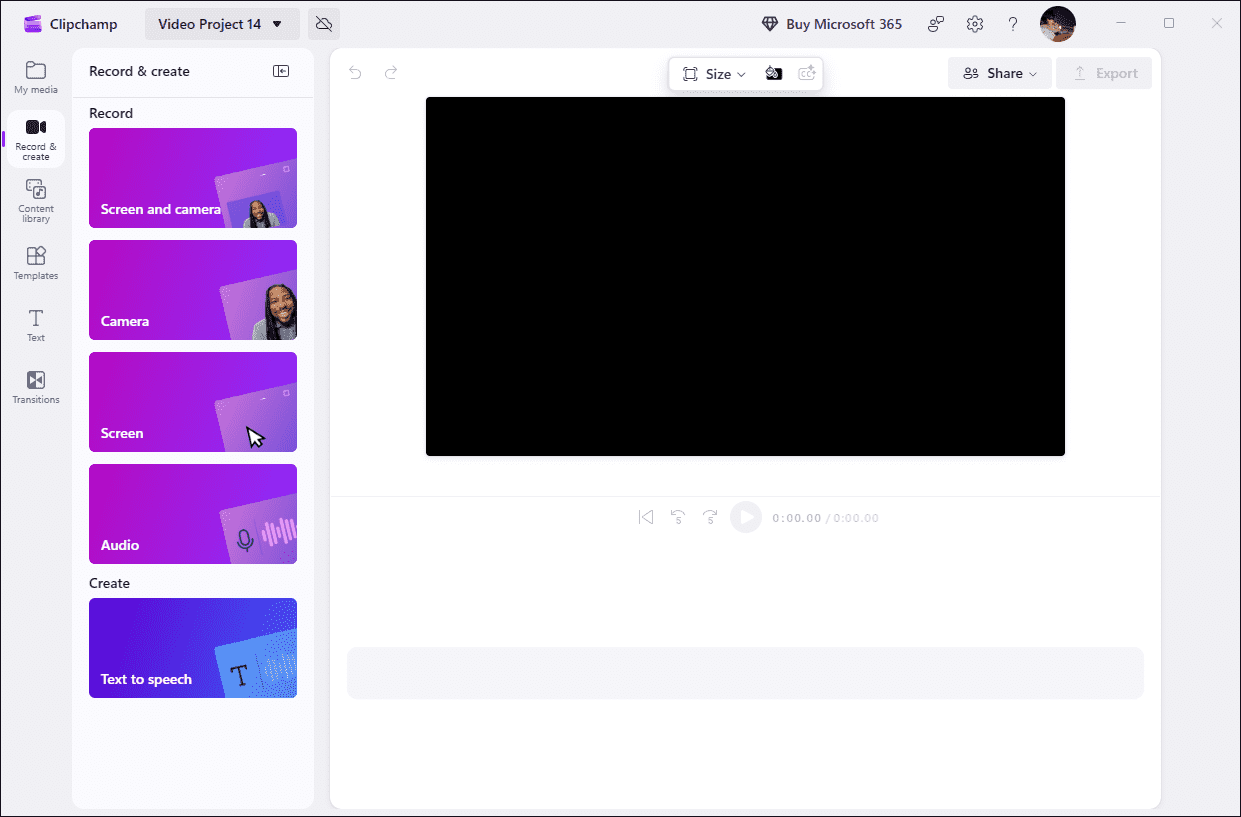
Clipchamp 4.5’s standout advantage is its convenience. It integrates seamlessly with Windows and offers both desktop and web-based versions. Moreover, the tool combines recording and editing capabilities, making it ideal for an all-in-one workflow when creating gaming videos.
For instance, after recording, I can instantly switch to the editing interface to adjust the visuals and add subtitles, then share the finished product to social media platforms with just a single click. Compared to the previous two built-in tools, Clipchamp offers a richer set of features, such as the ability to overlay webcam footage while recording gameplay.
However, it is not the ideal choice for users who need to record long gaming sessions, as there is a 30-minute limit on the duration of each recording clip. Nevertheless, if there is a need to create professional-looking gaming videos without switching between different applications, Clipchamp is definitely worth a try.
Core Highlights: Available in both desktop and web versions, it integrates recording and editing capabilities.
Drawbacks: The maximum recording duration is 30 minutes, and some advanced features require a subscription.
Clipchamp comes with a built-in web camera and screen recording, which is great. https://cristian-70480.medium.com/best-and-worst-practices-with-microsoft-clipchamp-ebf208fdc224
Option 4: MiniTool Screen Recorder
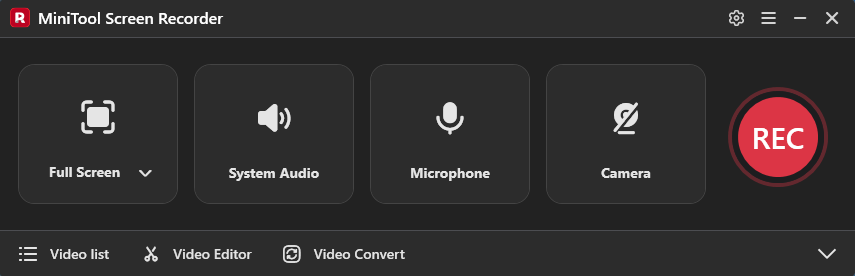
For simple online game recording tasks, the three tools mentioned above are more than sufficient. However, creating professional videos, such as game tutorials, requires a third-party screen recorder. The free online game recording tool, MiniTool Screen Recorder 1.4, is my top choice, primarily because it is completely free and feature-rich.
Additionally, it offers the flexibility to record the full screen, a specific area, or a designated game window, and even supports simultaneous webcam recording. What’s more, the tool features an intuitive interface that ensures a simple recording process.
Moreover, it also integrates annotation tools directly into the software, further reducing the workload for subsequent video editing. My favorite feature is the ability to adjust various parameters, such as recording frame rate, webcam settings, and recording duration, which will undoubtedly appeal to gaming video creators.
Core Highlights: Completely free with no recording time limits. Supports 4K capture and allows users to add overlays such as webcam feeds and graphics.
Drawbacks: Only available for Windows. Lacks some advanced game recording features.
MiniTool Screen Recorder offers a balanced mix of simplicity, flexibility, and quality for everyday screen recording tasks. It captures video and audio smoothly, adds helpful tools like live drawing, and maintains stable performance even during long sessions. https://filecr.com/windows/minitool-screen-recorder/
Option 5: Medal
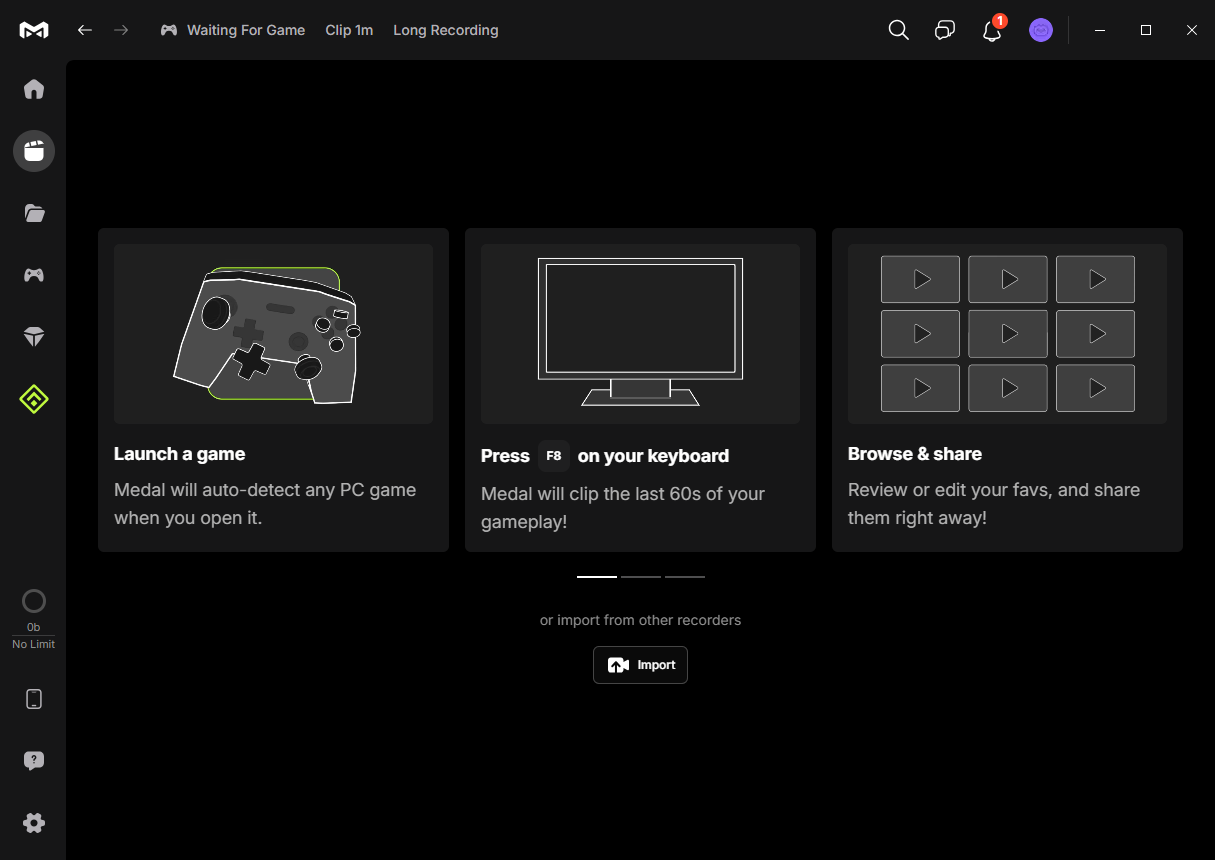
In my view, Medal 2633.2429.1 feels like a more advanced version of Xbox Game Bar. It supports automatic highlight capture and manual recording. However, the automatic recording time is short, only 60 seconds. Upon opening the tool, what first attracted me was its intuitive interface; although the various functional modules differ, they are all very clear and easy to understand.
Furthermore, Medal has built-in editing functions and supports direct sharing of recorded and edited videos to social media platforms such as YouTube, Discord, and TikTok. What surprised me most was that the application supports video recording at up to 144FPS with almost no impact on computer performance.
To be honest, in my opinion, Medal is also a social platform because I can directly share videos with the Medal community. These communities have a wealth of game highlights for users to watch and learn from.
Core Highlights: It offers automatic highlight detection, a built-in gaming community, and recording at up to 144 FPS.
Drawbacks: The free version has limitations on video upload quality and frame rate.
The great thing about the Medal screen recording is that it doesn't get in the way of recording the moments you really want. It doesn't force you to record whole game sessions; rather, it comes with handy features that allow you to cut, edit, and share your moments with ease. https://www.free-videoconverter.net/screen-recording/medal-screen-recorder/
Option 6: Bandicam
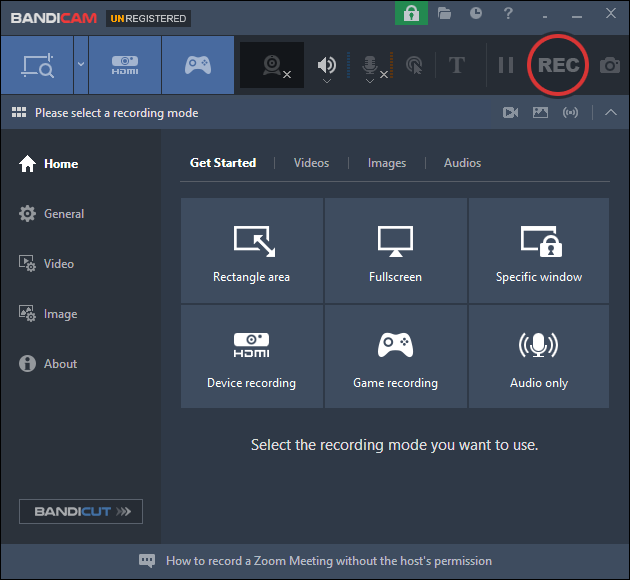
If a smooth recording experience is the top priority, then don't miss Bandicam 8.3.1. It's a lightweight and easy-to-use recording tool that supports recording games at up to 480 frames per second while maintaining low CPU usage.
Moreover, I think Bandicam is also a good choice for recording game tutorial videos. It not only supports cursor tracking but also allows for real-time screen annotation during recording. However, I believe its most valuable features are its 3D game recording capability and its ability to record game console footage when paired with a capture card.
Unfortunately, while the software is feature-rich, many advanced features require a subscription to use.
Core Highlights: Supports high frame rate game capture with low CPU usage.
Drawbacks: The free version has a 10-minute recording time limit and will add a watermark.
Bandicam is a fit for small businesses, educators, and creative teams needing reliable screen and video recording on Windows.https://www.capterra.com/p/188396/Bandicam-Screen-Recorder/#reviews
Option 7: RecMaster
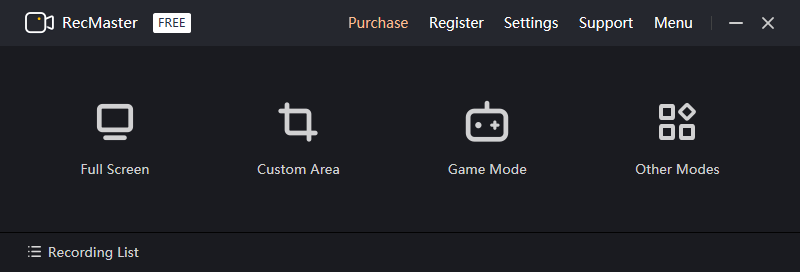
RecMaster 3.8 is also a simple and easy-to-use screen recording tool. It offers a wealth of recording area options, including full screen, region, window, and game mode.
Compared to traditional online game screen recording tools, I think it's perfect for gamers who want to free their hands. This is because RecMaster has a timed recording function, allowing users to freely set the start and end times of recording. However, it should be noted that the advanced features of this recording tool require payment to use.
Core Highlights: It offers multiple recording area options and features a timed recording function.
Drawbacks: Premium features require a paid subscription.
As a marketer, I frequently use RecMaster to record software tutorials for my customers (with watermark) and create training and presentation videos for my colleague. It works well with internal sound, microphone and front camera. The built-in annotation is helpful to make some marks and notes.https://www.g2.com/products/recmaster/reviews
In general, these 7 tools can be divided into two main categories: built-in tools and third-party tools. The former is suitable for quickly recording online games, while the latter is more suitable for users who need advanced recording features.
How to Record an Online Game
The above 7 online game recording tools all use similar recording principles.
Fast Track Steps:
- Open the game.
- Install the recording tool and launch it on the PC.
- Configure the recording settings.
- Choose the game recording mode.
- Manage the audio and webcam recording functions.
- Start the recording process and play the online game.
- Annotate the screen if necessary.
- End the recording process and check the recorded online game video.
- Edit the recorded video.
This article uses MiniTool Screen Recorder as an example to record the detailed steps of online games with specific parameters.
1. Open the game.
MiniTool Screen RecorderClick to Download100%Clean & Safe
2. Click the button above to download and install MiniTool Screen Recorder, then open it on the PC.
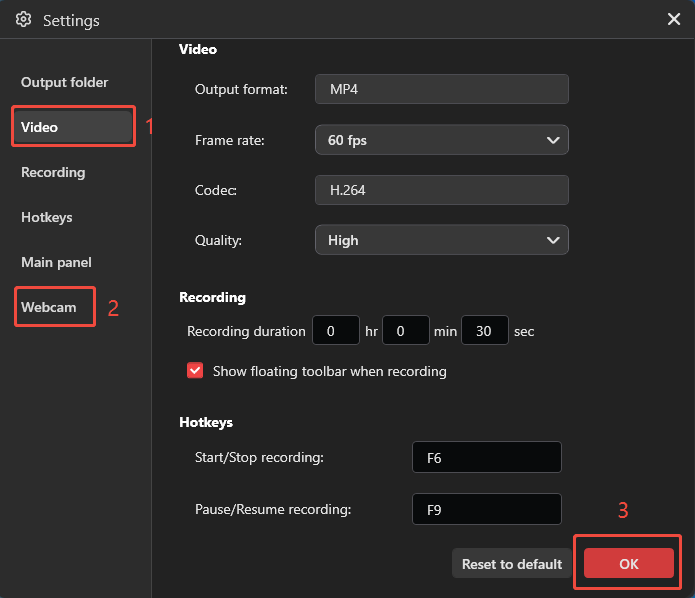
3. Click the Settings icon. In the new window, navigate to the Video section to choose the recording frame rate and video quality. Then, move to the Webcam section to adjust the position, shape, and size. To save the changes, click on OK.
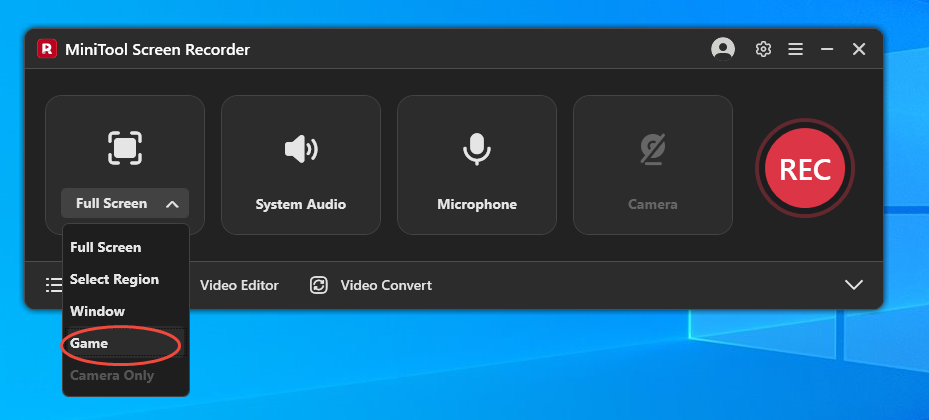
3. This tool captures the full screen by default. To record online games easily, I recommend expanding the Full Screen option, then choosing the Game option as the recording mode.
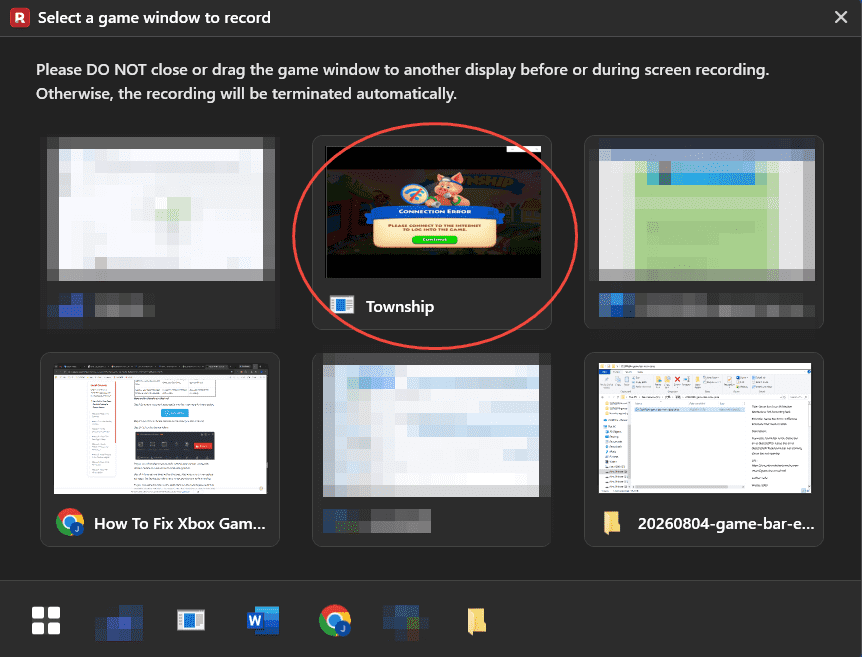
4. In the new pop-up window, select the target online game window. Then, do not close or drag the window to another display during the recording process.
5. This tool captures the computer audio and microphone input by default. If there is a need to disable one of them, click the relevant icon on the floating bar.
6. To record online game with webcam, click the Camera icon in the floating bar to enable the webcam recording function.
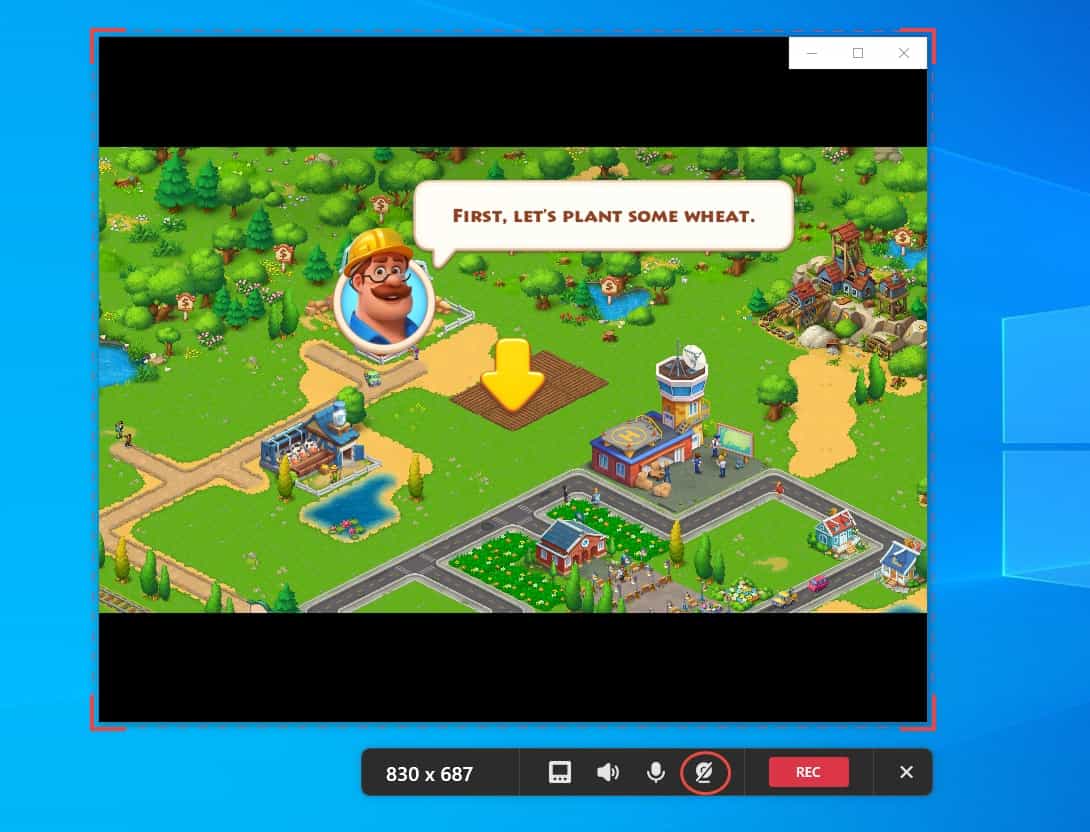
7. Then, click the REC button on the floating bar to begin the recording process. When the 3-second countdown ends, play the target online game.
8. To mark the screen during the recording, choose tools from the annotation toolbar on the right of the screen.
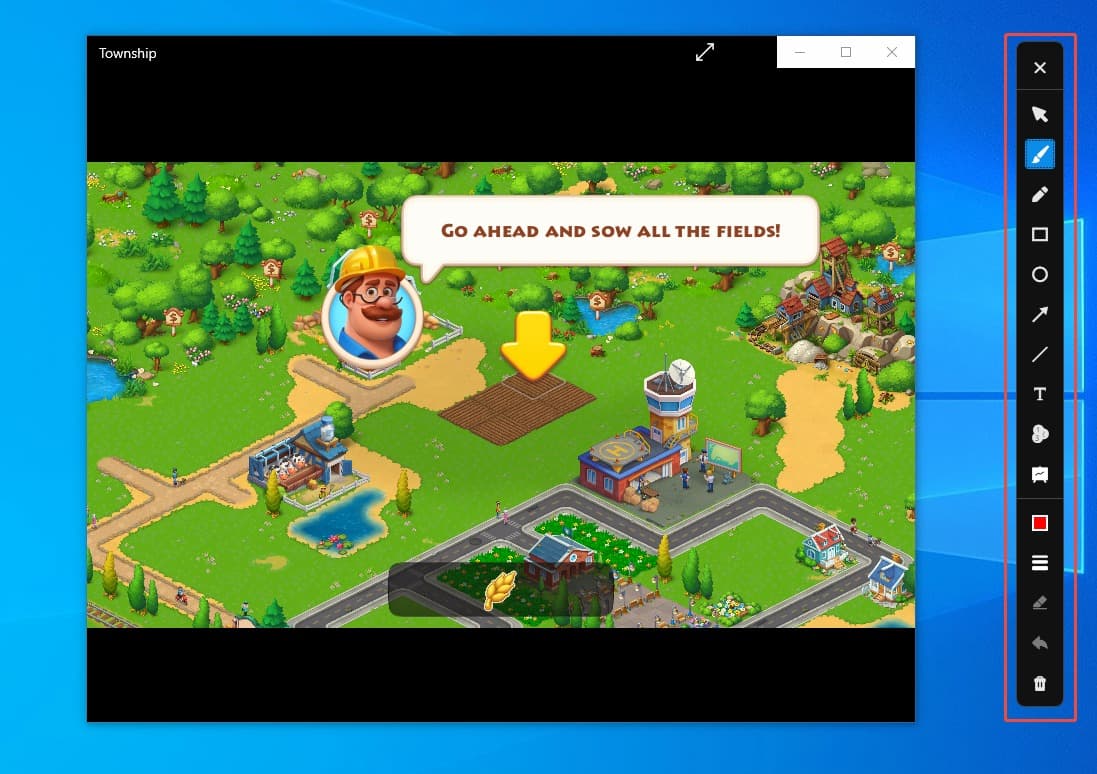
9. To end the recording process, press the F6 key. Then, check the recorded online game video under the Video list section.
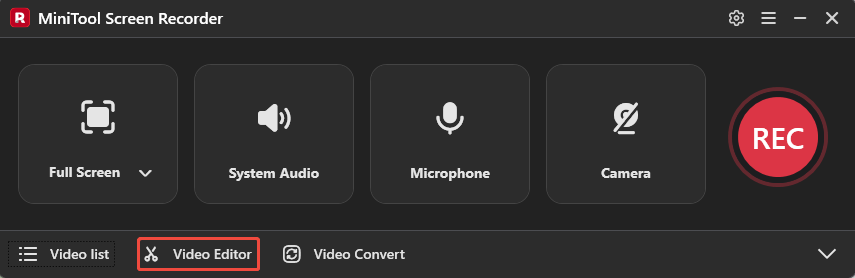
10. Finally, if there is a need to edit the recorded video, click the Video Editor option to get MiniTool MovieMaker for quick editing.
MiniTool MovieMakerClick to Download100%Clean & Safe
Conclusion
This article provides 7 excellent online game recording tools, including Xbox Game Bar, Snipping Tool, Clipchamp, MiniTool Screen Recorder, Medal, Bandicam, and RecMaster. They differ in recording quality, features, and price, so the choice should be based on specific needs.
If you encounter any questions when using MiniTool Screen Recorder or MiniTool MovieMaker, send an email to support@minitool.com.