

Samsung laptops run on the Windows operating system and encompass various series, such as the Galaxy Book, Galaxy Book Edge, Galaxy Chromebook, and Galaxy Book Flex, among others.
Can You Screen Record on Samsung Laptop
Can you record your screen on a Samsung laptop? The answer is yes. Among the Samsung laptop series mentioned earlier, the Galaxy Book line comes with a built-in Samsung Screen Recorder tool that allows users to capture their screen directly.
For those not using this series, however, it is necessary to rely on third-party screen recording software.

How Do I Screen Record on Samsung Laptop
Fast Track Steps:
- Open the recording tool
- Choose the recording area
- Adjust audio and camera recording settings
- Start recording
- Move to the content that needs to be recorded
- Annotate the screen if necessary
- End recording and check the recorded video
Capturing the screen on a Samsung laptop depends on the user's specific needs and the particular laptop series being used. Based on potential user requirements, I have selected the following two tools:
- Samsung Screen Recorder
- MiniTool Screen Recorder
Method 1: Use Samsung Screen Recorder
Samsung Screen Recorder is an official screen-recording tool from Samsung, designed exclusively for its Galaxy Book series of laptops. Integrated directly into the system, it allows users to capture the entire screen or a specific, custom-selected area with a single click. It also supports overlaying a webcam feed onto the recording.
Furthermore, Samsung Screen Recorder offers real-time drawing and annotation features, enabling me to draw lines, highlight content, or write directly on the screen while recording. It is worth noting, however, that the tool may not support game capture on certain laptop models. If that is not a requirement for you, Samsung Screen Recorder is a solid choice.
Follow the steps below to screen record on Samsung laptop with Samsung Screen Recorder:
1. Type Screen Recorder on the Windows taskbar, then open the Samsung Screen Recorder on the PC.
2. Then, click on the Video Camera icon to switch to the screen recording mode. Next, choose the recording area from the Full Screen or the Selected Area option.
3. Click the Gear icon to determine whether to capture the system audio, microphone audio, or both. Then, to capture footage from the camera, enable the camera recording function.
4. Next, click the Record button on the toolbar to begin the recording process.
5. To end the recording process, click the Stop recording button on the toolbar. Finally, check the recorded video under the Videos folder on your computer.
For Samsung laptops that do not support Samsung Screen Recorder, or for users seeking a smoother gameplay recording experience, the following method offers convenient alternatives.
Method 2: Use MiniTool Screen Recorder
MiniTool Screen Recorder is a free screen recording tool for Windows. Much like Samsung Screen Recorder, it offers powerful screen capture capabilities. It provides users with a variety of recording area options, including full-screen, specific regions, individual windows, gameplay, and webcam feeds.
Furthermore, MiniTool Screen Recorder includes built-in annotation tools, enabling users to highlight key information in real-time while recording. Perhaps its most notable feature, however, is the ability to customize settings such as video quality, frame rate, and preset recording duration.
Here are the detailed steps on how to screen record on Samsung computer with MiniTool Screen Recorder.
MiniTool Screen RecorderClick to Download100%Clean & Safe
1. Click the button above to download MiniTool Screen Recorder. Then, follow the on-screen instructions to install it.
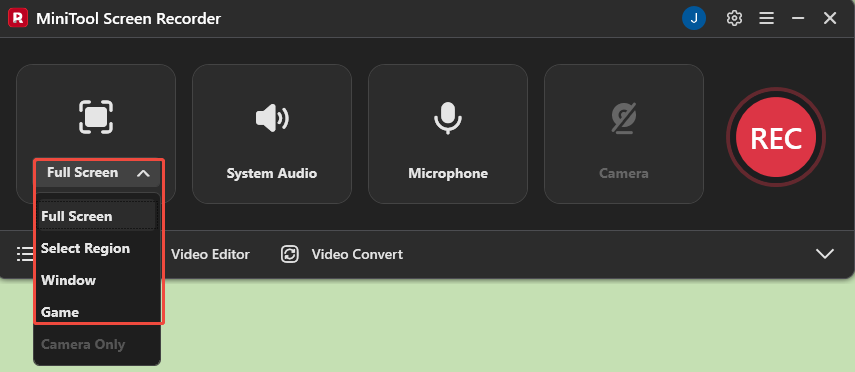
2. Launch this tool on the PC. The tool captures the entire screen by default. To record a specific area, window, or game, expand the Full Screen option, then choose the relevant options.
3. By default, both system audio and microphone recording are enabled. Click the System Audio or Microphone icon to turn off the corresponding audio source if needed.
4.To include webcam footage in the recording, click the Camera icon to turn on the webcam.
5. Next, click the REC button to begin the recording process. Move to the content that needs to be recorded after the 3-second countdown.
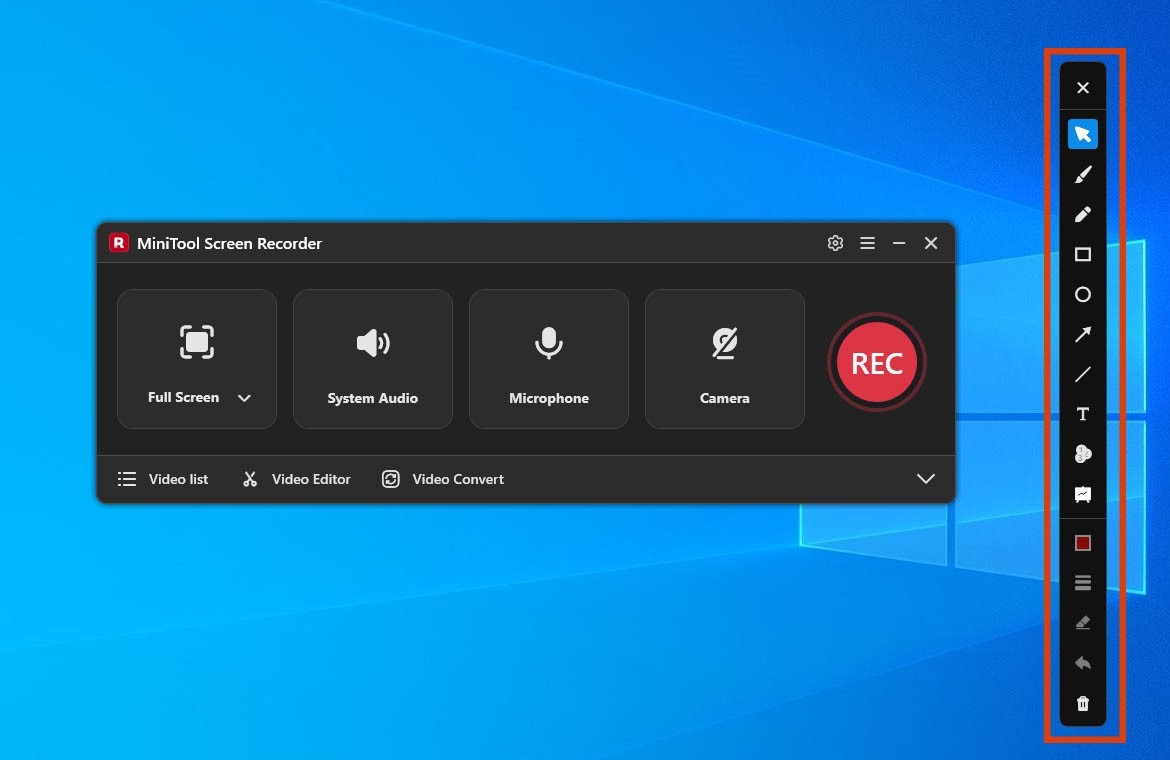
6. If there is a need to annotate the screen while screen recording, select the tools from the toolbar on the right.
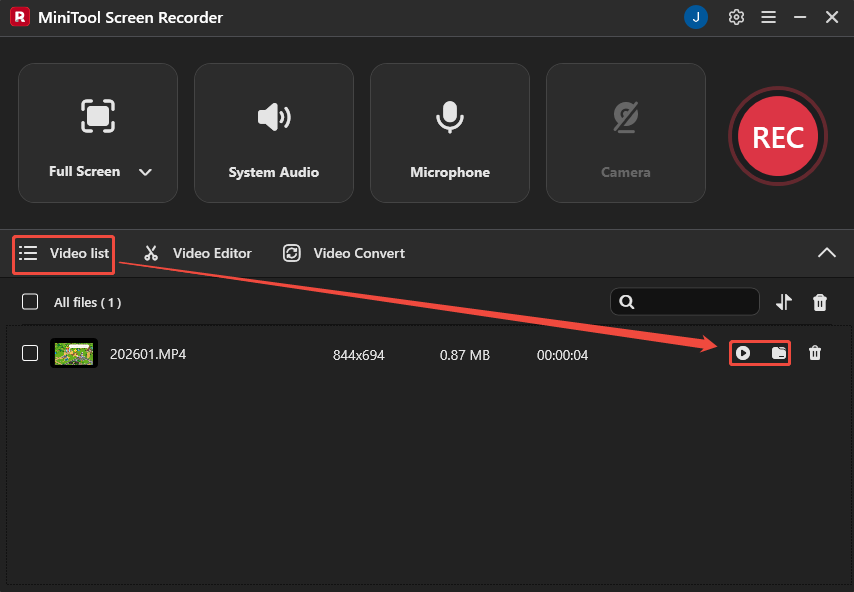
7. To end the recording process, press the F6 key. Then, the tool will automatically switch to the Video list section. Next, click the Play icon to view the recorded video, or click the Folder icon to check the video file save location.
In my view, both Samsung Screen Recorder and MiniTool Screen Recorder are solid choices. The former is highly convenient as it comes built into Samsung computers, while the latter offers greater flexibility thanks to its more extensive customization options.

Final Thoughts
How to screen record on Samsung laptop? This article introduces two excellent tools: Samsung Screen Recorder and MiniTool Screen Recorder. The former is built into the computer and ready for immediate use, while the latter offers more flexible options for capturing a wide range of on-screen activities.
If you have any questions when using MiniTool Screen Recorder, send an email to support@minitool.com to ask for help.